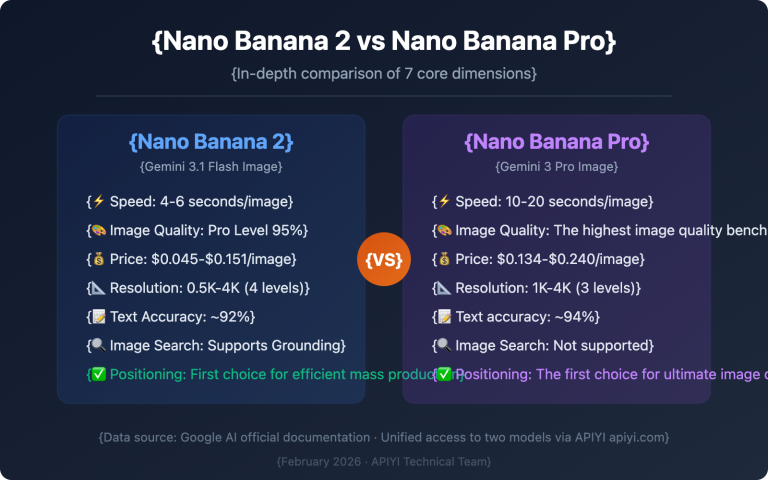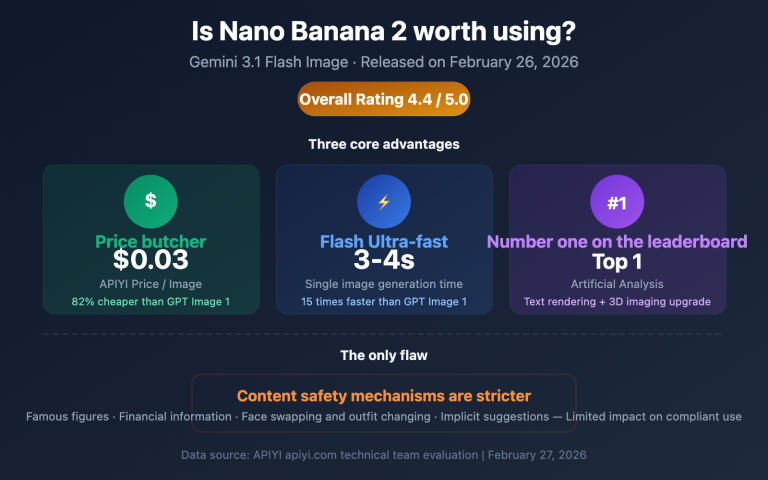
Using Gemini image generation models in ComfyUI is a common need for many creators. This article will show you how to integrate Nano Banana 2 into ComfyUI in 3 steps, enabling workflows like text-to-image, image-to-image, and supporting one-click switching between NB2, NB Pro, and the entire NB model series.
Core Value: By the end of this article, you'll know how to configure the Gemini image generation API in ComfyUI, master model switching techniques, and quickly set up your AI image generation workflows.
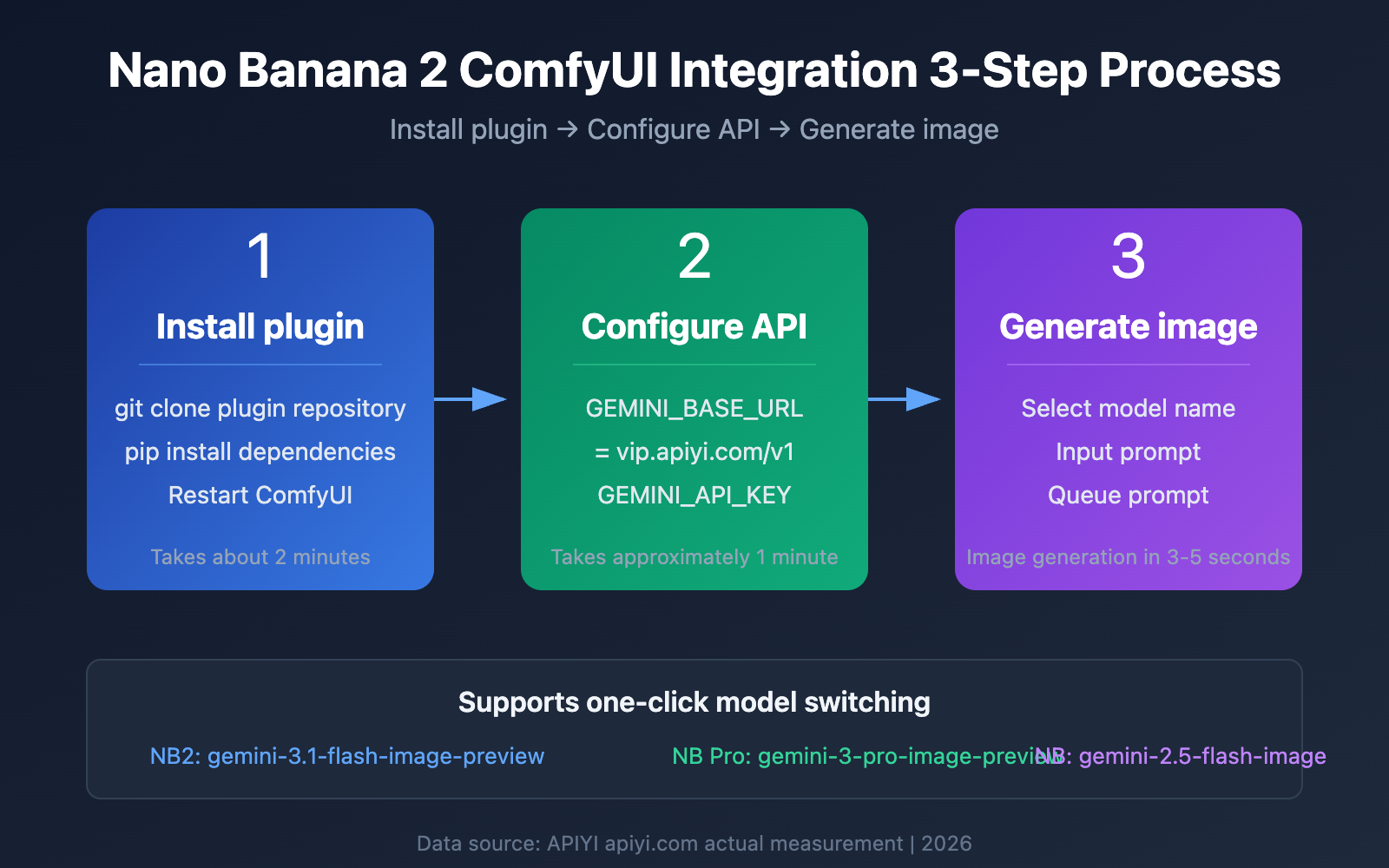
Key Aspects of Integrating Nano Banana 2 with ComfyUI
Nano Banana 2 (gemini-3.1-flash-image-preview) is Google's latest image generation model, and you can easily integrate it using ComfyUI custom nodes.
| Key Point | Description | Value |
|---|---|---|
| Plugin Installation | Supports various ComfyUI custom nodes | Flexible choice of suitable solutions |
| API Configuration | Just set base_url and your API key |
5-minute setup |
| Model Switching | Only requires modifying the model parameter |
One-click switching across the entire model series |
| Workflows | Text-to-image, image-to-image, style transfer | Covers mainstream creative scenarios |
Detailed Explanation of Nano Banana 2 ComfyUI Integration
The core of integrating Nano Banana 2 into ComfyUI is: choosing the right plugin + configuring the API correctly. Unlike directly calling Google's official API, using APIYI's (apiiyi.com) unified interface lets you seamlessly use the entire Gemini image generation model series within ComfyUI, without dealing with complex network and authentication issues.
The integration method is essentially identical to Nano Banana Pro; the only difference is the model name. If you've already configured NB Pro, you just need to change the model name to gemini-3.1-flash-image-preview.
Why Integrate Nano Banana 2 via ComfyUI?
Compared to direct API calls or other tools, ComfyUI integration offers unique advantages:
- Visual Workflows: Node-based operations are intuitive (what you see is what you get) and easy to debug.
- Batch Processing Capability: Supports queued batch generation, perfect for high-volume image needs.
- Workflow Reusability: Set up a workflow once and reuse it repeatedly, boosting efficiency.
- Strong Extensibility: Can be combined with other ComfyUI nodes for post-processing, super-resolution, and more.
- Local Execution: Workflows run locally; only API calls traverse the network, ensuring greater data security.
Nano Banana 2 Full Series Model Comparison
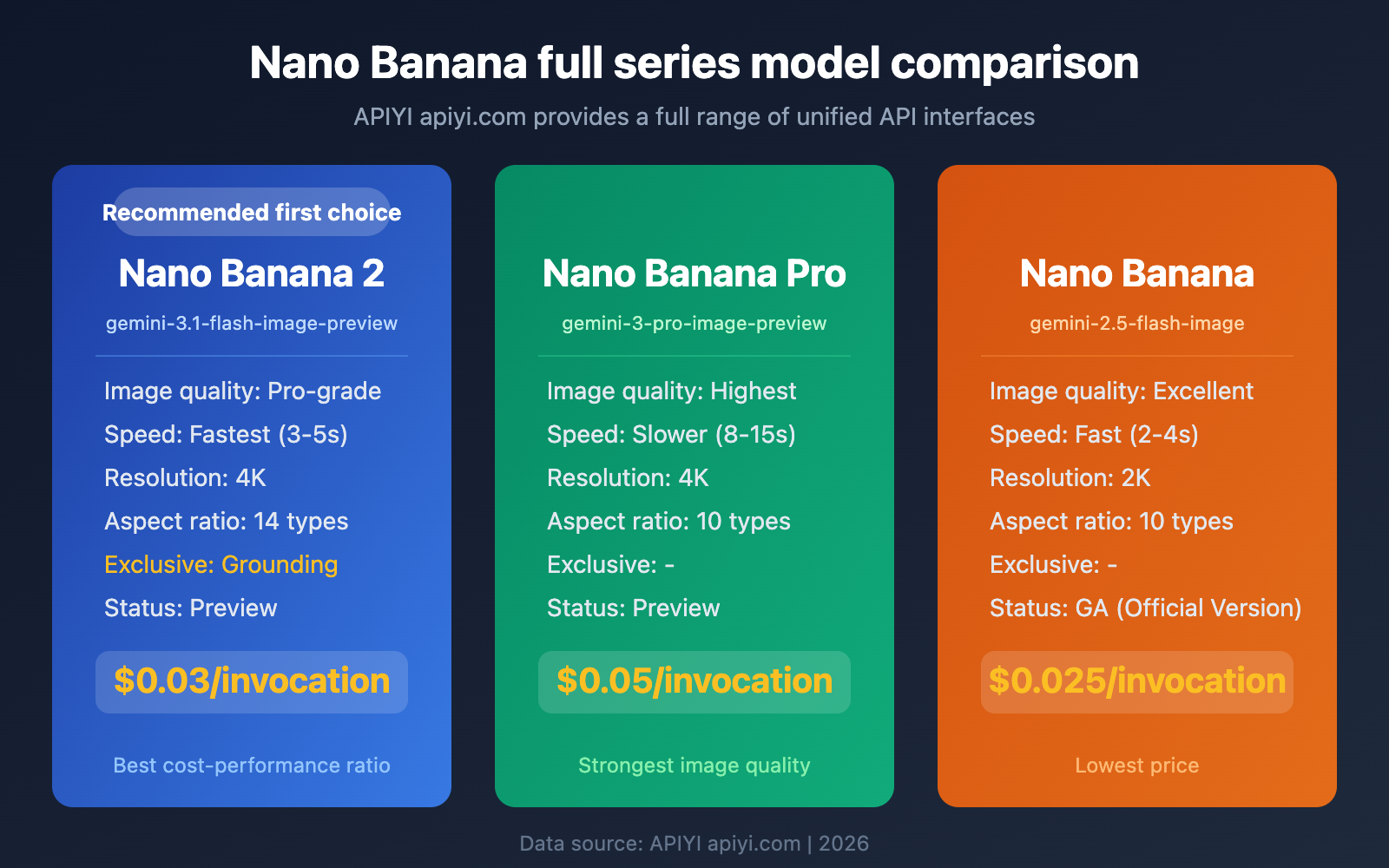
Before integrating with ComfyUI, let's first understand the full range of Gemini image generation models offered by APIYI:
| Comparison Metric | Nano Banana 2 | Nano Banana Pro | Nano Banana |
|---|---|---|---|
| Model Name | gemini-3.1-flash-image-preview | gemini-3-pro-image-preview | gemini-2.5-flash-image |
| Image Quality Level | Pro-grade Quality | Highest Quality | Excellent Quality |
| Generation Speed | Fastest | Slower | Fast |
| Max Resolution | 4K | 4K | 2K |
| Aspect Ratios | 14 types | 10 types | 10 types |
| Exclusive Features | Image Search Grounding | – | – |
| APIYI Price | $0.03/invocation | $0.05/invocation | $0.025/invocation |
| Status | Preview | Preview | GA |
Nano Banana 2 Supported Aspect Ratios
Nano Banana 2 supports 14 aspect ratios, the most among the three models. You can select them using the aspect_ratio parameter in the ComfyUI node:
| Aspect Ratio | Use Case | Aspect Ratio | Use Case |
|---|---|---|---|
| 1:1 | Avatars, social media | 9:16 | Phone wallpapers, short video covers |
| 16:9 | Horizontal covers, desktop wallpapers | 3:4 | Vertical posters |
| 4:3 | Traditional photo ratio | 2:3 | Portrait photography |
| 3:2 | Landscape photos | 9:21 | Ultra-long vertical |
| 21:9 | Ultrawide screen | 4:5 | |
| 5:4 | Slightly horizontal square | 16:10 | Monitor ratio |
| 10:16 | Vertical banner | Custom | Set as needed |
🎯 Selection Recommendation: Nano Banana 2 strikes the best balance between image quality and speed, making it the recommended model for daily creative work in ComfyUI. You can get a unified API interface for the entire model series through APIYI (apiyi.com), making it easy to switch models anytime.
Nano Banana 2 ComfyUI Plugin Options
Currently, there are several ComfyUI plugins that support Gemini image generation. We recommend the following two options:
Option A: ComfyUI-IF_Gemini Plugin (Recommended)
ComfyUI-IF_Gemini is currently the most mature Gemini ComfyUI node. It natively supports base_url configuration, making it ideal for integration via APIYI.
Advantages:
- Natively supports custom
base_url; you can directly enter the APIYI interface address. - Supports various workflows like text-to-image, image-to-image, and multi-turn conversations.
- Actively maintained, quick community feedback response, and continuous feature updates.
- Uses environment variables for API key configuration, avoiding hardcoding for secure and convenient use.
- Supports setting advanced parameters like
temperatureandaspect_ratio.
GitHub Repository: github.com/if-ai/ComfyUI-IF_Gemini
Who it's for: Users who need to deeply utilize Gemini image generation features, want to customize more parameters, and build complex workflows.
Option B: comfyui-gemini-nodes (OpenAI Compatibility Mode)
Developed by jqy-yo, comfyui-gemini-nodes supports integration via OpenAI compatibility mode, suitable for users already familiar with OpenAI interfaces.
Advantages:
- OpenAI compatible interface, zero learning curve for users with existing OpenAI experience.
- Supports customization of three parameters:
base_url,api_key, andmodel. - Lightweight implementation with fewer installation dependencies, less prone to environment conflicts.
- Parameters are entered directly in the node interface, offering a 'what you see is what you get' experience.
GitHub Repository: github.com/jqy-yo/comfyui-gemini-nodes
Who it's for: ComfyUI beginners, users who want to quickly get started and test results, and developers with existing OpenAI interface experience.
Nano Banana 2 ComfyUI Plugin Comparison
| Comparison Metric | ComfyUI-IF_Gemini | comfyui-gemini-nodes |
|---|---|---|
| Integration Method | Native Gemini API | OpenAI Compatibility Mode |
base_url Support |
✅ Environment variable configuration | ✅ Node parameter configuration |
| Installation Difficulty | Medium | Easy |
| Feature Richness | High (e.g., multi-turn conversations) | Medium |
| Maintenance Activity | Active | Active |
| Recommended Scenario | In-depth use | Quick start |
💡 Technical Recommendation: If you're new to ComfyUI, we suggest starting with Option B for a quick setup. If you need more extensive features, Option A is recommended. Both options can access the full range of Gemini models via APIYI's (apiyi.com) unified interface.
Getting Started with Nano Banana 2 ComfyUI
Setup Option A: ComfyUI-IF_Gemini
Step 1: Install the Plugin
# Navigate to ComfyUI custom nodes directory
cd ComfyUI/custom_nodes

# Clone the plugin repository
git clone https://github.com/if-ai/ComfyUI-IF_Gemini.git

# Install dependencies
cd ComfyUI-IF_Gemini
pip install -r requirements.txt
Step 2: Configure API (Crucial Step)
Create or edit the .env file in your ComfyUI root directory:
# APIYI Unified API Configuration
GEMINI_BASE_URL=https://vip.apiyi.com/v1
GEMINI_API_KEY=your_apiyi_api_key_here
🚀 Quick Start: Register at APIYI apiyi.com to get your API key. It supports unified model invocation for the entire Gemini image generation model series.
Step 3: Select a Model to Generate Images
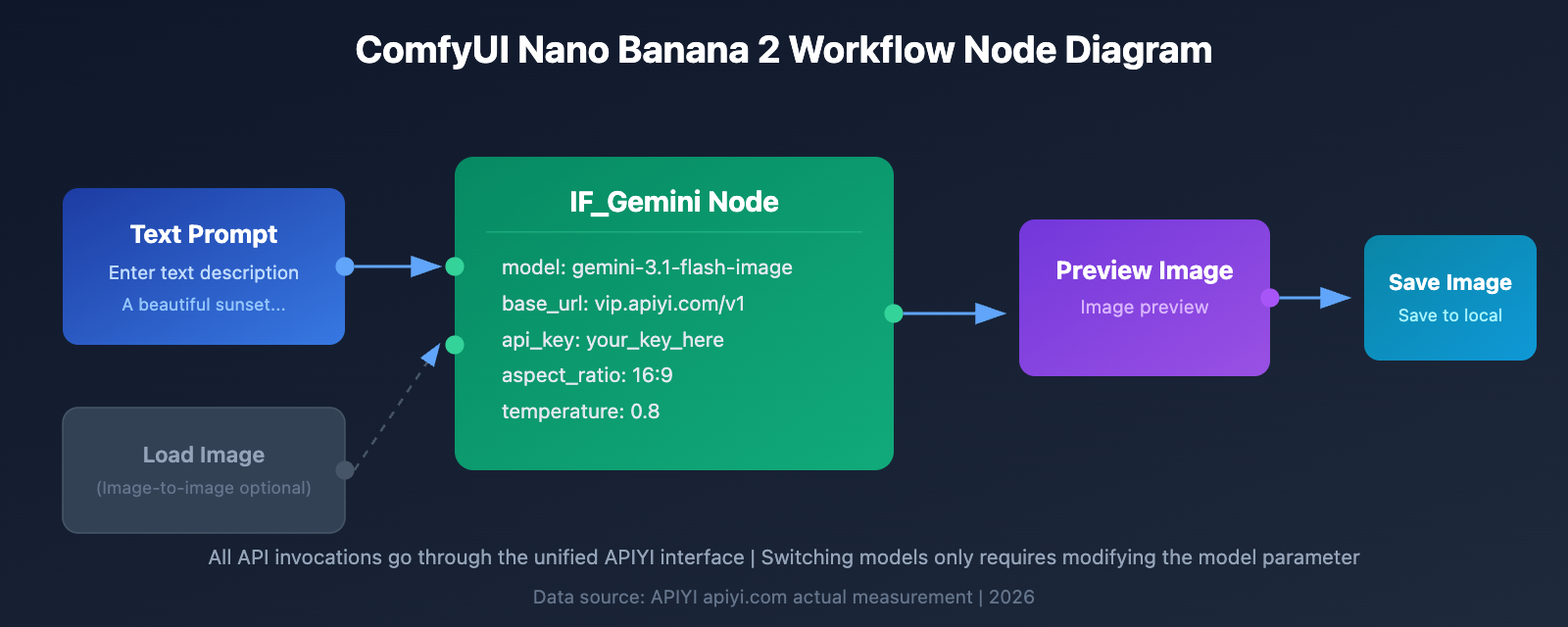
After restarting ComfyUI, find the IF_Gemini node in the node panel and set the model parameter:
model: gemini-3.1-flash-image-preview
To switch to other models, just change this one parameter:
# Nano Banana 2 - Pro-grade quality, fastest speed
model: gemini-3.1-flash-image-preview

# Nano Banana Pro - Highest quality
model: gemini-3-pro-image-preview

# Nano Banana - Cost-effective choice
model: gemini-2.5-flash-image
Setup Option B: comfyui-gemini-nodes
Step 1: Install the Plugin
cd ComfyUI/custom_nodes
git clone https://github.com/jqy-yo/comfyui-gemini-nodes.git
cd comfyui-gemini-nodes
pip install -r requirements.txt
Step 2: Configure API in the Node
Restart ComfyUI, then add a Gemini node and configure its properties:
base_url: https://vip.apiyi.com/v1
api_key: your_apiyi_api_key_here
model: gemini-3.1-flash-image-preview
Step 3: Run the Workflow
Connect the prompt text input node, then click 'Queue Prompt' to generate an image.
Nano Banana 2 ComfyUI Full Code Example
Minimal Python Invocation Example
If you want to verify API connectivity outside of ComfyUI first, you can use the following code to test:
import openai

client = openai.OpenAI(
    api_key="your_apiyi_api_key",
    base_url="https://vip.apiyi.com/v1"  # APIYI Unified API
)

response = client.chat.completions.create(
    model="gemini-3.1-flash-image-preview",
    messages=[
        {
            "role": "user",
            "content": "Generate a beautiful sunset landscape painting"
        }
    ]
)

print(response.choices[0].message.content)
View Full Workflow Configuration JSON
Here's a basic workflow configuration reference for ComfyUI-IF_Gemini:
{
  "nodes": [
    {
      "type": "IF_GeminiGenerateImage",
      "properties": {
        "model": "gemini-3.1-flash-image-preview",
        "prompt": "A beautiful sunset over mountains, oil painting style",
        "aspect_ratio": "16:9",
        "temperature": 0.8
      }
    }
  ],
  "env": {
    "GEMINI_BASE_URL": "https://vip.apiyi.com/v1",
    "GEMINI_API_KEY": "your_apiyi_api_key"
  }
}
Note: Actual node properties might vary slightly depending on the plugin version. Please refer to the plugin documentation for the latest parameters.
Tip: Get free test credits from APIYI apiyi.com to verify API connectivity before building complex workflows.
Nano Banana 2 ComfyUI Workflow Types
Text-to-Image Workflow
This is the most basic and commonly used workflow: you input a text description to generate an image.
[文本 Prompt] → [Gemini 节点] → [图片预览/保存]
Parameter Suggestions:
- model:
gemini-3.1-flash-image-preview - Aspect Ratio: Choose one of 14 options based on your needs (1:1, 16:9, 9:16, 4:3, 3:4, etc.).
- Temperature: 0.7-0.9 (higher for more creativity, lower for more stability).
Prompt Writing Tips:
- Using English prompts usually yields better results.
- Suggested description order: Subject → Environment → Style → Lighting → Details.
- Example: "A cute cat sitting on a windowsill, soft morning light, watercolor style, detailed fur texture"
Image-to-Image Editing Workflow
Upload an image and use text instructions to edit and modify it:
[加载图片] + [编辑 Prompt] → [Gemini 节点] → [编辑后图片]
Typical Editing Instructions:
- "Change the background to a starry night sky."
- "Add a hat to the person."
- "Convert the photo to a watercolor style."
- "Remove the text watermark from the image."
- "Change the daytime scene to dusk."
Key Usage Points: Nano Banana 2's image-to-image capabilities are very powerful; it can understand image content and precisely execute editing instructions. We recommend making your editing instructions as specific as possible, avoiding vague descriptions.
Style Transfer Workflow
Apply the style of one image to another to create a unique combination:
[风格参考图] + [内容图] + [Prompt] → [Gemini 节点] → [风格化图片]
Common Style Transfer Scenarios:
- Convert photos into artistic styles like oil painting, watercolor, or sketch.
- Transform product images into a specific brand's visual style.
- Convert ordinary photos into anime or illustration styles.
Multi-turn Workflow
Nano Banana 2 supports multi-turn conversational image generation and editing, a unique capability not found in traditional Stable Diffusion models:
第1轮: [Prompt: 画一只猫] → [生成猫图片]
第2轮: [上一轮图片 + Prompt: 给猫戴上红色围巾] → [编辑后图片]
第3轮: [上一轮图片 + Prompt: 把背景换成雪景] → [最终图片]
Advantages: Refining images through multiple iterations offers more control than a single, complex prompt.
Nano Banana 2 ComfyUI Recommended Workflow Configurations
| Workflow Type | Recommended Model | Recommended Aspect Ratio | Estimated Time |
|---|---|---|---|
| Text-to-Image (Daily Use) | NB2 | 1:1 / 16:9 | 3-5 seconds |
| Text-to-Image (High Quality) | NB Pro | 1:1 / 4:3 | 8-15 seconds |
| Image-to-Image Editing | NB2 | Same as original image | 3-6 seconds |
| Style Transfer | NB2 | Same as original image | 4-7 seconds |
| Batch Generation | NB | 1:1 | 2-4 seconds |
💰 Cost Optimization: For daily creative work, we recommend using Nano Banana 2. Invoking it via APIYI apiyi.com costs just $0.03/invocation, balancing image quality and cost. For batch generation scenarios, you can switch to Nano Banana ($0.025/invocation) to further reduce costs.
Nano Banana 2 ComfyUI Model Switching Tips
Core Method for One-Click Switching
The entire model series is invoked via a unified APIYI apiyi.com interface. To switch models, you just need to change one parameter:
# Method: Only change the model parameter, others remain the same

# Nano Banana 2 - Daily preferred choice
model = "gemini-3.1-flash-image-preview"

# Nano Banana Pro - For ultimate image quality
model = "gemini-3-pro-image-preview"

# Nano Banana - For cost-effectiveness
model = "gemini-2.5-flash-image"
In the ComfyUI node, simply switch the corresponding model name in the model dropdown or text box. The base_url and API Key do not need to be changed at all.
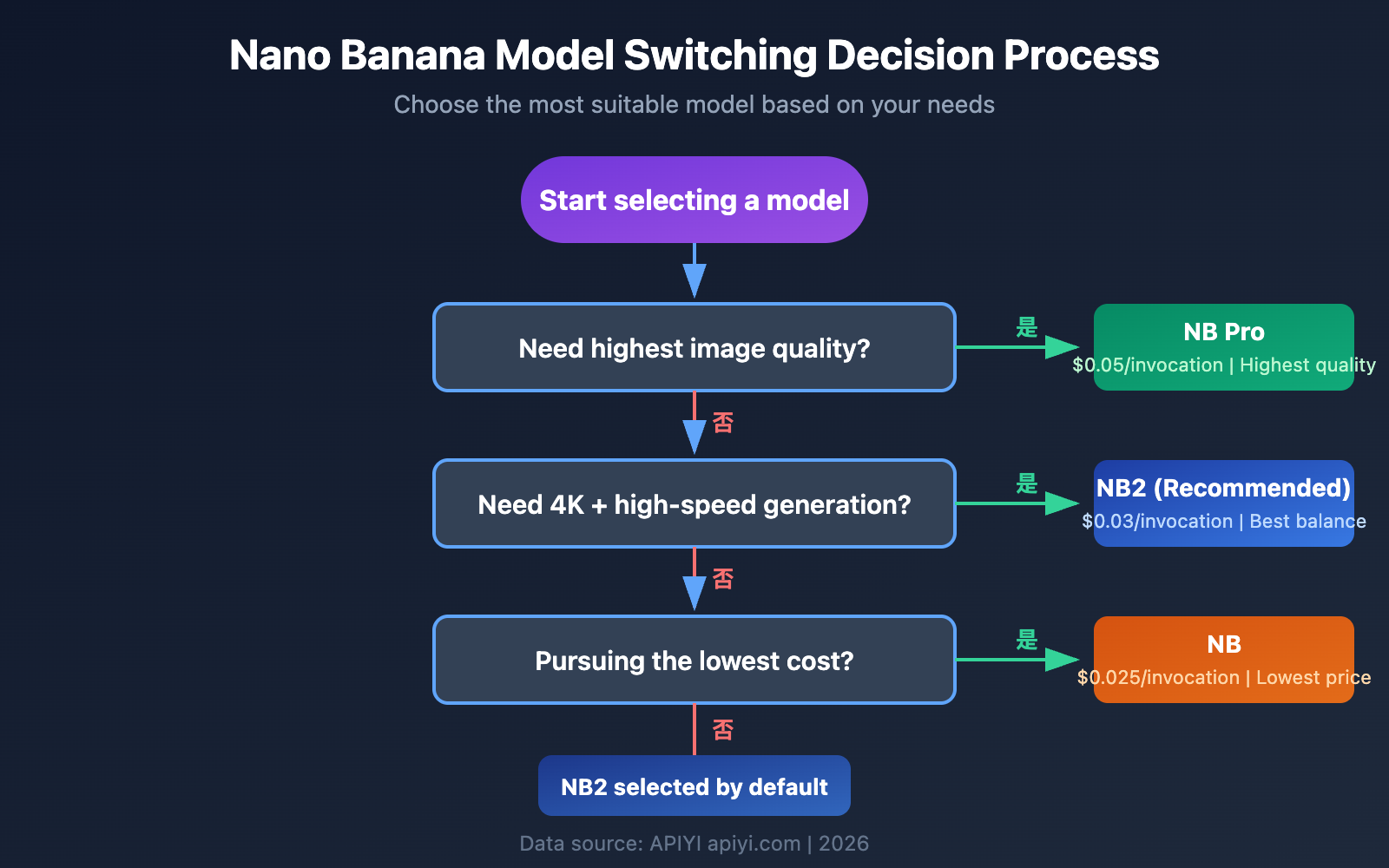
Model Switching Decision Flow
Choose a model based on your creative needs:
需要最高画质? → NB Pro (gemini-3-pro-image-preview)
     ↓ 否
需要 4K + 高速? → NB2 (gemini-3.1-flash-image-preview)
     ↓ 否
追求最低成本? → NB (gemini-2.5-flash-image)
Other Nano Banana 2 ComfyUI Plugins
Besides the two recommended solutions, there are other related plugins in the community you might want to check out:
| Plugin Name | Features | base_url Support | Use Case |
|---|---|---|---|
| ComfyUI-NanoBanano | Designed specifically for the Nano Banana series | ⚠️ Partial | Quick experience |
| comfy_nanobanana | Lightweight implementation | ⚠️ Partial | Simple workflows |
| ComfyUI_Nano_Banana | Community-maintained version | ⚠️ Partial | Specific feature requirements |
| ComfyUI Partner Node (Official) | Official Google partner node | ❌ Not supported | Only supports official API |
Note: ComfyUI's official Partner Node doesn't support third-party API integration. If you need to use it via APIYI, please choose Solution A or Solution B. The base_url support for other community plugins varies by version, so please check the documentation in their respective GitHub repositories before use.
Nano Banana 2 ComfyUI Plugin Installation Notes
When installing ComfyUI custom nodes, please keep the following common issues in mind:
- Python Environment: Make sure to install dependencies using ComfyUI's built-in Python environment to avoid mixing system Python and ComfyUI Python.
- Dependency Conflicts: If you install multiple Gemini-related plugins, you might encounter dependency version conflicts. It's recommended to only keep one.
- Plugin Updates: Regularly update the plugin code via
git pullto get the latest features and fixes. - Log Troubleshooting: When you encounter issues, check the ComfyUI console output; it usually provides clear error messages.
# Update the plugin to the latest version
cd ComfyUI/custom_nodes/ComfyUI-IF_Gemini
git pull
pip install -r requirements.txt
Frequently Asked Questions
Q1: What should I do if I get an “invalid API Key” error after configuring Nano Banana 2 in ComfyUI?
Please check the following:
- Confirm API Key is correct: Log in to the APIYI apiyi.com backend and copy the complete API key.
- Check
base_url: Make sure it's set tohttps://vip.apiyi.com/v1, noting the/v1at the end. - Environment variables are active: If you're using a
.envfile, you'll need to restart ComfyUI for it to load. - Key permissions: Confirm that your API key has
image generationmodel invocation permissions enabled.
API keys obtained through APIYI apiyi.com default to supporting the full range of Gemini models. If you encounter issues, please contact customer service for assistance.
Q2: What should I do if Nano Banana 2 generates images slowly or times out in ComfyUI?
Generation speed is influenced by several factors:
- Network environment: Using APIYI apiyi.com's
base_urlcan optimize the network path, which is usually more stable than connecting directly to the official API. - Resolution selection: 4K resolution takes more time than 2K. For daily testing, we recommend starting with lower resolutions.
- Model selection: NB2 is the fastest (3-5 seconds), while NB Pro is slower (8-15 seconds).
- Timeout settings: In the plugin configuration, set the timeout to 60 seconds or more.
Q3: How can I implement automatic multi-model switching in ComfyUI?
You can use ComfyUI's conditional nodes to achieve automatic switching:
- Create a "Model Selector" text node and enter the model name.
- Connect this node to the Gemini node's model input.
- Switch models via dropdown selection or text input:
gemini-3.1-flash-image-preview,gemini-3-pro-image-preview,gemini-2.5-flash-image.
All models share the same APIYI base_url and API key, so you don't need to reconfigure when switching models.
Q4: Does Google’s official Free Tier support Nano Banana 2 image generation?
No, it doesn't. Google AI Studio's Free Tier doesn't support image generation functionality; calling it will return an error. To use Gemini image generation features, you'll need to:
- Use a Google Cloud paid API (requires a credit card and an overseas account).
- Or invoke it via the APIYI apiyi.com platform, which doesn't require an overseas credit card and offers more flexible pay-per-use billing.
Q5: What should I do if Nano Banana 2’s safety filter causes image generation to fail?
Gemini 3.1 Flash Image has a built-in safety filtering mechanism, and the following prompts might trigger it:
- People-related: Descriptions involving real people or celebrities.
- Sensitive content: Descriptions of violence, gore, etc.
- Copyright-related: Precise descriptions of well-known IP characters.
Solution: Adjust your prompt to use more abstract and general descriptions. If you frequently encounter safety filtering, we recommend referring to our article on Nano Banana 2 Content Safety Mechanism Explained.
Nano Banana 2 ComfyUI Integration Summary
Integrating Nano Banana 2 with ComfyUI is super straightforward, with core steps being: Install Plugin → Configure API → Select Model.
Quick Overview of Key Steps
| Step | Action | Time |
|---|---|---|
| Install Plugin | git clone + pip install | 2 minutes |
| Configure API | Set base_url + API key | 1 minute |
| Select Model | Enter Model Name | 30 seconds |
| Test Run | Queue Prompt to Generate Image | 1 minute |
Key Conclusions
- Choose the Right Plugin: We recommend ComfyUI-IF_Gemini (feature-rich) or comfyui-gemini-nodes (quick to get started).
- Configure APIYI's Unified Interface: Set your base_url to
https://vip.apiyi.com/v1. Configure it once, and you're ready to use all models in the series. - Flexible Model Switching: Easily switch between NB2 ($0.03), NB Pro ($0.05), and NB ($0.025) by just modifying the model parameter.
- Multiple Workflows: Supports text-to-image, image-to-image, style transfer, and multi-turn conversation to meet various creative needs.
- Exclusive Feature: NB2's unique Image Search Grounding feature brings even more possibilities to your creations.
We recommend getting your API key quickly through APIYI at apiyi.com. In just 5 minutes, you can experience Nano Banana 2's Pro-level image quality and lightning-fast generation in ComfyUI. The entire model series uses a unified interface, allowing you to switch as needed, anytime.
Author: APIYI Team | Technical Exchange: APIYI apiyi.com
This article is based on actual testing with the latest ComfyUI version and the APIYI platform. For any plugin updates, please refer to the documentation in the respective GitHub repository.