Author's Note: A detailed guide on how to migrate your Google AI Studio application to the APIYI platform. By simply modifying the request URL and API Key, you can enjoy the price advantage of Gemini models for as low as 20% of the original cost.
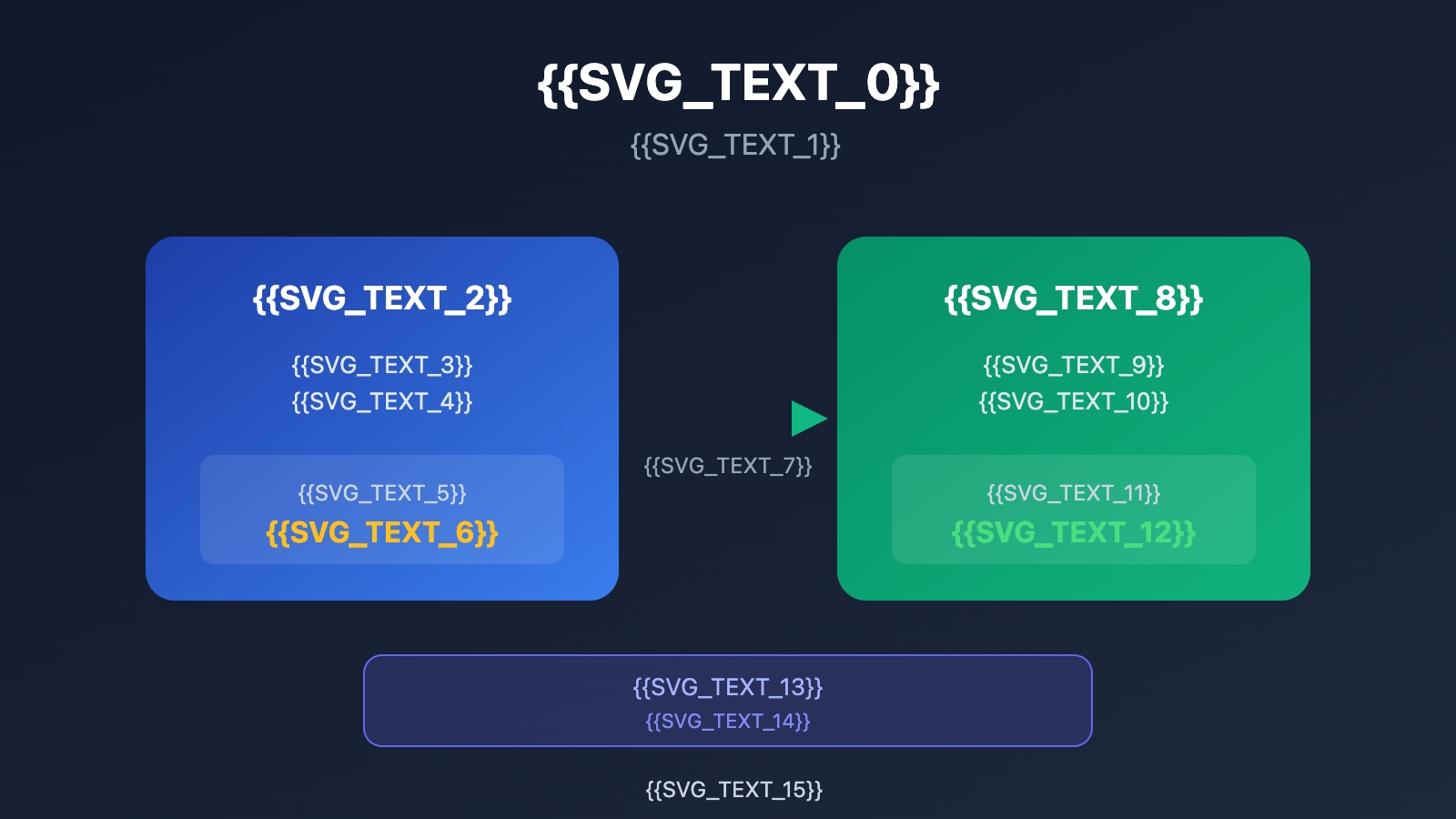
Want to migrate an app built with Google AI Studio to another platform? Many developers worry about the amount of code they'll need to rewrite. In reality, you only need to modify two configuration points: the request address and the API Key. Your application can then seamlessly switch to the APIYI platform and benefit from much better pricing.
Core Value: By the end of this article, you'll have mastered the complete Google AI Studio migration process and understand the pricing advantages of Gemini models on the APIYI platform.
Key Points for Migrating Google AI Studio to APIYI
| Point | Description | Value |
|---|---|---|
| Only 2 Config Changes | Modify the base_url and api_key |
Minimal code changes, very low migration cost |
| Fully Compatible with Gemini API | Supports /v1beta endpoint format |
No need to adjust request parameters or response handling |
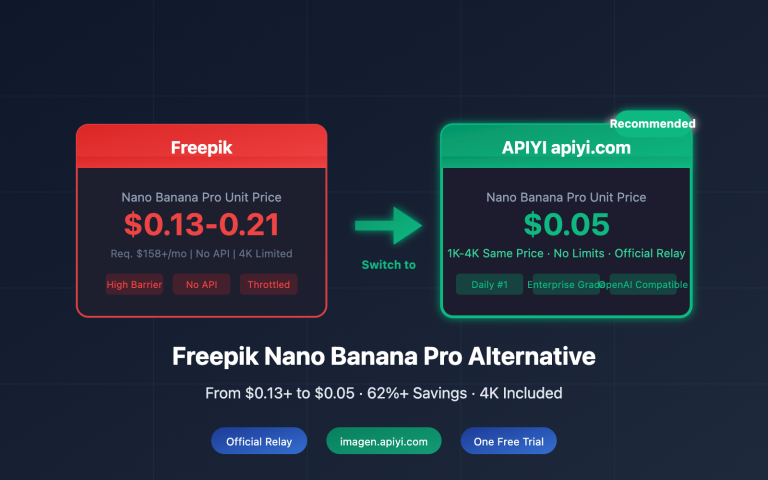
| Significant Price Advantage | Nano Banana Pro starts at $0.05 per request | Prices as low as 20% of official rates |
| Multiple Billing Modes | Choose between pay-per-request or pay-as-you-go | Flexibly adapts to different usage scenarios |
Technical Essentials for Google AI Studio Migration
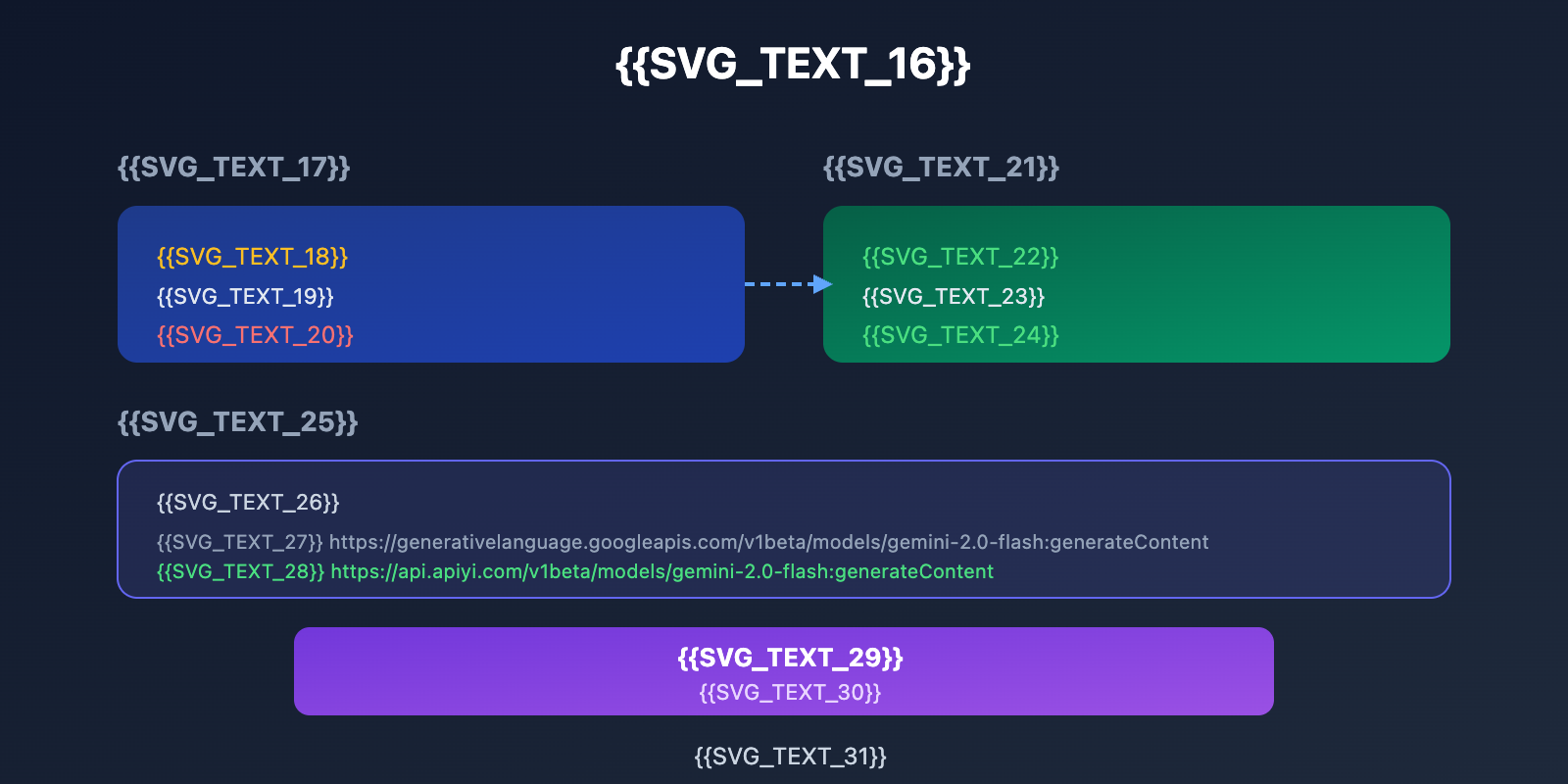
The base API address for Google AI Studio is generativelanguage.googleapis.com, and the full request path format looks like this:
https://generativelanguage.googleapis.com/v1beta/models/{model}:generateContent
When migrating to APIYI, you simply need to replace the base address with api.apiyi.com. The path format remains identical:
https://api.apiyi.com/v1beta/models/{model}:generateContent
APIYI is fully compatible with Google's Gemini API protocol, including all mainstream endpoints like generateContent, streamGenerateContent, and embedContent. Your existing code logic won't require any modifications.
Quick Start: Migrating from Google AI Studio to APIYI
Minimalist Example
Here's a simple comparison of the migration. You only need to change 2 lines of Python code:
import google.generativeai as genai

# Original Google AI Studio config
# genai.configure(api_key="YOUR_GOOGLE_API_KEY")

# Migrated APIYI config (only these 2 changes)
genai.configure(
    api_key="YOUR_APIYI_KEY",
    transport="rest",
    client_options={"api_endpoint": "api.apiyi.com"}
)

model = genai.GenerativeModel("gemini-2.0-flash")
response = model.generate_content("Hello!")
print(response.text)
View REST API direct call example
import requests

# APIYI Gemini API endpoint
url = "https://api.apiyi.com/v1beta/models/gemini-2.0-flash:generateContent"

headers = {
    "Content-Type": "application/json",
    "x-goog-api-key": "YOUR_APIYI_KEY"
}

payload = {
    "contents": [{
        "parts": [{"text": "Introduce AI in one sentence"}]
    }]
}

response = requests.post(url, headers=headers, json=payload)
result = response.json()

# Extract the generated text
text = result["candidates"][0]["content"]["parts"][0]["text"]
print(text)
View JavaScript/Node.js migration example
const { GoogleGenerativeAI } = require("@google/generative-ai");

// Specify the APIYI endpoint when creating the client
const genAI = new GoogleGenerativeAI("YOUR_APIYI_KEY", {
  baseUrl: "https://api.apiyi.com/v1beta"
});

const model = genAI.getGenerativeModel({ model: "gemini-2.0-flash" });

async function run() {
  const result = await model.generateContent("Hello!");
  console.log(result.response.text());
}

run();
Pro Tip: Register at apiyi.com to get your API Key. The platform offers free trial credits so you can quickly test the migration.
Google AI Studio Migration Comparison
| Comparison | Google Official | APIYI Platform | Key Advantages |
|---|---|---|---|
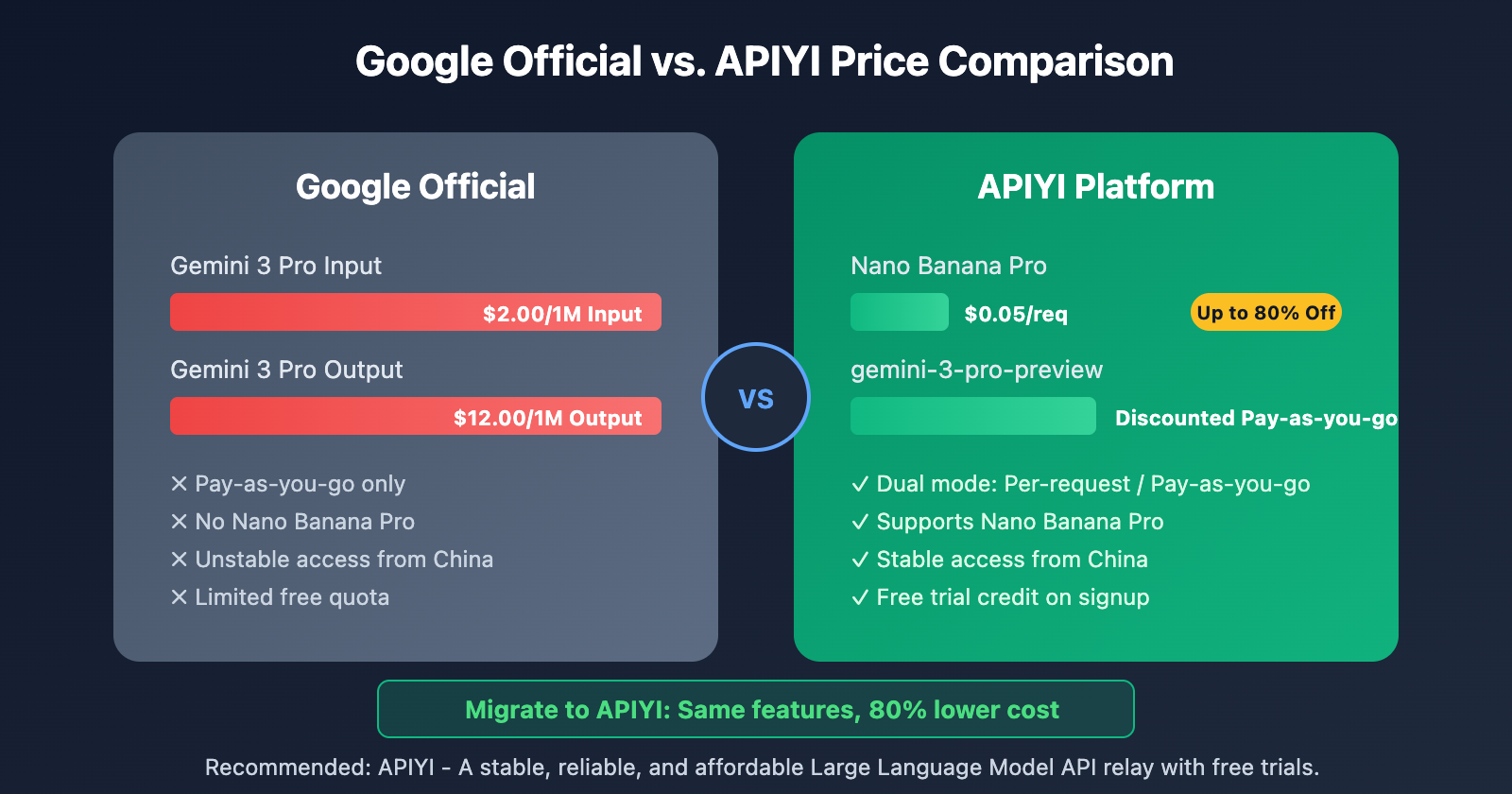
| Gemini 3 Pro Price | $2.00/1M Input | More affordable pay-as-you-go | Significantly reduces API costs |
| Nano Banana Pro | Not available | $0.05/req (80% off official) | Perfect for high-frequency, small requests |
| Request URL | generativelanguage.googleapis.com | api.apiyi.com | More stable access from China |
| Billing Model | Pay-as-you-go only | Per-request / Pay-as-you-go dual mode | Flexible options for the best value |
| Free Quota | Limited | Trial credit upon registration | Fully test before you commit |
APIYI Gemini Model Pricing Details
| Model Name | Billing Method | Price | Use Case |
|---|---|---|---|
| Nano Banana Pro | Per request | $0.05/req | Lightweight chat, quick Q&A |
| gemini-3-pro-preview | Pay-as-you-go | Discounted price | Complex reasoning, long-form generation |
| gemini-2.0-flash | Pay-as-you-go | Discounted price | Daily conversations, content creation |
| gemini-2.5-flash | Pay-as-you-go | Discounted price | Multimodal tasks, image understanding |
Note: The price comparison above is based on data from January 2026. You can check apiyi.com for the latest pricing.
Google AI Studio Code Export and Migration Steps
Google AI Studio offers a handy code export feature, allowing you to:
- Export as a ZIP file: Click the download icon in the AI Studio interface to get the full project code.
- Push to GitHub: Sync your code to a GitHub repository with one click.
- Deploy to Cloud Run: Quickly deploy your project as an online service.
Migration Checklist
Just follow these steps to complete your migration:
- Export your project code from Google AI Studio (ZIP or GitHub).
- Register at APIYI (apiyi.com) and get your API Key.
- Update the
api_endpointin your code toapi.apiyi.com. - Replace the
api_keywith your APIYI Key. - Run tests to verify everything's working correctly.
- Choose between pay-per-request or pay-per-token billing based on your usage.
FAQ
Q1: Do I need to change request parameters after migrating?
Nope. APIYI is fully compatible with Google Gemini API request formats and parameters, including contents, generationConfig, safetySettings, and all other standard parameters. You can use them directly.
Q2: How do I choose between pay-per-request and pay-per-token billing for Nano Banana Pro?
Pay-per-request is great for scenarios with small request sizes (like short Q&As) at a fixed $0.05 per request. Pay-per-token is better for long text generation or batch processing, where you're billed based on actual token usage. You can switch billing modes in the APIYI (apiyi.com) console.
Q3: How can I start testing quickly?
We recommend using an API aggregation platform that supports multiple models for testing:
- Visit APIYI (apiyi.com) and register an account.
- Get your API Key and free credits.
- Use the code examples in this article for a quick verification.
Summary
Key takeaways for migrating from Google AI Studio to APIYI:
- Minimal changes: You only need to update two configurations—the request URL and the API Key.
- Fully compatible: APIYI supports all Gemini API endpoints and parameter formats.
- Price advantage: Nano Banana Pro is just $0.05 per call, which is as low as 20% of the official price.
If you're currently building apps with Google AI Studio and looking to cut API costs or improve access stability, switching to APIYI is definitely worth considering.
We recommend heading over to APIYI (apiyi.com) to test it out—the platform offers free credits and a unified interface for multiple models.
📚 References
⚠️ Link Format Note: All external links use the
Resource Name: domain.comformat. This makes them easy to copy while avoiding clickable links to prevent SEO weight loss.
-
Google AI Studio Official Documentation: Gemini API Usage Guide
- Link:
ai.google.dev/gemini-api/docs - Description: Learn about the full features and parameter specifications of the Gemini API.
- Link:
-
Gemini API Pricing Page: Official Price Reference
- Link:
ai.google.dev/gemini-api/docs/pricing - Description: Compare official pricing with APIYI's discounts.
- Link:
-
Google AI Studio Build Mode: Code Export Feature Guide
- Link:
ai.google.dev/gemini-api/docs/aistudio-build-mode - Description: Learn how to export project code from AI Studio.
- Link:
Author: Tech Team
Tech Discussion: Feel free to chat in the comments section! For more resources, visit the APIYI (apiyi.com) tech community.