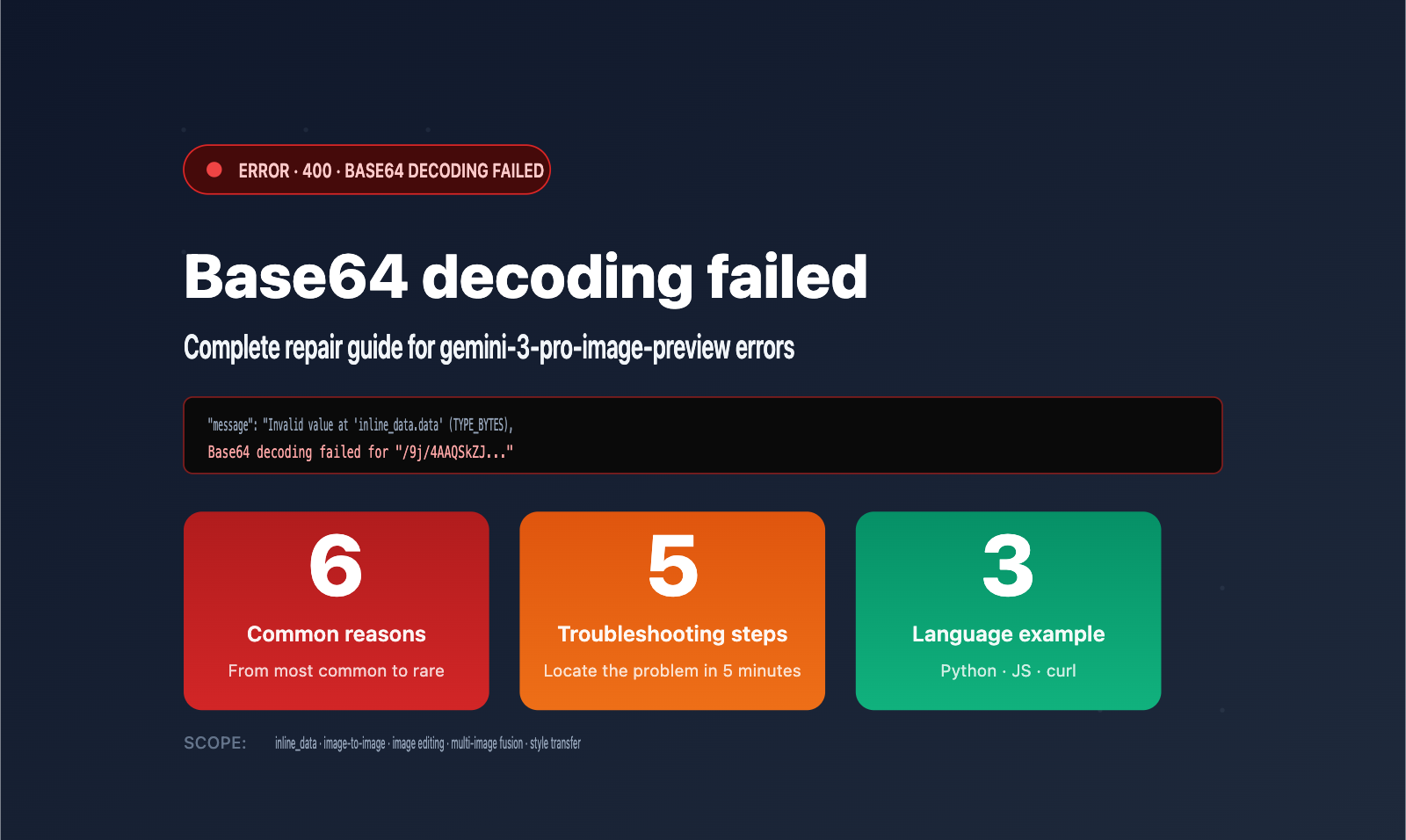
Author's Note: Getting a "Base64 decoding failed 400" error when calling gemini-3-pro-image-preview? This guide breaks down the 6 most common causes, provides correct implementation examples in Python, JavaScript, and cURL, and gives you a 5-step troubleshooting plan.
Are you running into this 400 error when calling the gemini-3-pro-image-preview API?
{
  "status_code": 400,
  "error": {
    "message": "Invalid value at 'contents[0].parts[0].inline_data.data' (TYPE_BYTES), Base64 decoding failed for \"/9j/4AAQSkZJ...\" (request id: 2026050117522815159336234238114)",
    "type": "shell_api_error",
    "code": 400
  }
}
This is not an issue with the API service itself. Instead, it means the Base64 data in the inline_data.data field of your request body cannot be correctly decoded by the Gemini backend. The /9j/4AAQSkZJ string in the error message is the standard Base64 header for a JPEG file (corresponding to the binary FF D8 FF E0), which indicates that the beginning of your data is valid, but there's something in the full string causing the decoding to fail.
Core Value: This article provides a complete breakdown of the 6 most common causes for this error, includes correct sample code for Python, JavaScript, and cURL, and offers a 5-step quick troubleshooting plan. If you're using APIYI (apiyi.com) to call gemini-3-pro-image-preview, all the solutions here apply to you as well.
1. Deep Dive into the "Base64 decoding failed" Error
Before you start troubleshooting, understanding what each part of the error message means will save you a lot of time.
1.1 Error Message Breakdown
| Field | Meaning | Troubleshooting Focus |
|---|---|---|
status_code: 400 |
HTTP 400 Client Error | Request body format issue, not a server-side failure |
contents[0].parts[0] |
Error located in the 1st part of the 1st content | Check the first image part |
inline_data.data |
Data field for inline data | This field must be a pure Base64 string |
(TYPE_BYTES) |
Field type is byte array | Gemini backend expects bytes after decoding |
Base64 decoding failed for "/9j/..." |
Decoding failed, header starts with /9j/ |
Start bytes are valid; issue is in the middle or end |
request id: 2026050... |
Unique request ID | Provide this ID when contacting support |
1.2 Why does it start with /9j/4AAQSkZJ but still fail?
/9j/4AAQSkZJ is the standard Base64 header for a JPEG file (corresponding to the binary FF D8 FF E0 00 10 4A 46 49 46, which is the JPEG SOI + APP0 + "JFIF" identifier). This means:
- ✅ Your data is indeed a JPEG image.
- ✅ The starting bytes are perfectly valid.
- ❌ However, the full string contains illegal characters or structural issues somewhere.
This rules out the possibility that the data is completely wrong; the issue is likely in the middle of the data, the padding at the end, or during the string transmission/escaping process.
1.3 Scenarios that trigger this error
gemini-3-pro-image-preview is Google's latest image generation and editing model. You need to pass inline_data in the following scenarios:
- Image-to-Image: Generating new images based on a reference image.
- Image Editing: Making local modifications to an original image.
- Image Fusion: Combining multiple reference images to generate a new one.
- Style Transfer: Using a reference image as a style template.
Any scenario that requires passing image data as input can trigger a Base64 decoding failed error.
💡 Quick Diagnosis Tip: If you are using the APIYI (apiyi.com) API proxy service to call
gemini-3-pro-image-preview, you can view the full request logs andrequest_idin the console. Comparing the actual length and content of theinline_data.datasent in the request body is much more efficient than troubleshooting by connecting directly to the official API.
2. Six Common Causes of "Base64 decoding failed" Errors
Listed from most frequent to least frequent, we recommend troubleshooting in this order.
2.1 Cause 1: Including the data URI prefix (Most common, ~40% of cases)
This is by far the most frequent error. Developers often copy the base64 string directly from HTML/frontend code:
❌ Incorrect approach:
{
  "inline_data": {
    "mime_type": "image/jpeg",
    "data": "data:image/jpeg;base64,/9j/4AAQSkZJRgABAQAA..."
  }
}
✅ Correct approach:
{
  "inline_data": {
    "mime_type": "image/jpeg",
    "data": "/9j/4AAQSkZJRgABAQAA..."
  }
}
The data:image/jpeg;base64, prefix is only for use in browser <img> tags or CSS backgrounds. The Gemini API's inline_data.data field only accepts pure Base64 strings.
2.2 Cause 2: String contains newlines or whitespace (~25% of cases)
Many Base64 encoding functions automatically wrap lines at 76 characters (PEM format), or you might have introduced \n or \r characters when reading from a file.
❌ Problematic example (Python):
import base64

# Incorrect: Using encodebytes() inserts newlines
with open("photo.jpg", "rb") as f:
    data = base64.encodebytes(f.read()).decode()  # Contains \n
✅ Correct approach:
import base64

# Correct: Using b64encode() does not insert newlines
with open("photo.jpg", "rb") as f:
    data = base64.b64encode(f.read()).decode("utf-8")
2.3 Cause 3: URL encoding causing character replacement (~15% of cases)
The Base64 character set includes + and /, which may be encoded as %2B and %2F during URL transmission. Some HTTP clients automatically perform URL encoding, causing the Gemini backend to fail decoding.
❌ Error symptom:
Original: /9j/4AAQSkZJRg+abc=
Transmitted: %2F9j%2F4AAQSkZJRg%2Babc%3D
✅ Solution:
- Ensure the Content-Type is
application/json, notapplication/x-www-form-urlencoded. - Transmit Base64 within the JSON body, not as URL query parameters.
- Use the
json=parameter of your HTTP client (e.g., Python requests) instead of manual string concatenation.
2.4 Cause 4: Base64 string truncation (~10% of cases)
If your image is large (several MBs), it might be truncated during transmission due to:
- Network interruptions during retransmission.
- HTTP client string length limits.
- JSON serialization field length limits.
- Intermediate proxy body size limits.
Troubleshooting: Calculate the length of the original Base64 string and compare it to the actual request body length. Base64 encoding increases the size by approximately 4/3; a 2MB JPEG becomes about 2.67MB after encoding.
2.5 Cause 5: URL-safe Base64 encoding (~5% of cases)
Python's base64.urlsafe_b64encode() or Node.js's Buffer.from(buf).toString('base64url') output URL-safe Base64, using - and _ instead of + and /.
❌ Incorrect:
data = base64.urlsafe_b64encode(image_bytes).decode() # Contains - and _
✅ Correct:
data = base64.b64encode(image_bytes).decode("utf-8") # Contains + and /
The Gemini API only accepts standard Base64 (RFC 4648 §4), not URL-safe Base64 (RFC 4648 §5).
2.6 Cause 6: Missing or extra padding (~5% of cases)
Base64 string length must be a multiple of 4, with = used for padding at the end. Some libraries' "strict modes" remove the trailing =, causing the Gemini backend to fail.
❌ Incorrect:
/9j/4AAQSkZJRgABAQAAAQABAAD ← Length 27, not a multiple of 4
✅ Correct:
/9j/4AAQSkZJRgABAQAAAQABAAD= ← Padded with =, length 28
If you use the standard base64.b64encode() function, padding is handled automatically; no manual addition is required.
3. 5-Step Quick Troubleshooting for "Base64 decoding failed" Errors
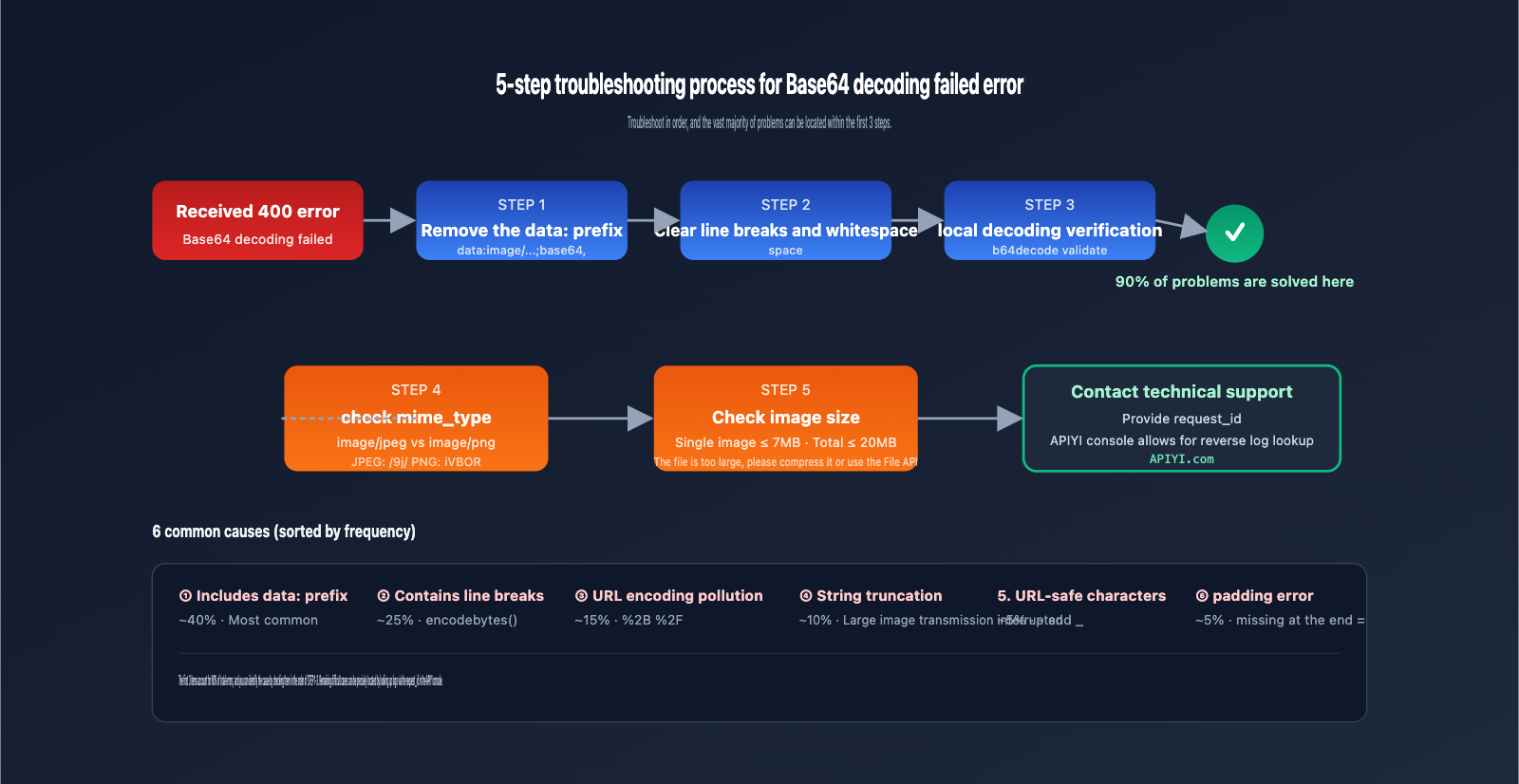
Follow these steps in order; most "Base64 decoding failed" errors can be resolved within the first 3 steps.
3.1 Step 1: Check for data URI prefix
Action:
# Python example
if data.startswith("data:"):
    print("⚠️ Contains data URI prefix, must be removed")
    data = data.split(",", 1)[1]  # Remove data:image/...;base64,
Success criteria: The data field starts with /9j/ (JPEG), iVBORw0KGgo (PNG), R0lGOD (GIF), UklGR (WebP), etc., and does not contain the data: prefix.
3.2 Step 2: Clean up newlines and whitespace
Action:
# Remove all whitespace
import re
data = re.sub(r"\s+", "", data)
Success criteria: The string contains no \n, \r, \t, or spaces.
3.3 Step 3: Verify Base64 validity
Decode locally before sending the request. If it fails locally, there's definitely an issue:
import base64
try:
    decoded = base64.b64decode(data, validate=True)
    print(f"✅ Decoding successful, original byte count: {len(decoded)}")
except Exception as e:
    print(f"❌ Decoding failed: {e}")
If local decoding succeeds but the API still returns an error, proceed to Step 4.
3.4 Step 4: Verify mime_type accuracy
The mime_type must match the actual image format. Common valid values:
| Actual Format | Correct mime_type | Base64 Header Signature |
|---|---|---|
| JPEG | image/jpeg |
/9j/4AAQSkZJ |
| PNG | image/png |
iVBORw0KGgo |
| WebP | image/webp |
UklGR |
| GIF | image/gif |
R0lGOD |
| HEIC | image/heic |
AAAAFGZ0eXBoZWlj |
If you declare mime_type: image/png but the data is actually JPEG (starting with /9j/), Gemini will return an error.
3.5 Step 5: Check image size limits
The Gemini API has limits on total request size:
- Total inline_data size ≤ 20MB (before encoding)
- Single image recommended ≤ 7MB (before encoding)
- Extra-large images should be uploaded via the File API and referenced.
If the image is too large, consider compressing or resizing it before transmission.
🎯 Diagnostic Tip: If you are calling
gemini-3-pro-image-previewvia APIYI (apiyi.com), you can use therequest_idin the console to look up the full request body and response logs. This makes it much easier to pinpoint issues compared to connecting directly to the official API. The proxy logs will show the actual size of the request body and where it was truncated.
4. Correct Invocation Examples for gemini-3-pro-image-preview in Various Languages
Below are the verified, minimal examples you can copy and use right away.
4.1 Complete Python Example (requests library recommended)
import base64
import requests

# 1. Read and encode the image
def encode_image(image_path):
    with open(image_path, "rb") as f:
        return base64.b64encode(f.read()).decode("utf-8")

# 2. Construct the request
api_key = "sk-your-apiyi-key"  # Replace with your actual API key
base_url = "https://vip.apiyi.com/gemini"  # APIYI proxy service address
model = "gemini-3-pro-image-preview"

image_b64 = encode_image("input.jpg")

payload = {
    "contents": [{
        "parts": [
            {
                "inline_data": {
                    "mime_type": "image/jpeg",  # Must match the actual format
                    "data": image_b64  # Pure Base64, no prefix
                }
            },
            {
                "text": "Transform this image into the style of Van Gogh's Starry Night"
            }
        ]
    }]
}

# 3. Send the request
response = requests.post(
    f"{base_url}/v1beta/models/{model}:generateContent",
    headers={
        "x-goog-api-key": api_key,
        "Content-Type": "application/json"  # Crucial: JSON format
    },
    json=payload  # Crucial: Use json= instead of data=
)

print(response.json())
4.2 Complete JavaScript / Node.js Example
const fs = require('fs');
const fetch = require('node-fetch');

async function callGemini() {
  // 1. Read and encode the image (Standard Base64, not base64url)
  const imageBuffer = fs.readFileSync('input.jpg');
  const imageB64 = imageBuffer.toString('base64'); // ✅ Do not use 'base64url'

  // 2. Construct the request
  const apiKey = 'sk-your-apiyi-key';
  const baseUrl = 'https://vip.apiyi.com/gemini'; // APIYI proxy service
  const model = 'gemini-3-pro-image-preview';

  const payload = {
    contents: [{
      parts: [
        {
          inline_data: {
            mime_type: 'image/jpeg',
            data: imageB64  // Pure Base64
          }
        },
        { text: 'Transform this image into the style of Van Gogh\'s Starry Night' }
      ]
    }]
  };

  // 3. Send the request
  const response = await fetch(
    `${baseUrl}/v1beta/models/${model}:generateContent`,
    {
      method: 'POST',
      headers: {
        'x-goog-api-key': apiKey,
        'Content-Type': 'application/json'
      },
      body: JSON.stringify(payload)
    }
  );

  console.log(await response.json());
}

callGemini();
4.3 curl Command Line Example
# 1. Encode the image and save to a file (to avoid command line length limits)
base64 -i input.jpg -o input.b64
# Or on macOS: base64 -w 0 input.jpg > input.b64

# 2. Construct the JSON payload
cat > payload.json <<EOF
{
  "contents": [{
    "parts": [
      {
        "inline_data": {
          "mime_type": "image/jpeg",
          "data": "$(cat input.b64)"
        }
      },
      { "text": "Transform this image into the style of Van Gogh's Starry Night" }
    ]
  }]
}
EOF

# 3. Send the request
curl -X POST \
  "https://vip.apiyi.com/gemini/v1beta/models/gemini-3-pro-image-preview:generateContent" \
  -H "x-goog-api-key: sk-your-apiyi-key" \
  -H "Content-Type: application/json" \
  -d @payload.json
⚠️ curl Note: Using
curl -d "$(base64 input.jpg)"directly will often introduce line breaks on macOS. Always usebase64 -w 0(Linux) orbase64 -i ... | tr -d '\n'(macOS) to strip out any line breaks.
5. Error vs. Correct Requests: A Complete Comparison
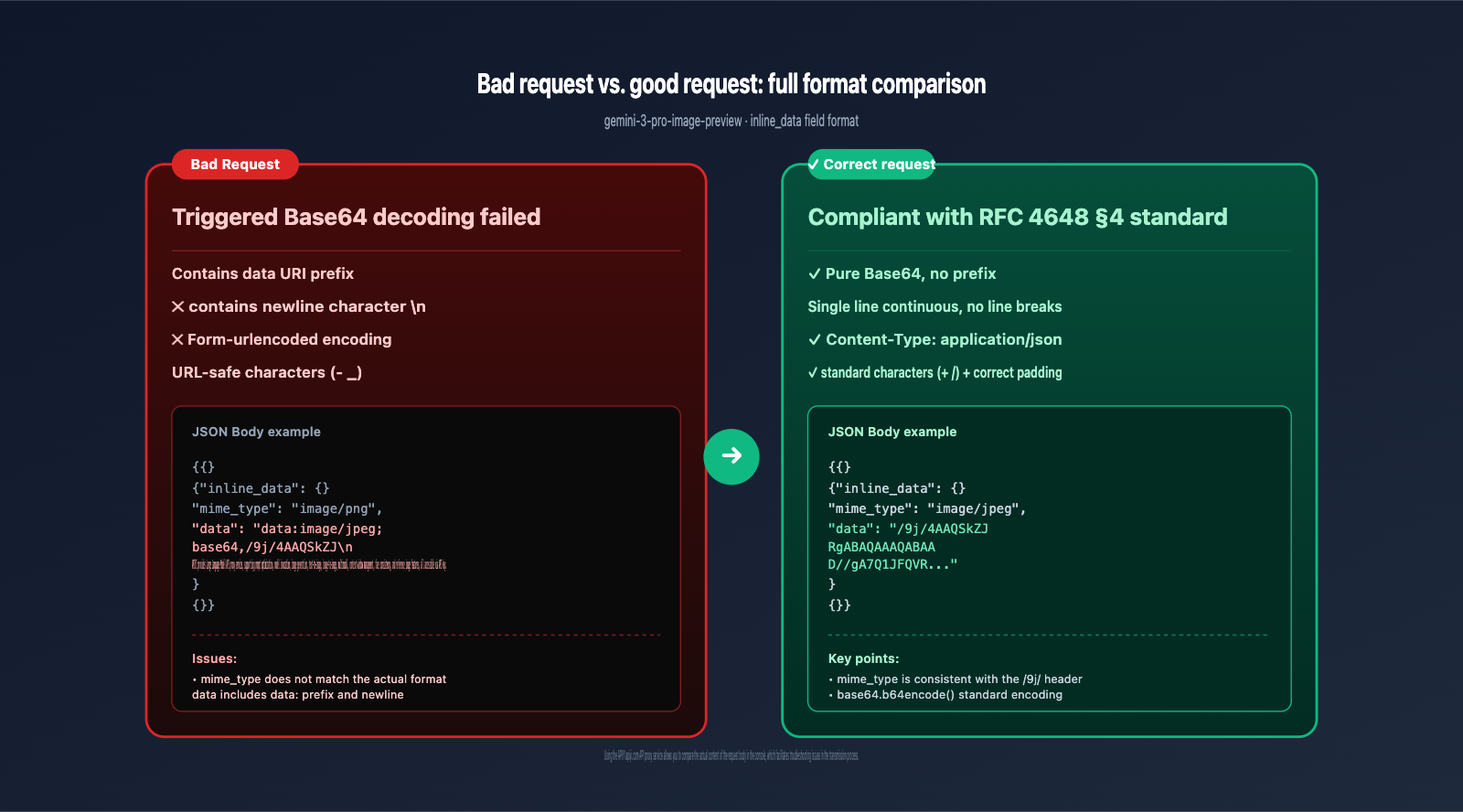
| Check Item | Incorrect Example | Correct Example |
|---|---|---|
| data field prefix | data:image/jpeg;base64,/9j/... |
/9j/4AAQSkZJ... |
| Line breaks | Contains \n (every 76 chars) |
Single continuous string |
| Charset | Contains - _ (URL-safe) |
Contains + / (Standard) |
| Padding | No = or extra = |
Automatically correct padding |
| mime_type | Mismatch with actual format | Strictly matches actual format |
| HTTP Header | application/x-www-form-urlencoded |
application/json |
| Transmission | URL query parameters | JSON body fields |
| Image Size | > 20MB per image | ≤ 7MB per image |
VI. Advantages of Using APIYI for gemini-3-pro-image-preview Invocation
If you still can't pinpoint the issue after troubleshooting, using the APIYI (apiyi.com) API proxy service for gemini-3-pro-image-preview offers several clear advantages:
| Advantage | Description |
|---|---|
| Full Request Logs | View the complete request/response associated with a request_id in the console |
| Rapid Error Debugging | Use the request_id to locate the cause of failure with one click |
| Native Compatibility | No code changes required; simply replace the base_url |
| No Concurrency Limits | Avoid rate limiting during batch image editing scenarios |
| Recharge Bonuses | Get 10% extra on $100+ top-ups (approx. 15% off official pricing) |
| Local Currency Support | Pay directly via WeChat Pay or Alipay |
To connect to APIYI for gemini-3-pro-image-preview, you only need to update two variables:
# Official API
base_url = "https://generativelanguage.googleapis.com"

# Switch to APIYI proxy (all other code remains exactly the same)
base_url = "https://vip.apiyi.com/gemini"
VII. Base64 decoding failed FAQ
Q1: Why does base64.b64decode() work locally, but the API call still fails?
The most likely culprit is the transmission process. Common scenarios include:
- The HTTP client encodes
+as%2B(ensure you useapplication/jsoninstead ofform-urlencoded) - The string is truncated during JSON serialization (check your body size limits)
- Intermediate proxies or gateways have body size restrictions (e.g., Nginx
client_max_body_size)
If you suspect a network-related issue, use the APIYI (apiyi.com) API proxy service. The console logs will display the actual content of the request body as it reaches the proxy server, making it much easier to debug.
Q2: Which image formats does gemini-3-pro-image-preview support?
Supported mime_type values include:
image/jpeg(Recommended, smallest file size)image/png(For scenarios requiring transparency)image/webp(Balances quality and file size)image/gif(Only the first frame is processed)image/heic/image/heif(iPhone camera formats)
BMP, TIFF, and SVG formats are not supported and must be converted first.
Q3: How many images can I send in one request?
A single gemini-3-pro-image-preview request supports:
- inline_data parts: 3-5 images (depending on total image size)
- Total data volume: ≤ 20MB (sum of all
inline_databefore encoding) - Recommendation: If you need more than 5 reference images, upload them via the File API and reference them using
file_data.
Q4: I get a "Base64 decoding failed" error, but other models (like gemini-2.5-flash) work fine. Why?
This usually happens because gemini-3-pro-image-preview has stricter requirements for image formats. The input validation for newer models is more rigorous:
- Older models might tolerate certain prefixes or line breaks
- New models strictly validate according to RFC 4648 §4
- We recommend rewriting your request based on the minimal correct example in section 4.1 and verifying each item.
Q5: What base_url should I use when calling via APIYI (apiyi.com)?
The standard base_url for calling gemini-3-pro-image-preview via APIYI is:
https://vip.apiyi.com/gemini
The full endpoint path is:
https://vip.apiyi.com/gemini/v1beta/models/gemini-3-pro-image-preview:generateContent
The API key is passed via the x-goog-api-key request header, exactly as it is with the official Google API.
Q6: What is the purpose of the request_id?
The request_id (e.g., 2026050117522815159336234238114) is a unique identifier for your request. It is used to:
- Provide to technical support for quick issue identification
- Reference when reproducing issues, allowing the technical team to pull full request logs
- Analyze error patterns; if multiple
request_ids show the same error, it indicates a systemic issue
If you use the APIYI (apiyi.com) API proxy service, you can search for the request_id directly in the console to view details without needing to contact support.
Q7: How should I compress images that are too large?
We recommend using Pillow on the client side to pre-compress images:
from PIL import Image
import io
import base64

def compress_image(path, max_size_kb=2048):
    img = Image.open(path)
    # Resize the longest edge to 1568 (Gemini recommendation)
    img.thumbnail((1568, 1568))
    buffer = io.BytesIO()
    img.save(buffer, format="JPEG", quality=85, optimize=True)
    return base64.b64encode(buffer.getvalue()).decode("utf-8")
Compression significantly reduces file size while maintaining visual quality, helping you avoid hitting the 20MB limit.
Q8: What does the error message (TYPE_BYTES) mean?
TYPE_BYTES is a field type identifier from Google Protocol Buffers, indicating that the Gemini backend expects the field to contain a decoded byte array (bytes). When Base64 decoding fails, the system cannot produce the expected bytes, triggering this error. This is a low-level protobuf validation message, not a configuration issue.
VIII. Key Takeaways
- ✅ The Root Cause: The Base64 string in the
inline_data.datafield cannot be decoded by the Gemini backend. - ✅ 6 Common Culprits (by frequency): Data URI prefixes / newline characters / URL encoding / truncation / URL-safe characters / padding errors.
- ✅ 5-Step Troubleshooting Workflow: Strip prefix → Clean whitespace → Local verification → Check
mime_type→ Check file size. - ✅ Python Recommendation: Use
base64.b64encode()and thejson=parameter inrequests. - ✅ JavaScript Recommendation: Use
Buffer.toString('base64')(avoid 'base64url'). - ✅ curl Recommendation: Write the Base64 data to a file first, then reference it using
-d @file.json. - ✅ APIYI Advantages: Native format compatibility,
request_idlogging in the console for easy debugging, and no concurrency limits. - ✅ Contact Support: Keep your
request_idhandy for rapid issue resolution.
IX. Summary
When you encounter a "Base64 decoding failed" error with gemini-3-pro-image-preview, 99% of the time it's an issue with how the client constructed the request, not a server-side failure. The /9j/4AAQSkZJ often found in error messages confirms that the starting bytes are valid JPEG Base64; the problem lies somewhere in the data pipeline—likely due to prefix contamination, newline characters, URL encoding, URL-safe characters, or truncation.
By following the 5-step troubleshooting workflow in Chapter 3, you can resolve most issues within 5 minutes. For complex scenarios (such as images that remain too large after compression, multi-image combinations, or special encodings), refer to the complete code examples in Chapter 4—they're ready to run.
If you're looking for a stable integration for your multimodal projects using gemini-3-pro-image-preview, APIYI (apiyi.com) offers a complete Gemini model API proxy service. We provide 100% native format compatibility (just swap your base_url), no concurrency limits (perfect for batch image editing), a 10% bonus on $100+ top-ups (effectively 15% off official pricing), support for local currency payments (no international credit card required), and a console that lets you trace full logs via request_id (drastically reducing debugging time).
🎯 Next Steps: Follow the 5-step troubleshooting workflow in Chapter 3 in order. If the issue persists, record your
request_idand submit it to the APIYI (apiyi.com) technical support team along with your request body (remember to redact sensitive information). We can usually provide a precise diagnosis within an hour.
References
-
Google Gemini API Official Documentation: Image Understanding and Generation
- Link:
ai.google.dev/gemini-api/docs/image-generation - Description: Specifications for
inline_data/file_datafields and themime_typelist.
- Link:
-
Gemini 3 Developer Guide: Migration Guide for New Models
- Link:
ai.google.dev/gemini-api/docs/gemini-3 - Description: Differences between
gemini-3-pro-image-previewand older models.
- Link:
-
RFC 4648 – The Base16, Base32, and Base64 Data Encodings: Base64 Standard Specification
- Link:
datatracker.ietf.org/doc/html/rfc4648 - Description: Differences between §4 standard Base64 and §5 URL-safe Base64.
- Link:
-
APIYI Official Website: API proxy service for the full range of Gemini / Claude / OpenAI models
- Link:
apiyi.com - Description: Native format compatibility, unlimited concurrency, CNY top-ups, and a 10% bonus on $100 top-ups.
- Link:
Author: Technical Team
Last Updated: 2026-05-02
About APIYI: APIYI (apiyi.com) is a professional AI Large Language Model API proxy service provider. We offer stable access to a full range of models, including gemini-3-pro-image-preview, Claude Sonnet 4.5, Claude Opus 4.7, and the GPT series. Our service is fully compatible with native Gemini/OpenAI/Anthropic formats. The console supports request_id lookups for complete request logs. We offer a 10% bonus on $100 top-ups (equivalent to a 15% discount off official pricing), unlimited concurrency, and fast technical support.