Author's Note: This article provides a detailed explanation of how the Nano Banana 2 API outputs PNG images instead of JPEG, analyzes the technical reasons behind the drop in AI Studio 4K image size from 30MB to 8MB, and covers the differences in format control between Vertex AI and AI Studio.
Many developers have encountered this confusion when generating images using the Nano Banana 2 API: The API returns base64 data, but is it actually a PNG or a JPEG when saved? Even more puzzling is that for the same 4K resolution, the image size generated by AI Studio has plummeted from over 30MB to around 8MB. This article dives into the underlying API mechanisms to clarify the truth behind format control and file size changes.
Core Value: After reading this, you'll know the correct way to output PNG format with the Nano Banana 2 API and understand the root cause of the 4K image size reduction.
Key Points of Nano Banana 2 API Image Output Format
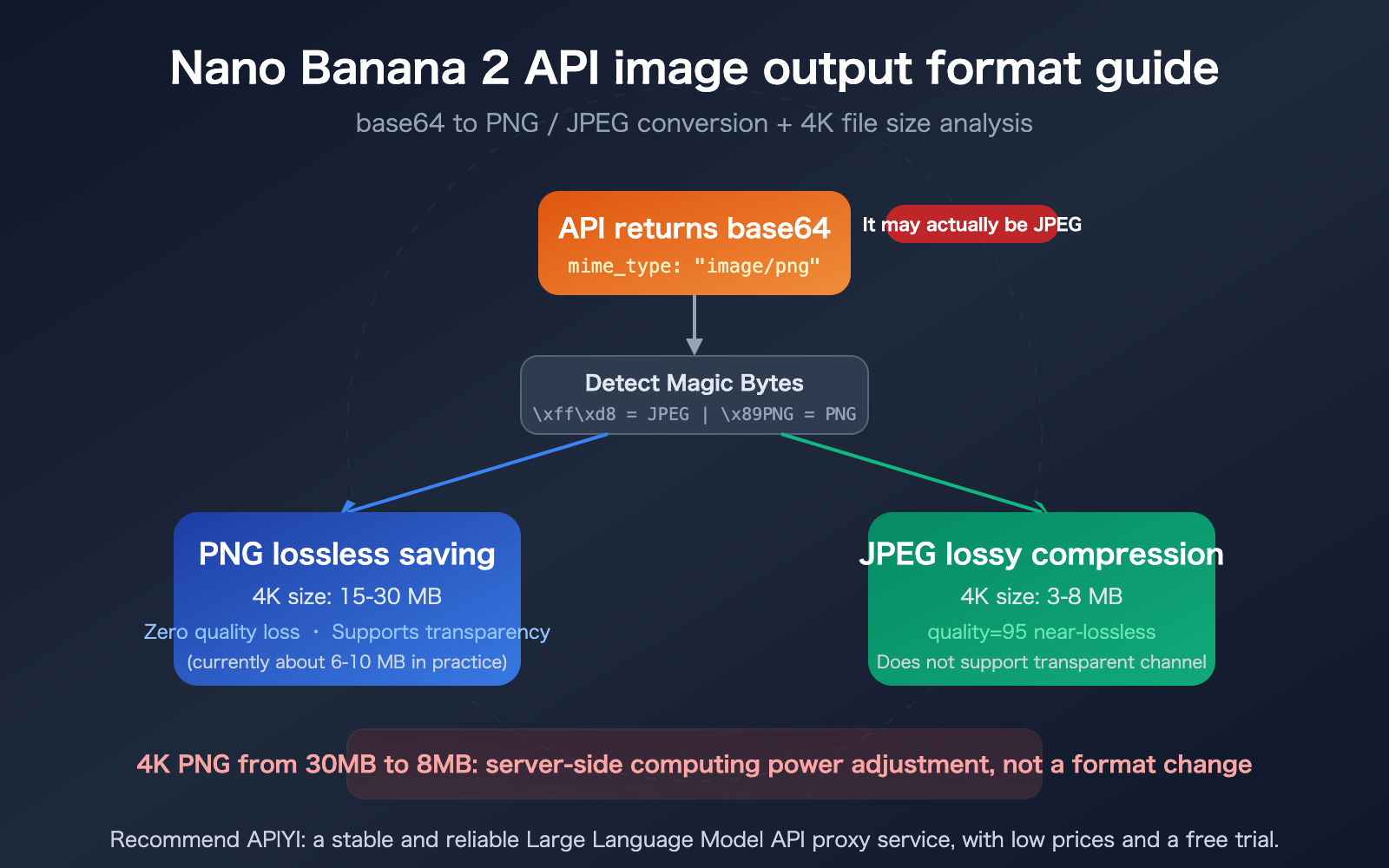
Let's clarify a key fact: the image data returned by the Nano Banana 2 API is base64 encoded, but base64 is just a transport encoding; the underlying byte data determines the actual image format.
| Point | Description | Impact |
|---|---|---|
| Default Return Format | base64 encoded, declared as image/png, but actual bytes may be JPEG |
Direct saving may result in the wrong format |
| AI Studio Format Control | Does not support outputMimeType parameter |
Must be converted on the client side |
| Vertex AI Format Control | Supports imageOutputOptions to specify PNG/JPEG |
Server-side controllable |
| 4K Size Change | Dropped from ~30MB to ~8MB | Caused by server-side compute adjustments |
| Known Bug | API claims to return PNG, but may actually be JPEG bytes | Need to detect magic bytes |
Underlying Mechanism of Nano Banana 2 API Image Output
Nano Banana 2 (Model ID: gemini-3.1-flash-image-preview) returns image output via an inlineData object, structured as follows:
{
  "candidates": [{
    "content": {
      "parts": [{
        "inlineData": {
          "mime_type": "image/png",
          "data": "<BASE64_IMAGE_DATA>"
        }
      }]
    }
  }]
}
There is a bug confirmed by Google (GitHub Issue #1824): the mime_type field in the response is declared as image/png, but the decoded byte data might actually be in JPEG format. This means you cannot simply trust the MIME type returned by the API; you need to determine the actual format using file header magic bytes.
The detection method is simple: the JPEG file header is \xff\xd8, and the PNG file header is \x89PNG\r\n\x1a\n.
3 Ways to Output PNG Format from the Nano Banana 2 API
This is the core of this article: how to ensure you get a genuine PNG format image.
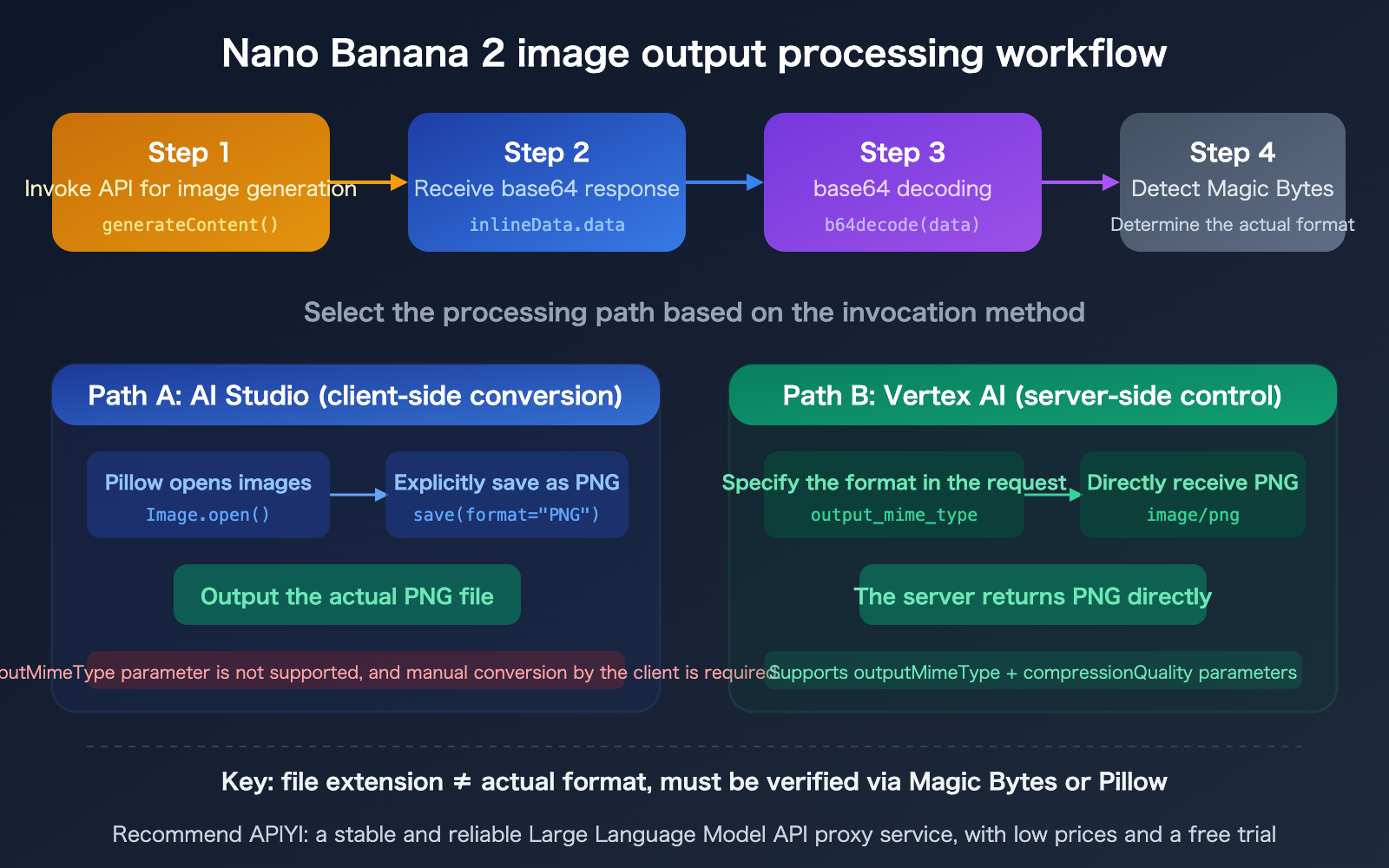
Method 1: Client-side Python Conversion (Recommended for AI Studio)
Since the Gemini API in AI Studio doesn't support server-side format control, the most reliable approach is client-side conversion:
import base64
from PIL import Image
from io import BytesIO

# Call Nano Banana 2 to generate an image
from google import genai
from google.genai import types

client = genai.Client(api_key="YOUR_API_KEY")

response = client.models.generate_content(
    model="gemini-3.1-flash-image-preview",
    contents=["An orange cat napping in the sun"],
    config=types.GenerateContentConfig(
        response_modalities=["TEXT", "IMAGE"],
        image_config=types.ImageConfig(
            image_size="4K",
            aspect_ratio="1:1"
        ),
    )
)

# Save as PNG format (regardless of the actual format returned by the API)
for part in response.parts:
    if image := part.as_image():
        image.save("output.png", format="PNG")  # Force lossless PNG saving
The key here is explicitly specifying format="PNG" in image.save("output.png", format="PNG"). If you don't specify the format parameter, Pillow will infer it from the file extension—which works most of the time, but being explicit is safer.
View full code for manual format detection and conversion
import base64
from PIL import Image
from io import BytesIO

def detect_and_save(base64_data: str, output_path: str, target_format: str = "PNG"):
    """
    Detect the true format of a base64 image and convert/save it

    Args:
        base64_data: base64 encoded image data
        output_path: output file path
        target_format: target format (PNG/JPEG/WEBP)
    """
    image_bytes = base64.b64decode(base64_data)

    # Detect true format via magic bytes
    if image_bytes[:2] == b'\xff\xd8':
        actual_format = "JPEG"
    elif image_bytes[:8] == b'\x89PNG\r\n\x1a\n':
        actual_format = "PNG"
    elif image_bytes[:4] == b'RIFF':
        actual_format = "WEBP"
    else:
        actual_format = "Unknown"

    print(f"Actual format returned by API: {actual_format}")
    print(f"Original data size: {len(image_bytes) / 1024 / 1024:.2f} MB")

    # Open with Pillow and convert to target format
    img = Image.open(BytesIO(image_bytes))
    print(f"Image dimensions: {img.size[0]}x{img.size[1]}")

    if target_format == "PNG":
        img.save(output_path, format="PNG", optimize=True)
    elif target_format == "JPEG":
        img.save(output_path, format="JPEG", quality=95)
    elif target_format == "WEBP":
        img.save(output_path, format="WEBP", quality=90)

    import os
    saved_size = os.path.getsize(output_path) / 1024 / 1024
    print(f"Saved file size: {saved_size:.2f} MB ({target_format})")
Method 2: Vertex AI Server-side Format Control
If you use Vertex AI to call Nano Banana 2, you can specify the output format directly in the request. This is the only way to perform server-side format control:
import os
from google import genai
from google.genai import types
from google.genai.types import HttpOptions

os.environ["GOOGLE_CLOUD_PROJECT"] = "your-project-id"
os.environ["GOOGLE_CLOUD_LOCATION"] = "global"
os.environ["GOOGLE_GENAI_USE_VERTEXAI"] = "True"

client = genai.Client(http_options=HttpOptions(api_version="v1"))

response = client.models.generate_content(
    model="gemini-3.1-flash-image-preview",
    contents=["An orange cat napping in the sun"],
    config=types.GenerateContentConfig(
        response_modalities=["TEXT", "IMAGE"],
        image_config=types.ImageConfig(
            image_size="4K",
            aspect_ratio="1:1",
            output_mime_type="image/png",         # Specify PNG output
            # compression_quality=75,             # Only valid for JPEG, 0-100
        ),
    )
)
Method 3: Unified Processing via APIYI Proxy Service
When calling through an API proxy service like APIYI, the platform automatically handles format compatibility issues:
import openai

client = openai.OpenAI(
    api_key="YOUR_API_KEY",
    base_url="https://vip.apiyi.com/v1"
)

response = client.chat.completions.create(
    model="gemini-3.1-flash-image-preview",
    messages=[
        {"role": "user", "content": "An orange cat napping in the sun"}
    ]
)
🎯 Format Selection Advice: Choose PNG for lossless quality, or JPEG for smaller file sizes (quality=95 is near-lossless).
We recommend testing via the APIYI apiyi.com platform, as it handles format compatibility uniformly, saving you the hassle of manual base64 decoding and format detection.
Nano Banana 2 API Format Control Capability Comparison
This is where many developers get confused: AI Studio and Vertex AI have completely different capabilities regarding format control.
Nano Banana 2 API Format Parameter Support Comparison
| Parameter | AI Studio (Gemini API) | Vertex AI | Imagen API |
|---|---|---|---|
| outputMimeType | Not supported | Supported (image/png, image/jpeg) | Supported |
| compressionQuality | Not supported | Supported (0-100, JPEG only) | Supported |
| imageSize | Supported (512/1K/2K/4K) | Supported | Supported |
| aspectRatio | Supported | Supported | Supported |
This means: if you use AI Studio to call Nano Banana 2, you cannot control whether the output is PNG or JPEG on the server side. The format returned by the API depends on the default behavior of Google's servers—and this default behavior currently has a bug (it may claim to be PNG but actually be JPEG).
Nano Banana 2 API File Size Comparison by Format
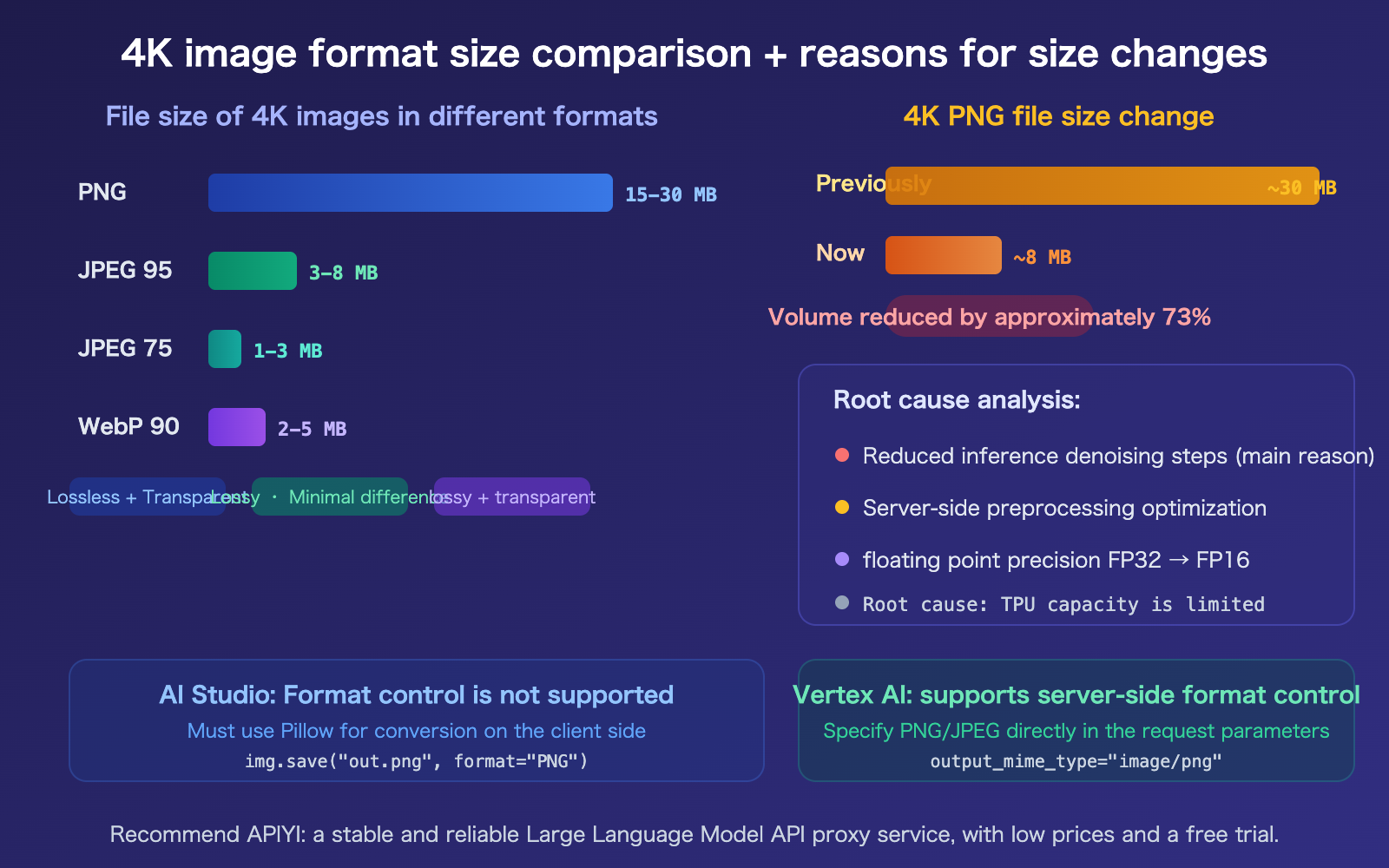
For the same 4K (4096×4096) AI-generated image, the file size difference between formats is massive:
| Format | Compression | Typical 4K Size | Transparency | Quality Loss |
|---|---|---|---|---|
| PNG | Lossless | 15-30 MB | Supported | None |
| JPEG quality=95 | Lossy | 3-8 MB | Not supported | Negligible |
| JPEG quality=75 | Lossy | 1-3 MB | Not supported | Slight |
| WebP quality=90 | Lossy | 2-5 MB | Supported | Negligible |
PNG is a lossless format, so the file size directly reflects the image's complexity (entropy). The richer the details and the more complex the textures, the larger the PNG file. This is the fundamental basis for understanding the 4K image size changes in the next section.
Tip: If your use case doesn't require a transparency channel, JPEG quality=95 is visually indistinguishable from PNG but is only 1/4 to 1/3 the size. You can quickly compare the differences in real-world scenarios via the APIYI apiyi.com platform.
The Truth Behind the Nano Banana 2 API 4K Image Size Reduction
This is the question on many users' minds: Why has the Nano Banana 2 image size from AI Studio plummeted from over 30MB to around 8MB, despite maintaining the same 4K resolution?
The Nano Banana 2 API Image Size Change Isn't a Format Issue
First, let's clear up a common misconception: this isn't a case of PNGs being swapped for JPEGs. If you check the magic bytes, you'll find the returned data format remains unchanged.
The real reason is that Google has adjusted the model's computational parameters on the server side, which has reduced the information complexity (entropy) of the generated images. There are three specific mechanisms at play:
Reason 1: Reduced Inference Steps (The Primary Cause)
When diffusion models generate images, they go through multiple rounds of denoising iterations. The number of denoising steps directly determines the richness of the image details:
- Previously: It likely used 50-100 denoising iterations, resulting in images with rich textures and fine details.
- Now: It may have been reduced to 20-40 steps, making the image clear overall but reducing local details and texture complexity.
Fewer denoising steps → fewer texture details → lower information entropy → smaller file size after PNG lossless compression.
It's not as simple as "the quality is worse"—to the naked eye, the overall composition and colors might look similar, but if you zoom in to the pixel level, you'll notice that the micro-textures and color gradients aren't as refined as they used to be.
Reason 2: Server-Side Preprocessing Optimization
After generation and before encoding to PNG, Google may have added slight noise reduction and color simplification:
- Subtle noise suppression reduces high-frequency details.
- Fewer color gradient levels reduce the finesse of color transitions.
- These processes make PNG compression more efficient (more similar pixels lead to higher compression ratios).
Reason 3: Floating-Point Precision Adjustment
Model inference may have switched from FP32 (32-bit floating point) to FP16 (16-bit floating point):
- FP16 has half the computational precision of FP32, and GPU usage is significantly reduced.
- Reduced precision leads to less smooth color gradients, which ultimately manifests as a smaller PNG file size.
Nano Banana 2 API Image Size Timeline
| Date | Event | Impact |
|---|---|---|
| Nov 2025 | Nano Banana Pro launched, full compute power | 4K PNG approx. 25-35 MB |
| Dec 2025 | Free quota reduced from 3 to 2 images/day | Resource throttling begins |
| Jan 2026 | User feedback on quality degradation | Details reduced, resolution unchanged |
| Feb 2026 | Nano Banana 2 released | 4K PNG approx. 6-10 MB |
| Mid-2026 (Est.) | Google TPU v7 capacity reaches target | Potential return to full compute power |
Key Takeaway: This is a trade-off Google made to balance user volume and service quality during a period of TPU capacity constraints. The resolution (pixel count) remains the same, but the information density (the amount of unique information carried by each pixel) has decreased. Users cannot restore the previous 30MB quality via API parameters.
🎯 Optimization Tips: If you require extremely high detail, you can try: 1) Using the
compressionQuality=100parameter in Vertex AI; 2) Emphasizing detail and texture requirements in your prompt; 3) Generating at 2K and using a super-resolution model to upscale to 4K.
You can test different parameter combinations and find the optimal quality-to-size balance via APIYI at apiyi.com.
FAQ
Q1: Is saving base64 data directly as a .png file the same as a PNG format?
Not necessarily. The file extension doesn't determine the actual format. You need to decode it first using base64.b64decode(), open it with Pillow's Image.open(), and then explicitly save it as a PNG using img.save("output.png", format="PNG"). If you write the decoded base64 bytes directly to a .png file, the actual format depends on the raw bytes returned by the API—and there is a known bug where the API claims to return PNG but actually returns JPEG.
Q2: Why doesn’t AI Studio support outputMimeType while Vertex AI does?
AI Studio (Gemini API) is positioned as a tool for rapid developer prototyping, so its features are relatively streamlined. Vertex AI is geared toward enterprise production environments and provides more comprehensive parameter control. The Google JS SDK type definitions explicitly mark outputMimeType as "Not supported in Gemini API." If you need server-side format control, switch to Vertex AI or use the unified interface via APIYI at apiyi.com.
Q3: Is it still worth using 4K resolution now that the file size has shrunk?
It depends on your use case. Although the 4K output size has decreased, the resolution is still 4096×4096 pixels, which remains valuable for print media or large-format displays. If your use case is social media or web display, 2K (2048px) might be a better value proposition—smaller file sizes and lower API costs ($0.101/image vs $0.151/image).
Q4: Is there any way to restore the previous 30MB high-quality output?
Not at the moment. The size reduction is a result of Google's server-side computational parameter adjustments, which cannot be controlled by users via API parameters. Once Google's TPU v7 capacity reaches its target in mid-2026, full compute power may be restored. Current workarounds include using more detailed prompts to guide the generation of more texture details, or generating 2K images and using a super-resolution model (like Real-ESRGAN) to upscale them to 4K.
Summary
Key takeaways for controlling image output formats in the Nano Banana 2 API:
- AI Studio lacks server-side format control: You must decode the base64 string on the client side and use Pillow to explicitly save it as a PNG. Be sure to check the magic bytes to verify the actual file format.
- Vertex AI supports
outputMimeType: You can specifyimage/pngorimage/jpegdirectly in your request, along with JPEG compression quality. - 4K file size reduction is a compute adjustment: The drop from 30MB to 8MB isn't a format change; it's due to Google reducing inference steps and floating-point precision, which lowers information entropy. Users cannot restore this via parameters.
Once you grasp these underlying mechanisms, you'll be able to choose the best saving strategy for your specific needs.
We recommend using APIYI (apiyi.com) to quickly test the effects of different formats and parameters. The platform offers free credits and a unified interface, supporting various ways to invoke Nano Banana 2.
📚 References
-
Gemini Image Generation Developer Documentation: Official API reference, including
ImageConfigparameter details.- Link:
ai.google.dev/gemini-api/docs/image-generation - Note: Learn about the parameters and limitations when using AI Studio.
- Link:
-
Vertex AI ImageOutputOptions Reference: Complete documentation for Vertex AI format control parameters.
- Link:
docs.cloud.google.com/vertex-ai/generative-ai/docs/reference/rest/Shared.Types/ImageOutputOptions - Note: Includes detailed explanations of
mimeTypeandcompressionQuality.
- Link:
-
GitHub Issue #1824 – MIME Type Mismatch: Bug report regarding APIs claiming to return PNG but actually returning JPEG.
- Link:
github.com/googleapis/python-genai/issues/1824 - Note: Understand the technical details and workarounds for this known issue.
- Link:
-
APIYI Documentation Center: A guide to format control when invoking Nano Banana 2 via a unified interface.
- Link:
docs.apiyi.com - Note: Ideal for developers looking to simplify their format processing workflows.
- Link:
Author: APIYI Technical Team
Technical Discussion: Feel free to join the discussion in the comments. For more resources, visit the APIYI documentation center at docs.apiyi.com.