When editing images with AI, a key question for many developers is: Can I modify just a specific part of an image without affecting the rest? This is the core problem that inpainting (local repair/local editing) technology aims to solve.
The good news is that the Nano Banana series of models do support inpainting for local edits, and they offer more powerful mask-free editing capabilities than traditional solutions. This article details three different approaches to achieve local editing via API, helping you quickly choose the best technical path for your needs.
Core Value: After reading this article, you'll master three ways to call the Nano Banana inpainting API and be able to implement professional-grade AI-powered local image editing in your own projects.
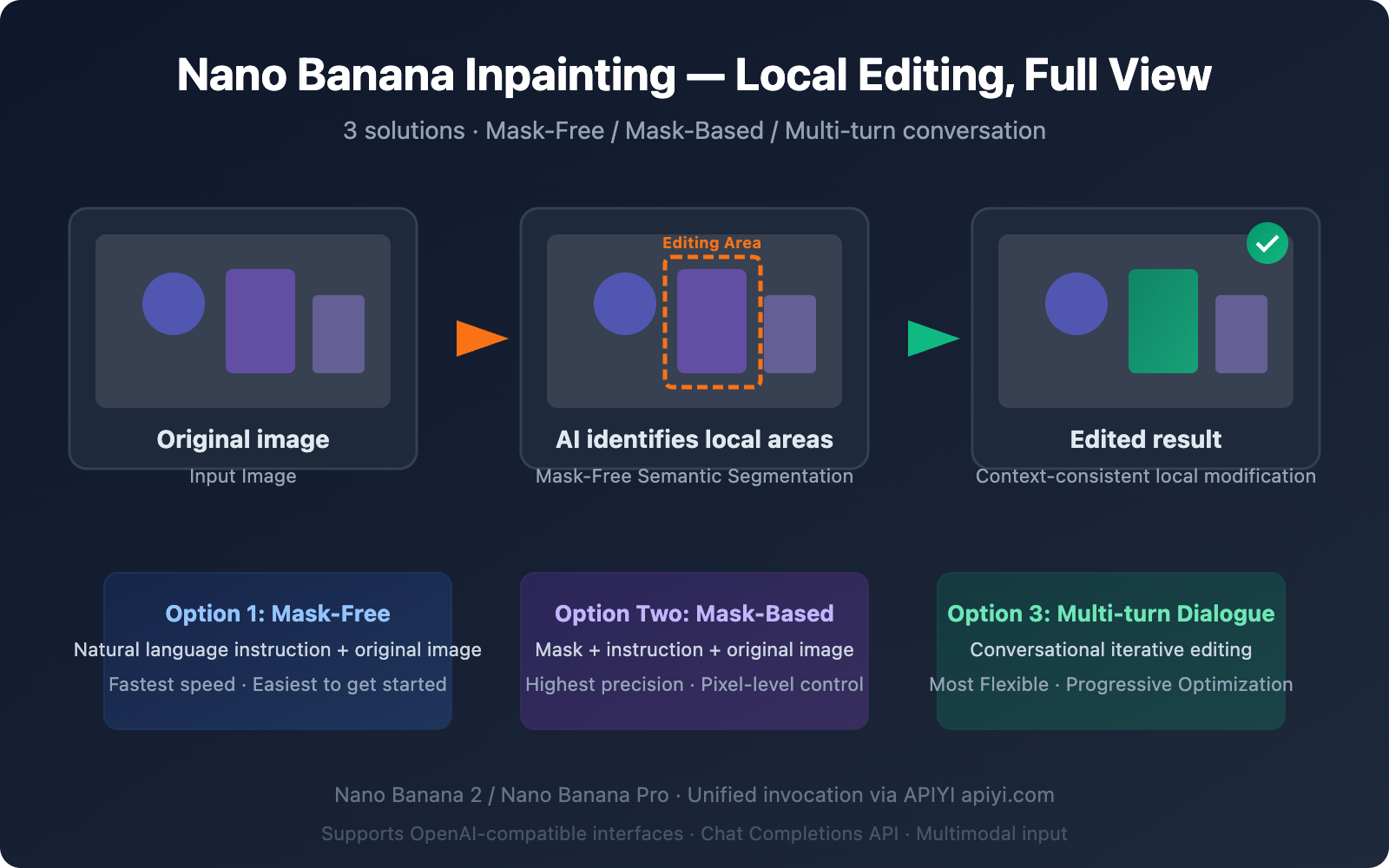
The Complete Picture of Nano Banana Inpainting: 3 Local Editing Approaches
There's a common misconception among developers: that Nano Banana can only generate images and doesn't support inpainting. In reality, Nano Banana not only supports inpainting but provides multiple implementation paths.
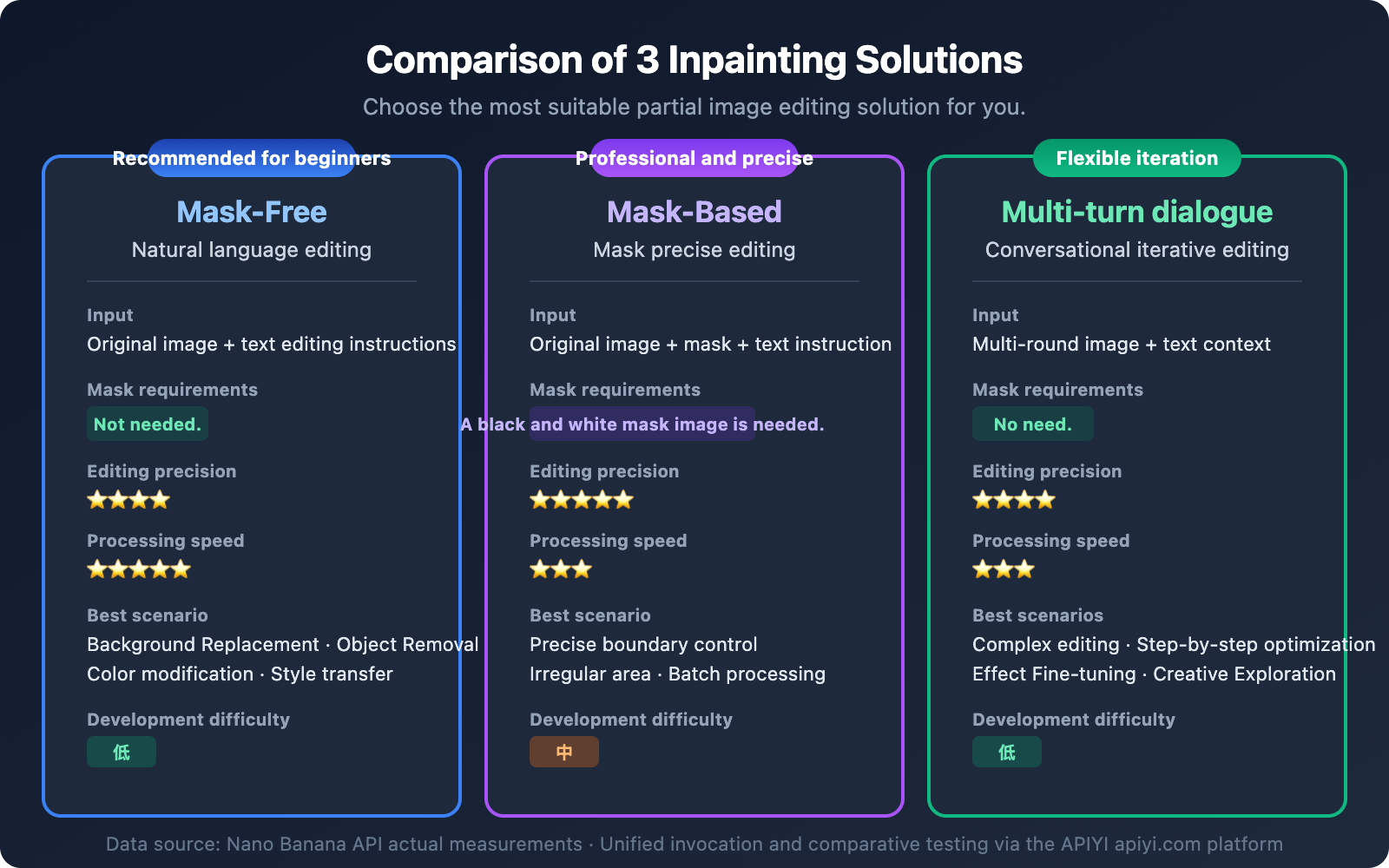
| Approach | Model | Principle | Precision | Speed | Best Use Case |
|---|---|---|---|---|---|
| Approach 1: Mask-Free Natural Language Editing | Nano Banana 2 | Text Instruction + Original Image | ⭐⭐⭐⭐ | ⭐⭐⭐⭐⭐ | Quick edits, background replacement |
| Approach 2: Mask-Based Precise Modification | Nano Banana Pro Edit | Mask + Text Instruction + Original Image | ⭐⭐⭐⭐⭐ | ⭐⭐⭐ | Precise area control |
| Approach 3: Multi-turn Conversational Iterative Editing | Nano Banana 2 | Multi-turn Conversation + Context | ⭐⭐⭐⭐ | ⭐⭐⭐ | Complex edits, step-by-step refinement |
Key Differences Between Nano Banana Inpainting and Traditional Approaches
Traditional inpainting tools (like Stable Diffusion Inpainting) require developers to manually draw a black-and-white mask to specify the area to be modified. Nano Banana's core breakthrough lies in:
- Semantic Understanding Driven: The model understands natural language instructions like "change the background to a beach" and automatically identifies the background area.
- Context-Aware: When modifying a local area, it automatically matches the lighting, perspective, and colors of the surrounding environment.
- No Mask Required: Most editing scenarios don't require manual mask creation, lowering the development barrier.
🎯 Technical Recommendation: Nano Banana's inpainting capability is provided through a standard OpenAI-compatible interface. We recommend calling it via the APIYI apiyi.com platform, which allows you to manage calls for both the Nano Banana 2 and Nano Banana Pro models in one place, making it easier to switch between different approaches for testing.
Option 1: Mask-Free Natural Language Inpainting (Recommended for Beginners)
This is one of the most powerful features of Nano Banana inpainting—you can make local edits using just text descriptions, without needing a mask.
How Nano Banana Mask-Free Inpainting Works
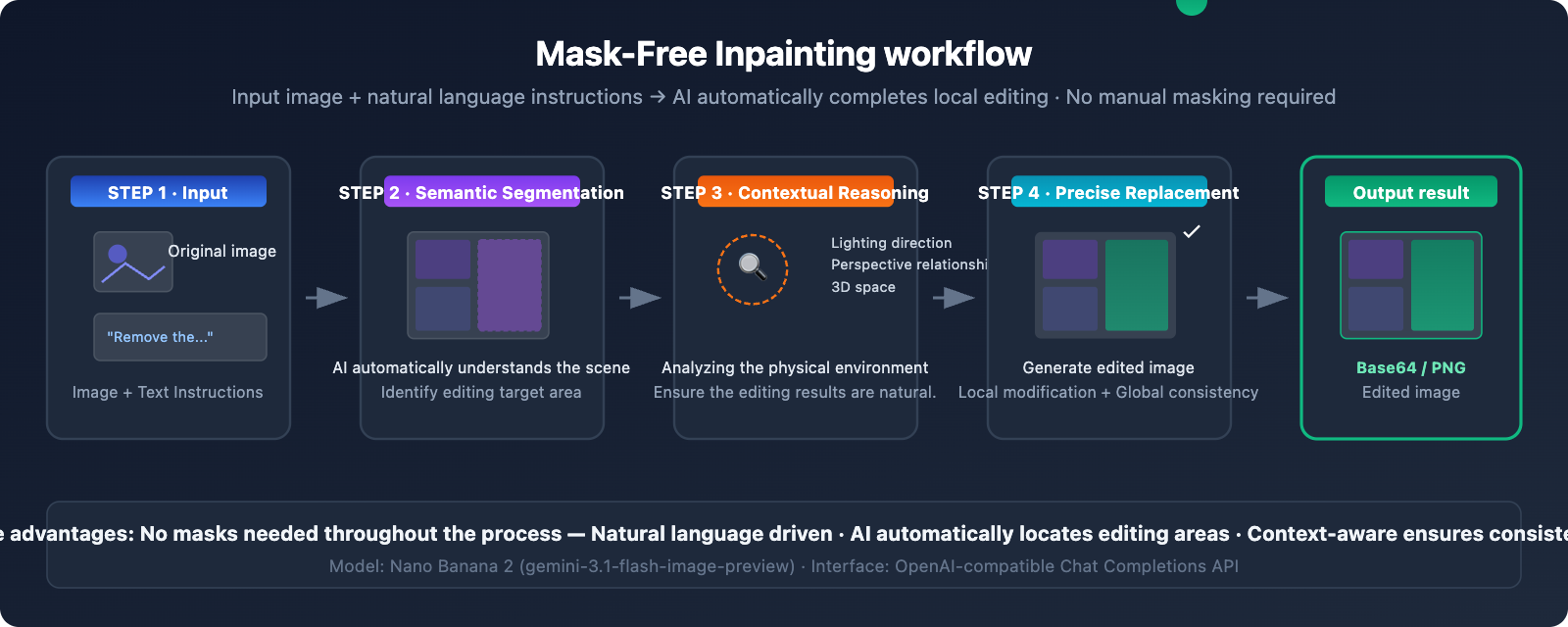
Nano Banana 2 (based on Gemini 3.1 Flash Image) has built-in semantic segmentation capabilities. The model will:
- Parse the edit instruction — Understand which part of the image you want to modify.
- Automatically identify the region — Locate the pixels to change through semantic understanding.
- Reason about context — Analyze lighting direction, perspective, and 3D spatial relationships.
- Perform precise replacement — Modify the target area while keeping the surrounding environment consistent.
Minimal Mask-Free Inpainting Code Example
import openai
import base64

client = openai.OpenAI(
    api_key="YOUR_API_KEY",
    base_url="https://api.apiyi.com/v1"  # APIYI unified endpoint
)

response = client.chat.completions.create(
    model="gemini-2.5-flash-image-preview",
    messages=[{
        "role": "user",
        "content": [
            {"type": "text", "text": "Remove the person from this photo and fill the area with the surrounding background naturally"},
            {"type": "image_url", "image_url": {"url": "https://example.com/your-photo.jpg"}}
        ]
    }]
)

# Extract the edited image
content = response.choices[0].message.content
print("Edit complete, extracting image data...")
Common Nano Banana Inpainting Instruction Templates
| Edit Type | English Instruction Template | Chinese Description |
|---|---|---|
| Remove Object | Remove the [object] from the image and fill naturally |
Remove a specified object and fill the area naturally. |
| Replace Background | Replace the background with [new scene] |
Replace the background scene. |
| Add Element | Add a [object] to the [position] of the image |
Add an element to a specified position. |
| Modify Attribute | Change the [object]'s color from [A] to [B] |
Change an object's color. |
| Blur Background | Blur the background while keeping the foreground sharp |
Apply background blur (bokeh). |
| Fix Imperfection | Remove the stain/scratch from the [area] |
Remove a stain or scratch. |
| Adjust Pose | Change the person's pose to [description] |
Adjust a person's pose. |
| Style Transfer | Convert the [area] to watercolor painting style |
Apply local style conversion. |
View Complete Mask-Free Inpainting Code (with image saving and error handling)
#!/usr/bin/env python3
"""
Nano Banana Mask-Free Inpainting Complete Example
Perform local image editing using natural language instructions.
"""

import openai
import base64
import re
from datetime import datetime

# Configuration
API_KEY = "YOUR_API_KEY"
BASE_URL = "https://api.apiyi.com/v1"

client = openai.OpenAI(api_key=API_KEY, base_url=BASE_URL)

def inpaint_image(image_url: str, edit_instruction: str, output_path: str = None):
    """
    Edit an image using Mask-Free Inpainting.

    Args:
        image_url: Original image URL or base64 data URI.
        edit_instruction: English edit instruction.
        output_path: Output file path (optional).
    Returns:
        bool: Success status.
    """
    print(f"📝 Edit Instruction: {edit_instruction}")
    print(f"🖼️  Original Image: {image_url[:80]}...")

    try:
        response = client.chat.completions.create(
            model="gemini-2.5-flash-image-preview",
            messages=[{
                "role": "user",
                "content": [
                    {"type": "text", "text": f"Generate an image: {edit_instruction}"},
                    {"type": "image_url", "image_url": {"url": image_url}}
                ]
            }]
        )

        content = response.choices[0].message.content

        # Extract base64 image data
        patterns = [
            r'data:image/[^;]+;base64,([A-Za-z0-9+/=]+)',
            r'([A-Za-z0-9+/=]{1000,})'
        ]

        base64_data = None
        for pattern in patterns:
            match = re.search(pattern, content)
            if match:
                base64_data = match.group(1)
                break

        if not base64_data:
            print(f"⚠️ No image data found, model response: {content[:200]}")
            return False

        # Save the image
        if not output_path:
            timestamp = datetime.now().strftime("%Y%m%d_%H%M%S")
            output_path = f"inpainted_{timestamp}.png"

        image_bytes = base64.b64decode(base64_data)
        with open(output_path, 'wb') as f:
            f.write(image_bytes)

        print(f"✅ Edit complete! Saved to: {output_path} ({len(image_bytes):,} bytes)")
        return True

    except Exception as e:
        print(f"❌ Edit failed: {e}")
        return False


# Usage example
if __name__ == "__main__":
    # Example 1: Remove object
    inpaint_image(
        image_url="https://example.com/photo-with-person.jpg",
        edit_instruction="Remove the person on the right side and fill with natural background",
        output_path="result_remove_person.png"
    )

    # Example 2: Replace background
    inpaint_image(
        image_url="https://example.com/portrait.jpg",
        edit_instruction="Replace the background with a sunset beach scene, keep the person unchanged",
        output_path="result_new_background.png"
    )

    # Example 3: Modify local attribute
    inpaint_image(
        image_url="https://example.com/room.jpg",
        edit_instruction="Change the wall color to light blue, keep furniture unchanged",
        output_path="result_wall_color.png"
    )
Option 2: Mask-Based Precise Inpainting (Advanced Usage)
When you need pixel-perfect control over the area to be modified, you can use Nano Banana Pro Edit's mask mode.
How Mask-Based Inpainting Works
This mode requires you to provide a black-and-white mask image. White areas indicate the parts to be edited, while black areas remain unchanged.
| Parameter | Description | Requirements |
|---|---|---|
| Original Image | The image to be edited | PNG/JPEG, recommended not to exceed 4096×4096 |
| Mask Image | A black-and-white image marking the edit area | Same dimensions as the original image, white = edit area |
| Edit Instruction | Describes how to fill the white area | English instructions work best |
Mask-Based Inpainting Code Example
import openai

client = openai.OpenAI(
    api_key="YOUR_API_KEY",
    base_url="https://api.apiyi.com/v1"
)

# Multiple image inputs: Original + Mask + Text Instruction
response = client.chat.completions.create(
    model="gemini-2.5-flash-image-preview",
    messages=[{
        "role": "user",
        "content": [
            {
                "type": "text",
                "text": "Generate an image: The first image is the original photo. The second image is a mask where white areas indicate regions to edit. Replace the masked area with a beautiful garden scene."
            },
            {"type": "image_url", "image_url": {"url": "https://example.com/original.jpg"}},
            {"type": "image_url", "image_url": {"url": "https://example.com/mask.png"}}
        ]
    }]
)
When to Choose Mask-Based Inpainting
- When you need precise control over edit boundaries (e.g., modifying only a shirt without affecting skin)
- When the edit area has an irregular shape that's hard to describe accurately with natural language
- When you need to batch process the same area across multiple images
- For professional scenarios with extremely high requirements for edge transitions
💡 Pro Tip: The easiest way to create a mask is to use a brush tool in Photoshop or GIMP to paint the areas you want to change white, then export as PNG. If manually creating masks feels like too much hassle, Option 1's Mask-Free mode is often good enough for most use cases.
Option 3: Multi-Turn Dialogue Inpainting (Iterative Refinement)
Nano Banana 2 supports multi-turn editing within a single conversation. Each turn can build upon the results of the previous one, making it perfect for scenarios that require fine-tuning.
Multi-Turn Inpainting Conversation Flow
Turn 1: "Change the background to an office" → Get edited image A
Turn 2: Image A + "Replace the cup on the desk with a laptop" → Get edited image B
Turn 3: Image B + "Brighten the overall lighting, add window light effects" → Get final image C
Multi-Turn Inpainting Code Implementation
import openai

client = openai.OpenAI(
    api_key="YOUR_API_KEY",
    base_url="https://api.apiyi.com/v1"
)

# Build a multi-turn conversation
messages = [
    # Turn 1: Initial edit
    {
        "role": "user",
        "content": [
            {"type": "text", "text": "Replace the background with a modern office scene"},
            {"type": "image_url", "image_url": {"url": "https://example.com/photo.jpg"}}
        ]
    }
]

# First turn request
response_1 = client.chat.completions.create(
    model="gemini-2.5-flash-image-preview",
    messages=messages
)

# Add the first turn's result to the context
messages.append({"role": "assistant", "content": response_1.choices[0].message.content})

# Turn 2: Continue editing based on the previous result
messages.append({
    "role": "user",
    "content": [{"type": "text", "text": "Now add a laptop on the desk and make the lighting warmer"}]
})

response_2 = client.chat.completions.create(
    model="gemini-2.5-flash-image-preview",
    messages=messages
)
Nano Banana Inpainting Model Version Comparison
Choosing which Nano Banana model to use depends on your specific inpainting needs:
| Comparison Dimension | Nano Banana 2 | Nano Banana Pro | Explanation |
|---|---|---|---|
| Model ID | gemini-3.1-flash-image-preview |
gemini-3.0-pro-image |
– |
| Mask-Free Editing | ✅ Supported | ✅ Supported | Both support natural language editing |
| Editing Precision | ⭐⭐⭐⭐ | ⭐⭐⭐⭐⭐ | Pro has finer semantic understanding |
| Generation Speed | 3-8 seconds | 10-20 seconds | Flash architecture is 3-5x faster |
| Max Resolution | 4K (4096px) | 2K (2048px) | Banana 2 has higher resolution |
| Multi-round Editing | ✅ Supported | ✅ Supported | Both support multi-turn conversations |
| API Price | ~$0.02/call | ~$0.04/call | Banana 2 costs half as much |
| Recommended Use Case | Batch editing, rapid iteration | Professional retouching, high-precision needs | Can call both via the APIYI apiyi.com platform |
Nano Banana Inpainting Model Selection Advice
- Daily editing, batch processing: Choose Nano Banana 2 — fast, low-cost, 4K resolution
- Professional retouching, commercial assets: Choose Nano Banana Pro — finest semantic understanding and color reproduction
- Unsure which to use: Start with Nano Banana 2 to test results, switch to Pro if unsatisfied
Nano Banana Inpainting vs. Gemini Web Version Editing
Many users who've tried the image editing feature on the Gemini website (gemini.google.com) ask: Can this API do that too?
The answer is yes, but with differences:
| Dimension | Gemini Web Version | Nano Banana API |
|---|---|---|
| Interaction Method | Mouse selection + text description | Pure API calls (text + image) |
| Mask Creation | Built-in brush tools on the website | Requires preparing your own mask image or using mask-free mode |
| Control Precision | Visual selection, intuitive | Code-level control, automatable |
| Batch Processing | Not supported | ✅ Supports batch calls |
| Watermark | Has SynthID watermark | Has SynthID watermark |
| Integration Capability | Web-only use | Can be embedded into any application |
| Price | Free (with limits) | Pay-per-call |
Key Difference: The Gemini web version's image editing experience is more interactive and visual—users can directly draw selections with a mouse. The core advantage of the API version is automation and scalability—you can batch process images in code and embed it into your product workflow.
🎯 Technical Advice: If your need is to integrate AI image editing into your own product, the API is the only choice. You can get more stable API access and technical support through the APIYI apiyi.com platform.
Optimizing Edit Instructions
Good edit instructions can significantly improve inpainting results:
| Technique | Bad Instruction ❌ | Good Instruction ✅ |
|---|---|---|
| Be Specific | "Change the background" | "Replace the background with a sunset beach, warm golden light" |
| Specify Areas to Keep | "Swap the background" | "Replace the background while keeping the person completely unchanged" |
| Describe Lighting | "Add a light" | "Add soft warm lighting from the upper left, casting gentle shadows" |
| Describe Materials | "Change the floor" | "Replace the floor with light oak hardwood flooring with visible grain" |
| Limit Scope | "Change the color" | "Change only the car's body color to midnight blue, keep windows and tires unchanged" |
Nano Banana Inpainting Performance Tips
- Preprocess Input Images — Recommended size between 1024×1024 and 2048×2048. Larger images increase processing time.
- Prefer English Instructions — English instructions are understood significantly more accurately than Chinese.
- Focus on One Edit at a Time — Break down complex edits into multiple rounds, doing one thing per round.
- Add a "Generate an image:" Prefix — Clearly tell the model to output an image, not just a text reply.
Frequently Asked Questions
Q1: Does the Nano Banana API really support inpainting? I thought it was only available on the web version?
Yes, the Nano Banana API fully supports inpainting for local image edits. Both Nano Banana 2 (gemini-3.1-flash-image-preview) and Nano Banana Pro (gemini-3.0-pro-image) support image editing via API. The most powerful feature is mask-free inpainting. You don't need to create a mask; you just describe your edit in natural language, and the model automatically identifies and modifies the target area. You can quickly get an API key and start testing through the APIYI platform at apiyi.com.
Q2: Which is better, Mask-Free or Mask-Based Inpainting?
It depends on the scenario. For common needs like background replacement, object removal, or color changes, Mask-Free mode is usually precise enough and much more convenient. For scenarios requiring extremely strict boundaries (e.g., changing only a shirt's pattern without affecting the skin), Mask-Based mode offers more precise control. We recommend trying Mask-Free mode first, and switching to a mask if you're not satisfied. The APIYI platform at apiyi.com supports calls for both modes, making it very easy to switch.
Q3: Can Nano Banana’s inpainting achieve Photoshop-level results?
In many scenarios, it's already very close to, or even surpasses, Photoshop's Content-Aware Fill. Nano Banana's advantage is its understanding of scene semantics—for example, after removing a person, it knows what kind of building or scenery should be behind them, not just simple texture filling. However, for extremely detailed commercial retouching, we recommend using Photoshop for final adjustments.
Q4: Why do my edit instructions sometimes not work, and the model generates a completely new image?
This is a common issue. Make sure your instruction clearly expresses "edit" rather than "generate." We recommend adding a "Generate an image:" prefix to your instruction and explicitly stating which parts of the original image to keep. For example: "Generate an image: Edit the original photo - replace only the sky with a starry night, keep everything else exactly the same". If the problem persists, try adding "Do not change the composition or layout" to constrain the model.
Q5: What’s the cost for Nano Banana Inpainting API calls?
Image editing with Nano Banana 2 costs about $0.02 per call, and Nano Banana Pro about $0.04 per call. Calling through the APIYI platform at apiyi.com offers more favorable pricing, with an actual cost of around ¥0.14 per call (Nano Banana 2), making it suitable for batch image editing scenarios.
Summary
Nano Banana's inpainting capabilities for local image editing are far more powerful than many developers realize. The three approaches each have their ideal use cases:
- Mask-Free Natural Language Editing — Most convenient, suitable for most scenarios, recommended as the first choice
- Mask-Based Precise Editing — Most accurate, ideal for professional pixel-level control
- Multi-turn Conversational Iterative Editing — Most flexible, perfect for complex, progressive modifications
Regardless of which approach you choose, the core concept is sending images and editing instructions through the standard Chat Completions API. We recommend starting your tests quickly via the APIYI platform at apiyi.com—you can get your first inpainting example running in just 5 minutes.
References
-
Google AI Official Documentation – Nano Banana Image Generation
- Link:
ai.google.dev/gemini-api/docs/image-generation - Description: Complete documentation for the Gemini image generation and editing API
- Link:
-
Google Developers Blog – Gemini 2.5 Flash Image
- Link:
developers.googleblog.com/introducing-gemini-2-5-flash-image/ - Description: Detailed explanation of Nano Banana's technical architecture and capabilities
- Link:
-
DataCamp – Gemini 2.5 Flash Image Complete Guide
- Link:
datacamp.com/tutorial/gemini-2-5-flash-image-guide - Description: Complete code examples and practical guides
- Link:
📝 Author: APIYI Team | For technical discussions and API access, visit apiyi.com