用 AI 編輯圖片時,很多開發者最關心的問題是:能不能只改圖片的某個局部,而不影響其他部分? 這就是 inpainting(局部修復/局部改圖)技術要解決的核心問題。
好消息是,Nano Banana 系列模型 確實支持 inpainting 局部改圖,而且提供了比傳統方案更強大的 mask-free(無蒙版)編輯能力。本文將詳解 3 種通過 API 實現局部改圖的方案,幫你快速選擇最適合的技術路線。
核心價值: 讀完本文,你將掌握 Nano Banana inpainting API 的 3 種調用方式,能夠在自己的項目中實現專業級的 AI 局部改圖功能。
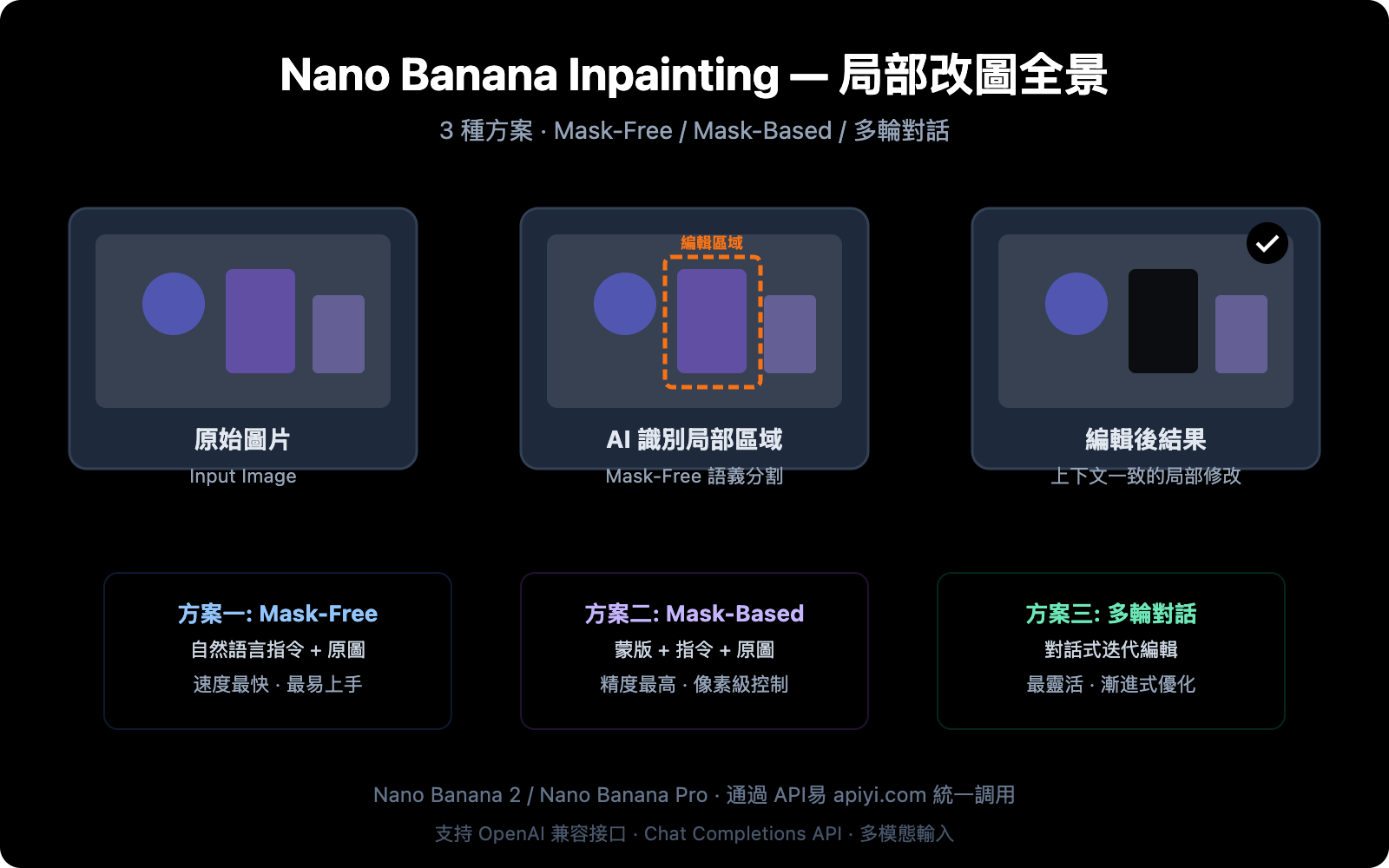
Nano Banana Inpainting 能力全景:3 種局部改圖方案
很多開發者有一個常見誤解:認爲 Nano Banana 只能生成圖片,不支持 inpainting。實際上,Nano Banana 不僅支持 inpainting,還提供了多種實現路徑。
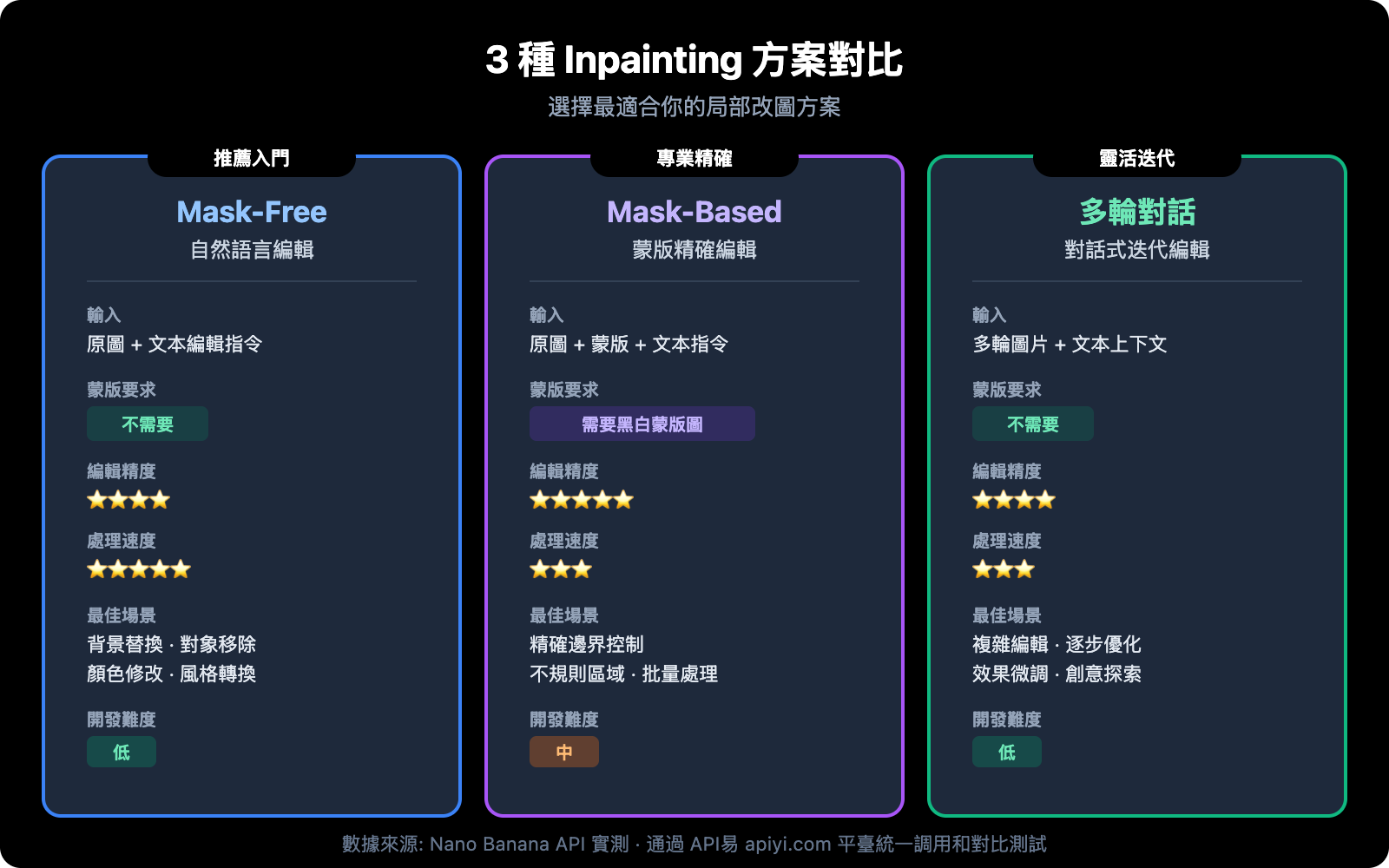
| 方案 | 模型 | 原理 | 精度 | 速度 | 適用場景 |
|---|---|---|---|---|---|
| 方案一: Mask-Free 自然語言編輯 | Nano Banana 2 | 文本指令 + 原圖 | ⭐⭐⭐⭐ | ⭐⭐⭐⭐⭐ | 快速編輯、背景替換 |
| 方案二: Mask-Based 精確修改 | Nano Banana Pro Edit | 蒙版 + 文本指令 + 原圖 | ⭐⭐⭐⭐⭐ | ⭐⭐⭐ | 精確區域控制 |
| 方案三: 多輪對話迭代編輯 | Nano Banana 2 | 多輪對話 + 上下文 | ⭐⭐⭐⭐ | ⭐⭐⭐ | 複雜編輯、逐步優化 |
Nano Banana Inpainting 與傳統方案的關鍵區別
傳統的 inpainting 工具(如 Stable Diffusion Inpainting)需要開發者手動繪製黑白蒙版(mask),指定需要修改的區域。而 Nano Banana 的核心突破在於:
- 語義理解驅動: 模型能理解"把背景換成海灘"這類自然語言指令,自動識別背景區域
- 上下文感知: 修改局部時自動匹配周圍環境的光照、透視和色彩
- 無需蒙版: 大部分編輯場景不需要手動製作 mask,降低了開發門檻
🎯 技術建議: Nano Banana 的 inpainting 能力通過標準的 OpenAI 兼容接口提供。我們建議通過 API易 apiyi.com 平臺調用,可以統一管理 Nano Banana 2 和 Nano Banana Pro 兩個模型的調用,便於在不同方案之間切換測試。
方案一:Mask-Free 自然語言 Inpainting(推薦入門)
這是 Nano Banana inpainting 最強大的特性之一——不需要蒙版,只用文字描述就能實現局部修改。
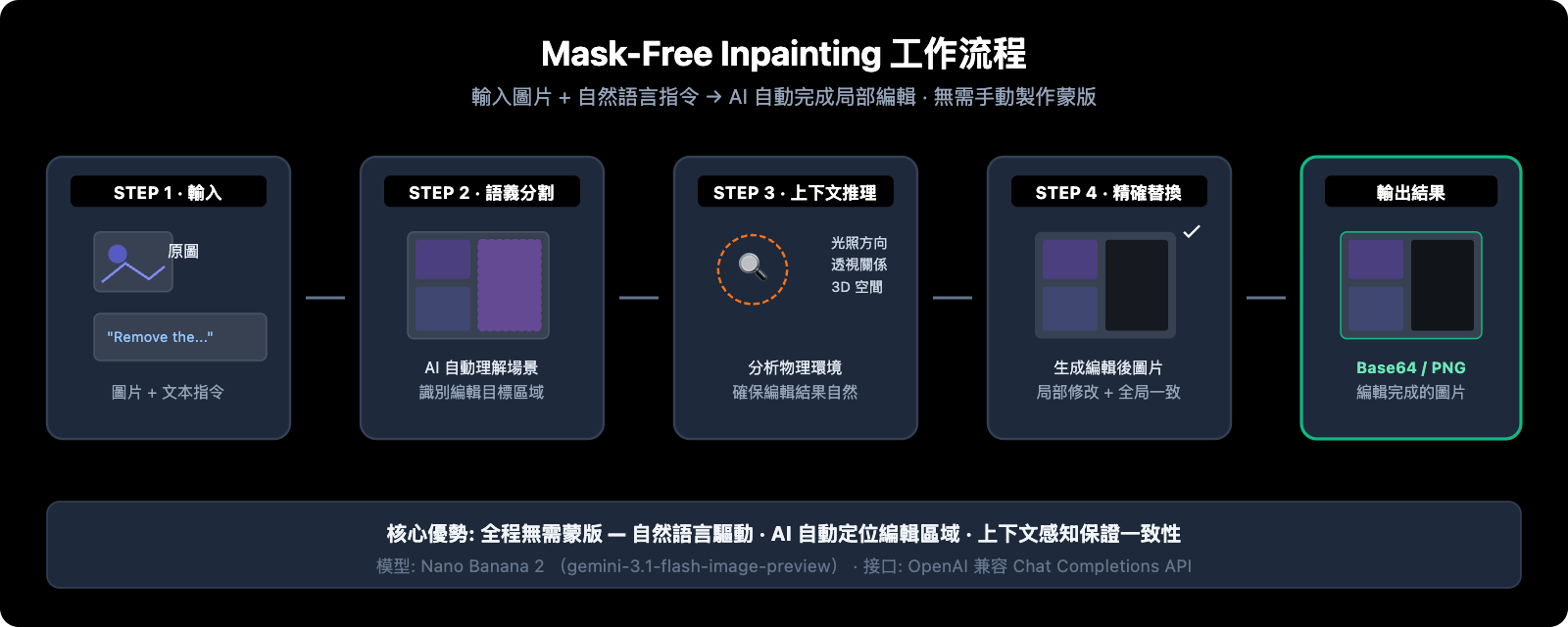
Nano Banana Mask-Free Inpainting 核心原理
Nano Banana 2(基於 Gemini 3.1 Flash Image)內置了語義分割能力,模型會:
- 解析編輯指令 — 理解你想修改圖片的哪個部分
- 自動識別區域 — 通過語義理解定位需要修改的像素區域
- 上下文推理 — 分析光照方向、透視關係、3D 空間關係
- 精確替換 — 在保持周圍環境一致的前提下修改目標區域
Mask-Free Inpainting 極簡代碼示例
import openai
import base64

client = openai.OpenAI(
    api_key="YOUR_API_KEY",
    base_url="https://api.apiyi.com/v1"  # API易 統一接口
)

response = client.chat.completions.create(
    model="gemini-2.5-flash-image-preview",
    messages=[{
        "role": "user",
        "content": [
            {"type": "text", "text": "Remove the person from this photo and fill the area with the surrounding background naturally"},
            {"type": "image_url", "image_url": {"url": "https://example.com/your-photo.jpg"}}
        ]
    }]
)

# 提取編輯後的圖片
content = response.choices[0].message.content
print("編輯完成,提取圖片數據...")
Nano Banana Inpainting 常用編輯指令模板
| 編輯類型 | 英文指令模板 | 中文說明 |
|---|---|---|
| 移除對象 | Remove the [object] from the image and fill naturally |
移除指定對象並自然填充 |
| 替換背景 | Replace the background with [new scene] |
替換背景場景 |
| 添加元素 | Add a [object] to the [position] of the image |
在指定位置添加元素 |
| 修改屬性 | Change the [object]'s color from [A] to [B] |
修改對象顏色 |
| 模糊背景 | Blur the background while keeping the foreground sharp |
背景虛化 |
| 修復瑕疵 | Remove the stain/scratch from the [area] |
移除污漬或劃痕 |
| 姿勢調整 | Change the person's pose to [description] |
調整人物姿勢 |
| 風格轉換 | Convert the [area] to watercolor painting style |
局部風格轉換 |
查看 Mask-Free Inpainting 完整代碼(含圖片保存和錯誤處理)
#!/usr/bin/env python3
"""
Nano Banana Mask-Free Inpainting 完整示例
通過自然語言指令實現局部圖片編輯
"""

import openai
import base64
import re
from datetime import datetime

# 配置
API_KEY = "YOUR_API_KEY"
BASE_URL = "https://api.apiyi.com/v1"

client = openai.OpenAI(api_key=API_KEY, base_url=BASE_URL)

def inpaint_image(image_url: str, edit_instruction: str, output_path: str = None):
    """
    使用 Mask-Free Inpainting 編輯圖片

    Args:
        image_url: 原圖 URL 或 base64 data URI
        edit_instruction: 英文編輯指令
        output_path: 輸出文件路徑(可選)
    Returns:
        bool: 是否成功
    """
    print(f"📝 編輯指令: {edit_instruction}")
    print(f"🖼️  原圖: {image_url[:80]}...")

    try:
        response = client.chat.completions.create(
            model="gemini-2.5-flash-image-preview",
            messages=[{
                "role": "user",
                "content": [
                    {"type": "text", "text": f"Generate an image: {edit_instruction}"},
                    {"type": "image_url", "image_url": {"url": image_url}}
                ]
            }]
        )

        content = response.choices[0].message.content

        # 提取 base64 圖片數據
        patterns = [
            r'data:image/[^;]+;base64,([A-Za-z0-9+/=]+)',
            r'([A-Za-z0-9+/=]{1000,})'
        ]

        base64_data = None
        for pattern in patterns:
            match = re.search(pattern, content)
            if match:
                base64_data = match.group(1)
                break

        if not base64_data:
            print(f"⚠️ 未找到圖片數據,模型回覆: {content[:200]}")
            return False

        # 保存圖片
        if not output_path:
            timestamp = datetime.now().strftime("%Y%m%d_%H%M%S")
            output_path = f"inpainted_{timestamp}.png"

        image_bytes = base64.b64decode(base64_data)
        with open(output_path, 'wb') as f:
            f.write(image_bytes)

        print(f"✅ 編輯完成! 保存到: {output_path} ({len(image_bytes):,} 字節)")
        return True

    except Exception as e:
        print(f"❌ 編輯失敗: {e}")
        return False


# 使用示例
if __name__ == "__main__":
    # 示例 1: 移除對象
    inpaint_image(
        image_url="https://example.com/photo-with-person.jpg",
        edit_instruction="Remove the person on the right side and fill with natural background",
        output_path="result_remove_person.png"
    )

    # 示例 2: 替換背景
    inpaint_image(
        image_url="https://example.com/portrait.jpg",
        edit_instruction="Replace the background with a sunset beach scene, keep the person unchanged",
        output_path="result_new_background.png"
    )

    # 示例 3: 修改局部屬性
    inpaint_image(
        image_url="https://example.com/room.jpg",
        edit_instruction="Change the wall color to light blue, keep furniture unchanged",
        output_path="result_wall_color.png"
    )
方案二:Mask-Based 精確 Inpainting(高級用法)
當你需要像素級精確控制修改區域時,可以使用 Nano Banana Pro Edit 的蒙版模式。
Mask-Based Inpainting 工作原理
這種模式需要你提供一張黑白蒙版圖片(mask),白色區域表示需要修改的部分,黑色區域表示保持不變。
| 參數 | 說明 | 要求 |
|---|---|---|
| 原圖 | 需要編輯的圖片 | PNG/JPEG,建議不超過 4096×4096 |
| 蒙版圖 | 標記編輯區域的黑白圖 | 與原圖同尺寸,白色=編輯區域 |
| 編輯指令 | 描述如何填充白色區域 | 英文指令效果最佳 |
Mask-Based Inpainting 代碼示例
import openai

client = openai.OpenAI(
    api_key="YOUR_API_KEY",
    base_url="https://api.apiyi.com/v1"
)

# 多圖輸入: 原圖 + 蒙版 + 文本指令
response = client.chat.completions.create(
    model="gemini-2.5-flash-image-preview",
    messages=[{
        "role": "user",
        "content": [
            {
                "type": "text",
                "text": "Generate an image: The first image is the original photo. The second image is a mask where white areas indicate regions to edit. Replace the masked area with a beautiful garden scene."
            },
            {"type": "image_url", "image_url": {"url": "https://example.com/original.jpg"}},
            {"type": "image_url", "image_url": {"url": "https://example.com/mask.png"}}
        ]
    }]
)
何時選擇 Mask-Based Inpainting
- 需要精確控制編輯邊界(如只修改襯衫不影響皮膚)
- 編輯區域形狀不規則,自然語言難以準確描述
- 需要批量處理相同區域的多張圖片
- 對邊緣過渡要求極高的專業場景
💡 實用提示: 製作蒙版最簡單的方式是在 Photoshop 或 GIMP 中用畫筆塗白需要修改的區域,然後導出爲 PNG。如果嫌手動製作蒙版麻煩,方案一的 Mask-Free 模式在大多數場景下已經足夠好用。
方案三:多輪對話 Inpainting(迭代優化)
Nano Banana 2 支持在一次會話中進行多輪編輯,每一輪都可以基於上一輪的結果繼續修改。這種方式特別適合需要精細調整的場景。
多輪 Inpainting 對話流程
第1輪: "把背景換成辦公室" → 得到編輯後圖片A
第2輪: 圖片A + "把桌上的杯子換成筆記本電腦" → 得到編輯後圖片B
第3輪: 圖片B + "調亮整體光線,增加窗戶透光效果" → 得到最終圖片C
多輪 Inpainting 代碼實現
import openai

client = openai.OpenAI(
    api_key="YOUR_API_KEY",
    base_url="https://api.apiyi.com/v1"
)

# 構建多輪對話
messages = [
    # 第1輪: 初始編輯
    {
        "role": "user",
        "content": [
            {"type": "text", "text": "Replace the background with a modern office scene"},
            {"type": "image_url", "image_url": {"url": "https://example.com/photo.jpg"}}
        ]
    }
]

# 第1輪請求
response_1 = client.chat.completions.create(
    model="gemini-2.5-flash-image-preview",
    messages=messages
)

# 將第1輪結果加入上下文
messages.append({"role": "assistant", "content": response_1.choices[0].message.content})

# 第2輪: 基於前一輪繼續編輯
messages.append({
    "role": "user",
    "content": [{"type": "text", "text": "Now add a laptop on the desk and make the lighting warmer"}]
})

response_2 = client.chat.completions.create(
    model="gemini-2.5-flash-image-preview",
    messages=messages
)
Nano Banana Inpainting 不同模型版本對比
選擇哪個 Nano Banana 模型取決於你的 inpainting 需求:
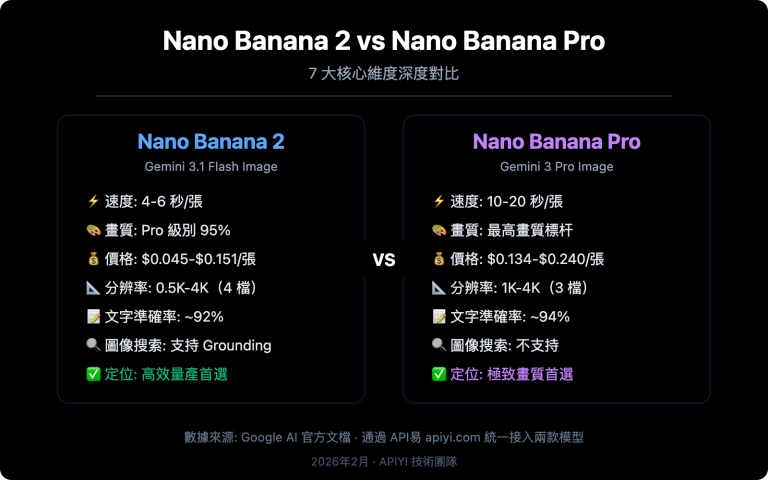
| 對比維度 | Nano Banana 2 | Nano Banana Pro | 說明 |
|---|---|---|---|
| 模型 ID | gemini-3.1-flash-image-preview |
gemini-3.0-pro-image |
– |
| Mask-Free 編輯 | ✅ 支持 | ✅ 支持 | 兩者都支持自然語言編輯 |
| 編輯精度 | ⭐⭐⭐⭐ | ⭐⭐⭐⭐⭐ | Pro 的語義理解更精細 |
| 生成速度 | 3-8 秒 | 10-20 秒 | Flash 架構快 3-5 倍 |
| 最大分辨率 | 4K (4096px) | 2K (2048px) | Banana 2 分辨率更高 |
| 多輪編輯 | ✅ 支持 | ✅ 支持 | 兩者都支持多輪對話 |
| API 價格 | ~$0.02/次 | ~$0.04/次 | Banana 2 成本減半 |
| 推薦場景 | 批量編輯、快速迭代 | 專業修圖、高精度需求 | 可通過 API易 apiyi.com 平臺同時調用 |
Nano Banana Inpainting 模型選擇建議
- 日常編輯、批量處理: 選 Nano Banana 2 — 速度快、成本低、4K 分辨率
- 專業修圖、商業素材: 選 Nano Banana Pro — 最精細的語義理解和色彩還原
- 不確定用哪個: 先用 Nano Banana 2 測試效果,不滿意再切換 Pro
Nano Banana Inpainting 與 Gemini 網頁版編輯的區別
很多用戶在 Gemini 網頁端(gemini.google.com)體驗過圖片編輯功能後會問:這個 API 也能做到嗎?
答案是 可以,但有差異:
| 維度 | Gemini 網頁版 | Nano Banana API |
|---|---|---|
| 交互方式 | 鼠標選區 + 文字描述 | 純 API 調用(文字 + 圖片) |
| 蒙版製作 | 網頁端內置畫筆工具 | 需自行準備蒙版圖或使用 mask-free 模式 |
| 控制精度 | 視覺化選區,直觀 | 代碼級控制,可自動化 |
| 批量處理 | 不支持 | ✅ 支持批量調用 |
| 水印 | 有 SynthID 水印 | 有 SynthID 水印 |
| 集成能力 | 僅網頁使用 | 可嵌入任何應用 |
| 價格 | 免費(有限額) | 按次計費 |
關鍵區別: Gemini 網頁版的圖片編輯體驗更加交互式和可視化,用戶可以直接用鼠標畫選區。而 API 版本的核心優勢在於自動化和規模化 — 你可以在代碼中批量處理圖片,嵌入到產品流程中。
🎯 技術建議: 如果你的需求是在自己的產品中集成 AI 圖片編輯功能,API 是唯一選擇。通過 API易 apiyi.com 平臺可以獲得更穩定的接口訪問和技術支持。
Nano Banana Inpainting 最佳實踐
編輯指令優化技巧
好的編輯指令能顯著提升 inpainting 效果:
| 技巧 | 差的指令 ❌ | 好的指令 ✅ |
|---|---|---|
| 具體描述 | "改一下背景" | "Replace the background with a sunset beach, warm golden light" |
| 指定保留區域 | "換背景" | "Replace the background while keeping the person completely unchanged" |
| 說明光照 | "加個燈" | "Add soft warm lighting from the upper left, casting gentle shadows" |
| 描述材質 | "換地板" | "Replace the floor with light oak hardwood flooring with visible grain" |
| 限定範圍 | "改顏色" | "Change only the car's body color to midnight blue, keep windows and tires unchanged" |
Nano Banana Inpainting 性能優化建議
- 輸入圖片預處理 — 建議 1024×1024 到 2048×2048 之間,過大會增加處理時間
- 英文指令優先 — 英文指令的理解準確度明顯高於中文
- 單次聚焦一個修改 — 複雜編輯拆分爲多輪,每輪只做一件事
- 添加 "Generate an image:" 前綴 — 明確告訴模型輸出圖片而非純文本回復
常見問題
Q1: Nano Banana API 真的支持 inpainting 嗎?不是隻有網頁版纔有?
是的,Nano Banana API 完全支持 inpainting 局部改圖。Nano Banana 2(gemini-3.1-flash-image-preview)和 Nano Banana Pro(gemini-3.0-pro-image)都支持通過 API 進行圖片編輯。最強大的特性是 mask-free inpainting,你不需要製作蒙版,只需用自然語言描述編輯需求,模型就能自動識別並修改目標區域。通過 API易 apiyi.com 平臺可以快速獲取 API Key 開始測試。
Q2: Mask-Free 和 Mask-Based Inpainting 哪個效果更好?
取決於場景。對於背景替換、對象移除、顏色修改等常見需求,Mask-Free 模式已經足夠精確,而且更方便。對於邊界要求極嚴格的場景(比如只修改襯衫花紋不影響皮膚),Mask-Based 模式能提供更精確的控制。建議先用 Mask-Free 模式測試,不滿意再使用蒙版。API易 apiyi.com 平臺支持兩種模式的調用,切換非常方便。
Q3: Nano Banana 的 inpainting 能達到 Photoshop 的效果嗎?
在很多場景下已經非常接近甚至超越 Photoshop 的內容感知填充(Content-Aware Fill)。Nano Banana 的優勢在於它理解場景語義——比如移除一個人後,它知道背後應該是什麼樣的建築或風景,而不只是簡單的紋理填充。但對於極其精細的商業修圖,建議結合 Photoshop 做最終調整。
Q4: 爲什麼我的編輯指令有時不生效,模型生成了全新圖片?
這是一個常見問題。確保你的指令明確表達是"編輯"而非"生成"。建議在指令前加 "Generate an image:" 前綴,並明確說明保留原圖的哪些部分。例如:"Generate an image: Edit the original photo - replace only the sky with a starry night, keep everything else exactly the same"。如果問題持續,可以嘗試添加 "Do not change the composition or layout" 來約束模型。
Q5: Nano Banana Inpainting 的 API 調用價格是多少?
Nano Banana 2 的圖片編輯約 $0.02/次,Nano Banana Pro 約 $0.04/次。通過 API易 apiyi.com 平臺調用可以享受更優惠的價格,實際成本約 ¥0.14/次(Nano Banana 2),適合批量圖片編輯場景。
總結
Nano Banana 的 inpainting 局部改圖能力遠比很多開發者想象的要強大。3 種方案各有適用場景:
- Mask-Free 自然語言編輯 — 最方便,適合大部分場景,推薦優先使用
- Mask-Based 精確修改 — 最精確,適合專業級像素控制
- 多輪對話迭代編輯 — 最靈活,適合複雜的漸進式修改
無論選擇哪種方案,核心都是通過標準的 Chat Completions API 發送圖片和編輯指令。推薦通過 API易 apiyi.com 平臺快速開始測試,5 分鐘即可跑通第一個 inpainting 示例。
參考資料
-
Google AI 官方文檔 – Nano Banana Image Generation
- 鏈接:
ai.google.dev/gemini-api/docs/image-generation - 說明: Gemini 圖像生成和編輯 API 完整文檔
- 鏈接:
-
Google Developers Blog – Gemini 2.5 Flash Image
- 鏈接:
developers.googleblog.com/introducing-gemini-2-5-flash-image/ - 說明: Nano Banana 技術架構和能力詳解
- 鏈接:
-
DataCamp – Gemini 2.5 Flash Image Complete Guide
- 鏈接:
datacamp.com/tutorial/gemini-2-5-flash-image-guide - 說明: 完整的代碼示例和實踐指南
- 鏈接:
📝 作者: APIYI Team | 技術交流和 API 接入請訪問 apiyi.com