
Summary: This article answers two questions. First, can Kimi K3.1 Pro Highspeed be submitted to the Batch API? Second, by what criteria should tasks in an application be routed to the standard Batch API or the realtime API?
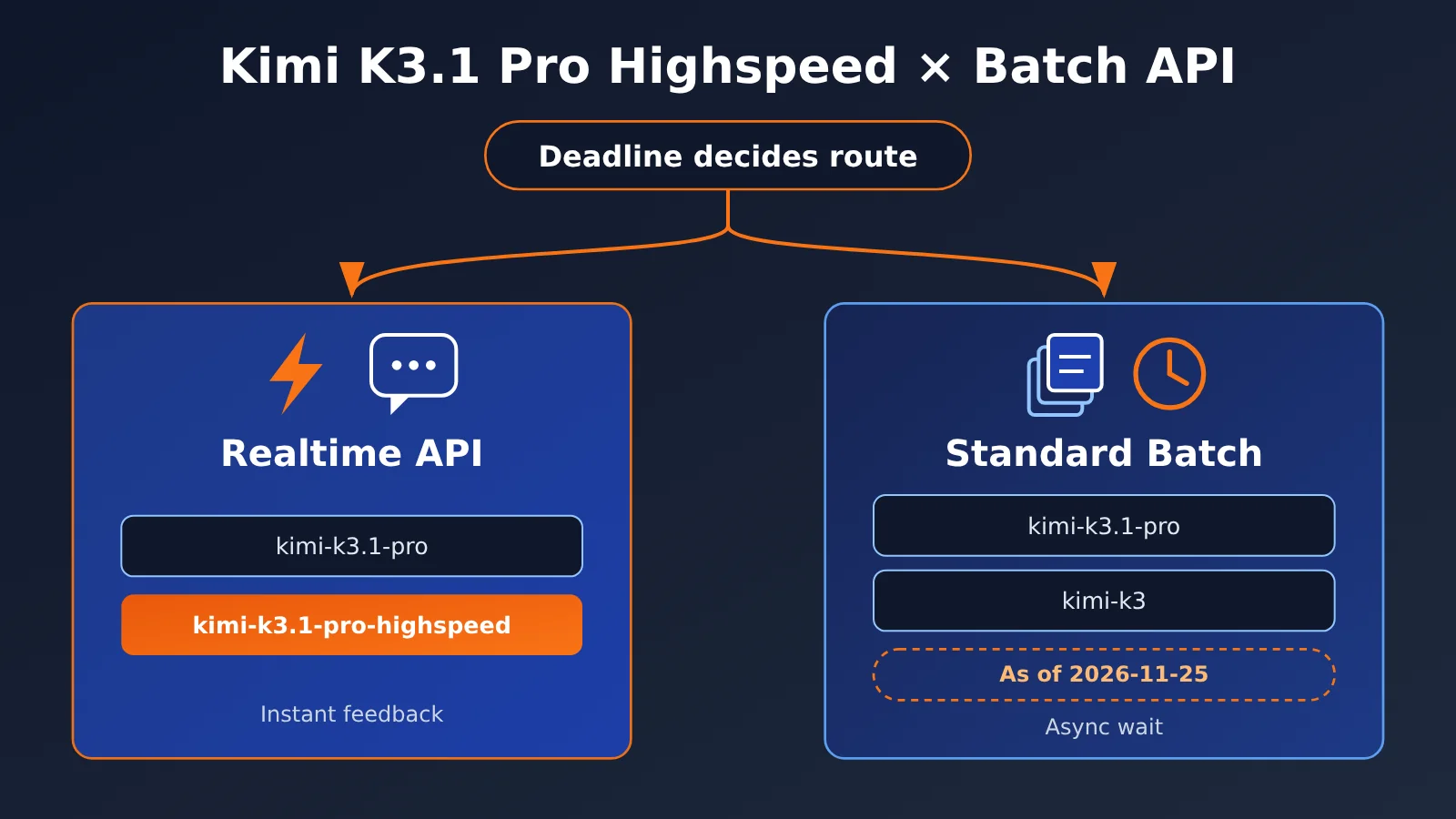
Bottom line up front: As of November 25, 2026 (Beijing time), the only batch inference models listed on Moonshot’s model pricing page are kimi-k3.1-pro and kimi-k3. kimi-k3.1-pro-highspeed is a first-party realtime model. The first-party Quickstart lists its full ID separately, but it isn’t on the current batch list, so the first-party Batch API does not currently accept Highspeed. Pick the route based on the result deadline: asynchronous waits, outputs that can be automatically validated, and offline jobs where downstream systems can accept batching or partial completion should go to Batch on the standard kimi-k3.1-pro. Tasks where a user is waiting on a page for results and needs immediate feedback, or where model output drives the next tool call, should use realtime Chat Completions. The realtime path can use the regular version or Highspeed.
Kimi K3.1 Pro Batch Routing Knowledge Map
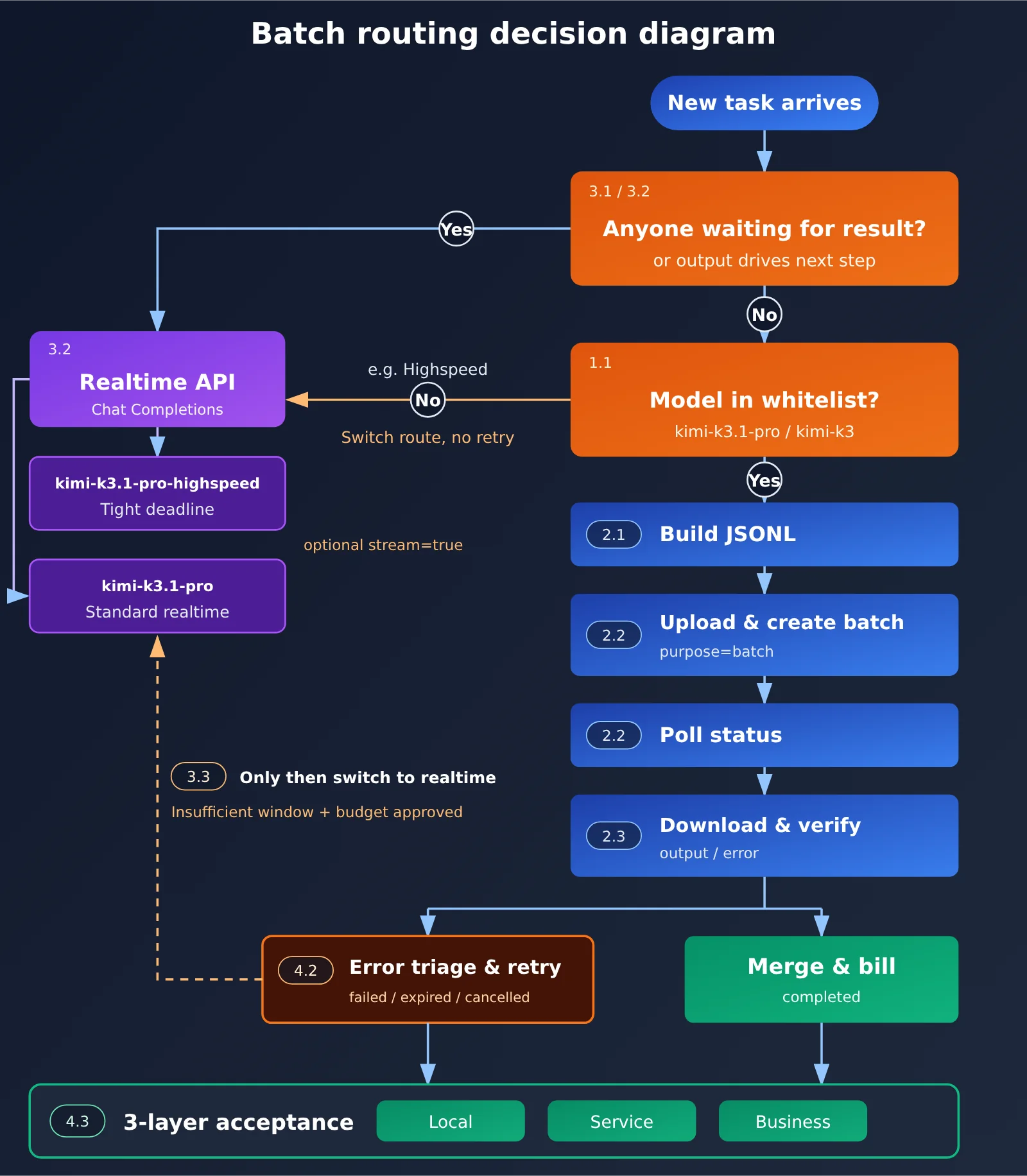
Diagram notes: At the entry point, you first decide whether anyone is waiting on the result — that step determines whether the task goes real-time or asynchronous. Only after you’ve committed to the asynchronous path do you need to check the model allowlist. Highspeed gets stopped right at the allowlist check; you should switch to real-time instead, or swap in a model that’s on the allowlist — resubmitting the original request won’t change the outcome. Once the batch finishes, successful records are merged into accounting, and failed records go into error classification. Switching to real-time is a conditional exit: it’s only allowed when the remaining window isn’t enough and an approved budget rule already exists.
Kimi K3.1 Pro Highspeed and Batch Article Index
This article is organized in the order of “first, whether it’s possible; then, how to do it; finally, how to choose and how to verify”:
- 1 Model eligibility: Start by pinning down the factual boundary between Highspeed and Batch, and explain why APIYI catalog entries and vendor capabilities need to be recorded separately. Every route judgment later on rests on this premise.
- 2 Standard Batch submission workflow: Explain how
kimi-k3.1-protravels from JSONL to the result file. Sections 2.1 through 2.3 should be read in order. - 3 Route selection: Give the criteria for splitting work between Batch and the real-time API, plus the deduplication rule for when both paths write to the same field. This depends on the whitelist conclusions from Section 1.
- 4 Windows, retries, and acceptance: Turn the workflow from Section 2 and the division of labor from Section 3 into something you can hold to a delivery deadline. Sections 4.1 through 4.3 can be consulted as needed.
- 5 Multimodal batch processing: Supplementary material — read it only when you need to put images or videos into an offline job.
Kimi K3.1 Pro Batch Terms To Know
| Term | Brief explanation |
|---|---|
| Batch API (batch inference) | Write multiple independent requests into a single JSONL file, submit once, execute asynchronously, and return a result file within the completion window |
| Real-time Chat Completions | A synchronous API with one request and one response; streaming output can be enabled |
| JSONL | A text file with one JSON object per line, where each line corresponds to one inference task |
custom_id |
The business identifier for each task; it must be unique within the same file and is used to match inputs against results |
completion_window |
The completion window for a batch; the official example value is 24h |
| Whitelist | The set of models that the vendor’s pricing page lists as supporting batch inference |
1 Batch Model Eligibility for Kimi K3.1 Pro Highspeed
1.1 The Vendor’s Batch Allowlist and Where Highspeed Stands
The vendor spells out its Batch model eligibility rules on the pricing page. As of November 25, 2026, the pricing page lists the supported batch inference scope as kimi-k3.1-pro and kimi-k3. kimi-k3.1-pro-highspeed appears separately in the vendor’s quickstart as a real-time model and doesn’t show up in the batch list.
Batch task rows do reuse the Chat Completions request structure, and the url is also written as /v1/chat/completions. Even so, which models can enter a batch and how tasks run are governed by Batch’s own rules. Being able to call Highspeed through the real-time API doesn’t mean Batch accepts it too. The safer approach is to check every row’s body.model against the current allowlist before you generate the JSONL. If a task explicitly requires Highspeed, use the real-time API instead.
| Model | Vendor real-time Chat Completions | Vendor batch inference list (as of 2026-11-25) | Source |
|---|---|---|---|
kimi-k3.1-pro |
Available | On the list | Vendor pricing page, Chat API docs |
kimi-k3.1-pro-highspeed |
Available; quickstart lists the full ID separately | Not on the list | Vendor quickstart, pricing page |
kimi-k3 |
Real-time details not covered by this article’s sources | On the list | Vendor pricing page |
The allowlist can change over time, so this article treats it as a “fact at the point of querying.” On the engineering side, put the allowlist in configuration rather than hardcoding it in code, and record the verification date for every change.
1.2 Keep APIYI Catalog Entries Separate from Vendor Batch Capabilities
APIYI’s public model price table lists two entries, kimi-k3.1-pro and kimi-k3.1-pro-highspeed, both marked with the public endpoint chat, under the visible groups Default and SVIP. That information only tells you which entries are publicly for sale on the APIYI side; it doesn’t mean APIYI has also opened a Batch interface, batch discounts, or the same model range.
The vendor’s Batch allowlist, batch pricing, and creation flow apply only to the Moonshot side. To figure out whether an asynchronous batch task can run, first confirm which provider and endpoint the request actually goes to, then check the documentation for that service. The call syntax of compatible SDKs looks the same, but that isn’t evidence of identical capabilities. Also, a catalog showing “for sale” and an account “having access” are two different things—keep them separate in your notes.
2 Kimi K3.1 Pro Standard Edition Batch Submission Workflow
2.1 Constructing JSONL for Kimi K3.1 Pro Batch
Write each independent inference task as a single line of JSON, with four fields at the outer level:
| Field | Value requirements | Description |
|---|---|---|
custom_id |
Unique within the same file | Recommended to use a stable identifier from your business records so inputs and results can be matched up |
method |
POST |
Fixed value |
url |
/v1/chat/completions |
Fixed value |
body |
Chat Completions request body | The entire file can only use one model, and the account must have permission for that model |
There are several file-level constraints: the file can’t be empty, the extension must be .jsonl, the size must not exceed the 100 MB listed in the docs, and each line holds exactly one JSON object. The body must not explicitly set temperature, top_p, n, presence_penalty, or frequency_penalty, which the vendor explicitly forbids. Request bodies migrated from the real-time API are most likely to slip up here.
Below is a synthetic example line for ticket classification (sample data, not corresponding to real business):
{"custom_id":"ticket-001","method":"POST","url":"/v1/chat/completions","body":{"model":"kimi-k3.1-pro","messages":[{"role":"user","content":"Pick one label from delivery, invoice, or other, and return only the label. Ticket: The package arrived two days later than the estimated time."}]}}
If a task involves two whitelisted models, generate separate files and create separate batches per model. Each batch should be independently verifiable, downloadable, and writable back, and the business side should separately record which inputs this batch covers. The generator below puts all these checks in one place:
import json

BATCH_WHITELIST = {"kimi-k3.1-pro", "kimi-k3"}  # Vendor list as of 2026-11-25; change this to a configurable item
FORBIDDEN_KEYS = {"temperature", "top_p", "n", "presence_penalty", "frequency_penalty"}
MAX_BYTES = 100 * 1024 * 1024  # Upper limit listed in the docs

def build_jsonl(records, model, path):
    if model not in BATCH_WHITELIST:
        raise ValueError(f"{model} is not in the Batch whitelist; use the real-time API or switch models")
    seen, size = set(), 0
    with open(path, "w", encoding="utf-8") as f:
        for rec in records:
            cid = f"{rec['id']}-v{rec['version']}"   # business identifier + record version
            if cid in seen:
                raise ValueError(f"duplicate custom_id: {cid}")
            seen.add(cid)
            body = {"model": model, "messages": rec["messages"]}
            bad = FORBIDDEN_KEYS & body.keys()
            if bad:
                raise ValueError(f"{cid} contains forbidden parameters: {bad}")
            line = json.dumps({"custom_id": cid, "method": "POST",
                               "url": "/v1/chat/completions", "body": body},
                              ensure_ascii=False) + "\n"
            size += len(line.encode("utf-8"))
            if size > MAX_BYTES:
                raise ValueError("File size limit exceeded; split into multiple batches")
            f.write(line)
    if not seen:
        raise ValueError("File is empty")
    return path
2.2 Uploading, Creating, and Polling Kimi K3.1 Pro Batches
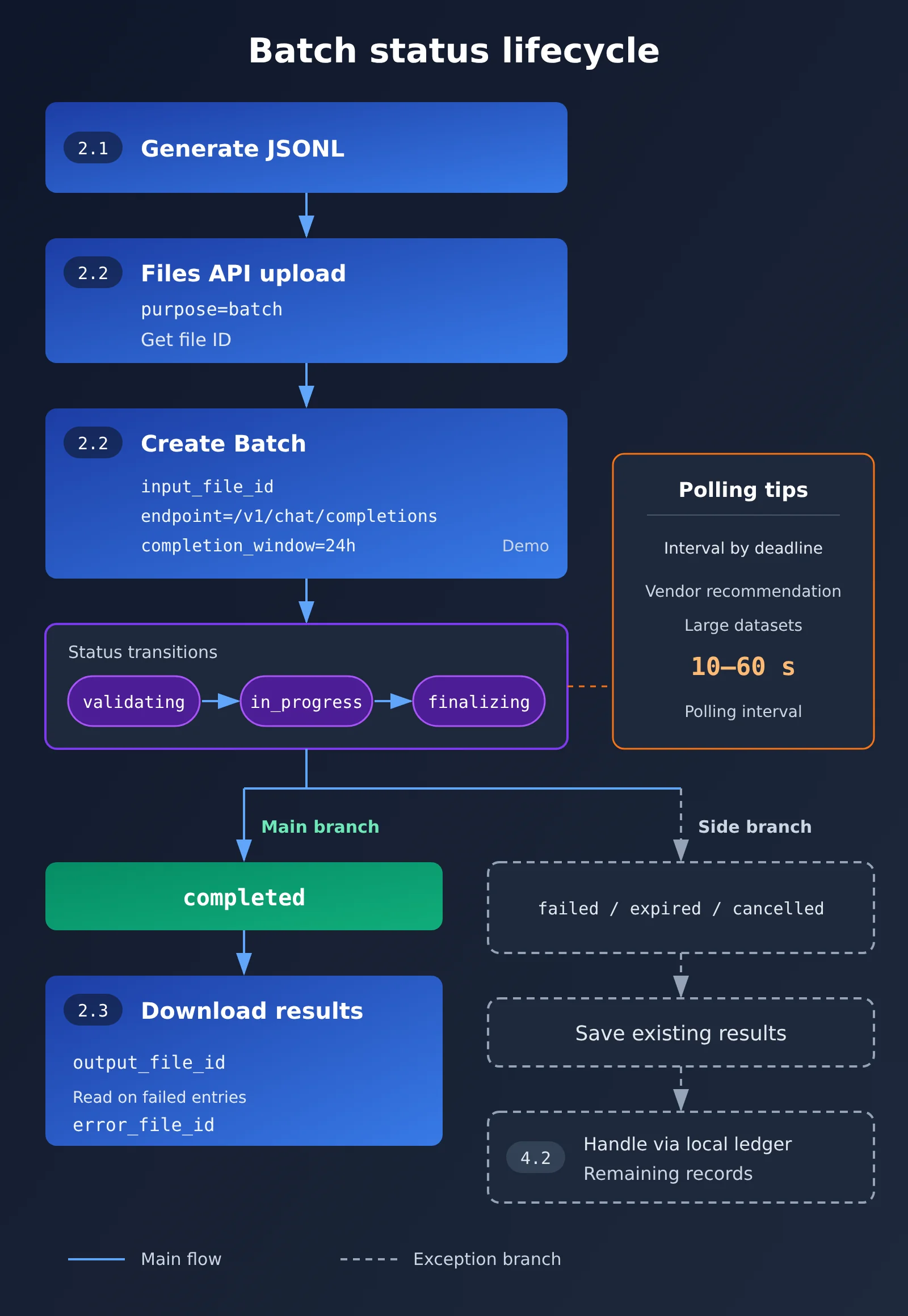
The original vendor Base URL is https://api.moonshot.ai/v1. The workflow has three steps: first upload the file through the Files API with purpose set to batch and get the file ID; then create the Batch, passing in input_file_id, endpoint, and completion_window; save the returned batch ID and use Retrieve Batch to query its status. In the official example, endpoint="/v1/chat/completions" and completion_window="24h", which you can use to build out your pipeline. A successful create request only means the job has entered the asynchronous pipeline.
The code below follows the OpenAI-compatible SDK style and is meant as an example. For method names and parameters, defer to the original vendor’s Batch guide:
import time
from openai import OpenAI

client = OpenAI(api_key="YOUR_MOONSHOT_API_KEY",
                base_url="https://api.moonshot.ai/v1")

up = client.files.create(file=open("tickets.jsonl", "rb"), purpose="batch")
batch = client.batches.create(input_file_id=up.id,
                              endpoint="/v1/chat/completions",
                              completion_window="24h")   # official example window
save_batch_id(batch.id)  # write to your local ledger first, then start polling

TERMINAL = {"completed", "failed", "expired", "cancelled"}
while True:
    b = client.batches.retrieve(batch.id)
    if b.status in TERMINAL:
        break
    time.sleep(30)  # set according to your delivery deadline; the vendor recommends 10–60 seconds between checks for large datasets
A batch moves through states such as validating, in_progress, and finalizing, and finally either results become ready or it terminates early. The polling interval should be chosen based on your own delivery deadline. High-frequency polling won’t buy you real-time feedback — it just adds useless requests.
2.3 Download and verify the Kimi K3.1 Pro batch results
A status of completed means the results are ready. At that point, download the file that corresponds to output_file_id and verify it record by record; if any entries failed, then read error_file_id. In the official result schema, each record includes custom_id, response.status_code, and response.body, and the chat text lives in response.body.choices[0].message.content.
ALLOWED = {"交付", "发票", "其他"}

def parse_output(text):
    accepted, invalid = {}, {}
    for line in text.splitlines():
        rec = json.loads(line)
        cid, resp = rec["custom_id"], rec["response"]
        if resp["status_code"] != 200:
            invalid[cid] = "status_code"
            continue
        label = resp["body"]["choices"][0]["message"]["content"].strip()
        (accepted if label in ALLOWED else invalid)[cid] = label
    return accepted, invalid
When counting, track four categories separately: expected inputs, accepted outputs, known record errors, and records with no acceptable result. Just because the label format can be parsed doesn’t mean it’s ready to be stored; you still need to check whether it falls within the allowed business vocabulary. For failed, expired, and cancelled, first save whatever information you have based on the status and result files you actually read, then use your local ledger to decide how to handle the remaining records. Don’t redo anything that has already been stored.
3 When to use Kimi K3.1 Pro Highspeed for real-time, and which tasks belong on standard Batch
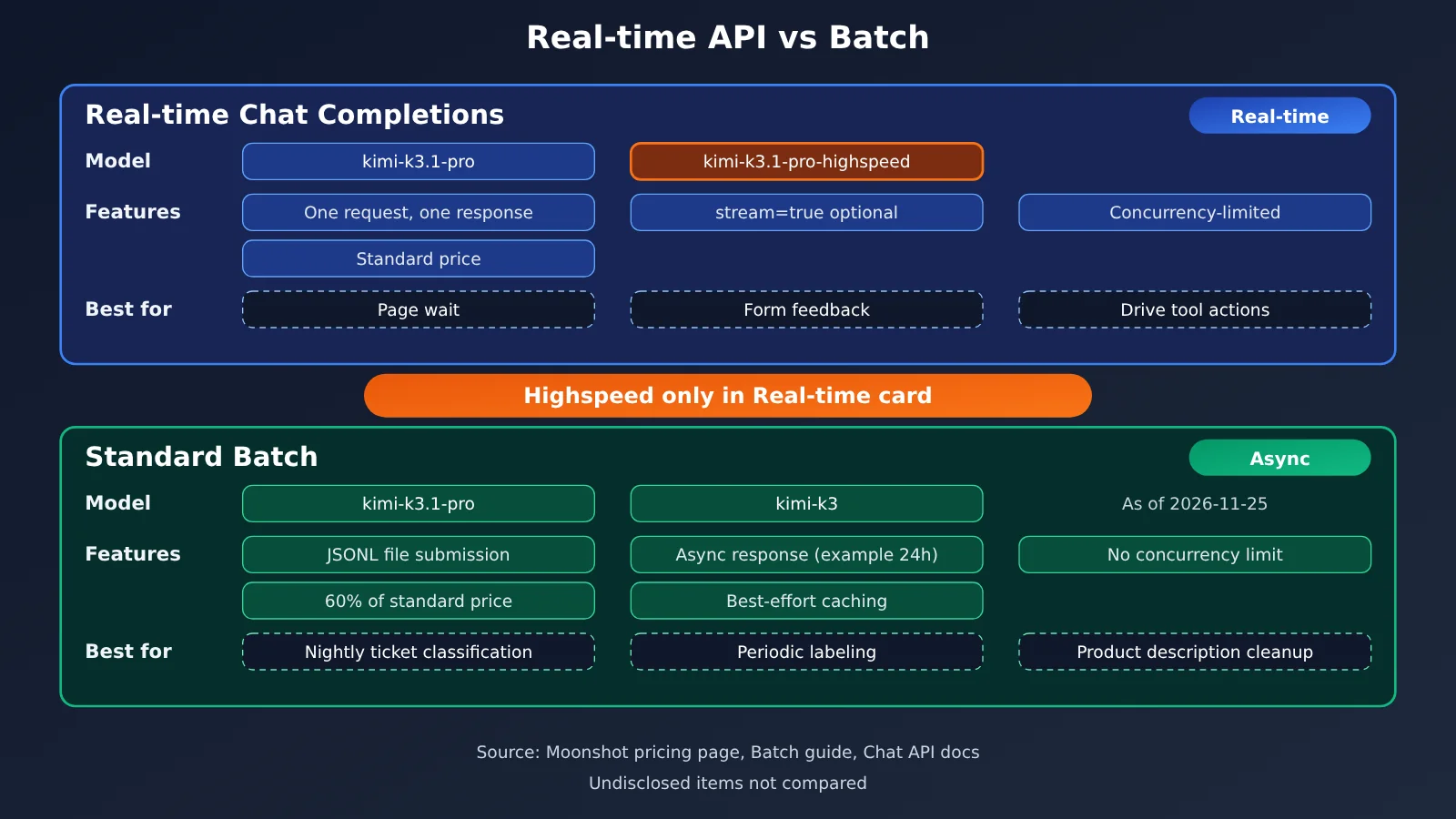
Figure caption: The two paths differ mainly in three areas: result deadlines, billing basis, and concurrency constraints. Highspeed appears only on the real-time side. Batch’s price advantage applies only to allowlisted models; billing budgets should be based on current billing rules and actual usage.
3.1 Tasks suited to Kimi K3.1 Pro Standard edition Batch
Batch works best for offline processing with fixed content and large scale — say, classifying historical support tickets overnight, labeling data on a recurring schedule, or tidying up product descriptions in a catalog. Tasks like these need to meet three conditions at once: asynchronous waiting is acceptable; the output comes with constraints you can check automatically; and downstream can handle multiple batches or a partially completed state.
On pricing, the vendor’s pricing page states that batch inference for whitelisted models is billed at 60% of the standard price — you pay 60%, and that shouldn’t be misread as a 60% discount. The page also notes that cache hits on async requests are offered on a best-effort basis, and Batch isn’t subject to real-time concurrency limits. That said, async tasks still have to respect the completion window, file requirements, and account access conditions.
3.2 Tasks suited to the real-time API and Highspeed
These cases should go through real-time Chat Completions: the user is waiting for the next step on the page; the model’s answer determines the immediate feedback in a form; the output of one request has to drive the next tool action in the same conversation. When the UI calls for it, you can turn on stream=true. The standard Kimi K3.1 Pro works fine on the real-time path too — whether you need Highspeed depends on the interaction deadline your product sets.
stream = client.chat.completions.create(
    model="kimi-k3.1-pro-highspeed",   # use when the interaction deadline is tight; can also switch to kimi-k3.1-pro
    messages=[{"role": "user", "content": "从交付、发票、其他中选择一个标签,仅返回标签。工单:包裹比预计时间晚了两天。"}],
    stream=True,
)
for chunk in stream:
    print(chunk.choices[0].delta.content or "", end="")
| Criterion | Go with Standard Batch | Go with real-time API |
|---|---|---|
| Someone is waiting on this result | No | Yes |
| Output drives the next tool action | No | Yes |
| Business requires Highspeed | Not possible (not whitelisted) | Yes |
| Can accept batching and partial completion | Yes | Doesn’t depend on this |
| Output can be validated automatically | Recommended | Recommended |
| Billing basis | 60% of the standard price | Standard price |
3.3 Rules for Coexisting Batch and Real-Time Pathways
An application can use both pathways at the same time. For example, when an agent clicks the “Confirm” button, that triggers real-time analysis, while supplemental tags for historical tickets go into an async queue. Each queue has its own model whitelist, timeout budget, and billing basis.
When both pathways write to the same business field, deduplicate by record version or submission time, so late-arriving results from an older batch can’t overwrite data the user just confirmed. For remaining items whose window is about to expire, the conditions under which they get moved to real-time should be specified at enqueue time and executed according to already-approved model and budget rules. Don’t upgrade to an expedited tier by default, or you’ll end up with duplicate calls and billing discrepancies.
4 Windows, Retries, and Acceptance Testing for Kimi K3.1 Pro Batch
4.1 Working Backward from the Delivery Deadline to the Batch Window
The vendor guide notes that large datasets can use three-day or seven-day windows, with polling at intervals of ten to sixty seconds, and that especially large files should be split into multiple batches. For how to write the specific window parameters, defer to the vendor documentation. When scheduling, work backward from the business deadline: first subtract the time needed for downloading, review, and write-back; whatever remains is the window available to the batch, and that determines when to create it.
If some piece of data needs to appear on a shift screen, no window length will satisfy that interaction deadline—that data should go through real-time. If product information is updated weekly, then running multiple batches in parallel with each batch accounted separately fits downstream usage better. While batches wait inside their window, the real-time queue can keep processing tickets newly submitted from the page.
4.2 Batch Error Classification and Retry Strategy
When a record is re-enqueued, preserve the business identifier and the original attempt number. If the input content has changed, append the record version into custom_id so old and new requests can be distinguished (the generator in 2.1 already does this). After receiving the error file, first determine which category the failure falls into:
- Model not on the whitelist: change route. For example, a Highspeed task should move to real-time, or switch to a whitelisted model; retrying as-is won’t succeed.
- File format error: fix the JSONL generator, then regenerate the file.
- Intermittent failure: resubmit under the original task conditions.
- Not completed within the deadline: first calculate the remaining window, then decide whether to wait for a new batch’s results or move to real-time under the already-approved budget rules.
Take a synthetic scenario: of two label outputs, one succeeds and one can’t be parsed. Send only the unparseable record for review, and leave the consumption receipt for the first successful record untouched.
4.3 Three-Layer Acceptance Testing for Batch and Real-Time Interfaces
| Layer | What to check | Pass criteria |
|---|---|---|
| Local layer | Check the JSONL with two synthetic inputs | No multi-line records, no duplicate custom_id, no mixed models, no forbidden parameters |
| Service layer | Create a batch, retrieve it by ID, download output | Batch ID and status retrievable; output / error files readable after completed |
| Business layer | Merge results by custom_id |
Invalid labels, empty values, and records needing manual handling all have a clear status |
When comparing real-time against batch, you can use the same synthetic ticket and its expected label. The two measure different things: real-time measures single-response latency and page wait time; batch looks at the whole span from submitting the job through batch completion to results being consumed. Each pathway’s acceptance metric is determined by its own business deadline—don’t rank them on the same scale.
5 Kimi K3.1 Pro Batch: Multimodal Batch Processing
The official guide also provides examples for image and video batch processing, and the multimodal models it supports are likewise constrained by the Batch whitelist. Media can be written inline directly as Base64. When the data is large, or when the same media needs to be reused across multiple tasks, the official examples first upload it through the Files API—setting purpose to image or video depending on the type—and then reference it in the corresponding content item using ms://.
Base64 makes input files larger, so before splitting into batches you should measure the serialized byte count, then compare it against the size limits in 2.1 to decide how many batches to split into. This section only describes how the official side packs media into offline tasks; it doesn’t mean other platforms have the same capability.
When you actually roll this out, you can wrap up with a quick check: pick a task at random from the current queue whose model is kimi-k3.1-pro-highspeed, and confirm it’s blocked by the generator from 2.1 and lands in the real-time queue. Then pick an offline task using kimi-k3.1-pro and confirm its four count categories—from JSONL through billing—line up. If both pass, the route split and the whitelist check are working correctly.
References
- Moonshot official real-time quick start: complete Highspeed model ID
- Link:
platform.kimi.ai/docs/get-your-api-key
- Link:
- Moonshot model pricing and batch list: supported models for batch inference, 60% pricing, caching, and concurrency notes
- Link:
platform.kimi.ai/docs/pricing/chat
- Link:
- Moonshot BatchJob pricing notes
- Link:
platform.kimi.ai/docs/pricing/batch
- Link:
- Kimi Batch API guide: JSONL requirements, create and query flow, result structure, window and polling recommendations, multimodal examples
- Link:
platform.kimi.ai/docs/guide/use-batch-api
- Link:
- Kimi real-time Chat Completions documentation
- Link:
platform.kimi.ai/docs/api/chat
- Link:
- APIYI model price master list: publicly listed items, endpoints, and groups
- Link:
docs.apiyi.com/models
- Link: