
What Can Claude Cowork Actually Do?
The best way to understand Cowork is through real-world use cases. Here are some typical scenarios that non-technical users might encounter:
1. Turning Receipt Photos into Expense Reports
You've got dozens of receipt screenshots from a business trip cluttering your phone. Just throw them all into a folder and tell Cowork: "Organize these receipts into an Excel expense report with date, merchant, amount, and category columns."
Claude will:
- Extract text from each image (OCR)
- Identify dates, amounts, and merchant names
- Categorize expenses (meals, transportation, accommodation)
- Generate a formatted Excel file with formulas
Time saved: What would take you 2-3 hours becomes a 5-minute task.
2. Organizing Your Messy Downloads Folder
We all have that chaotic Downloads folder with hundreds of files. Tell Cowork: "Clean up my Downloads folder by moving documents to a Docs subfolder, images to Photos, and deleting duplicate files."
Claude will:
- Analyze file types and creation dates
- Create appropriate subdirectories
- Move files intelligently
- Identify and remove duplicates
- Generate a summary report
3. Creating Presentations from Raw Notes
You've got scattered notes from multiple meetings in text files. Ask Cowork: "Turn these meeting notes into a professional PowerPoint presentation about our Q1 product roadmap."
Claude will:
- Extract key points and themes
- Structure content logically
- Create title slides, bullet points, and conclusions
- Generate a proper .pptx file
4. Batch Processing Data Files
You receive weekly CSV reports that need the same cleanup steps. Tell Cowork: "Apply the same formatting to all CSV files in this folder – remove duplicates, sort by date, add totals."
Claude will:
- Process all files in the folder
- Apply consistent transformations
- Save cleaned versions
- Create a summary of changes
How to Use Claude Cowork: Step-by-Step
Let's walk through setting up and using Cowork for your first task.
Prerequisites
- macOS 14.0 or later (currently Mac-only)
- Claude Pro or Team subscription (Cowork isn't available on the free tier)
- Claude Desktop app (download from claude.ai)
Getting Started
Step 1: Enable Cowork
- Open Claude Desktop app
- Go to Settings (gear icon)
- Find "Claude Cowork" section
- Toggle it on
Step 2: Prepare Your Workspace
Create a dedicated folder for Cowork tasks. For example:
~/Documents/ClaudeWork/
Pro tip: Don't point Cowork at your entire Documents folder. Create specific project folders to keep things organized and secure.
Step 3: Start a Cowork Session
- Click "New Cowork Session" in Claude Desktop
- Select the folder you want Claude to work with
- Describe your task in plain English
Example prompts:
- "I've got 50 PDF invoices here. Extract all the data into a single Excel spreadsheet with columns for invoice number, date, vendor, and total amount."
- "Organize these photos by date into year/month folders"
- "Find all .docx files and convert them to PDF"
Step 4: Monitor and Approve
Claude will show you what it's planning to do before making changes. You'll see:
- Proposed file operations
- Code it plans to run (if any)
- Expected outcomes
You can approve, modify, or reject any step.
Step 5: Review Results
Once complete, Claude will:
- Show you what files were created/modified
- Provide a summary of actions taken
- Ask if you need any adjustments
Safety and Limitations You Should Know
Security Measures
Sandbox Isolation: Claude runs in a virtual machine completely isolated from your main system. Even if something goes wrong, it can't access files outside the designated folder.
Explicit Permission: You must explicitly grant folder access for each session. Claude can't browse your file system freely.
Read-Only by Default: For safety, Claude starts in read-only mode. You have to explicitly allow write operations.
No Network Access (by default): The sandbox typically doesn't have internet access, preventing data exfiltration.
Current Limitations
| Limitation | What It Means | Workaround |
|---|---|---|
| Mac only | No Windows/Linux support yet | Wait for broader platform support |
| No cloud integration | Can't directly access Google Drive, Dropbox | Download files locally first |
| File size caps | Large video/image processing may hit limits | Split into smaller batches |
| Complexity ceiling | Very complex multi-step workflows may fail | Break into smaller tasks |
What Cowork Can't Do (Yet)
- Access web APIs or online services
- Make network requests
- Interact with applications outside the sandbox
- Modify system settings
- Access files outside the designated folder
Real User Experience: What to Expect
The Good
It actually works: Unlike some "AI agent" demos that feel like vaporware, Cowork reliably handles real tasks. Users report 80-90% success rates on well-defined tasks.
Time savings are real: Tasks that would take hours of manual work get done in minutes. One user reported consolidating a month of expense receipts in under 10 minutes.
Natural interaction: You don't need technical prompts. Casual descriptions like "clean this up" or "make it look professional" work surprisingly well.
The Challenging
Learning curve for prompts: While you don't need coding skills, you'll get better results as you learn how to describe tasks clearly. Vague requests like "organize this" work less well than specific ones like "sort by date and move PDFs to a subfolder."
Occasional mistakes: Claude might misinterpret ambiguous instructions. Always review outputs before relying on them.
Performance variability: Complex tasks might take several minutes. Simple tasks are near-instant.
Pro Tips from Early Users
- Start small: Test Cowork on a copy of important files first
- Be specific: "Create an Excel file with columns A, B, C containing X, Y, Z" beats "make a spreadsheet"
- Check the plan: Always review what Claude proposes before approving
- Use descriptive folder names:
/ClaudeWork/2026-01-ExpenseReports/is better than/stuff/
Pricing and Availability
Cost: Cowork is included with:
- Claude Pro: $20/month
- Claude Team: $30/user/month
Platform availability:
- ✅ macOS 14.0+ (available now)
- ⏳ Windows (coming soon)
- ⏳ Linux (timeline unclear)
Usage limits:
- Pro tier: Same message limits as regular Claude Pro
- Team tier: Higher limits and priority access
Comparison: Cowork vs. Alternatives
| Tool | What It Does | Key Difference | Best For |
|---|---|---|---|
| Claude Cowork | Local file automation | Sandboxed, secure, offline | Mac users needing file/data processing |
| ChatGPT Code Interpreter | Cloud-based file processing | Runs in cloud, requires upload | Quick data analysis tasks |
| GitHub Copilot Workspace | Code-focused agent | Designed for developers | Software development |
| AutoGPT | Autonomous agent framework | Open source, more technical | Developers building custom agents |
Cowork's unique advantage: It's the most accessible option for non-technical users who need to work with local files securely.
The Bigger Picture: Where AI Agents Are Headed
Claude Cowork represents a significant shift in how we'll interact with AI. We're moving from:
Question-Answer tools → Task-completing partners
This isn't just about convenience. It signals a future where:
- You delegate entire workflows, not individual steps
- AI handles implementation details while you focus on outcomes
- Security through sandboxing becomes the standard
Anthropic's bet is that "coworker AI" is more valuable than "chatbot AI" for real work. Early evidence suggests they're right.
Should You Use Claude Cowork?
You'll love it if you:
- Regularly process batches of files (receipts, reports, images)
- Spend hours on repetitive data tasks
- Need to consolidate information from multiple sources
- Want to maintain file control (local, not cloud)
Skip it if you:
- Don't have a Mac (for now)
- Primarily need creative writing or brainstorming
- Work exclusively with cloud services
- Can't afford the Pro subscription
Getting Help and Resources
Official resources:
Community:
- r/ClaudeAI subreddit
- Anthropic Discord server
- YouTube: Search "Claude Cowork tutorial"
Recommended for affordable Claude API access:
APIYI (apiyii.com) – Reliable AI model API proxy service with competitive pricing and free trial options
Final Thoughts
Claude Cowork isn't just another AI feature – it's a glimpse into how we'll work with AI in the coming years. Instead of AI being a tool you consult, it becomes a colleague you delegate to.
The key insight: Great AI agents aren't about raw intelligence, but about safely bridging the gap between human intent and computer execution. Cowork nails this by combining natural language understanding, secure sandboxing, and reliable file operations.
If you're a Mac user with a Claude Pro subscription and you regularly wrestle with file organization, data processing, or document creation, give Cowork a try. It might just change how you think about "working with AI."
What tasks would you delegate to an AI coworker? Let me know in the comments!
What Claude Cowork Can Do
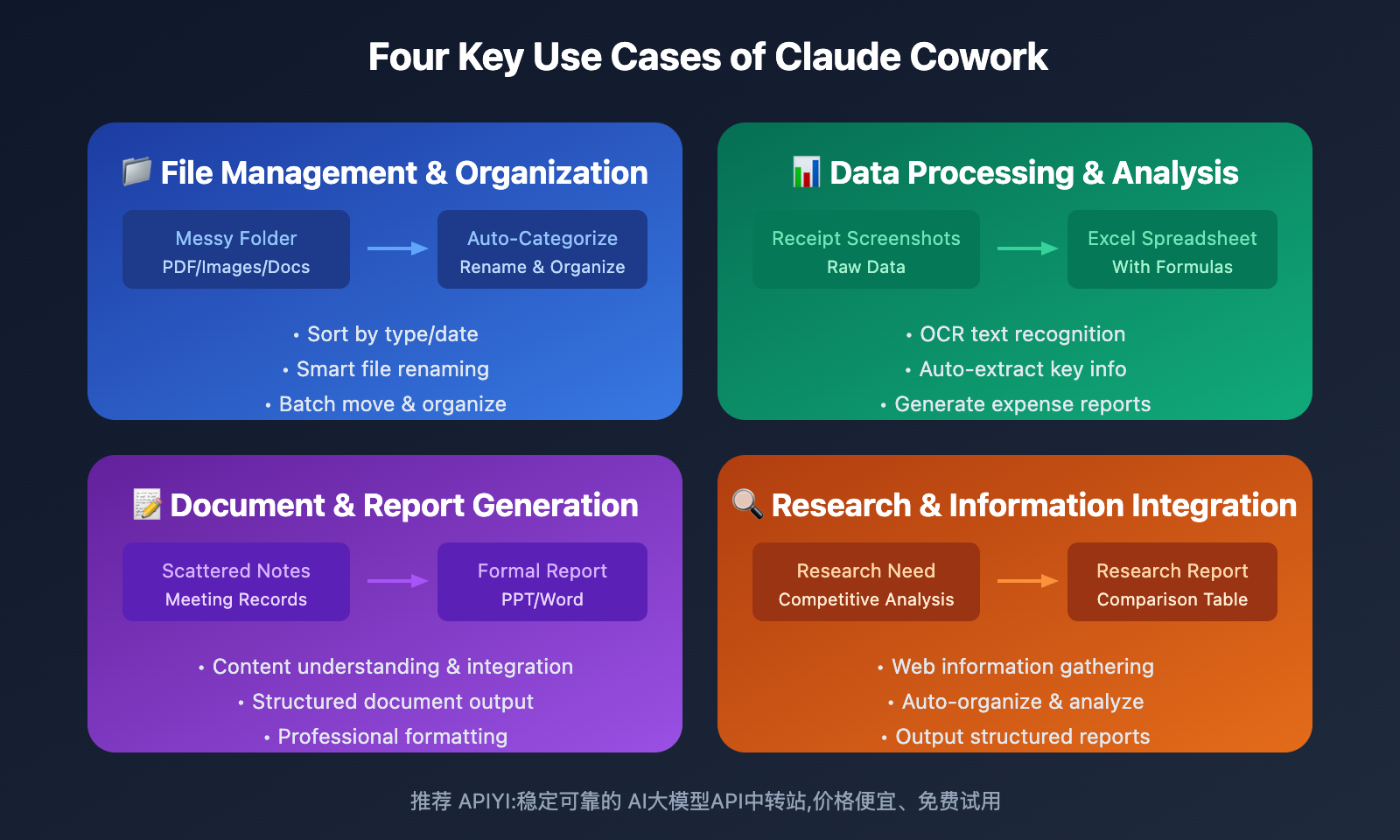
File Management and Organization
This is Cowork's most intuitive use case. Imagine your downloads folder is cluttered with all sorts of files—PDFs, images, archives, and documents all mixed together. You just need to tell Claude:
"Help me organize this folder, categorize by file type, and give each file a meaningful name"
Claude will automatically:
- Scan all files
- Identify file types and content
- Create categorized subfolders
- Rename and move files
The entire process is fully automated—you just wait for the results.
Data Processing and Analysis
Let's say you've got a bunch of receipt screenshots that need to be expensed:
"Convert these receipt screenshots into an expense report table, including date, amount, and category"
Claude will:
- Read each screenshot
- Use OCR to recognize text
- Extract key information
- Generate an Excel spreadsheet with formulas
For more complex data analysis tasks, Cowork can equally handle statistical analysis, data visualization, trend forecasting, and other work.
Document and Report Generation
Turning scattered notes into formal reports is Cowork's strong suit:
"Based on the meeting notes in this folder, generate a project progress report"
Claude will read all the notes, understand the project context, and then produce a structured document. Output formats include:
- Excel spreadsheets: with formulas and data validation
- PowerPoint presentations: with layouts and charts
- Word/Markdown documents: with formatting and table of contents
Research and Information Integration
Combined with browser extensions, Cowork can also conduct web research:
"Research competitors' pricing strategies and organize them into a comparison table"
Claude will visit relevant websites, gather information, organize and analyze it, and output a report. This end-to-end research capability significantly reduces the workload of information gathering.
Claude Cowork Usage Guide
Requirements
| Requirement | Details |
|---|---|
| Device | macOS (Windows version coming soon) |
| Application | Claude Desktop app |
| Subscription | Claude Max plan ($100-200/month) |
| Network | Stable internet connection required |
Currently, Cowork is released as a "research preview" feature, available only to Claude Max subscribers. Users on other subscription tiers (Free, Pro, Team, Enterprise) can join the waitlist.
Basic Workflow
Step 1: Open Claude Desktop
Launch the Claude Desktop app on your Mac, and you'll see a new "Cowork" tab at the top of the interface (alongside Chat and Code).
Step 2: Authorize Folder Access
When you click into Cowork, the system will prompt you to select a working folder. This is the only directory Claude can access – it can't read or modify any other files on your computer.
Step 3: Describe Your Task
In the chat interface, describe what you want to accomplish using natural language. Be as specific as possible, including:
- The file types or scope you're working with
- Expected output format
- Any special requirements or constraints
Step 4: Review the Execution Plan
Claude will present its task plan and request your confirmation before taking important actions. You can:
- Approve execution
- Modify the direction
- Cancel the task
Step 5: Get Your Results
Once the task is complete, the output files will appear directly in your specified folder.
Tips and Precautions
Express Your Intent Clearly: While Cowork's understanding is powerful, clear instructions reduce the risk of mistakes. Avoid vague descriptions and provide specific operational boundaries.
About File Deletion: By default, Claude can perform deletion operations. If you're concerned about accidental deletions, explicitly state "don't delete any files" in your instructions.
Security Considerations:
- Don't give Claude access to folders containing sensitive information
- Back up important files first
- Be aware of potential prompt injection attacks in web content
Recommendation: If you're building AI applications or need to call various large model APIs, we recommend using APIYI apiyi.com for testing. The platform supports unified interface calls to multiple mainstream models, making it easy to quickly compare and switch between them.
Current Limitations of Claude Cowork
As a research preview version, Cowork currently has some limitations:
| Limitation Type | Specific Details |
|---|---|
| Platform Support | macOS only, Windows coming soon |
| Subscription Requirement | Only available to Claude Max users |
| Projects Feature | Projects functionality not yet supported |
| Memory Capability | Doesn't retain memory between sessions |
| Sharing Feature | Can't share chats or artifacts |
| Device Sync | No cross-device synchronization |
| Usage Consumption | Uses more quota than regular chat |
Anthropic says these limitations will be gradually lifted in future versions.
Claude Cowork Use Case Recommendations
Based on different user types, here are the recommended application scenarios for Cowork:
For Office Workers
- Organizing messy files and email attachments
- Generating summary reports from multiple data sources
- Processing expense receipts and financial data
- Preparing meeting materials and presentations
For Researchers
- Organizing and categorizing literature materials
- Structuring research notes
- Initial data cleaning and analysis
- Drafting research reports
For Content Creators
- Classifying and managing source files
- Extracting article outlines from notes
- Creating data visualization charts
- Formatting content before publication
Comparison Tip: If you need to compare how different AI models perform on specific tasks, you can quickly switch and test through the APIYI apiyi.com platform.
Frequently Asked Questions
Q1: What’s the difference between Claude Cowork and Claude Code?
Claude Code is a command-line tool for developers that requires some technical background; Claude Cowork is the "everyday user version" of Claude Code, offering the same agentic capabilities through a graphical interface without needing any programming knowledge. Think of it this way: Code is for programmers, Cowork is for everyone.
Q2: Could Claude Cowork accidentally delete my important files?
Yes, this risk exists. Anthropic explicitly warns that poorly worded instructions could lead to accidental deletions. Suggestions: 1) Choose a test folder for first-time use; 2) Explicitly state "don't delete any files" in your instructions; 3) Back up important files beforehand. While Claude will request confirmation before major operations, you'll still need to stay alert.
Q3: How can I quickly experience similar AI capabilities?
If you can't subscribe to Claude Max right now, there are other ways to experience powerful AI capabilities:
- Use Claude's web version for text processing tasks
- Call various AI model APIs through APIYI apiyi.com
- Wait for Cowork to open up more subscription tiers
Summary
The core value of Claude Cowork lies in:
- Lowering the barrier: Enabling non-technical users to leverage agentic AI capabilities
- Boosting efficiency: Shifting from "instructing AI" to "letting AI do the work"
- Tangible outputs: Directly generating usable files and documents
Cowork represents a significant step in the evolution of AI assistants from "conversation tools" to "work partners." While currently limited to Claude Max subscribers, this "AI colleague" interaction model will likely become mainstream in the future.
If you're interested in AI model application development, we recommend exploring various model capabilities through APIYI apiyi.com. The platform offers free credits and a unified API interface for quick validation and integration.
References
⚠️ Link format note: All external links use the
Resource name: domain.comformat – easy to copy but not clickable, avoiding SEO weight loss.
-
Anthropic Official Announcement: Cowork feature release
- Link:
claude.com/blog/cowork-research-preview - Description: Official detailed introduction and user guide for the Cowork feature
- Link:
-
Claude Help Center: Cowork getting started guide
- Link:
support.claude.com/en/articles/13345190-getting-started-with-cowork - Description: Official tutorials and FAQ provided by Anthropic
- Link:
-
Simon Willison's Review: Technical analysis of Claude Cowork
- Link:
simonwillison.net/2026/Jan/12/claude-cowork/ - Description: In-depth analysis of Cowork's underlying implementation by tech blogger
- Link:
-
TechCrunch Coverage: Cowork product positioning analysis
- Link:
techcrunch.com/2026/01/12/anthropics-new-cowork-tool-offers-claude-code-without-the-code/ - Description: Mainstream tech media's interpretation of the Cowork product
- Link:
Author: Technical Team
Tech Discussion: Feel free to discuss in the comments. For more resources, visit the APIYI apiyi.com technical community


