
Author’s note: When generating GIFs with GPT Image 2.6 Sunburst, size refers to the dimensions of a single frame; the real limit applies to the sprite sheet made by stitching all frames together. This article breaks down these rules item by item with tables and gives the usable size caps for each frame count.
Many developers run into this the first time they use gpt-image-2.6-sunburst for GIFs: they set size to 1024×1024 and frame_count to just 2, and the endpoint returns a 400. The reason is that GIF size rules differ from those for static images. This article introduces a three-step conversion method: single-frame size → sprite-sheet layout → sprite-sheet constraints to help you determine whether any given size and frame_count will pass validation.
This isn’t just a translated parameter doc. The boundary values in this article come from measurements on the official proxy route on 2026-11-09. Every cap in the tables includes its derivation, so you can verify them yourself.
Core value: After reading this article, you’ll be able to choose an appropriate single-frame size based on frame count, avoid errors like GIF frames exceed the total request pixel budget, and know how to trade off among 512×512, 768×768, and 960×960.
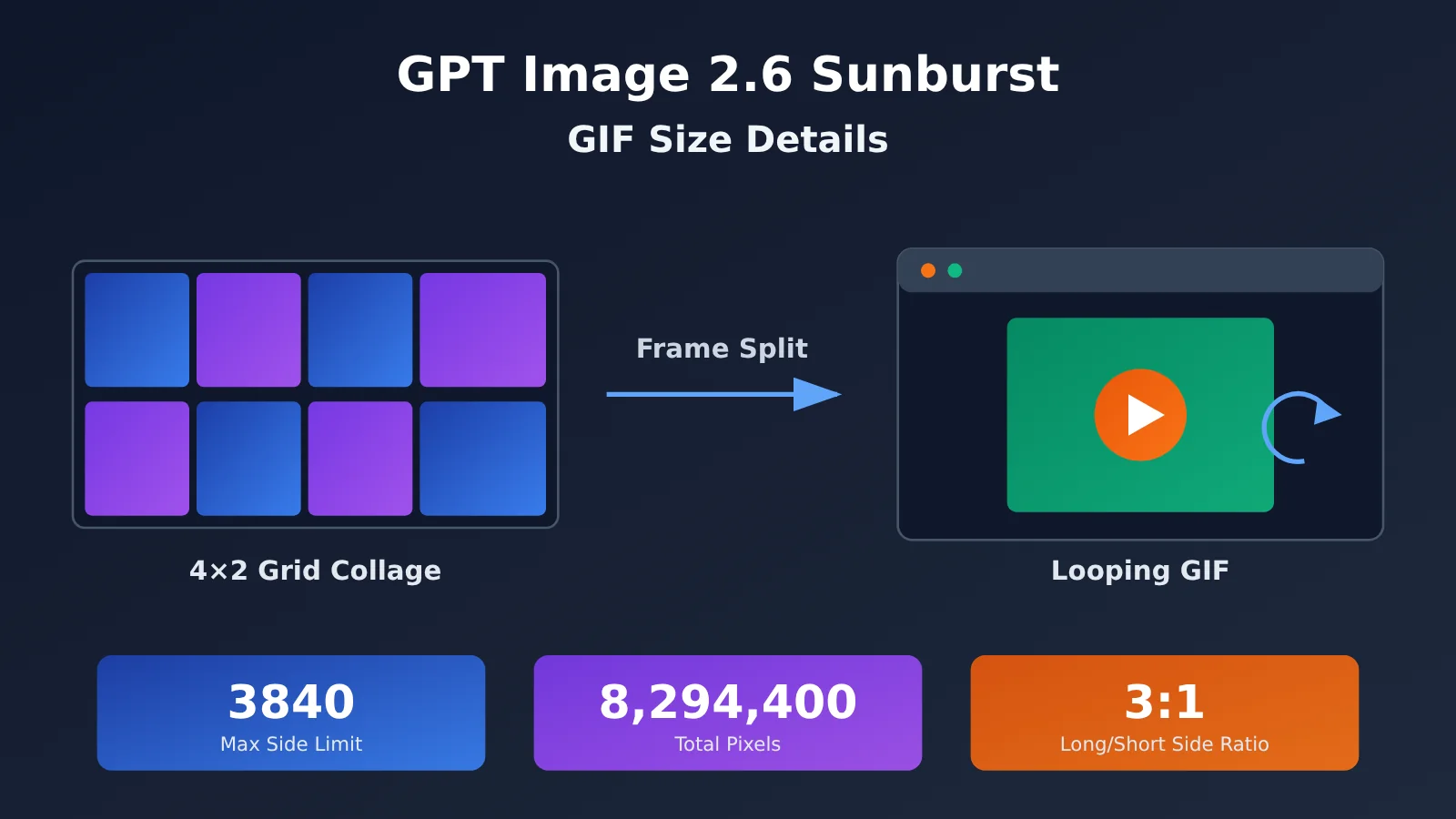
Key Points About GPT Image 2.6 Sunburst GIF Dimensions
Let’s start with a table that lays out the key rules involved in GIF generation, then we’ll go through them one by one.
| Key Point | Explanation | What It Means for You |
|---|---|---|
| size is the per-frame size | size specifies the width and height of each frame, not the final output size |
The actual thing being validated is the sprite sheet, so you can’t estimate based on the single-frame size alone |
| All frames share one sprite sheet | The model first draws every frame into the same sprite sheet, then slices it into a GIF | The more frames you use, the smaller each frame can be |
| Sprite sheet layout is fixed | 2–8 frames use 4×2, 9 frames use 3×3, 10–12 frames use 4×3, 13–16 frames use 4×4 | 2 frames and 8 frames occupy the same sprite sheet area |
| Width and height must be multiples of 16 | You can pass auto for size, or a WIDTHxHEIGHT value where both dimensions are multiples of 16 |
Values like 832, 816, and 720 are valid |
| Out-of-bounds returns 400 | The param field in the error is size |
If you hit an error, check the sprite sheet dimensions first |
How GPT Image 2.6 GIF Sprite Sheet Generation Works
Generating a GIF with GPT Image 2.6 Sunburst takes two steps: first, draw all frames into one large image on a fixed grid, then slice that large image into individual frames and assemble the animation according to frame_duration_ms. So the size limits don’t apply to individual frames—they apply to the sprite sheet’s side length, total pixel count, and aspect ratio.
The layout is tiered by frame count and doesn’t pack tightly according to the actual number of frames. For example, if frame_count is set to 2, the system still uses a 4×2 layout. The example in the reference material proves this: with 2048×2048 single frames and only 2 frames, the sprite sheet needs to be 8192×4096. When estimating, always use the “layout grid count,” not the “actual frame count.”
GPT Image 2.6 GIF Basic Parameters Explained
Beyond size, GIF has two dedicated parameters: frame_count controls the number of frames, and frame_duration_ms controls how long each frame stays on screen. Total duration equals the frame count multiplied by the per-frame duration. For example, 2 frames × 100 ms gives a 0.2-second loop.
| Parameter | Official range and default | Details |
|---|---|---|
frame_count |
2–16, default 9 | More frames usually mean higher latency and cost; out-of-range values don’t throw an error—they fall back to the default |
frame_duration_ms |
20–2000 ms, default 200 ms | Rounded to the nearest 10 ms; the default combination is 9 frames × 200 ms = 1.8 seconds |
size |
auto or WIDTHxHEIGHT |
Both width and height must be multiples of 16; this sets the dimensions of a single frame |
output_format |
Set to "gif" |
frame_count and frame_duration_ms only apply to GIF |
quality |
e.g. low |
For low-cost testing, use low |
The out-of-range behavior of frame_count deserves special attention. If you pass 1 or 17, the API won’t return a 400. Instead, it discards frame_count and frame_duration_ms and falls back to the default 9 frames and 1.8 seconds. In other words, the request “succeeds,” but the result isn’t what you wanted. You must verify the actual frame count with a tool after generation; see the Quick Start section for details.
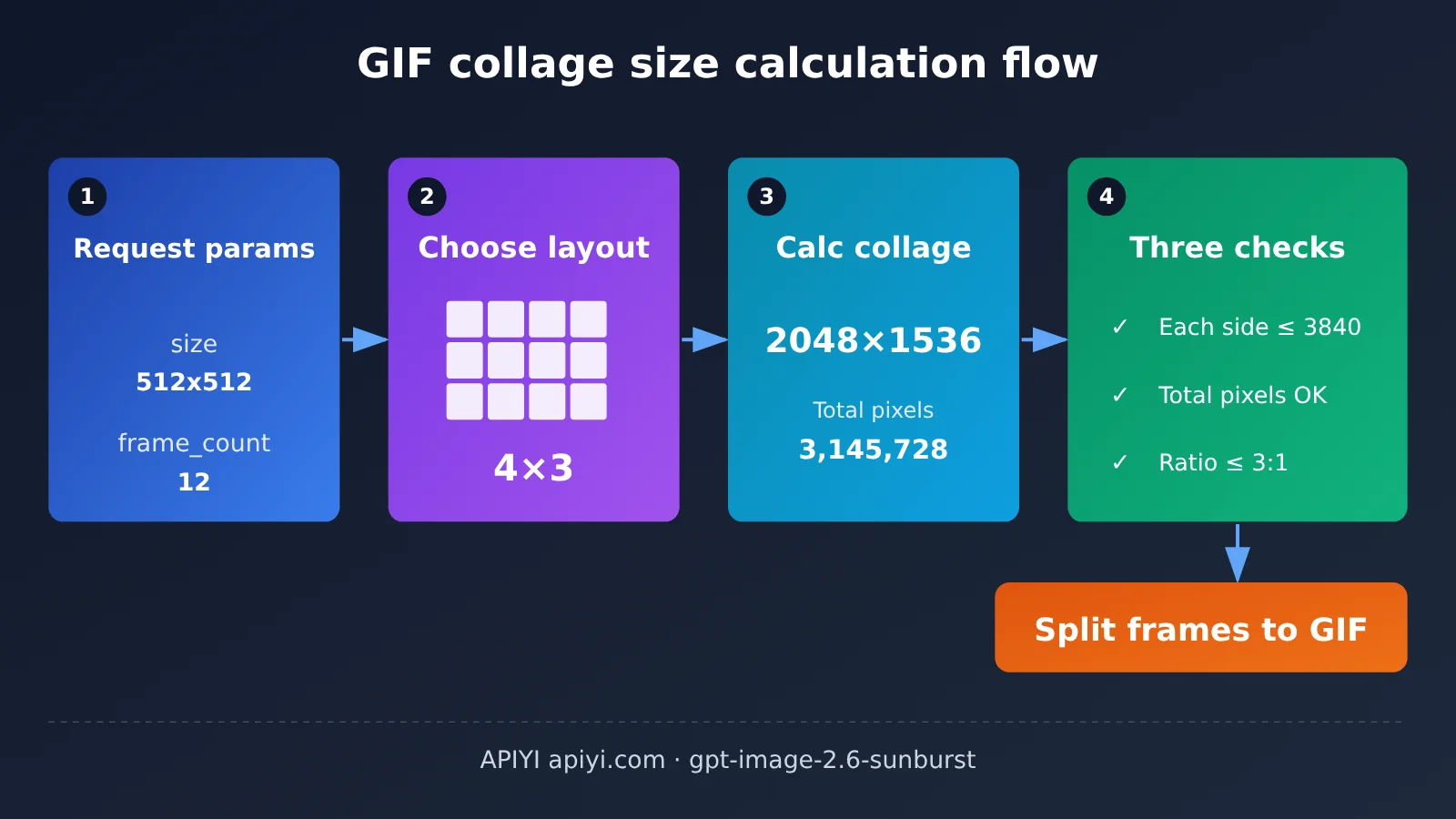
GPT Image 2.6 Sunburst GIF Size Boundaries Explained
This section is the core of the article. Put the sprite sheet constraints and layout rules together and you can derive the size limit for each frame-count tier.
The Four Constraints of GPT Image 2.6 Sprite Sheets
| Constraint | Boundary value | Interpretation |
|---|---|---|
| Sprite sheet single side | ≤ 3840 | Neither the width nor the height of the sprite sheet can exceed 3840 pixels |
| Sprite sheet total pixel upper limit | ≤ 8,294,400 | Equals 3840×2160, i.e. the pixel count of one 4K frame |
| Sprite sheet total pixel lower limit | ≥ approx. 655,360 | Measured: 589,824 rejected, 665,856 passed |
| Sprite sheet long-to-short side ratio | ≤ 3:1 | A sprite sheet that’s too elongated gets rejected |
| Frame size | Width and height are both multiples of 16 | If not satisfied, it can’t be used as a valid size |
The upper limits are easy enough to grasp. The 3840 single-side limit and the 8,294,400 total pixel limit are two independent checkpoints that must both be satisfied. When the frame count is low, the sprite sheet’s width usually hits the single-side limit first; when the frame count is high, the total pixel budget usually runs out first.
The lower limit is often overlooked. The rejected 589,824 is exactly 768×768, corresponding to 9 frames with a 3×3 sprite sheet at 256×256 per frame. The passing 665,856 is 816×816, corresponding to 9 frames at 272×272 per frame. From this we can infer that if the single frame is too small and the layout has few cells, the sprite sheet can also be rejected for being too small. For example, a 4×2 layout with 256×256 per frame yields a sprite sheet of only 1024×512, totaling 524,288 pixels — below the lower limit. So the “shrink the size to save money” route also has a floor.
The effect of the long-to-short side ratio is more noticeable with non-square frames. Based on the 4×2 layout, when the single frame is 16:9, the sprite sheet’s aspect ratio comes out to about 3.56:1, exceeding 3:1; switching to a 3×3 or 4×4 layout brings the ratio back down. This is inferred from the rules, so we recommend confirming with real tests before launch.
GPT Image 2.6: Square single-frame limits by frame count
The limits below assume a square single frame with width and height as multiples of 16, so you can use them as a quick reference.
| Frame count | Layout | Square single-frame limit | Calculation |
|---|---|---|---|
| 2–8 | 4×2 | 960×960 | Limited by one side: 4×960 = 3840; total pixels 7,372,800, within budget |
| 9 | 3×3 | 960×960 | 9×960² = 8,294,400, exactly uses the full budget |
| 10–12 | 4×3 | 816×816 | 12×832² = 8,306,688, exceeds by 12,288 pixels and is rejected, so it falls back to 816 |
| 13–16 | 4×4 | 720×720 | 16×720² = 8,294,400, exactly uses the full budget |
There are two details worth noting.
- 10–12 frames are calculated as 12 cells: the layout is 4×3, so even if you only need 10 frames, the collage still takes up pixels for 12 cells. In testing, 12 frames at 832² was only 12,288 pixels over and got rejected, which shows the budget is enforced strictly.
- 2–8 frames are limited by one side: this tier still has room in total pixels, but the collage width is 4 times the single-frame width, so 960 is already the cap. 1024 would make the collage width 4096.
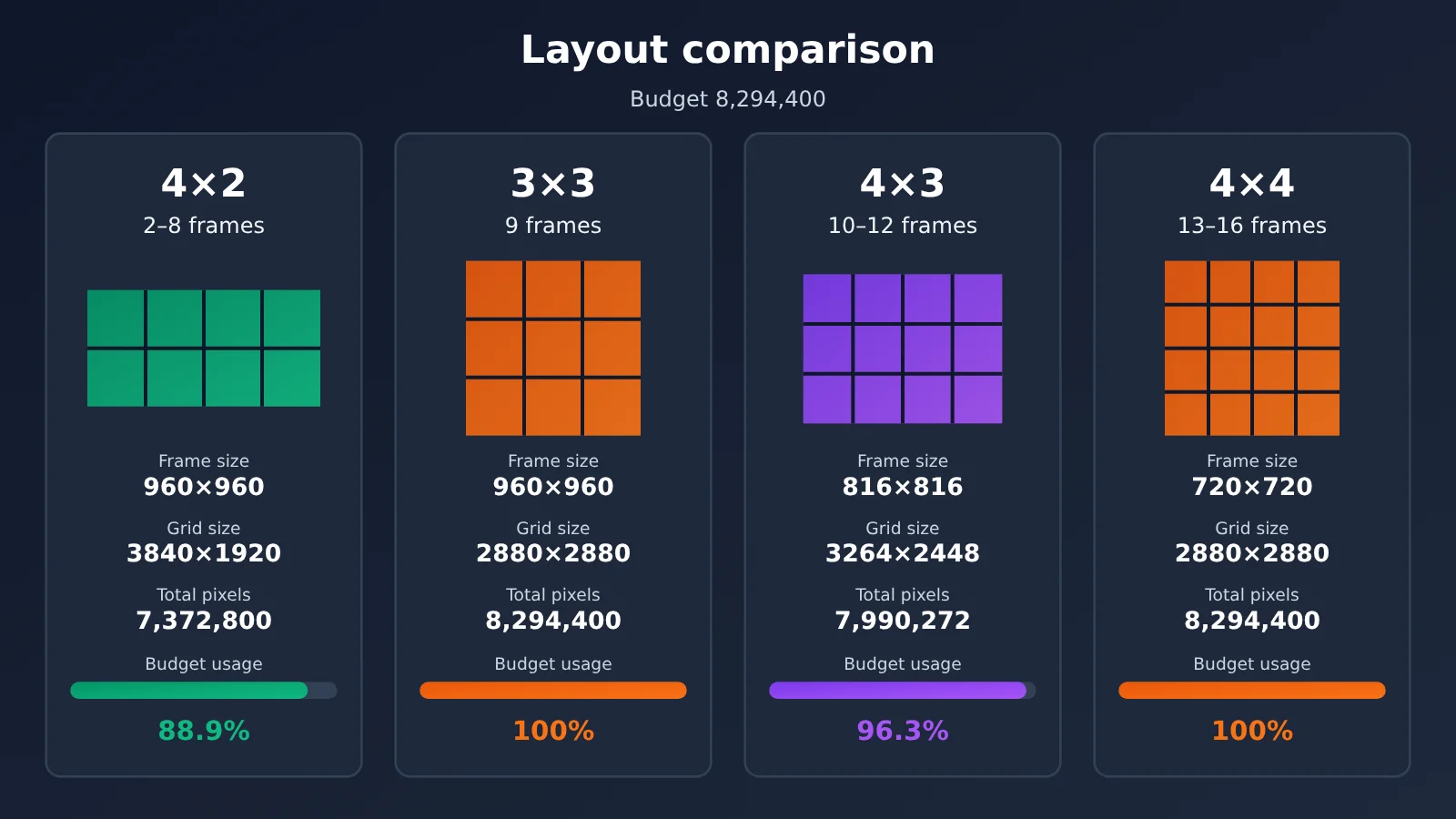
How to Choose Common Sizes for GPT Image 2.6
Turning the upper limits above into practical size choices gives us the following conclusions:
| Per-frame size | Available frames | Sprite sheet example | Recommended use |
|---|---|---|---|
| 512×512 | All 2–16 frames usable | 2048×2048 at 16 frames | The safest choice, good for emoji packs, icon animations, and batch generation |
| 768×768 | Up to 12 frames | 3072×2304 at 12 frames | At 16 frames, the sprite sheet is 3072×3072 = 9,437,184, over budget |
| 960×960 | Up to 9 frames | 2880×2880 at 9 frames | Use when you need a large canvas and not many frames |
| 1280×720 | 9 frames | 3840×2160 | Widescreen option; the sprite sheet exactly uses up the single-side limit and the budget |
| 1024×1024 | No frame count works | 4096 wide at 2–8 frames | 9 frames is over budget; other counts exceed the single-side limit |
| 2048×2048 | No frame count works | 8192×4096 at 2 frames | Far beyond all limits |
1024×1024 is very common for static images, but it’s completely unusable for GIFs. At 2–8 frames and 10–12 frames, the sprite sheet width is 4096, exceeding 3840; at 9 frames, the sprite sheet is 3072×3072, totaling 9,437,184 pixels, over budget; at 13–16 frames, the sprite sheet width is also 4096. So when moving from static images to GIFs, the first thing to do is reduce the default size.
If you need a landscape image, 9 frames at 1280×720 is recommended. The sprite sheet is a 3×3 layout, exactly 3840×2160, with an aspect ratio of 16:9, satisfying all three constraints.
💡 Selection tip: Size limits are calculated according to the rules, and the model side may adjust the budget. Before going live, we recommend running a set of boundary tests on APIYI apiyi.com with
quality: "low"to confirm your commonly used size combinations at the lowest cost.
GPT Image 2.6 Sunburst GIF Quick Start
GPT Image 2.6 GIF Minimal Example
Here’s the low-cost example from the reference material: 2 frames, 100ms per frame, 0.2 seconds total, generating a looping animation of a yellow circle moving right and then returning to its starting position. Fields like frame_count are GIF-specific; here we send JSON directly with requests, which is the most straightforward approach.
import base64, requests

resp = requests.post(
    "https://api.apiyi.com/v1/images/generations",
    headers={"Authorization": "Bearer YOUR_API_KEY"},
    json={
        "model": "gpt-image-2.6-sunburst",
        "prompt": "A minimal two-frame looping animation of a yellow circle moving slightly right and returning to its starting position on a plain white background, no text, seamless loop.",
        "output_format": "gif",
        "quality": "low",
        "size": "512x512",
        "frame_count": 2,
        "frame_duration_ms": 100,
        "n": 1,
    },
    timeout=300,
)
resp.raise_for_status()
open("circle.gif", "wb").write(base64.b64decode(resp.json()["data"][0]["b64_json"]))
When writing a prompt, describe three things clearly: what the subject is, how it moves, and how it loops. Descriptions like “returning to the starting position” and “seamless loop” help the first and last frames connect more naturally.
GPT Image 2.6 GIF Size Pre-Check and Full Implementation
In production, it’s a good idea to run a local pre-check before sending the request — that way you can catch invalid sizes up front and save a 400 round trip. The code below turns this article’s layout table and constraints into functions, and works with both the generation endpoint and the edit endpoint.
View the full implementation code (including size pre-check)
import base64
import requests
from typing import Optional

API_KEY = "YOUR_API_KEY"
BASE_URL = "https://api.apiyi.com/v1"  # APIYI OpenAI-compatible endpoint

MAX_EDGE = 3840
MAX_PIXELS = 8_294_400   # 3840 x 2160
MIN_PIXELS = 655_360     # around the observed lower bound; warning only
MAX_RATIO = 3.0


def sheet_layout(frame_count: int) -> tuple[int, int]:
    """Return the fixed sprite-sheet layout (columns, rows) for the given frame count"""
    if 2 <= frame_count <= 8:
        return 4, 2
    if frame_count == 9:
        return 3, 3
    if 10 <= frame_count <= 12:
        return 4, 3
    if 13 <= frame_count <= 16:
        return 4, 4
    raise ValueError("frame_count 必须在 2-16 之间,否则会被静默回退到 9 帧")


def check_gif_size(width: int, height: int, frame_count: int) -> list[str]:
    """Return a list of issues; an empty list means the pre-check passed"""
    issues = []
    if width % 16 or height % 16:
        issues.append("宽高必须是 16 的倍数")
    cols, rows = sheet_layout(frame_count)
    sw, sh = cols * width, rows * height
    total = sw * sh
    if max(sw, sh) > MAX_EDGE:
        issues.append(f"拼图 {sw}x{sh} 单边超过 {MAX_EDGE}")
    if total > MAX_PIXELS:
        issues.append(f"拼图总像素 {total:,} 超过 {MAX_PIXELS:,}")
    if total < MIN_PIXELS:
        issues.append(f"拼图总像素 {total:,} 低于约 {MIN_PIXELS:,},可能被拒")
    if max(sw, sh) / min(sw, sh) > MAX_RATIO:
        issues.append(f"拼图长短边比 {max(sw, sh) / min(sw, sh):.2f} 超过 3:1")
    return issues


def create_gif(
    prompt: str,
    size: str = "512x512",
    frame_count: int = 9,
    frame_duration_ms: int = 200,
    quality: str = "low",
    image_url: Optional[str] = None,
    out_path: str = "output.gif",
) -> str:
    w, h = map(int, size.lower().split("x"))
    problems = check_gif_size(w, h, frame_count)
    if problems:
        raise ValueError("尺寸预检未通过: " + "; ".join(problems))

    payload = {
        "model": "gpt-image-2.6-sunburst",
        "prompt": prompt,
        "output_format": "gif",
        "quality": quality,
        "size": size,
        "frame_count": frame_count,
        "frame_duration_ms": frame_duration_ms,
        "n": 1,
    }
    endpoint = "images/generations"
    if image_url:  # edit endpoint: the first image becomes the animation subject
        endpoint = "images/edits"
        payload["images"] = [{"image_url": image_url}]

    resp = requests.post(
        f"{BASE_URL}/{endpoint}",
        headers={"Authorization": f"Bearer {API_KEY}"},
        json=payload,
        timeout=600,
    )
    if resp.status_code == 400:
        raise RuntimeError(f"参数被拒(多为 size 超界): {resp.text}")
    resp.raise_for_status()

    item = resp.json()["data"][0]
    if item.get("b64_json"):
        data = base64.b64decode(item["b64_json"])
    else:
        data = requests.get(item["url"], timeout=120).content
    with open(out_path, "wb") as f:
        f.write(data)
    return out_path


if __name__ == "__main__":
    print(check_gif_size(768, 768, 16))   # expected: total pixel count over budget
    print(check_gif_size(1280, 720, 9))   # expected: [] (passes)
    create_gif(
        prompt="让这只猫跳一小段舞,纯色背景,固定镜头,最后一个动作回到起始姿势",
        size="512x512",
        frame_count=16,
        frame_duration_ms=100,
        image_url="https://example.com/cat.png",
        out_path="cat_dance.gif",
    )
Verify the Actual Frame Count of GPT Image 2.6 GIFs with ffprobe
When frame_count is out of range, it silently falls back to 9 frames, so it’s best to add an actual frame-count check in batch tasks:
ffprobe -v error -count_frames -select_streams v:0 \
  -show_entries stream=nb_read_frames -of csv=p=0 circle.gif
The minimal example should output 2. If it outputs 9, the frame-count parameter didn’t take effect — check whether the value you passed is between 2 and 16.
Feature Limitations of GPT Image 2.6 GIFs
GIF mode doesn’t support the following capabilities, so don’t include them in requests:
streamstreaming output and partial images progressive preview- Custom
output_compression prompt_rewriter
Also, frame_count and frame_duration_ms are for GIF only — don’t pass them to PNG, JPEG, WebP, or SVG requests.
🚀 Quick Start: Sign up at APIYI apiyi.com and use the free trial credit for new users. Start by running the full flow with 512×512, 2 frames, and
quality: "low", then gradually increase the frame count and size. The platform provides an OpenAI-compatible interface, so a single API key lets you call GPT Image and other mainstream models.
FAQ
Q1: When GPT Image 2.6 Sunburst generates a GIF, what does `size` refer to?
`size` is the size of each individual frame, not the size of the final sprite sheet. During validation, the system picks a layout based on the frame count, works out the sheet’s width, height, and total pixel count, and then compares those against the 3840-per-side limit, the 8,294,400 total pixel budget, and the 3:1 aspect ratio constraint.
Q2: Why can’t 1024×1024 produce even a single frame of a GPT Image 2.6 GIF?
Because it goes out of bounds under every layout. With 4×2, 4×3, and 4×4 layouts, the sheet width is 4096, which exceeds 3840; with a 3×3 layout, the sheet is 3072×3072, a total of 9,437,184 pixels, which blows the budget. The error usually reads `No supported sheet fits … The longest edge must be less than or equal to 3840.` In that case, just drop the per-frame size to 960×960 or smaller.
Q3: Why doesn’t a `frame_count` of 1 or 17 throw an error?
On the current pipeline, a `frame_count` outside the 2–16 range does not return a 400. The system silently discards both `frame_count` and `frame_duration_ms` and falls back to the defaults of 9 frames at 1.8 seconds. It’s best to validate the range on the client side, then use ffprobe to confirm the actual frame count after generation.
Q4: When n is greater than 1, does the pixel budget for GPT Image 2.6 add up across images?
On the current pipeline, each image is validated individually and the budgets aren’t summed. In testing, 2 images × 16 frames × 512² (8,388,608 total) still succeeded. That said, the official guide states that multiple images must all fit within the same budget, so for batch scenarios go by what the API actually returns, and split into multiple `n=1` requests if necessary.
Q5: What’s the quickest way to generate a GIF with GPT Image 2.6 Sunburst through the API?
Here’s the recommended workflow:
1. Go to APIYI apiyi.com, sign up, and grab an API key plus the free trial quota
2. Set the code’s base_url to `https://api.apiyi.com/v1`
3. Verify the pipeline with a minimal example — 512×512, 2 frames, `quality: “low”` — then tune the parameters using the size table
Q6: Can GPT Image 2.6 generate a GIF based on existing images?
Yes. `/v1/images/edits` also supports `output_format: “gif”` — just put your reference images in the `images` field. The first image becomes the animated subject, and the remaining parameters match the generation endpoint, with exactly the same size rules. In your prompt, it helps to specify things like “fixed camera” and “the last motion returns to the starting pose” for a smoother loop.
Q7: Will the size boundaries in this article change?
Possibly. The sheet budget reflects what we measured on the official proxy pipeline on 2026-11-09: 8,294,400 pixels passed right at the limit, while 12 frames at 832² was rejected. The model side may adjust these boundaries, so the 400 error returned by the API is the final word. It’s a good idea to make the constants in your pre-check function configurable so you can update them easily.
GPT Image 2.6 Sunburst GIF Size: Key Takeaways
- size is the per-frame size: the limits apply to the sprite sheet shared by all frames, not to an individual frame
- Layouts are fixed by bracket: four layouts — 4×2, 3×3, 4×3, and 4×4 — covering 2–8, 9, 10–12, and 13–16 frames respectively
- Three hard constraints: each side of the sheet ≤ 3840, total pixels ≤ 8,294,400, aspect ratio ≤ 3:1
- 512×512 is the safest size: works for all 2–16 frames; 768² maxes out at 12 frames, 960² at 9 frames
- 1024² doesn’t work at all: when porting over still-image parameters, you need to shrink the size first
- Out-of-range frame counts fall back silently: validate the range on the client, then verify the frame count with ffprobe after generation
- Low-cost validation: run boundary tests on APIYI apiyi.com with
quality: "low"— it’s the cheapest option
Summary
The sizing rules for generating GIFs with GPT Image 2.6 Sunburst come down to a three-step calculation:
- Pick the layout first: use
frame_countto find the matching 4×2, 3×3, 4×3, or 4×4 layout - Then compute the sheet: multiply the per-frame width and height by the layout’s rows and columns to get the sheet’s width, height, and total pixels
- Finally, validate: check each side, the total-pixel bounds, and the aspect ratio, and confirm both dimensions are multiples of 16
In day-to-day use, 512×512 is the most compatible default; when you need a bigger canvas, 9 frames at 960×960 or 1280×720 uses the budget to the fullest. Wire the pre-check function from this article into your business code, and you’ll catch most 400 errors locally before they ever happen.
We recommend quickly validating your size combinations through APIYI apiyi.com — the platform offers free test credits and an OpenAI-compatible unified interface, making it a good fit for boundary testing before you go live.
📚 References
- APIYI Documentation Center – GPT Image 2.6 GIF Generation of Looping Animations: official parameter reference and notes on tested limits
- Link:
docs.apiyi.com/api-capabilities/gpt-image-2/gpt-image-2-6 -
Details: covers the GIF parameter ranges, sprite sheet constraints, sample error messages, and how to use the editing endpoint
-
FFmpeg Official Docs – ffprobe: a tool for inspecting audio, video, and GIF metadata
- Link:
ffmpeg.org/ffprobe.html - Details: used to verify the actual frame count and per-frame duration of generated GIFs
Author: APIYI Engineering Team
Technical Support: If you run into issues configuring GIF dimensions, feel free to reach out through the contact details on the APIYI homepage for additional integration support.