

Summary: Based on the assets you already have, the hardware you can use, and the final deliverable, this article explains what each of the four MAGI versions is best suited for—and how to evaluate each type of task.
Bottom line up front: If you already have a prefix video and the main goal is to continue the action, use MAGI-1; on a single consumer-grade GPU, start with 4.5B. If you’re already running a 24B local workflow and want to assess whether to switch weights, use MAGI-1.1 as a same-task comparison. If you only have a piece of text or a single image, need to produce a ten-second sample with audio locally, and have an eight-GPU Hopper environment, use MAGI-2 Preview. If you need a final video with audio up to thirty seconds, multiple asset references, or targeted edits to an existing video, use the cloud flagship MAGI-2.
Three conditions can change the answer: whether you have a prefix video, what class of GPU you can get locally, and whether the deliverable is a ten-second sample or a final cut with dialogue and multiple references. All facts below come from Sand.ai’s official repository, papers, model cards, announcements, and API documentation; public information was verified as of November 25, 2026. The scores and specs cited here are data provided by official sources or papers; this article did not run its own tests.
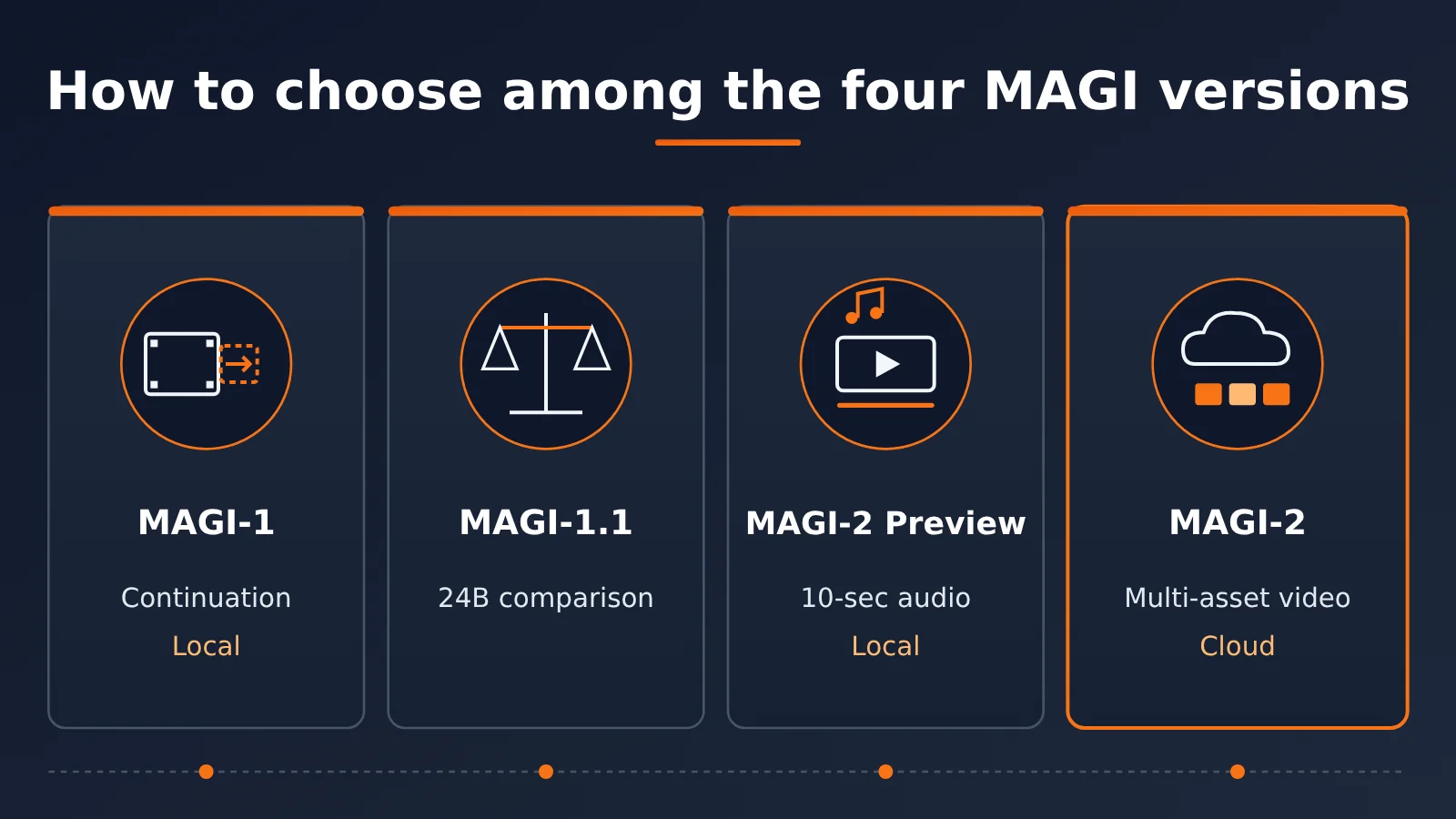
Knowledge Map: Choosing Between MAGI-1, MAGI-1.1, MAGI-2 Preview, and MAGI-2
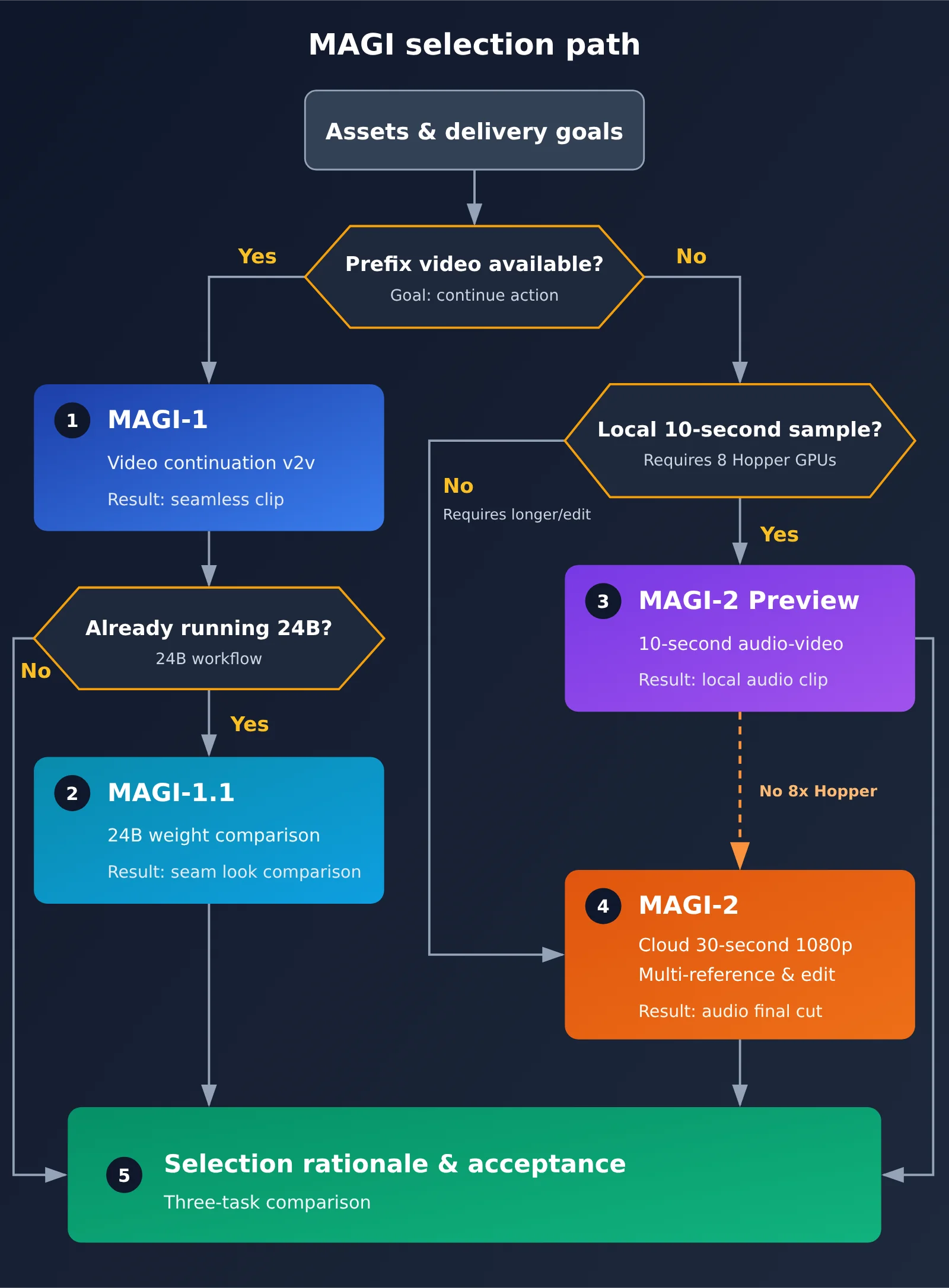
Figure notes: Read the diagram from top to bottom — first judge your assets, then your hardware, and finally the delivery format. Nodes 1 and 2 form the local continuation line; MAGI-1.1 isn’t a separate new capability, but rather a weight comparison option for 24B users. Nodes 3 and 4 form the joint audio-video line, and the difference comes down to the local ten-second research version versus the cloud flagship. Node 5 puts the three common task types side by side for comparison and provides acceptance methods.
Reading Index: Chapter Order for the MAGI Series Selection Guide
- 1 MAGI-1: Start with continuation, the foundational capability, and how results differ between prefix video and single-frame input. Every later continuation comparison builds on this section.
- 2 MAGI-1.1: Building on Section 1, this explains how 24B users can design weight comparison experiments. Readers without a 24B deployment can skip it.
- 3 MAGI-2 Preview: Shifts to the joint audio-video generation track, covering the runtime conditions and testing methods for local ten-second samples.
- 4 MAGI-2: Covers the flagship’s cloud capabilities, how the reference materials divide their roles, entry points, and pricing.
- 5 How to Choose Among the Three Task Types: Ties Sections 1 through 4 together using concrete tasks, and ends with a general acceptance checklist.
Sections 3 and 4 are independent of Sections 1 and 2, so you can follow just the track you need.
To Know: Terminology You Need to Understand the MAGI Series
| Term | Brief Explanation |
|---|---|
| Prefix video continuation (v2v) | Uses an existing video as the opening, and the model continues generating the following frames |
| Chunked generation | The video is split into several chunks generated in sequence, enabling segmented prompts and streaming output |
| Distillation / FP8 quantization | Two ways to compress a model, aimed at reducing inference cost and memory usage |
| Active parameters | Under a mixture-of-experts architecture, the number of parameters each token actually involves in computation |
| Physics-IQ | A benchmark for testing a video model’s ability to predict physical motion |
| First-frame / first-and-last-frame mode | Use one or two specified images to constrain the video’s starting point, or both the start and end points |
1 MAGI-1: Shot Continuation, Motion Preview, and Local Baseline
1.1 MAGI-1’s Three Input Modes
MAGI-1’s initial weights and inference code were released in the official repository on April 21, 2025. The 4.5B weights, distillation and quantization options, and a ComfyUI custom node were added later. The command-line entry point offers three modes: text-to-video, image-to-video, and video continuation. When you already have material, v2v reads a prefix clip, while i2v reads a single image.
MAGI-1 uses chunked generation, so you can explore segmented prompts and streaming output. The real-time streaming demo in the paper relies on a companion inference service, so you shouldn’t treat it as a baseline expectation for your own deployment. When choosing a setup, measure first-chunk latency and the interval between subsequent chunks separately.
1.2 Why MAGI-1 Prioritizes the Prefix Video
When the existing clip already encodes rotation speed, direction of motion, or the positional relationship before and after occlusion, the prefix video gives the model a continuous motion history—something a single final frame can’t provide. Figure 11 in the paper compares two continuation conditions, “full prefix” and “final frame only,” and you can see the differences in the rotation trajectory and in the motion after occlusion.
Table 10 in the paper uses the Physics-IQ setup: the video condition feeds the first three seconds of a real clip to predict the next five seconds, while the image condition is given only a single frame at the three-second mark. The figure below puts the data reported in the paper and the repo on the same scale.
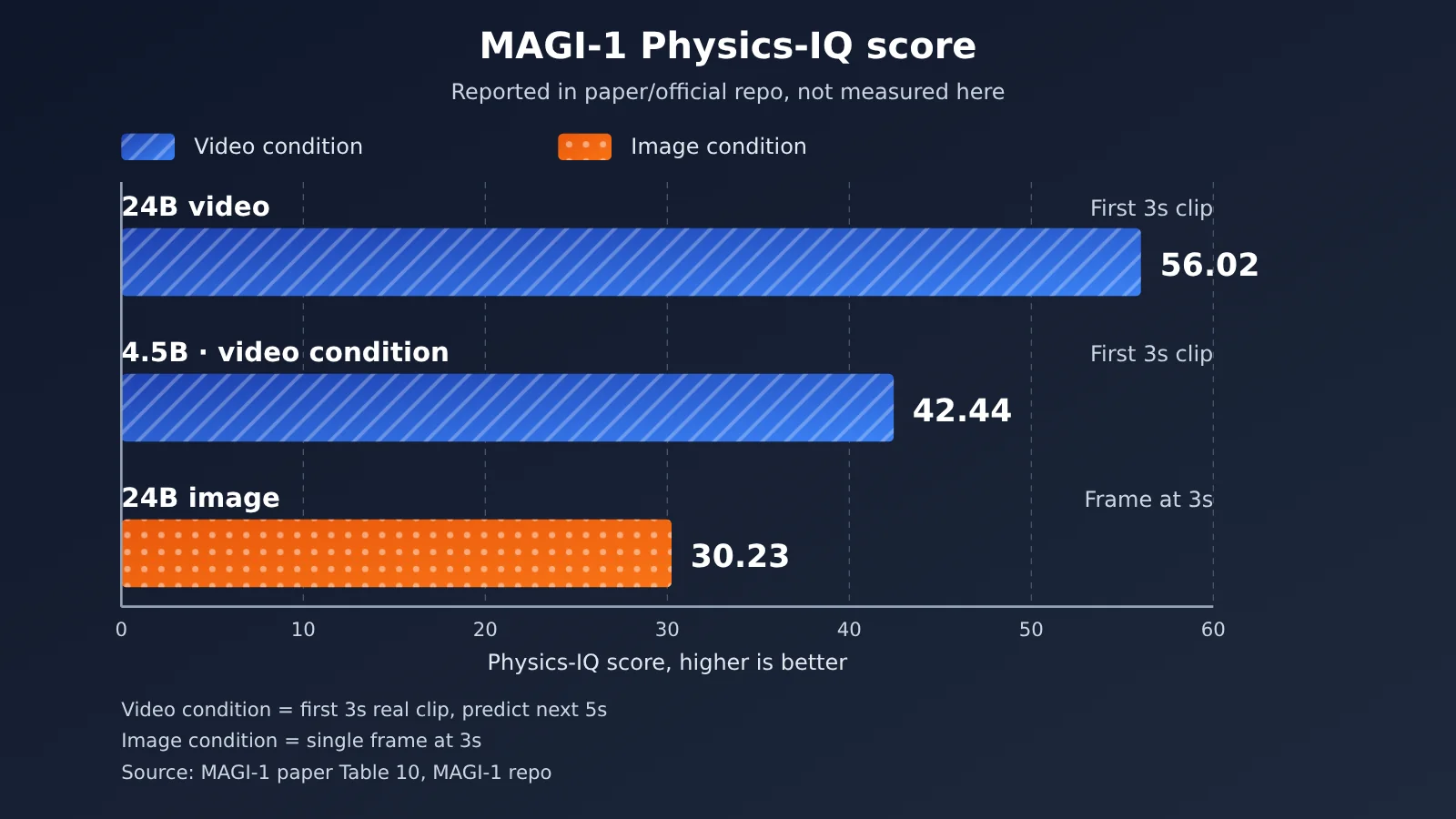
Two things stand out from the figure. For the same 24B model, the video condition scores 56.02 versus 30.23 for the image condition—the advantage of prefix input is clear. Under the video condition, 4.5B reaches 42.44, which serves as a scale reference for similar inputs in continuation research. For business acceptance, I’d suggest checking three things at the seam: whether the motion speed is continuous, whether the motion direction is consistent, and whether an occluded object reappears in a plausible position.
1.3 MAGI-1 VRAM Tiers and Spec Alignment
| Weights | Recommended hardware in the repo | Notes |
|---|---|---|
| 4.5B base version | A single RTX 4090 | Generally recommend at least 24 GB VRAM |
| 4.5B distilled version | A single RTX 4090 | Same as above |
| 4.5B distilled + FP8 quantization | A single RTX 4090 | With window_size set to 1, the official starting point is 12 GB VRAM |
| 24B base version | Eight H100/H800 GPUs | Same tier as the MAGI-1.1 base version |
| 24B distilled + quantized | Four H100/H800 or eight RTX 4090 | Same tier as the MAGI-1.1 distilled quantized version |
When hardware is tight, the 12 GB tier is a good way to first check that asset loading, a few seconds of motion, and clip stitching all work as expected. If you need a longer history window, record and validate the production configuration and this low-VRAM configuration separately. The default resolution for the 4.5B example is 720×720, and the config lets you specify the output height, width, frame count, and frame rate. Before running a same-task comparison across the two weight tiers, unify the output specs first.
2 MAGI-1.1: A Reference Point for Existing 24B Workflows
2.1 MAGI-1.1 Weights and Hardware Configurations
The official repository recorded the release of two 24B weights for MAGI-1.1 on June 17, 2026. There are two corresponding directories on Hugging Face, and the total file sizes listed on each page are as follows.
| MAGI-1.1 Weights | Total File Size | Repository-Recommended Hardware |
|---|---|---|
| 24B Base (24B_base) | 47.9 GB | Eight H100/H800 |
| 24B Distilled + FP8 Quantized (24B_distill_quant) | 26.5 GB | Four H100/H800 or eight RTX 4090 |
File sizes are for planning download and storage space, while hardware configs follow the repository’s recommendations. The single-GPU 4.5B model belongs to MAGI-1 in the model table; MAGI-1.1 has no 4.5B tier. For existing 24B deployments, the base versions of both generations share the same hardware recommendation, and the distilled quantized versions of both generations fall into the same hardware tier, so when upgrading you can reuse your existing device groupings to design validation.
2.2 How to Run a Comparative Experiment for MAGI-1.1
This section targets the following scenario: you already have a batch of familiar continuation or image-to-video shots and want to evaluate the new 24B weights within your existing pipeline. Here’s the recommended procedure.
- Pick inputs: Choose three representative categories of material, covering rotation, occlusion, and camera movement.
- Control variables: Keep the prefix, prompt, resolution, and frame count fixed throughout.
- Log the process: Record the weight name, inference configuration, and elapsed time.
- Compare results: Compare seams, motion direction, and subject appearance separately.
- Separate the questions: To judge generational differences, compare the base versions of both generations. To decide how to trade off hardware against results, record the delivered quality, peak VRAM, and elapsed time side by side for the base and distilled quantized versions on the same task.
Once you have many comparison groups, organizing the logs gets time-consuming. You can first compile each group’s configuration and manual notes into structured text, then hand it to a text model to summarize the differences. Using APIYI apiyi.com to switch between models from different vendors with the same API key for cross-review can reduce the summarization bias of any single model. That said, your final judgment should still rest on your own conclusions from watching the footage.
3 MAGI-2 Preview: Verifying Ten-Second Audio-Visual Events Locally
3.1 MAGI-2 Preview Specs and Runtime Requirements
| Item | MAGI-2 Preview (Official Documentation) |
|---|---|
| Release | August 5, 2026, research version |
| Scale | ~114B total parameters, ~6B activated per token |
| Input | Text only, or text plus a single static first frame |
| Duration | Fixed at ten seconds |
| Audio | Video and audio generated together, then the audio track is muxed into the final cut |
| Hardware | Eight NVIDIA Hopper GPUs, with official container and checkpoints provided |
| Size | Model-related components roughly 307 GB |
| Resolution | 1080p is a two-stage delivery tier; the default landscape generation width and height is 1920×1088 |
Two things tend to trip you up. First, the model card states the audio track must be muxed with ffmpeg — without this tool, you’ll get a silent video output, so before you sign off on a local audio sample, confirm the file actually contains an audio track. Second, if the delivery spec calls for landscape at exactly 1920×1080, you need to set that size through the output width and height parameters.
3.2 Running a Page-Turn Test with MAGI-2 Preview
A good test case is a photo of a desk plus a single page-turn action. Ten seconds have to fit several stages: a hand entering the frame, fingers touching the paper, the page falling, and a brief pause at the end. When you review the result, check the paper outline, the finger contact, and the timing of the paper sound separately. The repo also ships samples of both the original prompt and a structured, enhanced prompt, and the demo batch covers pure text-to-video as well as first-frame image-to-video. When reproducing, fix one set of inputs and a seed so you can compare, one variable at a time, how “first-frame constraint on vs off” and “prompt enhancement on vs off” affect this task.
To run an “enhanced vs original” comparison, you can first use a text Large Language Model to expand the raw description into a structured prompt broken down by time segment and annotated with sound cues. The example below does this through the OpenAI-compatible endpoint of APIYI (apiyi.com). Note that this step only generates the prompt — MAGI-2 Preview itself still runs local inference.
import openai

client = openai.OpenAI(
    api_key="YOUR_API_KEY",
    base_url="https://api.apiyi.com/v1"  # APIYI OpenAI-compatible endpoint
)

raw = "书桌上一本打开的书,一只手伸入画面翻过一页,纸面落下后停住。"
resp = client.chat.completions.create(
    model="YOUR_TEXT_MODEL",  # Replace with a text model from the platform's model list
    messages=[
        {"role": "system", "content": "把视频描述扩写为10秒结构化提示词:按秒分段,写清动作、镜头和声音。"},
        {"role": "user", "content": raw},
    ],
)
print(resp.choices[0].message.content)
View the full code: batch-generate enhanced prompts and an acceptance checklist
import json
import openai

client = openai.OpenAI(
    api_key="YOUR_API_KEY",
    base_url="https://api.apiyi.com/v1"  # One key to switch between different text models
)

SYSTEM = (
    "你是视频提示词工程师。输入一段原始描述,输出 JSON:"
    "{\"enhanced_prompt\": 按秒分段的10秒提示词(含动作、镜头、声音),"
    " \"checklist\": 验收要点数组(画面细节+声画同步时机)}"
)

def enhance(raw: str, model: str = "YOUR_TEXT_MODEL") -> dict:
    resp = client.chat.completions.create(
        model=model,
        messages=[
            {"role": "system", "content": SYSTEM},
            {"role": "user", "content": raw},
        ],
        response_format={"type": "json_object"},
    )
    return json.loads(resp.choices[0].message.content)

cases = {
    "page_turn": "书桌上一本打开的书,一只手伸入画面翻过一页,纸面落下后停住。",
    "cup_place": "一只手把陶瓷杯放到木桌上,杯底轻碰桌面后静止。",
}

results = {}
for name, raw in cases.items():
    out = enhance(raw)
    results[name] = {"raw": raw, **out}

# For each case, run local Preview with raw vs enhanced_prompt separately, using a fixed seed
with open("prompt_pairs.json", "w", encoding="utf-8") as f:
    json.dump(results, f, ensure_ascii=False, indent=2)
print("已写出原始/增强提示词对与验收清单")
🚀 Quick start: Sign up at APIYI (apiyi.com) to get free trial credits. Start by using a text model to generate a few “raw vs enhanced” prompt pairs, then drop them into your local Preview with a fixed seed for comparison. That’s a cheap way to tell whether prompt enhancement actually helps your task.
4 MAGI-2: Cloud-Based Multi-Material Sound Films and Targeted Editing
4.1 The Capability Ceiling of the MAGI-2 Flagship
The flagship MAGI-2 was released by Sand.ai on November 24, 2026, with 480B total parameters and roughly 28B active parameters. The published ceiling is a single generation of thirty seconds at 1080p and 25 fps with synchronized audio and picture. It’s a good fit for deliverables like short dramas with dialogue and reaction shots, ads that need to present several action beats in full, and character or scene films that need to reference multiple established materials.
In the prompt, you can specify dialogue and speakers, foley, ambient sound, and music all at once, then check item by item during playback acceptance whether each sound lines up with the corresponding action. When doing targeted editing on an existing video, spell out two separate categories in the prompt: the scene or appearance you want changed, and the composition, camera path, and action rhythm you want preserved. Those preservation conditions should also be checked one by one as playback acceptance items.
4.2 How to Divide the Work Among MAGI-2 Reference Materials
| Material type | Common uses | Published native API limit |
|---|---|---|
| Image | Constrain character appearance, clothing, and scene | Up to ten |
| Video | Provide motion or camera movement | Up to five segments, total duration no more than thirty seconds |
| Audio | Provide sound or rhythm direction | Up to five segments, total duration no more than thirty seconds |
If the deliverable requires two images to define the start and end points, the Ark compatibility documentation additionally provides a first-frame or first/last-frame mode. That mode organizes materials as its own separate set, while general references go through a different request — don’t mix the two.
Once you have a lot of materials, it gets easy to muddy the prompt over “which image controls what, which video controls what.” You can first use a text model to break the requirements into a three-column draft of “material—use—acceptance item,” then confirm it manually before submitting. This step can reuse the code from section 3.2, calling a text model through APIYI apiyi.com.
4.3 MAGI-2’s Entry Points, Pricing, and Weight Status
| Entry point | Who it’s for | Public terms (verified as of 2026-11-25) |
|---|---|---|
Sand AI official API, model name magi-2 |
Teams with organization permissions that need to integrate generation tasks into existing programs | $0.08 per output second at 1080p, $0.80 for ten seconds, $2.40 for thirty seconds |
| VidMuse | Creators who pick materials and review footage manually | The Free plan includes MAGI-2 model access, 100 one-time credits, and a 720p watermarked tier; duration, reference upload, and aspect ratio follow the options offered by the current creation mode |
| Open source weights | — | The flagship announcement lists open source as a follow-up plan; the official weights directory currently offers MAGI-1 and MAGI-2 Preview |
When estimating costs, calculate based on the specs the chosen platform plan can actually export. Note that this article did not find any information about the MAGI series being listed on APIYI; for flagship video generation, rely on the official Sand AI entry point. What APIYI apiyi.com can handle in this workflow is the text-side work, such as prompt splitting, dialogue drafting, and acceptance-checklist generation, which is billed by usage.
5. How to Pick Within the MAGI Series for Three Specific Tasks
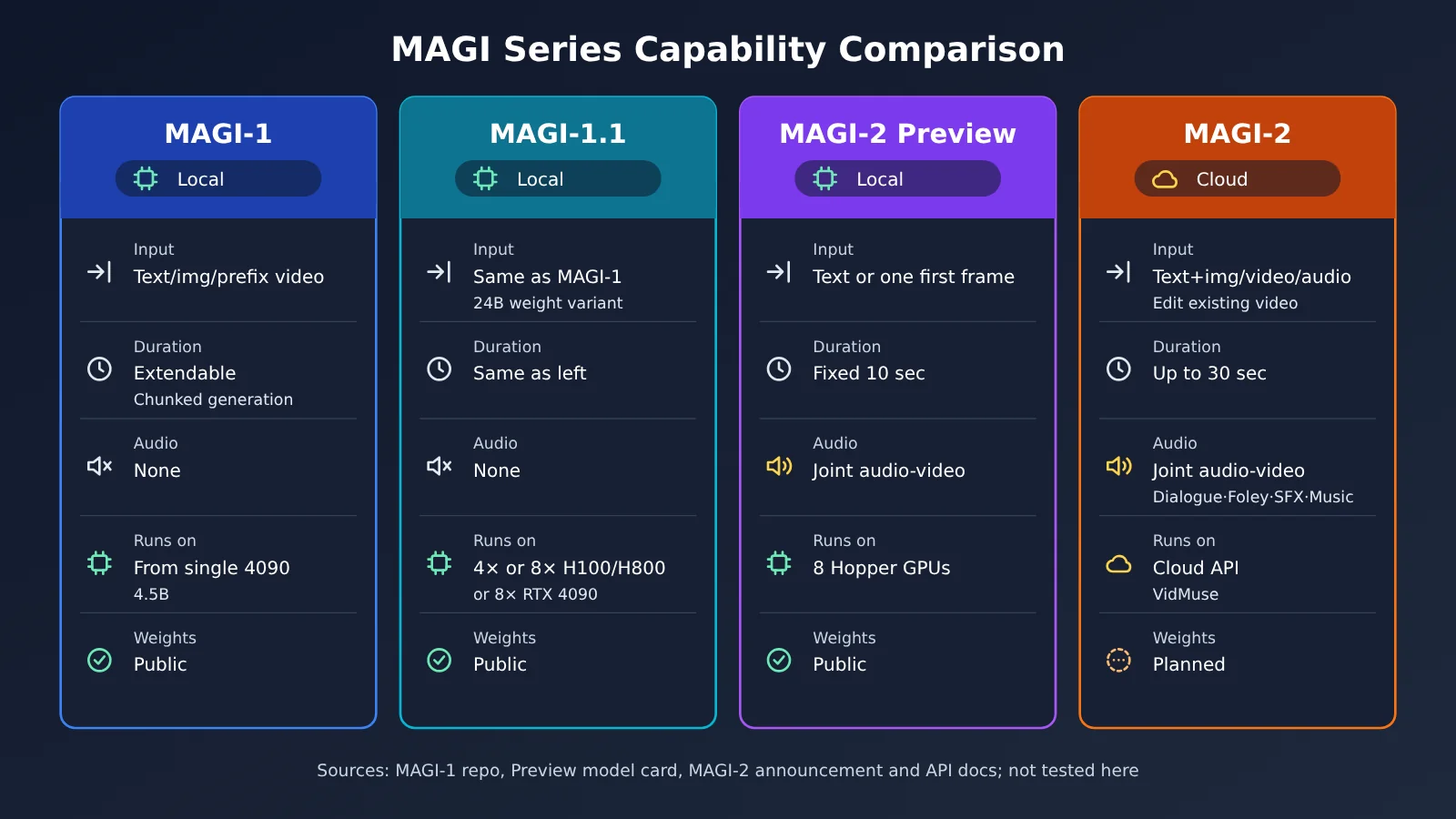
The five rows in the figure match the five questions people ask most when choosing a model: what inputs can I feed it, how long can the output be, does it have audio, where does it run, and can I get the weights. All three task groups below take their cues from those five rows.
5.1 Extending the footage or editing its content
Take a clip of a skateboarder weaving through cones, for instance. If you need to continue with the next turn in the same direction, that’s a continuation task—use MAGI-1’s prefix continuation and pay close attention to the seam where the clips join. But if the requirement is to have the original camera movement pass through a different environment while preserving the character’s actions and rhythm, that counts as editing. Follow MAGI-2’s existing video editing workflow, and separately spell out what stays the same and what changes.
5.2 Doing a quick local test or delivering under multiple conditions
For a ten-second, single-image task with audio, you can evaluate it locally using Preview. But if the task also calls for roughly twenty-five seconds of finished footage built from a clothing reference image, an action video, and beat-matched audio, go with the flagship multi-reference approach: assign a clear purpose to each piece of material, then check the clothing, action beats, and sound one by one when you watch the result.
5.3 Replace your local checkpoint, or change how you create
If you already have a stable 24B workflow, MAGI-1.1 can serve as a comparison on the same task, with seams and visual appearance on your own footage as the deciding factors. If the task itself shifts toward multi-character dialogue, shot changes, and synchronized audio-video generation, the flagship’s supported asset combinations and output formats are closer to what you need to deliver. The flagship announcement also notes that high-speed motion trajectories, fine detail in medium- and long-shot 2D animation, and the layering of complex soundscapes all need to be checked item by item.
5.4 General acceptance checklist for the MAGI series
Whichever version you choose, run through the checklist below before delivery.
- Continuation tasks (MAGI-1 / 1.1): speed and direction at the seam, plus object position after occlusion; also record the weight name, configuration, peak VRAM, and runtime.
- Local audio samples (Preview): first confirm the audio track exists, then check whether sound timing aligns with the corresponding action; confirm whether the resolution is 1920×1088 or the specified 1920×1080.
- Cloud final outputs (MAGI-2): play each one and check dialogue and speaker, Foley, ambient sound, and music; for editing tasks, check the retained composition, camera path, and pacing item by item; verify that the actual export tier matches the billing.
If you want to automatically expand this checklist into a per-shot checklist, you can keep using the script from Section 3.2 to generate a first draft through APIYI apiyi.com, then finalize it with human review of the footage.
References
- MAGI-1 Official Repository: model table, VRAM notes, and the MAGI-1.1 release record
- Link:
github.com/SandAI-org/MAGI-1
- Link:
- MAGI-1 Paper: chunked generation, Figure 11, and the Physics-IQ results in Table 10
- Link:
arxiv.org/html/2505.13211v1
- Link:
- Physics-IQ Benchmark Description
- Link:
github.com/google-deepmind/physics-IQ-benchmark
- Link:
- MAGI-1.1 Weights Directory
- Link:
huggingface.co/sand-ai/MAGI-1
- Link:
- MAGI-2 Preview Technical Report, Repository, and Model Card
- Link:
sand.ai/blog/magi-2-preview,github.com/SandAI-org/MAGI-2-preview,huggingface.co/sand-ai/MAGI-2-preview
- Link:
- MAGI-2 Flagship Announcement
- Link:
sand.ai/blog/magi-2
- Link:
- Sand AI Native API, Ark-Compatible Docs, and Pricing
- Link:
platform.sand.ai/docs/api-reference,platform.sand.ai/docs/ark-generations,platform.sand.ai/docs/model-pricing
- Link:
- VidMuse Product Entry Point, Creation Guide, and Plans
- Link:
vidmuse.ai/en/magi-2,vidmuse.ai/blog/magi-2-on-vidmuse,vidmuse.ai/zh-CN/pricing
- Link:
Author: APIYI Technical Team
Technical Discussion: Feel free to reach us through the APIYI apiyi.com homepage. For more integration resources, check out the docs.apiyi.com documentation center.