

Abstract: This article uses publicly available official materials and hands-on player tests to explain how well Genie 4’s generated worlds hold up across physics, space, and object permanence — and the conditions under which they break down.
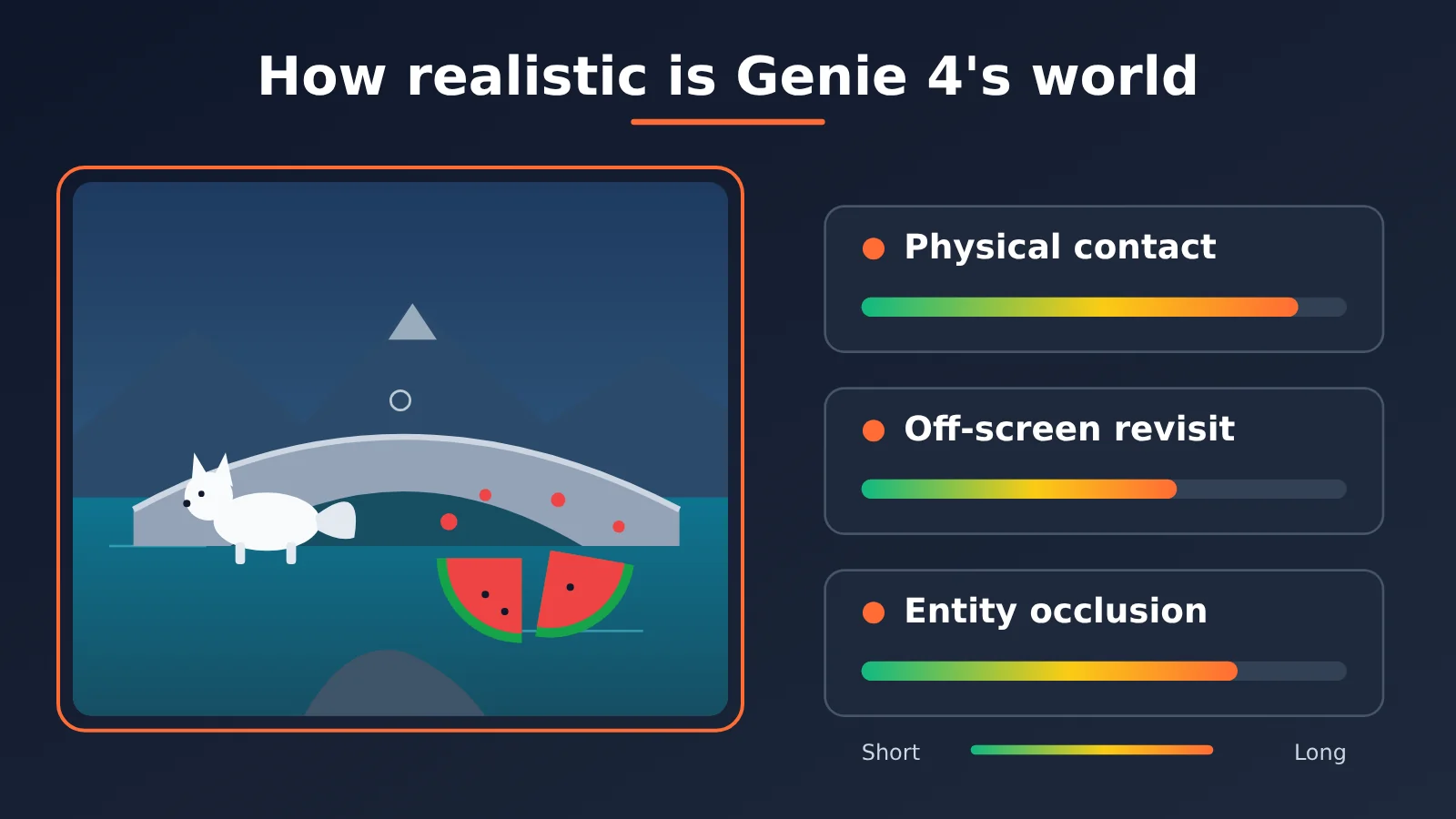
Bottom line up front: Genie 4 does well in short, close-range scenes where objects stay mostly visible. The sequence of a stone statue smashing a watermelon — falling, contact, shattering — stays clear, a hot air balloon’s basket can spin out of view and come back looking the same a few seconds later, and a white fox stays visually consistent after a wooden post briefly blocks it. The problems show up under three conditions: looking away for a while, turning sharply, and moving continuously for a long stretch with scene edits mixed in. That’s when an entire tavern disappears when you look back, a bridge and palace get replaced by a different stretch of stone peaks, and the same intersection ends up with two buildings that both say QFRONT. The official developer docs confirm it: after an object leaves your view for about 8 seconds, or after the viewpoint turns a full circle, landmarks, doors, and buttons may shift or reset; stability may drop after 60 to 90 seconds; and a single API session is hard-capped at 120 seconds. To judge how real Genie 4 is, you first need to check three conditions: scene duration, time spent off-screen, and where the evidence comes from.
Genie 4 Realism Knowledge Map
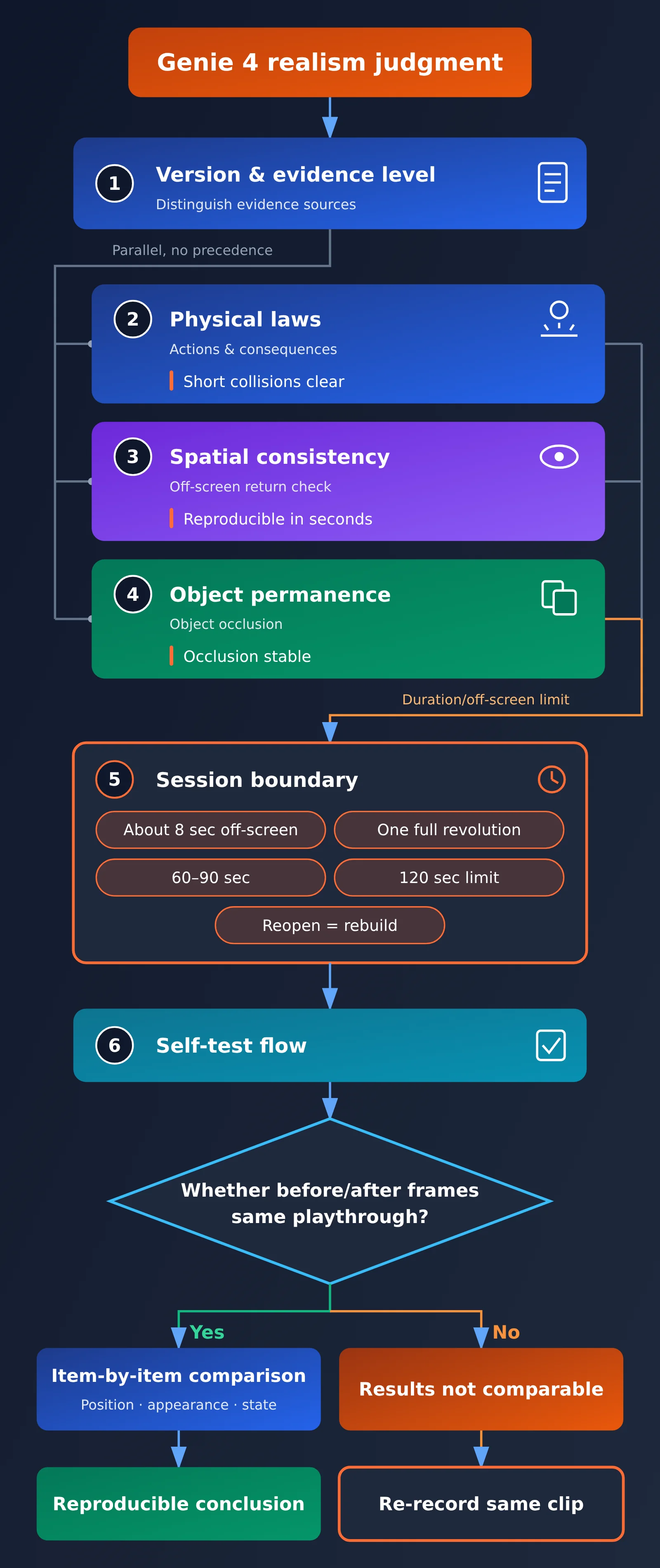
Diagram note: The map starts from “version and evidence level” because the same Project Genie product ships both Genie 3 and Genie 4, and evidence comes from two separate places—official material and player testing. You have to sort that out before any comparison makes sense. Sections 2, 3, and 4 are three parallel observation dimensions you can check as needed; all three are bounded by the session limits in Section 5. Section 6 turns those observation criteria into an executable self-test, and its gate is simple: the before and after frames must come from the same playthrough.
Genie 4 Realism Index
| No. | Section | What it sets up for later sections | What you’ll take away |
|---|---|---|---|
| 1 | Versions and entry points | A single entry point, dates, and evidence levels | You know whose evidence each claim is, and how far it can be trusted |
| 2 | Physics | The observation standard for action chains | You can judge whether collisions, falling, and driving “connect up” |
| 3 | Off-screen revisit | How time off-screen relates to landmark persistence | You can judge whether the world changes after you turn your head |
| 4 | Entity occlusion | The difference between occlusion and going off-screen | You can judge whether a blocked object is still the same object |
| 5 | Session boundaries | Official risk conditions and limits | You know roughly when failures tend to happen |
| 6 | Self-test procedure | Turns sections 1–5 into steps and acceptance criteria | You can record a reproducible test of your own |
For a first read, we suggest going 1 → 5 → 6, then picking sections 2, 3, and 4 based on what you care about.
Genie 4 Terms to Know
| Term | Plain explanation |
|---|---|
| World model | A model that generates an interactive frame-by-frame scene from text, images, and live input — the scene changes as you move and turn |
| Object permanence | When an object leaves your view or gets blocked and then comes back, it’s still the same object, with its position, appearance, and state intact |
| Off-screen revisit | Turning the camera away so an object leaves the frame entirely, then turning back to check whether it’s still where it was |
| Entity occlusion | The object is still inside the frame, just hidden behind another solid object in the foreground |
| Rolling time window | The developer docs’ description of how Genie 4 works: the model simulates frame by frame inside a window that rolls forward in time, and information that falls outside that window may no longer be reliably retained |
1 Genie 4 Versions and Entry Points: First, Confirm Which One You’re Looking At
1.1 The Three Genie 4 Entry Points and Their Dates
Before discussing how realistic Genie 4 really is, you need to pin down which entry point the material came from. The same model generation ships along three paths — a research preview, a browser product, and a developer API — each opened at a different time, with interface and limitation notes documented separately.
| Entry point | Date | Users and actions | Use in this article |
|---|---|---|---|
| DeepMind research preview | 2026-10-27 | Officially recorded demo material | Official footage for physics, replay, and occlusion |
| Project Genie (browser product) | Rolling access from 2026-11-18 | Eligible Google AI Ultra users, entering via “Create with Genie” and selecting Genie 4 before generating; arrow keys rotate the view, WASD moves | Duration and replay notes from the product help page |
| Google AI Studio and Gemini API | 2026-11-19 | Developer entry point | Developer guide, limitation docs, player Yanchuan’s hands-on test |
One thing that’s easy to mix up: the three-minute rounds, multi-world chaining, and Petra panorama mentioned in the November product announcement belong to Genie 3 within the same product. When citing those features, you can’t put them on Genie 4’s tab. It’s also worth noting that APIYI apiyi.com is not among the official Genie 4 entry points listed above — the APIYI interface used in Section 6 only handles auxiliary work like frame comparison.
1.2 How to Tell Genie 4 Evidence Levels Apart
The material here falls into four categories: official footage, the official developer guide, player hands-on tests, and official API boundaries. Official footage is clips DeepMind selected and recorded — it proves “it can be done,” but doesn’t mean it reproduces every time; the developer guide describes interaction response patterns; player tests are closer to everyday use, but usually only one or two records exist; API boundaries are the official risk conditions and hard limits. Every piece of evidence below gets labeled with its category — demo clips aren’t written up as stable features, and a single test isn’t generalized into a universal conclusion.
2 Genie 4 Physics: Do Actions, Contact, and Consequences Connect?
2.1 Official Recording: Statue Smashes a Melon
In the October 27 research preview, a whole watermelon sits in the middle of a courtyard stone platform. Starting around 00:01.5, a command is entered into the scene to drop a heavy white marble bust onto the melon. Around 00:04, the bust falls from the top of the frame and makes contact with the watermelon; the melon immediately splits open, revealing red flesh and green rind, with some fragments flying off the platform.
Between 00:06 and 00:08, the melon pieces are still on the tabletop, and the shattered state persists until the end of the clip, while the statue gradually recovers from a tilt to nearly upright. In this clip of under nine seconds, the sequence of falling, contact, and breaking is continuous. The statue’s subsequent support and righting can only be described visually; the original footage provides no mass, velocity, or force data, so when citing it, it’s appropriate to write “the action chain looks coherent,” not “the physics calculations are accurate.”
2.2 Official Recording: Maple Samara Falls into the Grass
The same research entry also has a macro shot that uses text to set up a maple seed falling toward the grass. From 00:00 to 00:03, the samara—already in the air at the start—spins as it descends, finally landing in front of a tree root. In the screen recording, the arrow keys and movement keys have highlight prompts; around 00:08 to 00:16, as the viewpoint moves closer, that samara is still in frame among the grass, and the blades beside it keep swaying.
This footage provides a continuous reference from airborne spin-fall to landing and staying put, but the scope is limited to a single close-up object that stays basically visible throughout. The official model card lists aerodynamics and collision as scenarios the model can present, while listing complex physical interactions and spatial precision as directions still under research.
2.3 Official Developer Guide: Turning the View in an Off-Road Vehicle Drags the Vehicle Path
The developer guide includes a sandstone canyon driving case: you start sitting in the car holding the steering wheel, with a bend, a jump ramp, and a stone arch ahead. The guide records that when moving forward, pressing the arrow key to turn your view to the side makes the direction of travel shift along with your line of sight; pressing the back key, the forward motion in the frame gradually slows or reverses.
The guide also states that when network round-trip latency exceeds about 150 milliseconds, tight curves will show the vehicle passing through the rock wall. This information separates operation response, vehicle body motion, and obstacle contact into distinct descriptions. It covers a different kind of action from the statue smashing the melon: the former is a recording of a head-on collision, the latter is a development note on vehicle interaction, and they can’t substitute for each other.
2.4 How to Judge Genie 4’s Physics Performance
Looking at physics performance, you can ask three questions: Is the order of actions and contact clear? Does the post-contact state (shattering, landing, stopping) persist into subsequent frames? Do operation inputs correspond to on-screen responses? Judged by these three questions, Genie 4’s official material gives positive answers for short, single, head-on interactions. Multi-object chain reactions, precise forces, and collisions under high latency currently lack verifiable evidence, and the official team also puts them on the research list.
3. Genie 4 Spatial Consistency: How It Performs When You Look Back After Leaving the Frame
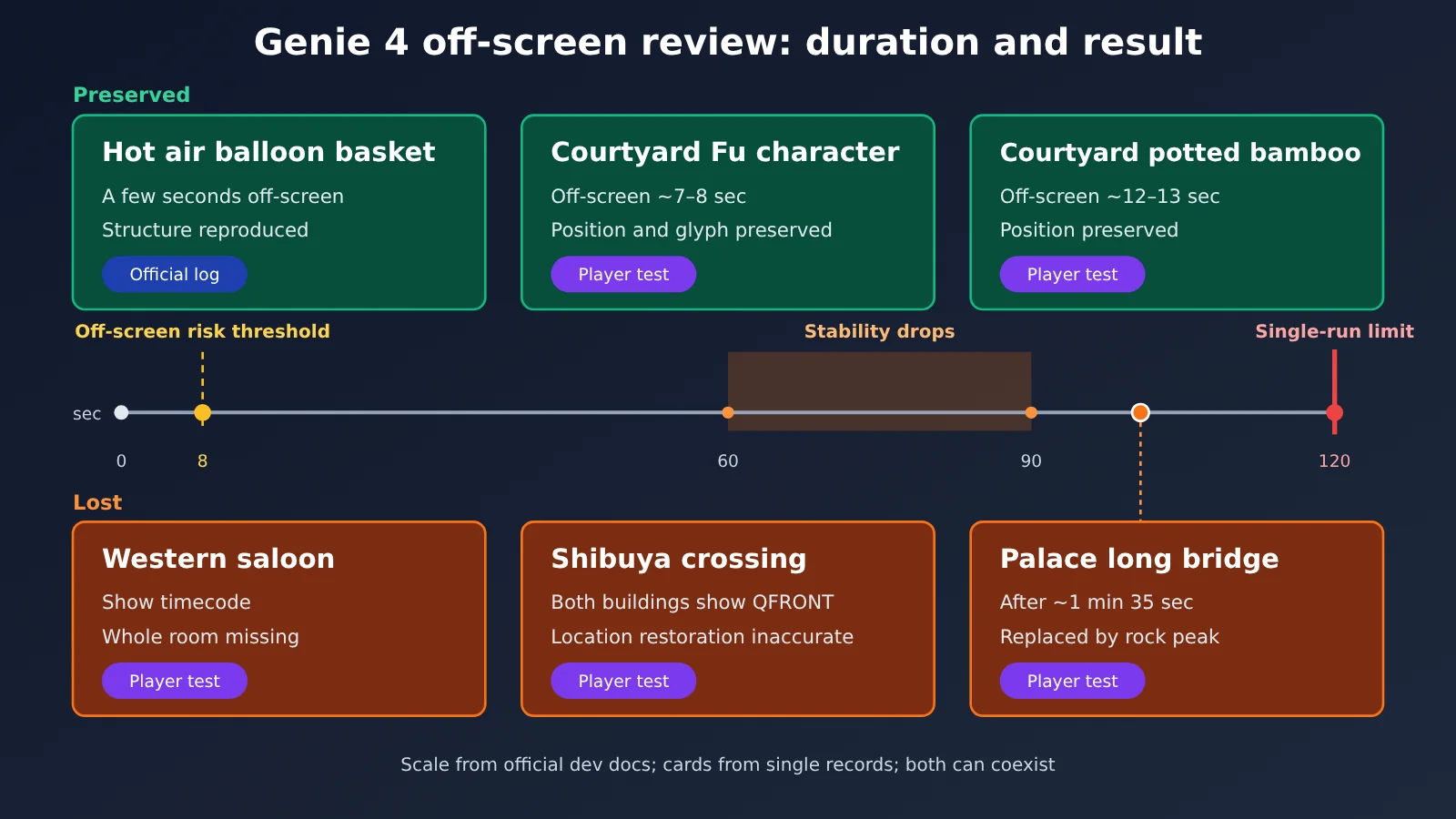
The figure places the official risk scale and individual recordings on the same timeline, which makes one thing easy to see: cases that still hold up past 8 seconds definitely exist, but they and the landmark loss seen in long sessions are results produced under different conditions.
3.1 Official recording: the hot air balloon basket over the South Pole
In the October 27 research preview, the viewpoint is first-person, standing inside a hot air balloon basket. Around 00:01, the rim of the basket, two black posts, and the side-by-side burners are visible. The view then turns right toward the glacier and the distant balloons, and from roughly 00:03 to 00:06 the basket structure drops out of frame.
At about 00:07 the view starts to swing back, first bringing one side’s post into frame again; by about 00:14 the basket rim, the posts, and the basic arrangement of the two burners are visible once more. After the gaze leaves for a few seconds, the nearby structure reappears within the same continuous operation. What this footage verifies is short-term reappearance of a recognizable structure, and the precision is limited to the components that can actually be compared in frame.
3.2 Player hands-on test: the “Fu” character and potted bamboo in a small courtyard
On November 22, Yanchuan set up a Chinese-style courtyard in AI Studio: a large red “福” (Fu) character on a white wall, a stone table on the left, and potted bamboo on the right. Once the character stands still, at about the 3rd second it begins turning left for four seconds, pauses for about nine seconds, then turns right for four seconds.
The author recorded, one by one, how long it took each of the two objects to fully exit the frame: the Fu character about seven or eight seconds, the potted bamboo about twelve or thirteen seconds. After turning back, their relative positions held and the character’s shape was still legible. Another detail: the view had already drifted back on its own before the right-turn key was pressed, so the Fu character re-entered the frame earlier than the operator expected. This shows that how long a key is held and how long an object is actually off screen are not the same thing, and a self-test should record the latter. The scope of this conclusion extends only to the two objects the author explicitly recorded.
3.3 Player test: after turning around, the entire western tavern is gone
On October 31, the two hosts of the Denoised show, Joey Daoud and Addy Ghani, tested Genie 4 early access in Google Labs. They entered a tavern in Yuma, Arizona, from the nineteenth century, along with a character description for a whale cowboy. At around 02:53 in the episode, a humpback whale appears indoors, and someone hands it a drink.
The tester then walked toward the direction where there was daylight, actively turned around at around 03:36, and at 03:44 to 03:46 the two confirmed on the show that neither the whale nor the entire bar appeared in the look-back frame. This failure came from a text-based start and an early testing entry point; the lost objects expanded from the foreground character to the entire room. The original video timestamps are the show’s progress, so you can’t use them to calculate how many seconds the whale was out of frame.
3.4 Player raw video: QFRONT appears twice at the Shibuya crossing
On November 20, Japanese creator ミスターVR published a screen recording of about 69 seconds. The interface reads “Google Genie 4” and includes prompts for arrow-key head turning, per-second billing, and a 120-second limit per round. These features match the developer interface, but the author didn’t say which specific product was used.
From around 00:21 to 00:32, a pedestrian in a black suit carrying a transparent umbrella approaches from the crosswalk direction. The person gradually gets larger, the camera turns along with them, the umbrella surface briefly sweeps past up close, and the close-up walking and reflections on the wet ground hold up well. From around 01:03 to 01:08, the viewpoint scans up the intersection again, and both of the two separate tall buildings in the frame carry the QFRONT lettering. The author also mentions that after turning around, they briefly couldn’t recognize the location. The street-scene style was maintained; the accuracy of the location’s restoration was not. The same sign appearing twice is a reference point you can check.
3.5 Player Test: Two Minutes In, Still Not at the Palace Gate
Also on November 22, Yanchuan started a session in AI Studio from the head of a white marble bridge spanning a canyon. He held forward for about 40 seconds, stopped, turned left, then turned right back, and kept going until about 01:35, then looked around to the left for about 10 seconds, typing scene instructions three times along the way.
The author’s notes record that within the first few seconds the view had already drifted off the bridge deck and toward the cliff face. The final frames are still clear, but the last look-around generated a different stretch of stone peaks — neither the bridge nor the palace showed up in the look-back. The early floating is a matter of the movement trajectory; the landmarks going missing at the end is the combined result of long movement, turning, and mid-session edits, and a single recording can’t separate the three effects.
4 Genie 4 Object Permanence: Physical Occlusion and Post-Interaction State
4.1 Official Footage: A Wooden Pile Briefly Blocks the White Fox
The DeepMind model page has a dock clip dated October 27, 2026. The input sends the white fox leaping to the next platform, dragging a light trail behind it. From 00:06 to 00:08, the fox approaches the gap along the wooden planks, then the viewpoint drops below the boardwalk and the fox and light trail appear near the water’s surface.
From about 00:10.5 to 00:11.5, a solid wooden pile in the foreground briefly blocks the fox’s body. As the viewpoint keeps moving, the pointed ears, pale body, and colored tail tip come back into clear view from the other side of the pile. This clip has an explicit occluder and a recognizable character appearance on both sides of the occlusion — a momentary occlusion within a moving view.
4.2 Genie 4: Leaving Frame and Looking Back vs. Physical Occlusion
The gondola, courtyard, and tavern clips all look at an object rotating out of frame; the white fox clip looks at an object that stays inside the frame while the foreground blocks it. The two situations test different things, so the conclusions need to be written separately.
| Comparison item | Leaving frame and looking back | Physical occlusion |
|---|---|---|
| Object position | Fully out of frame | Still in frame, blocked by a foreground solid |
| Evidence in this article | Gondola, courtyard, tavern, Shibuya, long bridge | Dock white fox |
| Typical time away | Seconds to tens of seconds | About 1 second |
| Persistence observed | Nearby structures, position and appearance of two courtyard items | Character appearance consistent before and after |
| Failures observed | Entire room lost, signboard duplicated, landmark replaced | No failures recorded in this article’s material |
| Evidence still missing | Whether post-interaction state persists | Long occlusions, post-interaction state |
4.3 Post-Interaction State: The Item You Have to Verify Yourself
Beyond shape and layout, object permanence also covers the state after an interaction. For example, once a door has been opened, it should still be open when it comes back into view after being blocked or leaving the frame. The material cited in this article has no direct record of that; the official limitations document only mentions that doors and buttons may shift or reset after being out of frame for a long time or after a full turn. This is a good candidate for the self-test procedure in Section 6, checking the frames before and after the same play session.
5 Genie 4 Session Boundaries: Duration, Rolling Window, and Restarts
The official docs lay out risk conditions and system limits, and these don’t conflict with the single-session records above. The potted bamboo in the courtyard that still reappeared after twelve or thirteen seconds off-screen can coexist with the note that “beyond roughly 8 seconds it may shift”: the former is one observed outcome, the latter is a risk warning.
- Input and output: The model card lists input as text, images, and real-time actions, with output up to 720p video at 24 frames per second, along with synchronized audio.
- How it runs: The developer docs describe Genie 4 as simulating frame by frame inside a rolling time window; once an API session ends, the next interaction rebuilds the scene from scratch.
- Off-screen risk: When an object leaves view for more than 8 seconds, or the viewpoint turns a full circle, landmarks, doors, and buttons may shift or reset.
- Duration risk: Stability may degrade after 60 to 90 seconds, and 120 seconds is the hard cap for a single API session.
- Differences across entry points: DeepMind’s model overview describes continuous interaction as lasting about a minute; the Project Genie help page says play session length depends on the model and the experience. When citing, attribute estimates, caps, and single playthroughs to their respective sources.
The Project Genie help page also notes that replaying the same experience may produce different results, so when comparing frames before and after a look-back, the before and after frames must come from the same playthrough. Yanchuan also tried using the final screenshot of the Jiangnan water town as a starting image and regenerating a segment that keeps walking forward; the author says the opening connected smoothly. This approach keeps the last visible frame from the previous segment as a reference — the second segment is a new opening reconstructed from that frame. It can explain the visual transition between the two videos, but it doesn’t mean the model remembered the previous world.
6 How to Test Genie 4’s Realism Yourself: A Reproducible Workflow
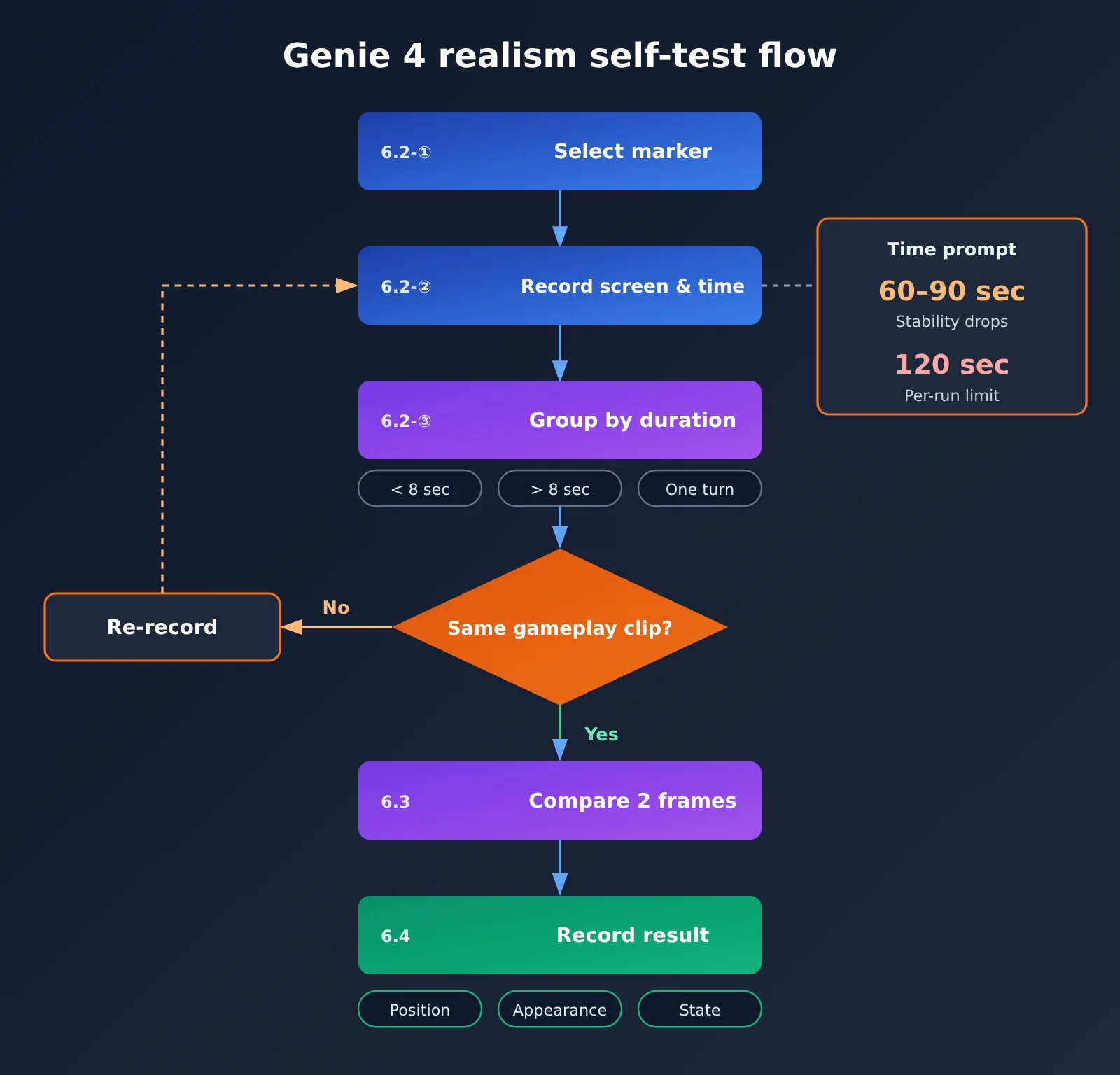
The frame comparison in step 6.3 of the diagram can be done with any Large Language Model that accepts image input — for example, calling a vision model through an OpenAI-compatible interface at APIYI apiyi.com. This step only analyzes screenshots; it doesn’t involve calling Genie 4 itself.
6.1 Prerequisites and Applicability
This self-test is for users who can already get into Genie 4 through Project Genie or AI Studio. You’ll need: an environment where you can screen-record, a timing tool, and a Large Language Model that accepts image input for comparing screenshots. In the starting scene, place at least three kinds of markers: a distant landmark (like a tower or a sign), a nearby recognizable object (like a wall with lettering on it), and an interactable object (like a door). You can pick the vision model for frame comparison from the model list at APIYI apiyi.com.
6.2 Recording Steps
- After starting, stand still and first capture all three markers in full as the baseline frame.
- Operate the manipulable object — for example, push open a door — then capture another frame as the state baseline.
- Turn the view away in three rounds: out of frame for less than 8 seconds, out of frame for 10 to 15 seconds, and a full circle in place. For each round, record the actual moments the object exits and re-enters the frame, not just how long you held the button.
- Add a round of physical occlusion: move behind some foreground object so the markers get blocked and then revealed again.
- Complete one set within 60 seconds for the whole segment, then extend toward the upper limit as needed and observe the changes after 60 to 90 seconds.
- Test scene-editing commands as a separate group to avoid mixing them with long-duration movement, otherwise you won’t be able to tell the causes apart.
6.3 Using a Multimodal Model to Compare Before/After Frames
It’s easy for human eyes to miss details when reviewing screenshots manually. Instead, you can hand the two frames—one taken before the object leaves the frame and one after it returns—to a vision model for a structured comparison. Here’s the simplest possible call; you just need to swap in your API key and image URLs:
import openai

client = openai.OpenAI(
    api_key="YOUR_API_KEY",
    base_url="https://api.apiyi.com/v1"  # APIYI's OpenAI-compatible endpoint
)

resp = client.chat.completions.create(
    model="gpt-4o-mini",  # Use whichever image-input-capable model is in the platform's model list
    messages=[{"role": "user", "content": [
        {"type": "text", "text": "Compare the 'Fu' character wall, stone table, and potted bamboo in the two images: are their positions and appearances consistent?"},
        {"type": "image_url", "image_url": {"url": "https://example.com/before.png"}},
        {"type": "image_url", "image_url": {"url": "https://example.com/after.png"}},
    ]}]
)
print(resp.choices[0].message.content)
View the full implementation code
import base64
import json
import openai

client = openai.OpenAI(
    api_key="YOUR_API_KEY",
    base_url="https://api.apiyi.com/v1"  # APIYI's unified endpoint
)

def to_data_url(path: str) -> str:
    """Convert a local screenshot into a data URL"""
    with open(path, "rb") as f:
        b64 = base64.b64encode(f.read()).decode()
    return f"data:image/png;base64,{b64}"

def compare_frames(before: str, after: str, markers: list[str],
                   model: str = "gpt-4o-mini") -> dict:
    """
    Compare two frames from the same playthrough: the one before an object
    leaves the frame and the one after it returns.
    markers: list of marker object names to check
    Returns: a position/appearance/state judgment for each marker
    """
    prompt = (
        "You are a screen consistency inspector. The two images come from the same interactive video; "
        "the first is before an object leaves the frame, and the second is after it returns. "
        f"Please check these objects one by one: {', '.join(markers)}. "
        "For each object, output JSON fields: name, present (whether it appears), "
        "position_same, appearance_same, state_same, note. "
        "Output only a JSON array. Fill in null when you can't see clearly; don't guess."
    )
    resp = client.chat.completions.create(
        model=model,
        messages=[{"role": "user", "content": [
            {"type": "text", "text": prompt},
            {"type": "image_url", "image_url": {"url": to_data_url(before)}},
            {"type": "image_url", "image_url": {"url": to_data_url(after)}},
        ]}],
        temperature=0
    )
    text = resp.choices[0].message.content.strip()
    try:
        return {"ok": True, "result": json.loads(text)}
    except json.JSONDecodeError:
        return {"ok": False, "raw": text}

if __name__ == "__main__":
    report = compare_frames(
        "round2_before.png", "round2_after.png",
        markers=["Fu character on the white wall", "Stone table on the left", "Potted bamboo on the right", "Wooden door already pushed open"]
    )
    print(json.dumps(report, ensure_ascii=False, indent=2))
Tip: Frame comparison is a batch image-review task, so you can start with the free credits for new users on APIYI apiyi.com, run a few sets of screenshots to confirm your prompt reliably outputs JSON, and then organize the results into a test log. Treat the model’s judgments as reference only; key frames still need a human to review them.
6.4 Genie 4 Self-Test Acceptance Criteria
| Check Item | Pass Criteria | Recording Requirement |
|---|---|---|
| Source consistency | Before and after frames come from the same gameplay session | Note the screen recording file and timecode |
| Position | Relative positions between markers stay unchanged | Write down the actual seconds spent off-screen |
| Appearance | Text, colors, and shapes are recognizable and consistent | Take screenshots and mark the differences |
| State | Manipulated objects retain their post-operation state | Record door open/closed and button states |
| Grouping | Off-screen duration, full turns, occlusion, and editing recorded separately | Give a conclusion for each group |
The results recorded following this process can directly answer “how realistic is Genie 4 in my scenario”: if all three types of markers pass the position and appearance checks within 8 seconds off-screen and within 60 seconds off-screen, this scenario is suitable for short-term exploration and demos; if long off-screen durations, a full turn, or scene editing cause landmark replacement, you should keep a single session shorter, or use the ending screenshot to restart and bridge the frame. Test records and screenshot comparisons can continue to be batch-processed through APIYI apiyi.com’s unified interface, making it easy to compare results across different scenarios.
References
- DeepMind Genie 4 research preview: source of the official transcript published October 27
- Link:
deepmind.google/blog/genie-4-a-new-generation-of-world-simulation
- Link:
- Genie 4 model card and model overview: input/output specs, projects under research, continuous interaction duration
- Link:
deepmind.google/models/model-cards/genie-4 - Link:
deepmind.google/models/genie
- Link:
- Project Genie product announcement and help page: entry point, controls, replay differences
- Link:
blog.google/innovation-and-ai/models-and-research/google-deepmind/genie-4-now-available-project-genie - Link:
support.google.com/labs/answer/16875695
- Link:
- Genie 4 developer docs and control guide: rolling window, limitations, driving examples
- Link:
aistudio.google.com/docs/genie - Link:
aistudio.google.com/docs/genie-prompting
- Link:
- Player hands-on tests: Yanchuan’s long-form article, the Denoised show, Mr. VR’s screen recording
- Link:
x.com/yanchuanlab/article/2124414024985325858 - Link:
vp-land.com/stories/we-turned-real-photos-into-walkable-worlds-with-googles-genie-4-then-debated-dessa-iatse-a - Link:
x.com/3DVR3/status/2123815205453066508
- Link:
Author: APIYI technical team
Technical discussion: Feel free to reach out to us via the APIYI apiyi.com homepage; more integration resources are available at the docs.apiyi.com documentation center.