
Author’s note: This breaks down Genie 4 across its research blog post, product announcement, and product page, by date. It isn’t about generating a finished clip — it’s a world you can walk into with your keyboard, rewrite the scene with text as you go, and it comes with its own sound. This article spells out who can try it now, how to do it, and where you can share what you make.
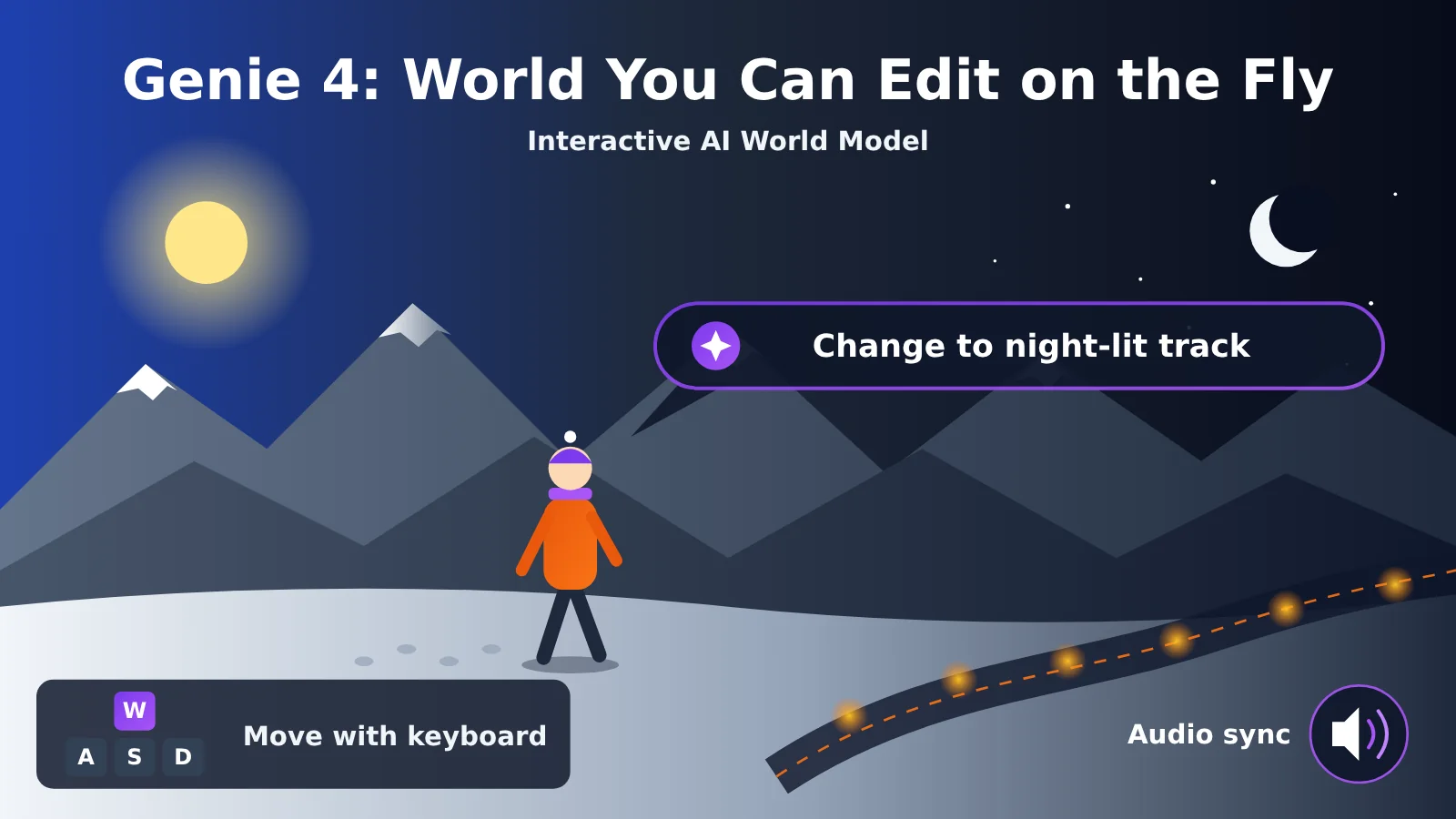
On November 18, 2026, Google put Genie 4 into Project Genie. The gist: open with a single sentence or a single image, walk into it with your keyboard, and then, as you go, rewrite the weather, the characters, and the sound using text. That same day, Google’s official post, the Google blog, and the DeepMind model card all went live together. And by November 19, the product page had already flipped to an “available now” state.
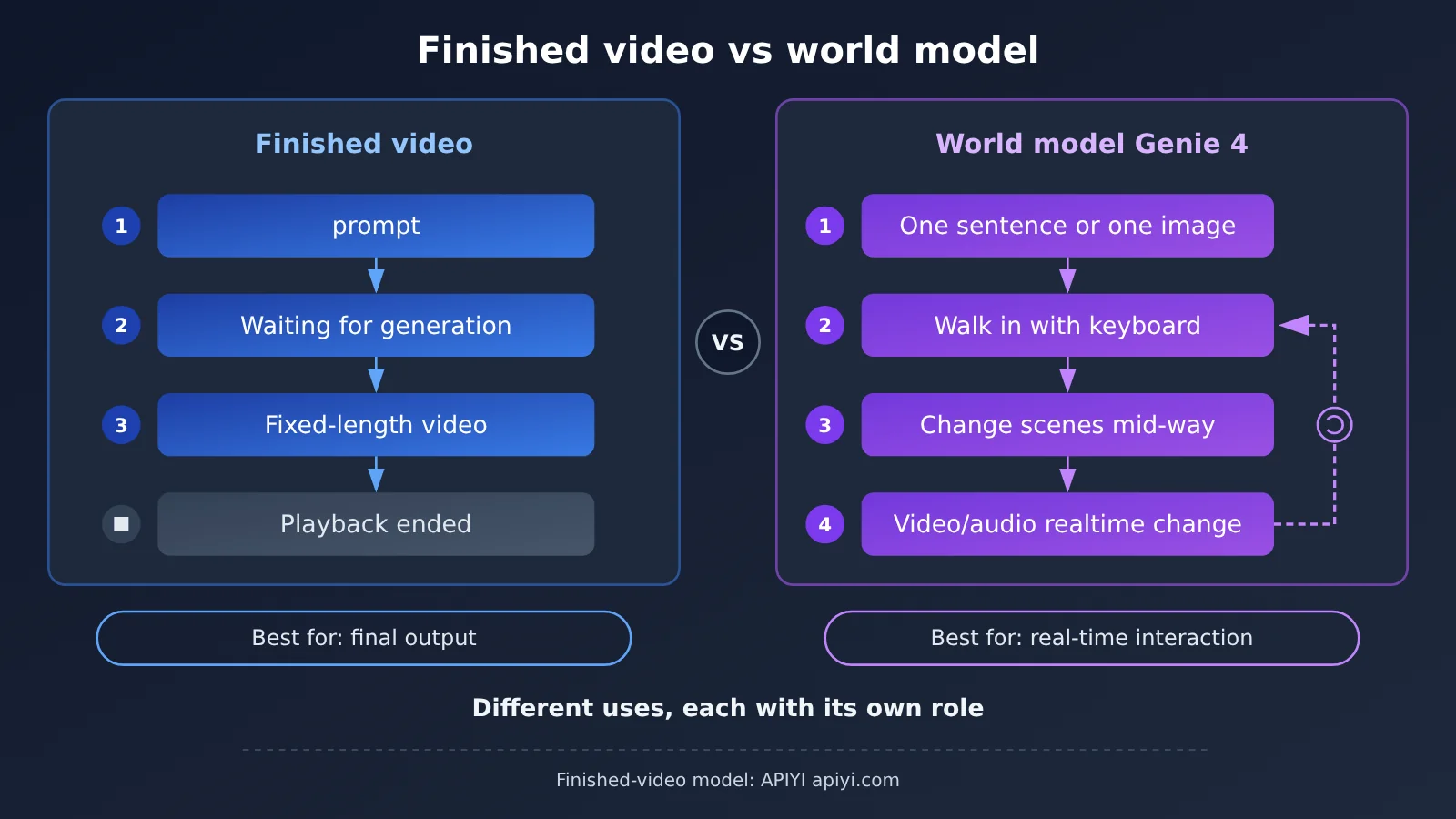
This isn’t yet another “type a prompt, wait for a clip” finished-video model. What Genie 4 generates is a world you can control and rewrite mid-way, with visuals and sound that shift in real time as you move. This article covers the October 27 research blog post, the November 18 product announcement, and the November 19 product page separately. Which specs are current and which are just early claims — I’ll mark each one clearly.
Core value: In 3 minutes you’ll get what Genie 4 is, where you can use it today, and which three steps to take first when you dive in yourself.
Genie 4 Core Facts at a Glance
Let’s start with a table that lays out the most important facts. Each item corresponds to official material, with dates based on each source’s publication date.
| Item | Details |
|---|---|
| Released by | Google DeepMind |
| Product launch | 2026-11-18, inside Project Genie (entry point: labs.google/projectgenie) |
| One-line pitch | Officially described as the most realistic, interactive world model to date |
| Input methods | Text, images, real-time keyboard and mouse controls (per the 11-18 model card) |
| Output specs | Real-time 720p video at up to 24 frames per second, with synchronized audio (per the 11-18 model card) |
| Continuous interaction duration | About one minute (per the 11-19 product page) |
| Underlying model | Built on Gemini Omni Flash (per the 11-18 model card) |
| Who can try it | Eligible Google AI Ultra subscribers can use it now; Google AI Pro users can join the waitlist starting 11-18 |
| Watermark | Generated videos and audio both carry SynthID |
How Genie 4 Is Different from “Generating a Finished Video”
Many people, upon first hearing about Genie 4, assume it’s just another text-to-video tool. The difference lies in where the experience ends. A finished-video model hands you a clip of fixed length; when it’s over, it’s over. Genie 4 hands you a running world: press a key and it moves forward; type a sentence and it changes the weather, adds a character, or switches the camera.
Sound is the most immediately noticeable new change this time. Google’s blog says Genie 4 is the first to combine visuals with real-time native audio, from ambient sound to character dialogue, all changing with the scene. In other words, if you change a sunny day into a rainstorm, the sound of rain comes with it, rather than a separate music track being added in post.
How to Use Genie 4: Three Steps into an AI World
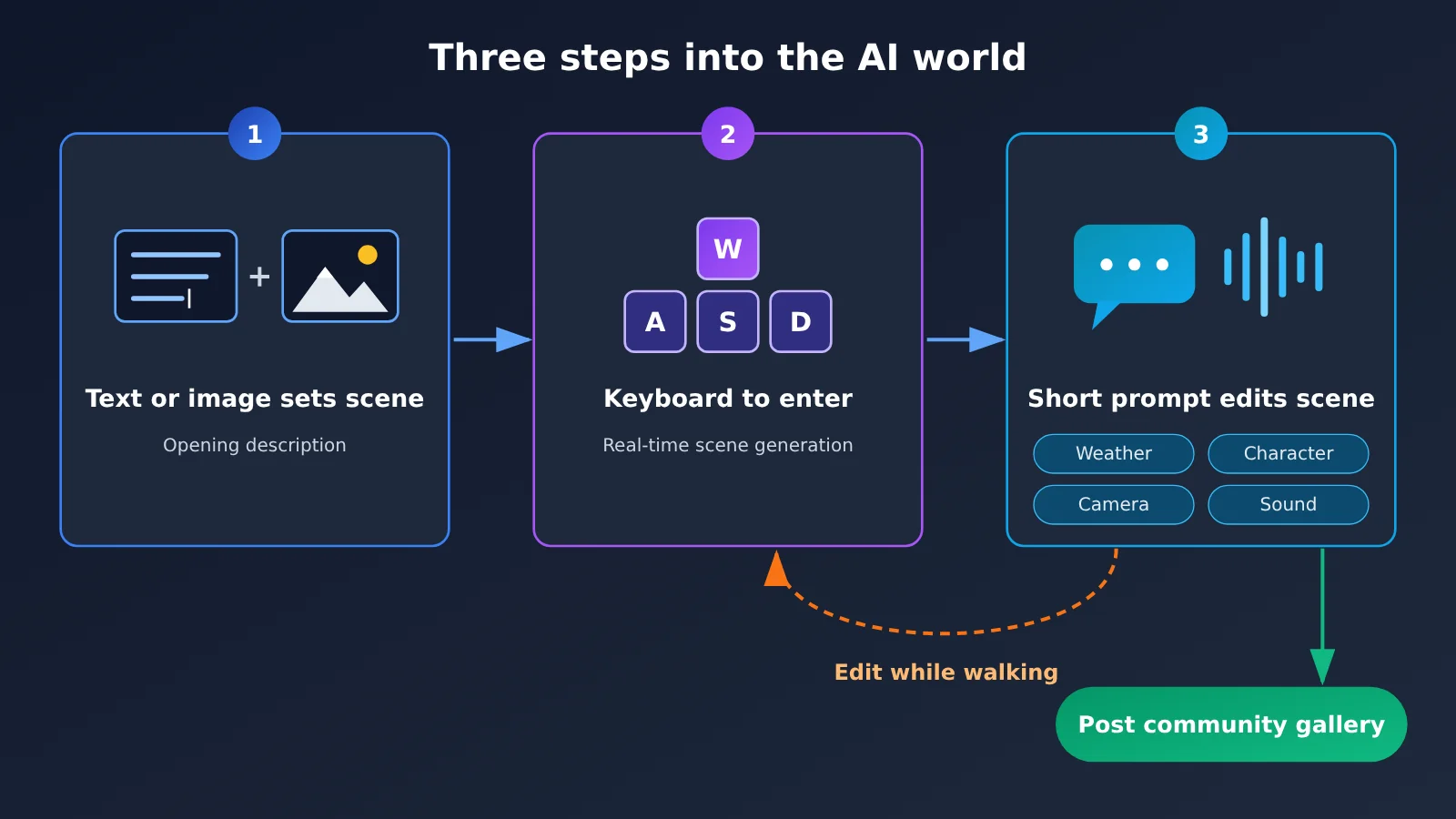
The product page lays out a simple prompting method: first set the scene with a bit of text or an image, then use short on-the-spot prompts to change events, camera, and sound. Broken down, that’s the three steps below.
- Set the scene with one sentence or one image. For example, “an evening snow slope with a cable car in the distance,” or just upload a photo. The product page notes that clear, recognizable text usually only shows up if you write it into the opening description — so if you want words on a storefront sign or a road sign, put them in the first sentence.
- Walk in with your keyboard. The model card states that the inputs include real-time keyboard and mouse control, and the frame is generated live as you move. This is where you and a finished video part ways: you’re not watching, you’re walking.
- Change the weather, characters, camera, or sound mid-way with short prompts. According to Google’s blog, you can enter prompts while walking to change the weather, add characters, or change actions in real time. The shorter and more specific the prompt, the better — for example, “start a heavy snow,” “pull the camera back,” “a dog barking in the distance.”
What the Project Genie agent and Gemini can help with in Genie 4
Before you get started, you can chat with the Project Genie agent first. The official post says you can use conversation to define the world’s look and soundtrack. Google’s blog adds that this agent orchestrates multiple multimodal models, first creating the world’s signature imagery, then adding background music that fits the mood.
Once you’re inside the world, you can also bring Gemini into the session. It watches what’s happening on screen, surfaces suggestions relevant to the moment, or directly triggers events in the world. One example in the official gallery, Rock Paper Scissors, has Gemini acting as a real-time referee.
Who can try Genie 4 right now
The rollout details are spelled out clearly in the November 18 official post and Google’s blog. Eligible Google AI Ultra subscribers can go straight into Project Genie and start using it. Google AI Pro users can join the waitlist on the same page starting November 18.
Worlds you build with Genie 4 can be published and remixed
Once a world is finished, you can publish it to the new community gallery, where other people can step into it and remix it. The official example: turning a daytime ski slope into a nighttime illuminated track. It works the other way, too — you can start from any existing world in the gallery and change its landscape, soundtrack, or rules.
The Google blog called out a handful of gallery projects (just examples, not a ranking). Living Memory turns personal photos into explorable spaces; Dino Field Guide uses 360-degree panoramas to build prehistoric habitats. On the early collaboration side, Google worked with creative technologist Will (BLVCKL!GHT) on a gothic manor escape room, “Villa Giallo,” and with filmmaker Anand Gandhi on “The Life of Ants,” which takes you through an ant colony from an ant’s-eye view.
Choosing between Genie 4 and Genie 3
Genie 3 hasn’t been retired — it’s still in the Project Genie model selector, and it got updates this time around too. The Google blog draws a clear division of labor: if you want the best visuals, physics, and native audio, go with Genie 4; if you want longer sessions, or want to start from a panorama, go with Genie 3.
| Need | Which to choose | Basis (11-18 official post and blog) |
|---|---|---|
| More realistic visuals and physics | Genie 4 | Officially described as the most realistic world model available |
| Sound and character dialogue | Genie 4 | First time visuals and real-time native audio are combined |
| Longer single sessions | Genie 3 | Single exploration extended from 60 seconds to up to 3 minutes |
| Chaining multiple worlds into one long journey | Genie 3 | Supports chaining multiple worlds together |
| Starting from a 360-degree panorama | Genie 3 | A panorama can serve as the starting point for a new world |
| Editing the environment with text while exploring | Either one | Genie 3 also added natural-language environment editing this time |
Genie 4’s Three Timeline Points: Don’t Mistake Early Claims for Current Specs
Information about Genie 4 was released in three separate waves, and the content wasn’t entirely consistent across them. The easiest mistake when reading the news is treating the October research preview as the November product spec.
| Date | Source | Nature | Key Content |
|---|---|---|---|
| 2026-10-27 | DeepMind research blog post | Research preview | First given to trusted testers; four new capabilities; Gemini handles multi-step events; robotics experiments |
| 2026-10-27 | Media briefings like TechCrunch | Media relay | Reported that “scenes last about two minutes, roughly twice as long as the previous generation” |
| 2026-11-18 | Official post, Google blog, model card | Product launch | Entered Project Genie; available on Ultra, waitlist for Pro; community gallery; Genie 3 updates |
| 2026-11-19 | Product page (final state on search date) | Current documentation | Continuous interaction currently around one minute; six known limitations |
The most important thing to watch here is the duration. “About two minutes” came from the October media briefing—it’s not the number on the November 18 model card or the November 19 product page. The current product page says: continuous interaction currently runs about one minute, not long sessions.
The Three Gemini Names Associated with Genie 4
Three Gemini names appear in the materials, and they each handle a different job—they’re not the same model.
| Name | Where It Appears | What It Does |
|---|---|---|
Gemini 3.8 Flash |
10-27 research blog post | Guide agent in multi-step events: watches the scene, breaks down steps, checks frame by frame whether each step succeeded, and revises the plan when the user intervenes or the world changes |
Gemini 4 Argon |
Robotics experiments in the 10-27 research blog post | Breaks tasks into steps and hands them to Genie 4 for rendering; the example is the Apptronik humanoid robot Apollo playing checkers—no real robot is involved |
Gemini Omni Flash |
11-18 model card | The underlying model for Genie 4 |
The model card also includes a section on frontier safety evaluation: Genie 4 was evaluated within the Gemini 3 series, and the conclusion is that it’s unlikely to reach the tracked risk capability level. That’s a safety evaluation conclusion, not a ranking of creative capability—don’t mix them up when reading.
Limitations Google Openly Acknowledges for Genie 4
Neither the product page nor the model card shies away from the drawbacks. Here are the ones worth keeping in mind before you dive in:
- Environments drift: The longer you play, the more complex your changes, and the farther you travel within a scene, the more visual details and object permanence tend to slip.
- Multi-character interaction is hard: Complex interactions between multiple independent characters and a shared environment remain a research challenge.
- Real locations aren’t precise: It can’t yet perfectly simulate real-world locations that actually exist.
- Text has to be written in advance: Clear text usually only appears if you write it into the opening description.
- Sessions run short: Continuous interaction lasts about one minute; real-time audio accuracy is also still being improved.
The Google blog also places both Genie 3 and Genie 4 within the scope of frontier research, with ongoing issues including camera latency, complex physical interactions, and long-term scene persistence. The model card mentions human and automated evaluations and claims significant improvements over Genie 3 in photorealism, motion smoothness, and real-time steering. But it doesn’t disclose scores, sample sizes, or win rates—so this can only be taken as an official statement.
Genie 4 Impact Analysis
For Creators: Try the Style First, Then Decide Whether to Build
The research blog post relays how trusted testers use it (as officially described, not from our own hands-on testing). Film teams use it for on-set previsualization, tweaking shots, lighting, dialogue, and action. Game teams try out styles and gameplay before writing a line of engine code. Some people turn an old photo into a historical scene you can walk through.
What these uses have in common is “walk through it once and see how it feels.” Since sessions last about a minute and the environment drifts, it’s more of a quick-iteration scratchpad than a final delivery tool right now. The gallery and remix features also let someone else pick up a good idea and keep building on it.
For Developers: Genie 4 Has No Public API Yet
Let’s be clear on this: Genie 4’s current distribution channel is Project Genie, and the model card says the same thing — “planned to be distributed through Project Genie.” The October 27 research blog post mentioned that it will later open up to developers, starting with early partners through the Gemini API and Google AI Studio. But that was a plan from the research preview stage — it doesn’t mean there’s a publicly callable Genie 4 API today.
If what you need is to “build it yourself via an API” — say, batch-generating short videos or images inside your own app — you’ll want to separate two things first. First, this kind of generation consumes generation credits, whether billed per call or by usage, so estimate your costs upfront. Second, what you actually need might be a finished-video model or an image model, not a world model — they’re different tools.
On 2026-11-19 we checked APIYI’s full model list at docs.apiyi.com/models and the live pricing API, and neither has an entry for Genie, Genie 4, or Gemini Omni Flash. They’re not listed yet — we’ll get this model listed as soon as we can; models and prices are subject to the platform’s model list. Which is why this article doesn’t quote any price for Genie 4.
If you want an API you can call today, check things in this order:
| What to check | How to do it | Where to call it |
|---|---|---|
| Find a model | Confirm the currently listed video, image, and chat models in the model list | APIYI apiyi.com |
| Match pricing | Go by live pricing — look up input price, output price, or per-call price by model | APIYI apiyi.com |
| Match the protocol | OpenAI-compatible API — just swap base_url to https://api.apiyi.com/v1 to connect |
APIYI apiyi.com |
| World model | Genie 4 is currently only available in Project Genie | Not listed yet |
🚀 Integration tip: If what you want is a callable generation API, start by testing mainstream models like OpenAI, Claude, and Gemini on APIYI apiyi.com with a single API key. The platform offers an OpenAI-compatible API with usage-based billing and free test credits for new users — perfect for running a small pilot before committing to an approach.
For the Industry: World Models Are Moving From Demos to Products
It took only about three weeks to go from October’s research preview to a subscription product in November. Add the community gallery and remix features, and Genie 4 is no longer just a paper demo — it’s a product you can share and build on.
At the same time, SynthID watermarking covers both video and audio, and inputs and outputs go through safety screening. As world models get better at generating increasingly realistic scenes and sound, this kind of labeling and screening will be a must-have at the platform level.
Genie 4 FAQ
Q1: What is Genie 4?
Genie 4 is Google DeepMind’s world model, which the company calls its most realistic and interactive one to date. You open with text or an image, walk around inside it with your keyboard, and change the scene mid-session with text — the visuals and audio follow in real time.
Q2: How is Genie 4 different from regular AI video generation?
A finished-video model produces one fixed clip — you watch it and it’s over. Genie 4 produces a world you can steer and rewrite as you go, with native real-time audio. They serve different purposes and don’t replace each other.
Q3: When can I use Genie 4? Am I eligible?
Starting November 18, 2026, eligible Google AI Ultra subscribers can use it in Project Genie. Google AI Pro users can join the waitlist from the same date. The entry point is `labs.google/projectgenie`.
Q4: How long can I play Genie 4 in one session? Wasn’t it supposed to be two minutes?
“About two minutes” was a paraphrase from an October 27 media briefing, not the current spec. The November 19 product page says continuous interaction is currently about one minute. If you want longer single sessions, Google recommends Genie 3, which now runs up to 3 minutes.
Q5: Can I call Genie 4 through an API?
There’s no publicly callable Genie 4 interface right now — the model card lists Project Genie as the distribution channel. As of the 2026-11-19 check, Genie 4 also wasn’t in APIYI (apiyi.com)’s model list or pricing. It’s not listed yet, and we’ll get it up as soon as we can; model availability and pricing follow the platform’s model list.
Q6: If I just want to call a generation model from my own app, where do I start?
First figure out whether you need finished video, images, or chat, then find the matching listed model in the model list. With an OpenAI-compatible SDK, set base_url to `https://api.apiyi.com/v1`, and you can access multiple mainstream models with a single API key — new users’ free credits are a good way to get the flow working first.
Genie 4 Key Takeaways
- It’s a world, not a finished clip: Genie 4 lets you walk into it with your keyboard and change the scene with text as you go.
- Sound comes with it: the first time visuals and real-time native audio are combined — ambient sound and dialogue included.
- Three steps to get started: open with a sentence or an image, walk in with your keyboard, then use short prompts to change the weather, characters, camera, or sound.
- Who can try it: eligible Google AI Ultra subscribers can use it now; Google AI Pro users join the queue starting 11-18.
- Current session length is about one minute: the two-minute figure came from an October briefing, not the current spec.
- Share it, remix it: you can post your work to the community gallery, and also change the landscapes, soundtracks, and rules of someone else’s world.
- Want to use an API? Check the model list first: Genie 4 has no public API yet; the models you can actually call are whatever’s listed at APIYI apiyi.com.
Summary
How to use Genie 4 to build worlds with AI boils down to three points:
- What it is: a world you can walk into, change on the fly, and hear with real-time sound following along — not a generated clip that ends the moment you finish watching.
- How to start: set the scene with a sentence or an image, walk in with your keyboard, and use short prompts mid-session to change the weather, characters, camera, or sound. When you’re done, you can post it to the community gallery or remix someone else’s world.
- Where things stand: eligible Google AI Ultra subscribers can use it in Project Genie now, while Google AI Pro users are in the queue; continuous interaction runs about one minute, and the official docs are pretty clear about limits like environment drift.
If you’re an Ultra user, the most direct path is to open Project Genie and take a walk starting from one of your own photos. If what you really care about is calling generation capabilities inside your own product, start with the free credits at APIYI apiyi.com and try the mainstream models currently on the shelf — once Genie 4 lands, it’ll show up in that same model list.
📚 References
-
Google official post thread (2026-11-18): Launch announcement of Genie 4 entering Project Genie
- Link:
x.com/Google/status/2123117819948638448 - Description: Availability scope, community gallery, and three updates to Genie 3
- Link:
-
Google blog (2026-11-18): Project Genie update featuring Genie 4
- Link:
blog.google/innovation-and-ai/models-and-research/google-deepmind/genie-4-now-available-project-genie - Description: Real-time scene changes, native audio, gallery examples, and early collaboration works
- Link:
-
DeepMind research blog (2026-10-27): Genie 4 research preview
- Link:
deepmind.google/blog/genie-4-a-new-generation-of-world-simulation - Description: Four capabilities, Gemini 3.8 Flash guidance agent, robotics experiments, and known limitations
- Link:
-
Genie 4 model card (2026-11-18): Input/output specs and evaluation notes
- Link:
deepmind.google/models/model-cards/genie-4 - Description: Built on Gemini Omni Flash, 720p, up to 24 frames per second
- Link:
-
Genie product page (retrieved 2026-11-19): Current prompting methods and six limitations
- Link:
deepmind.google/models/genie - Description: Current notes such as roughly one minute of continuous interaction
- Link:
Author: APIYI Technical Team
Technical contact: Feel free to reach us via the APIYI website homepage. For model IDs and pricing, please refer to the platform model list in the docs.apiyi.com documentation center