
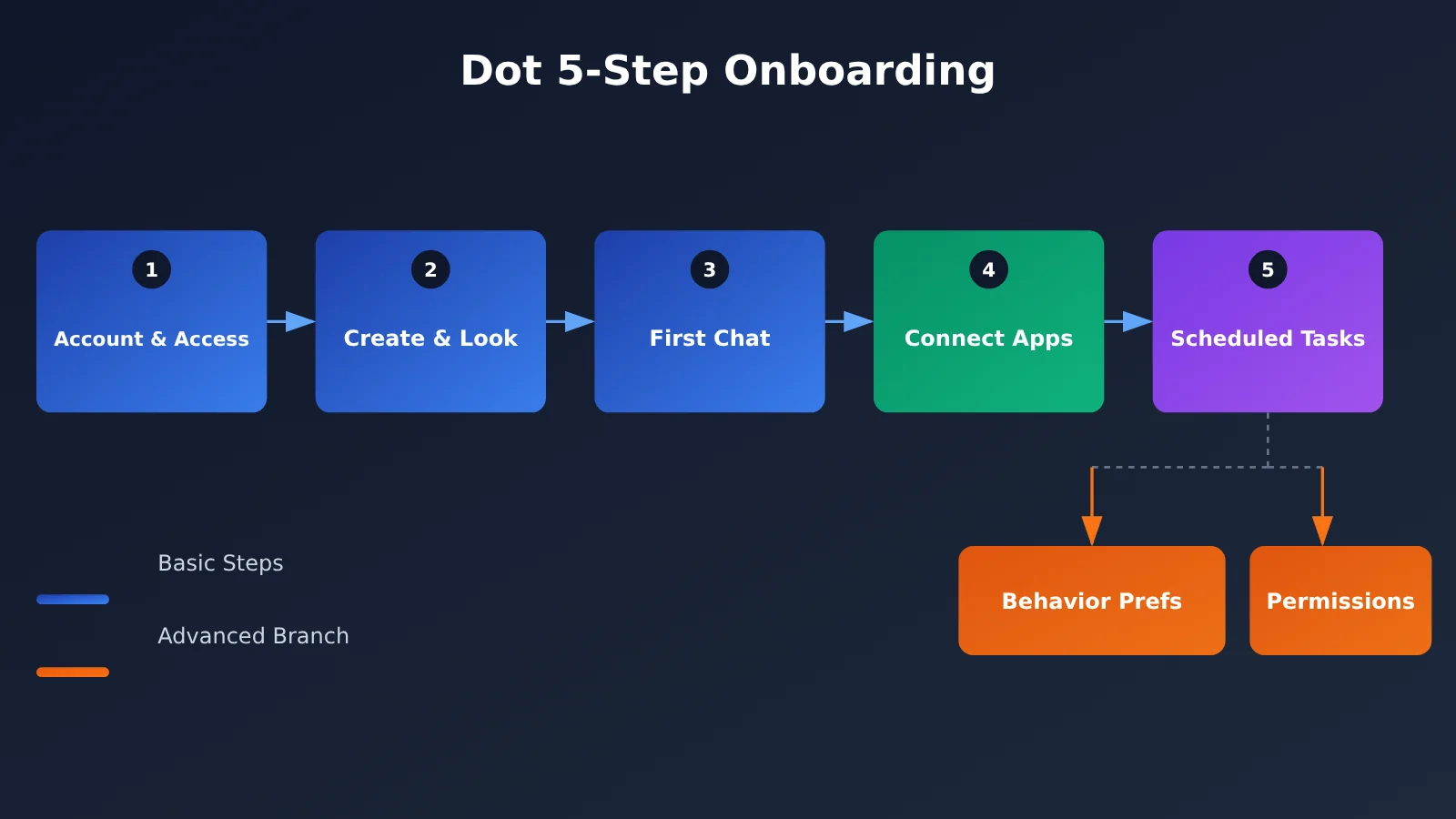
Direct answer: Getting the most out of ChatGPT Dot takes 5 steps. First, confirm that your account is eligible, then create a Dot in the web app, desktop app, or official mobile app and complete the first conversation. Next, connect apps such as Gmail, Google Calendar, and Google Drive. After that, set up a daily scheduled task that is “read-only, report-only,” and finally use Behavior and Custom rules to define how it works and what it’s allowed to do.
Key takeaway: Dot isn’t just a chattier ChatGPT—it’s an always-on personal AI Agent. It can take long-term ownership of the tasks you assign, proactively follow up, and ask for approval when needed. Beginners don’t have to give it complex work right away. Start with a scheduled task whose results are easy to verify and that doesn’t send anything externally. Once the permission rules are in order, gradually delegate more.
What will you learn from this article?
- ChatGPT Dot’s positioning, core capabilities, and—as of November 23, 2026—its availability and pricing details.
- The full path from creating a Dot to connecting apps, including differences between mobile and desktop.
- A ready-to-copy “Daily Work Briefing” automated task prompt, plus how to verify it after saving.
- The difference between Behavior (behavioral preferences) and Custom rules (operating permission rules), and how to set each.
- How to troubleshoot common beginner issues, and how Dot divides responsibilities with ChatGPT Work, Codex, and Scheduled Tasks.
Index: The article starts with a concept table and an impact snapshot to help you build a basic understanding. The “Objective Facts” section covers product information, availability, the 5 onboarding steps, and advanced setup based on official materials—read it while you follow along. The “Analysis and Judgment” section discusses why beginners should start with read-only tasks, how permissions should be layered, and changes worth watching later.
ChatGPT Dot Primer: To Know — Concept Explanations
| Concept | Brief explanation |
|---|---|
| ChatGPT Dot | A persistent personal AI Agent inside ChatGPT that can take long-term ownership of tasks, proactively follow up, and report back to you |
| AI Agent | An AI system that can plan autonomously around a goal, call tools, and carry out multi-step tasks |
| ChatGPT Work | Handles concrete work across apps, such as gathering information, building reports, and editing documents |
| Codex | OpenAI’s software engineering Agent, responsible for changing code, running tests, fixing bugs, and handling PRs |
| Scheduled Tasks | Scheduled tasks that run at a specified time, on a set frequency, or when a supported event is triggered |
| Plugins | The way ChatGPT connects to external apps; Dot uses them to reach email, calendars, documents, and more |
| Behavior / Custom instructions | Behavior preferences that tell Dot how to write, how to report, and how often to check in |
| Custom rules | Operational permission rules that define whether a given type of action can run directly or needs your approval |
| Cloud computer / Cloud browser | A remote computing environment that Dot uses on its own, separate from your own computer and browser login state |
| PR (Pull Request) | A request in code collaboration to submit changes for others to review and merge |
ChatGPT Dot: Impact at a Glance
- Everyday office users: You get an assistant that proactively organizes your schedule and filters important emails each day, shifting how you work from “ask when you think of it” to “get a report on schedule.” At the same time, you’ll need to spend a little time understanding the authorization and approval mechanics.
- ChatGPT Plus users: The rollout is currently gradual, and some accounts still don’t see the entry point, so you’ll need to check your region, age, and account eligibility.
- Enterprise and education administrators: Whether Dot is available depends on administrator and regional settings. The free trial period for Enterprise ends on January 13, 2027, so you’ll want to evaluate costs and permission policies ahead of time.
- European users: Not yet available in the EU and European Economic Area, the UK, or Switzerland, so it can’t be used in the near term.
- Developers: You can have Dot manage project progress and delegate the actual coding work to Codex — but delegated tasks consume Codex quota separately.
ChatGPT Dot: The Objective Facts on Product Positioning, Availability, and Getting Started
What Is ChatGPT Dot? Release Date and Core Capabilities
OpenAI officially launched ChatGPT Dots on September 29, 2026. Officially, it’s positioned as a resident personal AI agent inside ChatGPT. The goal is to let AI take long-term ownership of the tasks users hand off: even when the user isn’t sending messages, it can proactively research, track progress, call tools, and report back or ask for approval when needed.
According to the official description, Dot’s core capabilities include:
- Continuous work: It advances multiple tasks around long-term goals, with support for background research, scheduled execution, and proactive updates.
- Independent compute environment: It has its own cloud computer, browser, files, and software environment.
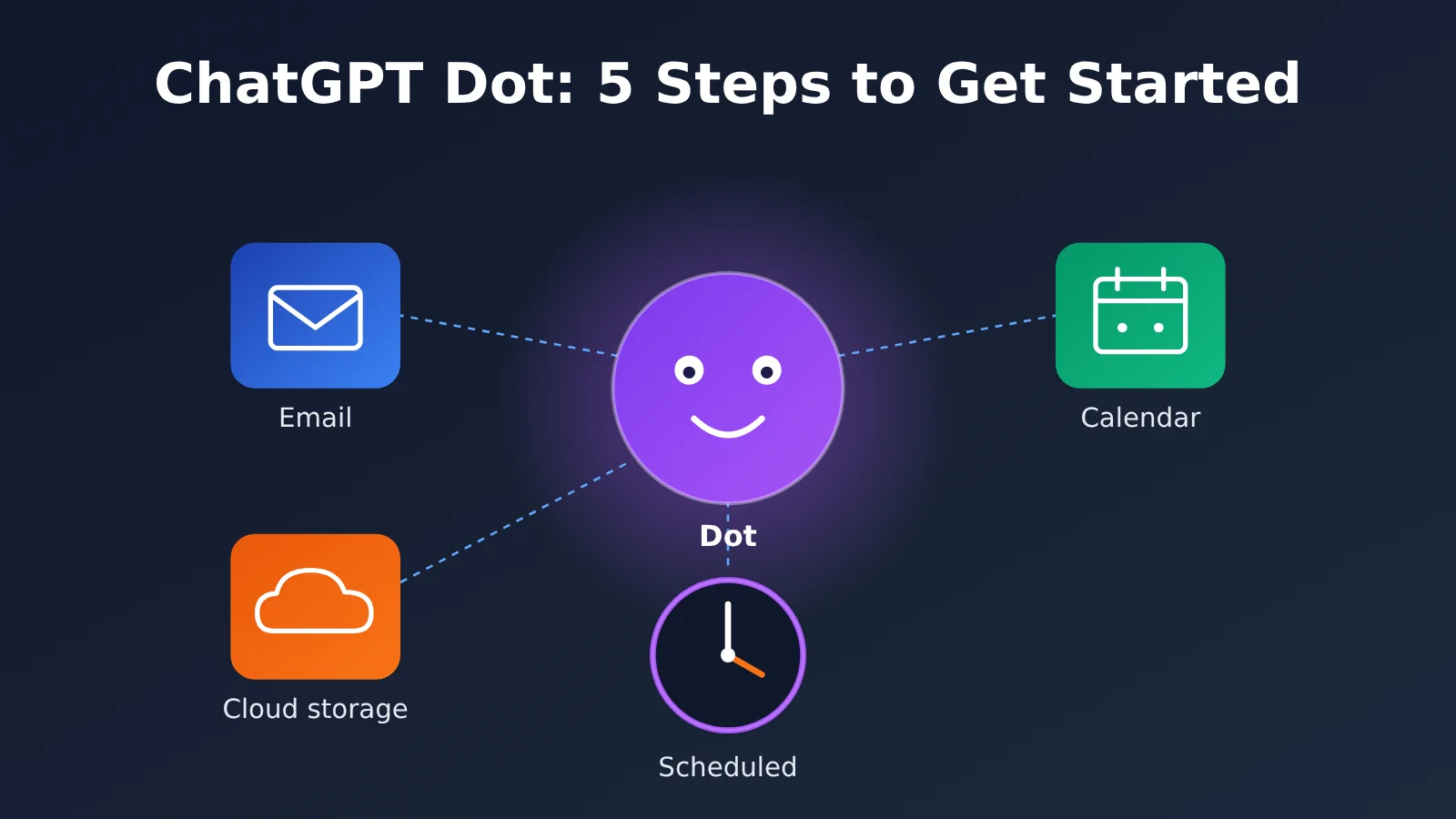
- App connections: It accesses authorized email, calendar, documents, and other apps through the ChatGPT plugin ecosystem.
- Long-term context: It uses ChatGPT’s relevant memory while also building up Dot’s own working memory.
- Task delegation: It hands specific work off to ChatGPT Work or Codex for execution.
- Cross-channel interaction: It works on desktop, web, and mobile apps, and also on messaging channels like Slack and Teams.
- Control and approval: Users can check work status, set operating rules, take over the computer, or pause the run.
On the model side, OpenAI updated the details on November 3. Dot was initially driven mainly by GPT-6 Astra, and later GPT-6.1 Terra was added, so different models can be used for different tasks.
ChatGPT Dot Availability and Pricing (as of 2026-11-23)
| Item | Current status |
|---|---|
| Initial release | September 29, 2026 |
| ChatGPT Pro | Available to age-eligible users in supported regions |
| ChatGPT Plus | Rolling out gradually to select accounts in supported regions |
| Business Premium | Available based on eligibility in supported regions |
| Business Standard | Rolling out gradually to eligible accounts in the US |
| Enterprise / Edu | Available in eligible workspaces, subject to admin and regional settings |
| Regions not yet supported | EU and European Economic Area, UK, Switzerland |
| Number of Dots | Personal plans currently center on one primary Dot |
| Usage cost | The first Dot is included in Pro and Business Premium plans; deep work is limited by quota |
| Delegated tasks | Codex and ChatGPT Work tasks each consume their own quotas |
Enterprise is billed separately: Dot fees are waived during the designated trial period through January 13, 2027, and billing begins on January 14.
ChatGPT Dot Step 1: Confirm access and find the entry point
First, check the table above to confirm whether your account is within the rollout. Eligible users can find Dots in the ChatGPT sidebar, or go to the ChatGPT Dots creation entry point.
Officially, there are three ways to create one: ChatGPT on the web on a computer, the Windows / macOS desktop apps, and the official iOS / Android apps. The web version opened in a mobile browser doesn’t support Dot right now — on mobile, you have to use the official app.
ChatGPT Dot Step 2: Finish Creating It and Set Up Its Appearance
Name your Dot as the prompts guide you, then pick its form, color, eyes, and accessories. You can also just go with an existing character or pet form.
For the account handle, the default looks something like @yourname-dot, and it becomes @yourname-agentname once you’ve named it. You’ll need this handle later when you want to mention your Dot in channels like Slack, so it’s worth choosing a short, memorable name.
ChatGPT Dot Step 3: Have the First Conversation
The point of the first conversation is to let your Dot get to know you, so the more specific you are, the better. Aim to cover three things: your work goals, the tools you use most often, and the tasks you need it to keep tracking.
Dot will draw on the memory available to it and any connected information to understand your background, then proactively suggest work it can help with. If its suggestions don’t match what you expect, just correct it directly—that information feeds into its working context.
ChatGPT Dot Step 4: Connect Apps — From “Just Chatting” to “Getting Things Done”
A Dot with no connected apps can only talk with you. Once you connect apps, it can actually work with your work data. Beginners should start with these three apps:
| App | Typical work it can do after authorization |
|---|---|
| Gmail | Search emails, organize important messages, prepare reply drafts |
| Google Calendar | Read schedules, check for conflicts, prepare meeting reminders |
| Google Drive | Search files, read documents, organize project materials |
On mobile, the official path is: Dot profile page → Customize → Plugins. On desktop, you can install and connect through ChatGPT’s plugin settings.
There are two things to keep in mind when connecting. First, choose the right account and check the permissions item by item. “Allow reading email” and “Allow sending email” are two different permissions, and Dot follows the authorization settings of the corresponding ChatGPT plugin. Second, adding Slack as a chat channel doesn’t mean you’ve authorized Dot to read your work data in Slack. App data connections and messaging channel connections have to be configured separately.
ChatGPT Dot Step 5: Set Up Your First Automated Task
For beginners, it’s best to start with a simple scheduled task whose results you can verify. You can copy the “Daily Work Briefing” prompt below and use it directly, adjusting the time zone and time as needed:
Please create a scheduled task for me that runs every day at 8:30 AM, time zone Asia/Shanghai.

Task name: Daily Work Briefing.
Data sources: the connected Google Calendar and Gmail.

Each run:
1. Summarize today's meetings, events, times, and locations.
2. Check whether there are any time conflicts.
3. Find important emails received in the past 24 hours that require me to decide or reply, with the email source.
4. Mark the top three things that need the highest priority.
5. Only report in ChatGPT; do not proactively send any external emails.

Please save the task and confirm: name, run time, time zone, repeat method, and where results are delivered.
After you’ve created it, go to ChatGPT’s Scheduled page and check the task name, description, run time, time zone, and notification settings. You can also open and manage scheduled tasks from “Recent Activity” on the Dot profile page. Officially, Dot supports setting reminders, running periodic checks, and modifying existing ChatGPT Work scheduled tasks.
ChatGPT Dot Advanced Settings: Behavior and Custom rules
Dot has two settings that are easy to confuse, and the official docs specifically stress that they’re two different configurations.
Behavior (Custom instructions) governs the “how.” It’s used to set writing style, reporting format, communication frequency, and standing requirements. On mobile versions that support Behavior, the path is: Customize → Behavior → select Dot → How [Dot name] handles tasks. You can add requirements like: “Provide a link to the actual result every time you finish a task; report completion status first, then discuss optimization suggestions; if a project gets blocked, explain exactly which step it’s stuck at.”
Custom rules govern the “what it’s allowed to do.” They determine whether a certain type of operation must have your consent. On the desktop web version, the path is: Settings → Personalization → Permissions → Custom rules. There are four available action modes:
- Take action without asking: operations that match the rules are executed directly.
- Take action when you say so: executed only after you explicitly ask. Some interfaces show this as Take action if pre-approved.
- Ask before taking action: asks for your approval before executing.
- Hand off to you: hands the task over to you to do yourself.
For operations like sending emails to external parties or deleting shared files, it’s a good idea to set up separate rules based on risk level.
How ChatGPT Dot Divides Work with Work, Codex, and Scheduled Tasks
| Product | Responsibilities it’s well suited for | Typical tasks |
|---|---|---|
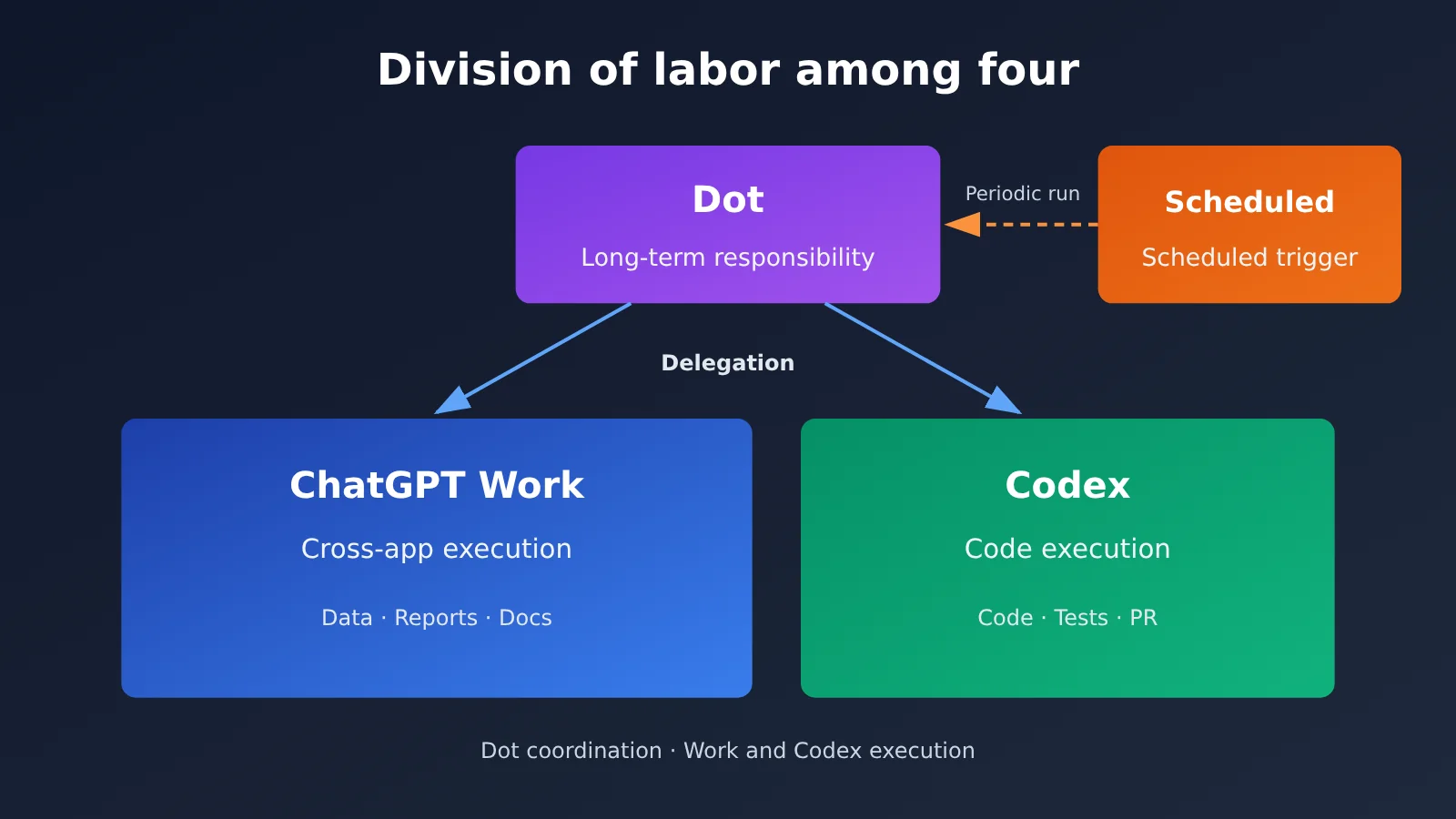
| Dot | Long-term responsibility, coordination, proactive tracking | Track project progress, follow up on requirement changes, chase pending decisions |
| ChatGPT Work | Cross-app execution of specific work | Gather information, produce reports, edit documents |
| Codex | Software engineering and code execution | Modify code, run tests, fix bugs, handle PRs |
| Scheduled Tasks | Trigger work based on time or events | Send daily summaries, check status weekly, respond to specified events |
These four can work together. Dot is responsible for maintaining the relationship between long-term goals and tasks, Work and Codex handle actual execution, and Scheduled Tasks provides a recurring run mechanism.
ChatGPT Dot Beginner Troubleshooting
| What you’re seeing | Checks you can run |
|---|---|
| Plus account can’t see Dot | Verify region, age, and account eligibility |
| Dot can’t read Gmail | Check the plugin connection, the selected account, and permissions |
| Local tasks stop after the computer is shut down | Reconnect the local computer, or switch to cloud tasks |
| Still can’t access the site after logging in | Check the login status of the standalone cloud browser, plus the handover and return steps |
| Scheduled tasks don’t produce results | Check task status, trigger conditions, and pending approvals on the Scheduled page |
| Dot forgets important rules | Check Behavior, relevant task context, and Custom rules |
| Dot is paused but tasks are still running | Check delegated tasks and standalone scheduled tasks separately |
There’s also one detail that’s easy to overlook: after you disconnect a plugin, the information Dot previously gathered and accumulated from that plugin isn’t cleared automatically. Deleting Dot kicks off the deletion process for its independent memory, but any existing delegated tasks and historical tasks need to be verified separately.
ChatGPT Dot Analysis and Judgment
Why your first ChatGPT Dot task should be “read-only, report-only”
The briefing template above deliberately adds one rule: “Report only inside ChatGPT, don’t proactively send any external emails.” The reason is straightforward: when you’re just getting started, you don’t yet know how good Dot’s judgment is. Read-only tasks are cheap to get wrong, and you can verify the results against your calendar and inbox every day.
From our perspective, this one task tests three links in the chain at once: whether app authorization is actually in effect, whether the scheduled trigger fires reliably, and whether the report format matches what you expect. Once all three check out, you can add write operations like “prepare reply drafts” — and the troubleshooting surface will be much smaller.
Permission layering is where ChatGPT Dot beginners should spend the most time
Based on the official documentation, Dot’s control mechanism is split into several layers: plugin authorization determines what it can touch, Custom rules determine what it can do directly, and Behavior determines how it does it. On top of that, message channels and data connections are also separate. More layers mean finer-grained configuration — but beginners are also more likely to assume that “connected means fully authorized,” or that “writing it into Behavior means it’s restricted.”
A safer approach: mark irreversible, outward-facing operations (sending emails, deleting shared files, making external payments) as Ask before taking action or Hand off to you. For internal organization tasks, observe for a while before considering switching them to direct execution. This is a recommendation based on how the product works — not an official default configuration.
A Sensible Progression Path for ChatGPT Dot
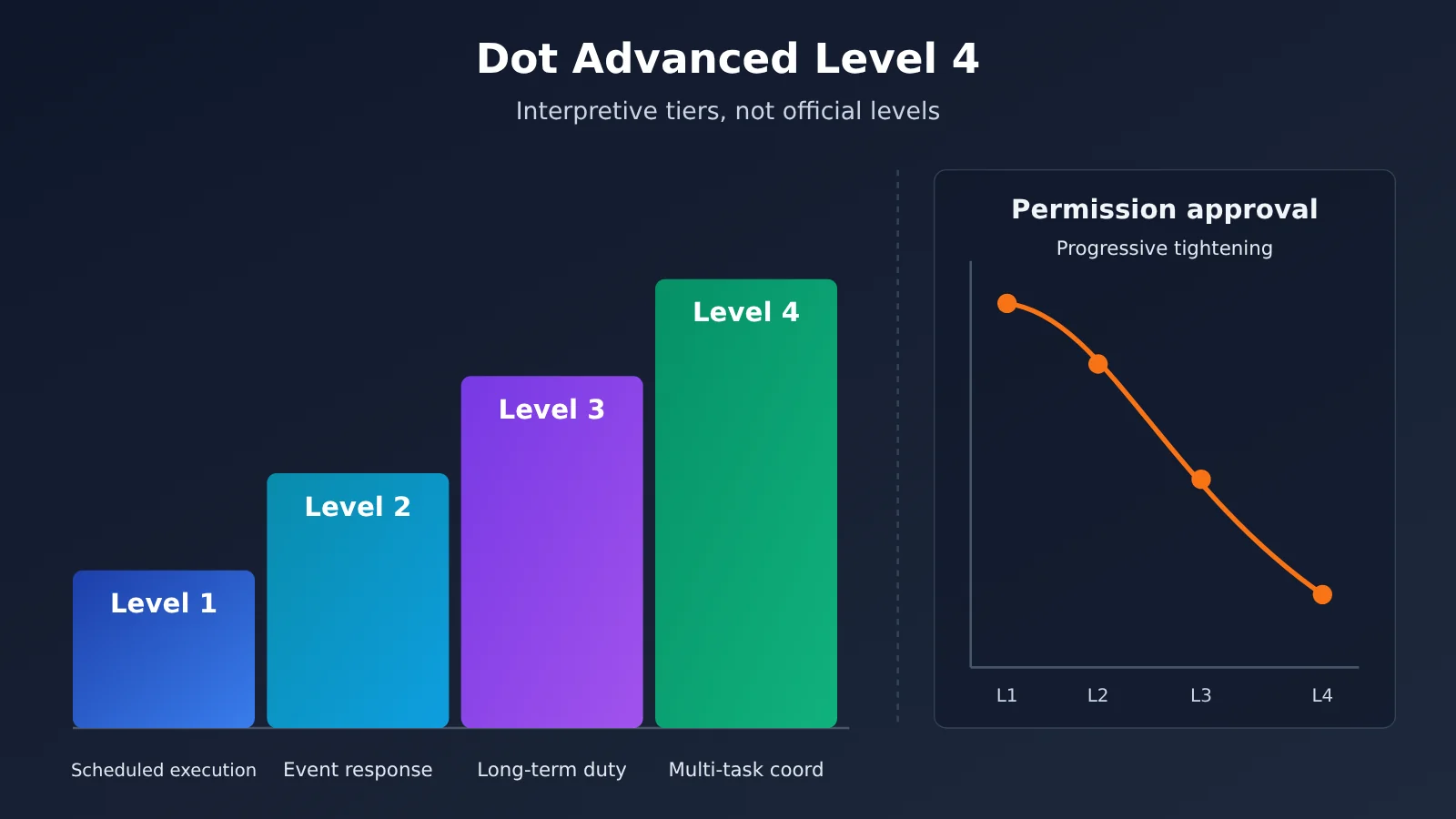
You can think of Dot’s usage in terms of increasing proactivity, from low to high: scheduled execution (check and report at a set time) → event response (handle a new email or a new issue once it arrives) → long-term responsibility (track project status and decide the next step) → autonomous multi-task coordination (delegate multiple tasks, handle dependencies, and accept deliverables). Worth noting: this four-level breakdown is just an explanatory layering to make things easier to understand—it isn’t a product tier announced by OpenAI.
The “daily work briefing” in this article belongs to the first level. As you move up, the key isn’t how long the prompt is—it’s being clear about a long-term responsibility: which signals Dot needs to monitor, which tools it can call, which results need to notify you, and when the task ends. Third-party experiences also show the value of this positioning. In a usage write-up published on October 13, 2026, Zapier editor Harry Guinness mentioned that his Dot proactively alerted him to things like a failed bank card payment and a delivery time conflict.
ChatGPT Dot Changes Worth Watching Next
There’s one definite date: Enterprise Dot will start billing on January 14, 2027, and the relevant teams need to determine who can use it and which permissions to open up before then. Other aspects are predictions that still need verification: the gradual rollout to Plus accounts, when the European region will launch, and how model assignment across different tasks will work once GPT-6.1 Terra joins—all of which could affect new users’ actual experience and credit consumption. It’s recommended to re-check the availability table in this article after the official help center is updated.
For most new users, you can get started right now: confirm your eligibility, create a Dot, connect three commonly used apps, and have it deliver its first briefing at 8:30 tomorrow morning. Spending a week observing whether its judgments are reliable is more valuable than designing a complex automation workflow from the start.
Reference Sources
- OpenAI: Introducing dots (published 2026-09-29, updated 2026-11-03)
- OpenAI official help: Getting started with your dot
- OpenAI official tutorial: Personalize your dot
- OpenAI official help: Scheduled Tasks operations and management; Behavior, Custom rules, approvals and controls
- Zapier: Harry Guinness’s personal experience using Dot (2026-10-13)