Coding with Claude Code is awesome, but is the official API too pricey? Want to switch to a third-party API proxy but don't know how to edit those configuration files? CC-Switch was born to solve exactly this pain point. This article will help you master the installation and use of CC-Switch in just 5 minutes, making it a breeze to manage API settings for Claude Code, Codex, OpenCode, and Gemini CLI all in one place.
Core Value: By the end of this post, you'll know how to use CC-Switch to visually manage multiple API Providers and switch configurations with one click, saying goodbye to the hassle of manually editing JSON files.
What is CC-Switch? And why do you need it?
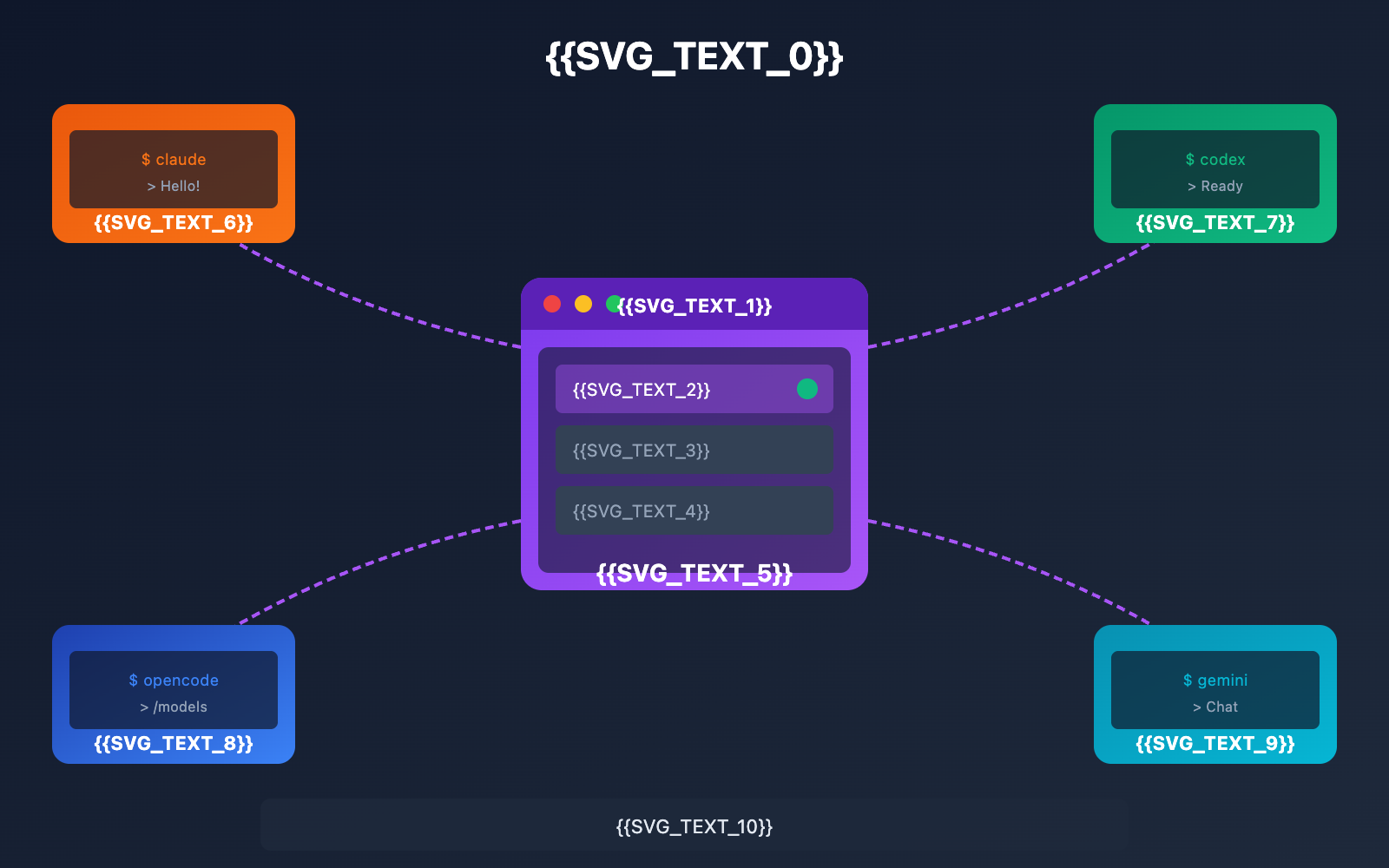
CC-Switch is an open-source, cross-platform desktop application specifically designed to unify the management of AI coding assistant configurations. It was created by developer farion1231 and is open-sourced on GitHub.
CC-Switch's Core Mission
Simply put, CC-Switch is the "configuration hub" for your AI coding tools:
| The Old Way | The CC-Switch Way |
|---|---|
Manually editing ~/.claude/settings.json |
One-click config via a visual interface |
| Scattered config files for different tools | Unified management for 4 CLI tools |
| Switching Providers requires restarts + file edits | Switch with one click; changes apply instantly |
| No speed testing; hard to tell which is faster | Built-in latency tests with clear visual feedback |
| Configs are hard to recover if lost | Automatic backups with cloud sync support |
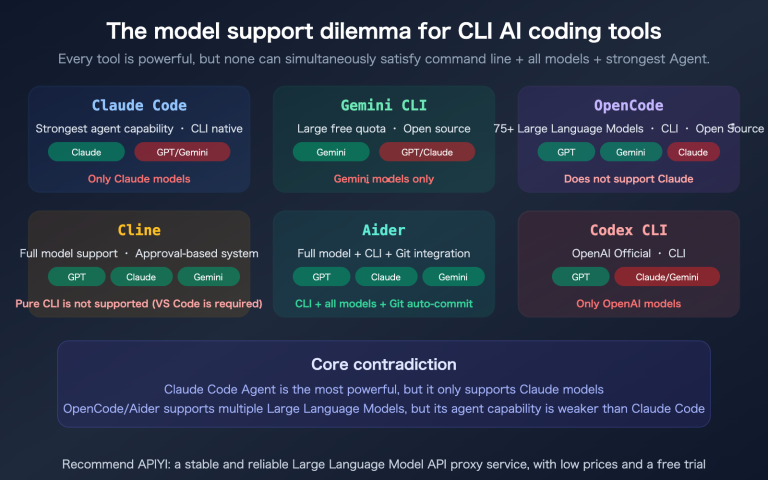
The 4 Major AI Coding Tools Supported by CC-Switch
| Tool | Description | Config File Location |
|---|---|---|
| Claude Code | Anthropic's official terminal AI assistant | ~/.claude/settings.json |
| Codex | OpenAI's CLI coding tool | ~/.codex/config.toml |
| OpenCode | An open-source terminal AI assistant | ~/.config/opencode/ |
| Gemini CLI | Google's terminal AI tool | ~/.gemini/.env |
🚀 Quick Start: CC-Switch supports third-party proxies like APIYI (apiyi.com). Once you've set up your Provider, you can use tools like Claude Code at a much lower cost while enjoying the convenience of one-click switching.
CC-Switch Core Functionality Detailed
CC-Switch isn't just a configuration switcher; it's a full-featured AI tool management platform:
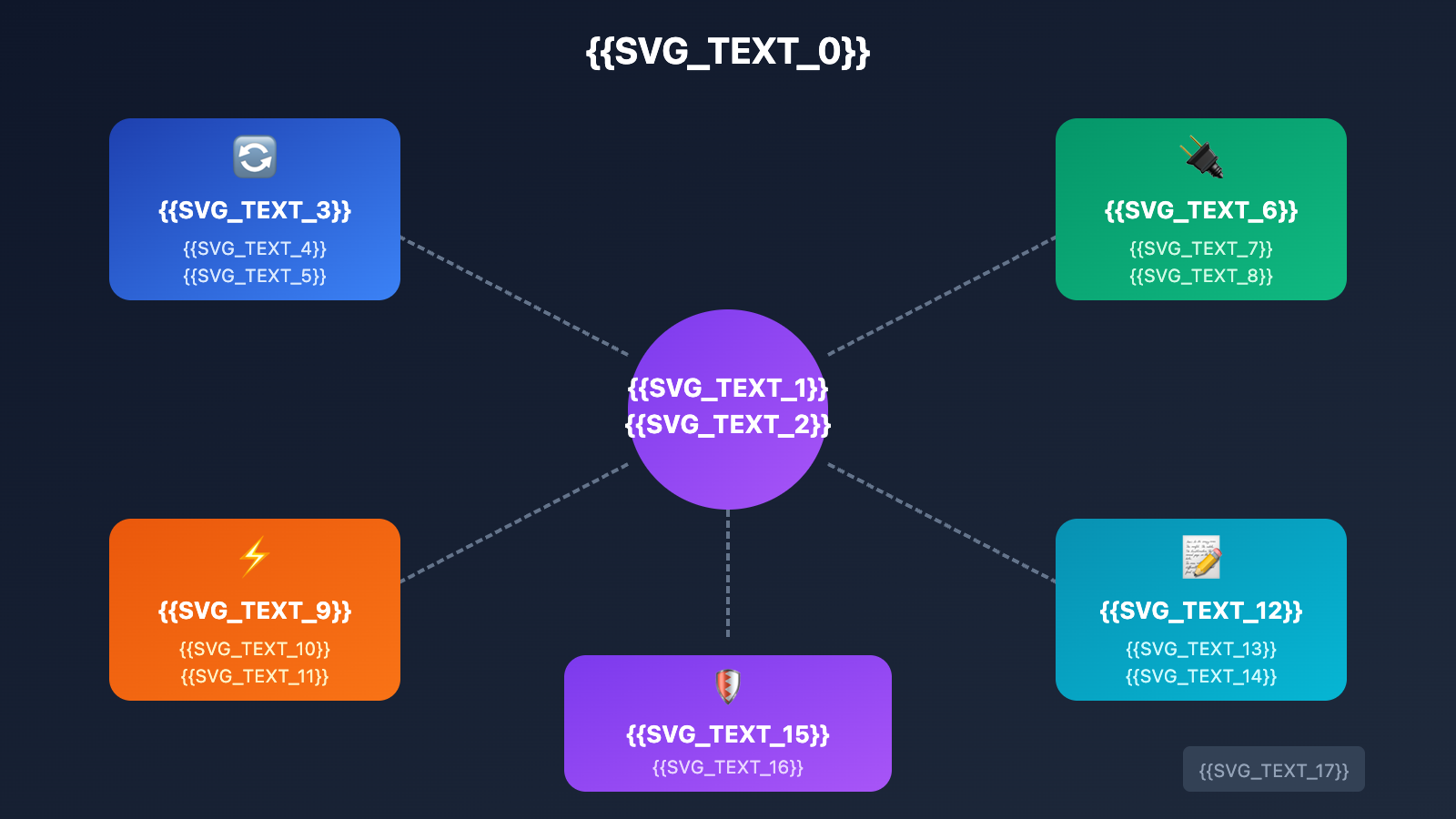
Feature 1: Provider Management (Core Feature)
This is CC-Switch's most popular feature, supporting:
| Feature | Description |
|---|---|
| Add Provider | Configure API address, key, and model mapping |
| One-click Switch | Quickly switch between multiple Providers |
| Speed Test | Measure API latency for each Provider |
| Shared Config | Sync one Provider to multiple tools |
| Official Rollback | Restore official login status with one click |
Provider Configuration Example:
{
  "name": "APIYI",
  "baseUrl": "https://api.apiyi.com",
  "apiKey": "sk-your-apiyi-key",
  "models": {
    "claude-sonnet-4-20250514": "claude-sonnet-4-20250514",
    "claude-opus-4-20250514": "claude-opus-4-20250514"
  }
}
Feature 2: MCP Server Management
MCP (Model Context Protocol) is an extension protocol for Claude Code. CC-Switch provides a unified MCP management interface:
- Supports three transport types: stdio, http, and sse.
- Unified configuration across applications (Claude/Codex/Gemini).
- Visual UI to add, edit, and delete MCP servers.
Feature 3: Skills Management
CC-Switch can automatically discover and install Claude Skills:
- Auto-scans GitHub repositories for Skills.
- One-click installation to the
~/.claude/skills/directory. - Supports recursive scanning of nested directories.
Feature 4: System Prompts Management
Create system prompt presets for different scenarios:
- Unlimited number of prompt presets.
- Supports CLAUDE.md, AGENTS.md, and GEMINI.md.
- Quickly switch between different work modes.
Feature 5: Local API Proxy (v3.9.0+)
CC-Switch includes a built-in local proxy server that offers advanced features:
| Feature | Description |
|---|---|
| Request Interception | Automatically forwards CLI requests to the configured Provider |
| Auto-Failover | Automatically switches to a backup if the current Provider is unavailable |
| Request Logs | Records all API requests for easier debugging |
| Usage Stats | Tracks Token consumption and costs |
| Circuit Breaker | Detects Provider failures and isolates them automatically |
💡 Pro Tip: The local proxy works best when paired with APIYI (apiyi.com). APIYI provides stable OpenAI-compatible interfaces, and CC-Switch’s failover feature can automatically switch during network fluctuations, ensuring your programming experience remains uninterrupted.
CC-Switch Installation Guide
CC-Switch supports Windows, macOS, and Linux, with multiple installation methods available.
Windows Installation
Method 1: MSI Installer (Recommended)
Download the .msi file from GitHub Releases and double-click to install.
Method 2: Portable Version
Download the .zip portable version, extract it, and run it directly—no installation required.
macOS Installation
Method 1: Homebrew (Recommended)
brew install --cask cc-switch
Method 2: Manual Installation
Download the .dmg or .zip file and drag it into your Applications folder.
Note: You might encounter a Gatekeeper warning on the first launch; you'll need to allow it to run in "System Preferences → Security & Privacy."
Linux Installation
CC-Switch provides several package formats for Linux:
| Distribution | Installation Method |
|---|---|
| Ubuntu/Debian | Download the .deb package: sudo dpkg -i cc-switch.deb |
| Fedora/RHEL | Download the .rpm package: sudo rpm -i cc-switch.rpm |
| Arch Linux | paru -S cc-switch-bin |
| General | Download the AppImage, grant execution permissions, and run |
Verifying Installation
After installation, launch CC-Switch. You should see the main interface displaying the status of any detected CLI tools.
CC-Switch Quick Start Guide
Step 1: Add APIYI Provider
- Click the "Add Provider" button on the main interface.
- Select "Custom" for custom configuration.
- Fill in the following details:
Name: APIYI
Base URL: https://api.apiyi.com
API Key: sk-your-apiyi-key  # Get this from apiyi.com
- Configure model mapping (optional):
{
  "claude-sonnet-4-20250514": "claude-sonnet-4-20250514",
  "claude-opus-4-20250514": "claude-opus-4-20250514",
  "gpt-4o": "gpt-4o"
}
- Click "Save" to save your configuration.
Getting an API Key: Visit APIYI at apiyi.com to register an account and get your API Key. The platform provides free test credits and supports mainstream Large Language Models like Claude, GPT, and Gemini.
Step 2: Switch Provider
Once your configuration is saved, head to the Provider list on the main interface:
- Find the "APIYI" Provider you just added.
- Click "Switch" or simply click on the Provider itself.
- CC-Switch will automatically update the configuration files for your tools.
- Restart CLI tools like Claude Code for the changes to take effect.
Step 3: Test Connection
Use CC-Switch's speed test feature to verify everything's working:
- Click the "Test" button next to the Provider.
- Wait for the latency test to complete.
- Check the response time and status indicator.
If the test passes, open your terminal and run Claude Code:
claude
If you can chat normally, you're all set!
Minimalist Configuration Example
View the complete APIYI Provider configuration
{
  "id": "apiyi-provider",
  "name": "APIYI (Recommended)",
  "baseUrl": "https://api.apiyi.com",
  "apiKey": "sk-your-apiyi-key",
  "enabled": true,
  "models": {
    "claude-sonnet-4-20250514": {
      "id": "claude-sonnet-4-20250514",
      "name": "Claude Sonnet 4",
      "maxTokens": 64000
    },
    "claude-opus-4-20250514": {
      "id": "claude-opus-4-20250514",
      "name": "Claude Opus 4",
      "maxTokens": 32000
    },
    "gpt-4o": {
      "id": "gpt-4o",
      "name": "GPT-4o",
      "maxTokens": 16384
    },
    "gpt-4o-mini": {
      "id": "gpt-4o-mini",
      "name": "GPT-4o Mini",
      "maxTokens": 16384
    }
  },
  "healthCheck": {
    "enabled": true,
    "interval": 60
  }
}
CC-Switch Advanced Features
Multi-Provider Management Strategy
CC-Switch supports multiple Provider configurations, allowing for a flexible usage strategy:
┌─────────────────────────────────────────────────┐
│              CC-Switch Provider List              │
├─────────────────────────────────────────────────┤
│  ⭐ APIYI (Primary)     Latency: 120ms   ✓ Healthy │
│  📦 OpenRouter (Backup)  Latency: 280ms   ✓ Healthy │
│  🏢 Official Claude (Fallback) Latency: 350ms   ✓ Healthy │
└─────────────────────────────────────────────────┘
Recommended Setup:
- Primary: APIYI – Great pricing and fast access within China.
- Backup: OpenRouter – Wide model selection and stable overseas.
- Fallback: Official Login – Ensures you're always connected.
Cloud Sync
CC-Switch can sync your configuration to cloud storage:
- Go to Settings → Storage.
- Select a cloud sync folder (Dropbox, OneDrive, iCloud Drive).
- CC-Switch will automatically sync your Provider settings.
This way, you can share the same API setup across multiple devices effortlessly.
Advanced Local Proxy Configuration
When you enable the local proxy, CC-Switch will:
- Start a proxy server locally.
- Automatically modify CLI configs to point to this local proxy.
- Forward requests from the proxy server to the actual Provider.
Advantages:
- All requests go through a single entry point, making them easier to monitor.
- Automatic failover: if a Provider goes down, it switches automatically.
- Request logging for easier troubleshooting.
# Request flow in proxy mode
Claude Code → localhost:8080 → CC-Switch Proxy → APIYI → Claude API
Claude Rectifier Feature
The Claude Rectifier feature, added in v3.10.0, is designed to fix compatibility issues with third-party APIs:
- Automatically fixes thinking signature formats.
- Improves compatibility with non-official APIs.
- Reduces "format error" type bugs.
CC-Switch FAQ
Q1: What operating systems does CC-Switch support?
CC-Switch supports the following platforms:
- Windows 10 and above
- macOS 10.15 (Catalina) and above
- Linux: Ubuntu 22.04+, Debian 11+, Fedora 34+, Arch Linux
Tech stack: Tauri 2.8 + Rust (Backend) + React 18 + TypeScript (Frontend)
Q2: Claude Code didn’t take effect after switching providers?
After CC-Switch modifies the configuration file, you'll need to restart the CLI tool for the changes to kick in:
# Option 1: Close the current terminal and reopen it
# Option 2: Enter /exit in Claude Code to quit, then restart
claude  # Restart
If it's still not working, check:
- Is the Provider status in CC-Switch set to "Active"?
- Is the API Key entered correctly?
- Use the built-in test feature in CC-Switch to verify the connection.
API keys obtained through APIYI (apiyi.com) start with sk-; make sure you've copied the whole thing.
Q3: How do I restore the official Claude login?
CC-Switch provides a one-click restore feature:
- Find the "Official Login" preset in the Provider list.
- Click to switch to official mode.
- CC-Switch will automatically restore the original configuration.
Alternatively, you can use the command line:
# Delete the custom config to restore official settings
rm ~/.claude/settings.json
claude  # Log back into your official account
Q4: Where is the CC-Switch configuration stored?
CC-Switch v3.8.0+ uses a dual-layer storage system with SQLite and JSON:
| Data Type | Storage Location |
|---|---|
| Provider/MCP/Skills | ~/.cc-switch/cc-switch.db (SQLite) |
| Device Settings | ~/.cc-switch/settings.json (JSON) |
| Backup Files | ~/.cc-switch/backups/ (Automatically keeps the last 10) |
Q5: How do I configure APIYI as a Provider?
Adding APIYI to CC-Switch is a breeze:
- Click Add Provider.
- Fill in the configuration:
- Name:
APIYI - Base URL:
https://api.apiyi.com - API Key: Your secret key from apiyi.com
- Name:
- Save and switch.
APIYI (apiyi.com) provides OpenAI-compatible interfaces and supports models like Claude, GPT, and Gemini, making it a perfect match for CC-Switch.
CC-Switch vs. Manual Configuration
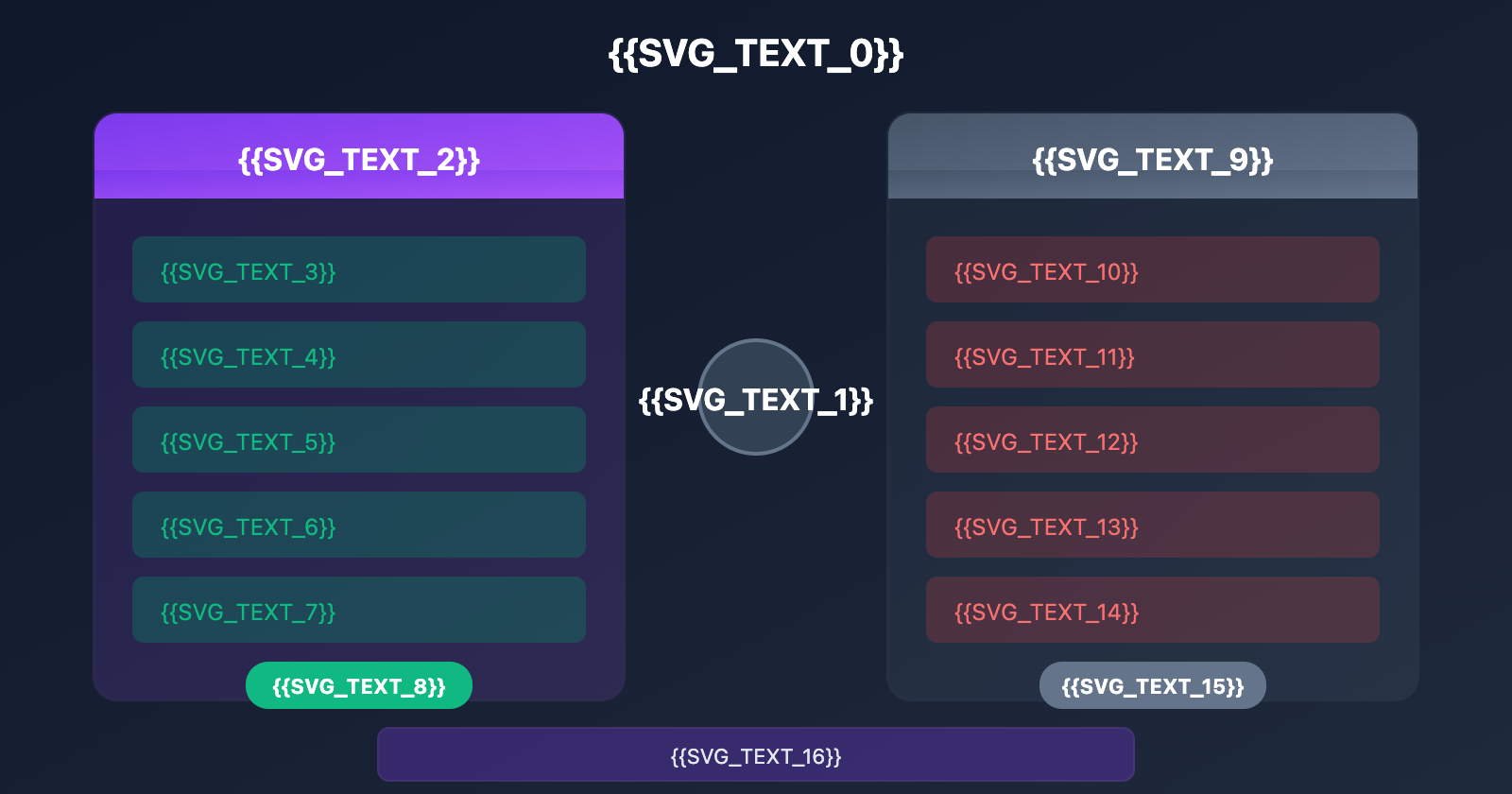
| Comparison Aspect | CC-Switch | Manual Config Editing |
|---|---|---|
| Learning Curve | Low, visual operations | High, requires understanding config formats |
| Switching Efficiency | One-click switch | Requires file editing + restart |
| Multi-tool Support | Unified management for 4 tools | Each tool configured individually |
| Backup & Restore | Auto-backup, one-click restore | Manual backup |
| Speed Test | Built-in speed test feature | None |
| Failover | Auto-switch to backup Provider | None |
| Config Sync | Supports cloud sync | Manual synchronization |
| Best For | Newbies + Power users | Users comfortable with the command line |
🎯 Pro-tip: If you find yourself frequently switching between multiple API Providers or using several AI coding tools at once, CC-Switch will give your workflow a massive boost. Pair it with APIYI (apiyi.com) for the ultimate high-convenience, low-cost experience.
Comparison of Related Tools
Besides CC-Switch, there are a few similar tools out there:
| Tool | Type | Features | Ideal For |
|---|---|---|---|
| CC-Switch | Desktop App | Full-featured, supports 4 CLIs | Users who want comprehensive management |
| CC-Switch-CLI | Command Line | CLI version of CC-Switch | Those who prefer working in the terminal |
| Claude-Code-Router | Proxy Service | Dynamic routing, multi-model collaboration | Complex routing requirements |
| CCS | Hybrid Tool | OAuth support, visual dashboard | Scenarios requiring OAuth login |
Recommended Combo: CC-Switch (Config Management) + APIYI (API Proxy) = The most cost-effective solution.
References
| Resource | Link | Description |
|---|---|---|
| CC-Switch GitHub | github.com/farion1231/cc-switch |
Source code and Issues |
| CC-Switch Releases | github.com/farion1231/cc-switch/releases |
Download the latest version |
| CC-Switch-CLI | github.com/SaladDay/cc-switch-cli |
Command-line version |
Summary
CC-Switch is a powerful tool for managing AI coding assistant configurations. It solves the following pain points:
- Tedious Configuration: A visual interface replaces manual JSON editing.
- Switching Hassles: Switch between multiple providers with a single click.
- Fragmented Tools: Centrally manage Claude Code, Codex, OpenCode, and Gemini CLI.
- No Speed Testing: Built-in latency testing to help you pick the fastest provider.
- Configuration Loss: Automatic backups and cloud sync ensure your settings are never lost.
For developers who frequently use AI coding tools, the combination of CC-Switch + APIYI is a highly recommended setup:
- CC-Switch: Provides convenient configuration management.
- APIYI (apiyi.com): Offers stable, low-cost API services.
Visit APIYI (apiyi.com) to register an account and get your API key. Then, simply add a provider in CC-Switch to start enjoying a seamless AI programming experience.
📝 Author: APIYI Tech Team | APIYI (apiyi.com) – Making AI API calls simpler.