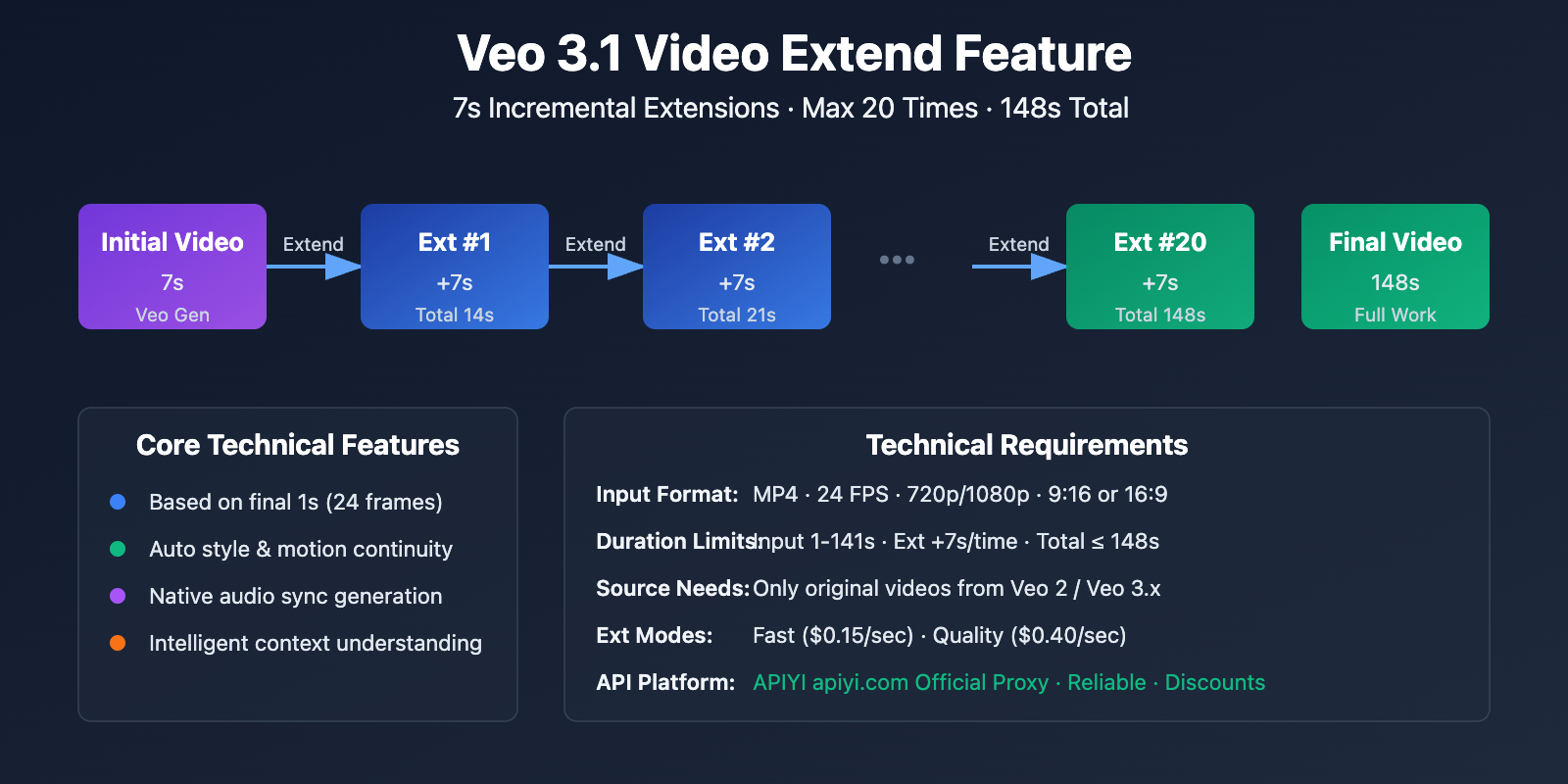
AI video generation tools are generally limited by extremely short generation times, making it difficult to meet the needs of full-length storytelling. Google Veo 3.1's "Video Extend" feature completely solves this pain point. By using 7-second incremental extensions, you can generate continuous videos up to 148 seconds long.
Core Value: After reading this article, you'll learn how to use Veo 3.1's Video Extend feature to break duration limits and master the technical essentials and cost-optimization strategies for generating long-form video.
Key Takeaways of Veo 3.1 Video Extend
| Core Metric | Technical Specs | Practical Value |
|---|---|---|
| Single Extension Duration | Fixed 7 seconds | Precisely control video pacing and content flow |
| Max Extensions | Up to 20 times | Supports complex multi-scene video storytelling |
| Total Video Duration | Max 148 seconds | Meets needs for short and mid-form content |
| Input Video Limits | Max 141 seconds | Reserve space for extensions to avoid limits |
| Continuity Guarantee | Based on final 1s/24 frames | Ensures seamless transitions for visuals and motion |
How Veo 3.1 Video Extend Works
Veo 3.1's Video Extend is a scene-aware video-to-video continuous generation technology. Its core mechanism involves extracting the final 1 second (24 frames) of the source video as "seed frames." Based on the visual information, motion trajectories, and scene context of these frames, it generates a new 7-second video clip with consistent style and fluid motion.
Unlike simple traditional splicing, Veo 3.1's extension feature offers several key technical advantages:
- Style Consistency: Automatically matches the color palette, lighting, and visual style of the original video.
- Motion Continuity: Predicts subsequent actions based on movement trends in the final second.
- Narrative Flow: Understands scene context to generate logical follow-up footage.
- Native Audio Generation: For the first time, Veo 3.1 includes audio synthesis in its extension feature, achieving full audiovisual synchronization.
🎯 Pro Tip: In practice, we recommend calling the Veo 3.1 API through the APIYI (apiyi.com) platform. They provide official proxy services with reliable quality and better pricing. The platform supports both Fast Mode and Quality Mode, making it easy to choose based on your specific video quality needs.
Veo 3.1 Video Continuation Guide
Technical Requirements for Input Video
To use the video continuation feature in Veo 3.1, your input video must meet the following specifications:
| Parameter Type | Requirement | Description |
|---|---|---|
| File Format | MP4 | Standard container format for the best compatibility. |
| Duration Range | 1-141 seconds | Too short affects continuity; too long will exceed the 148-second total limit. |
| Frame Rate | 24 FPS | Fixed frame rate, consistent with the extended output. |
| Resolution | 720p or 1080p | Supports HD output; 1080p is recommended for better quality. |
| Aspect Ratio | 9:16 or 16:9 | Fits both vertical and horizontal screen scenarios. |
| Source Restriction | Must be a Veo-generated video | Only supports original videos generated by Veo 2 or Veo 3.x. |
Important: Veo 3.1's video continuation feature only supports videos generated by the Veo series models. It doesn't support external videos or content from other AI tools as input sources.
Quick Start Examples
Minimal API Call Code
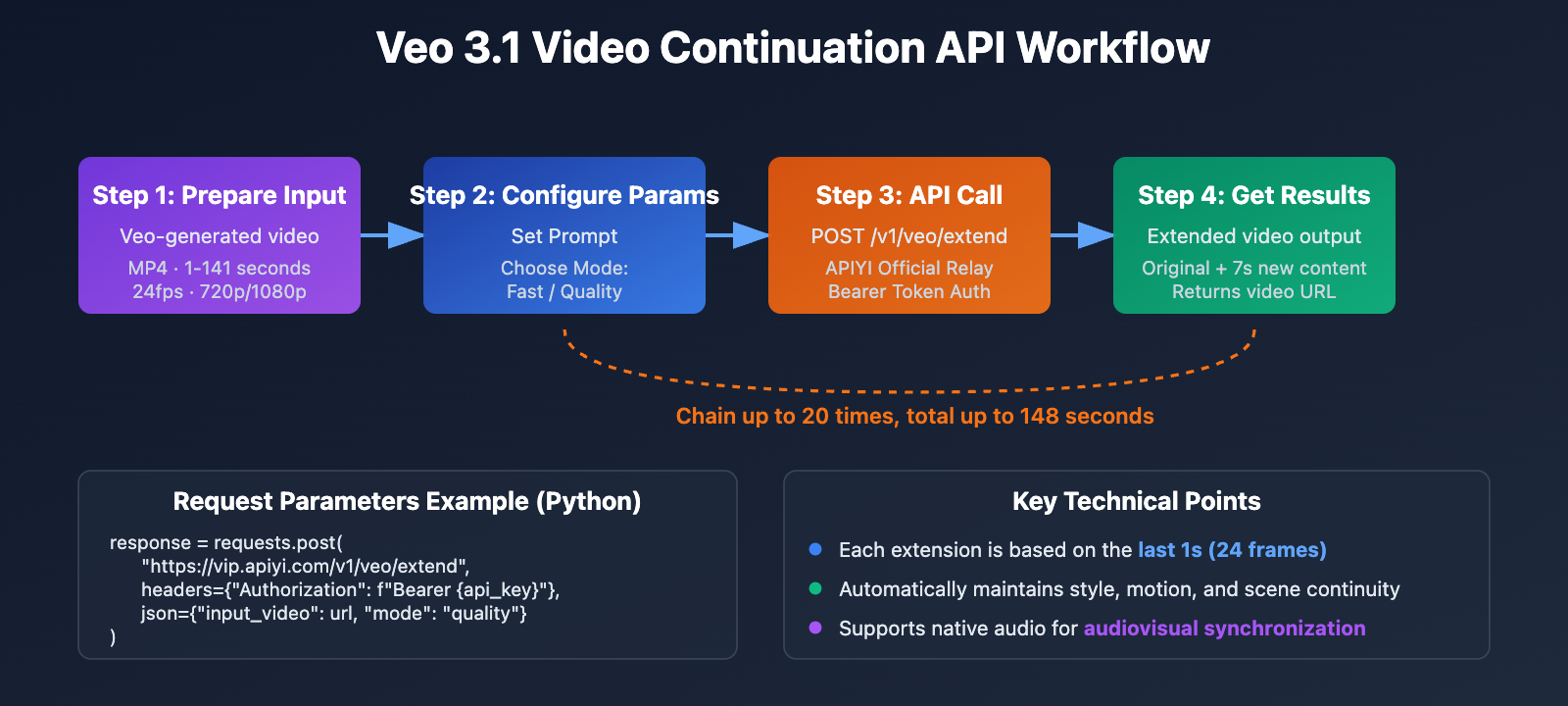
Here’s a simple example of how to call the Veo 3.1 video continuation feature via the APIYI platform:
import requests

# API Configuration
api_key = "YOUR_APIYI_API_KEY"
base_url = "https://vip.apiyi.com/v1/veo"

# Video continuation request
response = requests.post(
    f"{base_url}/extend",
    headers={"Authorization": f"Bearer {api_key}"},
    json={
        "input_video": "https://your-storage.com/veo-generated-video.mp4",
        "mode": "quality",  # or "fast"
        "prompt": "Continue showing the sunset scene, camera slowly zooming out"
    }
)

# Get the extended video
extended_video_url = response.json()["output_url"]
print(f"Extended video URL: {extended_video_url}")
View full code for multiple extensions
import requests
import time

class Veo31Extender:
    def __init__(self, api_key):
        self.api_key = api_key
        self.base_url = "https://vip.apiyi.com/v1/veo"
        self.headers = {"Authorization": f"Bearer {api_key}"}

    def extend_video(self, input_video_url, prompt, mode="quality"):
        """Single video extension"""
        response = requests.post(
            f"{self.base_url}/extend",
            headers=self.headers,
            json={
                "input_video": input_video_url,
                "mode": mode,
                "prompt": prompt
            }
        )

        if response.status_code == 200:
            return response.json()["output_url"]
        else:
            raise Exception(f"Extension failed: {response.text}")

    def chain_extend(self, initial_video_url, prompts, mode="quality", max_attempts=20):
        """
        Chain-extend video

        Parameters:
        - initial_video_url: Initial Veo-generated video URL
        - prompts: List of prompts for each extension (max 20)
        - mode: Generation mode ("fast" or "quality")
        - max_attempts: Maximum number of extensions (default 20)

        Returns:
        - List of extended video URLs
        """
        if len(prompts) > max_attempts:
            print(f"Warning: Number of prompts exceeds {max_attempts}, using only the first {max_attempts}")
            prompts = prompts[:max_attempts]

        current_video = initial_video_url
        extended_videos = [initial_video_url]

        for i, prompt in enumerate(prompts, 1):
            print(f"Executing extension {i}...")
            try:
                extended_video = self.extend_video(current_video, prompt, mode)
                extended_videos.append(extended_video)
                current_video = extended_video
                print(f"Extension {i} complete, current total duration approx: {7 + i * 7} seconds")

                # Avoid making requests too rapidly
                time.sleep(2)
            except Exception as e:
                print(f"Extension {i} failed: {e}")
                break

        return extended_videos

# Usage example
extender = Veo31Extender(api_key="YOUR_APIYI_API_KEY")

# Define prompts for multiple extension segments
extension_prompts = [
    "The camera continues to follow the person walking, gradually entering the deep forest",
    "The forest environment slowly darkens, and mysterious blue light spots appear",
    "The light spots gather to form a glowing creature; the person stops to observe",
    "The creature flies into the distance, and the person continues forward",
    "The camera pulls up to show the entire forest landscape under the sunset glow"
]

# Execute chain extension
result_videos = extender.chain_extend(
    initial_video_url="https://your-storage.com/initial-veo-video.mp4",
    prompts=extension_prompts,
    mode="quality"
)

print(f"\nExtension complete, generated {len(result_videos)} video segments in total")
for i, url in enumerate(result_videos):
    print(f"Segment {i}: {url}")
💡 Recommendation: Choosing between Fast Mode and Quality Mode mainly depends on your quality requirements and budget. We recommend testing both on the APIYI (apiyi.com) platform; it supports a unified interface for both modes, making it easy to switch and compare results.
Veo 3.1 Video Extension Pricing and Cost Optimization
Official Pricing Structure
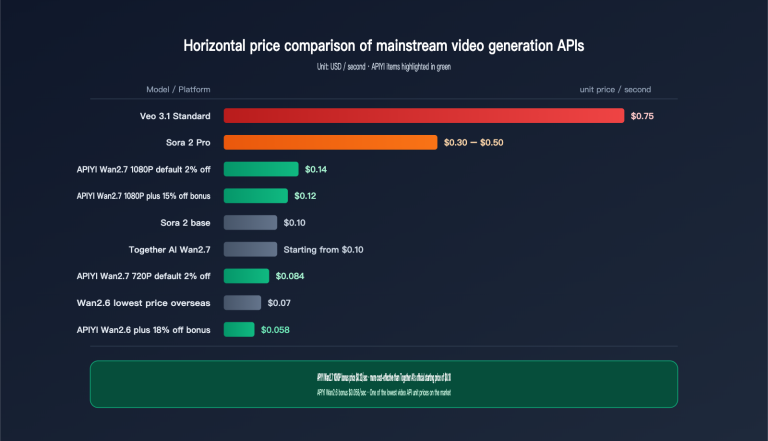
Google Veo 3.1 uses a pay-per-second billing model. Here's the unit price for different modes and features:
| Feature Type | Mode | Unit Price (USD/sec) | 7s Extension Cost | Total Cost for 148s (Initial 7s + 20 Extensions) |
|---|---|---|---|---|
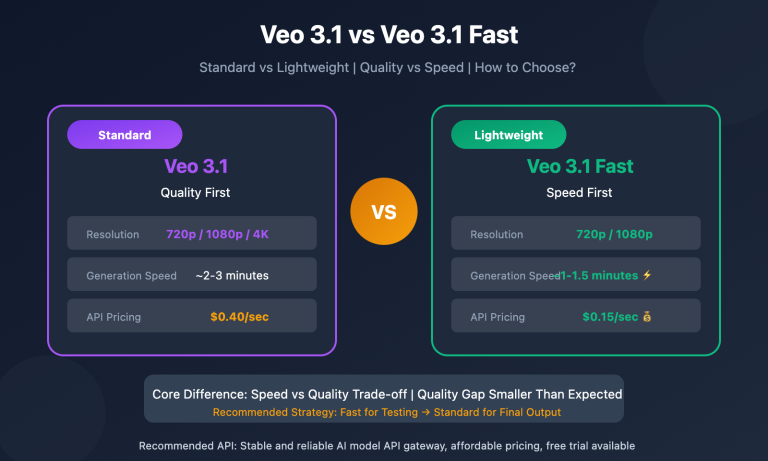
| Video Extension (Extend) | Fast Mode | $0.15 | ~$1.05 | ~$21.00 |
| Video Extension (Extend) | Quality Mode | $0.40 | ~$2.80 | ~$56.00 |
| Text-to-Video (New) | Fast Mode | ~$0.036/sec | ~$0.25 | – |
| Text-to-Video (New) | Quality Mode | ~$0.114/sec | ~$0.80 | – |
Key Cost Analysis Points:
- Extensions are pricier than new generations: A single 7-second extension ($1.05 – $2.80) costs significantly more than generating a brand-new 7-second video ($0.25 – $0.80).
- Costs add up for long videos: Creating a full 148-second video requires 21 calls (1 initial generation + 20 extensions), bringing the total cost to between $21 and $56.
- Fast Mode offers great value: For projects on a budget, Fast Mode costs only about 37.5% of what you'd pay for Quality Mode.
APIYI Platform Discounted Pricing
By using the Veo 3.1 API through the APIYI platform, you can access more competitive rates:
| Feature Type | Mode | APIYI Price | Official Price | Savings |
|---|---|---|---|---|
| Text/Image-to-Video / Reference Gen | Fast Mode | ≈ $0.25/gen (7s) | ~$0.25/gen | Same |
| Text/Image-to-Video | Quality Mode | ≈ $0.80/gen (7s) | ~$0.80/gen | Same |
| Video Extension (Extend) | Fast Mode | Custom Inquiry | $1.05/gen | Contact for discount |
| Video Extension (Extend) | Quality Mode | Custom Inquiry | $2.80/gen | Contact for discount |
💰 Cost Optimization Tip: If you're working on a budget-sensitive project, consider calling the Veo 3.1 API via APIYI. They provide official relay services with reliable quality, along with customized pricing plans and bulk discounts for teams needing large-scale long video generation.

Veo 3.1 Video Extension Pro Tips
prompt Optimization Strategies
The effectiveness of the video extension feature depends heavily on the quality of your prompt. Here are some ways to optimize them:
1. Maintain Narrative Continuity
❌ Bad: "Generate a sunset scene"
✅ Good: "Continue the sunset scene, with the sun gradually sinking below the horizon and the sky transitioning from orange to deep purple."
Key Point: Use explicit continuity words like "continue," "follow with," or "next," and describe the gradual transition from the current frame to the target scene.
2. Control Motion Magnitude
❌ Bad: "The camera quickly cuts to an indoor scene."
✅ Good: "The camera slowly pushes forward as the character walks toward the building entrance."
Key Point: Veo 3.1 generates new footage based on the last second of the previous clip. Drastic scene cuts can cause jarring transitions; instead, describe smooth motion paths.
3. Define Visual Elements Clearly
❌ Bad: "Add some special effects."
✅ Good: "Falling cherry blossom petals appear on the left side of the frame, drifting toward the bottom right with the wind."
Key Point: Specifically describe the position, direction of motion, and visual characteristics of new elements to avoid vague results.
Extension Planning Guide
| Target Duration | Number of Extensions | Total Cost (Fast Mode) | Best For |
|---|---|---|---|
| 14 seconds | 1 | ~$1.30 | Short clip additions, single shot extensions |
| 35 seconds | 4 | ~$4.45 | Social media shorts, product showcases |
| 70 seconds | 9 | ~$9.70 | Full storytelling, tutorial demos |
| 148 seconds | 20 | ~$21.25 | Complex narratives, multi-scene sequences |
Planning Recommendations:
- Plan your total duration early: Determine your target length based on your content needs so you don't accidentally hit the 148-second ceiling too soon.
- Design in segments: Aim for a clear visual change or beat every 7 seconds to keep the video from looking static.
- Leave room for growth: We suggest generating 7-14 seconds for your initial video to leave enough "extension slots" for later.
- Test key milestones: Before committing to a massive batch of extensions, test 2 or 3 segments first to verify continuity.
FAQs & Troubleshooting
Q1: Why does my extended video look shaky or inconsistent?
Root Causes:
- The last second of the input video has too much motion or a sudden change.
- the motion described in the prompt conflicts with the original video's momentum.
- The input video's resolution or frame rate doesn't meet the specs.
Solutions:
- Ensure the final second of your input video is relatively stable.
- Make sure your prompt follows the existing motion trend rather than reversing it abruptly.
- Stick strictly to 24 FPS and 720p/1080p specifications for input videos.
- We recommend using the preprocessing tools on the APIYI (apiyi.com) platform to check video specs.
Q2: Can I use videos generated by other AI tools as input?
Answer: No. Veo 3.1's video extension feature only supports original videos generated by the Veo series models (Veo 2 / Veo 3.x) as input sources.
Technical Reason: When Veo generates a video, it embeds specific metadata and feature encodings. The extension feature needs to read this info to maintain style and motion consistency. External videos lack this data, which leads to extension failure or poor quality.
Workarounds: If you need to extend a non-Veo video:
- Use Veo 3.1's "Reference Video Generation" to recreate a similar initial clip.
- Use other extension tools that support general video inputs (though the quality may not match Veo 3.1).
Q3: Can I keep extending after reaching the 148-second limit?
Answer: No. Veo 3.1 has hard limits:
- Maximum input video length: 141 seconds
- Single extension: +7 seconds
- Total output cap: 148 seconds
Workarounds:
- Segmented Generation: Break your long video into multiple 148-second chunks, generate them separately, and stitch them together in editing software.
- Initial Video Optimization: If your starting clip is exactly 7 seconds, you can extend it 20 times to reach 147 seconds (7 + 20 × 7 = 147).
- Hybrid Approach: Use "Extend" for clips where continuity is critical, and use new generations for scene transitions, then stitch them manually.
You can use the batch generation feature on APIYI (apiyi.com) to automatically manage the generation and stitching of multi-part videos.
Q4: How big is the quality gap between Fast Mode and Quality Mode?
Comparison:
| Dimension | Fast Mode | Quality Mode |
|---|---|---|
| Generation Speed | ~30-60 sec/call | ~2-5 min/call |
| Detail/Finesse | Medium, good for social media | High, pro-grade production |
| Motion Continuity | Good, occasional minor jitter | Excellent, nearly flawless |
| Color Accuracy | Basic accuracy | High-fidelity, rich gradients |
| Cost | $1.05/call | $2.80/call |
Which one should you choose?
- Prototyping/Testing: Use Fast Mode to quickly validate your ideas and flow.
- Final Delivery: Use Quality Mode to ensure professional results.
- Batch Generation: Use a hybrid approach—Quality Mode for key shots and Fast Mode for transitions.
We recommend doing A/B testing on APIYI (apiyi.com). The platform allows you to call both modes with the same prompt simultaneously, making it easy to compare results side-by-side.
Veo 3.1 Video Extension: A Quick Recap
Key Takeaways:
- Technical Capabilities: Veo 3.1's video extension feature supports 7-second incremental extensions. You can extend a clip up to 20 times, reaching a total duration of 148 seconds.
- Guaranteed Continuity: By generating content based on the final 1 second (24 frames) of the previous segment, the model ensures visuals, motion, style, and audio transition seamlessly.
- Input Restrictions: The tool only supports MP4 videos generated by the Veo model series, with a resolution of 720p or 1080p and a frame rate of 24 FPS.
- Pricing Strategy: Fast Mode is quite cost-effective (around $1.05 per run), while Quality Mode offers superior output (around $2.80 per run).
- Optimization Tips: Your prompts should emphasize continuity, keep motion scales under control, and clearly define any changes to visual elements.
Practical Advice: For projects requiring batch generation of long-form videos, we recommend using the APIYI (apiyi.com) platform for your API calls. The platform provides reliable official relay services and allows you to switch flexibly between Fast and Quality modes. It also offers batch management tools and customized pricing plans, making it ideal for enterprise-level applications.
References:
-
Google Developers Blog – Veo 3.1 Launch Announcement
- Link:
developers.googleblog.com/introducing-veo-3-1-and-new-creative-capabilities-in-the-gemini-api - Description: Official announcement covering new features and technical specs for Veo 3.1.
- Link:
-
Google Cloud Documentation – Veo Video Extension Guide
- Link:
docs.cloud.google.com/vertex-ai/generative-ai/docs/video/extend-a-veo-video - Description: Official documentation for Veo's video extension features on the Vertex AI platform.
- Link:
-
Google AI for Developers – Veo 3.1 API Documentation
- Link:
ai.google.dev/gemini-api/docs/video - Description: Complete API reference for Veo 3.1 video generation and extension within the Gemini API.
- Link:
-
Skywork AI – Veo 3.1 Scene Extension Tutorial
- Link:
skywork.ai/blog/how-to-extend-veo-3-1-scene-guide - Description: A practical guide from a third-party technical team on extending scenes with Veo 3.1.
- Link:
-
RunComfy – Veo 3.1 Video Extension Tech Analysis
- Link:
runcomfy.com/models/google-deepmind/veo-3-1/extend-video - Description: A technical breakdown of Veo 3.1's video continuation capabilities from an AI tool platform.
- Link:
Author: APIYI Technical Team
Support: For inquiries regarding Veo 3.1 API integration or batch calling solutions, feel free to visit APIYI (apiyi.com) for professional technical support and customized services.