New Google Flow users are often confused: What's the difference between the Fast and Quality modes on the interface? And what's this "Relaxed" mode everyone's talking about? This article provides a comprehensive analysis of the Google Flow Veo 3.1 generation mode system to help you choose the most suitable video generation strategy based on your actual needs.
Core Value: After reading this article, you'll fully understand the core differences between Fast and Quality modes, grasp the true meaning of Relaxed mode and why it doesn't apply to Veo 3.1, allowing you to make smarter usage decisions.
Quick Start: Google Flow Veo 3.1 Generation Modes
First, let's clarify the official generation modes for Veo 3.1 in Google Flow:
| Mode Name | Official Support | Key Features | Use Case |
|---|---|---|---|
| Fast Mode | ✅ Supported | High speed, lower cost | Rapid iteration, draft previews |
| Quality Mode | ✅ Supported | High resolution, best output | Final works, professional projects |
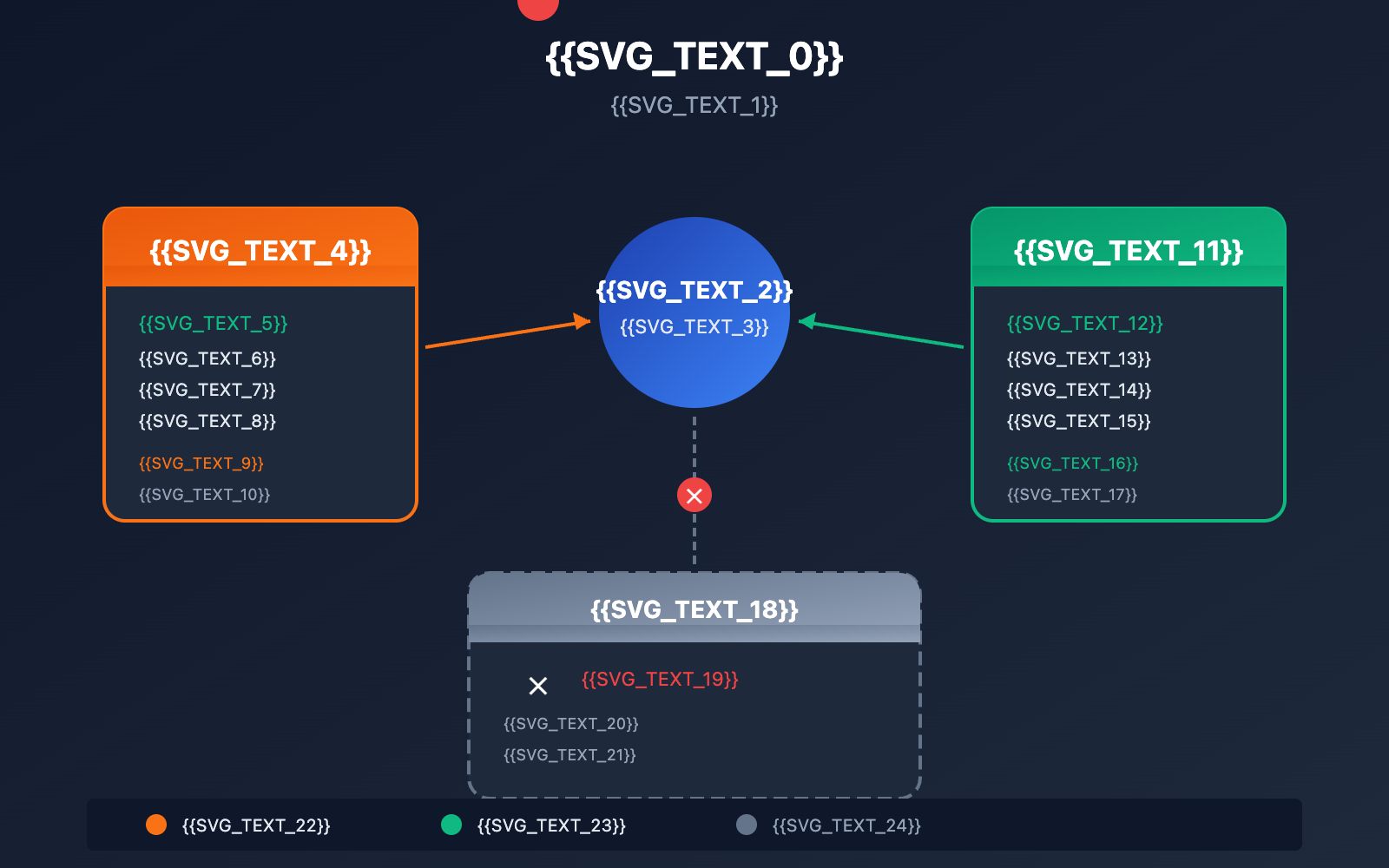
| Relaxed Mode | ❌ Not Supported | Low-priority queue | Not applicable to Veo 3.1 |
Important Clarification: You might have seen "Relaxed mode" on other AI platforms like Leonardo.Ai or Midjourney, but this mode doesn't work with Google Flow's Veo 3.1. We'll explain why in a moment.
Why Doesn't Veo 3.1 Have a Relaxed Mode?
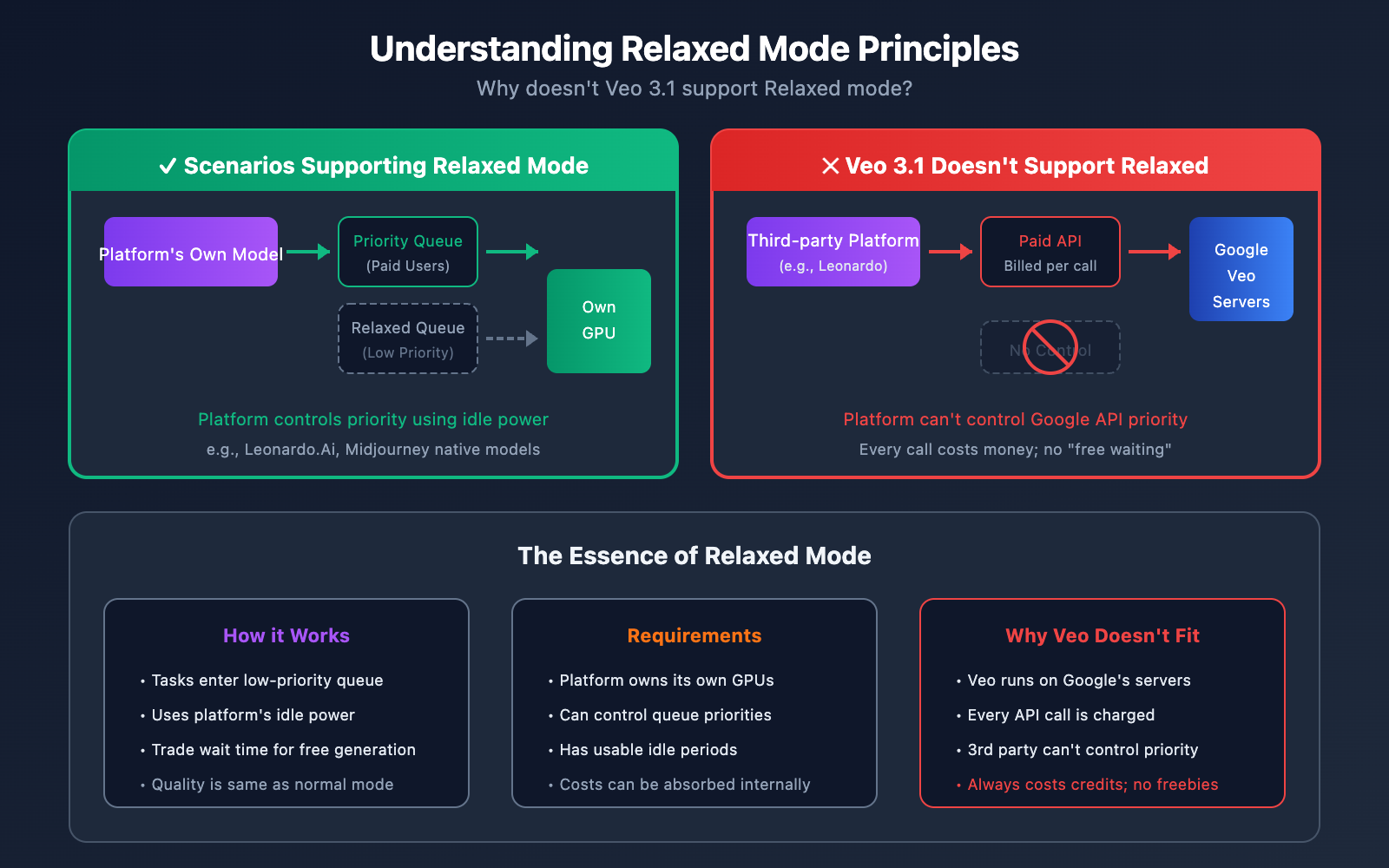
The idea behind Relaxed mode is to place tasks in a low-priority queue, trading wait time for free or discounted generation. However, since Veo 3.1 is a third-party paid API model from Google:
- Runs on External Servers: There's no way to control queue priority.
- Pay-Per-Use Billing: Every single call incurs an actual cost.
- No Idle Capacity: There isn't any "spare" computing power to take advantage of.
Consequently, Veo 3.1 always runs at normal speed and always consumes credits; it simply doesn't support Relaxed mode.
🎯 Technical Suggestion: If you need to call Veo 3.1 via API, you can use the APIYI (apiyi.com) platform to get a unified interface that supports flexible switching between Fast and Quality modes.
Core Comparison: Fast Mode vs. Quality Mode
This is the question Google Flow users ask the most: what's the actual difference between these two modes?
A Quick Look at 5 Key Differences
| Comparison Dimension | Fast Mode | Quality Mode |
|---|---|---|
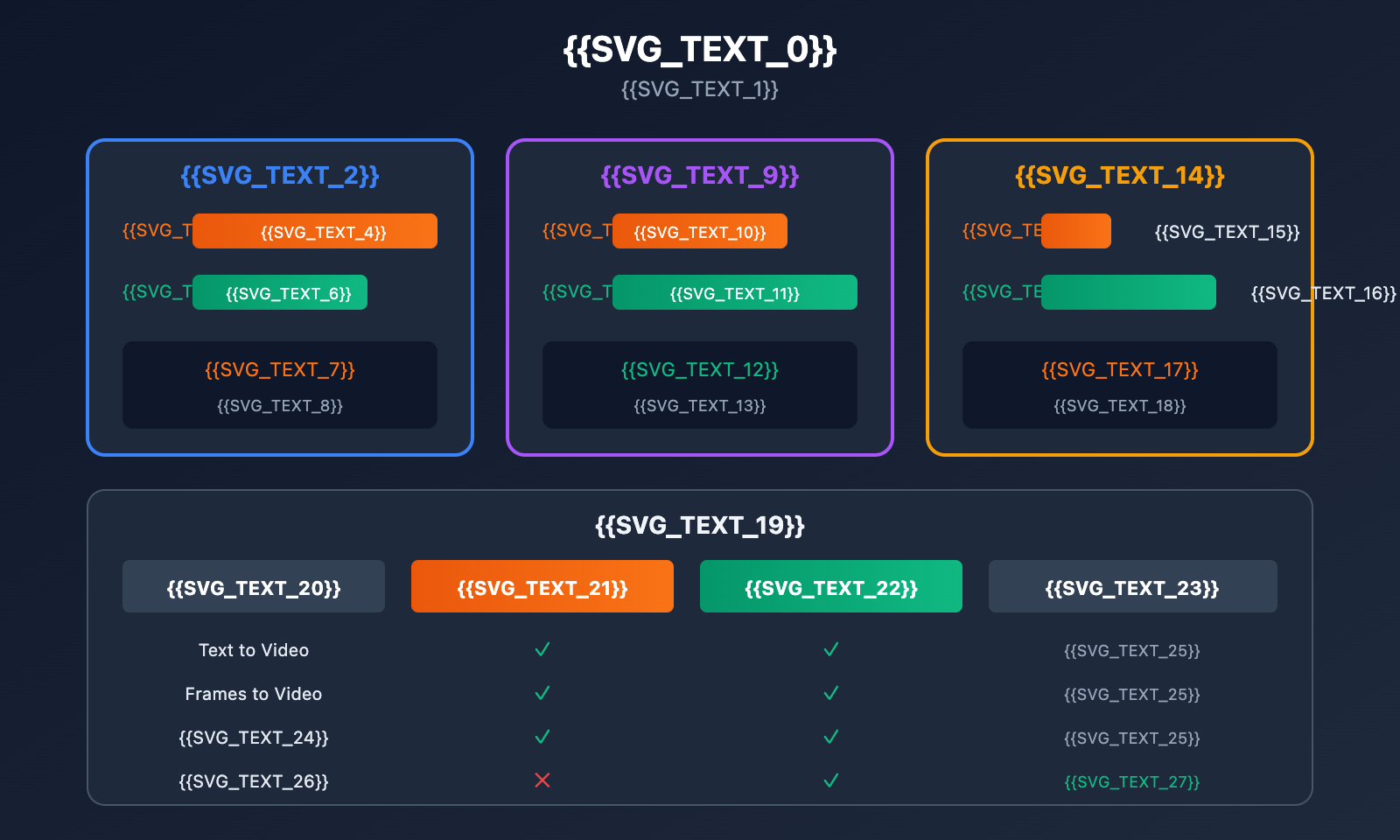
| Generation Speed | 30% faster; 8s video takes ~1 min | Standard speed; ~1.5-2 mins |
| Visual Quality | Good; skin textures and lighting are slightly simplified | Excellent; rich details and exquisite lighting |
| Credit Cost | 20 credits/video | 100 credits/video |
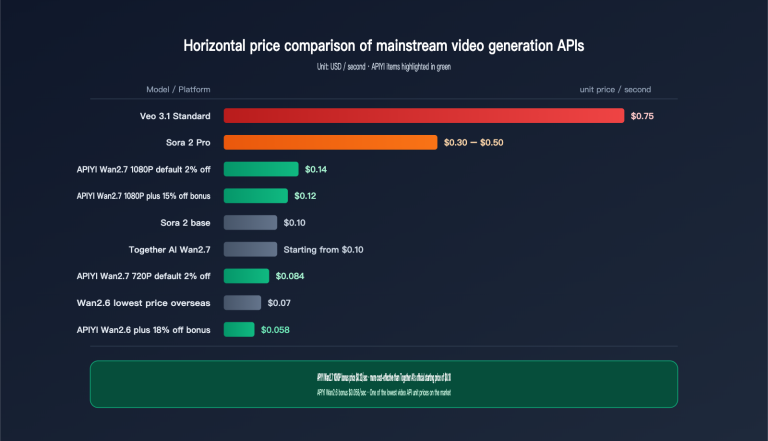
| API Pricing | $0.15/sec | $0.40/sec |
| Feature Limits | Does not support character dialogue | Full feature support |
Generation Speed Comparison
The biggest advantage of Fast mode is, well, speed:
| Video Specs | Fast Mode | Quality Mode | Speed Boost |
|---|---|---|---|
| 8s 720p | ~50s | ~80s | 30% |
| 8s 1080p | ~70s | ~120s | 40% |
| Video with Audio | ~60s | ~100s | 35% |
Detailed Breakdown of Visual Quality
The differences in visual quality between the two modes primarily show up in:
Simplified aspects in Fast mode:
- Reduced skin texture detail
- Slightly abrupt lighting transitions
- Less fluid motion dynamics
- Fewer details in complex scenes
Where Quality mode shines:
- More realistic skin textures
- Natural light and shadow gradients
- Smoother, more dynamic movement
- Richer scene details
- Support for character dialogue generation
💡 Our Recommendation: If you're working on character close-ups or pieces that require complex lighting effects, go with Quality mode. For quick previews or short-form social media content, Fast mode is more than enough.
A Deep Dive into Fast Mode
How Fast Mode Works
Fast mode achieves its speed through several key methods:
- Simplified Rendering Pipeline: It reduces the number of ray-tracing iterations.
- Lower Sampling Density: It cuts down on computation while maintaining basic visual quality.
- Optimized Model Inference: It utilizes more lightweight neural network branches.
- Functional Limitations: It disables certain time-consuming features (like dialogue generation).
Best Use Cases for Fast Mode
| Scenario | Why We Recommend It |
|---|---|
| Rapid Prototyping | Test prompt effectiveness at a low cost. |
| Batch Generating Drafts | Get a 5x volume advantage to filter for the best creative ideas. |
| Social Media Content | When speed matters more than high-end image quality. |
| A/B Testing | Quickly generate multiple versions for comparison. |
| Learning and Experimentation | Save credits while trying out different styles. |
Fast Mode Usage Tips
# API example using Fast mode
from google import genai

client = genai.Client(
    api_key="YOUR_API_KEY"
    # A unified interface is available through APIYI (apiyi.com)
)

# Fast mode generation
operation = client.models.generate_videos(
    model="veo-3.1-fast-generate-preview",  # Note: This is Fast mode
    prompt="An orange cat yawning in the sunlight",
    config={
        "aspect_ratio": "16:9",
        "duration_seconds": 8
    }
)
Fast Mode Limitations:
- ❌ Doesn't support character dialogue generation
- ❌ Dynamic action performance is slightly weaker
- ❌ Complex lighting and shadow effects are simplified
- ✅ Supports Text to Video
- ✅ Supports Frames to Video
- ✅ Supports sound effect generation (non-dialogue)
A Deep Dive into Quality Mode
Technical Advantages of Quality Mode
Quality mode (also known as Standard mode) offers the full suite of Veo 3.1 capabilities:
- Full Rendering Pipeline: High-quality ray tracing and physics simulations.
- High Sampling Density: Much finer visual details in every frame.
- Full Feature Support: Includes character dialogue and complex sound effects.
- Superior Prompt Following: More accurately understands and executes complex instructions.
Best Use Cases for Quality Mode
| Scenario | Why We Recommend It |
|---|---|
| Official Project Releases | For the highest image quality and professional presentation. |
| Commercials/Ads | When brand image requires high-quality visuals. |
| Character Close-ups | More realistic skin textures and facial expressions. |
| Dialogue Scenes | The only mode that supports character dialogue. |
| Complex Lighting Scenes | Sunset, backlight, and other lighting effects appear more natural. |
Quality Mode Usage Tips
# API example using Quality mode
from google import genai

client = genai.Client(
    api_key="YOUR_API_KEY"
    # A unified interface is available through APIYI (apiyi.com)
)

# Quality mode generation
operation = client.models.generate_videos(
    model="veo-3.1-generate-preview",  # Note: This is Quality mode
    prompt="A young woman smiling and saying 'Good morning' in a cafe, with sunlight streaming through the window onto her face",
    config={
        "aspect_ratio": "16:9",
        "duration_seconds": 8,
        "enable_audio": True  # Enable audio and dialogue
    }
)
🚀 Quick Start: We recommend using the APIYI (apiyi.com) platform to quickly test both Veo 3.1 modes. The platform provides a unified interface, making it easy to switch between Fast and Quality modes for comparison.
A Deep Dive into Relaxed Mode
What is Relaxed Mode?
Relaxed mode is a low-priority queue generation mechanism widely used across various AI platforms:
| Feature | Description |
|---|---|
| Core Principle | Tasks enter a low-priority queue, utilizing the platform's idle computing power. |
| Cost | Consumes zero or very few credits. |
| Speed | Depends on queue congestion; it can be quite slow at times. |
| Quality | Identical to normal mode. |
| Concurrency Limits | Usually limits the number of tasks you can run simultaneously. |
How Relaxed Mode Works
User Request → Check Priority Queue → If Busy → Wait for Idle → Execute Generation
                ↓
            If Idle → Execute Immediately (as fast as normal mode)
Wait times in Relaxed mode depend entirely on the platform's load:
- Off-peak hours: You might not have to wait at all.
- Peak hours: You could be waiting for several hours.
Why Doesn't Veo 3.1 Support Relaxed Mode?
This is a common point of confusion for new users. Here's why:
| Factor | Description |
|---|---|
| Third-party Models | Veo 3.1 runs on Google's external servers. |
| No Queue Control | The platform has no control over the priority of Google's API. |
| Pay-per-call Billing | Every single API call incurs an actual financial cost. |
| No Idle Computing Power | There are no "free" computing resources to leverage. |
Official Note:
"Third-party models including Veo 3, Veo 3.1, and Veo 3.1 Fast are not eligible for Relaxed Generation. These models run entirely on external servers via paid third-party APIs."
In simple terms, Relaxed mode relies on using a platform's own hardware during its "down time." Since Veo 3.1 is an external API that costs money for every single request, there's no way to offer a "free waiting" option.
Cost-Benefit Analysis of the Three Modes
Credit Consumption Comparison
Using a Google AI Ultra subscription ($249.99/month) as an example, you'll get about 12,500 credits per month:
| Mode | Per-generation Cost | Monthly Output | Cost per Video |
|---|---|---|---|
| Fast Mode | 20 Credits | ~625 videos | ~$0.40 |
| Quality Mode | 100 Credits | ~125 videos | ~$2.00 |
| Relaxed Mode | 0 Credits | Not applicable to Veo 3.1 | – |
API Call Cost Comparison
Direct calling via the Gemini API:
| Mode | Price | Cost for 8s Video | Value for Money |
|---|---|---|---|
| Fast Mode | $0.15/sec | $1.20 | High |
| Quality Mode | $0.40/sec | $3.20 | Medium |
Cost Optimization Strategy
Recommended Workflow:
- Use Fast mode for creative exploration and initial testing.
- Filter for the best prompts and creative directions.
- Use Quality mode to generate the final piece.
This strategy can save you 60-80% in credit consumption.
💰 Cost Optimization: Calling the Veo 3.1 API through the APIYI platform offers more flexible billing, making it a great fit for small to medium teams and individual developers looking to control costs.
Decision Guide for Mode Selection
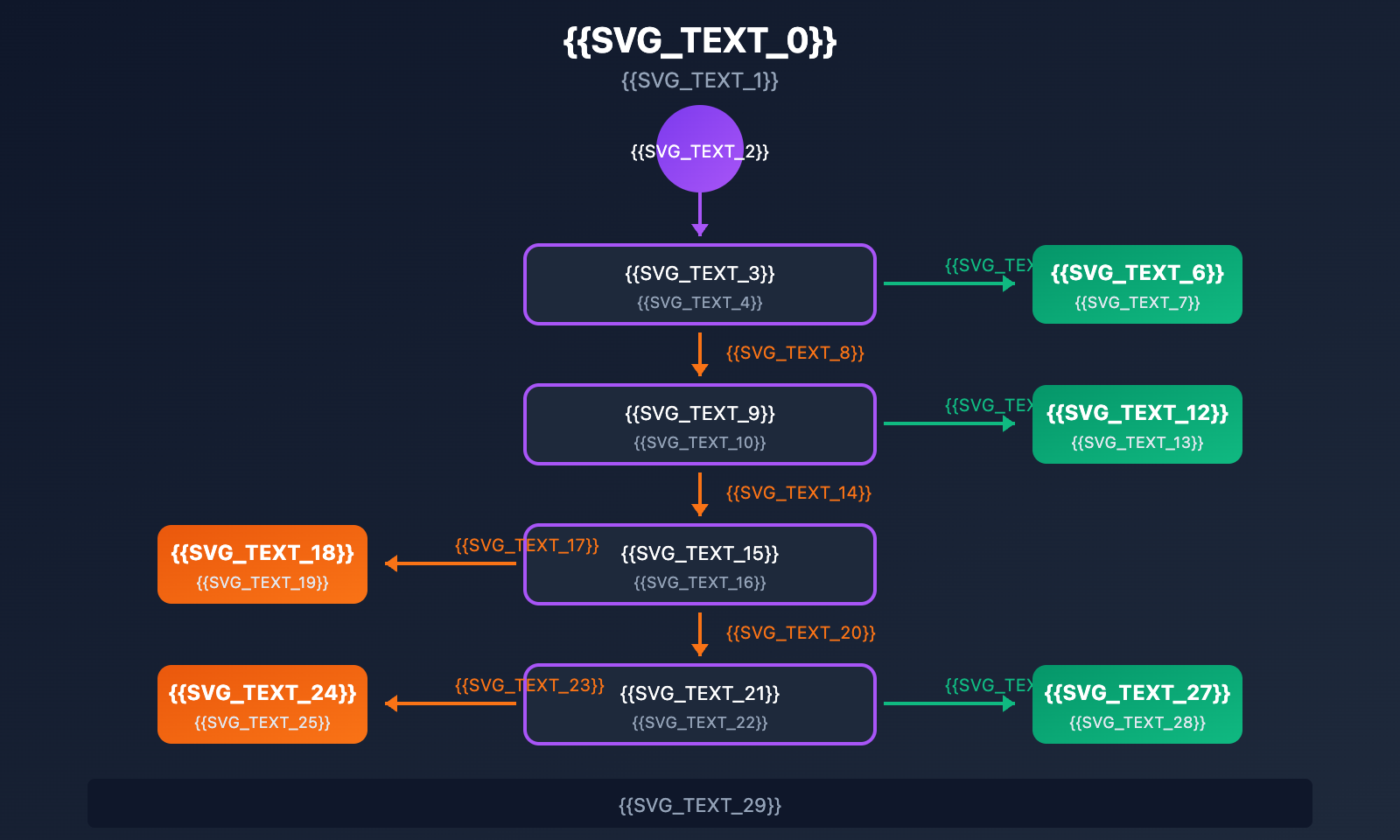
Quick Decision Flowchart
Choose the right mode based on your needs following this flow:
Need character dialogue?
    ↓ Yes → Quality mode (only choice)
    ↓ No
After the highest image quality?
    ↓ Yes → Quality mode
    ↓ No
Limited budget/Batch generation?
    ↓ Yes → Fast mode
    ↓ No
Quickly validate ideas?
    ↓ Yes → Fast mode
    ↓ No → Quality mode (default recommendation)
Scenario-based Recommendations
| Your Scenario | Recommended Mode | Reasoning |
|---|---|---|
| Learning AI video generation | Fast | Save credits, practice more |
| Testing prompt effectiveness | Fast | Iterate quickly |
| Creating short video assets | Fast | Good enough quality, high efficiency |
| Creating brand promos | Quality | Professional presentation |
| Generating character dialogue | Quality | Only supported mode |
| Complex lighting art creation | Quality | Better results |
| Entering video contests | Quality | Highest quality |
Google Flow Mode Switching Guide
Switching Modes in the Flow Interface
Switching between Fast and Quality modes in Google Flow is super simple:
- Open the Generation Panel: Enter the Flow editor.
- Find Mode Options: Look in the generation settings area.
- Select a Mode: Click on either Fast or Quality.
- Confirm and Generate: Enter your prompt and start generating.
Switching Modes via API
# Fast Mode
model="veo-3.1-fast-generate-preview"

# Quality Mode
model="veo-3.1-generate-preview"
The core of mode selection is the model parameter:
- If it includes
fast, it's Fast mode. - If it doesn't include
fast, it's Quality mode.
FAQ
Q1: Are Relaxed mode and Fast mode the same thing?
Nope. They're two completely different concepts:
| Comparison | Relaxed Mode | Fast Mode |
|---|---|---|
| Principle | Low-priority queue waiting | Simplified rendering for speed |
| Speed | Can be very slow (waiting in queue) | 30% faster than Quality |
| Cost | Uses no/fewer credits | Costs 20 credits |
| Quality | Same as standard mode | Slightly lower than Quality |
| Veo 3.1 Support | ❌ Not supported | ✅ Supported |
The simple way to remember it:
- Relaxed = Trading time for credits (not supported by Veo).
- Fast = Trading quality for speed (supported by Veo).
Q2: Why have I seen Relaxed mode on other platforms?
Some AI platforms (like Leonardo.Ai or Midjourney) do offer a Relaxed mode, but that's a feature for their own native models.
Veo 3.1 is a third-party API model from Google. These platforms can't control the queue priority of Google's API, so:
- Platform's own models → Can use Relaxed mode.
- Third-party models like Veo 3.1 → Can't use Relaxed mode.
Calling Veo 3.1 through APIYI (apiyi.com) also only supports Fast and Quality modes.
Q3: Is the quality in Fast mode actually that much worse?
For most scenarios, the quality of Fast mode is totally sufficient.
The differences mainly show up in:
- Fine details in human skin texture.
- Natural transitions in complex lighting and shadows.
- Detail preservation during fast motion.
If your video:
- Doesn't need close-up shots of people → Fast is plenty.
- Is for social media → Fast is plenty.
- Is for a professional commercial → We recommend using Quality.
Q4: How do I decide which mode to use?
Here's the easiest way to decide:
- Test with Fast mode first: See if the result meets your needs.
- If it looks good → Keep using Fast to save time and credits.
- If it's not quite there → Switch over to Quality mode.
This way, you don't waste credits while ensuring you get the quality you need.
Q5: Can Google AI Pro users use Quality mode?
Yes, but there are limits:
| Subscription Tier | Fast Mode | Quality Mode |
|---|---|---|
| AI Pro ($19.99/mo) | ✅ Supported, 3 videos/day | ✅ Supported, limited quota |
| AI Ultra ($249.99/mo) | ✅ Supported, higher quota | ✅ Supported, higher quota |
The main restriction for AI Pro users is the daily generation count, not the mode selection itself.
Advanced Tips: Hybrid Workflow
Efficient Creative Workflow
By combining the strengths of both Fast and Quality modes, you can establish a highly efficient workflow:
Phase 1: Creative Exploration (Fast Mode)
- Use Fast mode to quickly test 5-10 different prompts.
- Each generation only costs 20 credits, totaling 100-200 credits.
- Filter out 1-2 of the best creative directions.
Phase 2: Fine-Tuning (Fast Mode)
- Tweak the prompts for your selected ideas.
- Generate another 3-5 variants.
- Finalize your prompt version.
Phase 3: Final Production (Quality Mode)
- Switch to Quality mode using your finalized prompt.
- Generate the final masterpiece.
- This only costs 100 credits.
Cost Comparison:
- Standard Approach: Testing 15 times directly in Quality mode = 1,500 credits.
- Hybrid Workflow: 15 Fast generations + 1 Quality generation = 400 credits.
- You'll save 73%!
Batch Generation Strategy
If you need to batch-produce a large volume of videos:
# Example Batch Generation Strategy
# You can implement more flexible batch calls via APIYI (apiyi.com)

# Phase 1: Batch testing in Fast mode
fast_results = []
for prompt in prompt_list:
    result = generate_video(
        model="veo-3.1-fast-generate-preview",
        prompt=prompt
    )
    fast_results.append(result)

# Phase 2: Filter for the best results
best_prompts = select_best(fast_results, top_n=5)

# Phase 3: Generate final versions in Quality mode
final_videos = []
for prompt in best_prompts:
    result = generate_video(
        model="veo-3.1-generate-preview",  # Quality Mode
        prompt=prompt
    )
    final_videos.append(result)
Summary
Google Flow Veo 3.1 offers two official generation modes, while Relaxed mode isn't applicable:
Key Takeaways
- Fast Mode: 30% faster and 80% cheaper. Image quality is slightly lower, making it perfect for rapid iteration.
- Quality Mode: Provides the highest image quality and full feature set. Best for final productions.
- Relaxed Mode: A low-priority queuing mechanism that Veo 3.1 does not support.
Quick Mode Selection Guide
- Need dialogue? → Quality
- Prioritizing image quality? → Quality
- Rapid testing? → Fast
- Limited budget? → Fast
- Not sure? → Test with Fast first. If you're happy, stick with it; if not, switch to Quality.
Cost Optimization Advice
Using a "Fast for exploration + Quality for production" hybrid workflow can save you 60-80% in credit consumption. We recommend calling the Veo 3.1 API through the APIYI (apiyi.com) platform for more flexible mode switching and cost control.
This article was written by the APIYI Team. For more AI video generation tutorials, visit apiyi.com.