
Mika has moved beyond sending messages to running entire workflows for you: picking products and adding them to your cart, screening job listings, reaching out to people, compiling accounts to benchmark against, and even opening a browser to file an issue in its own repository. As of 2026-11-02, the GitHub repository wangzan101/Mika had 4,414 stars and 840 forks, its latest release was v0.1.33, and the author’s launch post had 2,934 likes and 1.018 million views.
This isn’t a third-party review or an installation guide. Everything in this article comes from public X posts dated 2026-10-29 through 11-02, most of them firsthand accounts from the author and other users. The team hasn’t published success rates, completion-time distributions, or failure rates. The step counts and times mentioned here represent individual examples, not product specifications. Features are also evolving quickly, so check the app for the current menu options.
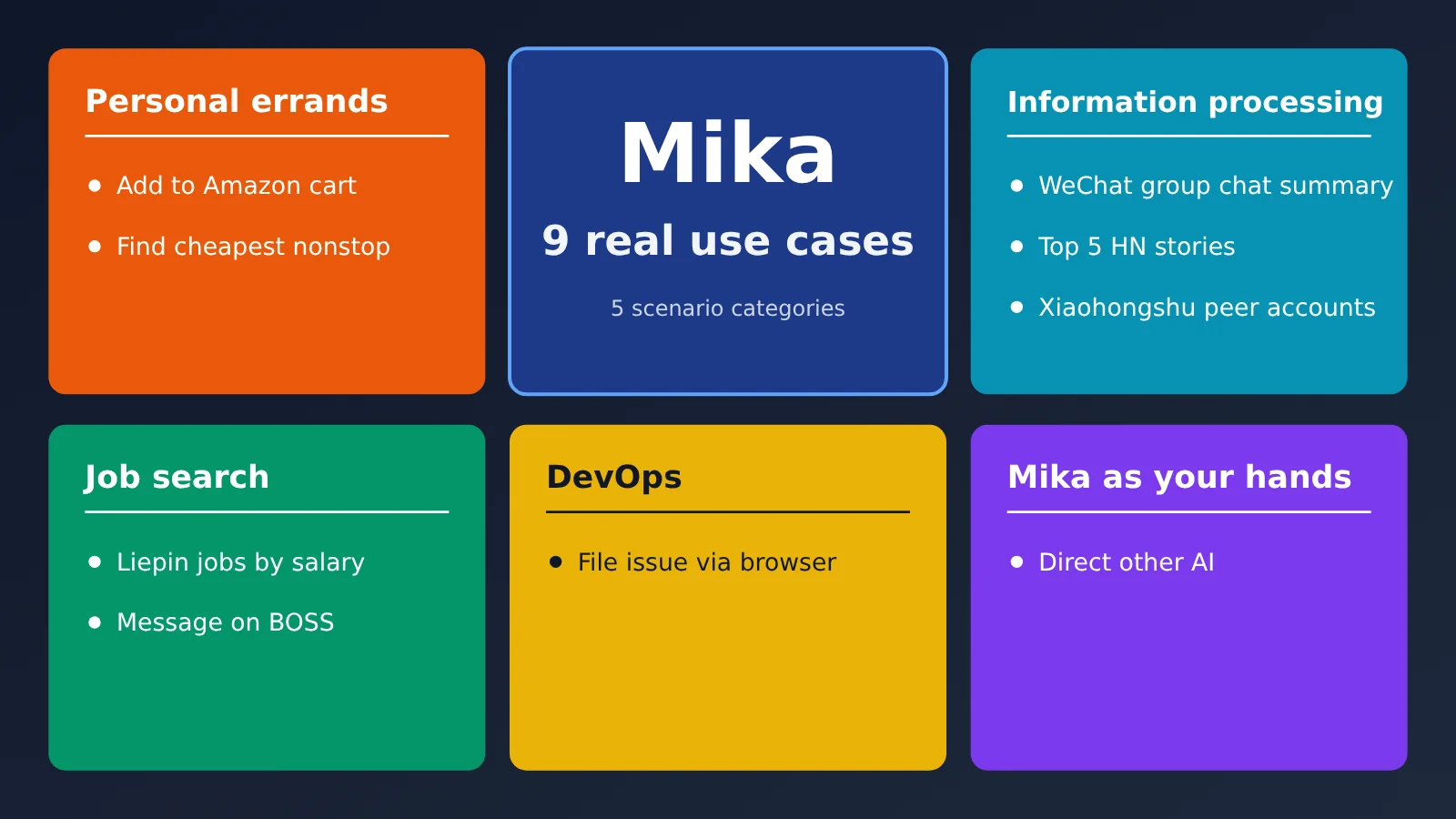
Quick Reference: 9 Real-World Uses for Mika
| Scenario | What to ask | Approximate steps | Human handoff needed? | Source |
|---|---|---|---|---|
| Add an Amazon product to the cart | “Find a USB-C charger under $30 with a rating above 4.5 stars, add it to the cart, and stop before checkout.” | Total not disclosed; the screen shows a collapsed record of 12 steps | The task stops before checkout; a person completes payment | Official demo, @wangzan101 |
| Find the cheapest nonstop flight | “Find the cheapest nonstop flight from San Francisco to New York next Friday.” | Not shown; includes changing search criteria, filtering, and sorting | No handoff shown during the search; booking requires human intervention | Official demo, @wangzan101 |
| Summarize a WeChat group chat | “Summarize what people discussed in ‘group name’ on WeChat today.” | More than 40 steps in one task record | Not mentioned | User account, @qduncle |
| Read the top five Hacker News stories | “Read the titles and scores of the top 5 stories on the Hacker News homepage.” | Not shown | Not mentioned | Official demo, @wangzan101 |
| Find comparable accounts on Xiaohongshu | “Find comparable accounts on Xiaohongshu that include these keywords, and organize the results.” | 21 steps in one task record; took 3 minutes and 50 seconds | Not mentioned | User account, @FranKkkklv |
| Filter jobs by salary on Liepin | “Search the Liepin app for AI product manager jobs paying more than 50K per month.” | Not shown; includes installation, login, and filtering | Needed for login and completing the resume | User account, @huangyun_122 |
| Contact recruiters on BOSS Zhipin | “Send an introductory message about 3 jobs on the recruitment site.” | Not disclosed; the video shows messages sent to 3 recruiters | Not shown; review the content yourself | Official demo, @wangzan101 |
| Have Mika direct another AI | “Open TRAE and have it create a formal analysis report on ‘topic.’” | Not disclosed | Not mentioned | Author relaying a group member’s account, @wangzan101 |
| Have Mika file an issue | “Open Chrome, find wangzan101’s Mika, and file an issue saying ‘problem description.’” | Not disclosed | Not mentioned | Author’s account, @wangzan101 |
Getting Started with Mika: Cover Three Things in Your Prompt
After looking through these examples, the most useful thing to borrow is how people phrase their requests—not any one fixed prompt. The Amazon example makes the point clear: specify your budget, minimum rating, and where to stop, and it won’t place the order on its own. You can apply the same approach more broadly:
- Goal and filters: State what you’re looking for, along with a price, rating, or minimum salary.
- Output format: Say whether you want an answer, a summary, or a table.
- Stopping point: Set boundaries like “stop before checkout” or “ask me before paying.”
Understanding the Three Evidence Levels for Mika
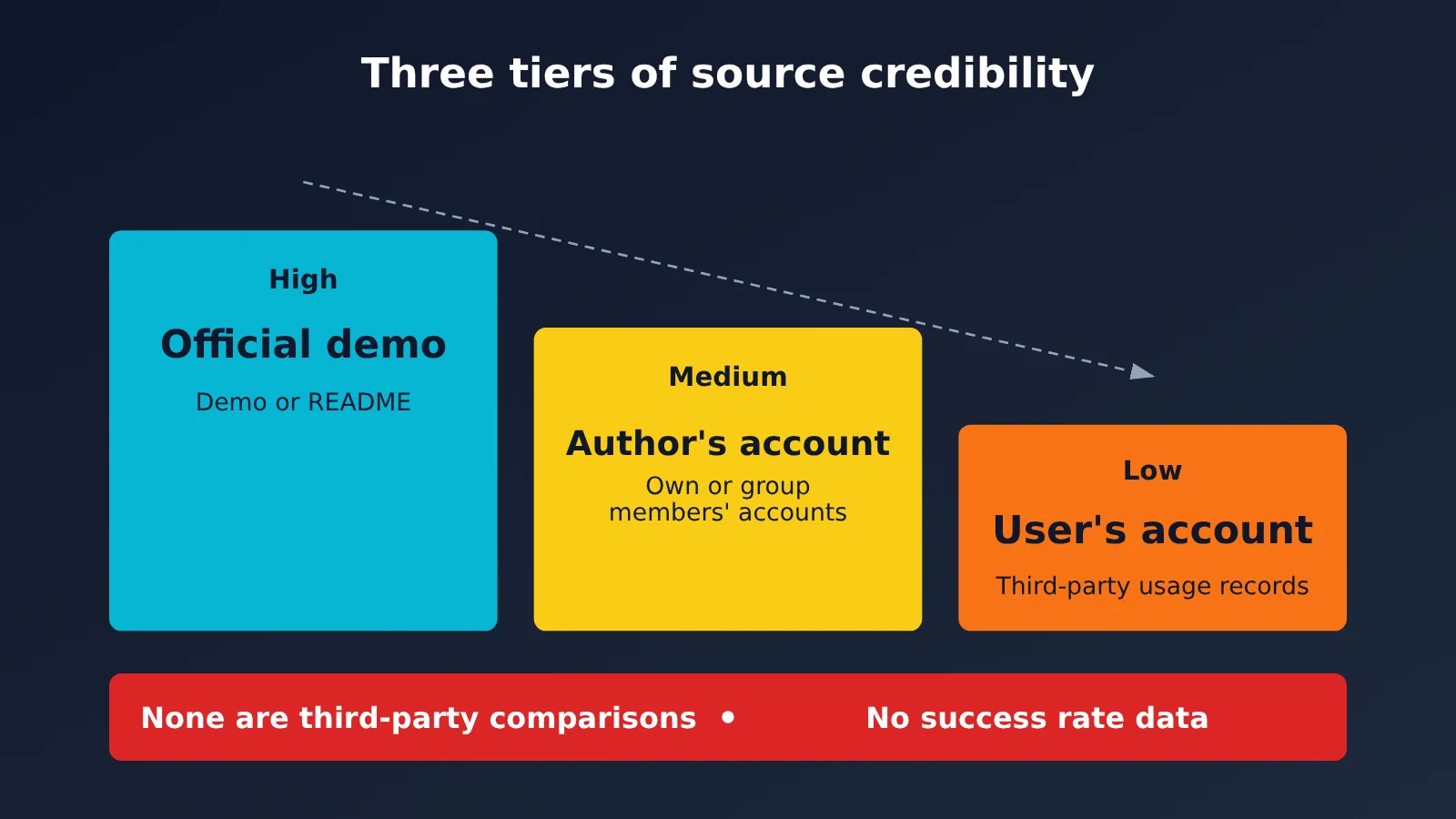
| Evidence level | Meaning | What it can confirm | What it can’t confirm |
|---|---|---|---|
| Official demo | A feature demo or official README published by the creator | The product is designed to do this | Whether it’ll work as smoothly on another phone or account |
| Creator account | The creator describing their own or group members’ usage | Someone has used it this way; some accounts include screenshots | How complete or reliable the process was |
| User account | A report published by a third-party user | Someone has tried it in a third-party environment | The model configuration, number of failed attempts, or whether the video was edited |
Everyday Errands with Mika: Shopping, Booking Flights, and Ordering Takeout
Use Case 1: Mika Picks a Charger and Adds It to the Cart, Stopping Before Checkout (Official Demo)
Who shared it: The creator, @wangzan101, included this roughly 48-second video in the English-language launch post. Original post: x.com/wangzan101/status/2116225557566550434
What to say:
Find a USB-C charger under $30 with at least 4.5 stars and add it to my cart. Stop before checkout.
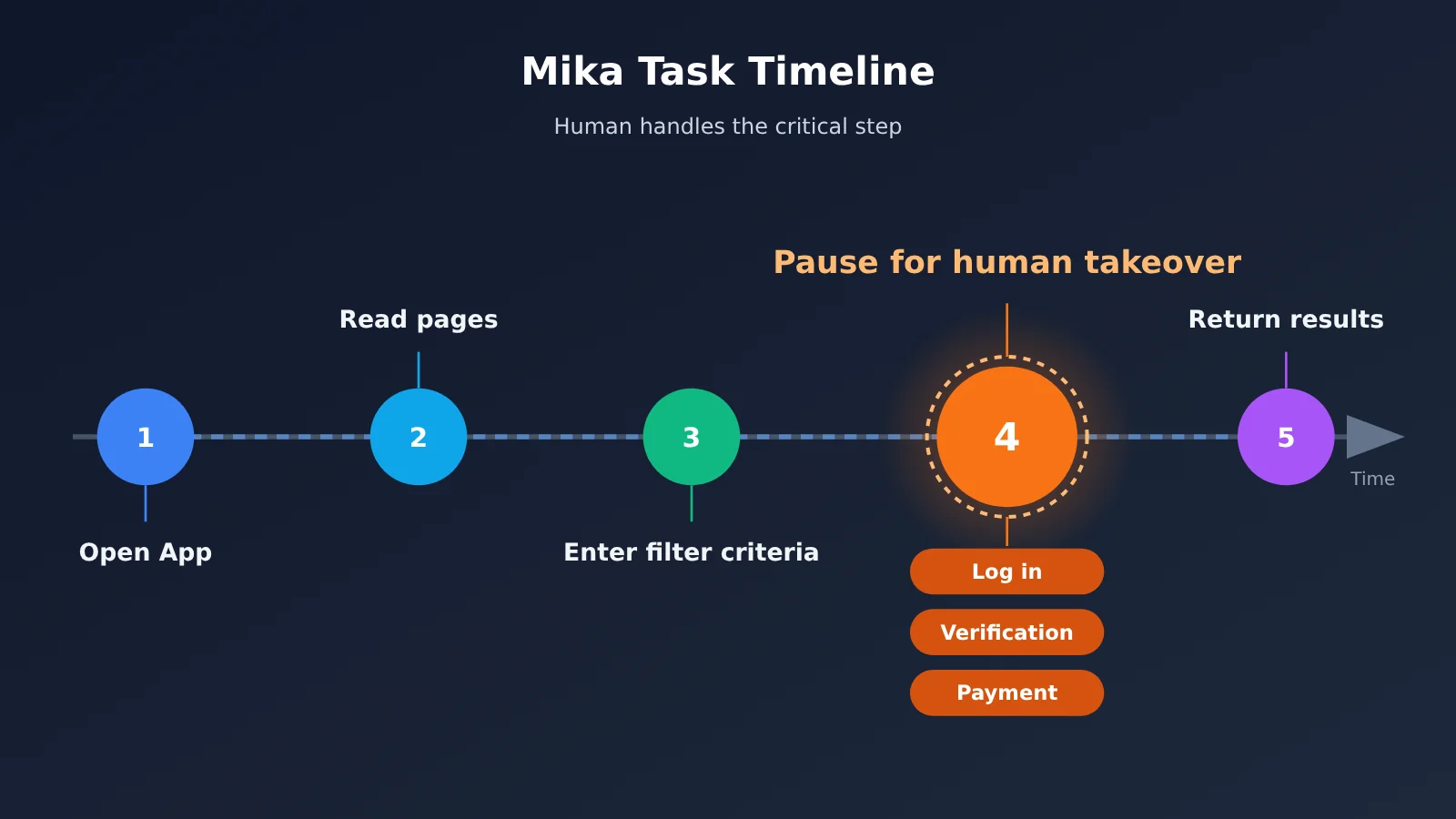
What happens: In the background view, Mika opens Amazon, browses product cards screen by screen, then opens a listing to check its rating and price. It adds the charger to the cart and stops before checkout. The conversation shows a collapsed record labeled “12 earlier steps” and a “Read page data failed” message followed by a retry, so the process doesn’t go perfectly smoothly.
Is it worth trying? Yes. It’s a good way to practice setting boundaries for a task. Start by asking it to add an item to your cart, make sure it stops, and then consider more complex tasks.
A similar example in the README shows Mika ordering takeout to qualify for a minimum-spend discount and asking you before payment. You could say: “Help me order lunch in a takeout app and meet the minimum spend for a discount. Ask me before paying.” In the official ask-first mode, Mika checks with you before the step that spends money, and you complete the payment yourself.

Figure 1: Amazon add-to-cart demo, taken from creator @wangzan101’s launch video. The footage is sped up.
Use Case 2: Mika Finds the Cheapest Nonstop Flight from San Francisco to New York (Official Demo)
Who shared it: The second video in the same launch post, approximately 37 seconds long.
What to say:
Find the cheapest nonstop flight from San Francisco to New York next Friday.
What happens: Mika opens Google Flights, changes the departure city, destination, and date, filters for nonstop flights, and sorts by price. It then reports a specific fare. The video shows HK$2,185, but that’s just the result displayed at the time. This is a web demo; a person still needs to take over to book.
Is it worth trying? It’s a great way to get started because you’re only searching, not spending money. Just swap in your own cities and dates.
As for the Meituan takeout ordering, web-wide hunt for Double 11 coupons, and gaming mentioned by @juicebro888, those were relayed with screenshots but no step-by-step records. For now, they’re best seen as a user’s wish list. Original post: x.com/juicebro888/status/2116486915340058711
Mika for Processing Information: Outsource the Reading
Use Case 3: Mika Summarizes a WeChat Group Chat (User-Reported)
Who posted it: A 31-second video shared by @qduncle. Original post: x.com/qduncle/status/2116356768880369750
What to ask (group name replaced):
Summarize what people talked about today in the WeChat group “group name.”
What happens: Mika opens WeChat on the background screen, enters the group, and scrolls up through the conversation one screen at a time. The conversation shows more than 40 steps before Mika delivers a summary. The official documentation says it can read long lists and chat histories screen by screen, using OCR as a fallback when it can’t read an interface.
Is it worth trying?: It’s a genuinely useful task, but WeChat is also one of the scenarios where users are most concerned about account restrictions. Try it with a secondary account or a spare phone first, rather than your main account.

Figure 2: WeChat group chat summary, captured from @qduncle’s video. The group name and member information have been blurred.
Use Case 4: Mika Reads the Top Five Hacker News Stories (Official Demo)
Who posted it: The third video in the launch post, approximately 19 seconds long.
What to ask:
Read out the titles and scores of the top 5 stories on the Hacker News homepage.
What happens: It opens the webpage and reads the stories one by one, then sends a “task complete” notification. The video doesn’t show a takeover step.
Is it worth trying?: It’s an ideal first task: it costs nothing and doesn’t involve a social media account. Once you’ve got it working, you can adapt it to a site you visit regularly.
Use Case 5: Mika Finds Comparable Xiaohongshu Accounts by Keyword (User-Reported)
Who posted it: Three screenshots shared by @FranKkkklv. Original post: x.com/FranKkkklv/status/2116741860349841673
What to ask:
Find comparable Xiaohongshu accounts covering these keywords: campus marketing, campus economy, and college student entrepreneurship. Then organize them according to the criteria for comparable accounts.
What happens: The screenshots show 21 steps completed in 3 minutes and 50 seconds. The final output has three columns—account name, approximate follower count, and content focus—along with benchmarking recommendations.
Is it worth trying?: It’s well worth a look for anyone working in content or social media operations. Of all the examples, this one comes closest to a workflow: rather than looking up one piece of information, it collects a batch of results and organizes them into a table. You’ll still need to manually verify the accounts and follower counts, and consider the risk of account restrictions beforehand.
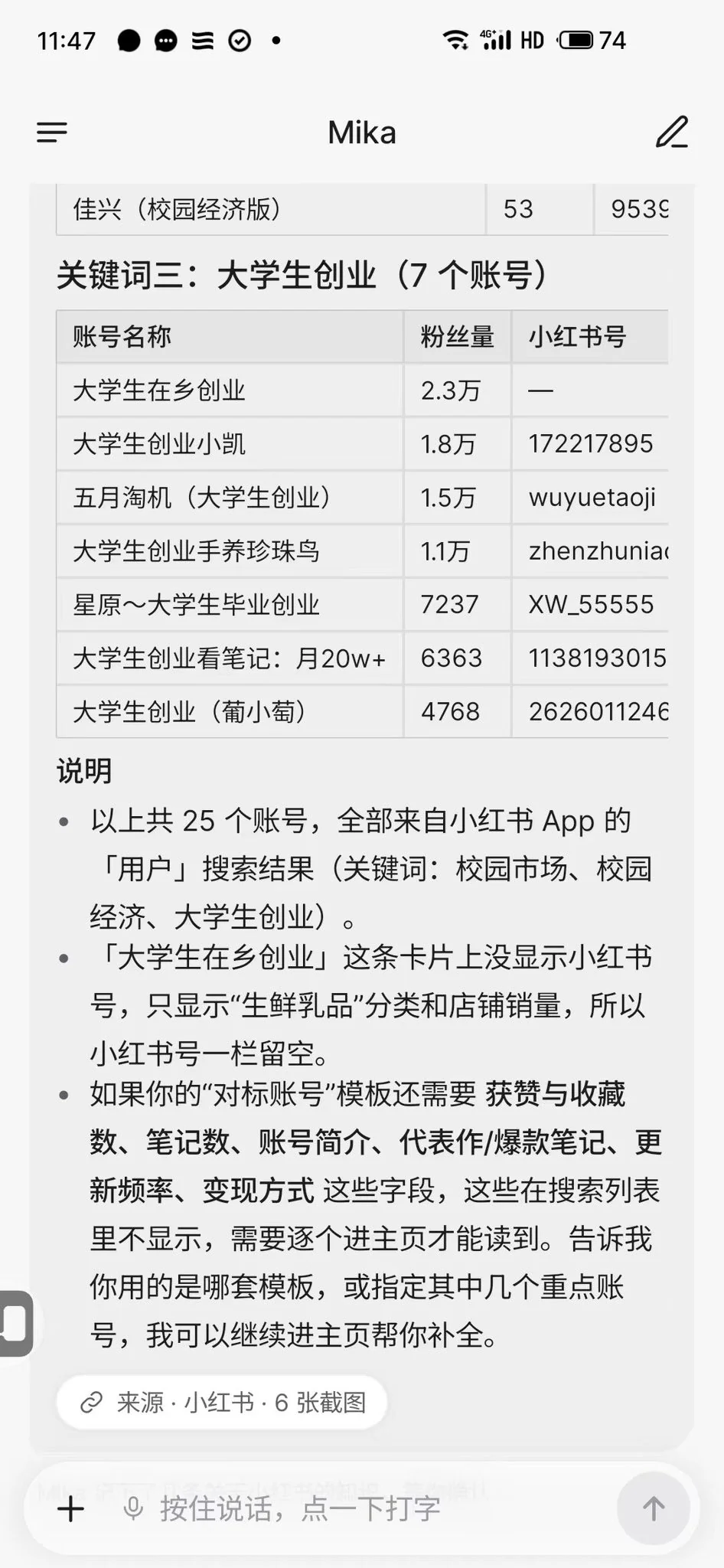
Figure 3: Organized results for comparable Xiaohongshu accounts, captured from @FranKkkklv’s screenshots.
Mika for Job Hunting: Filtering Listings, Reaching Out, and Writing Messages
Use Case 6: Mika Filters Liepin Jobs by Salary (User Report)
Who posted it: User @huangyun_122, who had around 86,000 followers as of November 2, 2026, posted an eight-second highlight video. Original post: x.com/huangyun_122/status/2116936917313040775
What to ask (based on the original post’s caption):
Search the Liepin app for AI product manager jobs paying more than 50K a month.
What happens: Mika first installs Liepin from the app store. After opening it, Mika gets stuck at login and résumé completion and displays a “Needs your attention” prompt. Once a person logs in, Mika continues, lists the jobs, and checks each salary range, filtering out ranges like 40–60K and 50–80K because their lower bounds don’t meet the requirement.
Is it worth trying? Yes. It shows both cross-app operation and proactive handoff to a person. But this is an edited highlight, so the video doesn’t show how long the task actually took.
Use Case 7: Mika Sends Greetings One by One on BOSS Zhipin (Official Demo)
Who posted it: The creator, @wangzan101, posted a video of about 69 seconds. The README also lists BOSS Zhipin as part of Mika’s built-in knowledge. Original post: x.com/wangzan101/status/2116823824830288114
What to ask (from the README demo):
Send greetings for 3 jobs on a recruitment website.
You can also include the message you want to send. In the creator’s video, Mika sends a message on its owner’s behalf in its own voice:
Hello, I’m Mika, a bot looking for an AI product manager job in Shanghai on behalf of my owner. My owner isn’t looking for a high salary—around 3,000 is acceptable. The main goal is to find a role with real exposure to the business and settle in to do the work. Sorry to bother you, and I hope to hear from you.
What happens: Mika switches the city to Shanghai, searches for jobs, and opens each listing one by one. It clicks “Communicate Now” and sends the message to three recruiters. The conversations show “Sending” and “Sent” statuses. The creator demonstrated this using their own account; the actual application outcomes and recruiter response rates weren’t shared.
Is it worth trying? You can try it on a small scale, but messages are hard to take back once sent. Start with one to three jobs and review the wording yourself.
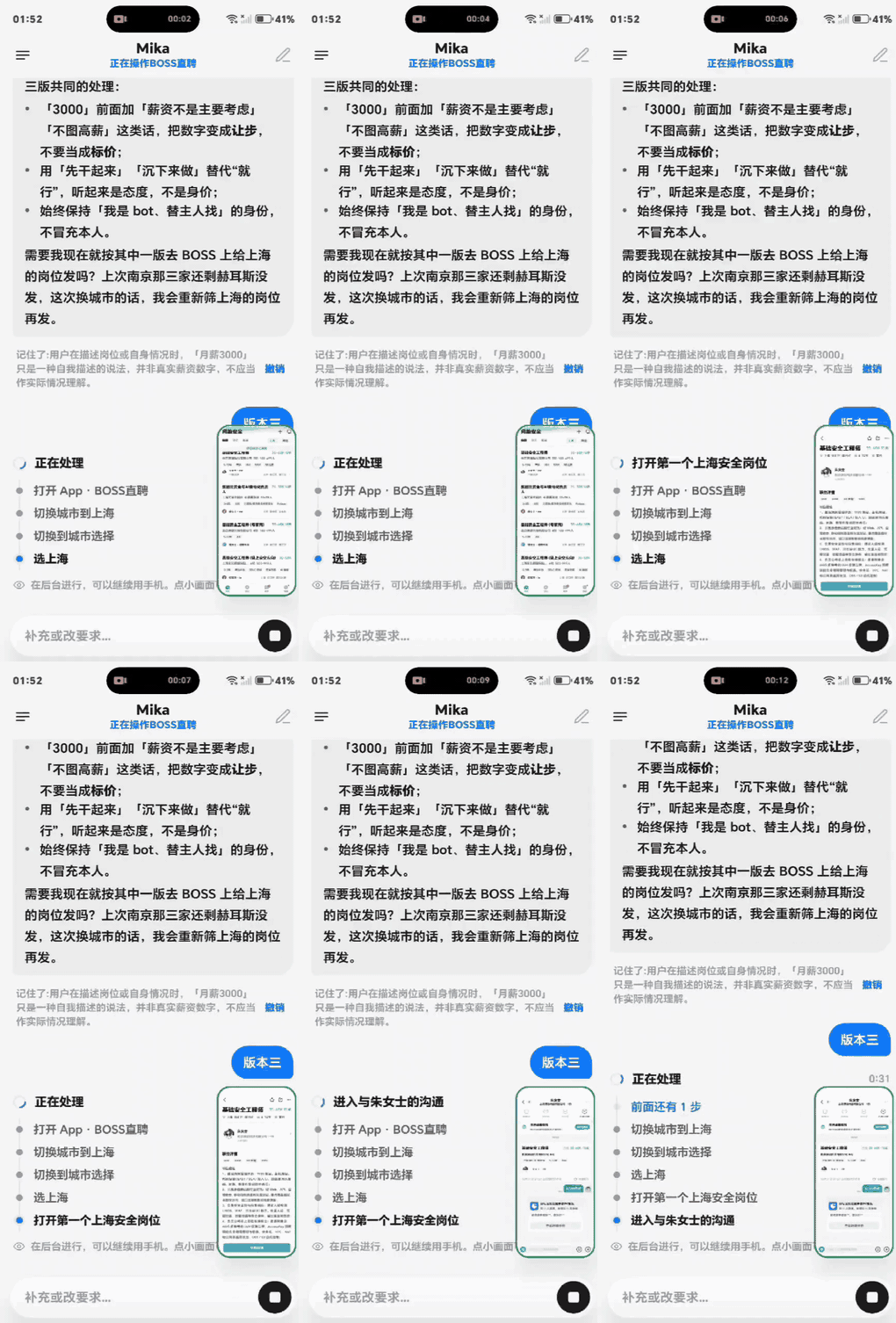
Figure 4: Sending greetings one by one on BOSS Zhipin, from a video by creator @wangzan101
Use Mika as the hands and another AI as the brain—or connect a local model
Use case 8: Let Mika tap the screen while another AI does the thinking (author’s account and user reports)
Who shared it: The author relayed a group member’s example of using Mika to operate TRAE. Original post: x.com/wangzan101/status/2116991177220399395. @huangyun_122 mentioned connecting Kimi to Mika. @0xjackkk recommended letting Muse make decisions and Mika carry them out, though that post didn’t include screenshots of the steps. Original post: x.com/0xjackkk/status/2117094099801665979.
What to say (based on the screenshot):
Open TRAE and have it write a formal analysis report on the topic. Send me the result when it’s done.
What happens: The task in the screenshot also asks for the report to be posted on X. The basic idea is that Mika opens another AI, enters the request, waits for the result, and retrieves it.
Is it worth trying?: If you already use other AI tools, it’s worth a try. The first time, leave out the automatic publishing step and review the content before deciding whether to send it publicly.
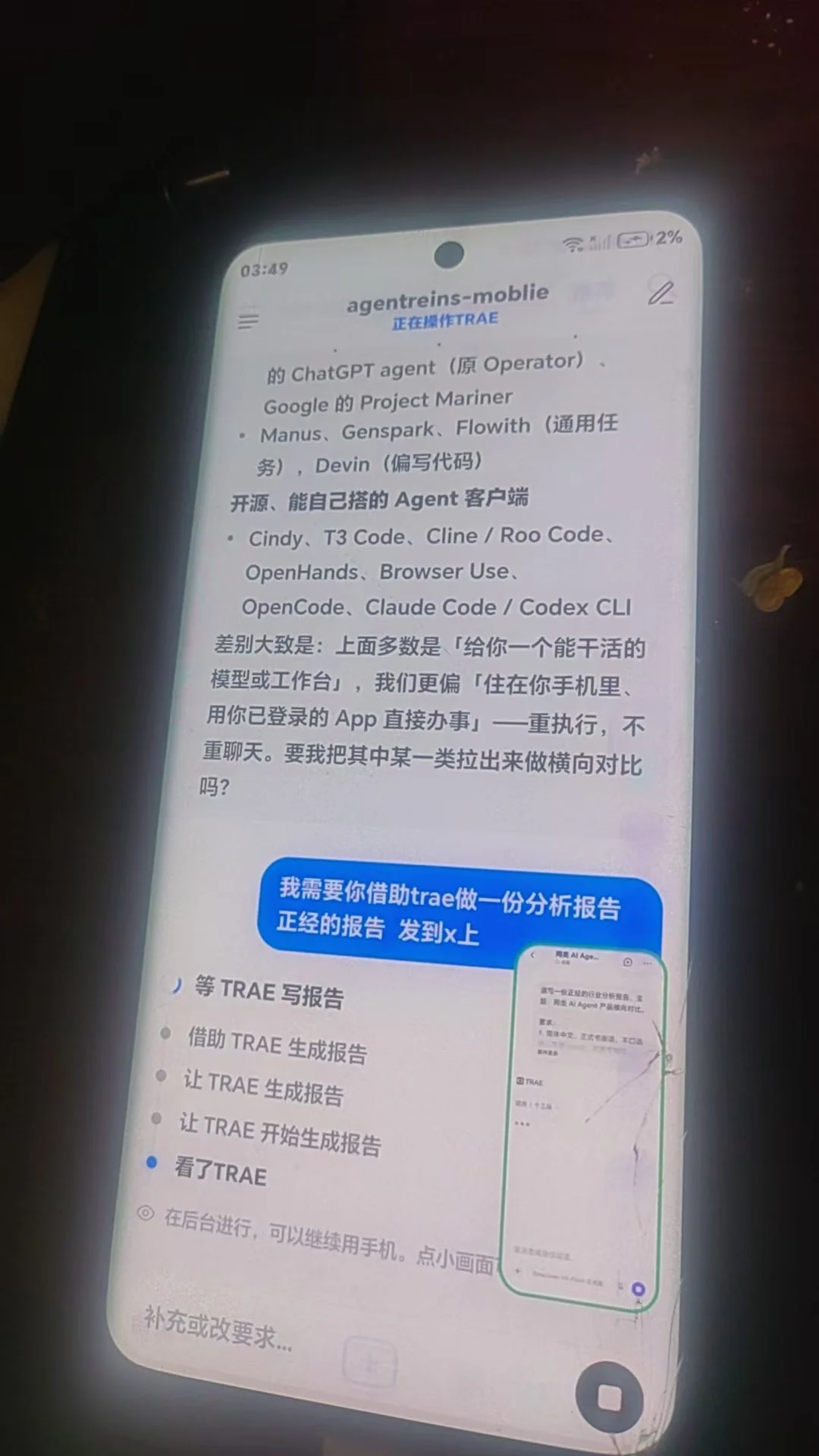
Figure 5: Mika using TRAE to create a report, from a group member’s screenshot shared by the author @wangzan101
There are actually three different ways to combine these tools, so don’t confuse them:
| Approach | Example from the source | Mika’s role | Source reliability |
|---|---|---|---|
| Swap the model brain | Connect Kimi to search for jobs | The model changes, but Mika still operates the phone | User report |
| Operate another AI | Open TRAE to create a report | Enter the request, wait, and retrieve the result | Author relaying a group member’s example |
| Use Mika as the execution layer | Muse decides, Mika executes | Follow decisions from the higher-level system and operate the device | User report; opinion-based recommendation |
Local models are another option. The author posted that Mika can use locally deployed models, so there’s no need to worry about token consumption. Original post: x.com/wangzan101/status/2116901703274614933. In the screenshot, group members discuss running models such as Qwen on a local network with LM Studio. One person says an RTX 3070 8GB GPU can produce “a little over 30 tokens per second,” but that’s just a claim from the group chat. According to the official documentation, select “Custom” as the provider, enter a local network address beginning with http:// as the API endpoint, and connect your phone and computer to the same Wi-Fi network.
If you don’t want to deploy a model yourself, you can also use an OpenAI-compatible interface such as APIYI (apiyi.com) as your model source. Mika supports a “Custom” provider: enter the endpoint and your own key to switch its brain. APIYI and Mika have no official partnership; this is simply a general use of a compatible interface.
| Setting | Value |
|---|---|
| Provider | Custom |
| API type | OpenAI-compatible |
| API endpoint | https://api.apiyi.com/v1 |
| API Key | Your own key |
| Main model | Choose a model that supports tool calling |
Configuration reminder: The main model must support tool calling. After choosing a model on APIYI apiyi.com, use Mika’s “Test and Save” option to verify it yourself. Whether it works depends on the actual test result.
Mika for Development and Operations: File Issues and Run Tasks on Schedule
Use Case 9: Have Mika File an Issue in a Repository (the Author’s Account)
Who shared it: The author, @wangzan101, posted one screenshot. Original post: x.com/wangzan101/status/2116909651082293597
What to say:
Open Chrome, find wangzan101’s Mika repository, and file an issue saying that the Large Language Model invocation count and usage statistics are inaccurate.
What happens: The screenshot shows that a new issue appeared, titled “[Bug] Large Language Model Invocation Count and Usage Statistics Are Inaccurate.” The task involved multiple steps, switching between apps, and an authenticated session.
Is it worth trying?: Developers may find it useful, but don’t flood public repositories with test issues. Try it in your own test repository first, then use it to submit real feedback.
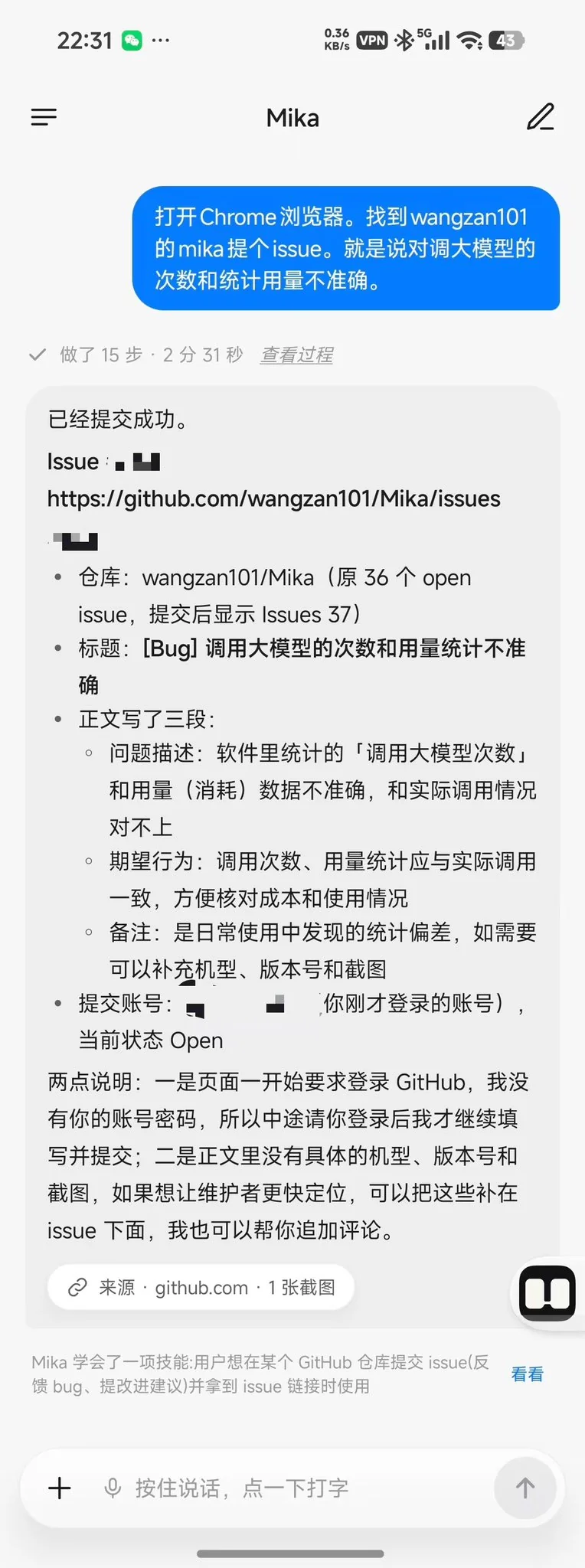
Figure 6: A GitHub issue automatically filed by Mika, from a screenshot shared by the author, @wangzan101
Scheduled tasks are a common companion to this workflow, and they’re an official feature. You can say, “Check the weather every morning and only tell me if it’s raining.” At the scheduled time, Mika will run the task in the original conversation and return the result. On the scheduled tasks page, you can pause a task, change its time, run it immediately, or delete it. If a step would cost money while you’re away, Mika will skip it in ask mode and tell you which step it couldn’t complete.
Some People Are Making Money With Mika—and Others Have Completely Reinvented It
Take this section as an anecdote. Everything here comes from the people involved or group chats. There are no transaction records, cost figures, or third-party evidence, and none of it constitutes advice.
- “50 yuan per APK”: In a post shared by the creator, @agentreins said: “I sold 100 APKs at 50 yuan each. I taught people how to use AI to flirt with female livestreamers.” Original post:
x.com/wangzan101/status/2116977306921283720 - “Made 13,000 yuan”: In a group chat screenshot, a member said: “I made 13,000 today using your app” and “combined it with my hardware.” We can only report that someone made this claim in a group chat.
- A modified version connected to Douyin livestream audio: The creator described a community member’s modified version of Mika. In the screenshot, the member said it was for “interacting with livestreamers on Douyin,” that “mine can capture audio,” and that “this is for the agent to see.” There’s no official explanation of how the modified version differs from the main project. Original post:
x.com/wangzan101/status/2116914410618769470
Three Prerequisites for These 9 Mika Use Cases
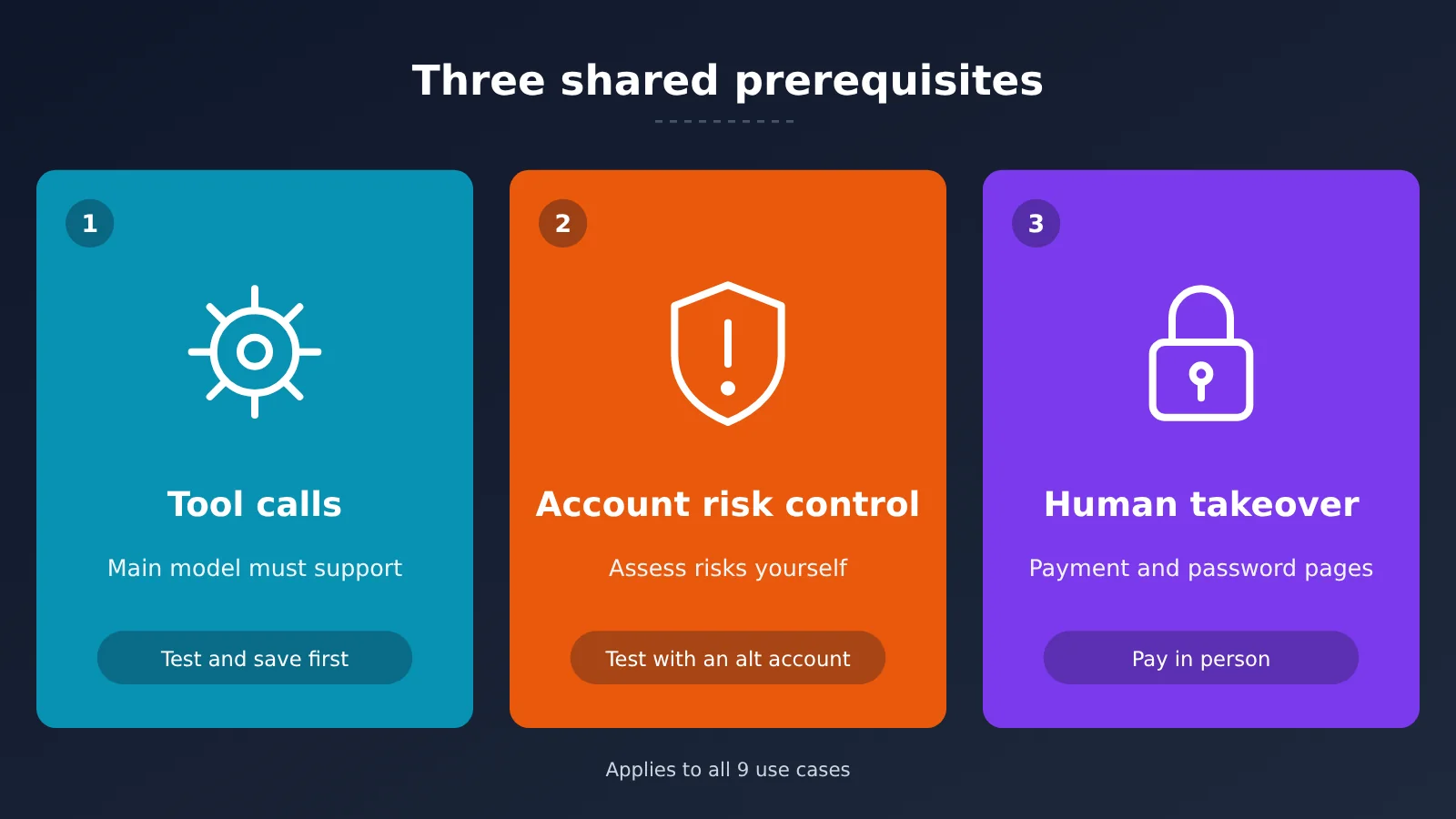
| Prerequisite | Why it matters | What to do |
|---|---|---|
| The main model supports tool calling | The official documentation explicitly says “the main model must support tool calling” | After switching models, verify it with “Test and Save” |
| Account risk controls | Users have repeatedly flagged risks with WeChat and Xiaohongshu | Start with a spare phone or secondary account; don’t experiment with your main account |
| Human takeover for payments | Payment and password pages block screenshots, so Mika can’t see them | Specify where tasks involving money should stop, and make the payment yourself |
The first prerequisite determines whether a task can run at all. If you use a custom interface, whether with a local model or APIYI at apiyi.com, first make sure your chosen model supports tool calling.
Risk warning: @WaterJ3201, @WattterDjiang, and @frankwong0205 have all raised concerns about risk controls or account bans on WeChat and Xiaohongshu. The official disclaimer also states: “Automatically operating third-party apps and websites may violate their terms of service. Use your own judgment. For important matters, use ask mode and check the results.” It also warns: “You’re responsible for actions you approve, as well as actions Mika takes on your behalf in autonomous mode.” Be especially careful with actions like sending greetings or messages in bulk, and don’t experiment with important accounts.
A third-party account also supports the payment and password boundary. User @yangzhizheng1 noted that when handling tasks in apps such as Alipay that block screenshots, Mika proactively prompts a person to take over. Original post: x.com/yangzhizheng1/status/2116922018960642349
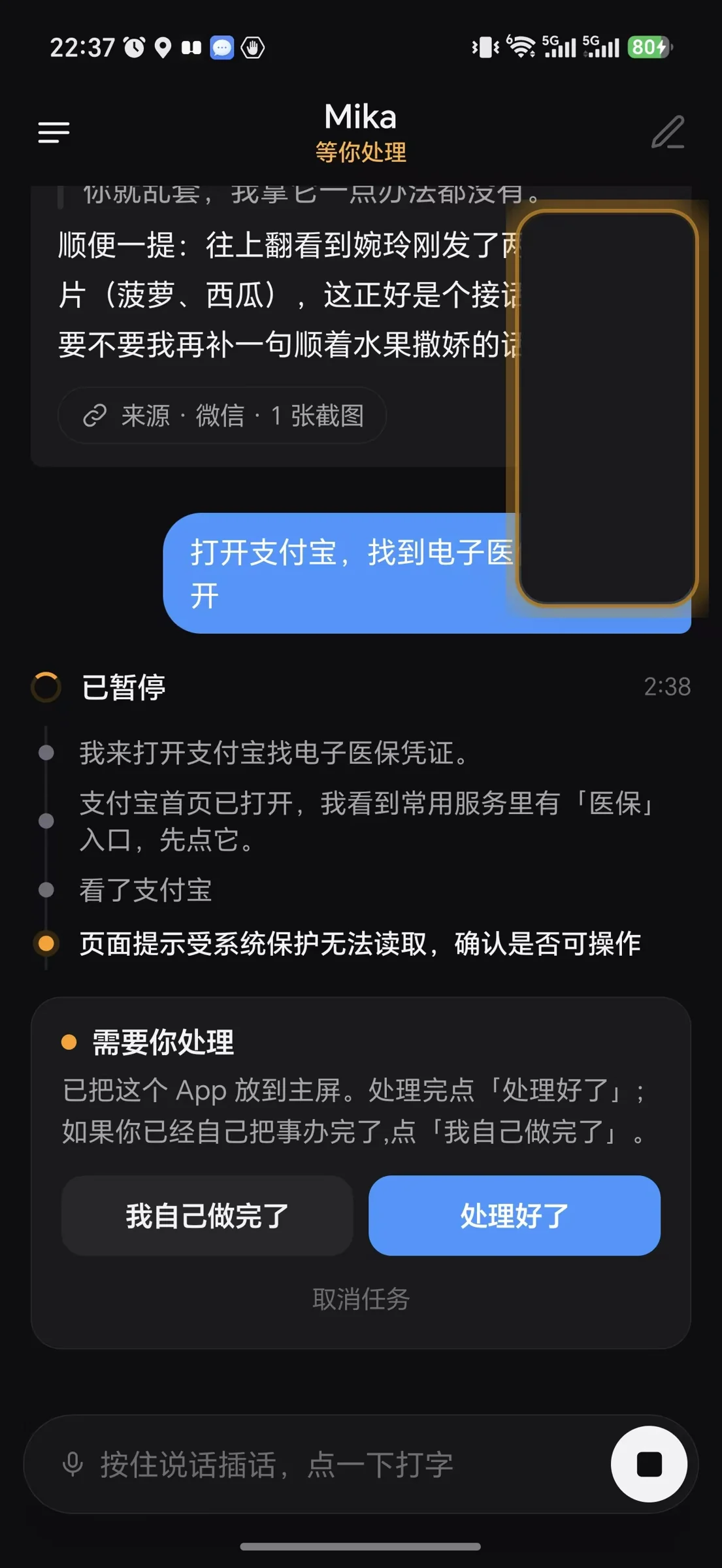
Figure 7: The Alipay page requires a person to take over, from a screenshot shared by @yangzhizheng1
Mika Use Cases: FAQ
Q1: Will these 9 Mika use cases work every time if I follow them exactly?
Not necessarily. The official team hasn’t published success rates, average step counts, or failure rates, and these examples aren’t an independent comparison. App versions, account status, and the model used can all affect the results. Treat the step counts and times in this article as individual observations.
Q2: How can I write Mika prompts that are less likely to go off track?
Be clear about the goal, selection criteria, desired result, and where Mika should stop. If a task involves spending money or sending something to others, always add “ask me before paying” or “let me confirm before sending.”
Q3: Should I try Mika on my primary device first?
Tasks that don’t require logging in or spending money are relatively low-risk, such as reading Hacker News or checking flights. For use cases involving WeChat, Xiaohongshu, or recruiting accounts, follow the risk guidance above and start with a spare device or secondary account.
Q4: Can Mika use an APIYI endpoint?
Yes. Configure it as a custom OpenAI-compatible endpoint: enter the `/v1` endpoint provided by APIYI at apiyi.com, then enter your own key. Use “Test and Save” to verify whether your chosen model works. The two parties have no official partnership.
Q5: What if Mika’s “Test and Save” fails?
First, check the endpoint address, key, and model name, then make sure the primary model supports tool calling. If you’re using APIYI at apiyi.com, try testing again with another model that supports tool calling. For a local model, check whether your phone and computer are on the same Wi-Fi network.
Mika Key Takeaways
- Mika can do more now: Publicly documented uses have expanded from sending messages to running complete workflows across apps.
- Check the source: Official demos, creators’ accounts, and user reports carry different evidentiary weight. None of them establishes a success rate.
- Set boundaries in your prompts: Clear conditions, outcomes, and stopping points matter more than a long prompt.
- Start with low-risk tasks: Try free tasks like checking Hacker News or searching for flights first.
- Check tool-calling support when switching models: If you’re connecting a model through a provider such as APIYI apiyi.com, first confirm that it supports tool calling.
- Take over for important actions: Keep a human in control of payments, passwords, and important account operations.
Summary
The value of these public examples isn’t that they prove Mika can do everything. It’s that they give us task templates we can adapt right away. Of the five use cases, information lookup is the easiest to start with, job-search and social-account tasks carry more risk, and combinations that use Mika as the hands are the most worth watching.
Here’s a good order to get started:
- Run one low-risk task first: Try fetching the top five Hacker News stories or searching for flights.
- Pick one work-related task next: For example, screen job listings or organize benchmark accounts. Use a secondary account to try it.
- Leave tasks involving spending money or sending messages until last: Clearly specify where Mika should stop, and check the results throughout.
If you want to give Mika a different brain, you can configure an OpenAI-compatible endpoint through APIYI apiyi.com. Choose a model that supports tool calling, then use “Test and Save” to verify it.
📚 References
- Mika GitHub Repository: Official README, feature overview, and disclaimer
- Link:
github.com/wangzan101/Mika -
Notes: Check the latest version, demos, and usage limitations
-
Creator’s Announcement Post: Three official demos featuring Amazon, flights, and Hacker News
- Link:
x.com/wangzan101/status/2116225557566550434 -
Notes: The main source for the official demo use cases in this article
-
@qduncle’s WeChat Group Summary: A third-party usage video
- Link:
x.com/qduncle/status/2116356768880369750 -
Notes: Watch the process of scrolling through chat history one screen at a time
-
@yangzhizheng1’s Usage Notes: Scenarios including manual intervention in Alipay
- Link:
x.com/yangzhizheng1/status/2116922018960642349 - Notes: See how manual takeover works on pages that block screenshots
Author: APIYI Technical Team
Technical discussions: Contact us through the APIYI website homepage. For more resources, visit the documentation center at docs.apiyi.com.