Many developers using GPT Image 2 or other AI image generation models for marketing materials have hit the same frustrating wall: when you upload an existing QR code to the ChatGPT web interface for synthesis, you get a scannable result every time. However, when you switch to an API call using the same model and the same prompt, the generated QR code is broken every single time, with a 100% failure rate for scanning. The problem isn't the prompt, and it isn't the model—it's that the workflow itself started off in the wrong direction.
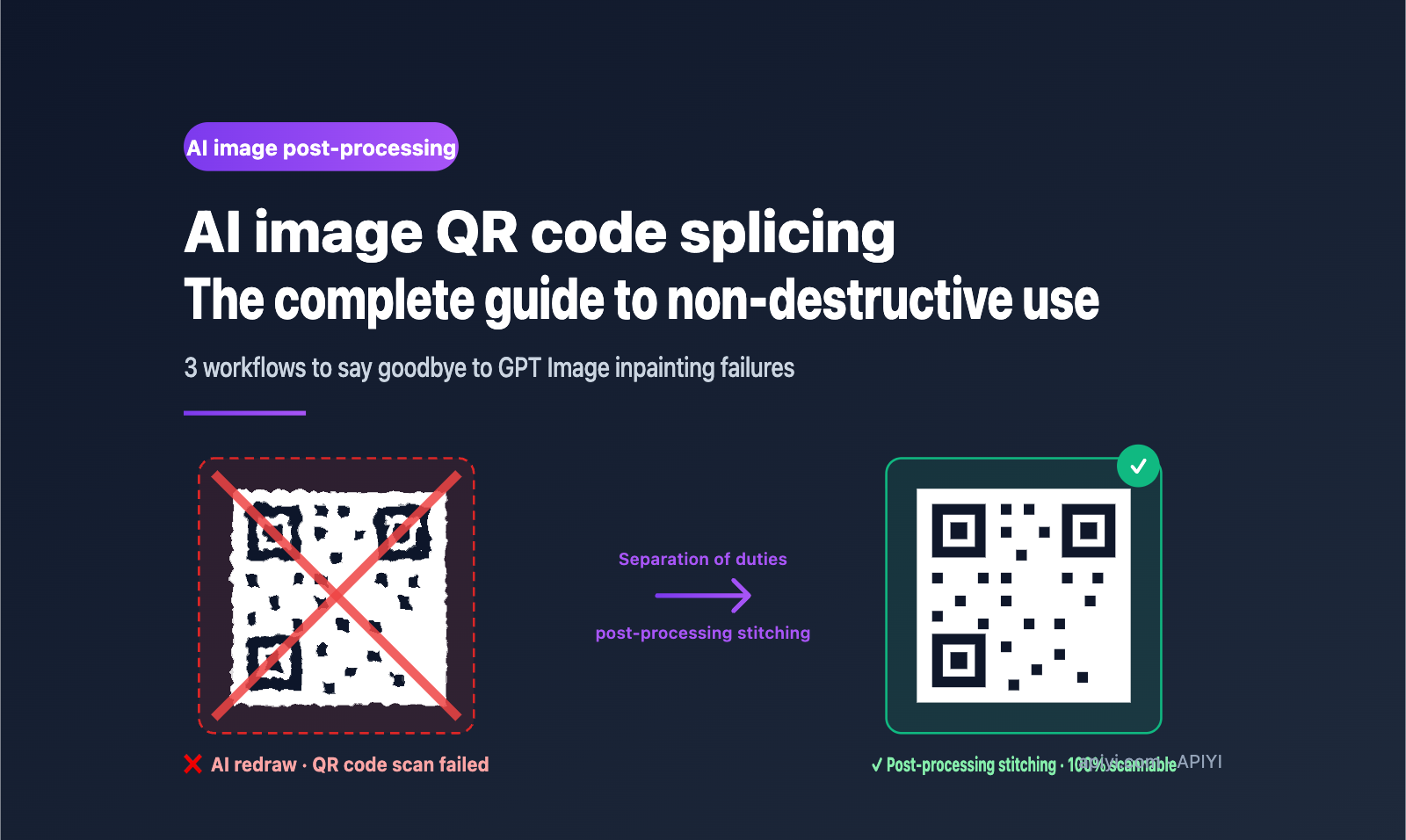
The core conclusion can be summed up in one sentence: AI shouldn't be "drawing" the QR code; the AI's job is to generate the background, and the QR code should be added via post-processing using an image processing library. This article, based on official OpenAI documentation, Stable Diffusion ControlNet practices, and QR code error correction principles, systematically breaks down why AI redrawing of QR codes inevitably leads to corruption. We'll provide three reusable workflow solutions, combined with the GPT Image 2 interface from the APIYI (apiyi.com) platform and complete Python code, to help you set up a full "AI image generation + scannable QR code" pipeline in just 10 minutes.
1. Why AI-generated images break QR codes
1.1 Reproducing the typical failure
The most common failure scenario goes like this: a user takes a clean QR code image as input, writes a prompt like "Place this QR code in the bottom right corner of the image, with a cozy coffee shop in the background," and calls the GPT Image 2 API. The resulting image visually contains a QR code, and the composition is correct, but it cannot be recognized by any scanning tool.
To the naked eye, it might just look like "the module edges are a bit blurry," but QR codes have extremely high requirements for pixel precision—if the shape, position, or contrast of a single module (the small squares) shifts by more than about 5%, the entire code may fail. AI redrawing is essentially "repainting" the QR code using a neural network, and even the most precise model cannot guarantee 100% restoration.
1.2 The three fundamental reasons for GPT Image 2 redrawing corruption
Breaking this down, AI redrawing corruption involves three technical layers that must all be addressed:
| Layer | Technical Detail | Consequence |
|---|---|---|
| Semantic Redrawing | AI interprets the QR code as image content and regenerates it based on semantics, rather than pixel-perfect copying | Module shapes are "beautified" or distorted |
| Resolution Resampling | The model has fixed output resolutions (512/1K/2K/4K), and input is resized | Sub-pixel aliasing appears at module boundaries |
| Lossy Compression | Default JPEG/WebP output loses high-frequency details | Gray transitions appear at the edges of black/white modules |
After these three layers are combined, the QR code modules—which should be strictly binary (pure black/pure white)—become a "blurry grayscale matrix," causing both the finder patterns and data module recognition of the scanning algorithm to fail.
What's more insidious is that this damage often looks very minor to the naked eye—the final image might still look like a QR code, and the contrast might pass, but scanning software relies on the precise position and binary density of the module grid, making it incredibly sensitive to the 1-2 pixel shifts that the human eye ignores. This is why many people repeatedly suspect their "prompt isn't written well" and waste hours on prompt engineering, only to find it still won't scan.
1.3 Why the ChatGPT web interface sometimes succeeds
Many users wonder, "If the web interface works, why doesn't the API?" The truth is: the ChatGPT web interface has additional post-processing logic internally. It detects that the input is a QR code and attempts to generate the result using image composition rather than a full redraw. This logic isn't exposed as an API parameter, so you don't get this special path when calling the API directly.
In other words, "API calls are always broken" isn't a bug; it's because the API follows the pure model generation path without the web interface's special guardrails. Relying on prompt engineering to solve this is futile—because it's an architectural limitation, not a prompt issue.
🎯 Core Mindset: In API calling scenarios, never let the AI "include" or "redraw" a QR code. Treat this rule as an ironclad law, and you'll save yourself a massive amount of debugging time. We recommend verifying the "AI redrawing a QR code will definitely break it" phenomenon on APIYI (apiyi.com) once; after experiencing it firsthand, you'll remember this rule for life.
2. Three Correct Workflows for AI Image QR Code Integration
The only correct approach is to separate the responsibilities of "AI image generation" and "QR code placement." The following three solutions are tailored to different technical stacks and business scenarios.
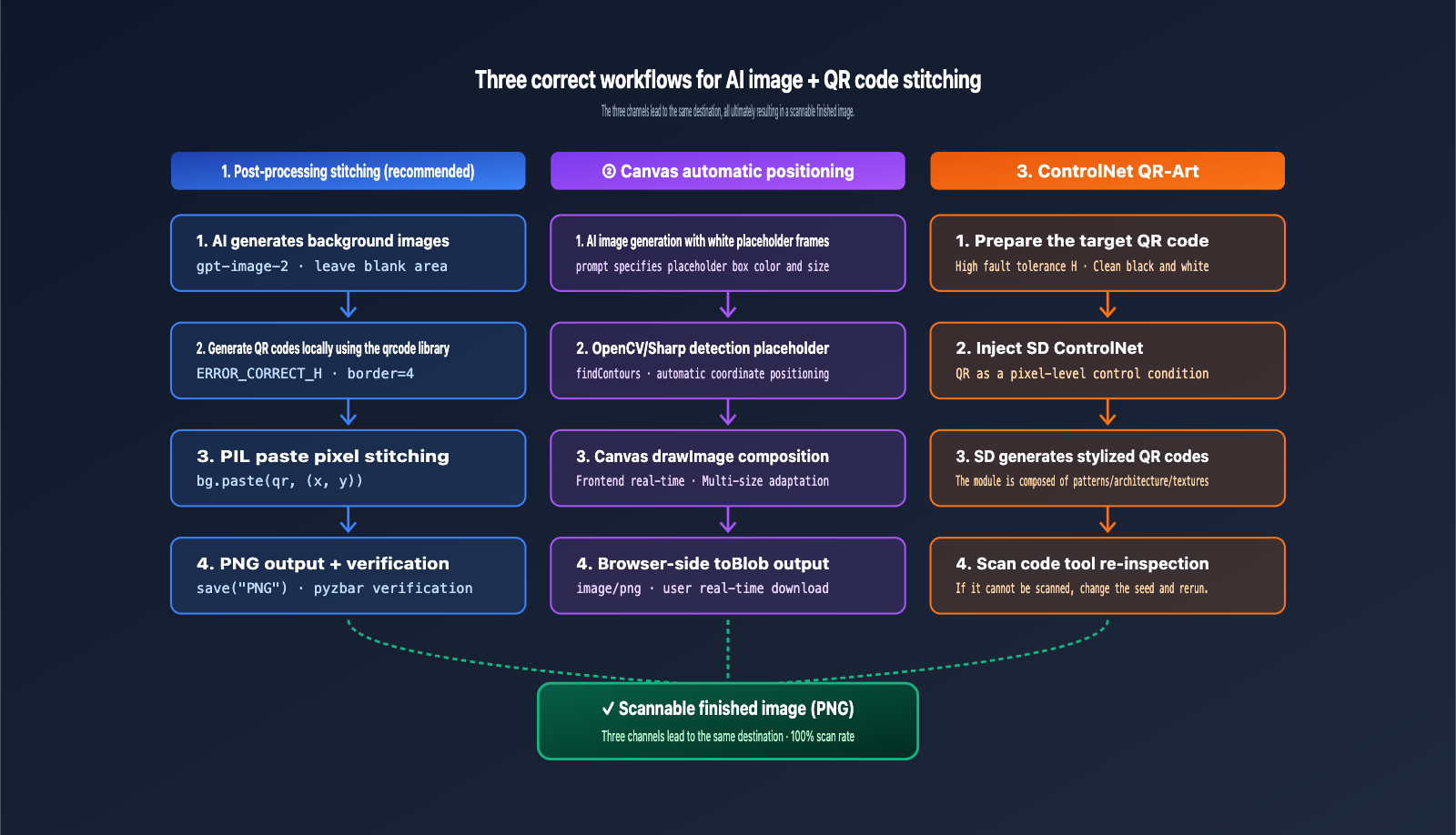
2.1 Solution 1: AI Background Generation + Post-processing (Recommended, Most Stable)
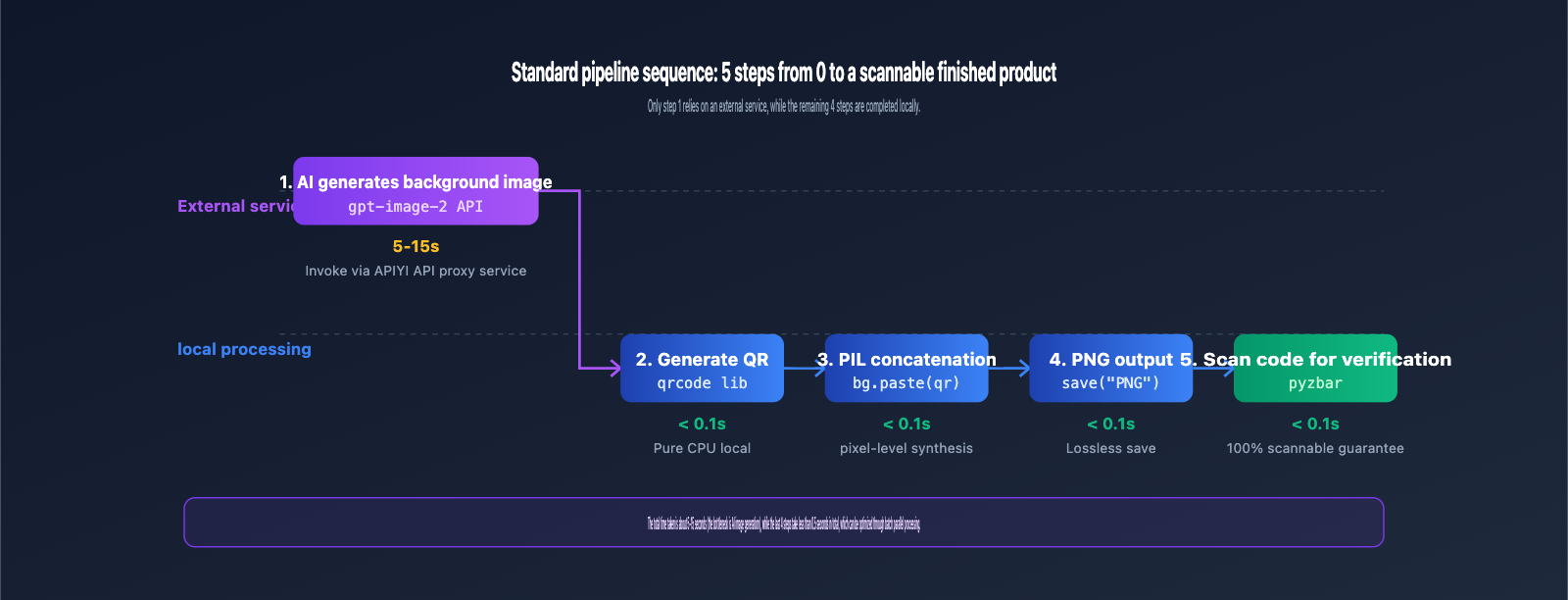
This is the simplest and most stable solution. The core idea is: Let the AI generate only the background image, without telling it anything about the QR code, then use a backend language like Python or Node.js to precisely paste the actual QR code onto it.
The workflow consists of four steps:
- Use GPT Image 2 to generate a clean background, with a prompt explicitly stating: "Leave a clean, light-colored area in the bottom right corner for branding elements."
- Generate the QR code locally using the
qrcodelibrary (controlling error correction level, module size, and quiet zone). - Use the PIL
paste()method to composite the QR code onto the specified position of the background. - Export as PNG (avoid JPEG) to preserve the sharp edges of the QR code modules.
Throughout this process, the AI is only responsible for "drawing the background." The QR code never passes through any AI model, so it won't be damaged.
2.2 Solution 2: AI Placeholder Generation + Canvas/Sharp Automatic Positioning
If you're building a frontend dynamic composition tool (e.g., an e-commerce platform where users generate posters with QR codes in real-time), Solution 1 might be a bit heavy. You can use Solution 2.
This solution adds an "automatic positioning" step to Solution 1: Have the AI reserve a solid-color placeholder box in the background (e.g., a white or brand-colored rectangle), then use OpenCV or Sharp to detect the placeholder's position and automatically composite the QR code into it. This can be implemented on the frontend using the Canvas API, requiring no backend intervention.
The advantage is that it adapts to multiple sizes and allows for real-time composition in the browser; the downside is that the color and size of the placeholder need to be precisely constrained in the prompt, making debugging slightly more complex than in Solution 1.
2.3 Solution 3: ControlNet QR-Art (Advanced Artistic QR Codes)
If you don't just want to "paste a QR code on top" but want the QR code itself to be part of the artwork (e.g., the black and white modules of the QR code are composed of flowers, buildings, or textures), you'll need the Stable Diffusion + ControlNet QR-Art approach.
This path essentially uses ControlNet to pass the QR code as a "control condition" to SD, ensuring the generated image maintains the module structure of the QR code in its pixel distribution. This isn't something GPT Image 2 can do—it lacks a ControlNet interface—so you must switch to an SD workflow for artistic QR codes.
Note that even with ControlNet QR-Art, it's recommended to set the error correction level to H (30%) and verify the result with a scanning tool after generation; otherwise, the probability of getting a beautiful but unscannable image is quite high.
| Solution | Complexity | Scannability | Use Case |
|---|---|---|---|
| ① Post-processing | ⭐ Low | ⭐⭐⭐⭐⭐ 100% | Marketing posters, product packaging, print materials |
| ② Canvas Auto-positioning | ⭐⭐ Medium | ⭐⭐⭐⭐⭐ 100% | E-commerce dynamic composition, user-defined posters |
| ③ ControlNet QR-Art | ⭐⭐⭐⭐ High | ⭐⭐⭐ 70-90% | Creative marketing, artistic QR codes, brand campaigns |
🎯 Recommendation: Solution 1 is sufficient for 90% of business scenarios. We suggest using GPT Image 2 via APIYI (apiyi.com) to generate the background and completing the composition locally with Python. The entire process can be implemented in under 10 lines of code.
III. Complete Python Code Example for AI Image QR Code Compositing
Now that you understand the principles, this section provides a copy-and-run Python code example covering the most common approach (Method 1).
3.1 Minimalist Version: The Full Process in 30 Lines
import io
import requests
import qrcode
from PIL import Image
from openai import OpenAI

# 1. Call GPT Image 2 to generate the background (via APIYI proxy)
client = OpenAI(
    api_key="your_api_key",
    base_url="https://vip.apiyi.com/v1"
)
response = client.images.generate(
    model="gpt-image-2",
    prompt=(
        "Cozy coffee shop poster, warm afternoon light, "
        "wooden table with a cup of latte, "
        "leave a clean light-colored square area at bottom right "
        "for branding element, photorealistic"
    ),
    size="1024x1536",
    quality="high",
)
bg = Image.open(io.BytesIO(requests.get(response.data[0].url).content))

# 2. Generate the QR code locally (High error correction + large quiet zone)
qr = qrcode.QRCode(
    version=None,
    error_correction=qrcode.constants.ERROR_CORRECT_H,
    box_size=10,
    border=4,
)
qr.add_data("https://apiyi.com")
qr.make(fit=True)
qr_img = qr.make_image(fill_color="black", back_color="white").convert("RGB")
qr_img = qr_img.resize((300, 300), Image.LANCZOS)

# 3. Post-processing: Paste onto the bottom right
bg.paste(qr_img, (bg.width - 360, bg.height - 360))
bg.save("poster_with_qr.png", "PNG", optimize=True)
The key takeaway here is: The QR code never enters any AI model. From the qrcode library to PIL.paste() and the final save("PNG"), everything is handled via pure pixel operations, ensuring the QR code remains 100% scannable.
3.2 Key Parameters Explained
Several parameters in the code might look minor, but they are critical to success:
error_correction=ERROR_CORRECT_H: Error correction level H (30%) allows 30% of the modules to be obscured while remaining scannable—the safety threshold for marketing scenarios.border=4: The "quiet zone" must be at least 4 modules wide; otherwise, the scan rate will drop significantly on complex backgrounds.Image.LANCZOS: Using the Lanczos algorithm during resizing keeps the QR code module boundaries sharp.save(..., "PNG"): Always use PNG instead of JPEG. JPEG’s 8×8 block compression introduces color artifacts at the module boundaries, which can break scannability.
3.3 QR Code Error Correction Levels Quick Reference
Choose the right level based on your scenario:
| Level | Data Redundancy | Use Case |
|---|---|---|
| L (Low) | 7% | Clean, white backgrounds; not recommended for compositing |
| M (Medium) | 15% | Default value; usable for simple backgrounds |
| Q (Quartile) | 25% | Complex backgrounds with decorative elements |
| H (High) | 30% | Highly recommended: A must-have for AI image compositing |
🎯 Robustness Tip: When compositing onto AI-generated images, always default to H-level error correction. That extra 15% redundancy provides stability that makes a world of difference in scan rates, even if it's invisible to the eye. Using this parameter while debugging your workflow on APIYI (apiyi.com) will save you a lot of rework.
IV. 4 Advanced Optimization Tips for AI QR Code Compositing
Once you've mastered the basics, these 4 tips will help push your scan rate from 95% to 100%.
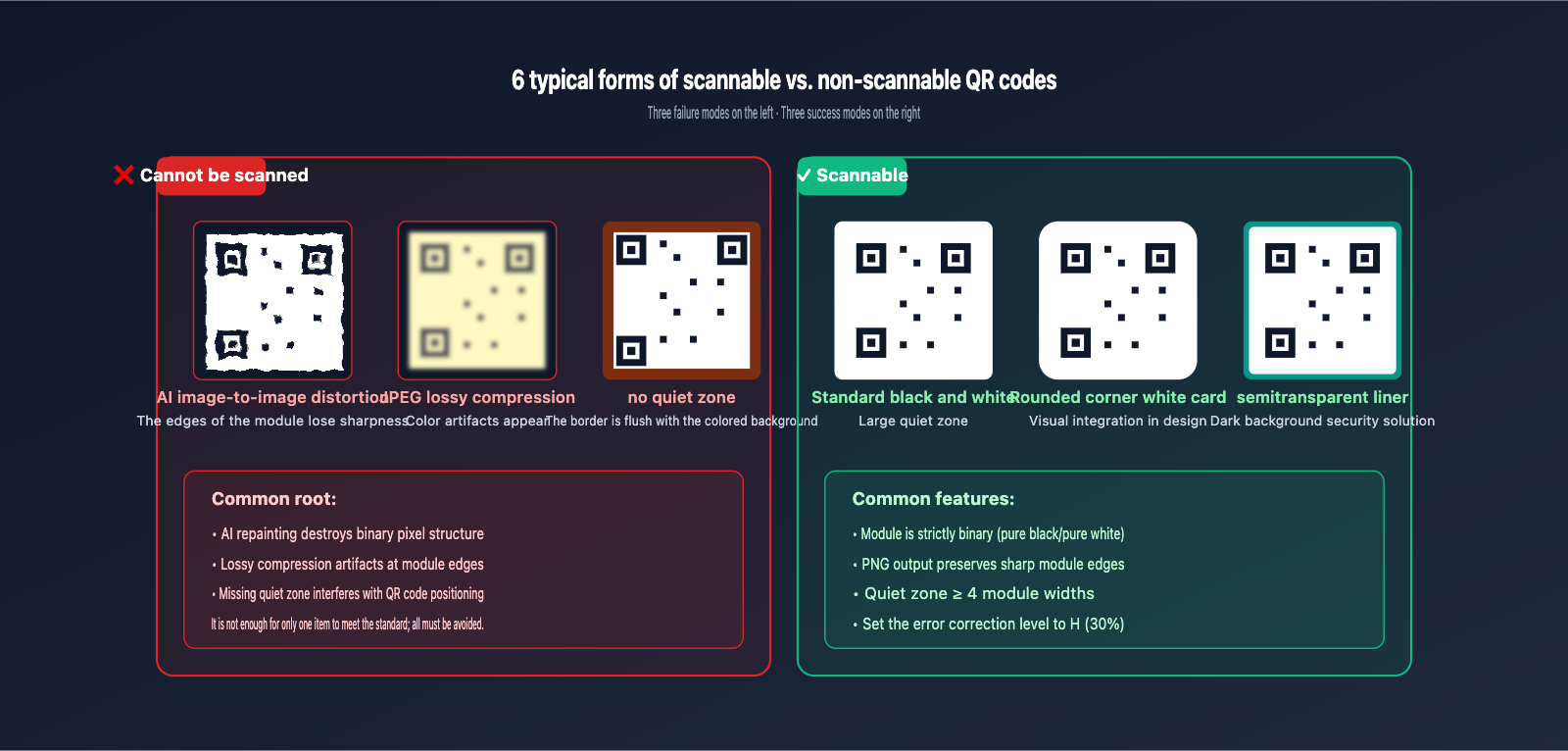
4.1 Add a White Card Background to the QR Code
Simply pasting a black-and-white QR code onto a colorful background might be scannable, but it often looks visually disconnected. The professional approach is to wrap the QR code in a white card with rounded corners and a shadow, which maintains the scan area while allowing the design to blend in seamlessly.
from PIL import Image, ImageDraw, ImageFilter

card = Image.new("RGB", (340, 340), "white")
draw = ImageDraw.Draw(card)
# Rounded white card + centered QR code
card.paste(qr_img, (20, 20))
# Add shadow before pasting onto the background
shadow = card.filter(ImageFilter.GaussianBlur(8))
bg.paste(shadow, (bg.width - 370, bg.height - 360))
bg.paste(card, (bg.width - 370, bg.height - 365))
A white card with a shadow is the standard way to package QR codes in graphic design—it looks great and protects your scan rate.
4.2 Explicitly Reserve Space in AI Prompts
Letting the AI know "where to leave space" is key to reducing rework. It's recommended to include this in your prompt:
leave a clean rectangular area approximately 300x300 pixels at the bottom right corner with light solid color, suitable for placing a brand element
By specifying the pixel size and position, the AI will hit the expected layout about 80% of the time. If it doesn't work on the first try, modifying the prompt is much cheaper than modifying the code.
4.3 Automatically Verify After Compositing
Every composited image should be automatically verified using a scanning library to ensure it's actually scannable:
from pyzbar.pyzbar import decode
result = decode(bg)
assert result and result[0].data.decode() == "https://apiyi.com"
Integrating this step into your CI pipeline ensures you'll never have a "we only realized it wasn't scannable after it went live" incident.
4.4 Cache Backgrounds and QR Codes for Batch Processing
E-commerce scenarios often require "the same background paired with hundreds of different QR codes." In this case, generate the background image via AI only once and cache it in object storage. Subsequent hundreds of compositing operations are then pure local pixel manipulations, reducing your API costs from hundreds of calls to just one.
| Advanced Tip | Problem Solved | Benefit |
|---|---|---|
| White card + shadow | Visual disconnect between QR and background | High |
| Prompt reserved area | Conflicts between composite position and background content | High |
| Automatic scan verification | Discovering non-scannable images after launch | Extremely High |
| Batch caching backgrounds | Uncontrolled API costs | Extremely High |
5. FAQ: Common Questions About AI QR Code Compositing
5.1 Why does the ChatGPT web interface get it right, but the API doesn't?
The web interface uses a specialized internal processing path (detection + compositing) for QR code scenarios, and this logic isn't exposed as an API parameter. It's unrealistic to expect the API to automatically handle QR codes just like the web interface. The correct approach is to replicate this compositing logic in your own code using the first method described in this article.
5.2 Is it feasible to use GPT Image 2's image editing mode + mask to "preserve" the QR code area?
In theory, a mask should preserve the specified area from being redrawn. However, in practice, a 1-3 pixel transition area often appears at the edges of the mask, which is fatal for pixel-sensitive scenarios like QR codes. I recommend skipping the mask approach and sticking to post-processing compositing.
5.3 It doesn't work even when I repeatedly emphasize "do not modify the QR code" in the prompt?
It won't work. A prompt can only influence "what the AI wants to draw," but the AI's output process inherently involves resizing, compression, and neural network generation. These steps damage the QR code indiscriminately, regardless of the prompt's instructions.
5.4 Can I output the composited image as a JPEG to save space?
Not recommended. The 8×8 block discrete cosine transform in JPEG compression creates color artifacts at the boundaries of QR code modules, significantly reducing scan recognition rates. If you must use JPEG, the quality parameter should be ≥95, and it's best to overlay the QR code area as a PNG. The most robust method is to output as a PNG and use a PNG optimizer (like pngquant) to reduce the file size.
5.5 Where can I stably call GPT Image 2 for background image generation?
Developers in China can use APIYI (apiyi.com) to call GPT Image 2 by replacing the base_url with https://vip.apiyi.com/v1, with no proxy configuration required. The platform supports multiple mainstream image models, including GPT Image 2 and Nano Banana Pro, making it easy to compare background quality across different models for your specific business needs.
5.6 If I really want the "QR code itself is an art piece" effect, must I use ControlNet?
Yes, ControlNet QR-Art is currently the only viable solution. GPT Image 2 lacks a pixel-level control interface, so it cannot achieve the effect where "the QR code modules are composed of artistic content." If your requirement is simply to have a QR code placed nicely on an artistic background, the first method—using a white card base with a shadow—is more than enough; there's no need to deal with ControlNet.
5.7 Are there special requirements for QR codes in printing scenarios?
Yes. For printing, it's recommended that the physical size of the QR code be ≥2.5cm × 2.5cm, with the error correction level set to H, a quiet zone of at least 5 modules, and strictly black-and-white colors (avoid grayscale). These parameters ensure the QR code remains scannable even with printing color variations, paper reflections, or changes in scanning distance.
6. Conclusion: The Principle of Separating AI Generation and QR Code Responsibilities
Returning to the opening question—"How do I composite AI-generated images without damaging the QR code?"—the most accurate answer is: Don't let the AI composite the QR code; let the AI only handle the background image, and use an image processing library to composite the QR code afterward. Once this principle is established, all issues related to "redrawing damage" will vanish.
Just remember these three core principles:
- Separation of Duties: AI generates the background, code handles the QR code placement; never mix these two tasks in a single API call.
- Maximize Error Correction: Always use H (30%) error correction for compositing scenarios to gain 15% redundancy for scan reliability.
- PNG Output + Automatic Verification: Use PNG to preserve module sharpness and use
pyzbarto automatically verify scannability.
🎯 Next Steps: Copy the Python code from this article into your project and run a full pipeline using the GPT Image 2 interface on APIYI (apiyi.com). You can verify a 100% scan rate in just 10 minutes. Once this workflow is set up, you can reuse it for all future marketing posters, product packaging, and event materials involving QR codes.
A QR code is not just image content; it is a visual encoding of structured data. Essentially, it is no different from text or a barcode. Treating it as an "asset requiring pixel-level precision" rather than an "image the AI can understand" is the necessary mindset for effectively using AI image generation tools. Switching to this perspective early will save you from the frustration of "spending three days tweaking prompts and still not being able to scan it."
Author: APIYI Technical Team
Supported Platforms: APIYI (apiyi.com) GPT Image 2 / Nano Banana Pro and other image generation interfaces