作者注:A deep dive into the 14 reference image feature of Gemini 3.1 Flash Image Preview and Gemini 3 Pro Image Preview, covering the correct usage of Object Fidelity and Character Consistency, and quota allocation strategies.
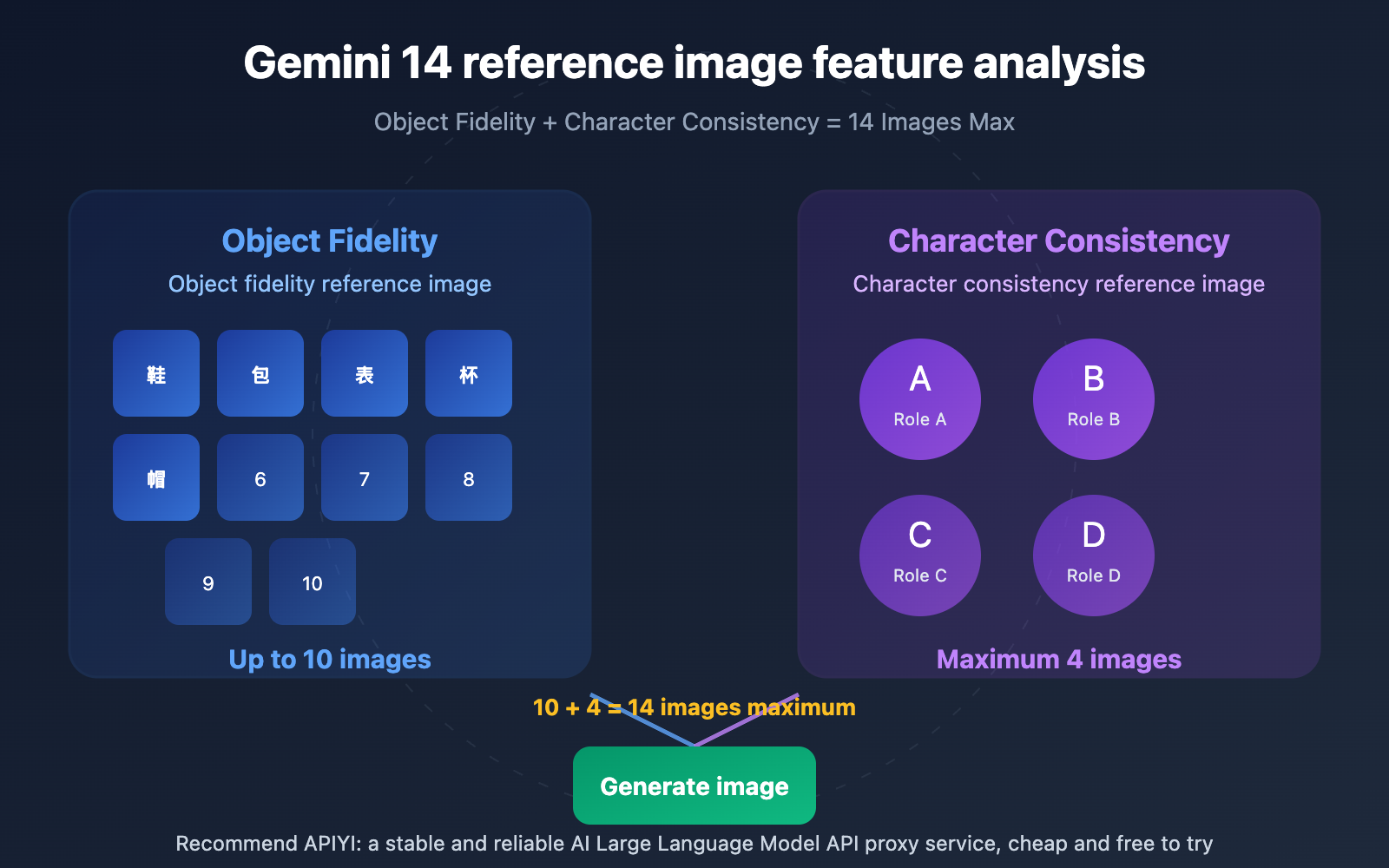
Gemini image models support mixing up to 14 reference images for image generation. However, many developers aren't clear on the allocation rules for these 14 images. This article will thoroughly explain the two core capabilities: Object Fidelity and Character Consistency, helping you correctly understand and efficiently use Gemini's multi-reference image feature.
Core Value: After reading this article, you'll understand the quota allocation logic for the 14 reference images, a comparison of the two models, and best practices for real-world projects.
Key Aspects of Gemini's 14 Reference Image Feature
Google introduced multi-reference image blending capabilities in the Gemini 3 series image models, allowing developers to pass up to 14 reference images in a single generation request. These 14 images aren't just a simple "maximum limit"; they're precisely divided into two functional categories, each responsible for different visual preservation tasks.
| Key Point | Description | Value |
|---|---|---|
| 14 Total Quota | Sum limit for Object Fidelity images + Character Consistency images | Maximum visual reference capability per request |
| Object Fidelity | Ensures specific items are highly reproduced in generated images | Product images, merchandise display, brand assets |
| Character Consistency | Maintains character appearance consistency across different scenes | Sequential stories, brand IP, character marketing |
| Different Model Quotas | Allocation ratios differ between Flash and Pro | Choose the appropriate model based on your needs |
Deep Dive into Gemini's Two Main Reference Image Categories
Object Fidelity refers to integrating specific items from a reference image into the final generated image with high fidelity. For example, if you upload a photo of red sneakers, the model will precisely reproduce the appearance details of those shoes—including color, shape, texture, and logo placement—in the generated scene. This is crucial for scenarios like e-commerce product images and brand material generation.
Character Consistency, on the other hand, focuses on people or characters. When you upload a reference image of a character, the model can generate new images of that character in different backgrounds, poses, and lighting conditions, while maintaining consistency in key visual elements like facial features, hairstyle, and clothing. This is very useful in scenarios such as sequential story illustrations, brand mascot marketing, and game character design.
Understanding the distinction between these two categories is essential for correctly using the 14 reference images. They aren't mutually exclusive; you can mix and match them within the same request, but each has its own independent quantity limit.
Gemini Reference Image Quota Comparison for Two Models
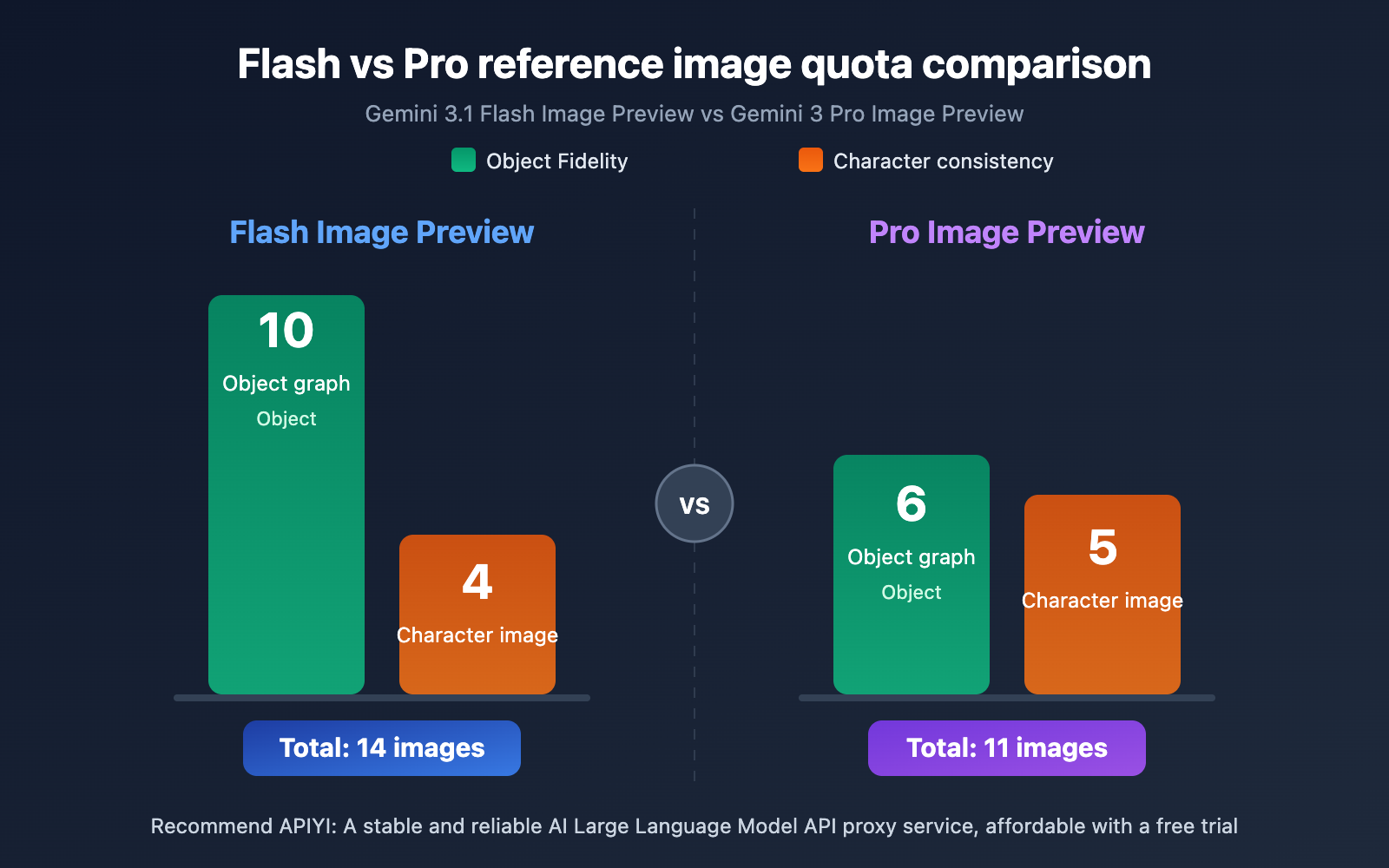
While both Gemini 3.1 Flash Image Preview and Gemini 3 Pro Image Preview support multiple reference images, they have significant differences in how their quotas are allocated.
| Capability Dimension | Gemini 3.1 Flash Image Preview | Gemini 3 Pro Image Preview |
|---|---|---|
| Total Reference Image Limit | 14 images | 11 images |
| Object Fidelity Image Limit | Up to 10 images | Up to 6 images |
| Character Consistency Image Limit | Up to 4 images | Up to 5 images |
| Object Fidelity Focus | Stronger (10 images) | Weaker (6 images) |
| Character Consistency Focus | Weaker (4 images) | Stronger (5 images) |
| Generation Speed | Faster (Flash-level) | Slower (Pro-level) |
| Applicable Scenarios | High-volume product images, multi-item scenes | Multi-character stories, complex character interactions |
Key Points for Understanding Gemini Reference Image Quota Allocation
A crucial point many developers often misunderstand is that 14 reference images don't mean you can allocate them arbitrarily. Let's take Gemini 3.1 Flash Image Preview as an example:
- You can upload a maximum of 10 object fidelity images + 4 character consistency images = 14 images.
- However, you cannot upload 14 object fidelity images and 0 character consistency images (the object fidelity limit is 10 images).
- Nor can you upload 0 object fidelity images and 14 character consistency images (the character consistency limit is 4 images).
In other words, 14 is the theoretical maximum, and you'll only reach it if you use both types of reference images simultaneously and each reaches its respective limit.
The same applies to Gemini 3 Pro Image Preview: a maximum of 6 + 5 = 11 images, not 14. The Pro model's total limit is actually 11 images.
Recommendation: If your scenario primarily involves product showcases (requiring many item reference images), we recommend Gemini 3.1 Flash Image Preview, as it offers a higher object fidelity quota. If your scenario focuses on character-driven stories (requiring consistency across multiple characters), Gemini 3 Pro Image Preview's 5-character quota is more advantageous. You can test both models simultaneously via APIYI apiyi.com to quickly compare their effects.
Getting Started Quickly with Gemini's 14 Reference Images
Minimal Example
Here's the basic code for generating images with multiple reference images using Gemini 3.1 Flash Image Preview:
from google import genai
from google.genai import types
from PIL import Image

client = genai.Client(
    api_key="YOUR_API_KEY",
    http_options={"base_url": "https://vip.apiyi.com/v1"}
)

# Load object reference images (up to 10)
shoe = Image.open("red-shoe.png")
bag = Image.open("leather-bag.png")

# Load character reference images (up to 4)
character = Image.open("brand-mascot.png")

prompt = "Create a product showcase scene featuring this red shoe and leather bag, with the brand mascot character standing next to them in a modern retail environment."

response = client.models.generate_content(
    model="gemini-3.1-flash-image-preview",
    contents=[prompt, shoe, bag, character],
    config=types.GenerateContentConfig(
        response_modalities=["TEXT", "IMAGE"],
    ),
)
View Full Multi-Reference Image Generation Code
from google import genai
from google.genai import types
from PIL import Image
import base64
import os

# Initialize client
client = genai.Client(
    api_key="YOUR_API_KEY",
    http_options={"base_url": "https://vip.apiyi.com/v1"}
)

def generate_with_references(
    prompt: str,
    object_images: list = None,
    character_images: list = None,
    aspect_ratio: str = "16:9",
    model: str = "gemini-3.1-flash-image-preview"
):
    """
    Generate images using multiple reference images

    Args:
        prompt: The generation prompt
        object_images: List of paths for object fidelity images (Flash up to 10)
        character_images: List of paths for character consistency images (Flash up to 4)
        aspect_ratio: Output aspect ratio
        model: Model name
    """
    contents = [prompt]

    # Add object reference images
    if object_images:
        for img_path in object_images:
            contents.append(Image.open(img_path))

    # Add character reference images
    if character_images:
        for img_path in character_images:
            contents.append(Image.open(img_path))

    response = client.models.generate_content(
        model=model,
        contents=contents,
        config=types.GenerateContentConfig(
            response_modalities=["TEXT", "IMAGE"],
            image_config=types.ImageConfig(
                aspect_ratio=aspect_ratio,
            ),
        ),
    )

    # Extract generated image
    for part in response.candidates[0].content.parts:
        if part.inline_data and part.inline_data.mime_type.startswith("image/"):
            image_data = base64.b64decode(part.inline_data.data)
            with open("output.png", "wb") as f:
                f.write(image_data)
            print("Image saved: output.png")

# Usage example: E-commerce product scene
generate_with_references(
    prompt="Professional product photography of these products on a minimalist white display stand",
    object_images=["shoe.png", "bag.png", "watch.png"],
    character_images=["model-person.png"],
    aspect_ratio="16:9"
)
Tip: You can quickly test Gemini image models by getting an API key from APIYI apiyi.com. The platform supports unified API invocation for both Gemini 3.1 Flash Image Preview and Gemini 3 Pro Image Preview.
Gemini Reference Image Use Cases and Optimal Quota Strategies
Different business scenarios call for vastly different allocation strategies for the 14 reference images. Here are recommended configurations for 5 typical scenarios:
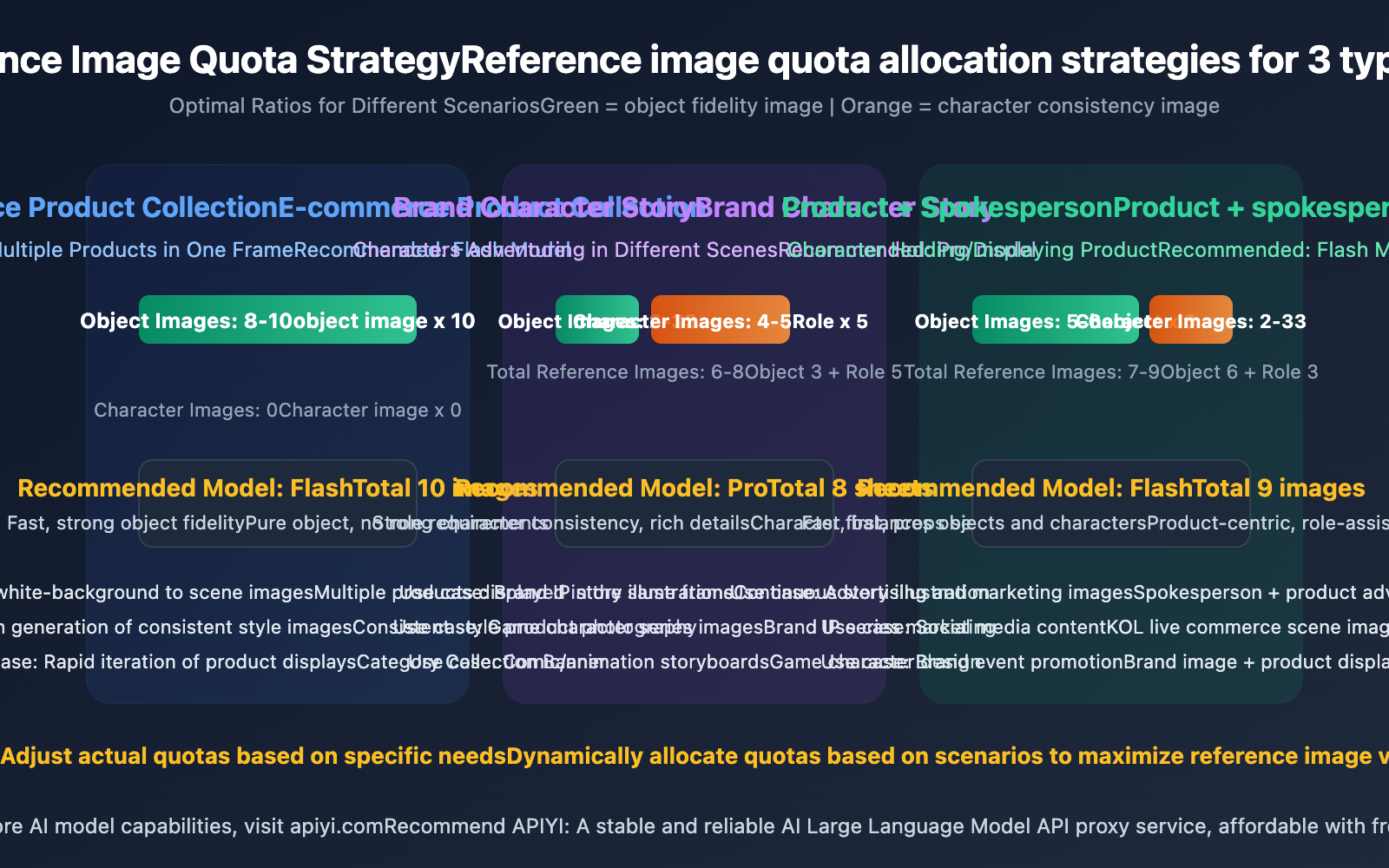
| Scenario | Recommended Model | Object Images | Character Images | Total Reference Images | Description |
|---|---|---|---|---|---|
| E-commerce Product Collection | Flash | 8-10 | 0 | 8-10 | Multiple products displayed together |
| Brand Character Story | Pro | 2-3 | 4-5 | 6-8 | Characters adventuring in different scenes |
| Product + Spokesperson | Flash | 5-6 | 2-3 | 7-9 | Character holding/displaying product |
| Game Character Design | Pro | 3-4 | 4-5 | 7-9 | Multiple character interaction scenes |
| Home Decor Scene Matching | Flash | 8-10 | 0 | 8-10 | Combination of multiple furniture/decor items |
Gemini Reference Images in E-commerce Product Scenarios
E-commerce is the most direct application scenario for the multi-reference image feature. Traditionally, you'd need to shoot scene images for each product individually, which is costly and makes style consistency difficult. With Gemini's object fidelity capabilities, you can use multiple product white-background images as reference images to generate scene images with a consistent style all at once.
We recommend using Gemini 3.1 Flash Image Preview because it supports up to 10 object fidelity images, which is enough to cover a collection of products within a category. Plus, Flash-level generation speed is better suited for high-volume production needs.
Gemini Reference Images in Character Story Scenarios
If you need to generate a series of story illustrations for a brand IP or game character, character consistency is key. Gemini 3 Pro Image Preview supports up to 5 character consistency images, allowing you to maintain the appearance consistency of 5 independent characters simultaneously.
It's important to note that character consistency isn't 100% perfect yet. Google's official documentation also states: "character consistency is not always perfect between input images and generated output images". In practice, we suggest:
- Provide clear, front-facing, evenly lit character reference images.
- Clearly describe each character's key features in the prompt.
- Manually filter and fine-tune the generated results.
Practice Tip: We recommend conducting small-batch tests via APIYI (apiyi.com) first to confirm that the character consistency effect meets your requirements before proceeding with bulk generation. The platform offers free testing credits for quick validation.
Gemini Reference Image Technical Specifications and Considerations
Supported Output Aspect Ratios
Gemini image models support 14 aspect ratios, covering almost all common use cases:
| Aspect Ratio | Typical Use | Suitable Scenarios |
|---|---|---|
| 1:1 | Social media avatars, square product images | Instagram, product thumbnails |
| 16:9 | Landscape display, blog illustrations | Web banners, article headers |
| 9:16 | Portrait display, phone wallpapers | Xiaohongshu, Douyin covers |
| 4:3 | Traditional display ratio | PPT illustrations, traditional posters |
| 3:2 | Standard photography ratio | Product photography, landscape images |
| 21:9 | Ultrawide display | Movie posters, website banners |
| 1:4 / 4:1 | Extreme ratios | Long images, infographics |
Key Limitations for Gemini Reference Image Usage
In practical development, you'll need to pay special attention to these limitations:
- Quotas are hard limits: Exceeding the maximum number of object fidelity or character consistency images will result in an API error.
- Image quality impacts results: Blurry or heavily occluded reference images will reduce fidelity.
- Character consistency isn't 100%: Especially with extreme pose changes or significant differences in lighting conditions.
- Prompts are crucial: Reference images are just visual input; your prompt needs to clearly describe the image content and desired effect.
thoughtSignaturemechanism: In conversational editing, the model relies on the previous round'sthoughtSignatureto understand image composition. You'll need to retain this signature for continuous editing.
Development Tip: APIYI (apiyi.com) supports the full range of Gemini image models, including
gemini-3.1-flash-image-previewandgemini-3-pro-image-preview. You can invoke them using OpenAI-compatible interfaces, no extra adaptation needed.
Frequently Asked Questions
Q1: Do both models support 14 reference images?
Not entirely. 14 is the total limit for Gemini 3.1 Flash Image Preview (10 object fidelity + 4 character consistency). Gemini 3 Pro Image Preview actually has a total limit of 11 images (6 object fidelity + 5 character consistency). When choosing a model, you'll need to decide based on your specific quota requirements.
Q2: Can I use only object fidelity images and not character consistency images?
Yes, you can. These two types of reference images are independent, so you can use just one. For example, e-commerce scenarios typically only require object fidelity images and don't involve character consistency. In such cases, the Flash model can accept up to 10 object fidelity images. You can quickly test different configurations via APIYI (apiyi.com).
Q3: What if character consistency isn’t working well?
Google officially acknowledges that character consistency isn't 100% reliable at the moment. We recommend: (1) using high-definition, front-facing reference images; (2) describing character features in detail within your prompt; (3) generating multiple candidate images and then manually selecting the best ones; and (4) trying to test both Flash and Pro models simultaneously on APIYI (apiyi.com) to compare consistency results.
Q4: How do I distinguish between object fidelity images and character consistency images?
The key difference lies in semantics: object fidelity images are "items" (shoes, bags, watches, etc.) you want to precisely reproduce in the generated output, while character consistency images are "people/characters" whose appearance you want to maintain across different scenes. In API invocations, both are regular image inputs, and the model understands the role of each image through descriptions in your prompt. We recommend explicitly marking referential relationships in your prompt, such as "this shoe" or "this character."
Summary
Key takeaways for Gemini's 14 reference image feature:
- Quota in Two Categories: The 14-image limit is a combination of object fidelity images and character consistency images, each having its own independent cap.
- Model Differences: Flash prioritizes object fidelity (up to 10 images), while Pro focuses on character consistency (up to 5 images).
- Scenario-Based Selection: Opt for Flash for product showcases, Pro for character-driven narratives, and allocate as needed for mixed scenarios.
- Character Consistency Needs Validation: It's not 100% perfect, so we recommend small-batch testing before generating in bulk.
Understanding the quota allocation logic is key to efficiently using Gemini's multi-reference image feature. We recommend using APIYI apiyi.com to quickly test the actual performance of both Flash and Pro models. The platform offers free quotas and a unified interface, making it easy to compare and choose the best solution for your scenario.
References
-
Google Gemini Image Generation Documentation: Official multi-reference image feature description
- Link:
ai.google.dev/gemini-api/docs/image-generation - Description: Includes detailed API specifications and code examples for the 14 reference images.
- Link:
-
Gemini 3.1 Flash Image Preview Model Card: Model capabilities and limitations
- Link:
deepmind.google/models/model-cards/gemini-3-1-flash-image/ - Description: Technical specifications and performance parameters for the Flash image model.
- Link:
-
Gemini 3 Developer Guide: Complete development documentation for the Gemini 3 series models
- Link:
ai.google.dev/gemini-api/docs/gemini-3 - Description: Covers development guides for multimodal capabilities including text, image, and video.
- Link:
Author: APIYI Tech Team
Technical Discussion: Feel free to discuss Gemini multi-reference image usage tips in the comments section. For more resources, visit the APIYI docs.apiyi.com documentation center.