author: 技术团队
description: "# Detailed Guide: Converting 4K Images from Nano Banana Pro (Gemini
3 Pro Image) to Vector Graphics\n\n## Core Differences Between Vector Graphics and
Bitmap Images\n\n### Bitmap Images (Raster Graphics)\n- Composition: Made up
of pixels arranged in a grid\n- Resolution-dependent: Quality degrades when
scaled up\n- File characteristics: 4K images contain fixed pixel dimensions
(e.g., 3840×2160)\n- Common formats: JPG, PNG, WebP, BMP\n- Best for: Photographs,
complex color gradients, realistic images\n\n### Vector Graphics\n- Composition:
Defined by mathematical formulas (paths, curves, shapes)\n- Resolution-independent:
Infinitely scalable without quality loss\n- File characteristics: Stores geometric
data and attributes\n- Common formats: SVG, EPS, AI, PDF\n- Best for: Logos,
illustrations, icons, typography, technical drawings\n\n—\n\n## Converting 4K
Images to Vector Graphics\n\n### Important Consideration\nConverting bitmap
to vector is fundamentally image tracing, not true vectorization. Results depend
heavily on image complexity.\n\n### Method 1: Using Adobe Illustrator (Professional)\n\nbash\n# Workflow steps:\n1. Open 4K image in Adobe Illustrator\n2. Select image → Object → Image Trace → Make\n3. Adjust tracing settings:\n - Mode: Color/Grayscale/Black & White\n - Threshold: Control detail level\n - Paths: Adjust complexity\n - Corners: Edge sharpness\n4. Object → Image Trace → Expand\n5. Export as AI/EPS/SVG\n\n\n###
Method 2: Using Inkscape (Free & Open Source)\n\nbash\n# Installation (macOS)\nbrew install --cask inkscape\n\n# Workflow:\n1. Import 4K image (File → Import)\n2. Select image → Path → Trace Bitmap\n3. Configure options:\n - Detection mode: Edge detection/Color quantization\n - Scans: Number of colors to extract\n - Smooth: Reduce jagged edges\n4. Update → OK\n5. Export as SVG (File → Save As → SVG)\n\n\n### Method
3: Using Online Tools\n\nvectorizer.ai or vectormagic.com:\n- Upload 4K
image\n- Auto-detect or manually adjust settings\n- Download SVG/EPS/PDF output\n\n###
Method 4: Using Command-Line Tools\n\nbash\n# Using potrace (for black & white images)\nbrew install potrace\n\n# Convert PNG to SVG\npotrace input.png -s -o output.svg\n\n# Using autotrace (for color images)\nbrew install autotrace\n\nautotrace -output-format svg input.png -output-file output.svg\n\n\n—\n\n## Vector Format Comparison:
SVG vs EPS vs AI\n\n| Feature | SVG | EPS | AI |\n|———|—–|—–|—–|\n|
Full Name | Scalable Vector Graphics | Encapsulated PostScript | Adobe Illustrator
|\n| Type | Open standard (W3C) | Adobe/industry standard | Proprietary (Adobe)
|\n| Compatibility | Web browsers, most software | Print industry, design tools
| Adobe products primarily |\n| Editability | Text-based XML (human-readable)
| PostScript code | Binary/compressed |\n| Web Support | Native HTML embedding
| Requires conversion | Requires conversion |\n| Animation | Supports CSS/JavaScript
animation | Static only | Static only |\n| File Size | Generally smaller | Medium
| Varies (can be large) |\n| Raster Support | Can embed images | Can embed images
| Full raster/vector hybrid |\n| Color Models | RGB, HSL | CMYK, RGB, spot colors
| CMYK, RGB, Pantone, etc. |\n| Transparency | Full alpha channel support |
Limited support | Full support |\n| Fonts | Can embed or outline | Typically
outlined | Can embed fonts |\n| Layers | Groups/nested elements | Limited layer
support | Full layer support |\n| Best Use Case | Web graphics, interactive
content | Print production, legacy workflows | Professional design work |\n\n###
Detailed Format Characteristics\n\n#### SVG (Scalable Vector Graphics)\n\nAdvantages:\n-
Web-native format (direct browser rendering)\n- XML-based (editable in text editors)\n-
Supports interactivity and animation\n- Excellent compression with gzip\n- Accessible
(can add ARIA labels)\n\nLimitations:\n- Less suited for CMYK print workflows\n-
Limited complex effect support vs AI\n- Font handling can be inconsistent\n\nExample
SVG code:\n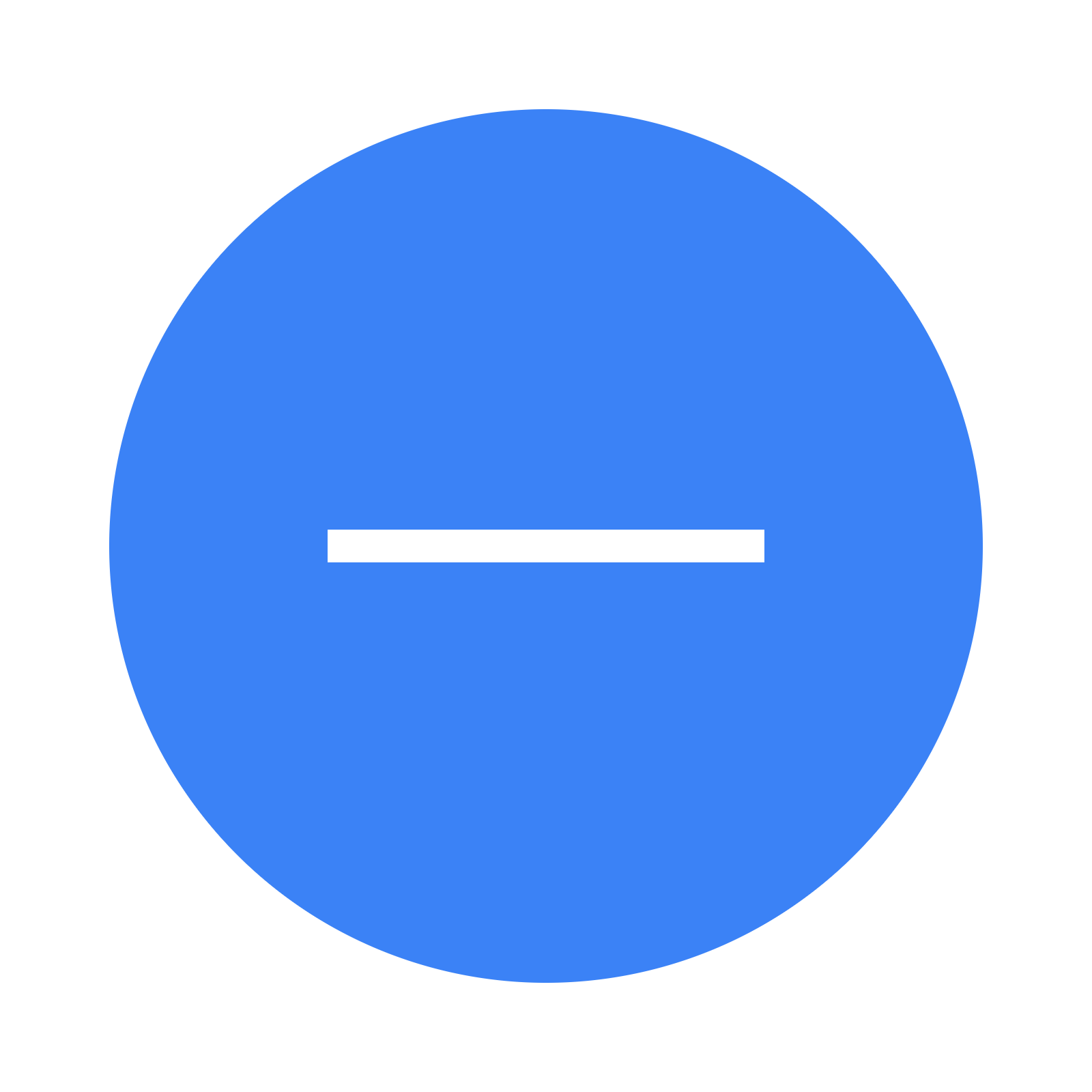
Advantages: Small file size, searchable, web-friendly, easy to integrate
Limitations: Limited capability for complex gradients and photographic effects
EPS (Encapsulated PostScript)
Technical Characteristics:
- Encapsulated version of PostScript language, designed specifically for printing
- Can contain both vector and bitmap elements simultaneously
- Supports CMYK color mode with precise color management
Typical Application Scenarios:
- Professional printing and publishing industry
- Graphic and text layout for newspapers and magazines
- Vector graphics for high-quality printed materials
- Scientific papers requiring import into LaTeX documents
Advantages: Strong cross-platform compatibility, high print quality, broad software support
Limitations: Not suitable for web display, larger file sizes
AI (Adobe Illustrator)
Technical Characteristics:
- Native format of Adobe Illustrator, industry standard
- Preserves complete layer, path, node, and effect information
- Supports advanced features like transparency, gradients, brushes, and symbols
Typical Application Scenarios:
- Logo and brand visual design
- Complex vector illustration creation
- Print materials and poster design
- Projects requiring multiple iterations and modifications
Advantages: Most powerful features, preferred by professional designers, highest editing flexibility
Limitations: Dependent on Adobe ecosystem, less universal than SVG and EPS
PDF (Portable Document Format)
Technical Characteristics:
- Can embed both vector graphics and bitmap images
- Best cross-platform compatibility, viewable on all devices
- Supports multi-page documents and embedded fonts
Typical Application Scenarios:
- Document sharing and archiving
- Final file delivery before printing
- Composite documents containing both text and graphics
💡 Selection Recommendation: If you need to convert images generated by Nano Banana Pro API to vector format, choose the format based on final usage. Select SVG for web design, EPS or AI for printed materials, and PDF for general sharing. The apiyi.com platform provides stable Nano Banana Pro API access, with unified pricing of $0.05 USD for 1K/2K/4K images, priced at only 20% of official rates. Generate high-quality bitmaps first, then convert to vector format.
Nano Banana Pro 4K Output Detailed Explanation
Output Formats and Resolutions
Nano Banana Pro (Gemini 3 Pro Image API) supports the following output configurations:
Resolution Options:
- 1024×1024 (1K): Suitable for social media and web previews
- 2048×2048 (2K): Suitable for HD display and medium-sized printing
- 4096×4096 (4K): Professional-grade resolution, suitable for large-format printing and detailed display
File Formats:
- PNG: Default output format, supports transparency channel, lossless compression
- JPEG: Suitable for photographic-style images, lossy compression, smaller file size
- WEBP: Modern format, higher compression ratio, good browser compatibility
🚀 Technical Advantages: By calling Nano Banana Pro API through the apiyi.com platform, 1K/2K/4K resolutions are uniformly priced at $0.05 USD per generation, saving 78% compared to official pricing. The platform provides stable calling with unlimited concurrency, suitable for batch generation and commercial applications.
Why Not Vector Graphics?
Many users mistakenly believe that "flat-style illustrations" or "vectorized-style images" generated by Nano Banana Pro are vector graphics, but the reality is:
Visual Style ≠ File Format:
- You can generate flat-style images that look like vector graphics through prompts
- But the output files are still PNG or JPEG composed of pixels
- Will still show pixelation when enlarged, unable to achieve true lossless scaling of vector graphics
Example Prompt:
A flat vector style illustration of a cat, minimalist design,
solid colors, no gradients, clean lines, 4K resolution
This prompt will generate flat illustrations visually similar to vector graphics, but the file format is still bitmap. If you need true vector graphics, you must perform bitmap to vector (Vectorization) post-processing.
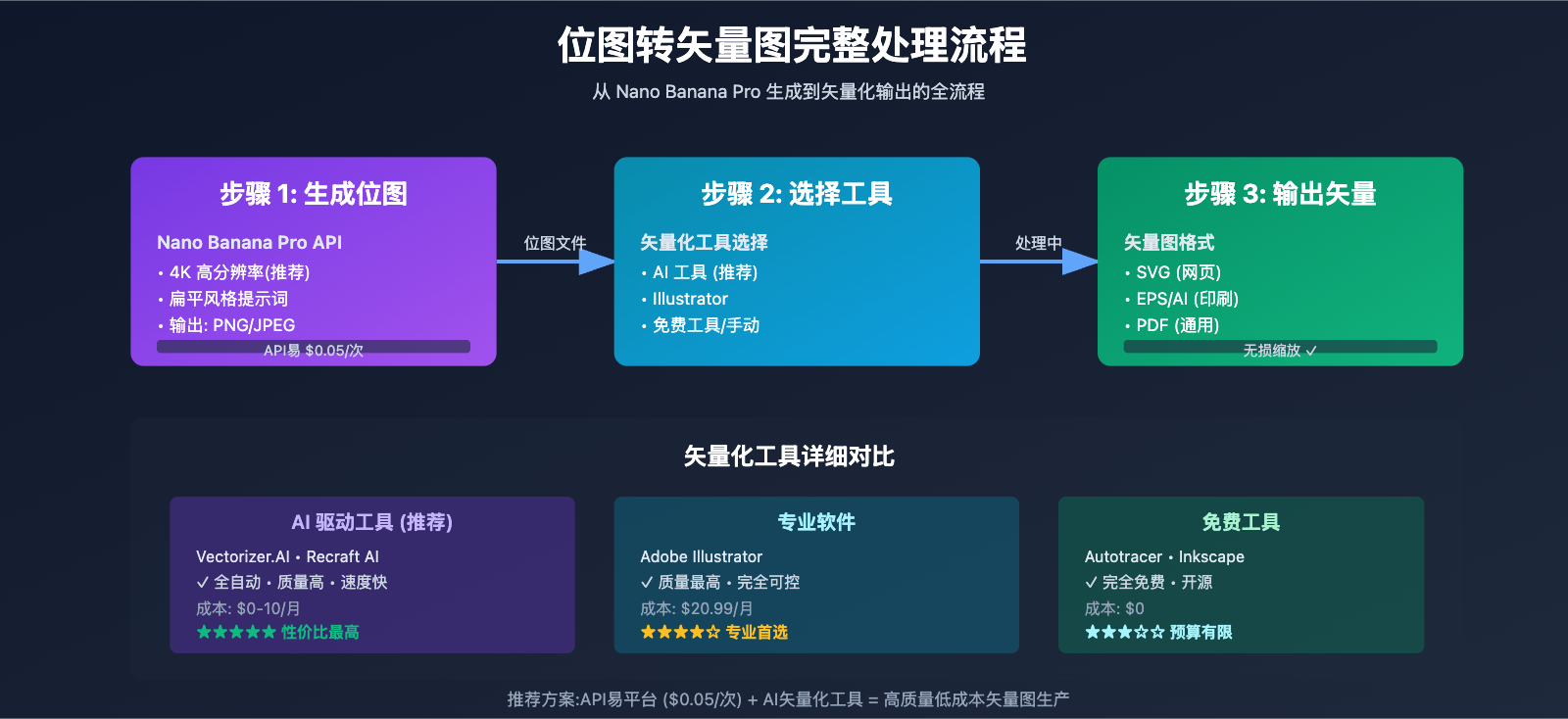
5 Practical Methods for Converting Bitmap to Vector Graphics
Method 1: AI-Powered Online Vectorization Tools
Recommended Tools:
- Vectorizer.AI (paid service, highest quality)
- Recraft AI Image Vectorizer (free, excellent results)
- Kittl AI Vectorizer (free tier available, fast conversion)
Core Principle:
Uses deep learning models to analyze bitmap edges, shapes, and colors, automatically tracing outlines and generating vector paths. AI algorithms intelligently recognize graphic elements, optimize node count, and maintain detail and color accuracy.
Operation Steps:
- Visit Vectorizer.AI or Recraft AI website
- Upload PNG/JPEG images generated by Nano Banana Pro
- AI automatically analyzes and generates vector preview
- Adjust parameters (color count, detail preservation, edge smoothness)
- Download vector files in SVG/EPS/AI format
Advantages:
- Fully automated processing, no manual tracing required
- AI-optimized edges and paths with high quality
- Supports complete conversion of color images
- Fast processing, typically completed in 10-30 seconds
Disadvantages:
- High-quality tools require payment (Vectorizer.AI approximately $9.99/month)
- Complex gradients and photo details may be simplified
- Output files may need manual optimization
🎯 Technical Recommendation: For flat-style illustrations generated by the Nano Banana Pro API, AI vectorization tools work best. Recommend first generating 4K high-definition bitmaps through the apiyi.com platform ($0.05/request), then using Recraft AI for free conversion to SVG, offering the lowest overall cost with guaranteed quality.
Method 2: Adobe Illustrator Image Trace
Technical Features:
Adobe Illustrator is the industry-standard vector graphics software with a powerful built-in "Image Trace" feature that automatically converts bitmaps into editable vector paths.
Operation Steps:
- Open Nano Banana Pro generated images in Illustrator
- Select the image and click the "Image Trace" button at the top
- Choose preset modes:
- High Fidelity Photo: Preserves maximum detail and color
- 3 Colors: Simplifies to 3 main colors, suitable for logos
- 16 Colors: Balances detail and file size
- Black and White Logo: Converts to monochrome vector
- Adjust advanced options:
- Path count: Controls detail and node count
- Corners: Controls edge sharpness
- Noise: Reduces small fragments
- Click "Expand" to convert to editable paths
- Export in AI/EPS/SVG format
Advantages:
- Professional-grade quality and fine-grained control
- Fully editable vector paths
- Suitable for complex graphic conversion
- Seamless integration with Adobe ecosystem
Disadvantages:
- Requires Adobe Illustrator subscription (approximately $20.99/month)
- Steep learning curve
- Manual adjustment and optimization time-consuming
Method 3: Free Open-Source Vectorization Tools
Recommended Tools:
- Autotracer (web-based, completely free)
- Vector Magic (web-based, free trial then paid)
- Inkscape (desktop software, open-source and free)
Autotracer Usage Guide:
- Visit autotracer.org website
- Upload JPG/PNG image (max 1MB)
- Automatic processing generates vector preview
- Download in SVG/EPS/AI/PDF/DXF format
- No registration required, completely free
Inkscape Usage Guide:
- Download and install Inkscape desktop software (cross-platform)
- Import bitmap image
- Menu: Path → Trace Bitmap
- Select detection mode:
- Edge detection: Suitable for line art and simple graphics
- Color quantization: Suitable for color images
- Adjust threshold and parameters, preview results
- Confirm to generate vector paths
- Export in SVG/PDF format
Advantages:
- Completely free with no usage restrictions
- Open-source and transparent, privacy-safe
- Supports batch processing (Inkscape scripts)
- Suitable for individuals and small teams with limited budgets
Disadvantages:
- Quality slightly lower than AI-powered tools and Illustrator
- Complex images require significant manual adjustment
- Slower processing speed
💰 Cost Optimization: For projects with limited budgets, recommend combination approach: generate Nano Banana Pro images at low cost through apiyi.com platform ($0.05/request), then use Autotracer or Inkscape for free vector conversion, with overall cost near zero.
Method 4: Manual Vectorization (Pen Tool Tracing)
Applicable Scenarios:
- Extremely high graphic quality requirements
- Fully customized paths and details needed
- Logo and brand identity design
- Simple graphic conversion
Technical Workflow:
- Create new document in Adobe Illustrator or Figma
- Import Nano Banana Pro generated bitmap as reference base layer
- Lower base layer transparency (30-50%), lock layer
- Manually trace outlines using Pen Tool:
- Create anchor points along edges
- Adjust Bézier curve control handles
- Close paths and fill colors
- Trace all elements in layers
- Delete base layer, export vector file
Advantages:
- Highest quality, fully controllable
- Optimized paths with minimal nodes
- Suitable for precise and complex designs
- Learn professional path tool skills
Disadvantages:
- Extremely time-consuming, complex graphics require hours
- Requires professional skills and patience
- Not suitable for photos and complex gradients
- High labor cost
Method 5: Online Chinese Vectorization Services
Recommended Platforms:
- Logosc.cn Image Vectorization Tool (AI-based, Chinese interface)
- Danqing AI Vector Conversion (supports batch processing)
- Instant Design Vectorization Tool (integrated in domestic design platform)
Logosc.cn Usage Guide:
- Visit logosc.cn/design/tools/image-vectorizer
- Upload JPG/PNG image
- AI automatically recognizes edges and colors
- Preview vectorization effect
- Download in SVG/EPS/AI format
- Supports Chinese interface and customer service
Danqing AI Features:
- Supports batch conversion, up to 50 images at once
- Automatically optimizes edges and colors
- Provides API interface, suitable for programmatic batch processing
- Fast access speed within China
Advantages:
- Chinese interface, easy to get started
- Optimized for Chinese users
- Some tools offer free quotas
- Domestic servers, fast speed
Disadvantages:
- Quality slightly lower than international tools
- Advanced features require payment
- Privacy policies need attention
💡 Selection Recommendation: For scenarios requiring batch vectorization of large volumes of images generated with Nano Banana Pro API, we suggest calling the API through apiyi.com platform to generate 4K bitmaps, then using Danqing AI's batch conversion feature for processing. This combination enables automated workflow suitable for commercial-scale production.
Best Practice Recommendations
Optimizing Nano Banana Pro Output for Vectorization
Prompt Optimization Strategy:
If you plan to convert Nano Banana Pro generated images to vector graphics, emphasize these characteristics in your prompts:
# Recommended Prompt Template
A flat vector style illustration, minimalist design, solid colors,
no gradients, clean edges, sharp boundaries, simple shapes,
no shadows, no textures, 4K resolution, professional quality
Keyword Analysis:
- flat vector style: Flat vector style, reduces complex gradients
- solid colors: Solid color fills, avoids gradients and textures
- clean edges: Clear edges, facilitates contour tracing
- sharp boundaries: Sharp boundaries, improves vectorization quality
- simple shapes: Simple shapes, reduces node count
- no shadows/textures: Removes shadows and textures, simplifies processing
Negative Example (not suitable for vectorization):
Photorealistic portrait, detailed textures, soft lighting,
bokeh background, film grain, natural shadows
This photorealistic style contains numerous gradients, textures, and details that will lose significant information when converted to vector graphics—not recommended.
🎯 Technical Recommendation: In actual development, when calling the Nano Banana Pro API through apiyi.com platform, recommend specifying clear prompts in request parameters to generate flat-style images suitable for vectorization. Platform supports all official parameters, priced at only $0.05/request with unified pricing for 1K/2K/4K, no need to worry about resolution costs.
Vectorization Parameter Adjustment Tips
Color Count Control:
- 3-6 colors: Suitable for logos and icons, smallest file size, fewest nodes
- 8-16 colors: Balances detail and file size, suitable for illustrations
- 32+ colors: Preserves more details, suitable for complex graphics
Detail Preservation:
- Low detail: Simplifies small elements, reduces fragments, suitable for post-scaling use
- Medium detail: Balances quality and file size, universal choice
- High detail: Preserves all details, large file, complex editing
Edge Smoothness:
- High smoothness: Rounded edges, suitable for organic shapes and curves
- Low smoothness: Preserves sharp edges, suitable for geometric shapes
Node Optimization:
- Use "Simplify Path" function after vectorization
- Reduce node count by 30-50% without affecting visual quality
- Decreases file size, improves editing performance
Vector File Format Selection Strategy
Web Frontend Projects:
- Prefer SVG, small file size, natively supported by browsers
- Can be directly embedded in HTML or referenced as
<img> - Supports CSS styling and JavaScript interaction
Print Design:
- Prefer EPS or AI, CMYK color mode
- Ensure fonts are outlined (converted to paths)
- Include 3mm bleed
Cross-Platform Sharing:
- Prefer PDF, best compatibility
- Embed all fonts and graphics
- Suitable for client review and archiving
Post-Editing Requirements:
- Prefer AI (Adobe Illustrator format)
- Preserves layers, effects, and editing history
- Priority choice for team collaboration
🚀 Quick Experience: Recommend first quickly generating test images through apiyi.com platform to verify prompt effectiveness and vectorization quality. Platform provides stable Nano Banana Pro API access with unlimited concurrency, suitable for rapid iteration and batch testing, priced as low as 20% of official rates.
Batch Processing and Automated Workflow
Python Automation Script Example:
import requests
import subprocess

# Step 1: Generate images via API Yi platform calling Nano Banana Pro API
def generate_image(prompt):
    url = "https://api.apiyi.com/v1/images/generate"
    headers = {
        "Authorization": "Bearer YOUR_APIYI_TOKEN",
        "Content-Type": "application/json"
    }
    payload = {
        "model": "gemini-3-pro-image-preview",
        "prompt": f"{prompt}, flat vector style, solid colors, 4K",
        "size": "4096x4096",
        "quality": "hd"
    }

    response = requests.post(url, headers=headers, json=payload)
    image_url = response.json()['data'][0]['url']

    # Download image
    image_data = requests.get(image_url).content
    with open("generated_image.png", "wb") as f:
        f.write(image_data)

    return "generated_image.png"

# Step 2: Call vectorization tool API
def vectorize_image(input_path, output_path):
    # Use vtracer command-line tool (open-source)
    subprocess.run([
        "vtracer",
        "--input", input_path,
        "--output", output_path,
        "--colormode", "color",
        "--hierarchical", "stacked",
        "--mode", "spline",
        "--filter-speckle", "4",
        "--color-precision", "6"
    ])

    return output_path

# Step 3: Batch processing
prompts = [
    "A cat in space",
    "A mountain landscape",
    "A coffee cup icon"
]

for i, prompt in enumerate(prompts):
    print(f"Processing {i+1}/{len(prompts)}: {prompt}")

    # Generate bitmap
    image_path = generate_image(prompt)

    # Convert to vector
    svg_path = f"output_{i+1}.svg"
    vectorize_image(image_path, svg_path)

    print(f"Saved: {svg_path}")
Workflow Advantages:
- Automated generation and conversion, no manual intervention required
- Batch process hundreds of images
- Unified quality standards and parameters
- Suitable for commercial-scale production
💰 Cost Optimization: Calling Nano Banana Pro API through apiyi.com platform, unified pricing of $0.05/request for 1K/2K/4K, saving 78% compared to official pricing of $0.234. Batch calling 1000 images costs only $50, combined with open-source vectorization tools, overall cost is extremely low, suitable for startups and small-to-medium enterprises.
Frequently Asked Questions
Can Nano Banana Pro directly generate vector graphics?
No. Nano Banana Pro (Gemini 3 Pro Image API) is an image generation model that outputs raster formats (PNG, JPEG, WEBP, HEIF), not vector formats (SVG, EPS, AI).
Even if you request "vector style" or "flat vector illustration" in your prompt, the model still generates raster images that visually resemble vector graphics. The files are essentially composed of pixels. If you need true vector graphics, you must perform raster-to-vector conversion after generation.
🎯 Technical Recommendation: For projects requiring vector graphics, we recommend first generating 4K high-resolution rasters through the API易 apiyi.com platform, then converting them using professional vectorization tools. This two-step approach delivers the highest quality vector graphics at a controlled cost.
Does 4K resolution affect vectorization quality?
Yes, significantly. Higher resolution rasters contain more pixel information, allowing vectorization tools to more accurately identify edges, contours, and details, generating smoother and more precise vector paths.
Resolution Comparison:
- 1K (1024×1024): Basic quality, suitable for simple graphics
- 2K (2048×2048): Good quality, suitable for moderately complex graphics
- 4K (4096×4096): Best quality, suitable for complex graphics and large-format printing
Real-World Example:
Suppose you need to convert a detailed illustration to vector graphics:
- Vectorizing from 1K image: Edges may show jaggedness, small details lost
- Vectorizing from 4K image: Smooth edges, complete detail retention, well-distributed nodes
💡 Selection Recommendation: On the API易 apiyi.com platform, 1K/2K/4K images are uniformly priced at $0.05/call with no cost difference. We recommend directly selecting 4K resolution generation to ensure the quality ceiling for subsequent vectorization, avoiding quality issues caused by insufficient resolution.
Are all raster images suitable for conversion to vector graphics?
No. The effectiveness of raster-to-vector conversion highly depends on the original image characteristics:
Image Characteristics Suitable for Vectorization:
- Flat-style illustrations with solid colors
- Logos and icons with clean edges
- Cartoon characters and anime styles
- Geometric shapes and simple forms
- High-contrast black and white images
Image Characteristics Unsuitable for Vectorization:
- Photorealistic images
- Complex gradients and lighting effects
- Natural textures (wood grain, fabric, skin)
- Blurry or low-resolution images
- Highly detailed illustrations
Judgment Method:
If your image primarily consists of clear color blocks and boundaries, vectorization typically works well. If the image is full of gradients, textures, and subtle shading variations, vectorization will significantly simplify it, potentially making raster format preferable.
🎯 Technical Recommendation: When generating images with the Nano Banana Pro API, if you plan to vectorize them later, explicitly request "flat style, solid colors, clean edges" in your prompt to generate image styles suitable for vectorization. The API易 apiyi.com platform supports all official prompt parameters, allowing flexible control over output style.
What if the vectorized file becomes larger?
This is normal. When complex images are vectorized, the large amount of path, node, and color information may result in SVG files larger than the original PNG.
Optimization Strategies:
-
Reduce Color Count:
- Set lower color count during vectorization (e.g., 8-16 colors)
- Manually merge similar colors
-
Simplify Paths:
- Use "Simplify Path" function to reduce node count
- In Illustrator: Object → Path → Simplify
- In Inkscape: Path → Simplify
-
Compress SVG:
- Use SVGO tool to compress SVG code
- Remove unnecessary metadata and comments
- Command line:
svgo input.svg -o output.svg
-
Convert to SVGZ:
- SVGZ is gzip-compressed SVG
- File size reduction of 50-80%
- Natively supported by browsers
Command Line Compression Example:
# Install SVGO
npm install -g svgo

# Compress single file
svgo input.svg -o output.svg

# Batch compression
svgo -f input_folder -o output_folder
Is there a big difference between free and paid tools?
There's a notable difference, but it depends on image complexity and quality requirements.
Free Tools (e.g., Autotracer, Inkscape):
- Suitable for simple graphics and low-complexity images
- May require manual cleaning and optimization
- Slower processing speed
- Medium output quality
AI Paid Tools (e.g., Vectorizer.AI):
- Suitable for complex graphics and high-quality requirements
- AI automatic edge and node optimization
- Fast processing speed (10-30 seconds)
- Output quality approaching professional grade
Adobe Illustrator:
- Most powerful functionality, highest quality
- Fully controllable parameter adjustment
- Suitable for professional designers
- Requires learning curve
Overall Recommendation:
- Personal learning and small projects: Use free tools
- Commercial projects and batch processing: Use AI paid tools
- Professional design and high requirements: Use Adobe Illustrator
💰 Cost Optimization: Even when using paid vectorization tools, generating rasters through API易 apiyi.com platform's low-cost Nano Banana Pro API calls ($0.05/call) keeps overall costs far below hiring designers to hand-draw vector graphics. Recommended combination: API易 platform + Vectorizer.AI for high-quality, low-cost vector graphic production.
What advantages does API易 platform's Nano Banana Pro API offer?
The API易 apiyi.com platform provides enterprise-grade stable access to Nano Banana Pro (Gemini 3 Pro Image API) with the following technical and commercial advantages:
Price Advantages:
- Uniform pricing for 1K/2K/4K resolution: $0.05 USD/call
- Official pricing (4K): $0.234 USD/call
- Savings ratio: 78% (as low as 20% of official price)
- Monthly consumption of 1000 images costs only $50, versus $234 official
Stability Guarantees:
- Unlimited concurrent calls, avoiding official API overload issues
- Enterprise-level SLA guarantee, 99.9% availability
- Dedicated line acceleration, faster response speed
- Long-term reliable supply, no quota limit concerns
Technical Support:
- Fully compatible with official API format, seamless migration
- Provides sample code and integration documentation
- Dedicated technical support, rapid response
- Supports batch calls and automated workflows
Applicable Scenarios:
- Commercial applications generating images in bulk
- Design workflows requiring vectorization processing
- Cost-sensitive startup teams
- Production environments requiring stability guarantees
🚀 Quick Start: Visit API易 platform apiyi.com to register an account, and start calling after obtaining API key. The platform also provides an online testing page allowing quick experience of Nano Banana Pro's generation effects without writing code, verifying whether it meets your vectorization needs.
Summary and Outlook
While Nano Banana Pro (Gemini 3 Pro Image API) supports 4K high-resolution image generation, it outputs raster formats (PNG/JPEG), not vector graphics (SVG/EPS/AI). Understanding the core differences between vector and raster graphics helps in selecting appropriate image formats and processing workflows for actual projects.
Core Takeaways:
- Vector graphics use mathematical formulas to describe graphics, scalable without loss, suitable for logos, icons, and printed materials
- Raster images are composed of pixels, lose quality when enlarged, suitable for photos and complex gradients
- Nano Banana Pro outputs raster images, requiring post-processing conversion to vector graphics
- 5 vectorization methods: AI tools, Illustrator, free tools, manual tracing, Chinese platforms
- Optimization strategies: Emphasize flat style in prompts, 4K resolution, image characteristics suitable for vectorization
💡 Overall Recommendation: For projects requiring large-scale image generation and vectorization, we recommend the "API易 platform + AI vectorization tools" combination approach. Generate 4K high-resolution rasters at low cost through API易 apiyi.com platform ($0.05/call), then automatically convert to vector graphics using Vectorizer.AI or Recraft AI, achieving high-quality, low-cost, automated production workflows.
As AI image generation technology continues to advance, models that directly output vector formats may emerge in the future. But until then, mastering raster-to-vector conversion techniques and tools is an essential skill for designers and developers. By reasonably selecting tools and optimizing workflows, it's entirely possible to build an efficient vector graphic production system based on the Nano Banana Pro API.
Recommended Action Path:
- Visit API易 platform apiyi.com to register and obtain API key
- Use online testing page to verify Nano Banana Pro generation effects
- Select appropriate vectorization tools (free or paid)
- Optimize prompts to generate flat-style images suitable for vectorization
- Establish automated batch processing workflows
- Choose SVG/EPS/AI formats based on actual project needs
Through systematic technical solutions and cost optimization strategies, you can significantly reduce vector graphic production costs while ensuring quality, providing efficient and stable image resource support for design and development projects.