Author's Note: A deep dive into how to control the image output format for the Nano Banana Pro API. Learn how to save as PNG using base64 decoding, complete with code examples.
When using the Nano Banana Pro API to generate images, many developers hit a snag: How do you force the output to be a PNG instead of a JPG? This post will break down exactly how to do that and offer a few different ways to get it done.
Core Value: By the end of this article, you'll master the principles behind Nano Banana Pro's image formats and learn how to save images in any format you like via base64 decoding.

Key Points for Nano Banana Pro Image Output
| Point | Description | Value |
|---|---|---|
| API returns base64 | inlineData contains the image's base64 encoding |
Raw data is format-neutral |
| Specify format when saving | Save as PNG/JPG/WebP after decoding base64 | Full developer control over output |
| No official format param | Nano Banana Pro lacks an output_mime_type parameter |
Must be handled on the client side |
| PNG preserves transparency | Perfect for designs requiring transparent backgrounds | Lossless compression quality |
| JPG files are smaller | Great for photos and web transmission | High compression ratio |
Why doesn't the official API provide format control parameters?
If you check the official Google AI documentation at ai.google.dev/gemini-api/docs/image-generation, you'll notice that Nano Banana Pro (Gemini's native image generation) doesn't offer an output_mime_type parameter like Imagen 3 does.
This is because Nano Banana Pro's API response is designed differently from traditional image generation APIs:
- Imagen 3: A dedicated image generation model that supports parameters like
output_mime_type='image/jpeg'or'image/png'. - Nano Banana Pro: A multimodal model's image generation capability that returns raw image data as a base64 string.
So, controlling the image format for Nano Banana Pro happens on the client side (when you save it) rather than being specified in the API request.
Analyzing the inlineData Response Structure
The response structure for the Nano Banana Pro API looks like this:
{
  "candidates": [{
    "content": {
      "parts": [
        {
          "inlineData": {
            "mimeType": "image/png",
            "data": "iVBORw0K..."
          }
        }
      ]
    }
  }]
}
Key field descriptions:
| Field | Description |
|---|---|
inlineData.mimeType |
The MIME type of the image, usually image/png |
inlineData.data |
The base64-encoded string of the image |
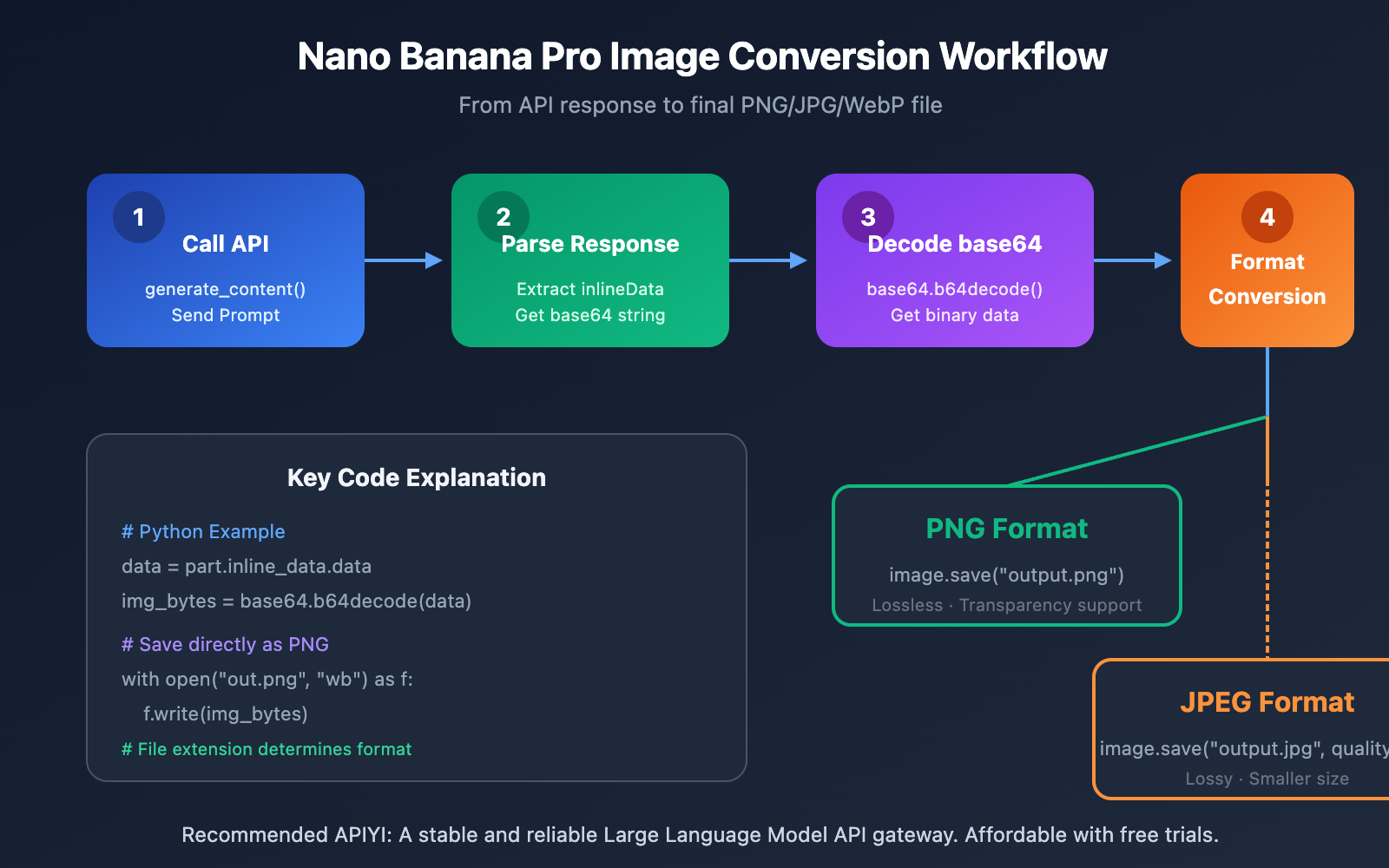
Since the data field contains the raw, base64-encoded image data, you can save it in any format you want after decoding it.
Nano Banana Pro Image Format Control Quick Start
Method 1: Save Directly as PNG (Recommended)
The easiest way is to simply specify the .png extension when saving:
import google.generativeai as genai
import base64

# Configure APIYI access
genai.configure(
    api_key="YOUR_API_KEY",
    transport="rest",
    client_options={"api_endpoint": "https://vip.apiyi.com"}
)

# Generate image
model = genai.GenerativeModel("nano-banana-pro")
response = model.generate_content("A cute orange cat, white background")

# Extract base64 data and save as PNG
for part in response.candidates[0].content.parts:
    if hasattr(part, 'inline_data') and part.inline_data:
        image_data = base64.b64decode(part.inline_data.data)
        with open("output.png", "wb") as f:
            f.write(image_data)
        print("Image saved as PNG format")
View complete code for multi-format saving
import google.generativeai as genai
import base64
from PIL import Image
import io
from typing import Literal

class NanoBananaImageSaver:
    """
    Nano Banana Pro Image Format Conversion Tool
    Supports multiple formats including PNG, JPG, and WebP
    """

    def __init__(self, api_key: str):
        genai.configure(
            api_key=api_key,
            transport="rest",
            client_options={"api_endpoint": "https://vip.apiyi.com"}
        )
        self.model = genai.GenerativeModel("nano-banana-pro")

    def generate_and_save(
        self,
        prompt: str,
        output_path: str,
        format: Literal["PNG", "JPEG", "WEBP"] = "PNG",
        quality: int = 95
    ) -> bool:
        """
        Generates an image and saves it in the specified format

        Args:
            prompt: Generation prompt
            output_path: Output file path
            format: Output format (PNG/JPEG/WEBP)
            quality: Compression quality (only for JPEG/WEBP, 1-100)
        """
        try:
            response = self.model.generate_content(prompt)

            for part in response.candidates[0].content.parts:
                if hasattr(part, 'inline_data') and part.inline_data:
                    # Decode base64
                    image_data = base64.b64decode(part.inline_data.data)

                    # Open with PIL and convert format
                    image = Image.open(io.BytesIO(image_data))

                    # Handle transparency channel (needed for PNG → JPEG)
                    if format == "JPEG" and image.mode == "RGBA":
                        # Create white background
                        background = Image.new("RGB", image.size, (255, 255, 255))
                        background.paste(image, mask=image.split()[3])
                        image = background

                    # Save in specified format
                    save_params = {}
                    if format in ["JPEG", "WEBP"]:
                        save_params["quality"] = quality

                    image.save(output_path, format=format, **save_params)
                    print(f"Image saved: {output_path} (Format: {format})")
                    return True

            return False
        except Exception as e:
            print(f"Save failed: {e}")
            return False


# Usage Example
if __name__ == "__main__":
    saver = NanoBananaImageSaver("YOUR_API_KEY")

    # Save as PNG (lossless, preserves transparency)
    saver.generate_and_save(
        prompt="Modern architectural exterior, transparent background",
        output_path="building.png",
        format="PNG"
    )

    # Save as JPEG (lossy compression, smaller file size)
    saver.generate_and_save(
        prompt="Landscape photo, sunset beach",
        output_path="sunset.jpg",
        format="JPEG",
        quality=85
    )

    # Save as WebP (modern format, balances quality and size)
    saver.generate_and_save(
        prompt="Product showcase image",
        output_path="product.webp",
        format="WEBP",
        quality=90
    )
Pro Tip: Get Nano Banana Pro API access through APIYI. The platform provides stable access at just 20% of the official price and supports batch calls.
Nano Banana Pro Image Format Comparison

| Format | Compression | Transparency | File Size | Use Cases |
|---|---|---|---|---|
| PNG | Lossless | ✅ Supported | Larger | Design assets, icons, transparent backgrounds |
| JPEG | Lossy | ❌ No Support | Smaller | Photos, landscapes, web transfers |
| WebP | Lossless/Lossy | ✅ Supported | Smallest | Modern web, mobile applications |
Detailed Format Breakdown
When to use PNG:
- Design assets where you need to keep a transparent background.
- Scenarios requiring extremely high image quality.
- Intermediate assets that need to be edited repeatedly.
- Icons, logos, and images that need sharp, crisp edges.
When to use JPEG:
- Photographic images (landscapes, portraits, product shots).
- Web transfers where you need to keep file sizes down.
- Social media sharing.
- General images that don't need a transparent background.
When to use WebP:
- Modern web applications (it has great browser support).
- Embedded images in mobile apps.
- Situations where you need a good balance between quality and file size.
- Animated scenarios (it's a great GIF alternative).
Nano Banana Pro: Advanced Image Format Conversion
Node.js Implementation
const { GoogleGenerativeAI } = require("@google/generative-ai");
const fs = require("fs");
const sharp = require("sharp");

async function generateAndSave(prompt, outputPath, format = "png") {
  const genAI = new GoogleGenerativeAI("YOUR_API_KEY");
  const model = genAI.getGenerativeModel({ model: "nano-banana-pro" });

  const result = await model.generateContent(prompt);
  const response = await result.response;

  for (const part of response.candidates[0].content.parts) {
    if (part.inlineData) {
      const buffer = Buffer.from(part.inlineData.data, "base64");

      // 使用 sharp 转换格式
      let sharpInstance = sharp(buffer);

      switch (format.toLowerCase()) {
        case "png":
          sharpInstance = sharpInstance.png();
          break;
        case "jpeg":
        case "jpg":
          sharpInstance = sharpInstance.jpeg({ quality: 85 });
          break;
        case "webp":
          sharpInstance = sharpInstance.webp({ quality: 90 });
          break;
      }

      await sharpInstance.toFile(outputPath);
      console.log(`图片已保存: ${outputPath}`);
    }
  }
}

// 强制输出 PNG
generateAndSave("可爱的卡通角色", "character.png", "png");
cURL Command Line Version
# 调用 API 并保存为 PNG
curl -X POST "https://vip.apiyi.com/v1/models/nano-banana-pro:generateContent" \
  -H "Content-Type: application/json" \
  -H "Authorization: Bearer YOUR_API_KEY" \
  -d '{"contents":[{"parts":[{"text":"一只可爱的橘猫"}]}]}' \
  | jq -r '.candidates[0].content.parts[] | select(.inlineData) | .inlineData.data' \
  | base64 --decode > output.png

echo "图片已保存为 output.png"
FAQ
Q1: Why can’t I open the image I saved?
The most common reason is incorrect base64 decoding. Make sure:
- You're extracting the full content of the
inline_data.datafield. - You're using the correct base64 decoding method.
- You're writing the file in binary mode (
"wb"instead of"w").
If the problem persists, check the mimeType field returned by the API to confirm the image type.
Q2: PNG vs. JPEG: Which is better for AI-generated images?
It depends on how you plan to use it:
- PNG: Best for scenarios requiring further editing, transparent backgrounds, or top-tier quality.
- JPEG: Best for direct publishing, web transfers, or when you need to keep file sizes in check.
If you're unsure, we recommend saving as a PNG first (lossless) and then converting to other formats as needed.
Q3: How can I quickly start testing Nano Banana Pro?
We recommend using the APIYI platform for testing:
- Visit APIYI at apiyi.com to register an account.
- Get your Nano Banana Pro API Key.
- Use the code examples from this article—prices are just 20% of the official site.
- Online Experience: You can test the image generation directly at imagen.apiyi.com.
Summary
Key takeaways for controlling image formats in Nano Banana Pro:
- API returns base64 encoding:
inlineData.datacontains format-neutral raw data, so you can choose any format you like when saving. - No official format parameters: Unlike Imagen 3, Nano Banana Pro doesn't support the
output_mime_typeparameter. - Client-side output control: After decoding the base64 data, use tools like PIL or sharp to save it as PNG, JPEG, or WebP.
- Choose your format based on the use case: PNG is great for design assets, JPEG for photos, and WebP for modern web apps.
Once you understand how base64 decoding works, you'll have full control over the output format of images generated by Nano Banana Pro.
We recommend getting your Nano Banana Pro API access through APIYI (apiyi.com). The platform offers stable service at just 20% of the official price and supports bulk generation.
📚 References
⚠️ Link format note: All external links use the
Resource Name: domain.comformat. They're easy to copy but not clickable, which helps prevent SEO link juice loss.
-
Google AI Image Generation Docs: Official API best practices guide
- Link:
ai.google.dev/gemini-api/docs/image-generation - Description: Includes
inlineDataresponse structure and code examples
- Link:
-
Pillow (PIL) Documentation: Python image processing library
- Link:
pillow.readthedocs.io - Description: Supports reading, converting, and saving various image formats
- Link:
-
Sharp Documentation: High-performance Node.js image processing library
- Link:
sharp.pixelplumbing.com - Description: Supports PNG/JPEG/WebP conversion with excellent performance
- Link:
-
APIYI Nano Banana Pro Section: Chinese integration documentation
- Link:
apiyi.com - Description: Provides Chinese docs, code snippets, and pricing details
- Link:
Author: Tech Team
Tech Talk: Feel free to discuss Nano Banana Pro tips in the comments. For more resources, check out the APIYI (apiyi.com) tech community.