
Author’s note: A reader who runs a home furnishings e-commerce business used Nano Banana to batch-edit lifestyle images of bay window cushions in green, red, blue, gray, off-white, and khaki. One folder contained more than 20 finished images. In his words: “The reddish tint isn’t rare—it happens a lot. The whole image looks red, and I have to manually correct every one.” He mostly used Nano Banana 2 because it was the tool’s default, and he’d never paid attention to the model or channel.
This is a typical case of Nano Banana edits coming out too red: the prompt doesn’t ask for warm colors, but the finished image has an overall red, warm tint. This isn’t something you can fix just by switching models. The color shift could come from the reference image, prompt, resolution, channel, or output compression. You’ll need to check each one in order.
What you’ll learn: By the end of this article, you’ll know how to identify where the red tint is coming from, what to check first, and roughly how much a round of comparison tests will cost. The facts in this article come from three sources: Google’s official documentation (accessed October 30, 2026), user tests on Google’s official forum (not official conclusions), and APIYI documentation and platform information (verified October 30, 2026).
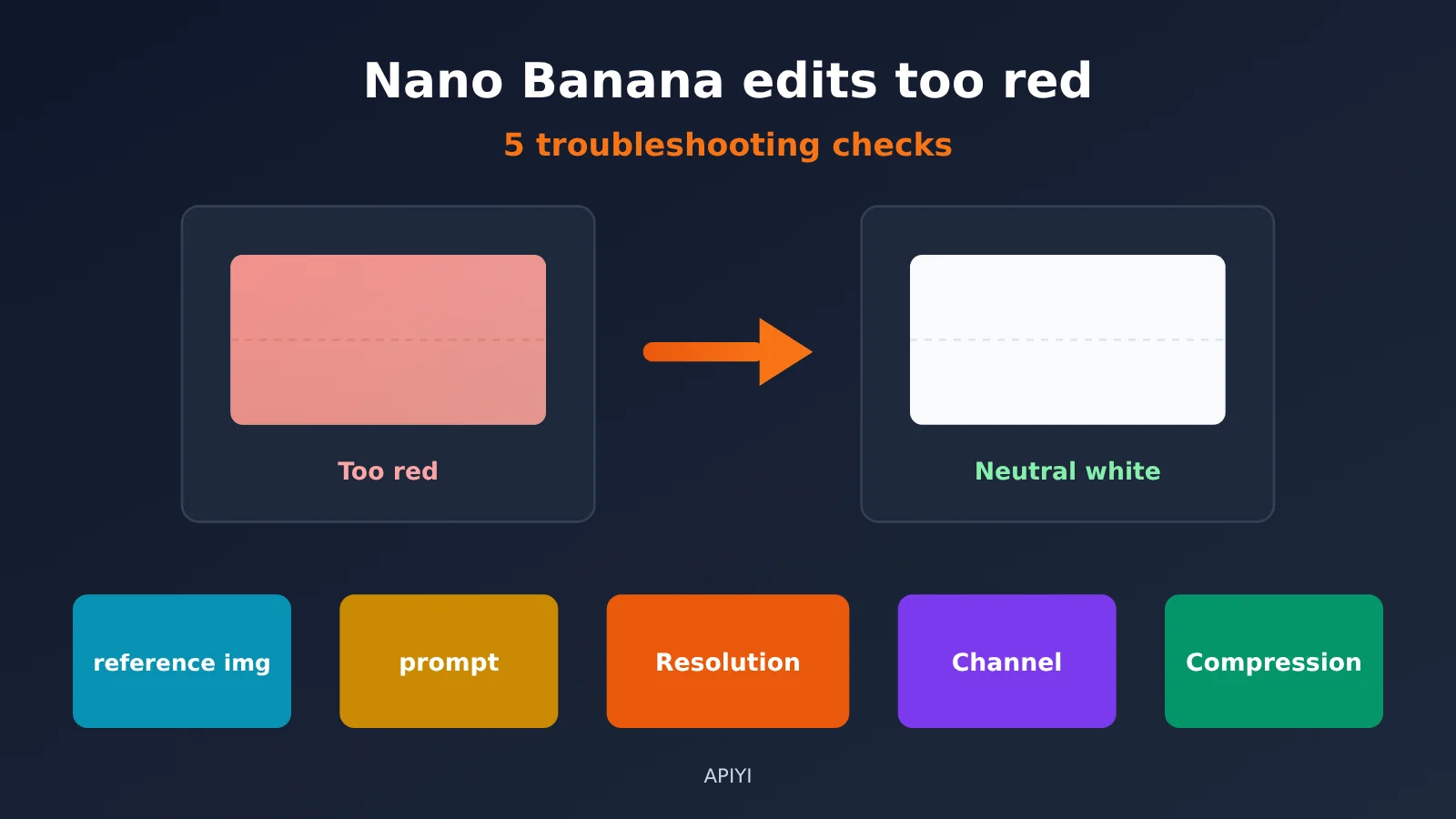
5 Key Checks for Red Color Casts in Nano Banana Edits
Here’s the overview. The five checks are ordered from cheapest and easiest to verify to most involved. Work through them from top to bottom—don’t switch models right away.
| Check | Why it can cause a red cast | 30-second test | First fix to try |
|---|---|---|---|
| Reference image | Display P3 colors aren’t recognized, the URL wasn’t actually passed through, or edits build on a previous result | Check the ICC profile and look for IMAGE in promptTokensDetails |
Convert to sRGB, use base64, and start from the original image each time |
| Lighting terms in the prompt | Terms for warm light, dusk, or atmosphere can trigger global color grading | Remove the lighting terms and run it again | Rewrite them as positive descriptions with a neutral white balance |
| Model and resolution | Some users report the cast is visible at 2K/4K but barely noticeable at 1K | Run the same image and prompt at 1K | Compare resolution settings, then try 2.1, 2, and Pro |
| API channel | The tool label may not match the actual model or group | Check the token group, invocation logs, and image file size | Run an A/B comparison with a different group |
| Output compression | Recompression can strip away color detail | Check pixel dimensions and file size | Get the original file and compress it only at the end |
🎯 Troubleshooting tip: Checks 3 and 4 require comparisons across multiple models and groups using the same image. With APIYI apiyi.com, you can compare 2.1, 2, and Pro using the same API key—just change the
modelparameter. There’s no need to create separate accounts.
Nano Banana Red Casts: First, Confirm the Color Shift Is in the File
Before troubleshooting, rule out your monitor and image viewer. Check the LAB values in neutral areas of the image, such as white walls, white windowsills, or gray floors. LAB is a color space designed around human perception: L represents brightness, a is the red-green axis (higher means redder), and b* is the yellow-blue axis (higher means yellower). Use Photoshop’s color picker or any tool that can read LAB values to sample the same spot in both the original and edited images.
These are rules of thumb, not official standards: if the median a value in a neutral area is more than 2 points higher than in the original, the difference is usually visible to the naked eye. More than 4 points indicates an obvious color cast. If a has barely changed but the image still looks red, the issue is probably with the display or color profile. In that case, there’s no need to rush through the five checks below.
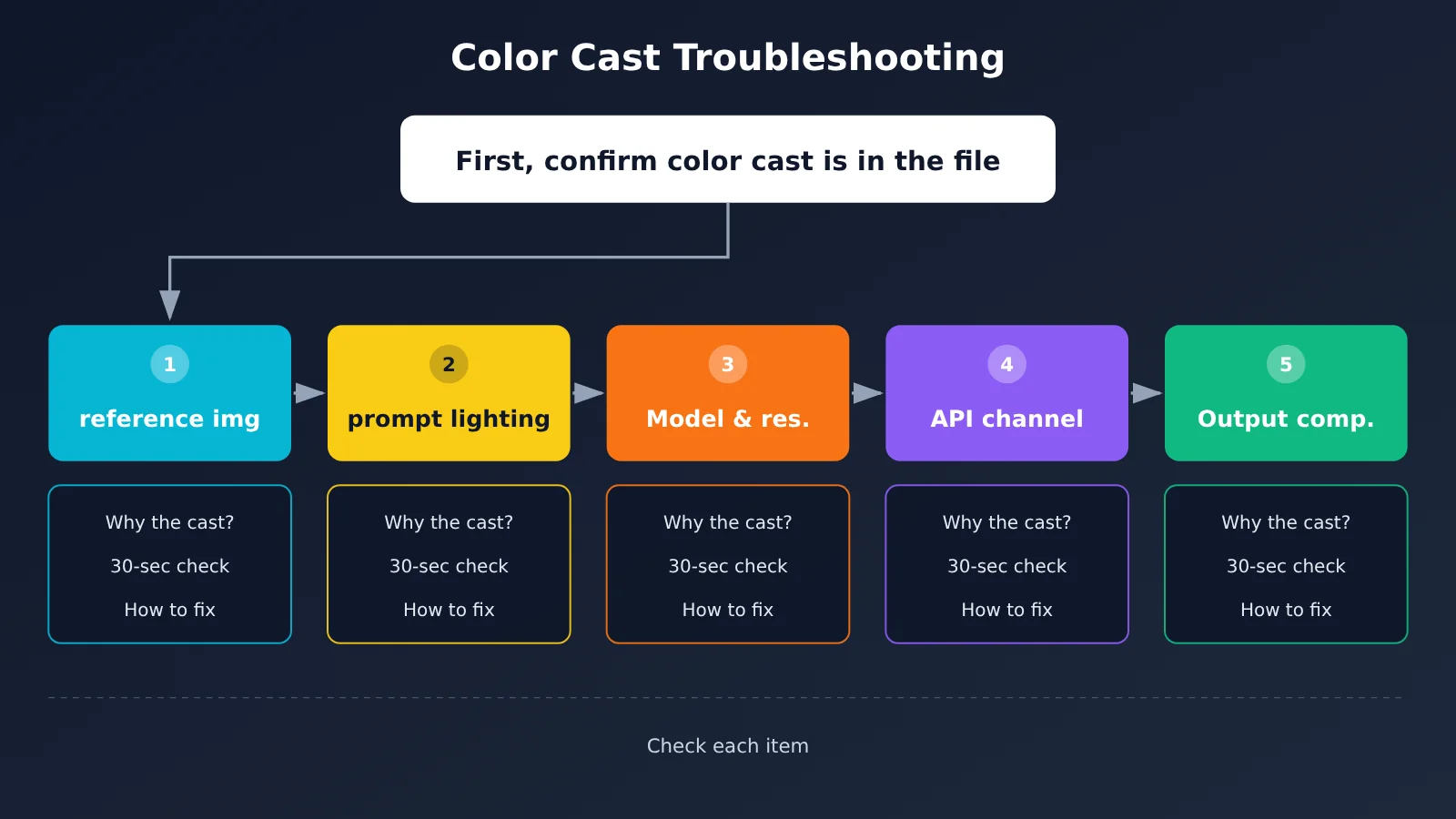
Troubleshooting 5 Causes of a Red Tint in Nano Banana Image Edits
Cause 1: The Reference Image Already Has a Color Issue
Why it happens: There are three common pitfalls with reference images. First, images exported from Apple devices often use Display P3, a wide-gamut color space. The file includes a P3 ICC profile, which tells software which color standard the image uses. Some parts of the processing pipeline don’t recognize the ICC profile and read the image as sRGB instead, causing colors to shift.
Second, the reference image may not have been uploaded at all. According to the APIYI documentation, Nano Banana models require reference images in base64 and don’t support the OpenAI format. If you put a URL in the image_url field of an OpenAI-compatible request, the model effectively never sees the original image and can only “guess” from the text.
Third, shifts can accumulate across edits: if you keep editing the previous result, the color deviation can compound.
One user report on Google’s official forum is worth considering, though it’s not a conclusion from Google. The user edited a 4K image three times in succession. The neutral area’s a* value rose from 2.02 → 3.65 → 5.81 → 7.78, increasing by roughly 2.1–2.4 each time. The ΔE00, a measure of color difference, was around 2.9–3.7, and more than 98% of neutral pixels shifted toward red.
How to check in 30 seconds:
- Use your image viewer’s “Show Info” feature to check whether the reference image has a Display P3 ICC profile.
- Check
usageMetadata.promptTokensDetailsin the response for IMAGE tokens. If there aren’t any, the image didn’t reach the model. - Compare the a* value of a white wall in the first and third outputs. If it rises with each round, the shift is accumulating.
How to fix it: Convert images to sRGB before uploading. Send reference images as base64, not URLs. Start each edit from the original image instead of continuing from the previous result. When you do need multiple rounds of editing, Google recommends returning the thought signature to preserve the reasoning context. On APIYI, the native Gemini endpoint supports true multi-turn editing by sending the previous output image back as inlineData with role:model. The reverse-engineered channel doesn’t support this, so you’ll need to resend the image for each round.
Item 2: Warm-Lighting Words in the Prompt
Why it causes a color shift: Nano Banana edits more than just local pixels. Google’s official documentation lists color grading among its editing capabilities, and one official example asks it to “match the lighting and shadows to the outdoor environment.” In other words, the model blends lighting and shadows across the whole image. Words like “cozy,” “afternoon sunlight,” “dusk,” “atmospheric,” or “Instagram style” can push the entire image toward warmer colors. In another forum post, a user reported that saturation and skin tones still shifted toward red even when they specified “only change the clothes; keep the lighting and background unchanged.” Adjusting the prompt can reduce the likelihood of a shift, but it isn’t the only possible cause.
How to check in 30 seconds: Remove all words related to lighting, atmosphere, and color tone from the prompt. Leave everything else unchanged, run it again, and see whether the neutral area’s a* value drops noticeably.
How to fix it: Follow the official principle of “describe what you want, not what you don’t want,” and specify the product color you want to preserve in detail. You can use this prompt:
Change only the color and pattern of the bay window cushion. Keep everything outside the product unchanged. Preserve the original lighting, white balance, shadow direction, and background; keep the white windowsill and walls neutral white; don’t add warm filters, sunset light, warm lamps, candlelight, or film tones; use a neutral daylight color temperature throughout; use the color value I provide for the product, such as dark green #2F4F4F.
The same idea applies in English: use phrases like “Keep whites neutral” and “Use a neutral daylight color temperature,” and provide a hex color value. Forum users have found that similar wording “sometimes works, but not every time.” Try again once or twice after revising the prompt. If the color still shifts, move on to item 3.
Issue 3: Color Shifts Appear at 2K/4K but Are Almost Invisible at 1K
Why it happens: In a thread about pink color shifts on Google’s official forum, users reported visible color shifts at 2K and 4K, but none or almost none at 1K. Both Nano Banana Pro and Nano Banana 2 were affected, and the issue could be detected in both PNG and JPG files. Google didn’t provide a resolution in the thread. In other words, even with the same prompt, the resolution setting itself may be a factor.
There’s another point that’s easy to misunderstand: output resolution is determined by imageSize and aspectRatio in the request, not by words like “4K,” “HD,” or “ultra HD” in the prompt.
| Aspect ratio | 1K | 2K | 4K |
|---|---|---|---|
| 1:1 | Approx. 1024×1024 | Approx. 2048×2048 | Approx. 4096×4096 |
| 16:9 | Approx. 1376×768 | Approx. 2752×1536 | Approx. 5504×3072 |
| How to tell | Around 1024 pixels indicates 1K | Around 2048 indicates 2K | Around 4096 indicates 4K; this is more reliable than the tool’s label |
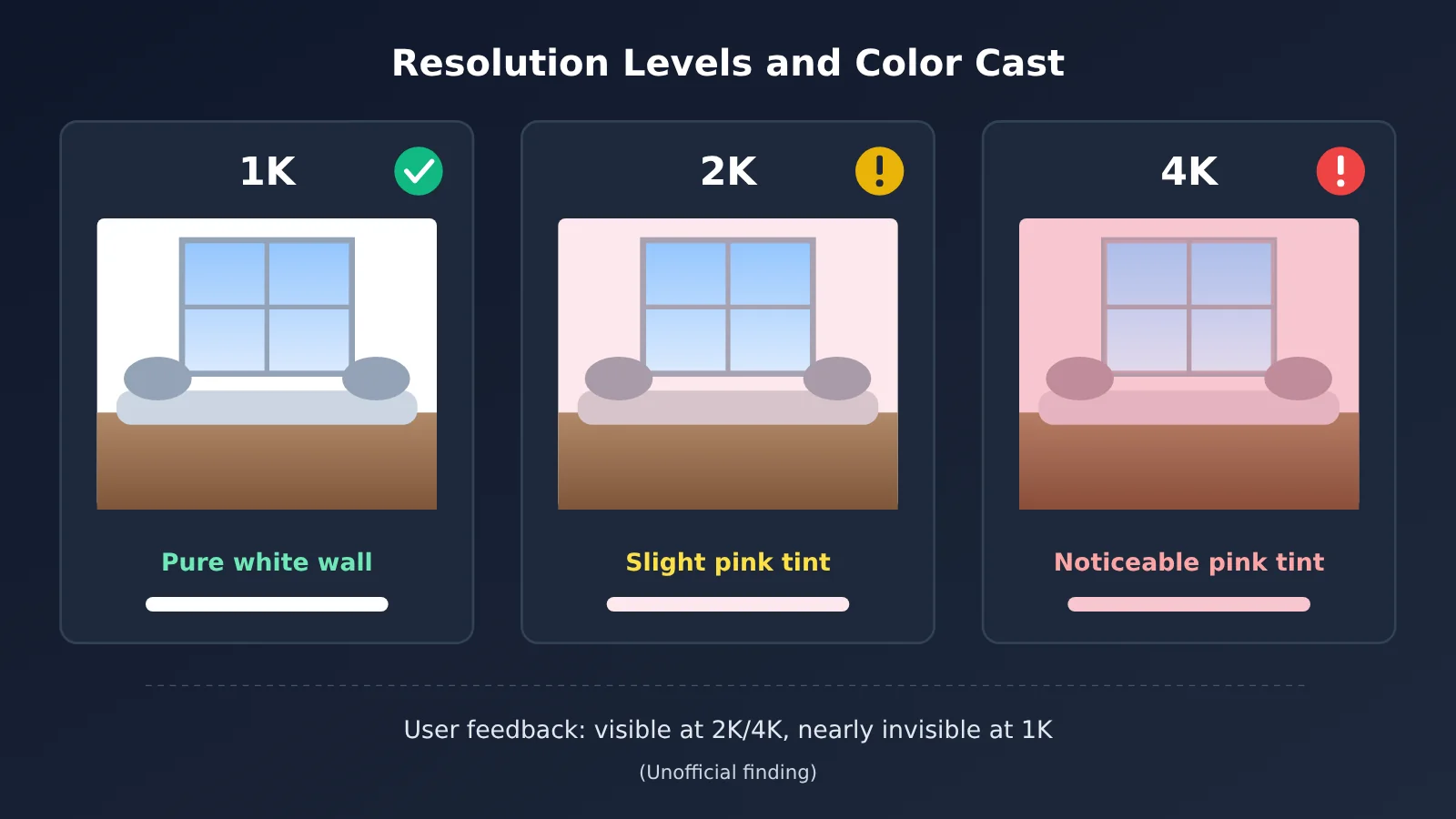
How to check in 30 seconds: Use the same image and prompt, change imageSize to 1K, and run it again. If 1K looks normal but 2K/4K shows a color shift, suspect the high-resolution output pipeline first, rather than the prompt.
How to fix it: If 1K is sufficient—for example, for a main-image thumbnail or a small product-detail image—generate at 1K. If you need a larger image, run a comparison using each of the three models. Here’s how they stack up: Nano Banana 2.1 (gemini-nano-banana-2.1), released on 2026-10-06, supports 1K/2K/4K but not 512px; Nano Banana 2 (gemini-3.1-flash-image) supports 512px/1K/2K/4K, and the official recommendation is to use 2.1 for new projects; Nano Banana Pro (gemini-3-pro-image) offers the highest quality. Note that the forum reports covered both Pro and Nano Banana 2, so switching to Pro doesn’t guarantee a color-shift-free result. No public reports of color shifts for 2.1 were found in the search, but that doesn’t mean it’s unaffected either.
| Model | model parameter | Resolution options | Price per request |
|---|---|---|---|
| Nano Banana 2.1 | gemini-nano-banana-2.1 |
1K / 2K / 4K | $0.045/request |
| Nano Banana 2 | gemini-3.1-flash-image |
512px / 1K / 2K / 4K | $0.055/request |
| Nano Banana Pro | gemini-3-pro-image |
1K / 2K / 4K | $0.09/request |
| Available platform | APIYI apiyi.com | Switch models with the same key | Checked on 2026-10-30 |
Prices were checked on 2026-10-30; refer to the platform’s model list for current models and pricing. Based on this table, running the same image once through each of the three models costs about $0.19. Add one 1K comparison, and a full test round still costs only a little over $0.20—much cheaper than manually adjusting more than 20 images.
📷 Screenshot placeholder 1 (APIYI usage logs page): Show the “Model Used,” “Input/Output Tokens,” “Billing Amount,” and “Status” columns in the usage log. Use these to check which model each request in the comparison actually used and how much it cost.
Item 4: The Model Your Tool Names May Not Be the One It Uses
Why the color shifts: In the reader’s case, the tool “defaults to Banana 2 when you open it,” but the label in the interface doesn’t prove which model, group, or endpoint the actual request uses. On APIYI, the Nano Banana series has redundant AI Studio and Vertex channels: the Default group routes through the official AI Studio channel, while Vertex is a separate group and isn’t included in Default. APIYI’s FAQ on red color casts notes that Nano Banana Pro image edits can come out reddish or warm, and suggests trying the Vertex group or comparing with gpt-image-2. But there’s a limit to that advice: forum users reproduced the color shift through both Replicate and Vertex, so the channel isn’t the only possible cause. Switching to Vertex is an A/B test, not a guaranteed fix.
How to check in 30 seconds:
- On the token page, check which group the API key is assigned to. The group is set on the token, not in individual log entries.
- Check the actual model name, token usage, and cost in the usage logs.
- Check the file size of a single 4K image: Vertex images are roughly 18–20 MB, while AI Studio images are roughly 9–10 MB. This can give you an indirect clue about the channel.
- Check
modelVersionin the response to make sure the tool hasn’t quietly switched models.
📷 Screenshot placeholder 2 (APIYI token group page): Show the group dropdown when creating or editing a token, highlighting the Default group and the Vertex-related groups. Explain that “switching channels only requires changing the token’s group; no code changes are needed.”
How to fix it: Create a new token assigned to the Vertex group, then run the same image and prompt again. The API call stays the same. For OpenAI-compatible calls, set base_url to https://api.apiyi.com/v1, but reference images for image editing still need to be base64-encoded as Gemini requires. Don’t put a URL in image_url just because you’re using the compatible format. If both groups show a color shift, try gpt-image-2: APIYI’s documentation says it usually has better color fidelity for image editing, tending toward “fine-tuning the original,” while Banana Pro tends toward a “stylized redraw.” You’ll need to adjust your prompt when switching; check the platform’s model list for available models and pricing. You can also retest the same reference image and instructions in the imagen.apiyi.com web interface first to rule out an issue with your own code.
Item 5: The output was compressed again
Why the color shifts: After the model generates an image, a tool, image host, or e-commerce platform may compress it again. Compression often uses chroma subsampling, which stores less color detail while preserving brightness detail. Some forum users also report that the model’s output appears to have lower-resolution color information to begin with, making correction harder. But there’s an important distinction: JPEG compression can muddy colors and create color blocks around edges, but it doesn’t explain a uniform red cast across the whole image. That’s mainly related to the model, reference image, and prompt.
How to check in 30 seconds: Check the file properties. If a 4K file is only 1–2 MB, or its pixel dimensions aren’t around 4096, it may have been compressed again, or imageSize may not have taken effect at all. In APIYI’s documentation example, a successfully generated image has an inlineData.mimeType of image/jpeg. The parts array may contain text segments or intermediate images, so use the last image.
How to fix it: Save the original file returned by the model first, and leave compression until the final step before delivery. If you’re using the generated image as input for another round, follow the input-image compression guidelines: compress only if it’s larger than 1.5 MB, limit the longest edge to 2048 px, use a quality setting of 0.9, and keep the original format. As a fallback, correct the image in post-processing: using the original image as a baseline, measure the median a/b shift in neutral areas, then apply a LAB shift to the whole image, adjusting only a/b and leaving L* unchanged. A forum user reported residuals below 0.3 across three tests after this correction, with image structure and brightness unchanged. It’s well suited to scripted batch processing.
A 10-Minute Checklist for Troubleshooting Red Tint in Nano Banana Edits
Put the five points above into a sequence you can follow. Each step has a pass criterion: move on if it passes, or fix the issue before continuing.
| Step | What to do | Pass criterion |
|---|---|---|
| 1. Save evidence | Save the original and edited images. Record their dimensions, file sizes, MIME types, and whether they have ICC profiles. | Both images have complete information, and the issue can be reproduced. |
| 2. Measure the color shift | Read a/b values in neutral areas. | Continue only if a* is more than 2 above the original; otherwise, check the display. |
| 3. Check the reference image | Convert it to sRGB, verify the base64 encoding, and check for IMAGE tokens. | promptTokensDetails contains IMAGE. |
| 4. Return to the original | Don’t edit the previous round’s result. | In a single-round edit, a* no longer rises with each successive edit. |
| 5. Revise the prompt | Use neutral white-balance wording and retry 1–2 times. | The neutral area’s a* drops to within +2 of the original. |
| 6. Compare at 1K | Use the same image and prompt, with imageSize set to 1K. |
Determine whether 1K looks normal while 2K/4K has a color shift. |
| 7. Switch models | Run each model once: 2.1 → 2 → Pro. | Find the model with the smallest color shift and record the cost. |
| 8. Switch channels | Try a different Vertex group or gpt-image-2. | Compare the results to determine whether the issue is channel-related. |
| 9. Use post-processing as a fallback | Apply a LAB shift using the original image as the baseline. | The neutral area’s difference from the original is close to 0; save the correction parameters. |
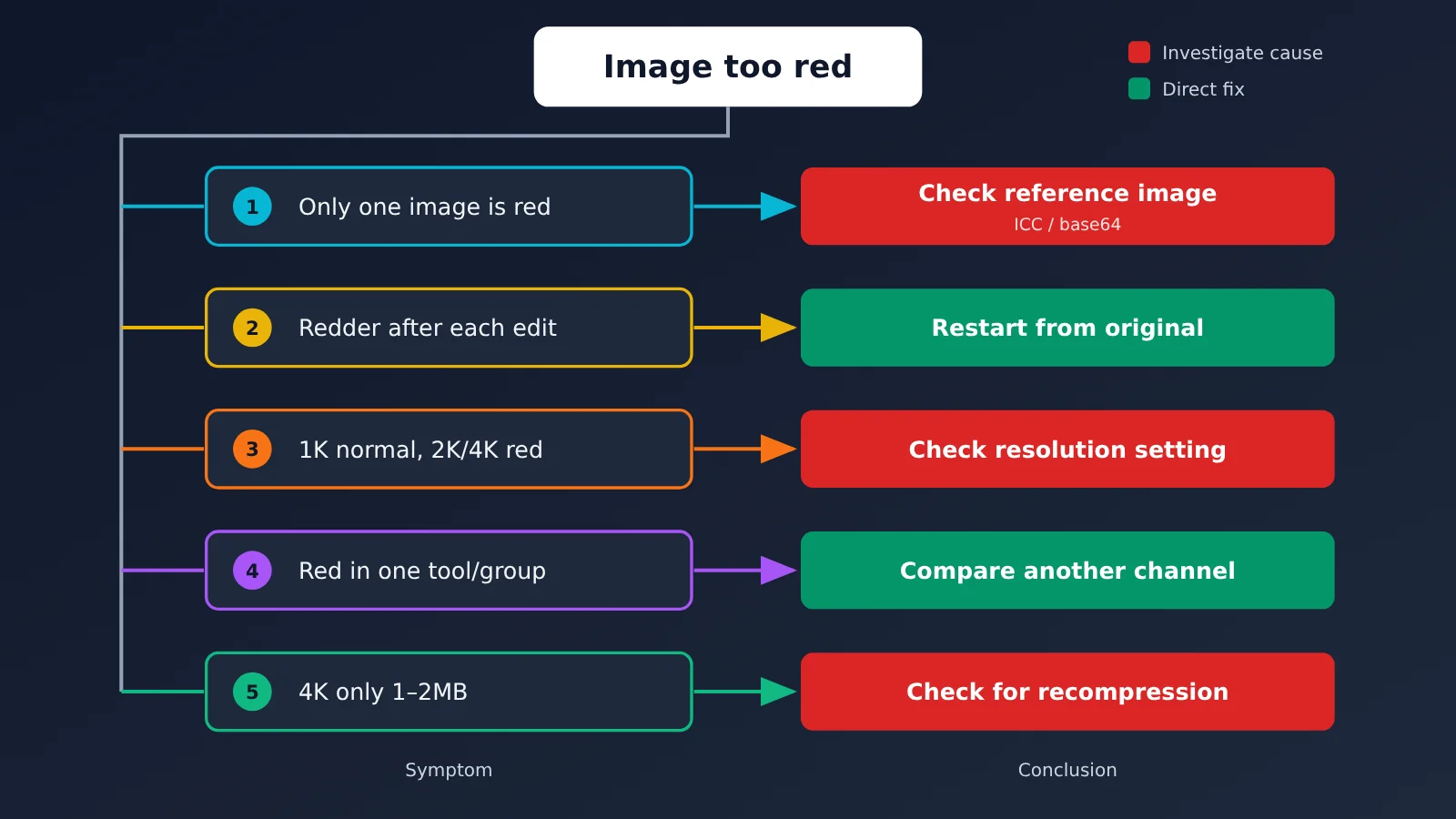
A few symptom-to-cause patterns are worth remembering: if you run the same prompt repeatedly and the color shift varies each time, that’s sampling variation—retry 1–2 times. If every edit gets redder, the shift is accumulating across rounds. If it happens only with one tool or group, the issue may be the channel, parameters, or encoding. Each API call is atomic, so even the same prompt and image can produce a good result one time and a bad one the next. Retrying is a valid troubleshooting step.
💡 Comparison tip: Steps 7 and 8 work best on the same platform. With APIYI at apiyi.com, you can use the same key to run different models and two tokens to test different groups. The invocation logs record the model and cost for each run, making the results easy to compare.
Frequently Asked Questions
Q1: Has Google officially acknowledged the red tint in Nano Banana edits as a bug?
No. Users on Google’s official forum have reported a slight pink or red tint after editing and shared a* measurements, but Google hasn’t confirmed the cause or announced a fix in the thread. All figures cited in this article come from user testing.
Q2: Will switching to Nano Banana Pro eliminate the red tint?
Not necessarily. Forum reports cover both Pro and Nano Banana 2, and APIYI’s FAQ also notes that Pro often produces warmer tones when editing images. Instead of switching based on appearances, run the same image and prompt through all three models and compare the a* values.
Q3: Did Nano Banana 2.1 fix the red tint?
There’s no public fix announcement. Version 2.1 was released on 2026-10-06, with Google claiming improved image quality and multi-turn consistency. No color-cast reports turned up in the sources searched, but that doesn’t mean the issue is gone. Google recommends 2.1 for new projects, so it’s a good model to test first in your comparison.
Q4: Will switching to a Vertex group definitely solve the problem?
There’s no guarantee. Forum users have reproduced the color cast through Vertex too, so switching groups is just an A/B test. On APIYI apiyi.com, you only need to change the group in your token to switch to Vertex—no code changes are required. It’s a low-effort comparison worth trying.
Q5: Why do API-generated images have a color cast when they look normal in the web app?
The web version of Gemini is an agent: it may rewrite your prompt, retry internally, and select the best result. An API call is a single invocation, with the prompt passed to the model as-is. Another common cause is that the reference image wasn’t actually uploaded. The APIYI apiyi.com documentation recommends using base64 for reference images and checking `promptTokensDetails` for an IMAGE token.
Q6: How can I batch-fix more than 20 images that already have a red tint?
Use a LAB shift for batch correction: use the unedited original as a baseline, measure the median a*/b* offset in neutral areas, then apply the opposite shift across each image, changing only a*/b*. A forum user’s testing showed a residual error below 0.3. This is a correction after the fact—you should still follow the 10-minute sequence to identify the root cause.
Nano Banana Red Tint: Key Takeaways
- Measure before you fix: A color cast is present in the file if the neutral area’s a* value is more than 2 points higher than in the original.
- Start with a clean reference image: Convert it to sRGB and use base64; don’t put a URL in
image_url. - Go back to the original each round: In one user’s test, three successive edits at 4K raised a* from 2.02 to 7.78.
- Use positive lighting terms: Specify neutral white, daylight color temperature, and preserving the original white balance.
- Use 1K as a quick control: If 1K looks normal but 2K/4K has a tint, investigate the high-resolution pipeline first.
- A/B test models and channels: Use the same Key to switch models and groups, then check the logs for costs.
- Use a LAB shift as a fallback: Adjust only a/b; batch corrections can be scripted.
Summary
Here’s how to troubleshoot a red tint in Nano Banana image edits:
- Confirm the color cast is in the file: Measure a* in a neutral area to rule out a display issue, then move on to the five checks.
- Check in order of cost, lowest first: Reference image → lighting terms in the prompt → model and resolution → invocation channel → output compression. Each has a 30-second verification method.
- Comparisons beat guesswork: Compare 1K output, three models, and two groups. One complete round of comparisons costs just over $0.20.
- Know the limits: No single step is guaranteed to eliminate the red tint. The goal is to reduce the likelihood, locate the cause, and then correct it.
For teams editing product images in batches, make “go back to the original, use a neutral white balance prompt, and compare at 1K” part of the standard workflow. We recommend using the same Key on APIYI apiyi.com to compare models and channels, then checking the invocation logs for each request’s model and cost.
📚 References
- Gemini API, “Nano Banana image generation”: Models, resolutions, and editing capabilities
- Link:
ai.google.dev/gemini-api/docs/image-generation -
Notes: Official reference for
imageSize,aspectRatio, thought signatures, and prompt wording for preserving details (accessed October 30, 2026) -
Google Cloud, “Gemini image generation best practices”: Prompt best practices
- Link:
docs.cloud.google.com/gemini-enterprise-agent-platform/models/capabilities/gemini-image-generation-best-practices -
Notes: Source of the principle “describe what you want, not what you don’t”
-
Gemini API deprecations table: Release and shutdown status for each model
- Link:
ai.google.dev/gemini-api/docs/deprecations -
Notes: Confirms that no shutdown dates have been announced for the stable versions of 2 and Pro
-
Google official forum post on pink color casts: User tests showing a slight pink tint after editing
- Link:
discuss.ai.google.dev/t/edited-images-return-with-a-slight-pink-color-cast-after-migration-from-preview-to-image/176315 -
Notes: The cumulative a* data, differences between 1K/2K/4K, and LAB correction residuals all come from user tests
-
APIYI Documentation Center: “What to Do When Images Turn Red After Editing with Banana Pro,” “Nano Banana Series Developer Guide,” “Image Compression and Output Resolution,” and “Invocation Logs”
- Notes: Platform documentation on groups, channels, base64 image transfer, output size, and log fields (verified October 30, 2026). Search for the titles in the Documentation Center.
Author: APIYI Technical Team
Technical discussions: Feel free to contact us through the APIYI website homepage. For more information on integrating image models, visit the Documentation Center at docs.apiyi.com.