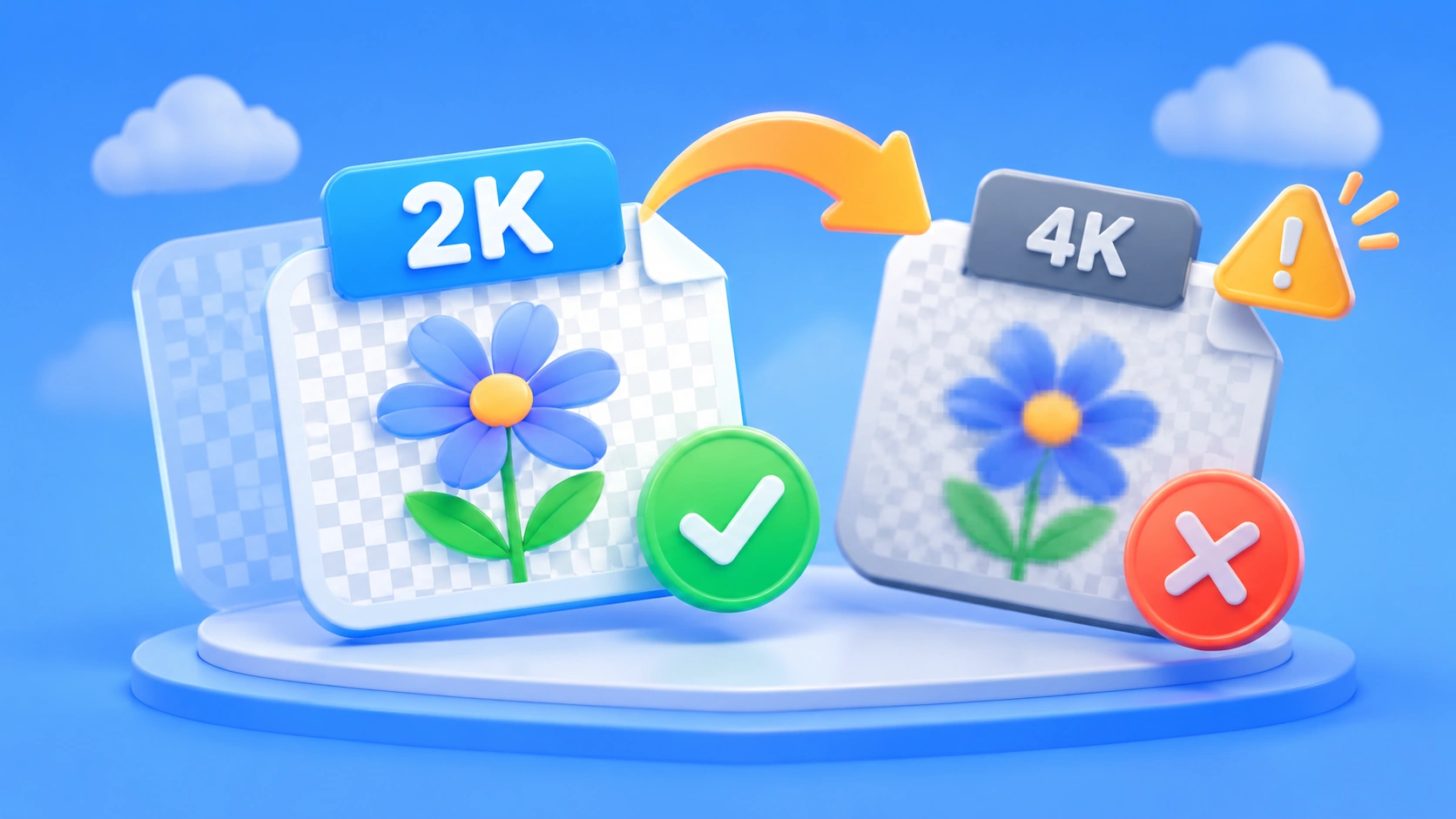
If you make e-commerce hero images, app icons, or sticker assets, you probably share one fixation: the image needs a transparent background, and it needs to be big. So a lot of people, on their first call to gpt-image-2.6-all, tick both the high resolution and the transparent background options. What comes back has dirty edges, leftover background color where there should be cut-outs, or sometimes just a flat image with an opaque background.
You didn’t set the parameters wrong. You ran into a boundary that’s written right there in the docs. APIYI (apiyi.com) launched gpt-image-2.6-all on 2026-11-11 at 20:30, and the updated docs say it plainly: transparent backgrounds work up to 2K, and 4K transparent backgrounds are unstable.
This isn’t a “we’ll fix it later” disclaimer. It’s a usage boundary you can build your workflow around today. By the end of this article, you’ll know which resolution tier to lock transparent backgrounds to, why the long edge matters, and what kinds of images to save 4K for.
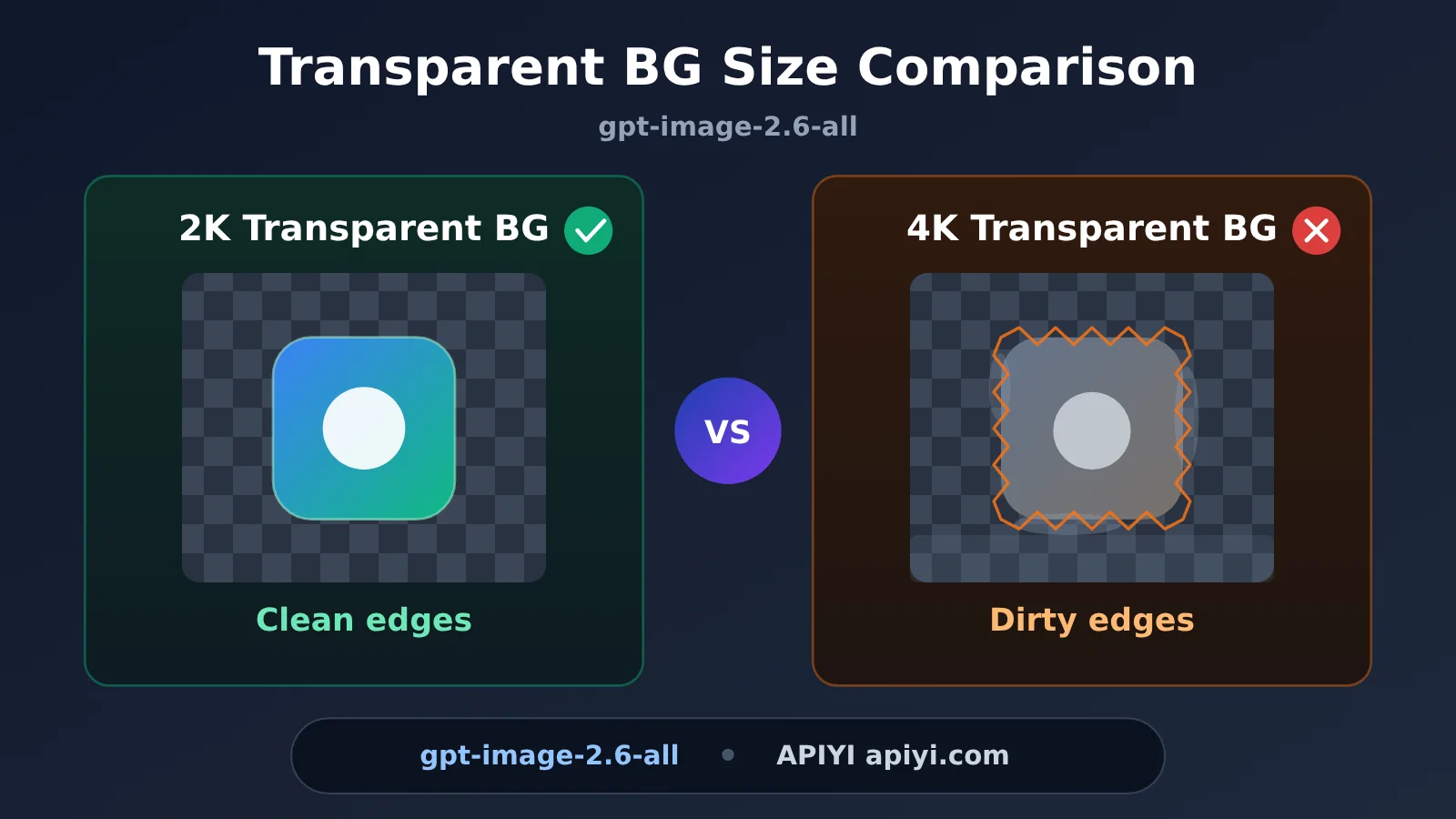
gpt-image-2.6-all Key Takeaways: Transparent Backgrounds and 4K Don’t Mix Well
gpt-image-2.6-all makes transparent backgrounds an explicit, opt-in capability, and it also offers high-resolution output tiers like 2K and 4K. Each works fine on its own, but stacking them doesn’t necessarily work. According to the docs, transparent backgrounds are usable up to 2K, while 4K transparency is unstable. Pricing is $0.025 per call, with 2K and 4K costing the same.
That flat pricing can be misleading. If 4K doesn’t cost more, why not just use 4K? Because the cost doesn’t show up on your bill. It shows up in your success rate. A 4K transparent image that needs three redos costs far more than a 2K transparent image that works on the first try.
| Key Point | What the Docs Say | What It Means for You |
|---|---|---|
| Transparent background range | Usable up to 2K; 4K transparency is unstable | If you need transparency, lock in 2K and don’t test the upper limit |
| Native quality range | Native quality at 512 to 1536 on the long edge | The closer the long edge is to this range, the more reliable the detail |
| Pricing | $0.025 per call, same price for 2K and 4K | You save money by cutting down on redos, not by dropping resolution |
| Right use for 4K | Large images without an alpha channel | Opaque scenarios like posters, background images, and print previews |
| Available platform | APIYI (apiyi.com), OpenAI-compatible interface | Use the same key to switch models and tiers for comparison |
Why 4K Transparent Backgrounds Tend to Fail
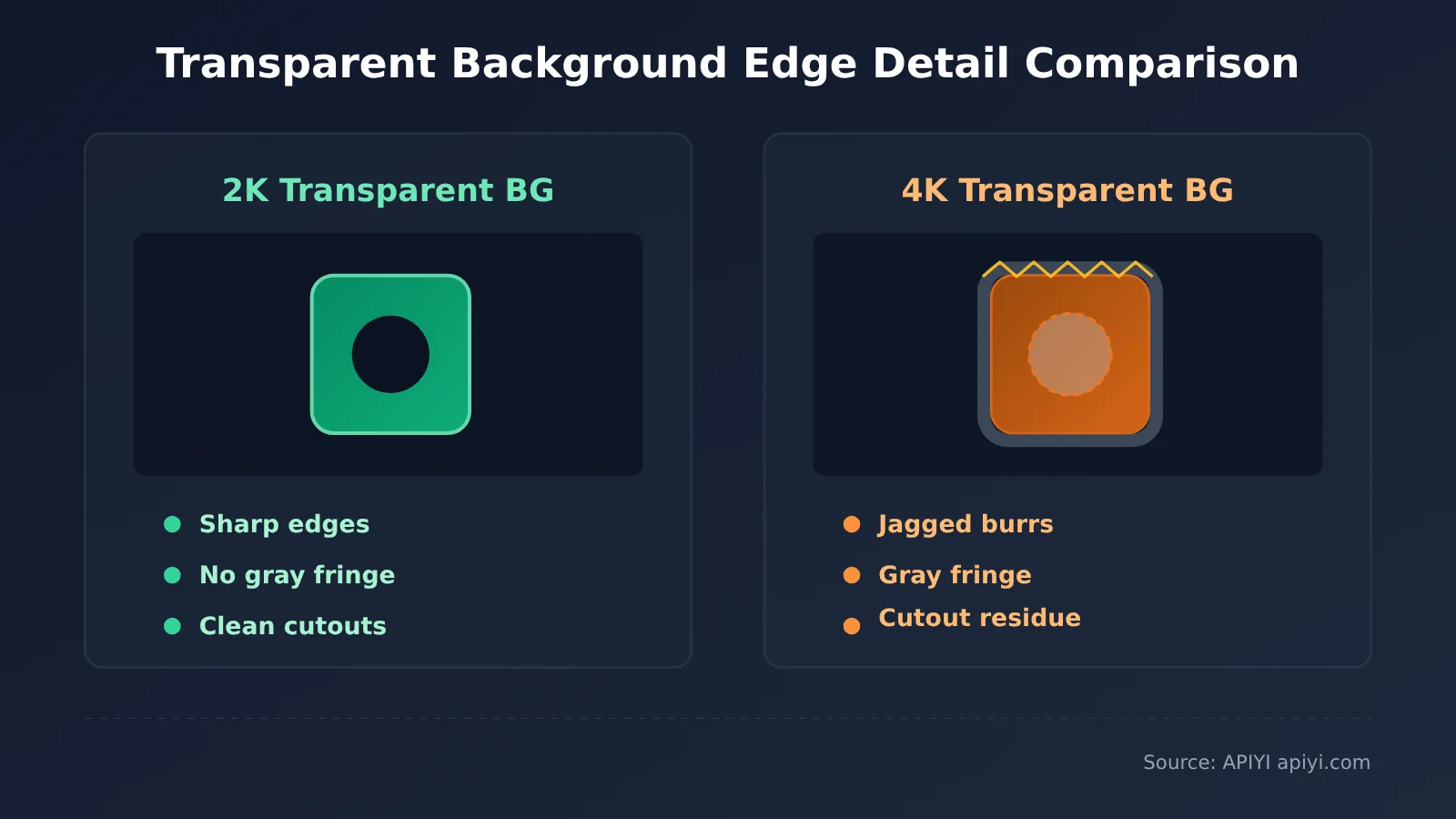
From a generation pipeline perspective, a transparent background means every pixel needs a valid alpha value on top of its color. The higher the resolution, the faster the pixel count grows, and the easier it is for the model’s judgment about object edges, holes, and semi-transparent regions to drift. In the final image, this usually shows up as jagged edges, dirty semi-transparent fringes, leftover background color in cut-out areas, or a background that’s simply painted solid white or black.
There’s another detail in the documentation that’s easy to miss: the native quality range for the long edge is 512 to 1536 pixels. Put those two facts together and it’s clear that 2K and 4K are larger output tiers, and the higher you go, the more of the content is filled in by upsampling. Color information can be smoothed over by interpolation, and the human eye won’t always notice right away. The alpha channel is different. Once its edges get interpolated, jagged edges and gray fringes show up immediately when you cut the subject out.
This also explains why “I’ll just scale the 4K image down to 800 pixels, that should clean it up, right?” usually doesn’t work. Downscaling only shrinks the dirty edges proportionally. It doesn’t clean them up. And you’d still have to restore the lost sharpness in post-processing, which means one extra resampling pass.
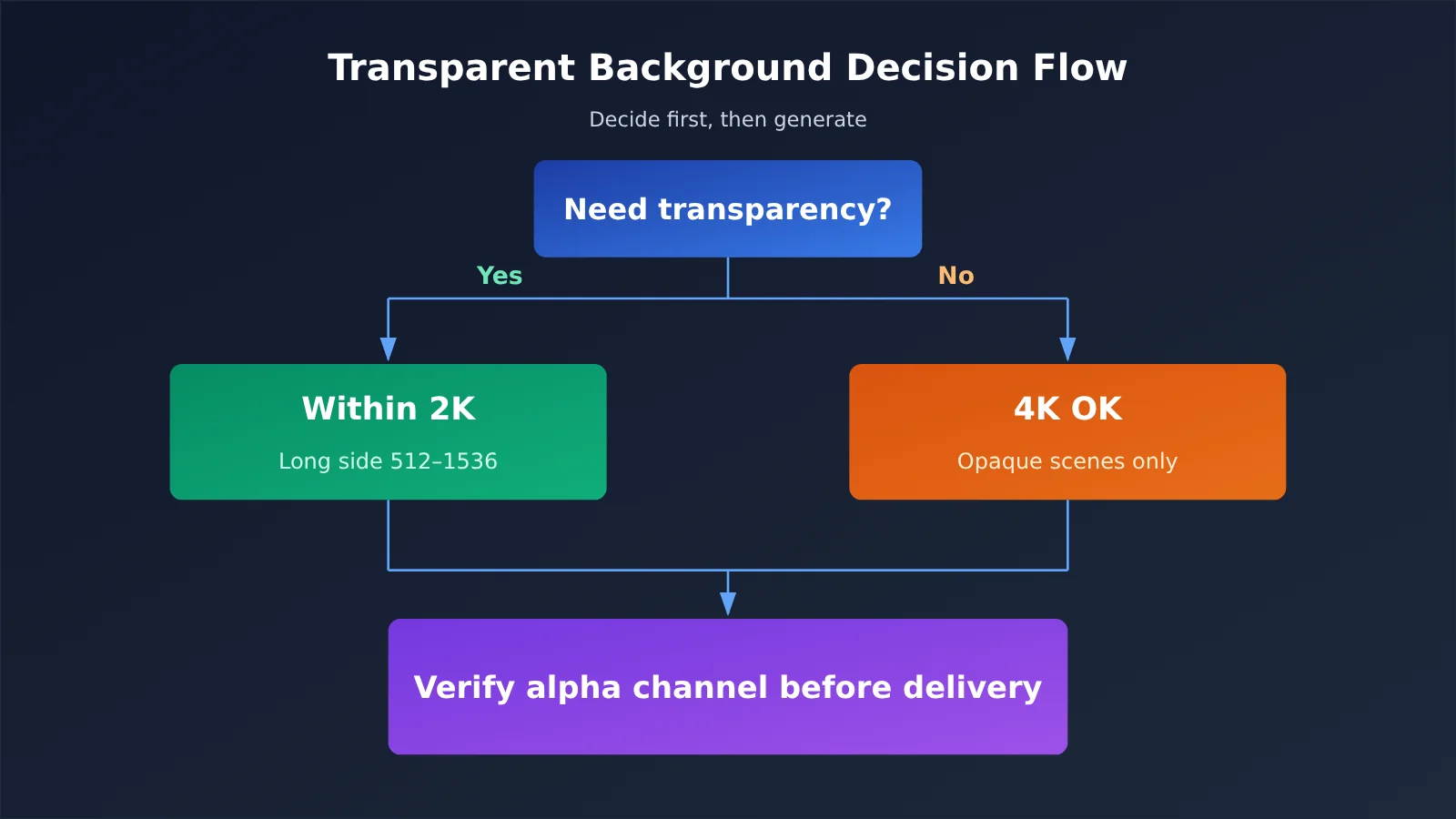
How to Pick a Size Tier
It’s much clearer if you split the decision into two independent questions: does this image need transparency, and how big does it ultimately need to be? Combine the two answers and the tier is basically decided.
| Output Tier | Transparent Background | Quality Source | Recommended Use |
|---|---|---|---|
| Long edge 512 to 1536 | Works, most stable edges | Native quality range | Icons, stickers, UI elements, small assets |
| 2K | Works | Above the native range, partly relies on upscaling | E-commerce hero images, large assets that need transparency |
| 4K (with transparency) | Unstable | Highest upscaling ratio | Not recommended for delivery |
| 4K (opaque) | No alpha involved | Highest upscaling ratio | Posters, large background images, print previews |
Table data source: the gpt-image-2.6-all documentation in the APIYI (apiyi.com) docs center.
Using gpt-image-2.6-all Transparent Backgrounds: Three Decisions
What really affects your success rate isn’t how beautifully you write the prompt. It’s three decisions, and the order you make them in matters. Get the order wrong, and everything you do afterward feels awkward.
Decision 1: Decide on Transparency First, Then Resolution
Many people start with “I want a 4K image” and only then tack on “oh, and a transparent background.” The right order is the reverse: if you need transparency, cap your tier at 2K; if you don’t, then think about 4K. The order matters because transparency is a hard constraint while resolution is a soft one. You can crop resolution afterward or regenerate for a specific placement, but a dirty transparent background is almost impossible to fix cheaply.
If your asset will eventually be used at multiple sizes, the easier approach is to generate one 2K transparent master image first, then export to each channel’s size. If the master is clean, every size you scale down from it is clean. If the master has gray edges, they all end up gray.
Decision 2: Bring the Long Edge Back Into the Native Range First
The documentation says a long edge of 512 to 1536 is native quality. This is especially useful for transparent assets: if your icon only needs to be 512 pixels in the end, there’s no reason to generate it at 2K and scale it back down just to feel fancy. Generate at the target size directly. The edges come out cleaner, and you skip a resampling step.
There’s only one case where going higher is worth it: when the asset itself carries a lot of information, such as a decorative border with lots of fine cutouts, or a sticker that needs hair-level detail. Going to 2K for those is reasonable, but I still wouldn’t touch 4K with transparency.
Decision 3: Don’t Resample Transparent Images Afterward
Once you have a transparent PNG, the most common destructive moves are “just resize it a bit” and “just compress it a bit.” Resizing recalculates the alpha edges, and compression can turn an 8-bit alpha into edges with blocky noise. When you need a different size, settle on the tier at generation time rather than forcing it in post.
Getting Started with gpt-image-2.6-all: A Usable 2K Transparent Background in One Request
You don’t need to install a new SDK. gpt-image-2.6-all uses an OpenAI-compatible interface, so your existing calling code only needs two fields changed. Here are the key steps, in order.
- Sign up at APIYI (apiyi.com) and grab your API key. New users get free test credits, which is enough to run through the whole workflow.
- Point your client’s
base_urlathttps://api.apiyi.com/v1and leave the rest of the initialization parameters as they are. - Set
modeltogpt-image-2.6-all, the model ID this article covers. - In the request parameters, turn on the transparent background option and set the size tier to 2K. Don’t casually bump it to 4K at this step.
- Once you get the response, check that the alpha channel exists and the edges are clean before passing the image downstream.
- If you need a larger size, regenerate at opaque 4K rather than upscaling the 2K transparent image.
| Parameter | Recommended Value | Notes |
|---|---|---|
base_url |
https://api.apiyi.com/v1 |
OpenAI-compatible endpoint; no code changes when you switch models |
model |
gpt-image-2.6-all |
Supports transparent background output |
| Transparent background | On | Only stable at 2K and below |
| Size tier | 2K / long edge 512 to 1536 | Choose based on final use; don’t raise it blindly |
| Pricing | $0.025 per request | Same price for 2K and 4K; the real cost difference comes from rework |
🚀 Quick Start: We recommend running a single 2K transparent-background request through APIYI (apiyi.com) first. Once you’ve confirmed the edge quality meets your expectations, move on to batch generation. The platform offers an out-of-the-box OpenAI-compatible interface with no complicated setup, so you can get connected and verified in a few minutes.
Common Symptoms and Where to Look
Transparent image failures usually don’t throw errors. Instead, the result looks deliverable but the details are off. Use the table below to troubleshoot.
| Symptom | Likely Cause | Fix |
|---|---|---|
| Gray-white jagged fringe around the edges | Transparency enabled at too high a tier | Drop to 2K or below and regenerate |
| Light-colored background left in cutout areas | Inaccurate alpha estimation, common at high resolutions | Reduce the target size or use the native range |
| Background turns solid white/black | Transparency option didn’t take effect | Check that the parameter is actually being sent to the server |
| Image generates but details are blurry | Upscaling ratio too high | Bring the long edge back to 512–1536 |
| Results vary a lot with the same prompt | Transparency combined with very high resolution | Lock the tier and retry; avoid comparing across mixed tiers |
If things are still unstable after troubleshooting, run the same prompt on APIYI (apiyi.com) twice: once at 2K transparent and once at 2K opaque. That tells you whether the problem lies in the transparency channel or in the resolution, so you can decide whether to change tiers.
FAQ
Q1: What exactly is gpt-image-2.6-all?
It’s an image generation model that APIYI launched at 20:30 on 2026-11-11. It supports transparent background output and multiple resolution tiers, billed per call at $0.025. Transparent backgrounds work up to 2K, but 4K transparency is unstable.
Q2: Why avoid 4K when 2K and 4K cost the same?
The same price means your bill won’t show a difference, but your success rate will. For transparent output, 4K tends to produce jagged edges, gray fringing, and leftover artifacts in cut-out areas. The more you retry, the higher your real cost climbs. The right way to save money is to cut down on retries, not to max out the resolution tier.
Q3: When does gpt-image-2.6-all’s transparent background work, and when doesn’t it?
According to the official documentation, transparency works up to 2K, and 4K transparent backgrounds are unstable. This reflects the state of the docs at launch on 2026-11-11. As of 2026-11-12, pricing is still $0.025 per call. Any later changes will be reflected in the documentation updates.
Q4: Which transparent-asset scenarios is gpt-image-2.6-all best suited for?
– **E-commerce hero images and product detail page assets**: You need a transparent background, but not necessarily 4K. 2K covers most display slots.
– **App icons and UI elements**: The target sizes are small, so staying within the native 512 to 1536 range is the safest bet.
– **Stickers, badges, and decorative borders**: There are lots of cut-out areas, so edge quality matters more than pixel count.
– **Social media asset compositing**: Export the transparent master image per channel to avoid repeated resampling.
Q5: How do I quickly call gpt-image-2.6-all via API to get a transparent-background image?
We recommend getting a first version running on an aggregation platform that supports multiple models:
1. Go to APIYI at apiyi.com and sign up for an account
2. Get your API key and free test credits
3. Set `base_url` to `https://api.apiyi.com/v1` and `model` to `gpt-image-2.6-all`
4. Enable transparent background, lock the size at 2K, and generate one image first to check the edges
APIYI supports this model alongside other mainstream models through a unified interface, so you can compare output quality across different tiers in the same codebase.
Q6: What if I absolutely need 4K?
Split transparent and non-transparent needs into two separate pipelines. Posters, large background images, and print previews that need 4K should use the non-transparent tier. Foreground assets that need transparency should stay at 2K or below, and you can then layer them onto a 4K background in your layout tool. The final output is still 4K, while your transparent assets stay in the stable range the whole time.
Q7: What are the known limitations of transparent output in gpt-image-2.6-all?
There are three main ones. First, transparent backgrounds have a resolution ceiling: stable up to 2K, unstable at 4K. Second, native image quality covers a long-edge range of 512 to 1536, and beyond that some detail relies on upscaling. Third, billing is per call regardless of tier, so 2K and 4K cost the same, which means controlling cost comes down to your workflow rather than dropping to a lower tier. Once you know these three, you can avoid most of the common pitfalls up front.
gpt-image-2.6-all Key Takeaways
- Lock transparency at 2K: The docs explicitly say transparency works up to 2K, and 4K transparency is unreliable. Don’t test the limits on a deliverable.
- The native range is the most reliable: A long edge between 512 and 1536 gives you native quality. For small assets, generate at the target size directly.
- Save 4K for opaque images: Use 4K for posters, large backgrounds, and print previews. For transparent foreground assets, generate at 2K and composite afterward.
- Same price doesn’t mean same quality: It’s $0.025 per call, and 2K and 4K cost the same. The real cost difference comes from how often you have to redo an image.
- Resample as little as possible: Scaling a transparent image after the fact recalculates the alpha edges, so settle on the resolution tier at generation time.
- Try one before you batch: Run a single image through APIYI (apiyi.com) to check the edges, then decide whether to generate in bulk.
Summary
The transparency feature in gpt-image-2.6-all works well, as long as you don’t max out resolution and transparent background at the same time. The takeaway fits in one sentence: if you need a transparent background, don’t use 4K.
- Resolution strategy: Keep transparent requests at 2K or below. If you need a larger size, generate an opaque 4K image and composite it afterward.
- Where quality comes from: A long edge of 512 to 1536 is native quality. The higher you go beyond that, the more detail depends on upsampling.
- Cost perspective: It’s $0.025 per call, and 2K and 4K cost the same. You save money by cutting down on rework, not by choosing a lower resolution.
Add these three rules to your team’s image generation guidelines, and you should see far fewer redos on transparent assets. We recommend using APIYI (apiyi.com) to run one 2K transparent-background request with the free credits first. Once the result looks right, move on to batch production.
References
- APIYI Launch Announcement: gpt-image-2.6-all
- Link:
docs.apiyi.com/live/2026-11/gpt-image-2-6-all-launch -
Notes: Launch date, details on transparent background support at 2K resolution and below, and the per-call pricing of $0.025
-
APIYI Documentation Center
- Link:
docs.apiyi.com - Notes: Covers the OpenAI-compatible API, the model list, and parameter definitions. We recommend reading it before you integrate
Author: APIYI Technical Team
Technical Support: Feel free to reach us through the APIYI homepage at apiyi.com. For more documentation, visit the docs.apiyi.com documentation center