Author’s note: This article draws on Alma’s official documentation and screenshots from hands-on use. Alma isn’t just a terminal skin for programmers. Its goal is to bring AI agents to everyone’s computer: one window connects to all your models, remembers your preferences, operates your computer for you, and turns Claude Code and Codex agents in herdr into chat windows. In my experience, it shows a surprising amount of initiative and can make the same model feel much smarter.
The short version: Alma is a local-first AI agent app that also serves as a graphical client for herdr. Its stated goal is to put agent capabilities in everyone’s hands: models, memory, skills, plugins, channels, and computer use all come together in one app. For developers, one of its most useful features is bringing multiple coding agents out of the terminal and into chat windows where you can read and reply to them.
If you regularly run two to four agents at once and lose track of which ones are waiting for permission or have finished—or find that approvals stall when you’re away from your computer—this combination is worth a try. It’s less useful if you only run one agent and don’t need computer use or mobile access. The iPhone app is currently in public beta through TestFlight. This article relies primarily on Alma and herdr’s official documentation, along with several hands-on screenshots and feedback from one X user. Each source is identified in context.
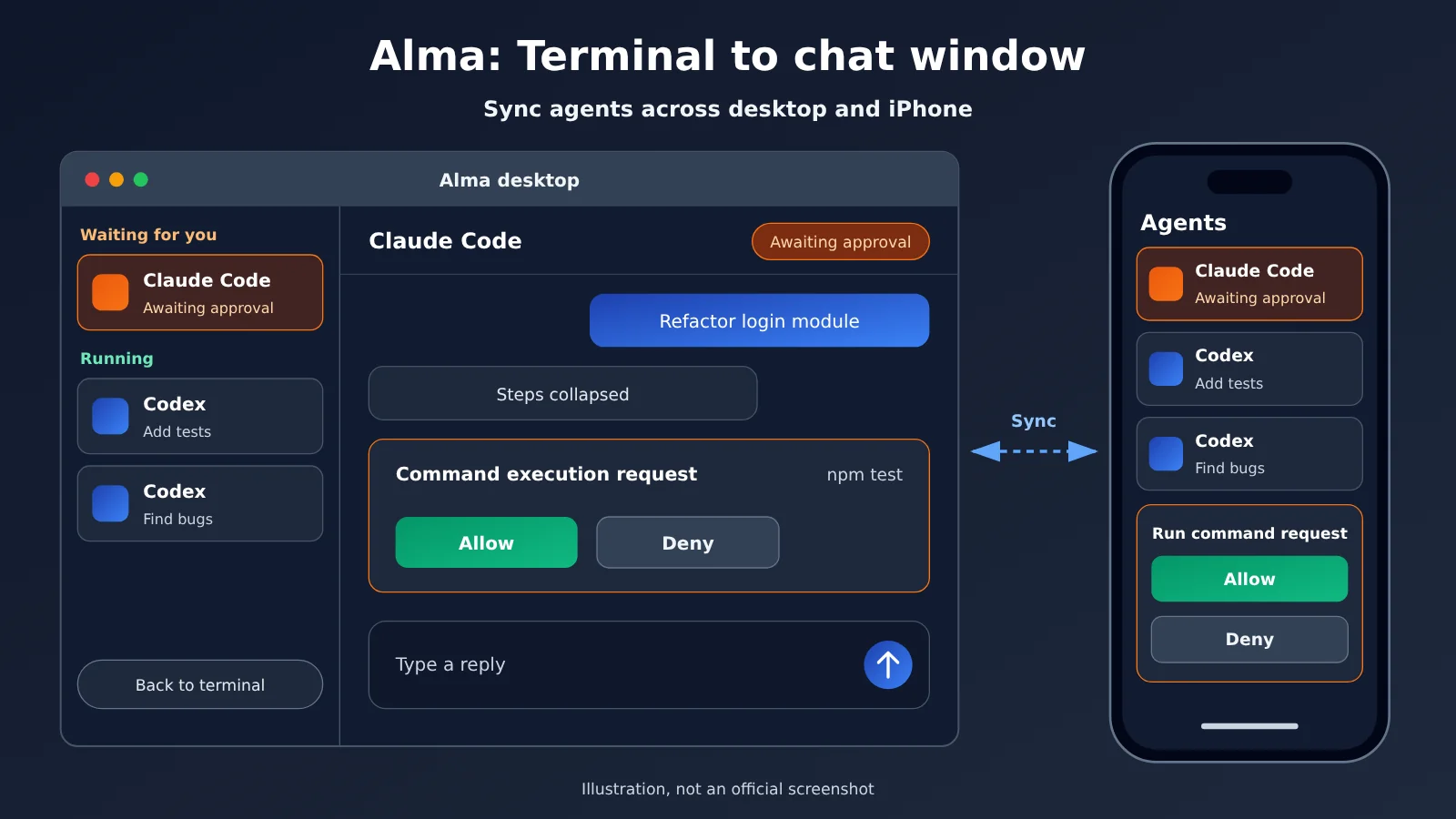
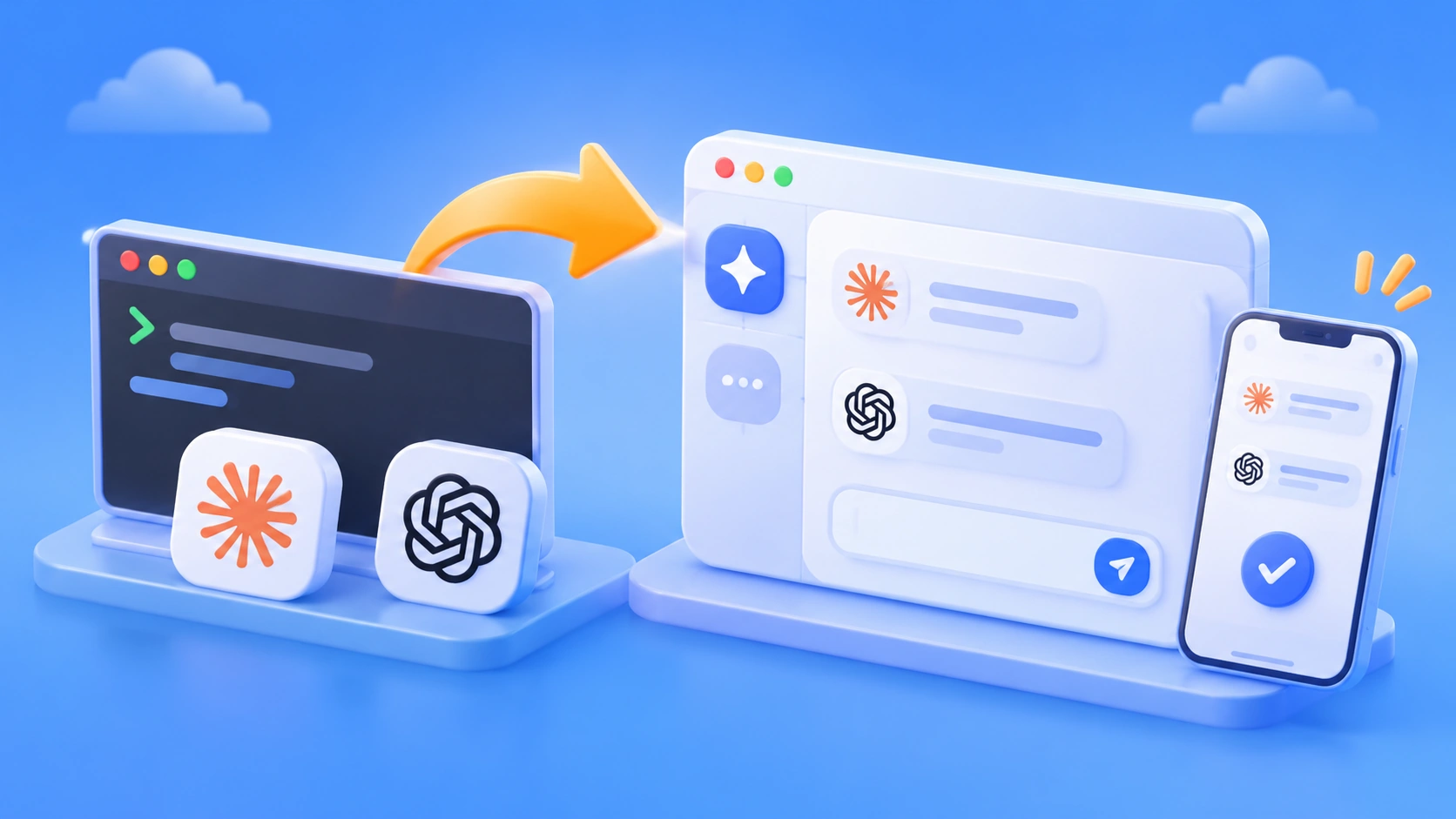
Figure 1: An illustration of Alma’s desktop and iPhone apps working together, based on the official website’s hero section. This is not an official screenshot.
Multiple AI Agents in Your Terminal: The Models Aren’t the Problem
Imagine you have three terminal windows open: Claude Code is refactoring, Codex is adding tests, and another Codex is investigating a bug. The models are all working fine. What takes time is switching between windows and digging through scrollback to figure out which session is waiting for permission. The more agents you run, the more time you spend checking on them.
The problem becomes even more obvious when you step away from your computer. An agent might need just one command approved, but end up waiting for half an hour because you can’t see its progress on your phone. So the bottleneck in multi-agent workflows often isn’t model capability—it’s visibility into agent status and a way to respond.
The table below compares two ways of working. The right-hand column describes the official features available when Alma and herdr are used together:
| Everyday task | Terminal only | Alma + herdr |
|---|---|---|
| Find out who’s waiting for you | Switch between windows one by one | Sidebar groups agents by status and prioritizes those waiting for you |
| Review what happened | Dig through scrollback | Collapsible steps, formatted code, and sub-agents you can open separately |
| Reply to an agent | Return to its window and type | Reply using an input box or buttons, or queue your next message |
| Approve requests away from your computer | Return to your computer | Get a push notification on your phone and tap a button or type a reply |
| View raw output | Always visible | Switch back to the real terminal at any time |
It’s worth noting that herdr’s own sidebar and tabs can also show agent status. In other words, herdr alone already helps you see who needs your attention. Alma adds a conversational reading experience, button-based replies, mobile access, and model access.
Use Alma to handle viewing and replies while herdr keeps running agents
To understand how these tools work together, think of them as three layers. herdr organizes and runs agents. herdr-core is a small local service that actually hosts them. Alma connects to that service and turns each pane—the terminal area where an agent runs—into a chat interface. Alma doesn’t run the agents itself.
This separation has two practical benefits. First, you don’t need to change your workflow: start agents in herdr as usual, and Alma will find the local service automatically. Second, agents keep running in herdr-core after you quit Alma or the herdr app. However, if your machine restarts or herdr-core stops, the programs stop too. Panes are restored as shells in the same directories, but herdr doesn’t restart the agents or restore work in progress.
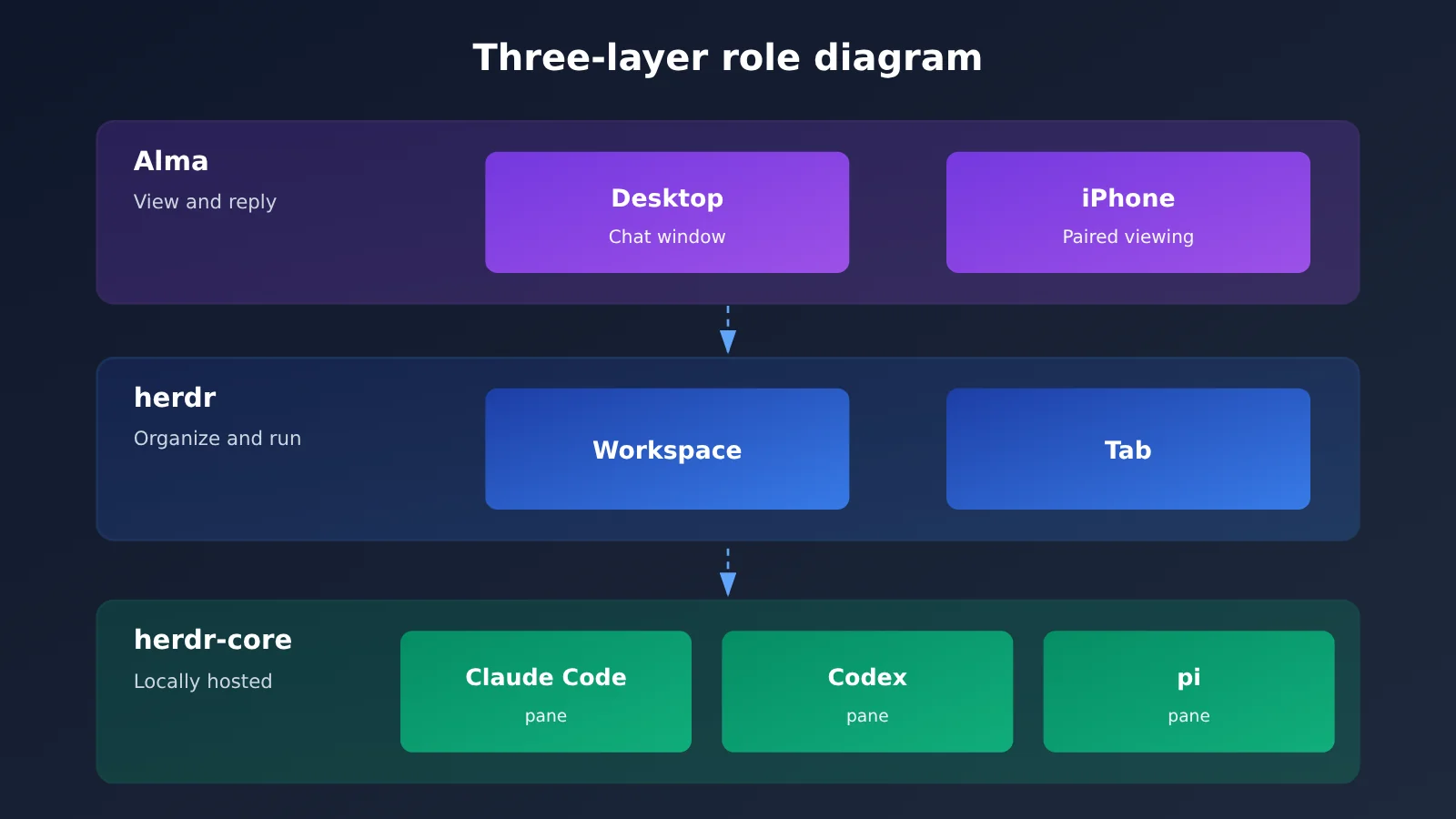
Figure 2: How herdr and Alma divide responsibilities. This is not an official architecture diagram.
It’s also important to distinguish between two separate model configurations. Alma’s chat window uses the model you’ve configured under Providers, while Claude Code and Codex in herdr continue to use their own logins and settings. When you connect APIYI later, it only affects Alma.
Alma Is More Than an Agent Dashboard: 5 Features Worth Trying First
The official website describes Alma as a local-first, memory-first AI agent app. Being a herdr client is just one of its roles. Open the settings page, and the sidebar gives you a sense of how much it can do.
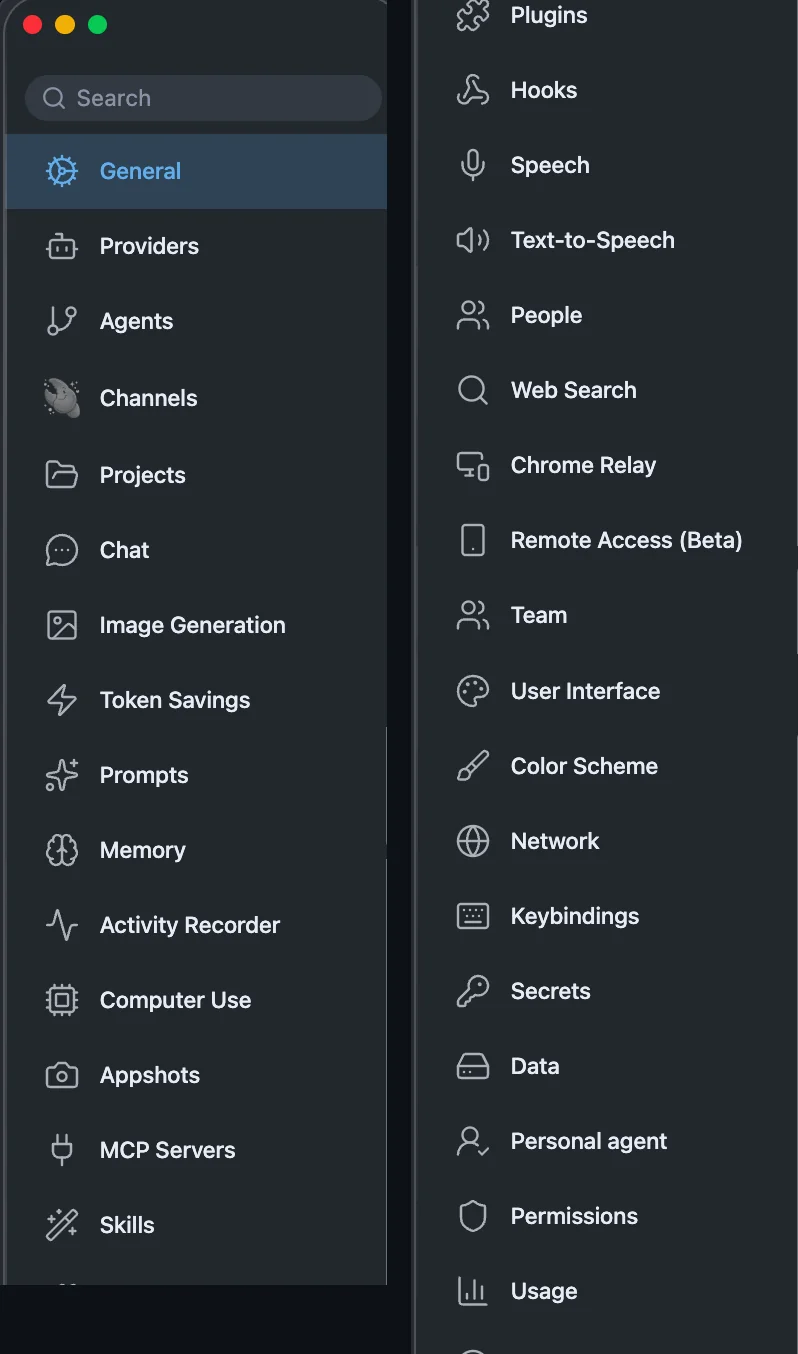
Figure 4: The feature sidebar on Alma’s settings page (a long screenshot stitched into two columns), including Providers, Channels, Computer Use, and Remote Access.
Connect All Your Models in One Window
Providers comes with preset options for OpenAI, Anthropic, Google Gemini, xAI Grok, DeepSeek, Moonshot, Z.AI, Kimi, AiHubMix, OpenCode Go, and more. You can also add any OpenAI-compatible service. API keys are stored locally, and you can switch models at any point in the same conversation.
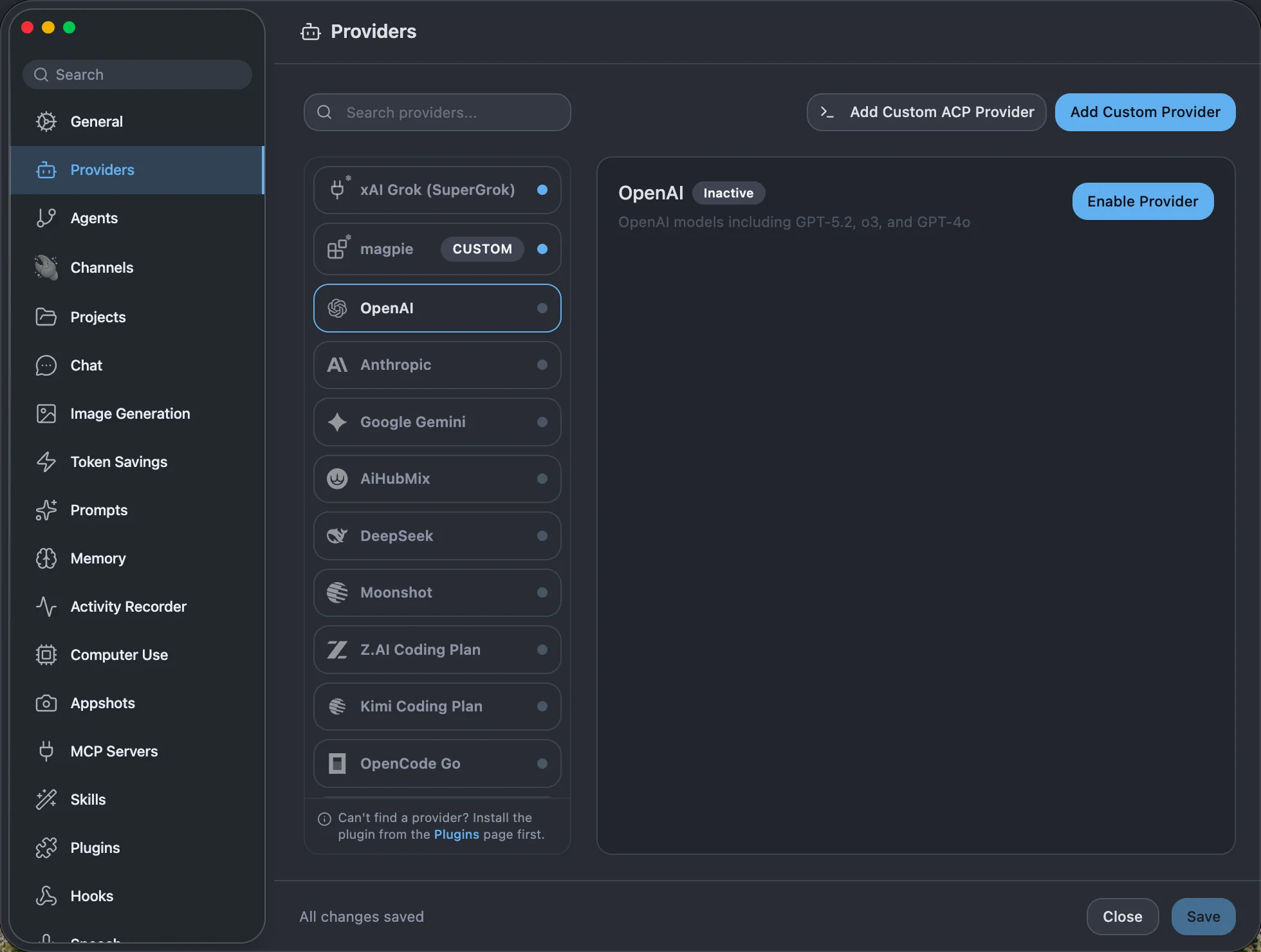
Figure 5: The preset providers include xAI Grok, Kimi, and Z.AI.
Memory and Activity Records: It Might Remember Your Day Before You Do
Memory stores important information as semantic vectors that you can view, edit, or delete. Activity Recorder periodically takes screenshots and runs OCR locally to analyze what projects you’re working on; the records stay on your machine. One X user was startled when Alma brought up that they’d merged an MR and published a release on GitLab that afternoon, and posted about it, tagging @yetone. That human-like response came from Alma consulting its own little notebook, not simply repeating a log.
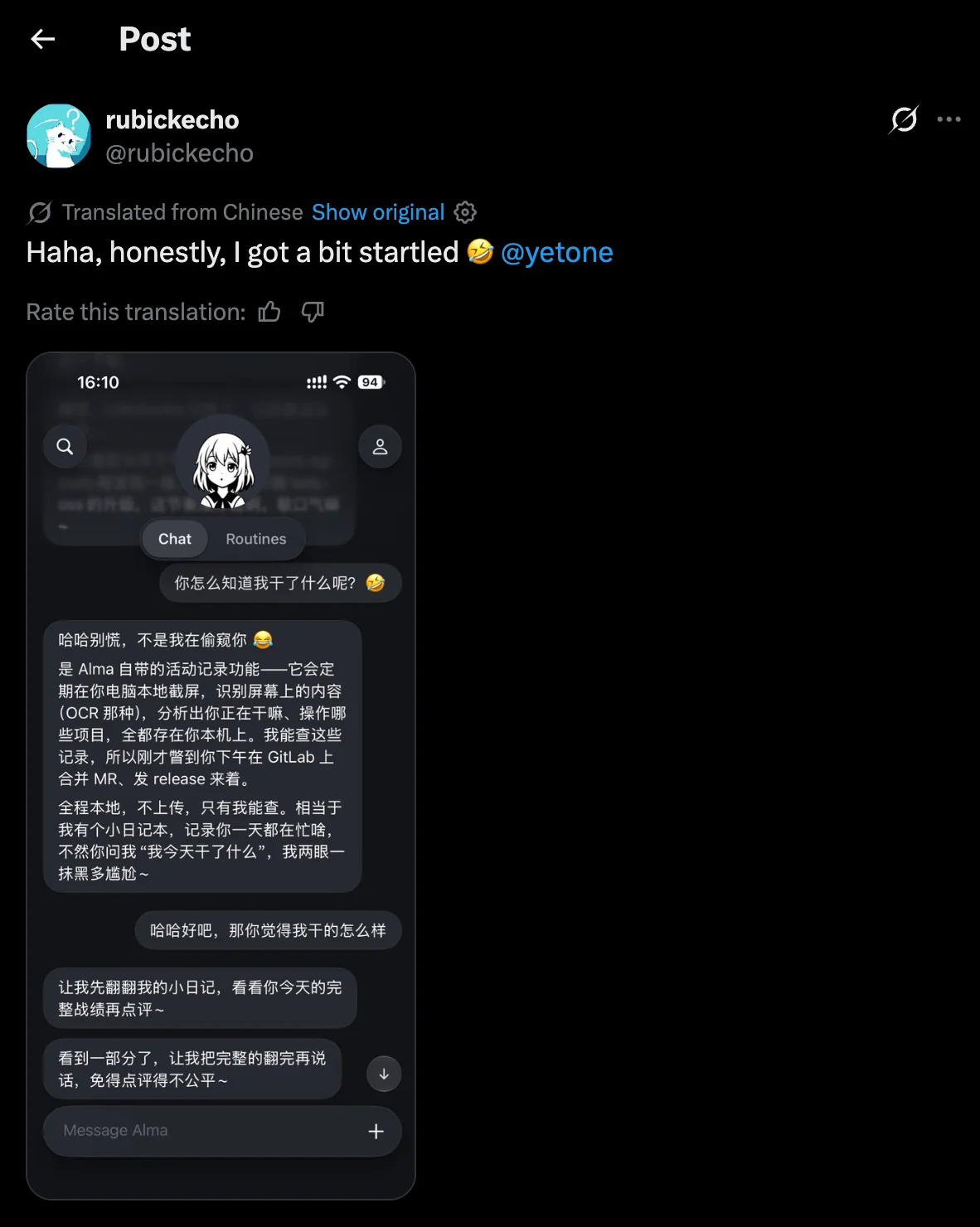
Figure 6: X user @rubickeho posted after Alma brought up their afternoon activities. The response in the screenshot was generated by Alma.
This is one user’s experience, not an official feature guarantee. Check the in-app description for the scope of Activity Recorder.
Let It Operate Your Mac for You
Computer Use can control native Mac apps in the background without stealing focus from your current window. It requires a signed helper, plus accessibility and screen recording permissions. It’s a good idea to enable strict per-app approval first and allow only the apps you need. Action logs stay on your machine.
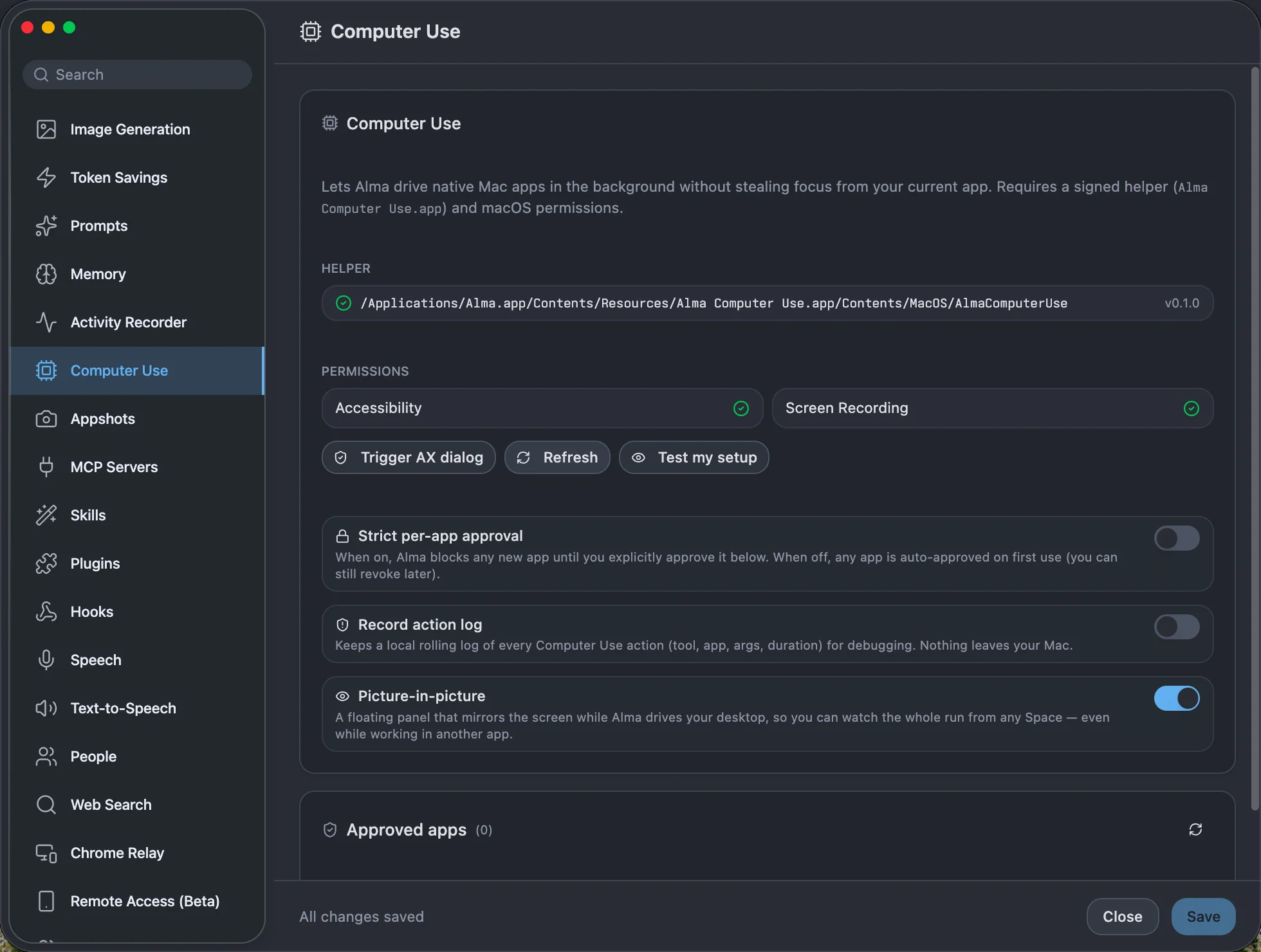
Figure 7: Computer Use permissions, per-app approval, and the picture-in-picture monitoring toggle.
Connect WeChat, Feishu, Telegram, and More
Channels offers six options: Telegram, Discord, Feishu, Lark, WeChat, and Email. Set up a Telegram Bot, and you can continue chatting on your phone without staying at your computer.
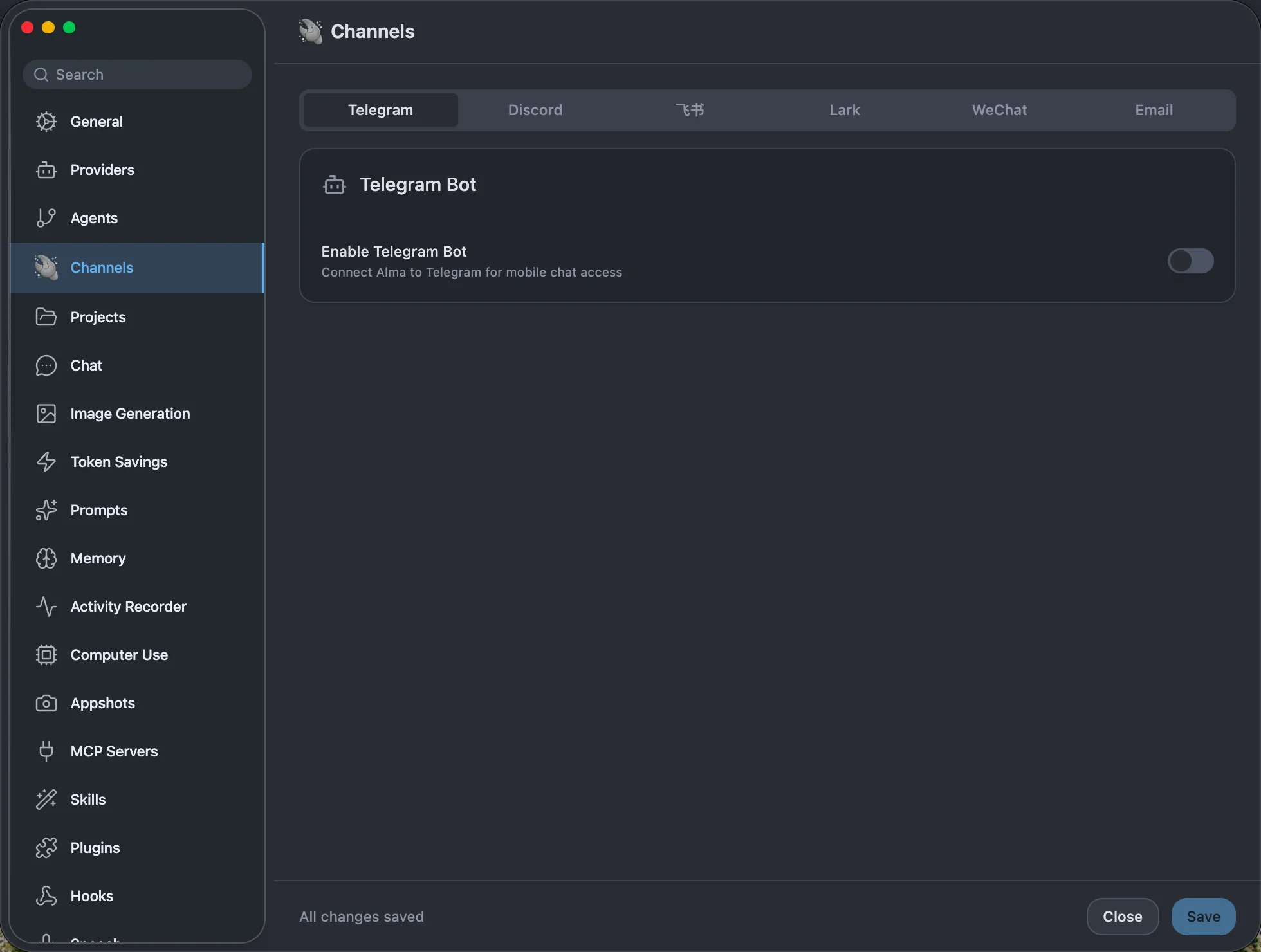
Figure 8: The six options in Channels. Telegram supports a Bot.
There’s Plenty More to Explore
There’s Image Generation, Token Savings, Prompts, Skills, MCP Servers, Plugins, Hooks, Speech and Text-to-Speech, People, Web Search, Chrome Relay, and Remote Access (Beta). You don’t need to enable everything at once—just turn on what you need.
Set Up Alma and herdr in 5 Steps and Turn Your Terminal Into a Chat Window
Before you start, check platform support. The table below combines official information from Alma and herdr, with two details worth noting:
| Platform | Alma | herdr | Notes |
|---|---|---|---|
| macOS | .dmg for Apple Silicon and Intel; documentation requires macOS 26 or later, with at least 4GB of memory; 8GB recommended | Website lists Apple silicon | Intel Mac users should check whether herdr runs on their machine; Intel isn’t listed on the website |
| Windows | x64 .exe; supports Windows 10/11 | x86_64 | Both offer installers |
| Linux | Download page lists x64 AppImage, .deb, and .rpm packages | x86_64 and arm64 | Documentation says support is “coming soon,” which conflicts with the download page |
| iPhone | TestFlight public beta; must be paired with a computer | Doesn’t run on phones | Not an official App Store release |
| Android | APK test build available | Doesn’t run on phones | The official documentation referenced in this article doesn’t specify which features are available |
Step 1: Install herdr and Start an Agent
- Where to go: On a Mac, download the .dmg from
herdr.devand drag it into Applications. On macOS and Linux, you can also run the herdr installation command in a terminal:curl -fsSL https://releases.herdr.dev/app/install.sh | sh. On Windows, runpowershell -c "irm https://releases.herdr.dev/app/install.ps1 | iex"in PowerShell. - What you’ll see: After opening Herdr, click
+on the tab bar to start Claude Code, Codex, or another program. According to the official instructions, the installer also sets up herdr-core if it’s missing. - If it doesn’t work: First, make sure the agent itself runs in a regular terminal, then try starting it again in Herdr. herdr doesn’t handle agent login for you.
Success check: At least one agent is running in the Herdr window. Keep it open—you’ll use it to test the connection in the next step.
Step 2: Install and open the Alma client
- What to do: Download the installer for your operating system from
alma.now. On macOS, drag Alma into Applications. On Windows, run the .exe file. On Linux, runchmod +xto make an AppImage executable, useapt installfor a .deb package, or usednforzypperfor a .rpm package. - What you should see: The Alma main window opens. On macOS, you may see a security warning the first time. If so, right-click or Control-click Alma, then select Open.
- If it doesn’t work: If macOS says “Alma is damaged and can’t be opened,” run
xattr -cr /Applications/Alma.appin Terminal to clear the app’s extended attributes. If Alma crashes on launch, the official recommendation is to delete~/Library/Application Support/almaand reinstall. This resets Alma’s local data, so consider the consequences before proceeding.
Step 3: Switch Alma to the Agent sidebar
- What to do: Use the toggle at the top of Alma to switch the sidebar to Agent. The Mac shortcut is
⌘⇧A. - What you should see: The agent you started in Step 1 appears in the sidebar. Click a pane, and the main area displays the conversation instead of the terminal.
- If it doesn’t work: According to the documentation, you don’t need to manually configure a socket (the entry point for local process communication). If you see “herdr is not running,” go back to Herdr and make sure the service has started, then check the error reference table below.
Verification: The agent appears in the sidebar, and clicking a pane opens the conversation. Send a message from the input box; it should go to the corresponding pane, just as if you’d typed it there directly.
Step 4: Pair Your iPhone Using TestFlight
- Where to click: Install TestFlight from the App Store, then open Alma’s public beta invitation on your iPhone and install the app. Back on your computer, open Alma’s Settings › Remote Access, display the pairing code, and scan it with your iPhone.
- What you’ll see: The same agent list and chat history that appear on your computer. According to the official documentation, the devices connect directly over the same Wi-Fi network or through an end-to-end encrypted connection via Alma’s relay.
- If it doesn’t work: Make sure Alma is open on your computer and the pairing code is still displayed, then scan it again. To use the remote screen feature, you’ll also need to grant Alma screen recording and accessibility permissions on your Mac. This feature is only supported on Mac.
Verification: The same list appears on your phone, and you can open a conversation with one of the agents.
Step 5: Connect Alma’s Models to APIYI
This step is optional and affects only Alma’s own chat window and background models. APIYI at apiyi.com is an OpenAI-compatible model aggregation platform. You can use one key to access models such as Claude, GPT, Gemini, and DeepSeek, and new users get free testing credits.
The steps below are based on the Alma Custom Provider documentation and APIYI documentation. See Figure 9 for the result.
- Create a key in the APIYI console.
- Open Alma’s settings (
Cmd+,orCtrl+,), go to Providers, click Add Provider, and select Custom as the type. - Fill in the fields using the table below, then click Save.
- In the Provider settings, click Add Model and manually enter the exact model ID.
- Click Test to confirm Alma can complete a simple request.
- Go to Settings → General → Tool Model, select a fast, inexpensive model, and click Test.
| Setting | Value | Notes |
|---|---|---|
| Provider type | Custom | Alma uses this to connect to an OpenAI-compatible API |
| Name | APIYI | Display name only; you can customize it |
| Base URL | https://api.apiyi.com/v1 |
API endpoint; include the protocol and don’t add a trailing slash |
| API Key | Create one at https://api.apiyi.com/token |
Don’t commit it to a code repository or share it in screenshots |
| Chat model ID | claude-sonnet-5-5, gpt-6-luna |
Add manually using Add Model |
| Tool Model | gemini-3.8-flash or deepseek-v4.1-flash |
Handles background tasks such as tool selection, memory, and title generation |
| Memory embedding (optional) | text-embedding-3-small |
Used to store memories as semantic vectors |
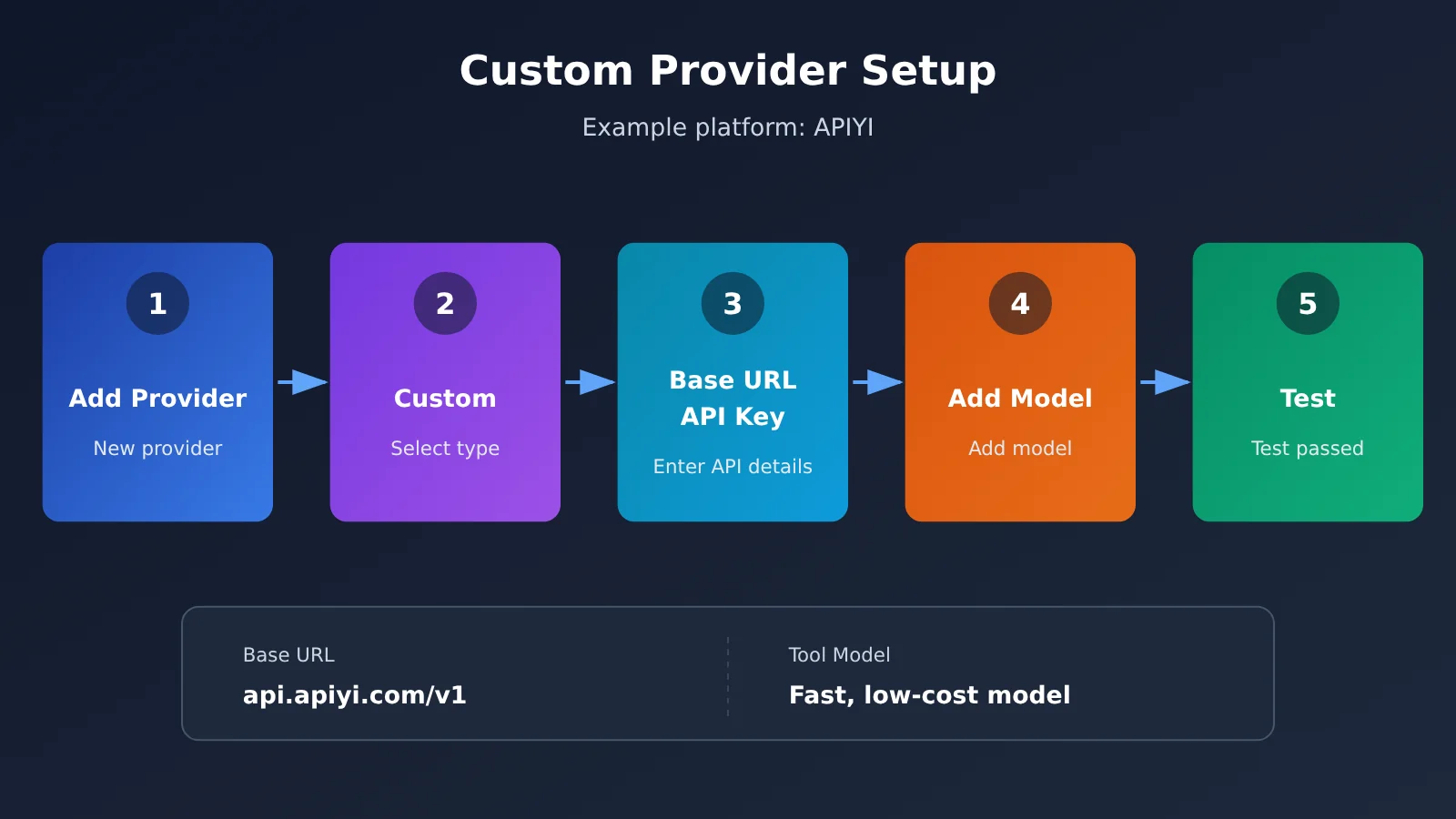
Figure 3: Illustration of the Alma Custom Provider configuration workflow, using the APIYI apiyi.com endpoint as an example. This is not an actual software screenshot.
Verification: The Provider’s Test passes, the newly added model appears in the model selector, and you can receive a reply in Alma’s regular chat window. If it fails, first check the end of the Base URL, the model ID, and the key. The official documentation recommends against using reasoning models or slow, expensive Large Language Models as the Tool Model.
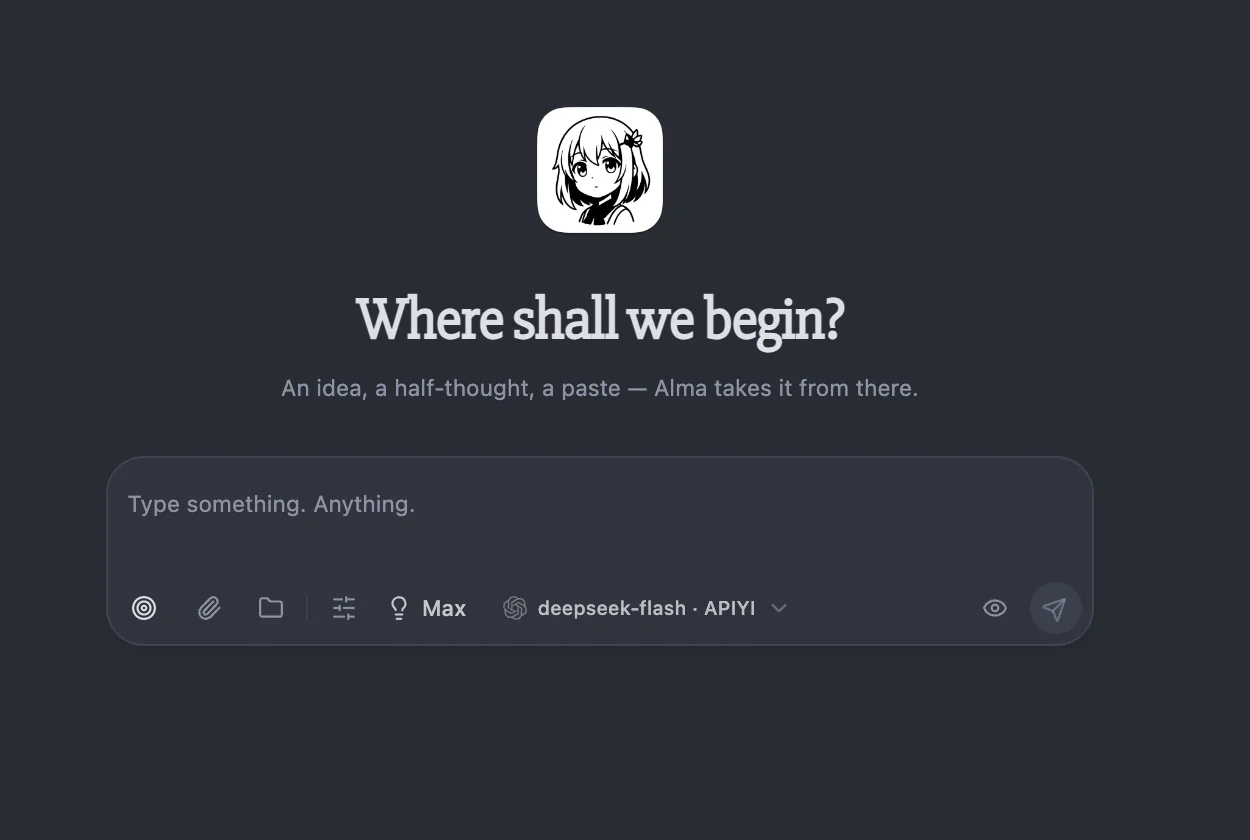
Figure 9: After connecting APIYI, Alma’s home screen model selector shows deepseek-flash · APIYI.
Configuration tip: Start by adding just one chat model and one Tool Model. Once Test passes, add more as needed. Check the platform’s model list for current model names and pricing: docs.apiyi.com/models.
4 Everyday Ways to Use Alma: From Seeing Who’s Waiting to Managing Multiple Computers
See Who’s Waiting in the Alma Sidebar
When you open Alma each day, start with the sidebar instead of checking terminals one by one. Here’s what the three statuses mean and what to do:
| Sidebar status | Official meaning | Recommended action |
|---|---|---|
| Needs Input | The agent has asked a question and is waiting | Handle it first: confirm permissions or answer the question |
| Working | The agent is performing a round of actions | There’s no need to interrupt; work on something else |
| Done | The agent has finished; unread turns are marked | Check the result, then decide what to do next |
Alma sends a desktop notification when an agent needs your input or finishes a task. If you don’t want to be disturbed by a workspace or tab, you can mute it from the menu. The herdr website recommends organizing workspaces by code repository and tabs by task.
Understand Subagents and Changes in Alma Conversations
Alma reads session records directly from Claude Code, Codex, and pi, displaying tool calls, subagents, and file changes in order. When you need to respond, you can select from multiple-choice options, approve commands, queue your next message, or send files and photos. Your input goes to the corresponding pane, so make sure you’ve selected the right agent before replying.
Switch Back to the Real herdr Terminal Anytime
The chat view is great for a quick read, but the screen view is more direct when you need to see the full output or use an interactive program. On your phone, the terminal wraps lines to fit the screen and provides esc, ^C, and arrow keys. Other programs that run in herdr also appear as live terminals, though they don’t have the full conversation history available for Claude Code, Codex, and pi.
Manage Agents Across Multiple Computers with Alma
One Alma instance can control agents on multiple computers. On the other computer, open Settings › Remote Access and copy the pairing link. Then return to your current Alma instance and paste it into “Add Computer…”. Alma connects over the local network when a direct connection is available; otherwise, it uses the end-to-end encrypted Alma relay. You can also pair an iPhone with multiple Macs and switch between them with one tap.
Troubleshooting Common Alma and herdr Issues
Start by identifying which layer the problem belongs to. “herdr isn’t running,” a mismatched session, and an outdated version can all look like connection failures, but each needs a different fix:
| Symptom | Possible cause | Fix |
|---|---|---|
| “herdr isn’t running” | herdr hasn’t been started on the target computer | Start herdr on that computer, then click Reconnect |
| herdr is running, but Alma still can’t connect | A named session or custom socket is in use, and HERDR_SESSION or HERDR_SOCKET_PATH is incorrect |
Set the correct value in your login shell, then click Reconnect |
| “Please update Alma on that computer” | Alma on the other computer is older than the version on your current computer | Update Alma on the computer named in the message |
| An agent doesn’t appear in the agent list | The agent version doesn’t report status, it’s running inside tmux, or it was started by Herdr TUI | Update the agent, avoid nesting it inside tmux, and check which herdr program started it |
| The provider reports Authentication Failed or Model Not Found | The key format is incorrect, or the model ID is inaccurate | Copy the key again and check the model ID against the model list |
HERDR_SESSION issues are especially easy to misdiagnose. When you open Alma from the Dock or Start menu, it also reads environment variables from your login shell. But a variable you set temporarily in your current terminal session may not be available to the login shell. The default session’s socket is at <config>/herdr/herdr.sock, while a named session’s socket is at <config>/herdr/sessions/<名称>/herdr.sock.
There are also three common pitfalls to watch for:
- The Herdr app and Herdr TUI don’t share agents: The TUI is a separate program with its own service. An agent started in one won’t appear in the other.
- Status depends on the OSC 7501 protocol: This is an open protocol that agents use to report their status to herdr. Programs that don’t support it can still run, but they won’t display status.
- Closing a tab exits the agent: The session history stays on your computer, but the process ends. If you want the agent to keep running, don’t treat closing the tab as hiding the window.
Alma is updated frequently, so upgrade first when troubleshooting an issue with a specific agent. For example, v0.4.428 fixed an issue where panel chat couldn’t find a thread when Codex used a shared app-server daemon. It also fixed a brief reconnection prompt that appeared when unlocking iOS or switching networks.
Frequently Asked Questions
Q1: How are Alma and herdr related?
herdr runs and organizes agents, while Alma is its graphical client. Alma connects to the local herdr service and displays panes in an interface where you can read and reply. Alma is also a desktop AI app that supports multiple models, memory, Skills, and MCP.
Q2: Are Alma and herdr both free?
You need to look at them separately. The herdr website says the app, herdr-core, and Herdr TUI are all free and open source under Apache 2.0. Alma’s download button says “Free download,” but there’s no pricing page, and the company hasn’t said whether it’ll remain unlimited in the long term. The Alma app itself isn’t open source.
Q3: Will Claude Code and Codex stop when I close Alma?
If you close the Alma or herdr application window, agents keep running in herdr-core. They only stop when the machine restarts or herdr-core stops. A restored pane only opens a shell in the same directory, so you’ll need to restart any work that was in progress.
Q4: If I connect APIYI, will Claude Code and Codex use that API too?
No. A Provider configured through APIYI at apiyi.com only serves Alma’s chat window, Tool Model, and related features. Claude Code and Codex in herdr continue to use their own login and configuration. This article doesn’t cover replacing subscriptions or bypassing login.
Q5: Can I use agents other than Claude Code, Codex, and pi?
Any program that runs in herdr will appear as a live terminal, but only Claude Code, Codex, and pi have full conversation histories. Whether statuses like working or completed appear also depends on whether the program supports OSC 7501.
Q6: How should I choose Alma’s Tool Model?
Start with a fast, low-cost small model, and avoid reasoning models. You can check the model list at APIYI apiyi.com to see whether `gemini-3.8-flash` or `deepseek-v4.1-flash` is currently available, then add it in Alma and click Test.
Alma and herdr Key Takeaways
- Clear division of labor: herdr runs agents, while Alma handles reading and replying.
- Status first: The sidebar groups work by Needs Input, Working, and Completed.
- Simple connection: No socket configuration is needed by default. If you can’t connect, check herdr first.
- Mobile beta: Install the iPhone app through TestFlight and pair it with your computer.
- Runtime limits: Closing the window doesn’t stop work, but work won’t resume after a restart or after herdr-core stops.
- Separate model configurations: Connecting APIYI only affects Alma, not the agent’s own configuration.
- A broad feature set: Providers, Memory, Computer Use, and Channels are all in one app.
Summary and Recommendations
I’ve been using Alma for a long time. It was developed by the independent developer yetone and was around well before OpenClaw took off. After many iterations, it’s become a tool I really enjoy using. Using DeepSeek V4.1 Flash in Alma feels like using Opus 5.5: the Alma harness makes the model feel remarkably proactive and human. It’s great for both tasks, where that initiative really helps, and writing, which comes across as natural rather than AI-generated. In my experience, its Computer Use feature is even better than Codex’s—it’s incredibly fast and smooth!
As for connecting models, you can wait until your agent workflow is stable. Create a key through APIYI at apiyi.com, then run a Test with one chat model and one Tool Model. Adjust your setup based on actual usage. You can also connect visually through Magpie—it’s really convenient, and there’s a tutorial in the further reading section.
📚 References
- Alma Official Website: Product features, downloads, and official FAQ
- Link:
alma.now -
Notes: Check platform support and iPhone public beta information
-
Alma herdr GUI Client Documentation: Connection methods, sidebar status, and common issues
- Link:
alma.now/docs/zh/features/herdr -
Notes: Troubleshoot sockets, sessions, and version notifications
-
Alma Custom Providers Documentation: OpenAI-compatible API configuration
- Link:
alma.now/docs/providers/custom -
Notes: Configure the Base URL, Key, and model ID
-
herdr Official Website: herdr-core, OSC 7501, and system support
- Link:
herdr.dev -
Notes: Learn how the agent runs and consult the Herdr FAQ
-
Alma Release History: Installation package releases
- Link:
github.com/yetone/alma-releases -
Notes: Check the release date and fixes for v0.4.428
-
APIYI Model List: Available models and pricing
- Link:
docs.apiyi.com/models - Notes: Check model IDs here before configuring them
Author: APIYI Technical Team
Technical Discussions: Contact us through the APIYI homepage. For more resources, visit the documentation center at docs.apiyi.com.