
Author’s note: No login, no Pro — just plug your own Large Language Model API key into Immersive Translate, then pick models, estimate costs, and troubleshoot across the three scenarios: web pages, PDFs, and subtitles.
Most people who read English web pages, papers, and video subtitles every day already have Immersive Translate installed. The real sticking points are usually two: not wanting to buy a separate membership just for translation, or already having LLM API credit on hand and wanting to use it directly. This article covers the OpenAI 1 service under “Other/Custom” in Immersive Translate — how to enter your own key, and how to choose models and estimate daily spend across web pages, PDFs, and subtitles.
This isn’t another beginner’s guide about “install the extension, click translate.” This is strictly about bringing your own key: how to fill in the endpoint URL, how to write the model name, how much it costs to translate a given number of pages per day, and what to check when you hit 429s or missing translations.
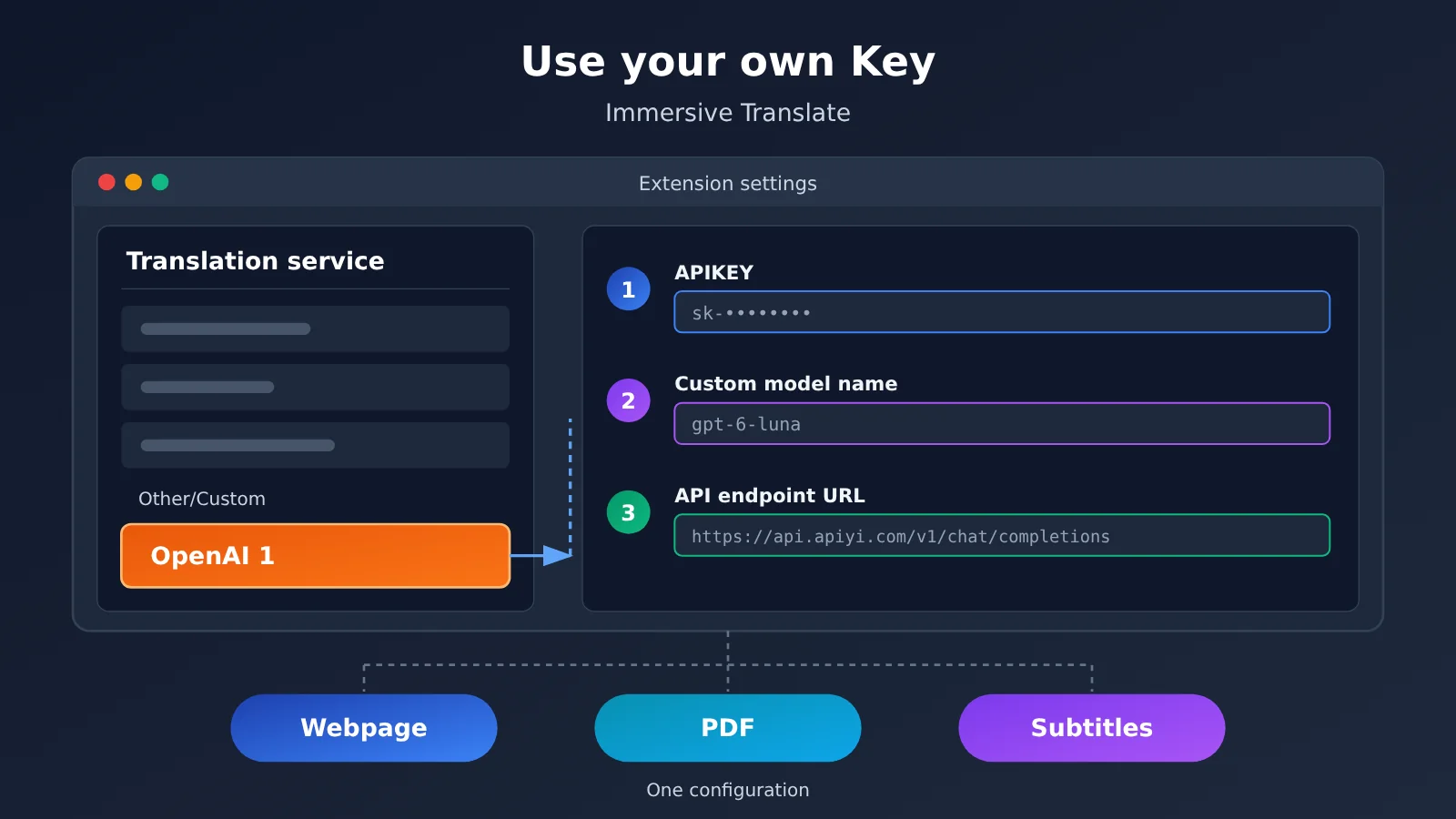
First, the three shortest settings — if you already know the extension, fill these in and you’re good to go:
- Service entry: Extension settings → Translation services → “Other/Custom” at the bottom of the list → “OpenAI 1” → Configure
- Model: Check “Enter custom model name” and type a model ID like
gpt-6-lunaby hand - Endpoint: In “Custom API endpoint URL,” enter the full address
https://api.apiyi.com/v1/chat/completions; click any blank area afterward and the setting saves automatically
What you’ll get: By the end of this article, you’ll have a three-step configuration, a model selection table broken down by web page/PDF/subtitle, a daily cost table normalized to per-million tokens, and a troubleshooting table for common failures.
Key points for plugging your own key into Immersive Translate
The open-source repo immersive-translate/immersive-translate reports 19,896 stars, with its most recent commit on 2026-11-23. The repo claims support for bilingual web page comparison, input box translation, hover translation, and it can also translate PDFs, EPUBs, subtitle files, and TXT files. All of these features call translation services behind the scenes — swap in your own Large Language Model key and every translation gets billed by token.
| Point | Description | Value |
|---|---|---|
| No login, no Pro | Use OpenAI 1 under “Other/Custom” — no need to sign in to an Immersive Translate account, and no Pro restrictions | Get LLM translation without buying a membership |
| OpenAI-compatible protocol | As long as the server is compatible with OpenAI’s chat/completions endpoint, you can put it in | One key can switch between multiple models |
| Type the model name yourself | Once you check “Enter custom model name”, you can fill in any model ID | Not limited by the plugin’s built-in dropdown |
| Adjustable concurrency | Max requests per second defaults to 5; if you hit 429, drop it to 2–3 | Long documents are less likely to get cut off by rate limiting |
| Multi-key load balancing | Separate multiple keys with English commas | Spreads the rate pressure off a single key |
The three key fields in Immersive Translate’s custom service
In the custom service config form, there are really only three things you need to touch: APIKEY, custom model name, and custom API endpoint URL. The checkbox beginners most often miss is “Enter custom model name” — leave it unchecked and you can only pick from the dropdown, so a hand-typed model ID won’t take effect. Another easy place to slip up is saving: the current version has no separate save button, so after you change a field you have to click on an empty area of the panel and it saves automatically.
The endpoint URL deserves a bit more explanation. According to the official docs, you’re supposed to enter the full address including the specific path. After the 1.30.2 release (2026-06-10), the custom API service can auto-complete the OpenAI / Anthropic endpoint path from the Base URL, so on newer versions just entering the Base URL usually works too. To be safe, this article uses the full address throughout — one less variable when you’re troubleshooting.
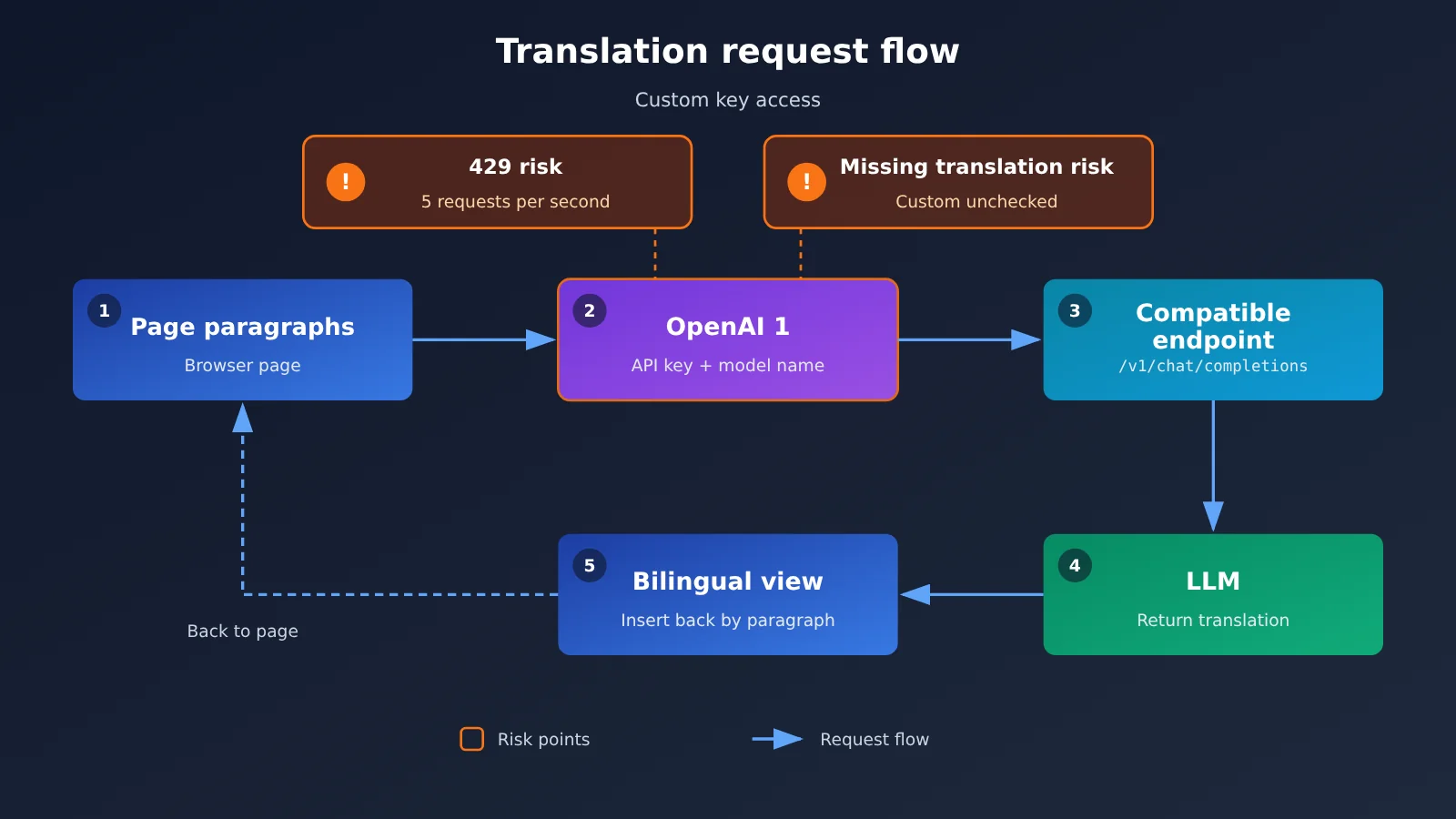
Get Up and Running with a Custom Key in Immersive Translate
All three steps below come with an acceptance check. Only move on once each check passes — that way, if something breaks, you know exactly which step is at fault.
Step 1: Open the OpenAI 1 configuration page in Immersive Translate
- Click the Immersive Translate icon in your browser toolbar to open the extension settings
- Select “Translation Services” on the left, scroll the list all the way to the bottom, and find “Other/Custom”
- Expand the configuration to the right of “OpenAI 1”
Acceptance check: you should see an APIKEY input field, an “Enter custom model name” checkbox, and a “Custom API endpoint” field — three fields in total. If you land on a page asking you to log in, you’ve opened the wrong service; go back to the bottom of the list and look for “Other/Custom” again.
Step 2: Fill in the APIKEY and a custom model name
- Put your key in the APIKEY field. If you have several keys, separate them with English commas, for example
sk-aaa,sk-bbb - Tick the “Enter custom model name” checkbox
- Type the model ID by hand into the model name field. For your first run,
gpt-6-lunais a good choice to get the whole flow working
Acceptance check: the model name field shows the ID you typed in, not the default value from the dropdown. Make sure there are no spaces around your keys, and use English commas between multiple keys — not Chinese full-width commas.
Step 3: Enter the custom API endpoint and verify
- In “Custom API endpoint”, enter
https://api.apiyi.com/v1/chat/completions - On version 1.30.2 and later you can also enter just the Base URL,
https://api.apiyi.com/v1— the extension fills in the rest of the path automatically - Click an empty area of the panel so the settings save automatically, then switch your current translation service to OpenAI 1
- Open any English web page and trigger bilingual translation
Acceptance check: Chinese translations appear under the page’s paragraphs, one paragraph at a time with no big blank patches. If you can translate two or three pages in a row without seeing a 429 error, you’re ready to switch models using the scenario table below.
🚀 Quick start: If you don’t have a usable key yet, you can sign up at APIYI apiyi.com to get one — new users get free trial credits. Get the three steps above working with a low-cost model first, then switch models based on your scenario. You’ll burn very few tokens experimenting.
Model Selection for Immersive Translation of Webpages, PDFs, and Subtitles
The three scenarios have very different requirements for models. Webpages have short paragraphs and lots of requests, so fast responses and low unit price matter most. PDFs—especially papers—are long and dense with terminology, so context and terminology stability matter more. Subtitles are line-by-line short sentences, large in volume but with short output each time, so low latency is the goal.
There’s also a lesson from a third-party integration doc (in the third party’s own words): when translating very short paragraphs, reasoning models may burn their output budget on the thinking process, leaving the translation incomplete or noticeably slower. So for all three scenarios, prefer direct-output models; don’t use models with long reasoning for paragraph-by-paragraph translation. All four model IDs below can be checked against the model list at APIYI apiyi.com and copied directly.
| Scenario | Characteristics | Preferred model | Alternative model | Why choose it |
|---|---|---|---|---|
| Webpage bilingual | Short paragraphs, dense requests | gpt-6-luna |
qwen3.8-flash |
The lowest price tier, suited to frequent short requests |
| PDF / papers | Long, terminology-heavy | qwen3.8-flash |
gemini-3.8-flash |
The former has a 1M context and 131K max output; the latter costs more and suits documents with high quality requirements |
| Subtitle files | Short sentences, large volume, latency-sensitive | gpt-6-luna |
deepseek-v4.1-flash |
Short output, so a low-cost direct-output model fits better |
| Terminology-strict professional documents | Translated terms must be consistent | gemini-3.8-flash |
deepseek-v4.1-flash |
Use with a glossary to reduce terminology drift |
Key Points for Webpage Translation Model Selection
Webpages are the most common scenario, and the volume translated every day is the largest, so unit price is the first consideration. The output price of gpt-6-luna and qwen3.8-flash is under $0.5 per million tokens, which is basically enough for everyday reading of news and documentation sites. When translating technical blogs, if the translation feels stiff, you can temporarily swap the model name to deepseek-v4.1-flash for comparison—you only need to change one field in the config.
Key Points for PDF and Subtitle Translation Model Selection
The challenge with PDF papers lies in length and terminology. The 1M context and 131K max output of qwen3.8-flash leave plenty of headroom for long documents. Subtitle files are the opposite—each entry is short, and whether the model is fast matters more than whether the context is long. If names and proper nouns come out inconsistent across subtitles, don’t rush to switch to a more expensive model; the glossary approach in the troubleshooting table later is usually more effective.
Immersive Translate with Your Own Key: Pricing and Daily Cost
Once you bring your own key, translation stops being “unlimited for a flat monthly fee”—now every page costs tokens. The table below lists the standard prices for four models on the APIYI pricing page at docs.apiyi.com/models. Data date: 2026-11-27; unit: USD per 1M tokens.
| Model ID | Input | Output | Cache read | Notes |
|---|---|---|---|---|
gemini-3.8-flash |
$0.75 | $3.75 | $0.075 | Highest unit price of the four |
deepseek-v4.1-flash |
$0.3 | $1.2 | $0.006 | Lowest cache-read unit price |
gpt-6-luna |
$0.1 | $0.5 | $0.01 | Lowest input unit price |
qwen3.8-flash |
$0.114 | $0.3876 | $0.01425 | 1M context window, 131K max output |
All four models use the same OpenAI-compatible endpoint. In the extension, you only change the model name, not the URL, so this one table is all you need when comparing prices. Translation output is the Chinese translation, and output tokens often make up the bulk of the cost, so when comparing costs, look at the output price first.
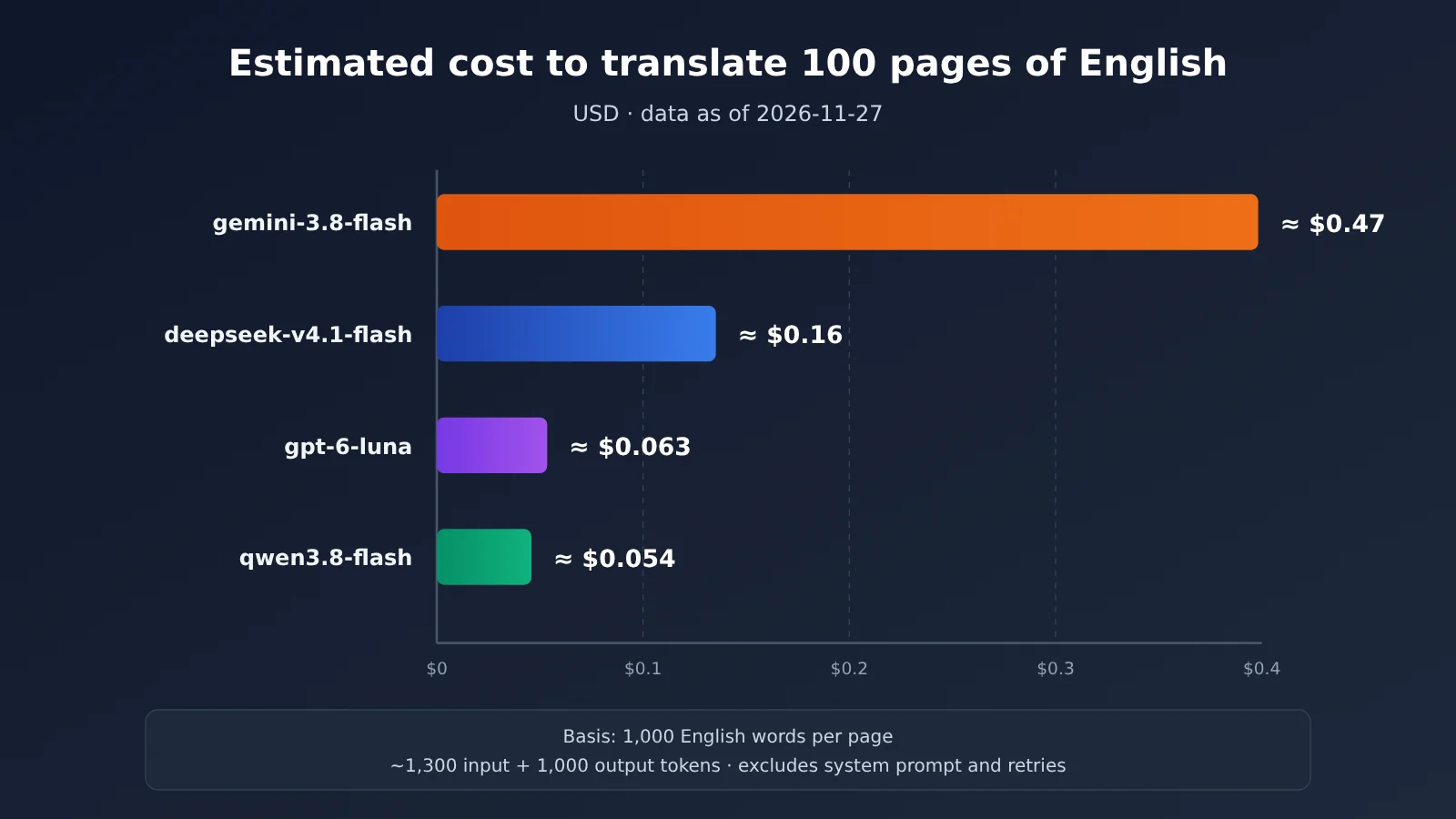
Estimated Daily Cost by Page Count
The estimates below use our own assumptions, not actual billing data: Assuming about 1,300 input tokens per 1,000 English words and about 1,000 output tokens for the Chinese translation, with one page equal to 1,000 words, 100 pages comes to roughly 130K input plus 100K output. All amounts in the table exclude system prompts, retries, and resends after failures; they are calculated at standard prices and do not include top-up bonuses.
| Daily reading volume | gemini-3.8-flash | deepseek-v4.1-flash | gpt-6-luna | qwen3.8-flash |
|---|---|---|---|---|
| 10 pages / day | approx. $0.047 | approx. $0.016 | approx. $0.0063 | approx. $0.0054 |
| 30 pages / day | approx. $0.14 | approx. $0.048 | approx. $0.019 | approx. $0.016 |
| 100 pages / day | approx. $0.47 | approx. $0.16 | approx. $0.063 | approx. $0.054 |
| 30 pages/day × 30 days | approx. $4.25 | approx. $1.43 | approx. $0.57 | approx. $0.48 |
You can convert subtitle files into “pages” based on English word count and then apply this table. For example, a subtitle file with about 3,000 words would be estimated as 3 pages. Actual costs will usually be a little higher than the table shows, because the extension sends a system prompt with every request, and retries after a 429 are billed again.
Troubleshooting Immersive Translate: 429 Errors, Missing Translations, and Inconsistent Terminology
When troubleshooting, change only one variable at a time: check the rate first, then the model name and endpoint, and finally terminology. The table below is ordered from most to least common.
| Symptom | Common cause | How to check and fix |
|---|---|---|
429 errors or a large number of failed paragraphs |
Requests per second exceed the Key’s rate limit | Lower the max requests per second from the default 5 to 2–3; translate long documents in chunks; configure multiple Keys separated by English commas for load balancing |
| Some paragraphs missing, whole stretches blank | “Enter custom model name” isn’t checked, or the endpoint doesn’t end with /chat/completions |
Make sure the checkbox is ticked and the model name is a manually entered ID; change the endpoint to the full /v1/chat/completions |
| Translations cut off mid-sentence, noticeably slower | A reasoning-type model is selected, so the output budget is spent on thinking (per the third party’s own description) | Switch to a direct-output model, such as gpt-6-luna or qwen3.8-flash |
| Configuration changes don’t take effect | The current version has no save button, and auto-save wasn’t triggered | After editing the fields, click on a blank area of the panel, then restart the translation |
| The same term is translated differently across the page | Each paragraph is a separate request, so the model handles proper nouns however it likes | Configure a glossary in the extension, or pin the translation in the prompt |
Two Ways to Fix 429 Errors in Immersive Translate
429 errors come from too many requests per unit time. During web page translation, the plugin sends visible paragraphs concurrently, defaulting to 5 requests per second, which easily hits the limit on long pages. Start by lowering the max requests per second to 2–3; translation will be a bit slower, but it basically won’t get interrupted anymore. If you still hit 429 frequently, then consider splitting long PDFs into chunks, or configuring multiple Keys to spread the load.
Common Questions (FAQ)
Q1: Do I need to log in or buy Pro to use Immersive Translate with my own key?
No. You can use the OpenAI 1 service under “Other/Custom” — no need to sign in to an Immersive Translate account, and no Pro restrictions apply. All you need is an OpenAI-compatible endpoint address and a key.
Q2: For a custom API endpoint, should I enter a Base URL or the full address?
Version 1.30.2 (2026-06-10) and later automatically append the OpenAI / Anthropic API path based on the Base URL, so filling in just `/v1` usually works too. If you get missing translations or errors, switch to the full address ending in `/chat/completions` to rule out a path issue.
Q3: Can the same model handle web pages, PDFs, and subtitles?
Yes — configure it once and all three scenarios will use OpenAI 1. If you want to save money while keeping paper-quality output, you can use `gpt-6-luna` day to day and swap the model name to `qwen3.8-flash` before translating PDFs. It’s just one field, so switching costs are minimal.
Q4: Why aren’t reasoning models recommended for translation?
Translated paragraphs are short. Based on experience with third-party integrations, reasoning models may burn their output budget on the thinking process, leaving translations incomplete or slower. For paragraph-by-paragraph translation, direct-output models are the better pick.
Q5: Where do I get a key and verify model IDs and pricing?
You can sign up at APIYI (apiyi.com) to get a key, and new users get free trial credits. Model IDs plus input, output, and cached-read prices are all on the pricing page — just copy the ID into “Custom model name,” since all four models share the same OpenAI-compatible endpoint.
Q6: Roughly how much does translating 30 pages a day cost?
Using the estimates in this article, 30 pages a day runs about $0.016 (`qwen3.8-flash`) to $0.14 (`gemini-3.8-flash`), excluding system prompts and retries. Actual costs are subject to your bill.
Q7: Should I use a glossary or fixed translations in the prompt?
If you have lots of terms that get reused across documents, use the extension’s glossary — it’s easier to maintain. If it’s just a handful of proper nouns in a single document, hardcoding translations in the prompt is faster. You can also use both at the same time.
Immersive Translate with Your Own Key: Key Takeaways
- One fixed entry point: Translation Services → Other/Custom → OpenAI 1 — no login required, and it isn’t gated behind Pro
- Three fields: the APIKEY, ticking the checkbox and typing the model name by hand, and the full endpoint URL — after editing, click on an empty area to save
- Choose a model per scenario: use low-cost direct-output models for web pages and subtitles; for PDFs, prioritize long context
- Costs are predictable: roughly $0.054 to $0.47 per 100 pages (estimated), with the output price making up most of it
- Troubleshooting order: lower concurrency first to fix 429s, then check the checkbox and path to fix skipped translations, and finally unify terminology with a glossary
- How to get started: grab a key at APIYI apiyi.com, get it working with
gpt-6-lunafirst, then switch models
Summary
Hooking Immersive Translate up to your own key comes down to three things:
- Configuration is only three steps: open OpenAI 1, enter the key and a custom model name, enter the full endpoint URL — each step has a clear way to verify it worked
- Models are tiered by scenario: for web pages and subtitles, look at unit price and latency; for PDFs, look at context and terminology; across the board, avoid reasoning models
- Costs are calculated per token: reading 30 pages a day costs anywhere from a few cents to a dozen-odd cents (estimated), driven mainly by the output price
When you shouldn’t use this setup: if you only translate a paragraph or two now and then, the plugin’s built-in free service is already enough, and there’s no reason to manage your own key and bill. If your documents are confidential and aren’t allowed to be sent to an external API, don’t use it either. And if you need offline translation, this setup doesn’t apply for the same reason — every segment requires a network request to the model.
If your situation matches the use cases above, you can use the free credits at APIYI apiyi.com to walk through the three-step configuration, compare against the daily cost table based on your own reading volume, and settle on the model you’ll use long term.
📚 References
-
Immersive Translate GitHub repository: plugin source code and feature documentation
- Link:
github.com/immersive-translate/immersive-translate - Details: the repo’s self-reported feature list and release notes, including automatic endpoint path completion in 1.30.2
- Link:
-
APIYI Model Pricing Page: model IDs and pricing
- Link:
docs.apiyi.com/models - Details: source for the pricing table in this article; data dated 2026-11-27, including input, output, and cache-read unit prices
- Link:
Author: APIYI Technical Team
Technical support: If you run into configuration issues, feel free to contact us via the homepage of the APIYI website