The issue of binding a card in Gemini AI Studio is the first hurdle many developers encounter when using Google AI services. While the platform offers free quotas, unlocking higher quotas or production-level features requires setting up a Google Cloud Platform (GCP) billing account, which typically involves credit card verification. This article systematically introduces the card binding process for Gemini AI Studio, GCP billing setup methods, and cost-effective alternatives when card binding fails.
Core Value: After reading this article, you'll master the complete path from free usage to paid upgrade in Gemini AI Studio, understand the GCP billing mechanism, and know how to quickly access Gemini API services when card binding is blocked.
Gemini AI Studio Card Binding Key Points
| Key Point | Description | Value |
|---|---|---|
| Free usage requires no card | Since 2026, AI Studio has separated from GCP, basic usage is completely free | Lower barrier to entry, quick Gemini API experience |
| Paid tier requires GCP billing | Upgrading to higher quotas requires binding a credit card in Google Cloud | Unlock production-grade features and higher rate limits |
| Prepayment is not a fee | Google may require a one-time prepayment, but this is account balance, not an extra charge | Clarify fee structure, avoid misunderstanding |
| 2026 policy simplification | AI Studio separated from GCP, payment process simpler than before | Reduce configuration complexity, improve developer experience |
Gemini AI Studio Card Binding Key Details
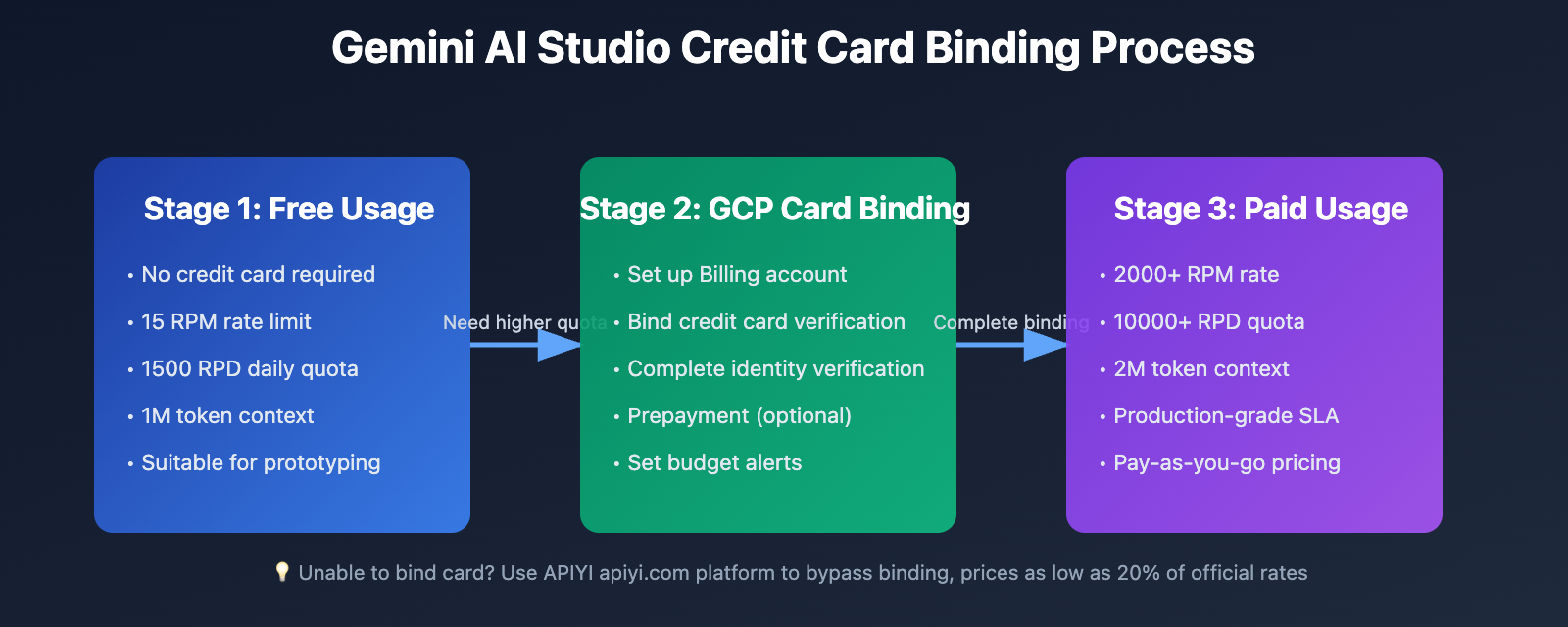
Gemini AI Studio underwent a major adjustment in January 2026, separating the billing system from Google Cloud Platform, allowing developers to manage billing directly in the AI Studio interface without diving into the GCP console. This change greatly simplified the payment process, but for users needing higher quotas, setting up a GCP billing account is still required.
The key point is: Free quotas require absolutely no credit card binding. Only when you wish to break through the free tier's rate limits (such as 15 RPM and 1500 RPD) or need production-grade SLA guarantees do you need to set up a paid plan. At that point, Google will require you to bind a valid credit card and may request a one-time prepayment (typically an account balance top-up, not an additional fee).
Gemini AI Studio Free Usage Guide
Basic Usage Without Credit Card
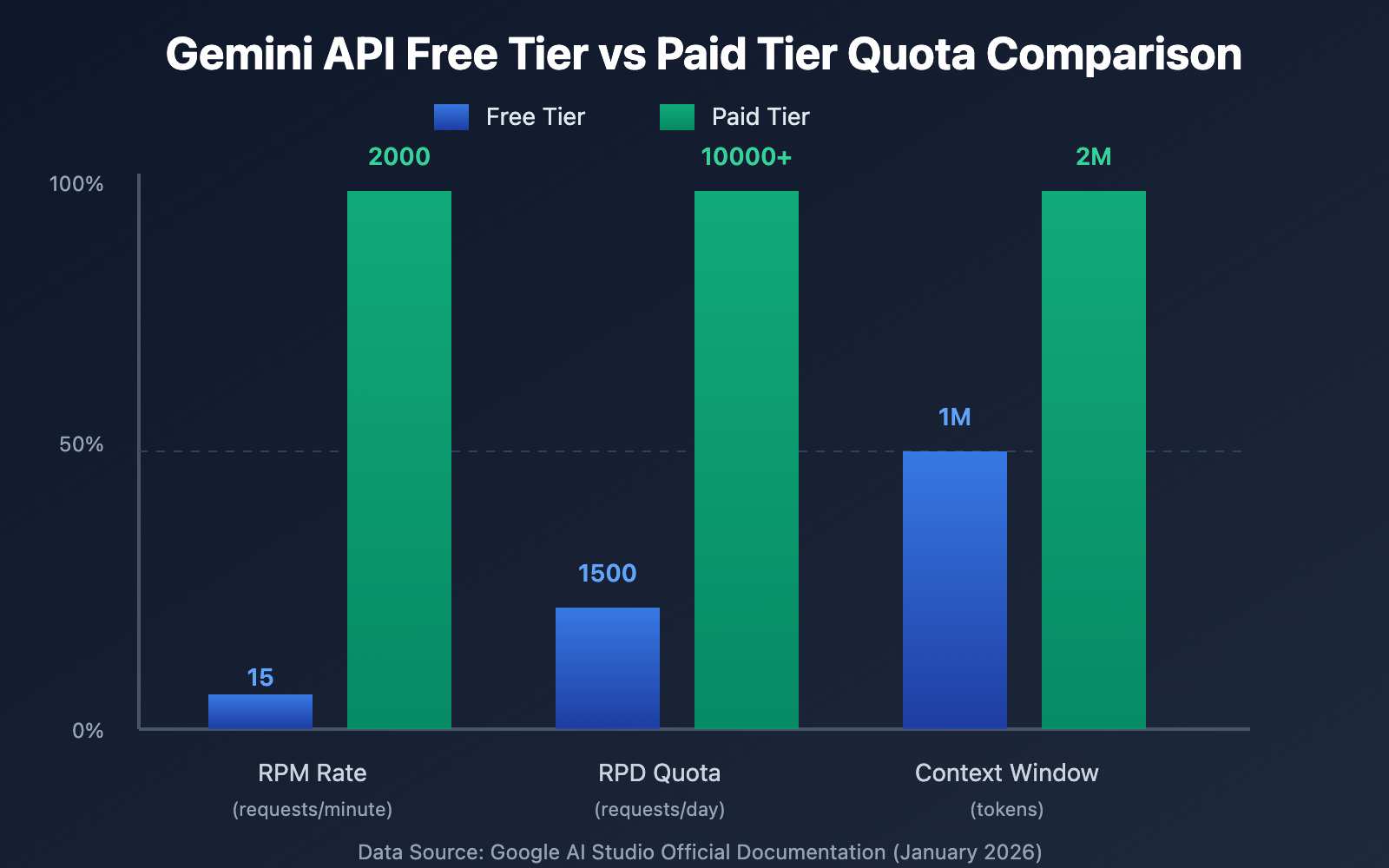
According to Google AI's official documentation, Gemini AI Studio's free tier offers the following core capabilities:
| Feature | Free Tier Quota | Paid Tier Quota |
|---|---|---|
| Rate Limit (RPM) | 15 requests/minute | 1000-2000 RPM (depending on model) |
| Daily Quota (RPD) | 1500 requests/day | 10000+ RPD |
| Context Window | 1 million tokens (Gemini 1.5 Pro) | 2 million tokens (extended version) |
| Supported Models | Flash/Pro series | All series including experimental models |
Usage Steps:
- Visit aistudio.google.com
- Log in with your Google account (takes about 2 minutes)
- Create an API Key to start making calls
🚀 Quick Start: For developers who don't want to deal with GCP billing, we recommend using the API Yi apiyi.com platform to quickly build prototypes. This platform provides ready-to-use Gemini API interfaces without complex configuration, allowing integration to be completed in 5 minutes.
Actual Value of Free Quota
The free tier's 15 RPM and 1500 RPD quota is sufficient for the following scenarios:
- Prototype development and feature validation
- Small-scale testing and learning
- Personal projects and experimental applications
- Low-frequency production environment calls
However, upgrading to the paid tier is necessary for:
- High-concurrency API call requirements
- Production environments for commercialized products
- Critical business requiring SLA guarantees
- Batch data processing tasks
Gemini AI Studio Credit Card Setup Steps
Step 1: Access Billing Settings
Specific path to set up billing in Google AI Studio:
- Log in to Google AI Studio (aistudio.google.com)
- Click Dashboard in the left menu
- Select the Usage and Billing tab
- Click the Set up Billing button in the Billing section
The system will then prompt: "There is no billing currently set up for this project Gemini API."
Step 2: Create or Link GCP Billing Account
Case 1: New Users – First Time
- Google will guide you to create a new GCP billing account
- New users typically receive $300 in free trial credits (valid for 90 days)
- Credit card information is required for identity verification
Case 2: Existing GCP Account
- You can directly link an existing GCP billing account
- Select the corresponding Project and confirm the binding
- No need to re-enter payment information
Step 3: Enter Credit Card Information
Payment methods supported by Google Cloud:
| Payment Method | Supported Regions | Verification Method |
|---|---|---|
| Visa/Mastercard | Global | CVV verification + small authorization charge |
| American Express | US, Europe, etc. | CVV verification |
| Bank Transfer | Selected regions | Bank account information required |
| PayPal | US, Europe, etc. | Verification through PayPal account |
Verification Process:
- Enter card number, expiration date, CVV, billing address
- Google will perform a small authorization charge (usually $1, refunded later)
- Upon successful verification, "Payment method verified" is displayed
💡 Selection Suggestion: The choice of payment method mainly depends on availability in your region. If you encounter credit card verification failures, we recommend conducting actual testing through the API Yi apiyi.com platform to quickly start using the Gemini API. This platform supports unified interface calls for multiple mainstream models, facilitating quick comparison and switching.
Step 4: Handle Prepayment Requirements
According to Google AI's official documentation, some users may encounter prepayment requirements when activating the paid tier:
Prepayment Mechanism Explanation:
- Amount: Usually between $5-50 (based on account credit score)
- Nature: This is an account balance top-up, not an additional fee
- Purpose: Directly used to offset subsequent API call costs
- Optional: If prepayment is not completed, the account will remain on the free tier
Example Scenario:
Prepayment: $10
Subsequent call costs: $7.50
Remaining balance: $2.50 (can continue to use)
Step 5: Set Budget Alerts (Optional but Recommended)
To avoid unexpected overspending, it's strongly recommended to configure budget alerts:
- In GCP Console, access Billing → Budgets & alerts
- Click Create Budget
- Set budget amount (e.g., $50/month)
- Configure alert thresholds (e.g., send emails when reaching 50%, 90%, 100%)
# Example: Monitor Gemini API call costs using Python
import openai

client = openai.OpenAI(
    api_key="YOUR_API_KEY",
    base_url="https://vip.apiyi.com/v1"
)

# Call API
response = client.chat.completions.create(
    model="gemini-1.5-pro",
    messages=[{"role": "user", "content": "Explain quantum computing principles"}]
)

# Get usage information
print(f"Input tokens: {response.usage.prompt_tokens}")
print(f"Output tokens: {response.usage.completion_tokens}")
print(f"Total tokens: {response.usage.total_tokens}")
View Complete Cost Monitoring Code
import openai
from datetime import datetime
import sqlite3

class GeminiCostTracker:
    """Gemini API Cost Tracker"""

    def __init__(self, api_key, base_url="https://vip.apiyi.com/v1"):
        self.client = openai.OpenAI(api_key=api_key, base_url=base_url)
        self.db = sqlite3.connect('gemini_usage.db')
        self._init_db()

    def _init_db(self):
        """Initialize database"""
        cursor = self.db.cursor()
        cursor.execute('''
            CREATE TABLE IF NOT EXISTS api_calls (
                id INTEGER PRIMARY KEY AUTOINCREMENT,
                timestamp TEXT,
                model TEXT,
                input_tokens INTEGER,
                output_tokens INTEGER,
                total_tokens INTEGER,
                estimated_cost REAL
            )
        ''')
        self.db.commit()

    def call_api(self, model, messages):
        """Call API and record costs"""
        response = self.client.chat.completions.create(
            model=model,
            messages=messages
        )

        # Calculate estimated cost (based on official pricing)
        pricing = {
            "gemini-1.5-flash": {"input": 0.000075, "output": 0.0003},
            "gemini-1.5-pro": {"input": 0.00125, "output": 0.005}
        }

        rate = pricing.get(model, pricing["gemini-1.5-flash"])
        cost = (response.usage.prompt_tokens / 1000 * rate["input"] +
                response.usage.completion_tokens / 1000 * rate["output"])

        # Record to database
        cursor = self.db.cursor()
        cursor.execute('''
            INSERT INTO api_calls
            (timestamp, model, input_tokens, output_tokens, total_tokens, estimated_cost)
            VALUES (?, ?, ?, ?, ?, ?)
        ''', (
            datetime.now().isoformat(),
            model,
            response.usage.prompt_tokens,
            response.usage.completion_tokens,
            response.usage.total_tokens,
            cost
        ))
        self.db.commit()

        return response, cost

    def get_monthly_cost(self):
        """Get total cost for current month"""
        cursor = self.db.cursor()
        cursor.execute('''
            SELECT SUM(estimated_cost) FROM api_calls
            WHERE timestamp >= date('now', 'start of month')
        ''')
        return cursor.fetchone()[0] or 0.0

# Usage example
tracker = GeminiCostTracker(api_key="YOUR_API_KEY")
response, cost = tracker.call_api(
    model="gemini-1.5-pro",
    messages=[{"role": "user", "content": "Write a quicksort algorithm"}]
)
print(f"Cost for this call: ${cost:.6f}")
print(f"Cumulative cost this month: ${tracker.get_monthly_cost():.2f}")
🎯 Technical Suggestion: In actual development, we recommend conducting interface call testing through the API Yi apiyi.com platform. This platform provides unified API interfaces supporting multiple models including Gemini 1.5 Flash, Pro, Nano Banana Pro, etc., helping to quickly validate the feasibility of technical solutions.
Gemini AI Studio Common Card Binding Issues
Q1: Why does my credit card verification keep failing?
Common reasons for credit card verification failure:
- Regional restrictions: GCP doesn't support local bank cards in some regions; requires Visa/Mastercard international cards
- Insufficient balance: Verification involves a small authorization charge ($1), ensure sufficient balance
- Card restrictions: Some banks restrict overseas payments; contact your bank to enable this feature
- Address mismatch: Billing address must exactly match the credit card registration address
Solutions:
- Use virtual credit card services (such as Privacy.com, Revolut)
- Contact your bank to confirm international payment functionality is enabled
- Try alternative payment methods like PayPal
- Consider using third-party API relay services, such as APIYI apiyi.com
Q2: Will I be automatically charged after using up the free quota?
No automatic charges unless you actively set up a GCP billing account.
How the free tier works:
- After reaching the 15 RPM or 1500 RPD limit, the API returns a 429 error (rate limit)
- No charges are incurred
- Quota automatically resets daily at midnight (UTC time)
If you've already set up billing but want to control costs:
- Set budget alerts (as described above)
- Use GCP's quota management features to limit maximum call volume
- Regularly check the Billing Dashboard
Recommended to obtain more flexible billing control through the APIYI apiyi.com platform, which offers both pay-as-you-go and prepaid package models for easier cost management.
Q3: Can the $300 GCP free trial credit be used for the Gemini API?
Yes, but with conditions.
Google Cloud new user $300 free credit:
- Validity: 90 days
- Applicable scope: All GCP services, including Vertex AI (enterprise version of Gemini API)
- Not applicable to: Direct API calls from AI Studio (this has a separate free tier)
Practical usage recommendations:
- Use AI Studio free tier first (doesn't consume GCP credit)
- GCP trial credit only takes effect after exceeding the free tier
- After trial period ends, a valid payment method is required to continue using
Q4: What are the actual costs for the Gemini API?
Below is the official Gemini API pricing (January 2026):
| Model | Input Price (per million tokens) | Output Price (per million tokens) |
|---|---|---|
| Gemini 1.5 Flash | $0.075 | $0.30 |
| Gemini 1.5 Pro | $1.25 | $5.00 |
| Gemini 1.5 Pro (2M context) | $2.50 | $10.00 |
Cost calculation example:
Scenario: Using Gemini 1.5 Pro to generate a 500-word article
Input: 100 tokens (prompt)
Output: 700 tokens (generated content)

Cost = (100/1000000 × $1.25) + (700/1000000 × $5.00)
     = $0.000125 + $0.0035
     = $0.003625 (approximately ¥0.026 RMB)
💰 Cost optimization: For budget-sensitive projects, consider calling the API through the APIYI apiyi.com platform, which offers flexible billing methods and more competitive pricing, suitable for small teams and individual developers.
Q5: What if I can’t bind a card? Are there alternative solutions?
If you cannot complete GCP card binding, here are viable alternative solutions:
Option 1: Use third-party API platforms
- APIYI (apiyi.com): Provides Gemini Nano Banana Pro API at prices as low as 20% of official rates
- OpenRouter: Aggregates multiple AI model APIs
- AI Proxy services: Support domestic payment methods
Option 2: Use virtual credit card services
- Privacy.com (US users)
- Revolut (European users)
- Wise (global users)
Option 3: Use Gemini through Vertex AI
- If you have a GCP enterprise account, you can call through Vertex AI
- Billing method is the same as AI Studio, but requires more complex configuration
Recommended solution: For developers in China, directly using APIYI apiyi.com is the most convenient approach, supporting local payment methods such as Alipay and WeChat Pay.
Alternative Solution for Card Binding Issues: APIYI Platform
For developers who cannot complete GCP credit card binding or want more competitive pricing, APIYI (apiyi.com) offers a cost-effective alternative solution.
APIYI Platform Core Advantages
| Comparison Dimension | Gemini Official | APIYI Platform |
|---|---|---|
| Payment Methods | International credit cards only | Alipay, WeChat, bank cards |
| Card Binding Requirements | Requires GCP verification | No card binding needed, ready to use after registration |
| Pricing Advantage | Official pricing | As low as 20% of official rates |
| Technical Support | English community only | Chinese technical support |
| API Compatibility | Native API | OpenAI-compatible interface |
Detailed Price Comparison
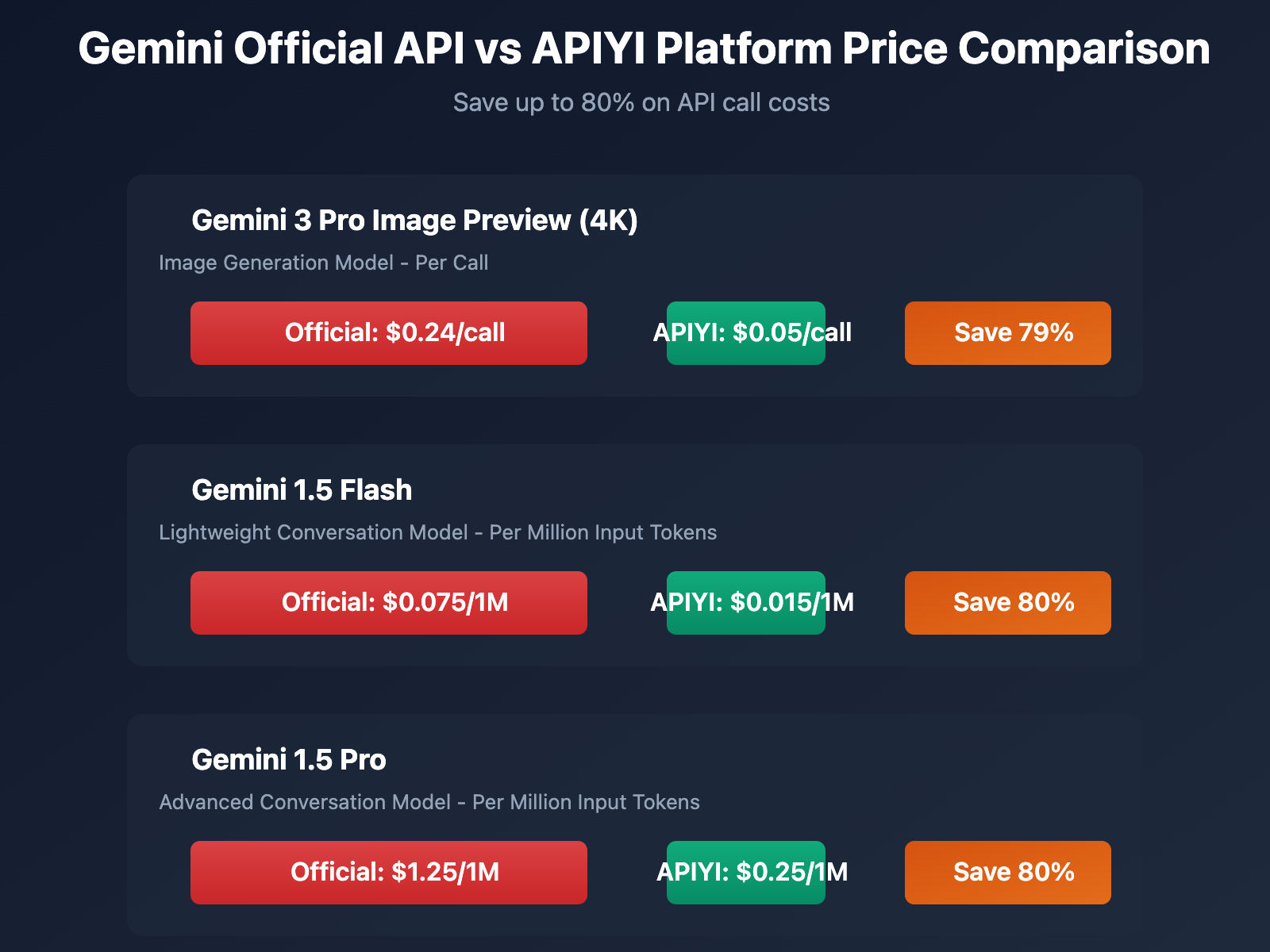
Taking the gemini-3-pro-image-preview model as an example (4K resolution image generation):
- Gemini Official: $0.24/call
- APIYI Platform: $0.05/call
- Savings: 79% cost reduction
Price comparison for other commonly used models:
| Model | Official Price | APIYI Price | Savings Percentage |
|---|---|---|---|
| Gemini 1.5 Flash | $0.075/1M tokens (input) | $0.015/1M tokens | 80% |
| Gemini 1.5 Pro | $1.25/1M tokens (input) | $0.25/1M tokens | 80% |
| Nano Banana Pro | N/A | $0.05/call (image generation) | – |
Quick Integration Guide
Steps to call Gemini API using the APIYI platform:
Step 1: Register and Get API Key
- Visit apiyi.com
- Register an account (supports phone number or email)
- Top up any amount (supports Alipay, WeChat Pay)
- Generate API Key in the console
Step 2: Call Using OpenAI-Compatible Interface
import openai

client = openai.OpenAI(
    api_key="YOUR_APIYI_KEY",
    base_url="https://vip.apiyi.com/v1"
)

# Call Gemini 1.5 Pro
response = client.chat.completions.create(
    model="gemini-1.5-pro",
    messages=[
        {"role": "user", "content": "Explain what the Transformer architecture is"}
    ]
)

print(response.choices[0].message.content)
View Image Generation Code Example
import openai

client = openai.OpenAI(
    api_key="YOUR_APIYI_KEY",
    base_url="https://vip.apiyi.com/v1"
)

# Call Gemini 3 Pro Image Preview to generate images
response = client.images.generate(
    model="gemini-3-pro-image-preview",
    prompt="A cat walking in space, cyberpunk style, 4K resolution",
    size="1024x1024",
    quality="hd",
    n=1
)

# Get image URL
image_url = response.data[0].url
print(f"Generated image URL: {image_url}")
Recommendation: Obtain free testing credits through APIYI apiyi.com to quickly validate the actual effectiveness of Gemini API in your project.
APIYI Platform Use Cases
Recommended to use APIYI when:
- Unable to complete GCP credit card binding
- Need to use domestic payment methods
- Have high requirements for cost control
- Want to use OpenAI-compatible interface (convenient for migration)
- Need Chinese technical support
Still need to use official API when:
- Need access to latest experimental models (such as Gemini 2.0)
- Extremely latency-sensitive scenarios (official direct connection has lower latency)
- Enterprise compliance requirements mandate using official channels
- Need deep integration with other GCP services
Summary
Key Points for Gemini AI Studio Payment Setup:
- Free Usage Without Payment: Since 2026, AI Studio has been separated from GCP, with basic features completely free to access
- Paid Upgrades Require GCP Billing: Breaking through free tier limits requires setting up a Google Cloud billing account and binding a credit card
- Prepayment as Account Balance: The prepayment when activating the paid tier is directly credited to your account for future usage deductions
- Alternative Solutions with High Cost-Effectiveness: If unable to bind a card, using third-party platforms like APIYi can save up to 80% in costs
For most developers, we recommend prioritizing the free tier for prototyping and testing. If you need higher quotas, choose based on your actual situation:
- Official Channel: Suitable for enterprise users and latency-sensitive scenarios
- APIYi Platform: Suitable for individual developers and cost-sensitive projects
We recommend quickly validating results through APIYi at apiyi.com. The platform provides OpenAI-compatible interface standards, making it easy to flexibly switch between different AI services in the future.
Author: APIYi Technical Team
Technical Exchange: Visit apiyi.com to learn more about AI API interface solutions