When using Nano Banana Pro (Imagen 3) for AI image generation, you might've run into some of these head-scratchers:
Why is it that with the same prompt, a 4K image from Vertex AI takes up 18MB, while the one from AI Studio is only a few MB?
Why does Vertex AI often seem to hang, while AI Studio generates images lightning-fast?
What's the deal with the Please use a valid role: user, model error when calling Vertex AI?
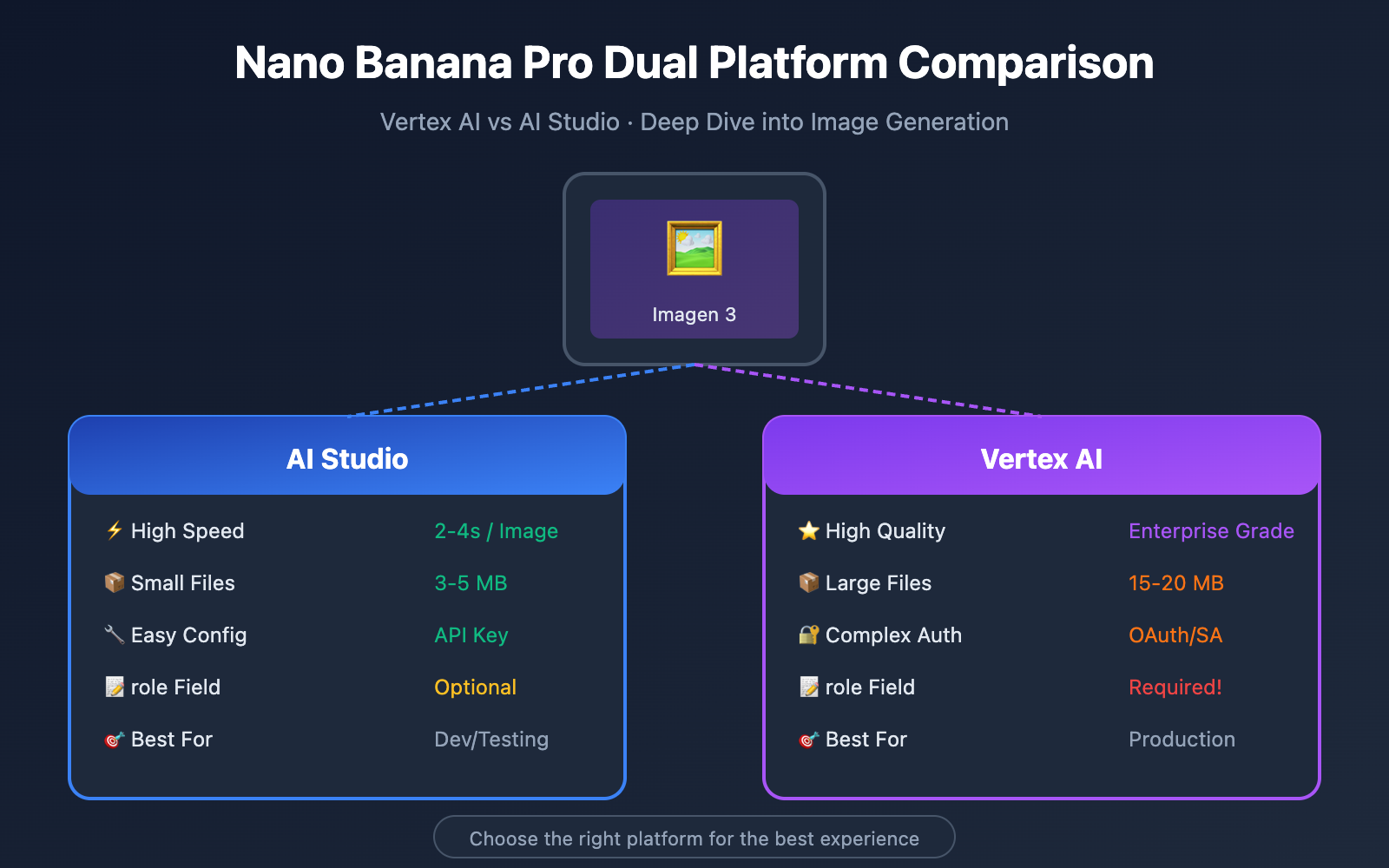
The root of these issues is this: While both Vertex AI and AI Studio can call Nano Banana Pro, their underlying architectures, quality parameters, and API formats are completely different.
In this post, we'll dive deep into the 5 core differences between these two platforms based on real testing data, helping you make the best choice.
Nano Banana Pro Dual Platform Overview
What is Nano Banana Pro?
Nano Banana Pro is the internal codename for Google Gemini 3 Pro Image, and it's also the commercial version of Imagen 3, Google's most advanced image generation model to date. It offers these core capabilities:
- 4K Ultra-High Resolution Output: Supports up to 4096×4096 pixels.
- Superior Text Rendering: Text embedded in images is crisp and readable.
- Photorealistic Quality: It blows previous generations out of the water in terms of detail, lighting, and color.
- SynthID Watermarking: Protects copyright with pixel-level invisible watermarks.
Positioning Differences
| Dimension | AI Studio (Google AI) | Vertex AI (Google Cloud) |
|---|---|---|
| Positioning | Developer Prototyping | Enterprise-grade Production |
| Target Users | Individual Devs, Quick Testing | Enterprise Teams, Commercial Apps |
| Authentication | API Key | Service Account / OAuth |
| Rate Limits | Standard Limits | Production-grade High Quotas |
| Commercial Use | Non-commercial | Commercial use supported |
| Availability | APIYI (apiyi.com) | APIYI (apiyi.com), GCP |
🎯 Tech Tip: If you need to test the results of both platforms side-by-side, we recommend using the APIYI (apiyi.com) platform. It provides a unified API interface and supports one-click switching between Vertex AI and AI Studio backends, making it easy to compare and verify results.
Core Difference 1: Image Quality and File Size
Actual Measurement Data Comparison
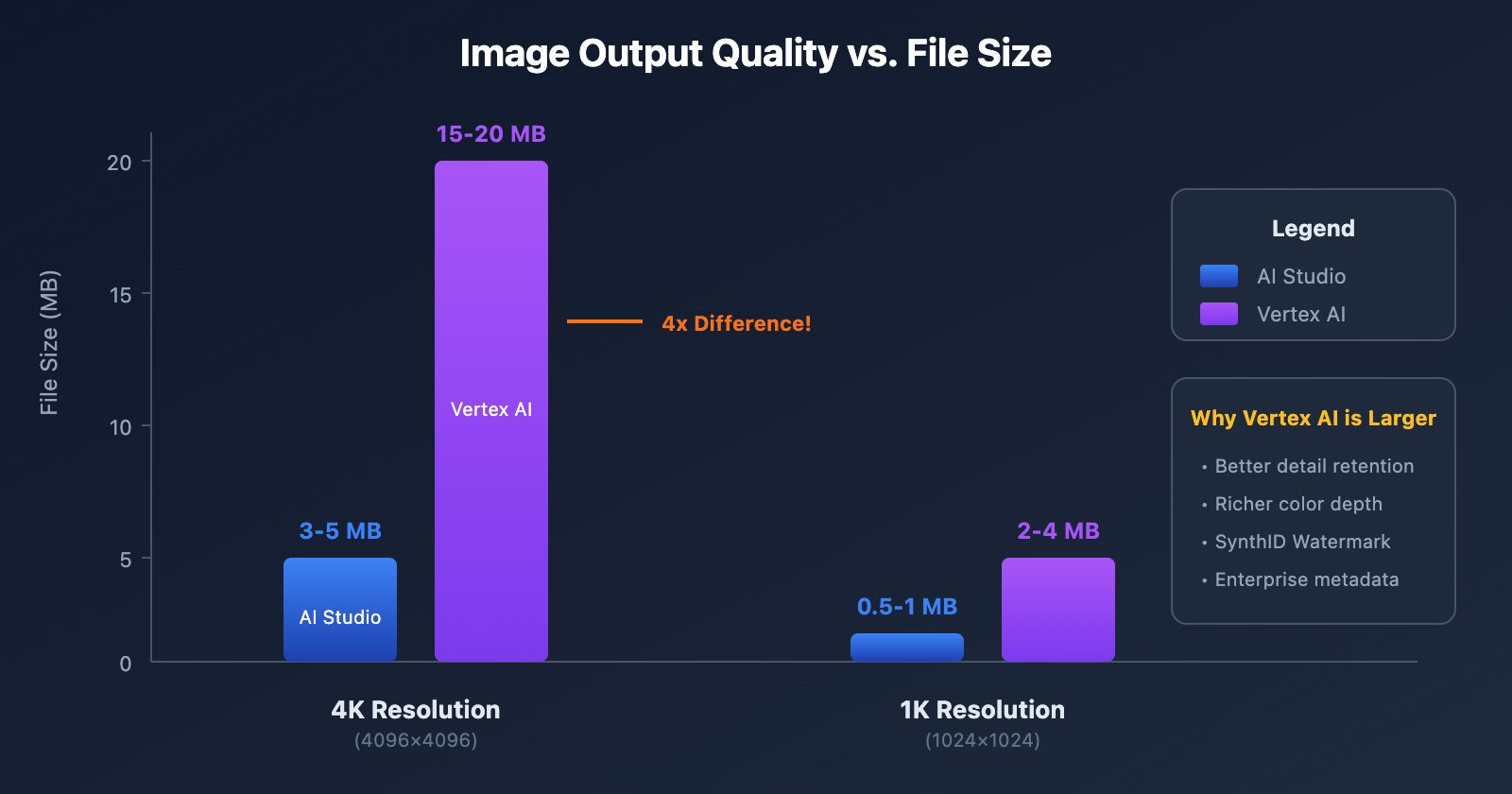
We used the same prompt to generate 4K resolution images on both platforms. Here's what we found:
| Test Item | AI Studio | Vertex AI | Difference Analysis |
|---|---|---|---|
| 4K Image File Size | 3-5 MB | 15-20 MB | Vertex AI is ~4x larger |
| 1K Image File Size | 0.5-1 MB | 2-4 MB | Vertex AI is ~3x larger |
| Default Output Format | PNG | PNG | Same |
| Compression Quality (JPEG) | 75 | 75 | Same default value |
| Color Depth | Standard | Enhanced | Vertex AI is richer |
Why Vertex AI Files are Larger
Vertex AI's output files are significantly larger for a few main reasons:
1. Superior Detail Retention
As an enterprise-grade platform, Vertex AI defaults to preserving more image detail and minimizing lossy compression. This means:
- Richer color gradients
- Sharper edge details
- Fewer compression artifacts
2. Enhanced Metadata Embedding
Images generated by Vertex AI include comprehensive metadata:
- SynthID watermarking info
- Generation parameter logs
- Safety and compliance tags
3. Enterprise Quality Standards
Vertex AI is optimized for commercial use, outputting high-quality images ready for print or large-screen displays by default.
How to Control File Size
If you need smaller files, you can tweak these parameters:
import requests

# Vertex AI call example - controlling output quality
payload = {
    "instances": [
        {
            "prompt": "A beautiful sunset over mountains, 4K quality"
        }
    ],
    "parameters": {
        "sampleCount": 1,
        "aspectRatio": "1:1",
        "outputOptions": {
            "mimeType": "image/jpeg",  # Use JPEG to reduce size
            "compressionQuality": 85    # Adjust compression quality (0-100)
        }
    }
}
💡 Cost Optimization: For web display, setting compression quality to 80-85 can cut file size by about 40% while maintaining great visuals. These parameters also work when calling via the APIYI (apiyi.com) platform.
Core Difference 2: Generation Speed and Stability
Speed Measurement Comparison
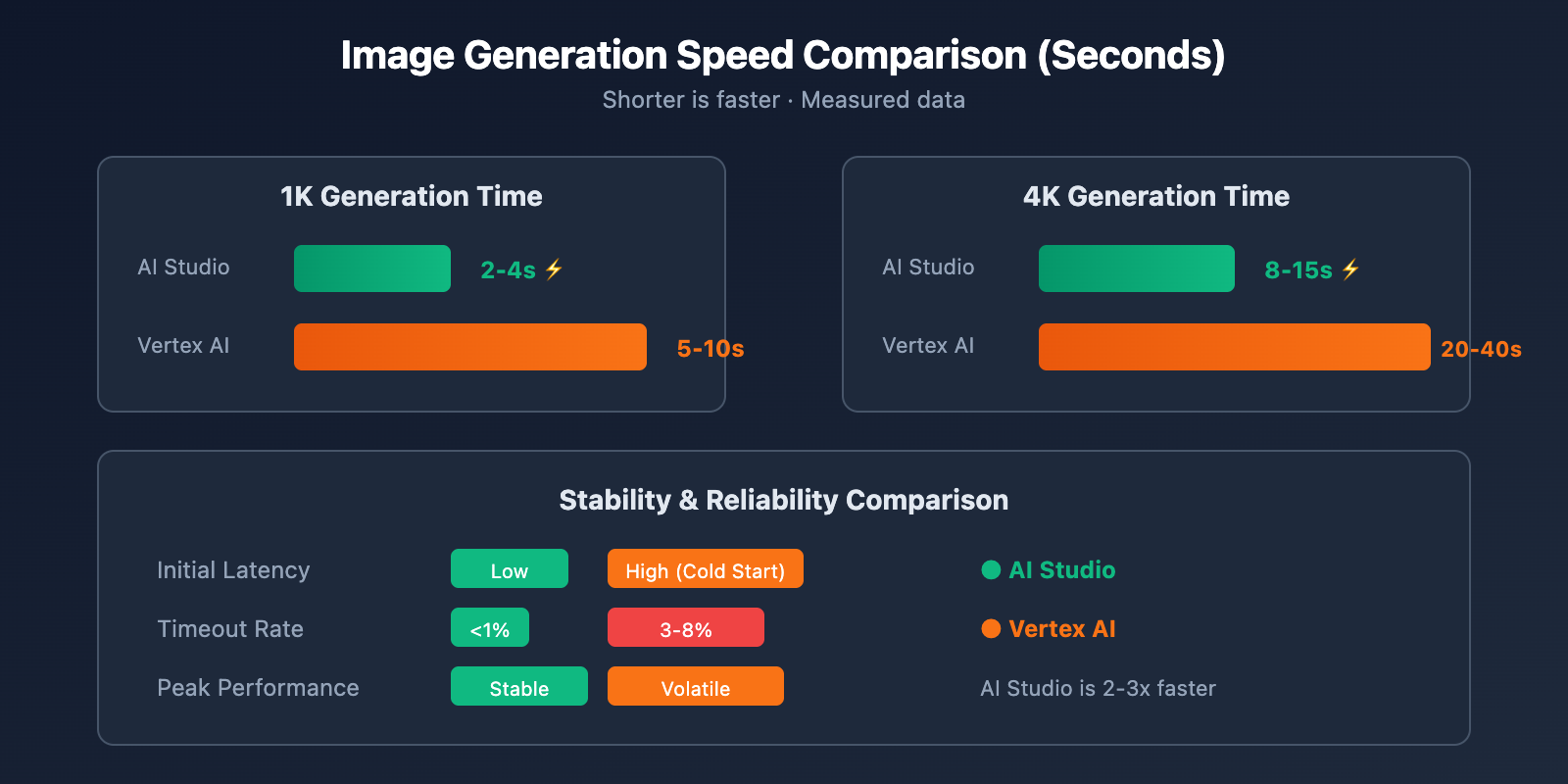
This is the question many developers care most about: Why does Vertex AI always seem to get stuck?
| Performance Metric | AI Studio | Vertex AI | Notes |
|---|---|---|---|
| 1K Image Generation | 2-4 sec | 5-10 sec | AI Studio is 2x+ faster |
| 4K Image Generation | 8-15 sec | 20-40 sec | AI Studio is 2-3x faster |
| First Response Latency | Low | High | Vertex AI has slow cold starts |
| Request Timeout Rate | < 1% | 3-8% | Vertex AI is less stable |
| Peak Hour Performance | Stable | Highly Flammable | AI Studio is more reliable |
Why Vertex AI is Slower
1. Enterprise-Grade Safety Checks
Vertex AI runs much stricter safety audits on every request:
- Content safety filtering
- Copyright risk detection
- Compliance verification
These extra layers add processing time.
2. Higher Quality Generation Pipeline
Vertex AI uses more inference steps and a more refined rendering pipeline to ensure enterprise-level output quality.
3. Resource Scheduling Overhead
As part of the Google Cloud ecosystem, Vertex AI has to navigate more complex resource scheduling and load balancing.
Speed Optimization Suggestions
If speed's your priority, try these strategies:
Use Imagen 3 Fast mode:
# Use Fast mode to reduce latency by ~40%
payload = {
    "instances": [{"prompt": "your prompt here"}],
    "parameters": {
        "model": "imagen-3.0-fast-generate-001",  # Fast version
        "sampleCount": 1
    }
}
Lower the Resolution:
# 1K is 3-4x faster than 4K
"parameters": {
    "aspectRatio": "1:1",  # Defaults to 1024x1024
    # Don't specify the upscale parameter
}
Core Difference 3: API Format and the role Parameter
Key Difference: role Field Requirements
When calling Vertex AI, you might've run into this error:
[&{Please use a valid role: user, model. (request id: xxx) 400 }]
This happens because Vertex AI mandates the role field, while AI Studio lets you skip it.
| API Format Requirement | AI Studio | Vertex AI |
|---|---|---|
role field |
Optional | Required |
Valid role values |
user, model | user, model |
system role |
Not supported | Not supported |
Missing role behavior |
Auto-filled | Returns 400 error |
Correct Vertex AI Request Format
❌ Incorrect (will trigger a 400 error):
{
  "contents": [
    {
      "parts": [{"text": "Generate an image of a cat"}]
    }
  ]
}
✅ Correct:
{
  "contents": [
    {
      "role": "user",
      "parts": [{"text": "Generate an image of a cat"}]
    }
  ]
}
Unified Implementation
If your code needs to support both platforms, I recommend using the OpenAI-compatible format:
import openai

client = openai.OpenAI(
    api_key="YOUR_API_KEY",
    base_url="https://api.apiyi.com/v1"  # APIYI Unified Interface
)

# Unified format, automatically adapts to both platforms
response = client.images.generate(
    model="nano-banana-pro",
    prompt="A futuristic city at night, cyberpunk style",
    size="1024x1024",
    quality="hd"
)

print(response.data[0].url)
🚀 Quick Start: We recommend using the apiyi.com platform for rapid prototyping. It automatically handles the API format differences between Vertex AI and AI Studio, so you can switch backends without changing any code.
Core Difference 4: Authentication and Quotas
Authentication Comparison
| Item | AI Studio | Vertex AI |
|---|---|---|
| Method | API Key | Service Account / OAuth 2.0 |
| Ease of Access | Simple, takes seconds | Complex, requires a GCP project |
| Key Management | Single Key | Requires a JSON key file |
| Permission Granularity | None | Fine-grained IAM control |
| Audit Logs | None | Full audit trail |
Quota Limits Comparison
| Quota Item | AI Studio | Vertex AI |
|---|---|---|
| Requests Per Minute (RPM) | 60 RPM | 300+ RPM |
| Requests Per Day (RPD) | 1,500 | 10,000+ |
| Concurrent Requests | 5 | 20+ |
| Max Image Resolution | 4K | 4K |
| Batch Generation | Up to 4 images | Up to 8 images |
Vertex AI Authentication Configuration
from google.oauth2 import service_account
from google import genai

# Authenticate using a service account
credentials = service_account.Credentials.from_service_account_file(
    'your-service-account.json',
    scopes=['https://www.googleapis.com/auth/cloud-platform']
)

client = genai.Client(
    vertexai=True,
    project="your-project-id",
    location="us-central1",
    credentials=credentials
)
AI Studio Authentication Configuration
import google.generativeai as genai

# Simple API Key authentication
genai.configure(api_key="YOUR_API_KEY")

model = genai.ImageGenerationModel("imagen-3.0-generate-001")
response = model.generate_images(prompt="Your prompt here")
Core Difference 5: Use Cases and Costs
Scenario Recommendation Matrix
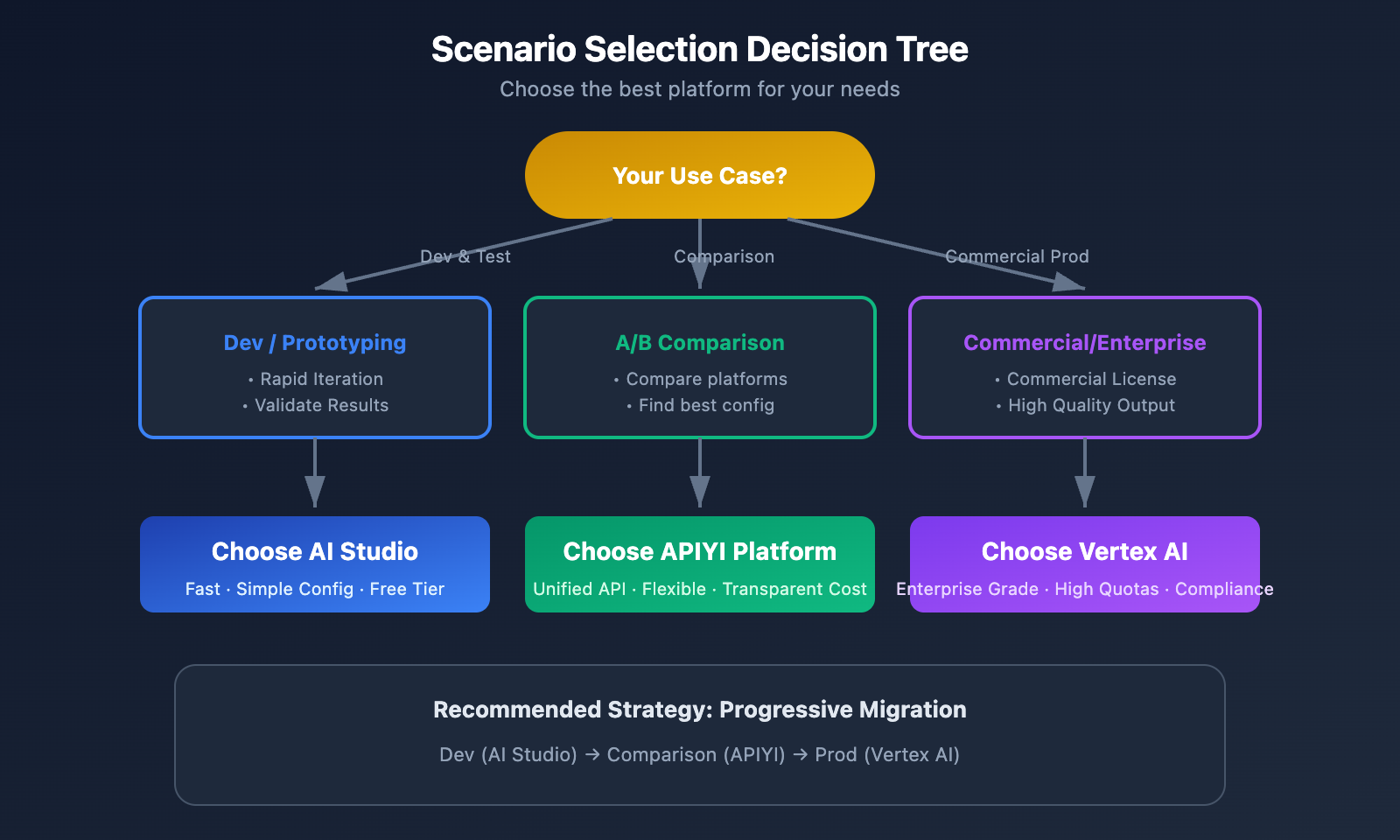
| Use Case | Recommended Platform | Reason |
|---|---|---|
| Rapid Prototyping | AI Studio | Fast and simple to configure |
| Personal Projects | AI Studio | Generous free tier |
| Commercial Launch | Vertex AI | Commercial license and high quotas |
| E-commerce Product Images | Vertex AI | High quality, supports large files |
| Social Media Graphics | AI Studio | Priority on speed, medium quality is fine |
| Print Material Production | Vertex AI | 4K HD with rich details |
| Batch Image Generation | Vertex AI | High concurrency and stable quotas |
| A/B Testing/Comparison | APIYI apiyi.com | Unified interface and flexible switching |
Cost Comparison
| Cost Item | AI Studio | Vertex AI |
|---|---|---|
| 1K Image Unit Price | $0 within free tier | $0.02 – $0.04 |
| 4K Image Unit Price | $0 within free tier | $0.04 – $0.08 |
| Monthly Free Quota | Limited | Credits for new users |
| Enterprise Discount | None | Negotiable |
| Billing Model | Pay after exceeding limit | Standard billing |
Cost Optimization Strategies
1. Use AI Studio for Development:
- Take advantage of the free tier for debugging.
- Iterate on your prompts quickly.
- Verify technical feasibility without upfront costs.
2. Use Vertex AI for Production:
- Obtain a proper commercial license.
- Ensure stability with high quotas.
- Benefit from enterprise-grade security and compliance.
3. Use APIYI for Flexible Solutions:
- Lower development costs with a unified interface.
- Switch backends on the fly as needed.
- Maintain transparent and controllable costs.
💰 Cost Tip: For budget-sensitive projects, consider using the APIYI apiyi.com platform. It offers flexible billing and supports switching between AI Studio and Vertex AI backends, making it a great fit for small to medium teams and solo developers.
Solutions for Common Issues
Problem 1: Vertex AI throws "role 400" error
Error Message:
Please use a valid role: user, model. (request id: xxx) 400
Solution:
You need to add "role": "user" to each object in the contents array:
{
  "contents": [
    {
+     "role": "user",
      "parts": [{"text": "Generate an image..."}]
    }
  ]
}
Problem 2: Vertex AI generation timeout
Symptoms: The request hangs for a long time and eventually times out.
Solution:
- Use Fast mode: Switch your model to
imagen-3.0-fast-generate-001. - Lower the resolution: Generate a 1K image first, then use the upscale API.
- Add timeout retries:
import time
from tenacity import retry, stop_after_attempt, wait_exponential

@retry(stop=stop_after_attempt(3), wait=wait_exponential(multiplier=1, min=4, max=10))
def generate_image_with_retry(prompt):
    return client.images.generate(
        model="nano-banana-pro",
        prompt=prompt,
        timeout=60
    )
Problem 3: AI Studio quota exceeded
Error Message: RESOURCE_EXHAUSTED: Quota exceeded
Solution:
- Wait for reset: Quotas usually reset every minute or daily.
- Use multiple API Keys: Distribute the request load across several keys.
- Upgrade to Vertex AI: Move to Vertex AI for higher limits.
- Use APIYI Platform: Get a stable quota through apiyi.com.
Problem 4: Image file size too large
Scenario: Vertex AI's 4K output can reach up to 18MB, making it difficult to upload or serve.
Solution:
from PIL import Image
import io

# Post-processing compression
def compress_image(image_bytes, target_quality=85):
    img = Image.open(io.BytesIO(image_bytes))
    output = io.BytesIO()
    img.save(output, format='JPEG', quality=target_quality, optimize=True)
    return output.getvalue()

# Or specify in the API request
"outputOptions": {
    "mimeType": "image/jpeg",
    "compressionQuality": 80
}
Best Practices: Hybrid Strategy
Recommended Development Workflow
┌─────────────────────────────────────────────────────────┐
│                    Development Phase                    │
│  Use AI Studio                                          │
│  - Rapidly iterate on prompts                           │
│  - Validate effects and styles                          │
│  - Zero-cost testing                                    │
└─────────────────────────────────────────────────────────┘
                          ↓
┌─────────────────────────────────────────────────────────┐
│                    Pre-release Phase                    │
│  Use APIYI Platform                                     │
│  - Unified interface testing                            │
│  - A/B compare the two platforms                        │
│  - Determine final configuration                        │
└─────────────────────────────────────────────────────────┘
                          ↓
┌─────────────────────────────────────────────────────────┐
│                    Production Phase                     │
│  Use Vertex AI                                          │
│  - Commercial license protection                        │
│  - High quota and stable operation                      │
│  - Enterprise-grade security and compliance             │
└─────────────────────────────────────────────────────────┘
Code Example: Automatically Selecting the Optimal Backend
import openai

class NanoBananaProClient:
    def __init__(self, api_key, prefer_quality=False):
        self.client = openai.OpenAI(
            api_key=api_key,
            base_url="https://api.apiyi.com/v1"  # APIYI unified interface
        )
        self.prefer_quality = prefer_quality

    def generate(self, prompt, size="1024x1024"):
        # Automatically select backend based on needs
        if self.prefer_quality:
            model = "nano-banana-pro-vertex"  # Vertex AI backend
            quality = "hd"
        else:
            model = "nano-banana-pro"  # AI Studio backend
            quality = "standard"

        return self.client.images.generate(
            model=model,
            prompt=prompt,
            size=size,
            quality=quality
        )

# Example usage
client = NanoBananaProClient(
    api_key="YOUR_APIYI_KEY",
    prefer_quality=True  # Choose Vertex AI when high quality is needed
)

response = client.generate("A professional product photo of a watch")
Frequently Asked Questions (FAQ)
Q1: Should I choose Vertex AI or AI Studio?
It depends on your specific needs:
- Choose AI Studio: For personal projects, rapid prototyping, limited budgets, or when you're sensitive to speed.
- Choose Vertex AI: For commercial use, high-quality output requirements, or enterprise-grade security needs.
Using the APIYI (apiyi.com) platform lets you flexibly switch between both backends, making it easy to decide after doing some side-by-side testing.
Q2: Why are Vertex AI image files so large?
Vertex AI outputs enterprise-grade high-quality images by default, preserving more detail and color information. You can reduce the file size by setting mimeType: "image/jpeg" and lowering the compressionQuality.
Q3: Can AI Studio be used for commercial projects?
It's not recommended. AI Studio is primarily positioned for development and testing; its terms of service don't guarantee the stability or compliance required for commercial use. For commercial projects, we suggest using Vertex AI or obtaining commercially licensed interfaces through APIYI (apiyi.com).
Q4: How can I solve the speed issues with Vertex AI?
- Use the
imagen-3.0-fast-generate-001fast version. - Generate a low-resolution image first, then use the upscale API.
- Implement request queues and asynchronous processing.
- Consider using multi-region deployments to distribute the load.
Q5: Is there a significant difference in image quality between the two platforms?
Under the same parameters, the quality differences are mainly reflected in:
- Vertex AI: Richer details, better color gradients, and fewer compression artifacts.
- AI Studio: Good quality, but details are slightly less sharp when zoomed in.
For web display, you probably won't notice much difference; for printing purposes, Vertex AI is the way to go.
Summary
The differences between Nano Banana Pro on Vertex AI and AI Studio can be summarized as follows:
| Comparison Dimension | AI Studio | Vertex AI |
|---|---|---|
| Speed | ⚡ 2-3x Faster | 🐢 Slower but stable |
| Quality | Good | ⭐ Enterprise-grade quality |
| File Size | Smaller (3-5 MB) | Larger (15-20 MB) |
| API Format | Flexible | Strict (role required) |
| Best For | Dev & Testing | Production |
Core Recommendations:
- Development Phase: Use AI Studio for fast iteration.
- Comparative Testing: Use APIYI (apiyi.com) to compare both platforms through a unified interface.
- Production Deployment: Switch to Vertex AI to ensure commercial compliance.
- Mind the
rolefield: Vertex AI calls must include"role": "user".
We recommend using APIYI (apiyi.com) to quickly verify your results. The platform offers a unified API and the ability to switch backends flexibly, so you can focus on building your business logic.
Further Reading:
- Imagen 3 Official Documentation: cloud.google.com/vertex-ai/generative-ai/docs/image/overview
- Vertex AI Developer Guide: cloud.google.com/blog/products/ai-machine-learning/a-developers-guide-to-imagen-3-on-vertex-ai
- Image Upscaling API: cloud.google.com/vertex-ai/generative-ai/docs/image/upscale-image
📝 Author: APIYI Tech Team | Focused on AI image generation API integration and optimization
🔗 Tech Exchange: Visit APIYI (apiyi.com) to get Nano Banana Pro test credits and technical support