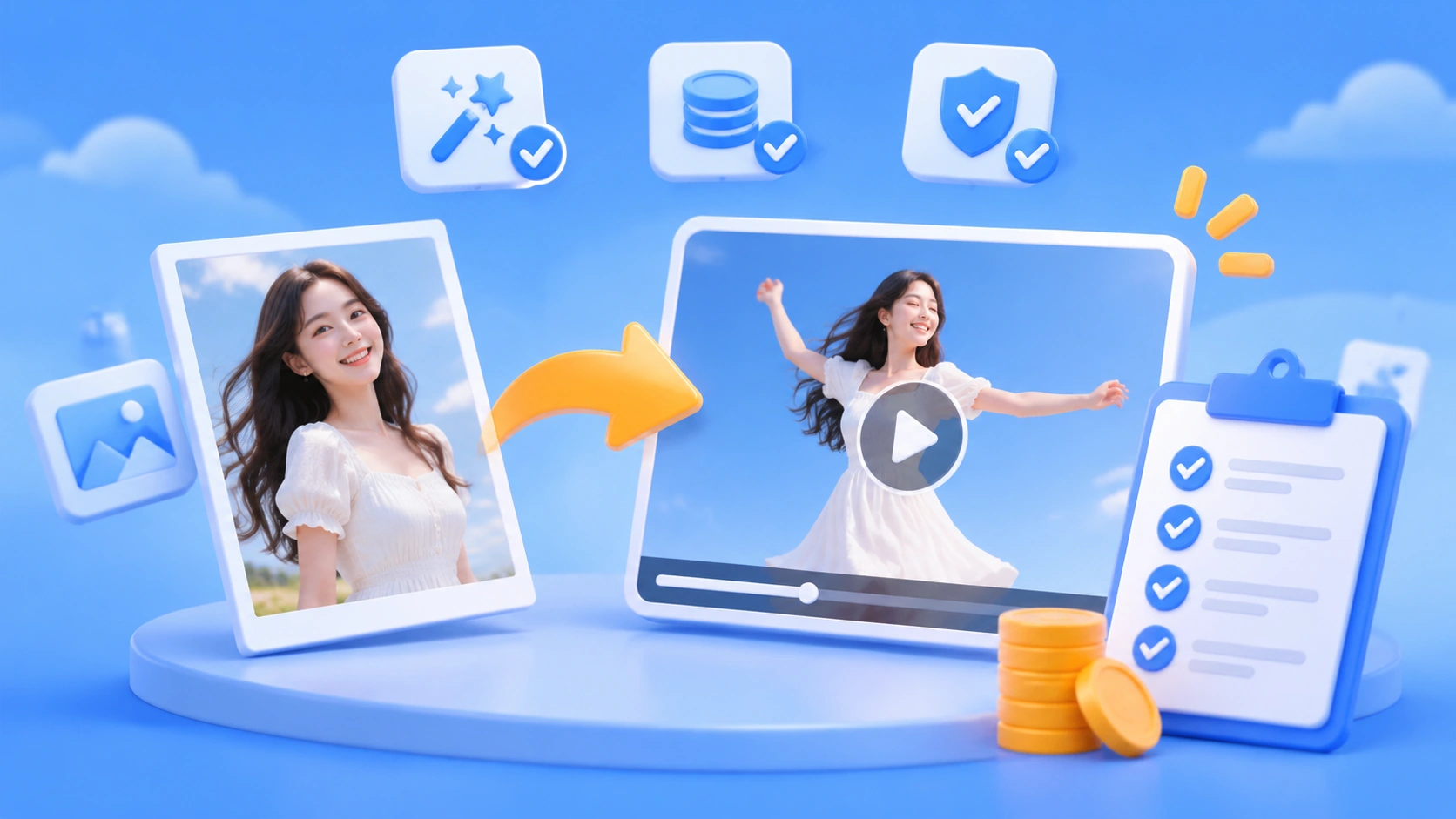
Author’s note: Using a photo-to-dance-video tool’s own product description, publicly released on November 3, 2026, as an example, we’ll break down what these tools can and can’t do, how they charge, and what rights you need for your materials—so you can set realistic expectations before your first generation.
Turning a photo of your cat, dog, or a friend into a short dance video is something many content creators have been eager to try lately. But the first attempt doesn’t always meet expectations: the video may not be sharp enough, the face might not look quite right, you might spend credits on a result you don’t like, or you might only remember to check the music rights after posting. Here, we’ll use one real product’s description of its features and limitations as a starting point to identify what you should check before using a tool like this.
This isn’t a product review or a recommendation list. We only have the developer’s public description, not independent performance tests or user feedback. So we won’t judge which tool works best. Instead, we’ll explain how these tools typically work, which settings affect the finished video, and what to check before sharing it.
What you’ll learn: How the “template + photo” workflow works, what a resolution like 480p means, how per-generation pricing adds up, and what to check about your rights to use the materials before sharing.
Key Points for Turning Photos Into Dance Videos
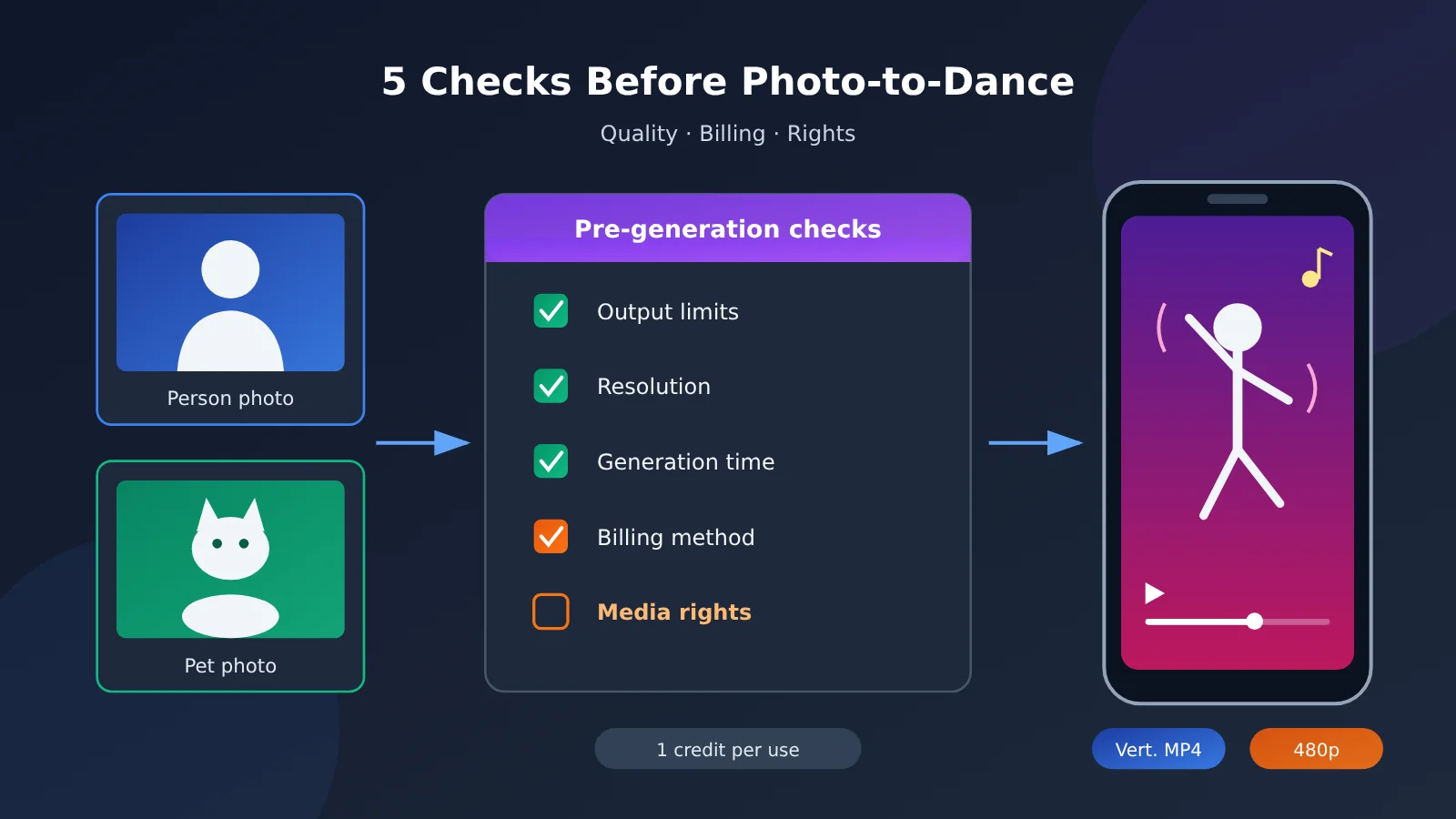
The example we looked at is an online tool introduced in V2EX’s “Share Creations” section on November 3, 2026. The idea is straightforward: choose a built-in dance template, upload a photo of a person, cat, or dog, and generate a dance video—no software installation or editing required. The table below summarizes the product’s claims and what they mean for creators.
| Aspect | What the product says | What it means for creators |
|---|---|---|
| How it works | Built-in dance template + uploaded photo | The template determines the moves and camera work; you choose who dances |
| Supported subjects | Photos of people, cats, and dogs | Pets can join in too, but results still depend on the photo |
| Template types | Solo, duo, and group templates | Group scenes can be used for group-photo-style content |
| Group replacement | Replace one or more positions; unselected dancers and the original background remain | You can place yourself in just one position |
| Output format | Vertical MP4 with audio from the reference clip | Suitable for short-video platforms, but you’ll need to check audio rights |
| Resolution | Generation requests are made at 480p | Watchable on a small phone screen, but may look blurry when enlarged or re-edited |
| Processing time | Usually a few minutes | It’s not instant, so it’s better suited to queuing batches than real-time interaction |
| Pricing | Pay per generation: 1 credit each, including multiple replacements | No subscription commitment, but every attempt has a cost |
How Photo-to-Dance Video Generation Works
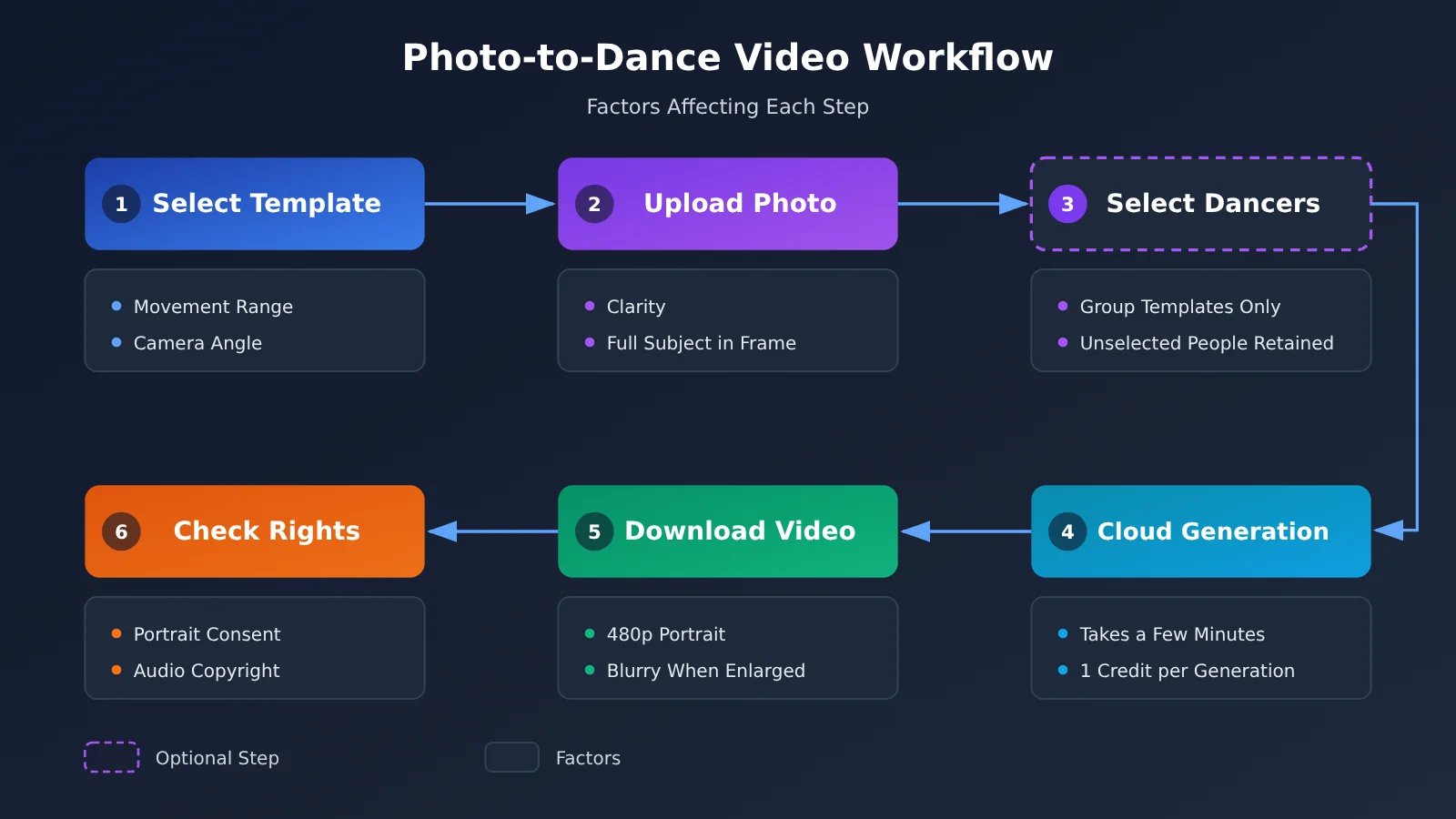
The first step to setting realistic expectations is understanding that the process is template-driven. These tools generally don’t have AI choreograph a dance from scratch. Instead, they use an existing reference dance video as a skeleton and transfer the appearance of the person or pet in your photo onto a dancer in the template. The template largely determines the movements, camera angles, and visual pacing. Your main choices are the photo and which position to replace.
The selective replacement feature in group templates deserves a closer look. The example product says you can replace one or more dancers while keeping the unselected dancers and original background. That lets you create content like “me dancing alongside my idol” or “my three cats dancing together.” Replacing multiple dancers in the same video still costs just 1 credit, making group creations relatively affordable.
If you also want titles, descriptions, or copy for multiple platforms, you can leave that step to a Large Language Model. With a unified interface platform like APIYI apiyi.com, you can switch between text models using the same invocation method to write short-video copy and compare which style works best for your account.
What to Expect When Generating Dance Videos from Photos
The sample product’s developer makes one important point upfront: AI results depend on the photo and template, and aren’t guaranteed to match the original photo exactly. That’s not an excuse—it’s a common limitation of this technology. Let’s break down the factors that affect the results so you can prepare before uploading.
How Photo Quality Affects Dance Video Results
The photo is the only source of “appearance information” the AI can reference. The clearer that information is, the more likely the result is to match your expectations. The following are general rules of thumb, not official requirements from the sample product. Check the upload instructions for the tool you’re using.
| Photo factor | More likely to help | More likely to cause problems |
|---|---|---|
| Sharpness | Sharp focus, even lighting | Blur, darkness, strong backlighting |
| Subject visibility | Subject fills a good portion of the frame, with the face or head clearly visible | Subject is obscured, or only half the face is visible |
| Pose | Facing forward or nearly forward | Sideways, facing away, extreme angle |
| Visual distractions | Simple background, only one subject | Multiple people, making it hard to tell who should be replaced |
| Pet features | Fur color and markings are clearly visible | Fur blends into the background, making the outline unclear |
Pay particular attention to the outline in pet photos. Human facial features are relatively consistent, but cats and dogs vary widely in body shape, fur length, and ear shape. When a template uses human dance movements, how well a pet appears to “dance” depends more heavily on the model’s ability to transfer those movements. For your first attempt, test with your clearest photo, then decide whether to generate more videos based on the result.
Limitations of Templates and 480p Resolution
The template also affects the result. The more vigorous the movement, the more turns there are, and the more often limbs are obscured, the harder it is for the AI to keep a person’s or pet’s appearance consistent across every frame. You may see facial distortion or changes in clothing details. If resemblance is especially important to you, start with a template that has gentler movements and more front-facing shots.
As for resolution, the sample product clearly states that generation requests are currently set to 480p. That’s generally fine for viewing directly on a phone in portrait orientation, but quality loss will be more noticeable if you plan to enlarge, crop, or re-edit the video. Generation also typically takes a few minutes, making it less suitable for interactive scenarios where you take a photo and need a finished video immediately. It’s better suited to preparing content in advance.
🎯 Technical tip: If your content team often needs multiple title and hashtag options for the same video, you can use APIYI apiyi.com to access multiple Large Language Models through a unified interface, generate candidate copy, and then select the best options manually. That keeps the work clearly divided: a dedicated tool handles video generation, while models you can switch between handle the text.
How Photo-to-Dance Video Generation Is Billed
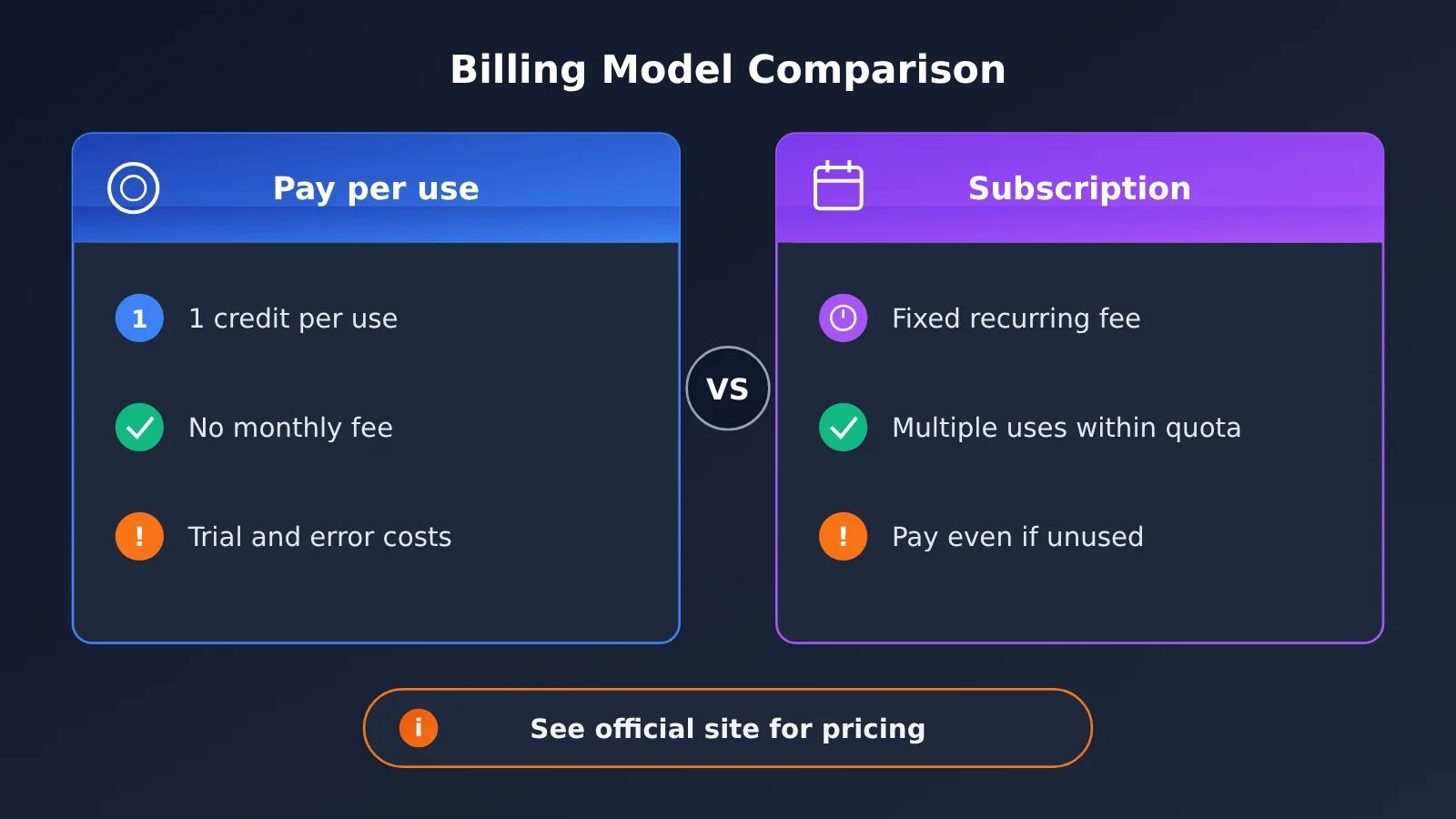
Billing is another area where it’s easy to get confused. The product in our example uses pay-per-use pricing, not a subscription: each generation costs 1 credit, and replacing multiple dancers in the same video still costs just 1 credit. Package details and prices are on an external pricing page. The developer’s original post didn’t include any figures, and we haven’t checked the page, so we won’t quote prices here.
How to Choose Between Pay-per-Use and a Subscription
Pay-per-use and subscriptions suit different types of users. The comparison below describes general characteristics of the two billing models, not the pricing of any specific product.
| Comparison | Pay-per-use (credits) | Subscription |
|---|---|---|
| Best for | Occasional use or making a few videos for holidays | Frequent production and regular updates |
| Cost visibility | Easy to calculate the cost of each generation | Lower cost per use when spread out, but you pay even if you don’t use it |
| Trial-and-error cost | Every unsatisfactory result consumes credits | Less pressure to experiment within the allowance |
| What to check | Whether credits expire and whether failed generations are refunded | Whether the subscription renews automatically and how the allowance resets |
For creators trying this for the first time, pay-per-use has a low barrier to entry: you can buy a small number of credits and give it a try. But when results aren’t guaranteed to be consistent and every generation costs credits, trial and error has a real cost. Before buying, check three things: whether credits expire, whether failed generations are refunded, and whether you can regenerate results you’re unhappy with. The original post about the sample product doesn’t explain these details, so you’ll need to check the tool’s pricing page or documentation.
Use Multi-Person Templates to Lower the Cost per Video
Because the sample product charges just 1 credit to replace multiple dancers in the same video, multi-person templates offer better value. If you’re already planning to use a family photo, a picture from a gathering with friends, or a multi-pet theme, replacing several positions in one template costs less than generating separate videos for each subject. Of course, every photo needs to be clear enough—if one position doesn’t turn out well, you may have to redo the whole video.
💰 Cost optimization: Related tasks outside video generation, such as writing copy in bulk or turning feedback from comments into content ideas, can also incur AI invocation costs. Budget-conscious individual creators can consider using APIYI apiyi.com to access text models on demand and pay for what they use. Paired with a pay-per-use video tool, this can make overall spending easier to manage.
Checking Your Rights to Use Photos and Other Assets
The third factor—and the easiest to overlook—is permission to use your assets. The sample product’s developer specifically reminds users to use photos they have the rights to use and to check permissions for music and other materials before sharing. The generated MP4 includes audio from the reference clip, so pay particular attention to that before posting.
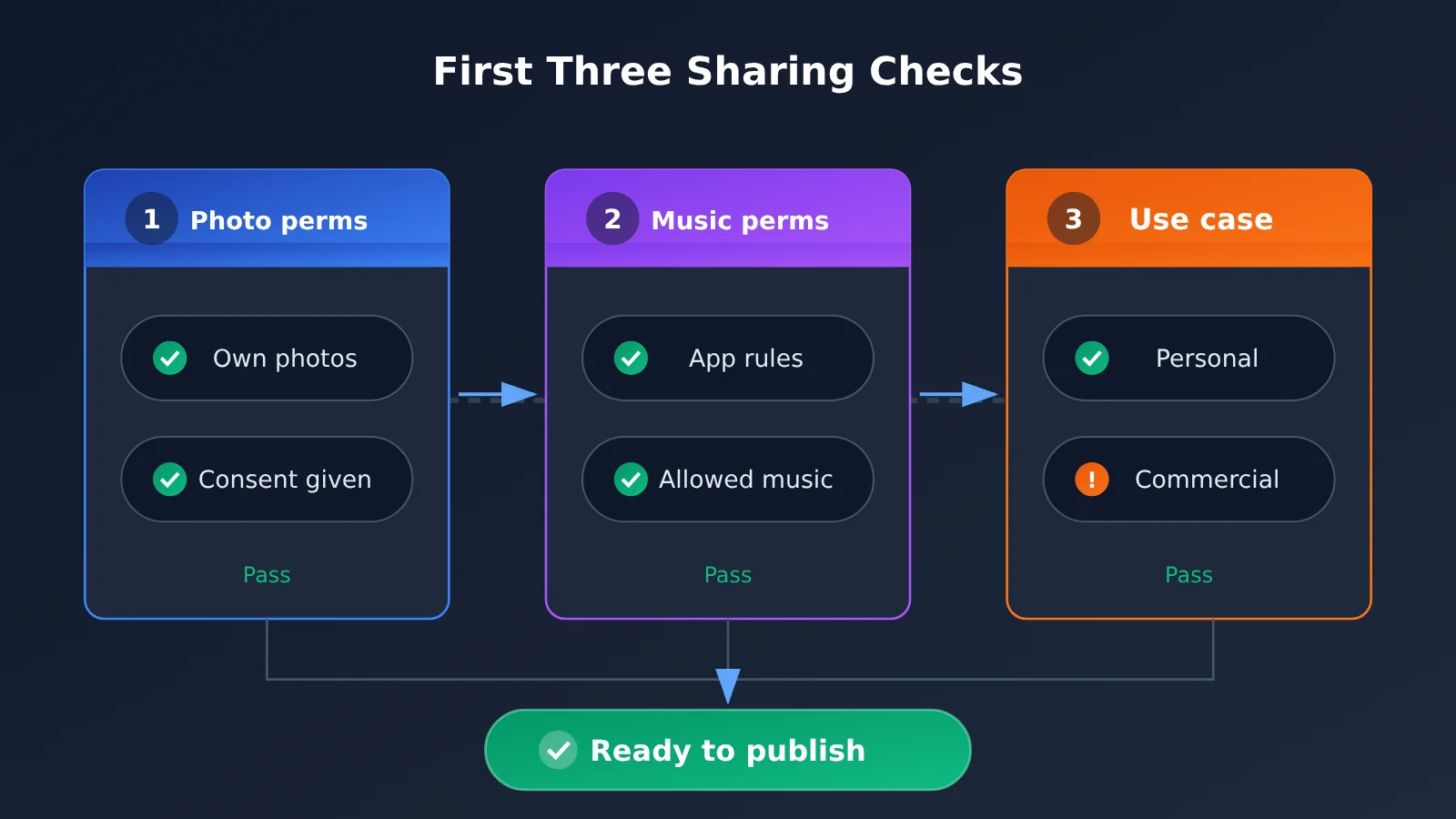
Legal requirements around image rights, copyright, and related issues vary by region. This article can’t and shouldn’t draw legal conclusions for you. The checklist below is a starting point for reviewing your materials before sharing. If you’re unsure, consult authoritative local regulations or a qualified professional.
Pre-Sharing Checklist for Dance Videos Made From Photos
| Check | Ask yourself | Recommended action |
|---|---|---|
| Photo source | Did I take this photo, or do I have the right to use it? | Prefer photos you took yourself |
| People in the photo | Have the people in the photo agreed to have it turned into a dance video and shared publicly? | Get explicit consent from anyone else involved |
| Minors | Are there children in the photo? | Be especially careful before sharing publicly, and get consent from a parent or guardian |
| Public figures | Have I used a photo of a celebrity or influencer? | Avoid commercial use or situations that could cause misunderstandings |
| Music and audio | Can the reference clip’s audio included in the video be used publicly on the target platform? | Check the platform’s music rules and, if necessary, replace the audio with a track from an approved music library |
| Template assets | Can the original dancers and backgrounds retained in a multi-person template be redistributed? | Review the tool’s terms of use and confirm the scope of your license before commercial use |
| Use case | Is this for personal sharing or commercial promotion? | Commercial use usually has stricter licensing requirements, so check separately |
Permissions for pet photos are generally simpler, but you should still consider whether the photo includes other people or identifiable private spaces. As for music, many short-video platforms have their own libraries and rules. Instead of uploading the finished video with its original audio, it’s generally safer to add a track you’ve confirmed is available for use within the platform.
Getting Started: Turn Photos into Dance Videos
This section doesn’t involve any code. It’s a step-by-step guide you can follow the first time you try it. Interfaces vary, but this general workflow applies to tools that combine a template with a photo.
6 Steps to Turn a Photo into a Dance Video
- Check the examples first: The sample product shows generated videos on its homepage, as do most similar tools. Take a look and decide whether the current image quality and likeness are acceptable.
- Prepare your photo: Choose a clear, front-facing photo that shows the full subject. For pets, look for a photo with a well-defined outline.
- Choose a template: Pick a solo, two-person, or group template based on what you want to create. If likeness matters, favor templates with gentler movements.
- Confirm who to replace: In a group template, select the dancers you want to replace and confirm that unselected dancers will stay as they are.
- Try one generation: Start with a single generation, wait a few minutes, and review the result before deciding whether to continue.
- Check before sharing: Use the checklist in the previous section to review your rights to the photo and music. Replace the music on the publishing platform if necessary.
How to Compare Photo-to-Dance Video Tools
The reference material covers only one product, so we can’t provide comparative data across similar tools. But you can use the criteria below to evaluate any tool you’re considering.
| Criterion | Questions to ask | Public information about the sample product |
|---|---|---|
| Output resolution | What’s the maximum supported resolution? | 480p |
| Generation time | How long does each generation take? | Usually a few minutes |
| Supported subjects | Does it support only people, or pets too? | People, cats, and dogs |
| Group capabilities | Can you replace selected dancers in a group template? | Yes; unselected dancers remain unchanged |
| Pricing model | Pay per generation, subscription, or a mix? | Pay per generation, 1 credit each |
| Pricing transparency | Are prices clearly listed? | On an external pricing page; the original post didn’t list figures |
| Rights reminders | Does it remind users about photo and music rights? | Yes, with clear reminders |
| Supporting tasks | Do captions and batch processing require other tools? | Not specified; platforms such as APIYI apiyi.com can be used to invoke text models |
🚀 Quick start: If you’re planning to make photo-to-dance videos a recurring series, split the workflow in two: use your chosen dedicated tool for the video, and use APIYI apiyi.com to access a Large Language Model and generate first drafts of titles, descriptions, and hashtags in batches. One handles the visuals, the other handles the text—you just need to select and review the results.
Frequently Asked Questions (FAQ)
Q1: What is a photo-to-dance-video tool?
It’s a type of online AI tool that turns a photo into a short dance video. You choose a built-in dance template and upload a photo of a person or pet, and the AI transfers the subject’s appearance onto the dancer in the template. You usually don’t need to install software or edit the video manually.
Q2: Why doesn’t the result look exactly like the original photo?
The AI has to predict how the subject would look in different poses from a single still photo. Photo clarity, camera angle, and the range of motion in the template can all affect the result. The example product also states that it doesn’t guarantee an exact match to the original photo. This is a common limitation of the technology, not necessarily a mistake you made.
Q3: Is 480p good enough?
It’s generally acceptable for watching and sharing directly on a phone in portrait mode. But if you need to enlarge, crop, or re-edit the video, the loss in quality may be noticeable. Resolution options can change quickly. The information in this article is based on the product description as of 2026-11-03, so check the tool’s current documentation before using it.
Q4: What are the best uses for photo-to-dance videos?
– **Regular updates for pet accounts**: Make lighthearted content by having your cat or dog “dance”
– **Holiday and party group photos**: Use a multi-person template to put friends or family in the same dance video
– **Personal social sharing**: Create fun content for your social feed or short-video platforms
They’re less suitable when you need high image quality or an instant result.
Q5: What should I consider with per-generation pricing?
The example product charges 1 credit per generation, including multi-person replacements. Before buying, check whether credits expire and whether they’re refunded for failed generations. If you also need to write video captions in bulk, you can use APIYI apiyi.com to invoke text models on demand. Keeping that separate from your video tool’s credit costs makes expenses easier to track.
Q6: Can I use someone else’s photo or a celebrity photo?
The example product requires you to use photos you have the right to use. The risks are significantly higher when photos involve other people, especially minors and public figures. It’s best to obtain explicit consent first and consult authoritative local rules on image rights. This article does not constitute legal advice.
Q7: Can I post the video with its included music directly to a platform?
Not necessarily. The example product outputs MP4 files with audio from the reference clip, and its developer advises users to check music permissions when sharing. A safer approach is to replace the audio with music available in the publishing platform’s library. Check each platform’s rules for details.
Q8: How can I turn dance videos into a recurring content series?
You can standardize the workflow: stick to a few templates that consistently produce good results, prepare clear photos in advance, and use a Large Language Model to draft accompanying captions in bulk. For the text, you can use APIYI apiyi.com to access multiple models in one place, compare their writing styles, and then finalize the copy yourself to match your account’s tone.
Key Takeaways for Creating Dance Videos from Photos
- Templates determine the moves: The photo supplies the appearance; the built-in template controls the dance moves and camera work.
- Results may vary: Both photo quality and the range of movement in the template affect how closely the result resembles the original.
- Check resolution and processing time: The example product outputs at 480p, and generation usually takes a few minutes.
- Pay-per-generation means trial and error has a cost: Each generation uses credits, so test a few videos before creating them in bulk.
- Multi-person templates can cost less: Replacing multiple dancers in the same video still counts as one generation.
- Check permissions before sharing: Make sure you have the rights to use both the photo and the reference audio, especially for commercial use.
- Split up the workflow: For accompanying copy, you can use APIYI apiyi.com to access Large Language Models.
Summary
Before creating a dance video from a photo, it’s worth checking these key points:
- Limitations: Results depend on the photo and template, and aren’t guaranteed to match the original photo. At 480p, videos are better suited to viewing on small phone screens.
- Pricing: Pay-per-generation is easy to get started with, but every attempt has a cost. Check the credit rules beforehand.
- Content rights: You need permission to use the photo, and you should separately confirm whether reference audio and template assets can be redistributed.
Features and prices for these tools change quickly. This article is based on a single product’s own description as of 2026-11-03 and doesn’t include independent testing. Check the examples and try a few generations before committing more resources. If you plan to create content regularly, you can use APIYI apiyi.com to access multiple Large Language Models for accompanying copy, giving both video and text the tools best suited to the job.
📚 References
- V2EX Share Your Creation: Introduction to Babydoll Dance AI: A firsthand account from the developer of the product featured in this article
- Link:
v2ex.com/t/1254260 -
Notes: Includes firsthand information on features, resolution, billing, and permissions, published on 2026-11-03
-
Babydoll Dance AI Pricing Page: Plans and pricing for the featured product
- Link:
babydolldance.org/pricing - Notes: Mentioned in the original post but not independently verified for this article. Check the page for current prices.
Author: APIYI Technical Team
Technical inquiries: Interested in integrating Large Language Models into your content production workflow? Contact us through the APIYI homepage at apiyi.com, or visit the documentation center at docs.apiyi.com for more resources.