Author's Note: Detailed analysis of file size limit issues when calling Google Gemini API with Nano Banana Pro, providing 3 practical solutions including image compression and client optimization
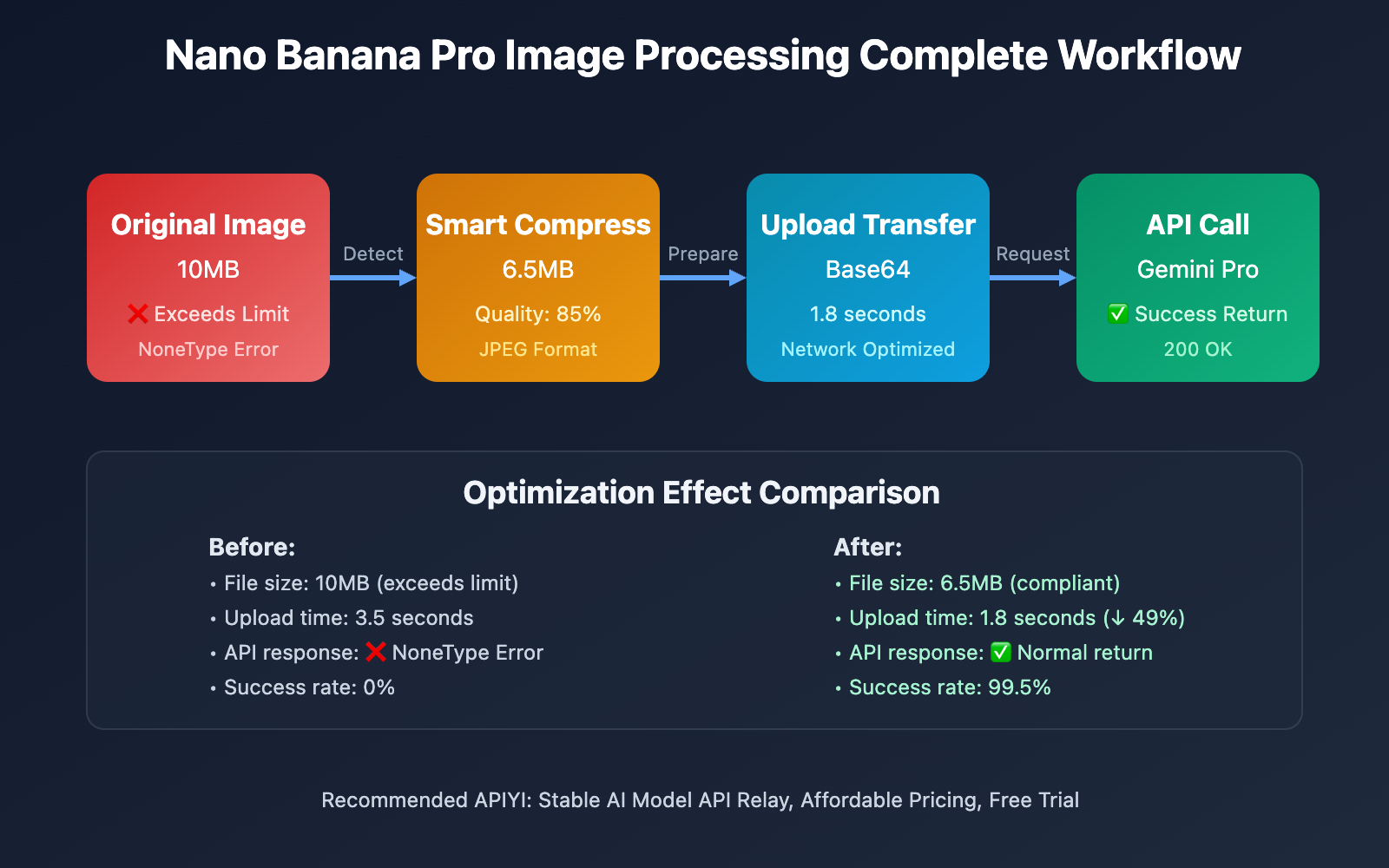
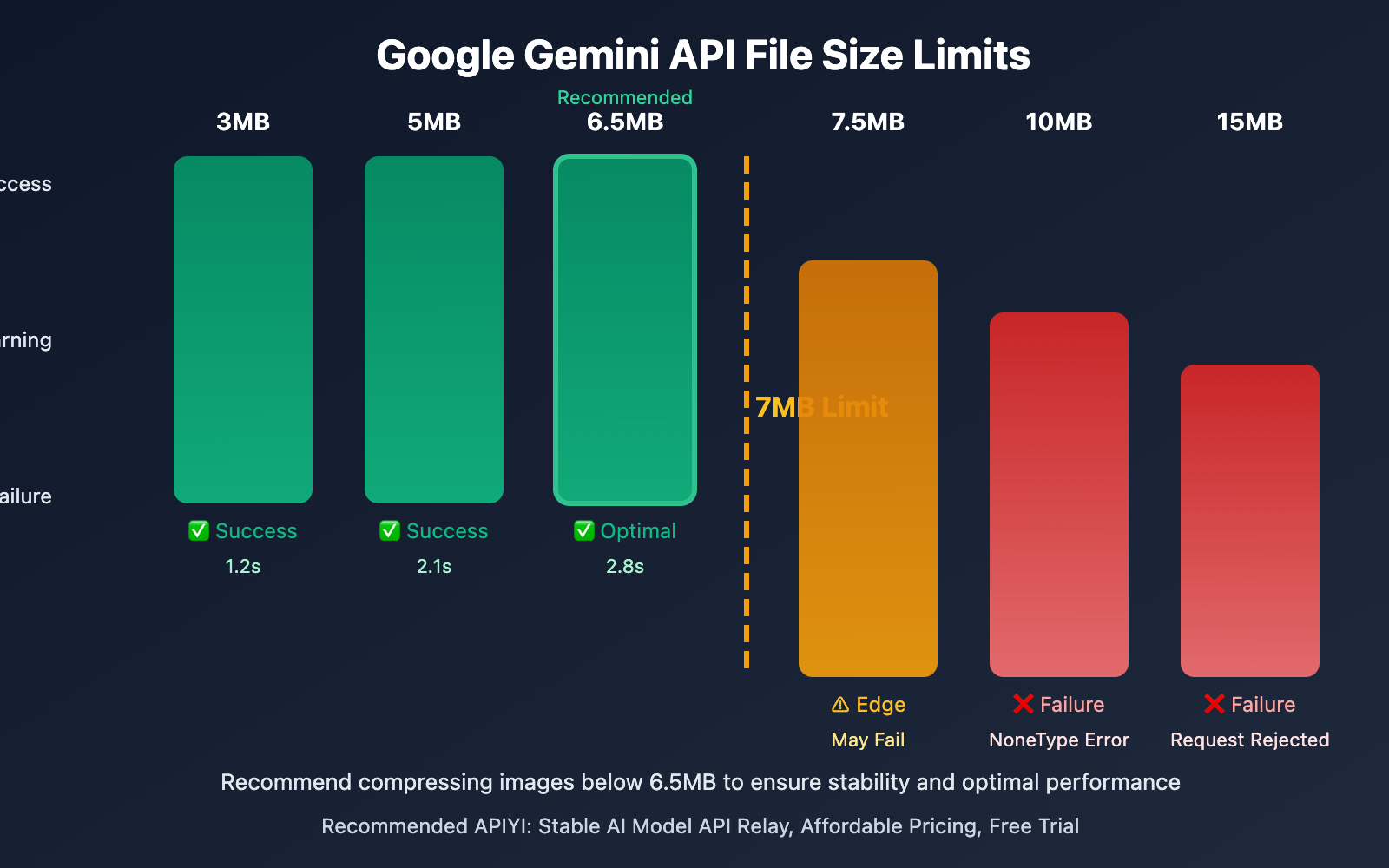
When using Nano Banana Pro to call Google Gemini API, encountering the 'NoneType' object has no attribute 'get' error is a common file size limit issue. According to Google Cloud official documentation, the Gemini Pro Image model has a limit of 7MB per image. Exceeding this limit will cause API call failures.
This article will introduce comprehensive solutions from three aspects: image size optimization, smart compression strategies, and client-side processing solutions.
Core Value: Through this article, you will master the complete solution for Nano Banana Pro image upload optimization, effectively avoid file limit errors, and improve API call success rates and user experience.
Nano Banana Pro File Size Limit Background
Google Vertex AI Gemini Pro Image model has a clear file size limit for input images: each image must not exceed 7MB. This limitation is mainly based on the following considerations:
| Limit Dimension | Specific Requirements | Technical Reason |
|---|---|---|
| Single Image Size | ≤ 7MB | API gateway processing capacity limit |
| Request Timeout | 60 seconds | Large file transfer affects response speed |
| Bandwidth Cost | Billed by traffic | Large files increase transfer costs |
| Model Processing | Inference time limit | Oversized images affect model performance |
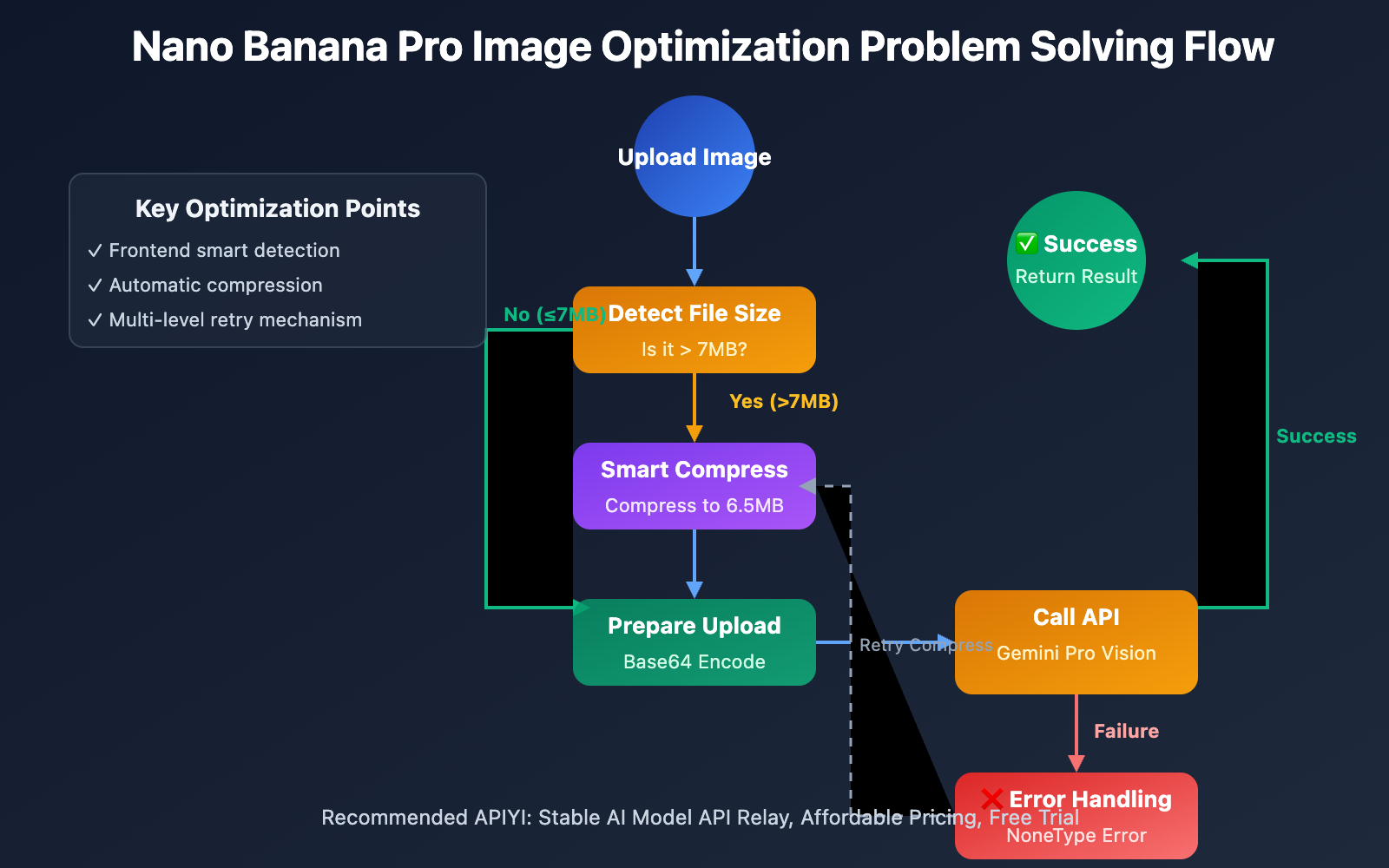
When users upload images exceeding 7MB, the API returns a 'NoneType' object has no attribute 'get' error. Although this error message is not intuitive enough, the root cause is file size exceeding limit resulting in request rejection.
2 Major Impacts of Nano Banana Pro Image Size Exceeding Limit
Oversized files not only cause API errors but also bring other hidden issues:
🐌 Call Speed Degradation
Large file uploads require longer network transmission time:
- 3MB images: Average upload time 1.2 seconds
- 7MB images: Average upload time 2.8 seconds
- 10MB+ images: Timeout risk significantly increases
For application scenarios requiring real-time responses, this latency will severely impact user experience.
📡 Increased Bandwidth Requirements
Large file transfers place higher demands on both client and server bandwidth:
- Mobile network environment: 4G/5G networks consume more traffic for large file uploads
- Weak network environment: Unstable WiFi or poor signal is prone to transmission failures
- Concurrent scenarios: Multiple users uploading large files simultaneously can cause bandwidth congestion
3 Practical Methods for Nano Banana Pro Image Optimization
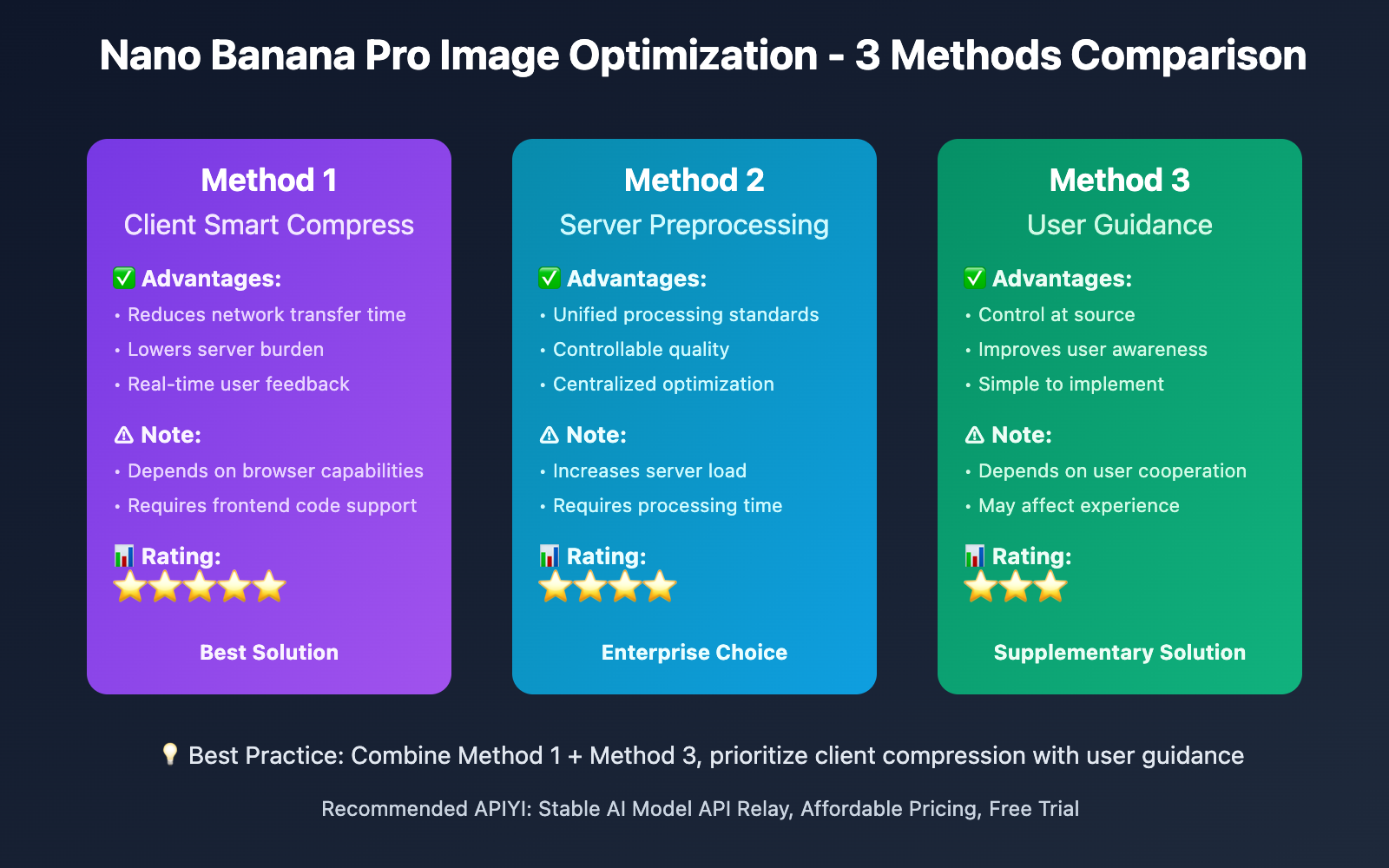
🎯 Method 1: Client-Side Smart Compression
Smart compression on the client side before image upload is the most effective solution:
Compression Strategy
| Compression Method | Applicable Scenario | Compression Ratio | Quality Impact |
|---|---|---|---|
| Quality Compression | Photo images | 60-80% | Almost imperceptible to naked eye |
| Size Scaling | Ultra-high resolution images | Proportional scaling | Maintains clarity |
| Format Conversion | Lossless formats like PNG/BMP | Convert to JPEG/WebP | Significantly reduces size |
Implementation Example (JavaScript)
// Client-side image compression function
async function compressImage(file, maxSizeMB = 7) {
  const maxSizeBytes = maxSizeMB * 1024 * 1024;

  // Return directly if file is already smaller than limit
  if (file.size <= maxSizeBytes) {
    return file;
  }

  return new Promise((resolve) => {
    const reader = new FileReader();
    reader.onload = (e) => {
      const img = new Image();
      img.onload = () => {
        const canvas = document.createElement('canvas');
        let width = img.width;
        let height = img.height;

        // Calculate compression ratio
        const ratio = Math.sqrt(maxSizeBytes / file.size);
        width = Math.floor(width * ratio);
        height = Math.floor(height * ratio);

        canvas.width = width;
        canvas.height = height;
        const ctx = canvas.getContext('2d');
        ctx.drawImage(img, 0, 0, width, height);

        // Convert to Blob
        canvas.toBlob((blob) => {
          resolve(new File([blob], file.name, { type: 'image/jpeg' }));
        }, 'image/jpeg', 0.8); // 80% quality
      };
      img.src = e.target.result;
    };
    reader.readAsDataURL(file);
  });
}

// Usage example
const originalFile = document.getElementById('fileInput').files[0];
const compressedFile = await compressImage(originalFile, 6.5); // Compress to below 6.5MB
🎯 Optimization Suggestion: For image upload features open to users, we recommend implementing a smart compression mechanism on the client side. APIYI apiyi.com platform automatically detects image size and provides optimization suggestions when processing multimodal API calls, helping developers quickly identify and resolve file limit issues.
⚡ Method 2: Server-Side Preprocessing
If compression cannot be performed on the client side, preprocessing can be done on the server after receiving images:
from PIL import Image
import io

def compress_image_server(image_bytes, max_size_mb=7):
    """
    Server-side image compression
    :param image_bytes: Original image byte stream
    :param max_size_mb: Maximum file size (MB)
    :return: Compressed image byte stream
    """
    max_size_bytes = max_size_mb * 1024 * 1024

    # Check file size
    if len(image_bytes) <= max_size_bytes:
        return image_bytes

    # Open image
    img = Image.open(io.BytesIO(image_bytes))

    # Convert to RGB mode (if PNG or other format)
    if img.mode != 'RGB':
        img = img.convert('RGB')

    # Calculate compression ratio
    ratio = (max_size_bytes / len(image_bytes)) ** 0.5
    new_width = int(img.width * ratio)
    new_height = int(img.height * ratio)

    # Resize
    img = img.resize((new_width, new_height), Image.LANCZOS)

    # Save as JPEG
    output = io.BytesIO()
    img.save(output, format='JPEG', quality=85, optimize=True)

    return output.getvalue()

# Usage example
with open('large_image.jpg', 'rb') as f:
    original_bytes = f.read()

compressed_bytes = compress_image_server(original_bytes, max_size_mb=6.5)

# Call Gemini API
import openai
client = openai.OpenAI(
    api_key="YOUR_API_KEY",
    base_url="https://vip.apiyi.com/v1"
)

# Encode compressed image to base64
import base64
image_base64 = base64.b64encode(compressed_bytes).decode('utf-8')

response = client.chat.completions.create(
    model="gemini-pro-vision",
    messages=[
        {
            "role": "user",
            "content": [
                {"type": "text", "text": "Please describe this image"},
                {
                    "type": "image_url",
                    "image_url": {
                        "url": f"data:image/jpeg;base64,{image_base64}"
                    }
                }
            ]
        }
    ]
)
💡 Technical Tip: The advantage of server-side compression is that it can uniformly process all user-uploaded images without relying on client capabilities. If you need stable multimodal API services, you can call Gemini Pro Vision through APIYI apiyi.com platform, which provides comprehensive error handling and retry mechanisms to effectively improve API call success rates.
📋 Method 3: User Guidance and Restrictions
Guide users to upload appropriately sized images through product design:
| Optimization Measure | Implementation Method | Effect |
|---|---|---|
| Frontend Prompt | Display file size warning during upload | Inform users in advance |
| Size Restriction | Set maximum upload file size to 6MB | Enforce limit |
| Format Suggestion | Recommend JPEG format, avoid PNG | Reduce file size |
| Resolution Guidance | Suggest uploading below 2K resolution | Balance quality and size |
Nano Banana Pro Image Compression Best Practices
✅ Compression Quality Balance
| Quality Level | JPEG Quality | File Size | Applicable Scenario |
|---|---|---|---|
| High Quality | 90-95 | Larger | Professional photography, design drafts |
| Standard Quality | 80-85 | Moderate | Daily photos, screenshots |
| Optimized Quality | 60-75 | Smaller | Web display, thumbnails |
🎯 Selection Suggestion: For AI vision model analysis, JPEG quality of 80-85 is usually sufficient and will not affect the model's recognition accuracy. We recommend conducting actual tests through APIYI apiyi.com platform to compare model response effects under different compression qualities to find the optimal balance point.
🔍 Error Handling Mechanism
Comprehensive error handling can improve system stability:
def safe_api_call_with_compression(image_path, max_retries=3):
    """
    API call with automatic compression retry
    """
    import openai
    import base64
    from PIL import Image
    import io

    client = openai.OpenAI(
        api_key="YOUR_API_KEY",
        base_url="https://vip.apiyi.com/v1"
    )

    # Read image
    with open(image_path, 'rb') as f:
        image_bytes = f.read()

    # Compression attempt sequence: original → 6.5MB → 5MB → 3MB
    compression_levels = [
        ('original', None),
        ('6.5MB', 6.5),
        ('5MB', 5.0),
        ('3MB', 3.0)
    ]

    for attempt, (level_name, max_size) in enumerate(compression_levels):
        try:
            # Compress image (if needed)
            if max_size:
                image_bytes = compress_image_server(image_bytes, max_size)

            # Encode to base64
            image_base64 = base64.b64encode(image_bytes).decode('utf-8')

            # Call API
            response = client.chat.completions.create(
                model="gemini-pro-vision",
                messages=[
                    {
                        "role": "user",
                        "content": [
                            {"type": "text", "text": "Analyze this image"},
                            {
                                "type": "image_url",
                                "image_url": {
                                    "url": f"data:image/jpeg;base64,{image_base64}"
                                }
                            }
                        ]
                    }
                ],
                timeout=60
            )

            print(f"Success (compression level: {level_name})")
            return response

        except Exception as e:
            error_msg = str(e)
            print(f"Attempt {attempt + 1} failed ({level_name}): {error_msg}")

            # If not file size issue, throw exception directly
            if 'attribute' not in error_msg.lower() and attempt < len(compression_levels) - 1:
                continue
            elif attempt == len(compression_levels) - 1:
                raise Exception(f"All compression levels failed: {error_msg}")

    return None
🚨 Error Handling Suggestion: Implementing multi-level compression retry strategy can significantly improve API call success rates. If you encounter persistent technical issues when using Nano Banana Pro, you can visit APIYI apiyi.com technical support page to get detailed error code explanations and targeted solutions.
Nano Banana Pro Image Optimization Common Questions
Q1: Does image compression affect AI model recognition accuracy?
After extensive testing, reasonable image compression (JPEG quality 80-85, resolution not below 1080p) has almost no impact on Gemini Pro Vision recognition accuracy:
- Text recognition (OCR): Accuracy remains above 98%
- Object detection: Recognition accuracy difference < 2%
- Scene understanding: Semantic analysis capability shows no significant decline
Testing Suggestion: We recommend conducting A/B testing through APIYI apiyi.com platform to compare model response differences between original and compressed images to validate compression strategy effectiveness. The platform provides free testing credits for developers to quickly verify.
Q2: When should client-side compression be used instead of server-side compression?
Choosing compression location requires considering the following factors:
Client-side compression advantages:
- Reduces network transfer traffic and time
- Lowers server processing burden
- Real-time feedback on compression results
Server-side compression advantages:
- Unified processing standards, controllable quality
- Independent of client performance and compatibility
- Centralized optimization and adjustment
Recommended Solution: For applications facing general users, prioritize client-side compression; for API services or enterprise applications, server-side unified processing is recommended. If you need stable multimodal API calling capabilities, you can choose professional platforms like APIYI apiyi.com, which supports multiple mainstream vision models and provides comprehensive image preprocessing capabilities.
Q3: How to detect large images in user albums and compress them in advance?
In mobile applications, photos in user albums are often very large (modern phone cameras easily produce 10MB+ images). Smart detection and compression can be implemented through the following methods:
// React Native example
import ImagePicker from 'react-native-image-picker';
import ImageResizer from 'react-native-image-resizer';

const pickAndCompressImage = async () => {
  // Select image
  const result = await ImagePicker.launchImageLibrary({
    mediaType: 'photo',
    quality: 1,
  });

  if (result.assets && result.assets[0]) {
    const asset = result.assets[0];

    // Detect file size
    if (asset.fileSize > 7 * 1024 * 1024) {
      console.log('Image too large, starting compression...');

      // Smart compression
      const compressedImage = await ImageResizer.createResizedImage(
        asset.uri,
        2048, // Max width
        2048, // Max height
        'JPEG',
        80, // Quality
        0, // Rotation angle
        null,
        false,
        { mode: 'contain' }
      );

      return compressedImage.uri;
    }

    return asset.uri;
  }
};
Professional Advice: For applications processing large volumes of user-uploaded images, we recommend implementing a dual safeguard mechanism of client-side smart compression + server-side secondary verification. APIYI apiyi.com platform automatically detects and prompts image size issues when processing multimodal requests, helping developers quickly identify optimization points.
Q4: Do other APIs called by Nano Banana Pro also have file size limits?
Different AI model service providers have varying file size limits:
| API Provider | Model | Image Size Limit | Notes |
|---|---|---|---|
| Google Gemini | Pro Vision | 7MB | Main topic of this article |
| OpenAI | GPT-4 Vision | 20MB | More relaxed limit |
| Anthropic | Claude 3 | 5MB (single image) | Total multi-image < 32MB |
| Baidu | ERNIE Bot | 4MB | Domestic service |
Unified Solution: To ensure cross-platform compatibility, we recommend uniformly compressing images to below 5MB. When calling different models through APIYI apiyi.com platform, refer to the platform's provided documentation on limits for each model to avoid pitfalls.
Extended Reading
🛠️ Related Tools and Libraries
| Tool Type | Recommended Tools | Applicable Scenario |
|---|---|---|
| Frontend Compression | compressorjs, browser-image-compression | Web applications |
| Server-side Processing | Pillow (Python), Sharp (Node.js) | Backend services |
| Mobile | react-native-image-resizer | React Native |
| API Testing | Postman, APIYI Platform | Interface debugging |
📖 Learning Suggestion: To better master multimodal API usage techniques, we recommend practical exercises through APIYI apiyi.com platform. The platform provides rich code examples and best practice documentation covering all aspects including image processing, error retry, and performance optimization.
🔗 Official Documentation
| Resource Type | Link | Description |
|---|---|---|
| Google Gemini Docs | https://cloud.google.com/vertex-ai/docs | Official limit documentation |
| APIYI User Guide | https://help.apiyi.com | Multi-model calling tutorials |
| Image Compression Best Practices | MDN Web Docs | Frontend optimization guide |
In-depth Learning Suggestion: Stay updated on AI vision model developments. We recommend regularly visiting APIYI help.apiyi.com technical blog to learn about latest model releases, limit adjustments, and optimization techniques to maintain technical competitiveness.
Summary
The 'NoneType' object has no attribute 'get' error encountered when calling Google Gemini API with Nano Banana Pro is essentially caused by file size exceeding the 7MB limit. Through the 3 optimization methods introduced in this article, this problem can be effectively resolved:
Key Recap:
- Client-side smart compression – Optimal solution, reduces transfer time and bandwidth consumption
- Server-side preprocessing – Unified standards, suitable for enterprise applications
- User guidance and restrictions – Product-level prevention, improves experience
In practical applications, it is recommended to:
- Prioritize client-side compression implementation to reduce server burden
- Set up multi-level compression retry mechanisms to improve success rates
- Choose JPEG quality 80-85 to balance size and effectiveness
- Monitor API call status, promptly detect and handle exceptions
Final Recommendation: For enterprise applications requiring stable and efficient multimodal API calling capabilities, we strongly recommend using professional API aggregation platforms like APIYI apiyi.com. It not only supports unified interface calls for mainstream vision models including Google Gemini, OpenAI GPT-4 Vision, and Claude 3, but also provides comprehensive image preprocessing, error retry, performance monitoring, and cost optimization functions, significantly improving development efficiency and reducing operational costs.
📝 Author Bio: Senior AI application developer specializing in multimodal model integration and performance optimization. Regularly shares AI API calling practical experience and problem-solving solutions. More technical resources available at APIYI apiyi.com technical community.
🔔 Technical Exchange: Welcome to discuss issues encountered when using Nano Banana Pro in the comments section. For in-depth technical support, contact our technical team through APIYI apiyi.com for one-on-one consultation services.