Author's Note: A detailed guide on 3 practical methods for exporting Google AI Studio chat records, solving the issue of history loss and teaching you how to save and manage your AI Studio conversation content.
Exporting Google AI Studio chat records is a major concern for many developers and users. As Google's official free AI development platform, AI Studio provides powerful Gemini model testing capabilities, but chat history management has always been a major pain point.
Core Value: After reading this article, you'll master 3 reliable ways to export your AI Studio chat history, completely solving the problem of losing your conversation data.
Key Highlights of Google AI Studio Chat Export
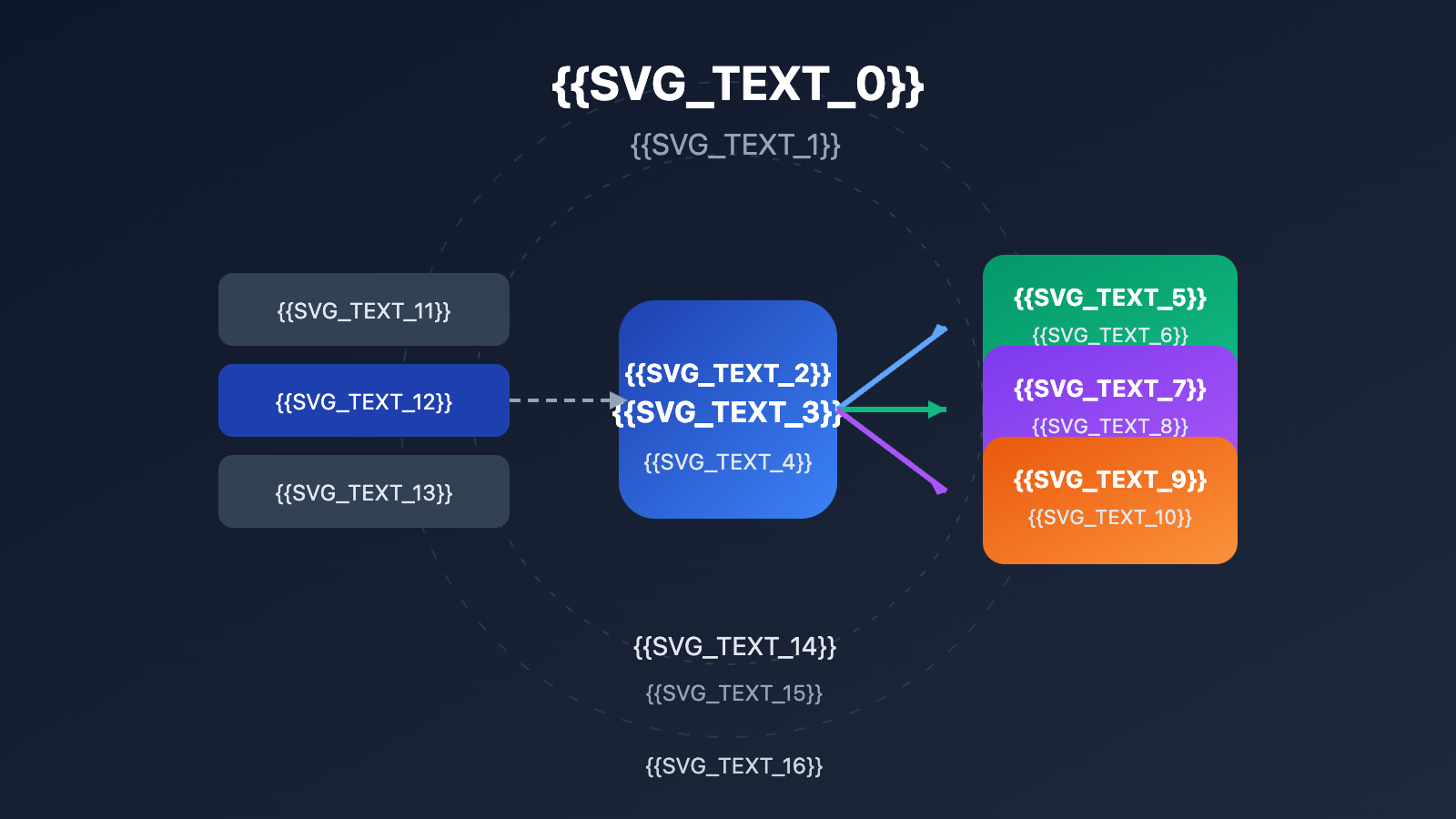
| Key Point | Description | Value |
|---|---|---|
| Browser Extension Export | Use a dedicated Chrome extension for one-click exports | Supports Markdown, JSON, and TXT formats |
| Google Drive Sync | Back up conversations through Drive folders | Auto-saves with the ability to recover historical versions |
| Manual Copy & Save | Directly copy conversation content to your local machine | Simple and direct, no tools required |
| Auto-save Mechanism | Understand how AI Studio handles saving | Avoid data loss caused by page refreshes |
Why is AI Studio chat history being lost?
The problem of losing chat history in Google AI Studio has frustrated many users. Based on feedback from the developer community, the main reasons include:
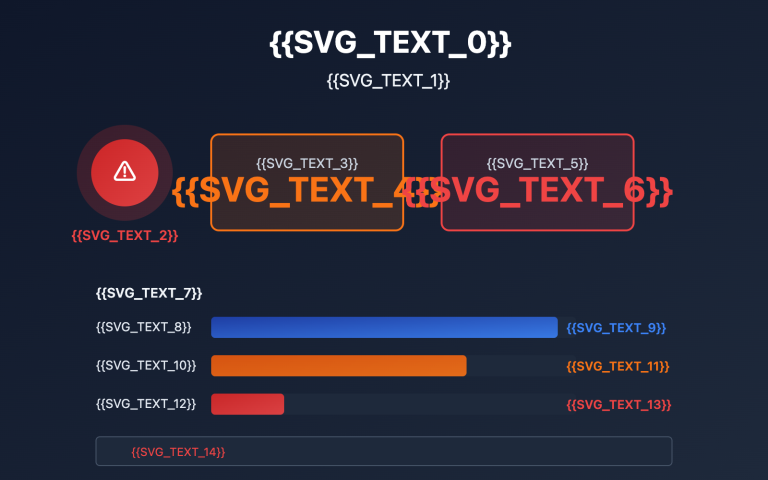
Unstable Auto-save Mechanism: Users have reported that during long conversations exceeding 800,000 tokens, the entire chat history can disappear after a page refresh. Even with the "Auto-save to Google Drive" feature enabled, some conversations still can't be recovered.
Loss Caused by Page Refreshes: AI Studio's "Restore" button (which allows you to roll back to any historical code version in the conversation) completely fails after a page refresh, which is a huge loss in coding scenarios.
Lack of a History Feature: Unlike ChatGPT or Claude, AI Studio doesn't have a clear list of conversation history. While you can find saved conversation files in your Drive folders, the interface isn't intuitive.
Exporting Google AI Studio Chat History Method 1: Browser Extension
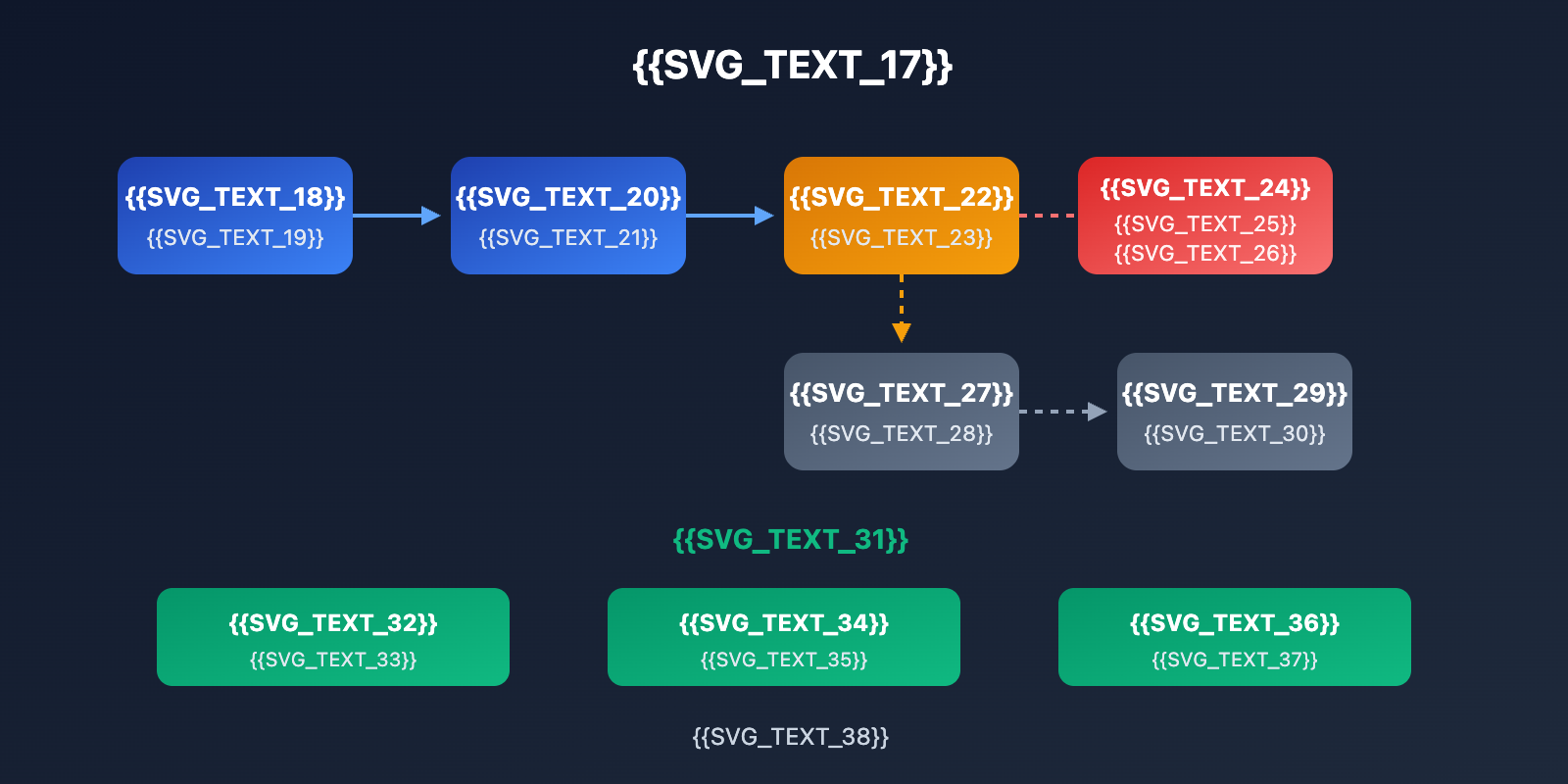
This is currently the most convenient way to export your AI Studio chat history. I'd recommend using the Google AI Studio Exporter extension.
Installation and Usage Steps
- Visit the Chrome Web Store and search for "Google AI Studio Exporter."
- Click "Add to Chrome" to finish the installation.
- Open any conversation on aistudio.google.com.
- Click the extension icon in your browser's toolbar.
- Select your preferred export format (Markdown / JSON / TXT).
- Click "Export Now" to download the file.
Extension Features
| Feature | Description |
|---|---|
| Full Conversation Capture | Automatically handles virtual scrolling to ensure even ultra-long conversations are exported completely. |
| Multi-format Support | Markdown (.md), JSON, and Plain Text (.txt). |
| Media Attachment Export | Supports exporting images and other media files found within the conversation. |
| Privacy Protection | All processing happens locally in your browser, so your data isn't uploaded anywhere. |
| ZIP Packaging | Automatically bundles conversations and attachments into a ZIP file. |
Other Optional Extensions:
- AI Exporter: Supports multi-platform exporting for ChatGPT, Gemini, AI Studio, and more.
- Save My Chatbot: A general-purpose AI conversation export tool.
- Greasyfork User Scripts: Provides lightweight options for Markdown format exports.
Suggestion: It's a good idea to export important conversations regularly to avoid data loss. If you need a more stable API experience, you can get reliable Gemini API access through APIYI, which supports programmatic management of your history.
Exporting Google AI Studio Chat History Method 2: Google Drive Sync
Google AI Studio automatically saves your conversations to your Google Drive—this is the official backup mechanism.
Setting Up Drive Sync
AI Studio conversations are saved by default in a specific folder within Google Drive:
- Open Google Drive (drive.google.com).
- Look for the "AI Studio" folder in the left-hand navigation or search for it.
- Conversations are saved as files in a specific format.
- You can download these files locally for backup.
Restoring Conversations from Drive
If you need to pick up where you left off:
- Download the conversation file from your AI Studio folder.
- Copy the file's content into a new conversation.
- Set up the same context in the System Instructions.
- Continue your chat.
Limitations of Drive Backup
| Issue | Description | Solution |
|---|---|---|
| Incomplete Sync | Some conversations might not save successfully every time. | Use a browser extension for a double backup. |
| Non-intuitive Format | The file format isn't a standard document (like a Word doc). | Use an extension to convert it to Markdown. |
| Cannot Restore State | You can only recover the text content, not the exact interactive state. | Restart a new conversation with the saved content. |
| Sync Latency | There might be a delay in saving. | Manually trigger a save operation. |
Tip: If your project requires reliable conversation history management, I'd suggest using the API interface instead of the web UI. By calling the Gemini API through APIYI, you can gain full control over how your conversation history is stored at the code level.
Exporting Google AI Studio Chat History Method 3: Manual Saving
This is the simplest and most direct method, perfect for temporarily saving important conversations.
Manual Saving Steps
Workflow:
1. On the AI Studio chat page
2. Use Ctrl+A to select all chat content
3. Ctrl+C to copy to your clipboard
4. Paste into a local document (Word, Notion, Markdown editor, etc.)
5. Save the file
Manual Saving Tips
- Save in Segments: For super long conversations, it's a good idea to copy in sections to avoid any browser lag.
- Preserve Formatting: Using a Markdown editor to save your chats will help keep code block formatting intact.
- Add Metadata: Record details like the date, model version, and topic at the start of your file.
- Do it Regularly: Get into the habit of saving immediately after finishing an important conversation.
View Markdown Template Example
# AI Studio Chat Record

- Date: 2026-01-24
- Model: Gemini 2.0 Flash
- Topic: [Conversation Topic]

---


## Chat Content

**User**: [Your question]

**AI**: [AI response content]

---
Notes
[Your notes or summary]
</details>
---
## How to Use Google AI Studio: A Quick Start Guide
If you're new to AI Studio, here's a quick guide to help you get started.
### Registration and Access
1. Visit aistudio.google.com
2. Log in with your Google account
3. Agree to the privacy terms (a one-time thing)
4. Enter the main interface
There's no wait for approval; you can use it immediately with your Google account.
### Key Feature Modules
| Module | Function | Best For |
|------|------|----------|
| **Chat Mode** | Chat and test with Gemini models | Daily use, prompt debugging |
| **Build Mode** | Create apps using natural language | Rapid prototyping, app development |
| **Stream Mode** | Real-time voice and video interaction | Multimodal application testing |
| **Prompt Gallery** | Example prompt library | Learning prompt techniques |
### Model Selection Recommendations
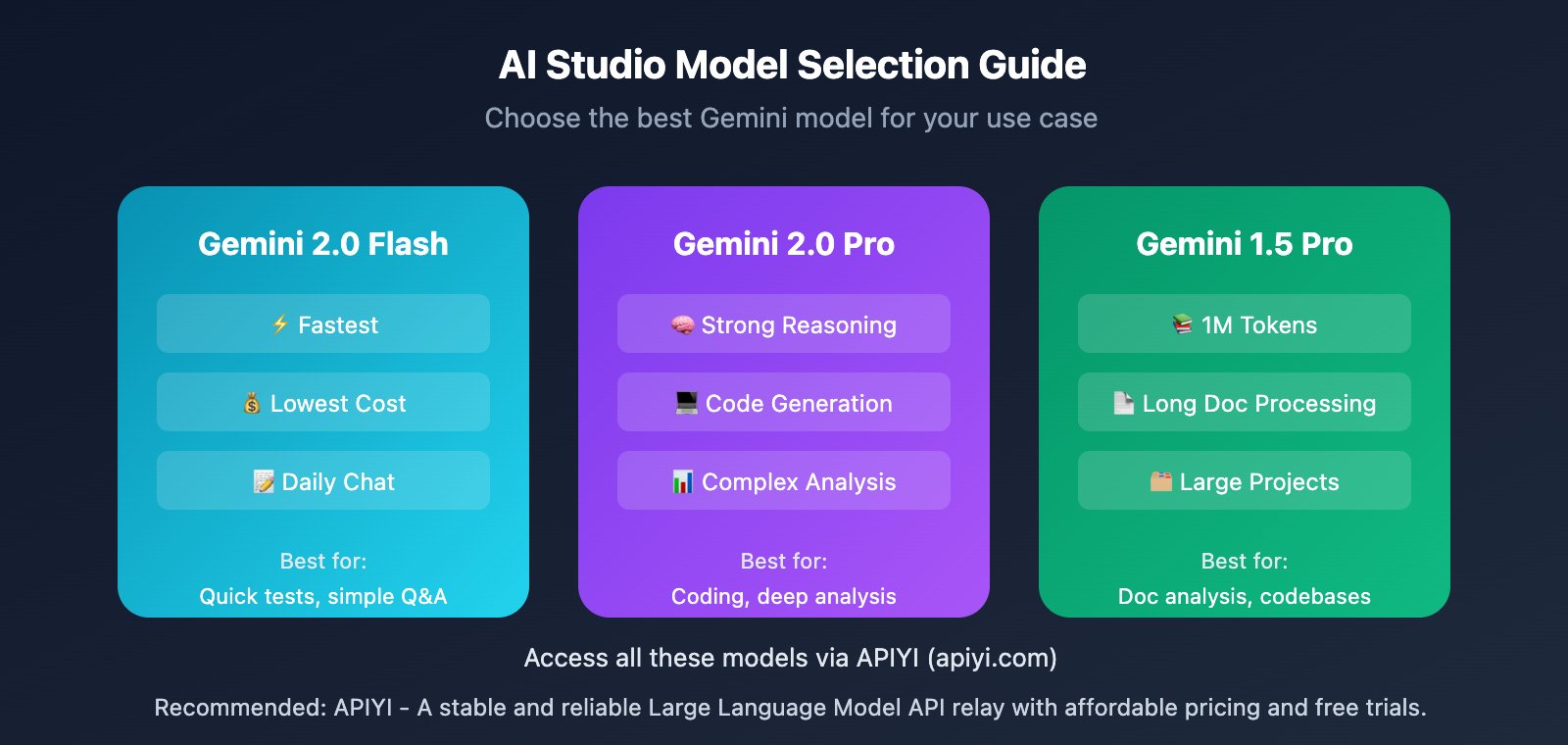
| Model | Features | Recommended Use Cases |
|------|------|----------|
| **Gemini 2.0 Flash** | Fast, low cost | Daily chat, quick tests |
| **Gemini 2.0 Pro** | Strong reasoning | Complex analysis, code generation |
| **Gemini 1.5 Pro** | 1M token context | Long document processing, large projects |
<br>
### Key Parameter Settings
- **Temperature**: Controls output randomness. A value of 0.3 is great for formatted output, while 1.5 works best for creative writing.
- **Thinking Level**: Adjusts the reasoning depth supported by Gemini 2.0.
- **Max Output Tokens**: Sets a limit on the maximum length of the response.
> **Quick Testing Tip**: Get free test credits via APIYI (apiyi.com) to call the Gemini API in your code. This makes batch testing and results management a lot easier.
---
## Google AI Studio Chat History FAQ
<details open>
<summary><strong>Q1: Why did my AI Studio chat disappear after refreshing?</strong></summary>
AI Studio's auto-save mechanism can be a bit unstable, especially with long conversations or when the page becomes unresponsive. I'd recommend:
- Manually backing up important conversations regularly.
- Installing a browser extension for real-time exports.
- Avoiding letting a single conversation get too long.
</details>
<br>
<details open>
<summary><strong>Q2: Does AI Studio have a chat history list?</strong></summary>
AI Studio doesn't have an intuitive history list like ChatGPT does. Conversations are saved in an "AI Studio" folder within your Google Drive, but the interface isn't nearly as user-friendly as a traditional chat app. This is a common pain point that many users have reported.
</details>
<br>
<details>
<summary><strong>Q3: How can I manage my chat history more reliably?</strong></summary>
If you need a reliable way to manage your history, I'd suggest:
1. Using the API interface rather than the Web UI.
2. Managing the conversation history yourself in your own code.
3. Getting Gemini API access through APIYI (apiyi.com).
4. Using a database or local files to store your chat records.
</details>
<br>
<details>
<summary><strong>Q4: Can conversations in apps created via "Build" mode be saved?</strong></summary>
Apps in Build mode face the same saving issues. Users have reported that even when the app is saved to Drive, the conversation history might be empty when they reopen it. It's best to manually export any important dialogue.
</details>
---
## Google AI Studio Chat Export: Solution Comparison
| Method | Difficulty | Format Support | Automation | Reliability |
|------|----------|----------|------------|--------|
| **Browser Extension** | ⭐ Easy | Markdown/JSON/TXT | Semi-auto | ⭐⭐⭐⭐ High |
| **Google Drive** | ⭐ Easy | Proprietary Format | Automatic | ⭐⭐ Medium |
| **Manual Copy** | ⭐⭐ Moderate | Any format | Manual | ⭐⭐⭐⭐⭐ Highest |
| **API Management** | ⭐⭐⭐ Requires Dev | Fully Custom | Fully Auto | ⭐⭐⭐⭐⭐ Highest |
<br>
> **Pro-tip**: For most users, a browser extension is your best bet. If you're a developer, the API approach is the most reliable. APIYI (apiyi.com) offers stable Gemini API access, which lets you manage your conversation history programmatically.
---
## Summary
Key takeaways for exporting Google AI Studio chat history:
1. **Browser Extensions**: The most convenient way to export; we recommend the Google AI Studio Exporter.
2. **Drive Backups**: The official mechanism, but it's not always reliable. We suggest using it alongside other methods.
3. **Manual Saving**: The most reliable but requires manual work—best for your most important conversations.
4. **API Access**: The go-to for developers; gives you full control over your conversation history.
AI Studio is a free and powerful AI development platform, but its chat history management still has room for improvement. We recommend getting into the habit of regular backups to avoid losing important chats.
If you're looking for a more stable Gemini API experience and reliable history management, we recommend getting API access through APIYI at apiyi.com. The platform offers free credits and a unified interface for multiple models.
---
## 📚 References
1. **Google AI Studio Official Documentation**: Learn about the platform's core features.
- Link: `ai.google.dev/gemini-api/docs/ai-studio-quickstart`
- Description: Google's official quickstart guide.
2. **Google AI Studio Exporter Extension**: A browser tool for one-click chat exports.
- Link: `chromewebstore.google.com/detail/ccahfgoehbkchljcjpclmgbfohefmgnh`
- Description: Supports exporting in Markdown, JSON, and TXT formats.
3. **Google AI Developers Forum**: A community for developer discussions.
- Link: `discuss.ai.google.dev`
- Description: Where you can find feedback and solutions from other users.
4. **Complete AI Studio Tutorial**: A detailed third-party guide.
- Link: `datacamp.com/tutorial/google-ai-studio-tutorial`
- Description: Covers Chat, Build, and Stream modes.
---
> **Author**: Tech Team
> **Technical Discussion**: Feel free to join the discussion in the comments. For more resources, visit the APIYI technical community at apiyi.com.