

Author’s note: A look at five changes in Claude Code v2.1.319 that affect gateway integration, permissions, latency, and cost, plus an upgrade checklist.
Claude Code v2.1.319 was released on November 6, 2026. This release focuses on fixes, permissions, gateway compatibility, and developer experience rather than major new features. The change to auto mode behavior behind gateways has the biggest impact on teams using Claude Code through third-party APIs, LLM gateways, or enterprise proxies. Calls that the server can’t verify will now trigger a prompt or be denied, rather than falling back to a built-in local decision.
Here’s the takeaway: Before upgrading, check your permission policies and gateway field passthrough. If your automation relies on auto mode to approve actions automatically, it may stop at a permission prompt or be denied outright after the upgrade. The other four changes worth watching are latency-optimize, managed-agents templates, server-managed settings, and a fix for image errors. We’ll cover what changed, who’s affected, and how to verify each one.
This isn’t a changelog recap. We’ve picked out only the items that affect integration, permissions, latency, and cost. All facts are based on the official changelog, and there’s no unverified performance data.
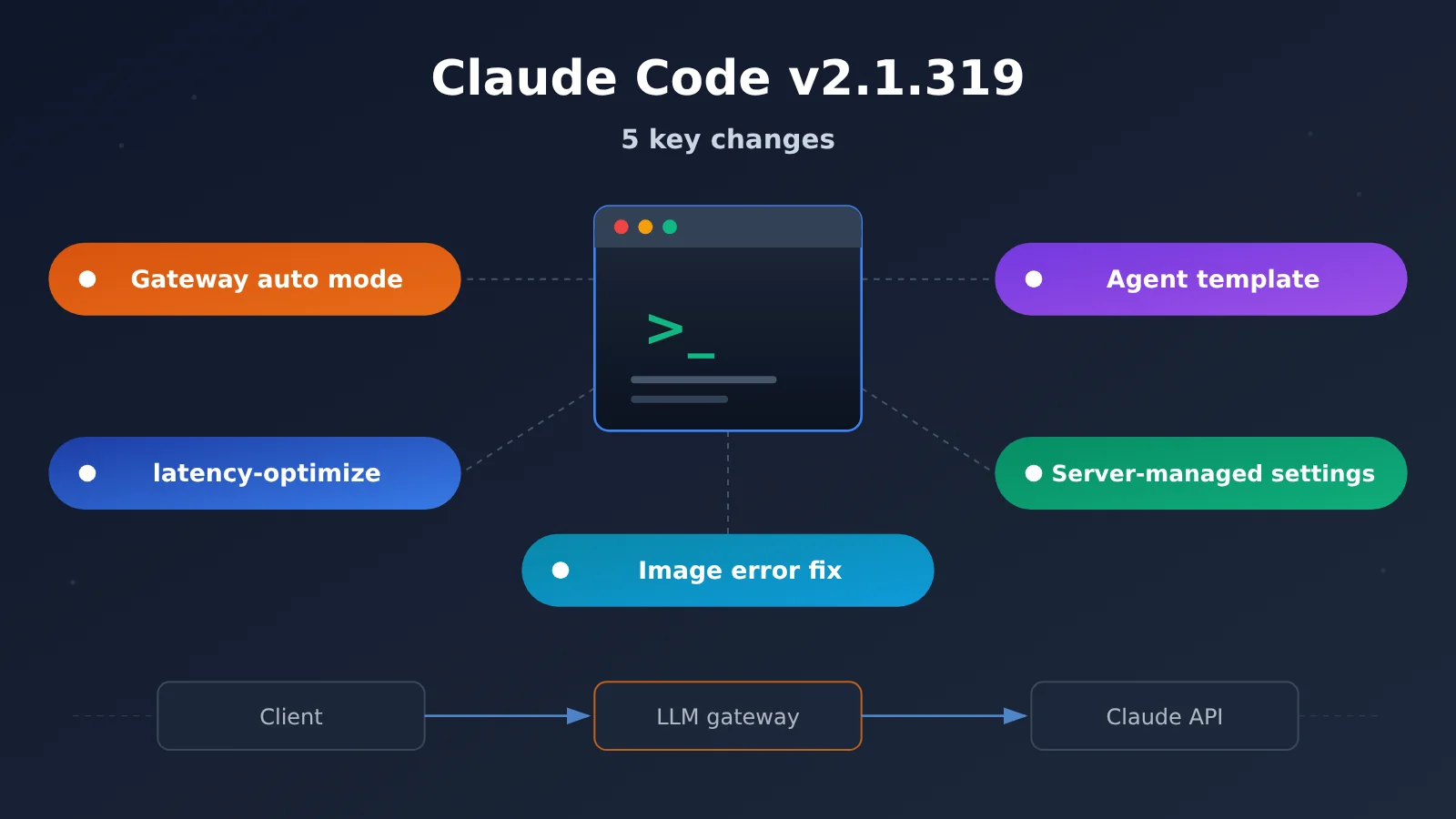
Claude Code v2.1.319 at a Glance
This update is all about tightening boundaries. Permission decisions rely more on the server, templates are aligned with Claude Console, and error messages now show the actual limits. Here’s the basic information, followed by the impact of each of the five changes.
| Item | Details |
|---|---|
| Version | 2.1.319 |
| Release date | November 6, 2026 |
| Publisher | Anthropic (Claude Code) |
| Update focus | Fixes, permissions, gateway compatibility, and developer experience |
| Most affected | Gateway or enterprise proxy users, managed agent configurators, and Team/Enterprise administrators |
Claude Code v2.1.319 Changes and Impact
| Change | What changed | Who’s affected | How to verify |
|---|---|---|---|
| Auto mode behind gateways | When telemetry or feature flags are disabled, calls that can’t be validated by the server now prompt for permission or are denied | Teams using LLM gateways, enterprise proxies, or private deployments | Run common tasks through your gateway and watch how often permission prompts appear |
| latency-optimize | Added /claude-api latency-optimize to identify sources of latency in Claude API code |
Developers maintaining Claude API applications who care about time to first token | Compare quality before and after changes using your own evaluation set |
| managed-agents-onboard | Templates now align with Claude Console; Performance tuner was removed, two templates were renamed, and some tools use the auto permission policy by default | Teams creating new managed agents | Check whether new agents’ tool permissions comply with your organization’s policies |
| Server-managed settings | Server-side settings for Team/Enterprise are applied as soon as they’re fetched, without an approval prompt; local copies that fail validation are rejected | Organization administrators and teams with restrictive network environments | Make sure proxies and certificates don’t interfere with fetching settings |
| Image limit errors | When a request contains more than 20 images, the error now shows the actual API limit instead of always displaying 2000px | Users processing multiple images, design mockups, or screenshots in batches | Create a request with too many images and check the error message |
🎯 Technical tip: If your team compares multiple models, you can connect Claude Code and other clients to APIYI at apiyi.com. One API key gives you access to Claude, OpenAI, Gemini, and other models, and you can track usage changes before and after the upgrade in the console.
Claude Code v2.1.319: Auto Mode Changes Behind a Gateway
This is the change you’ll most want to prepare for in this update. Auto mode lets Claude Code decide whether to allow actions automatically, reducing the need for manual confirmation. In v2.1.319, its behavior changes when it can’t see server-side signals.
What changed for auto mode behind a gateway?
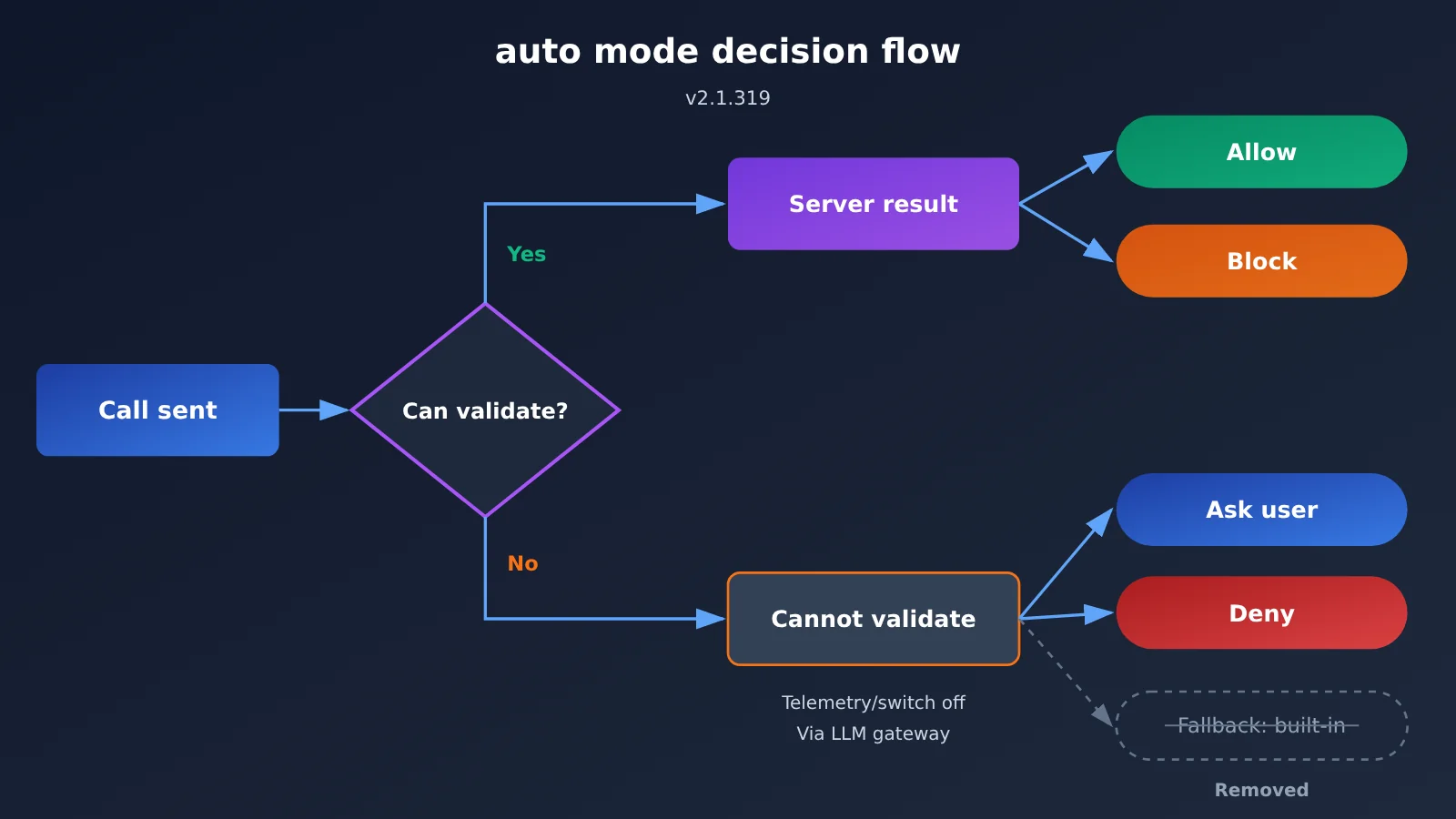
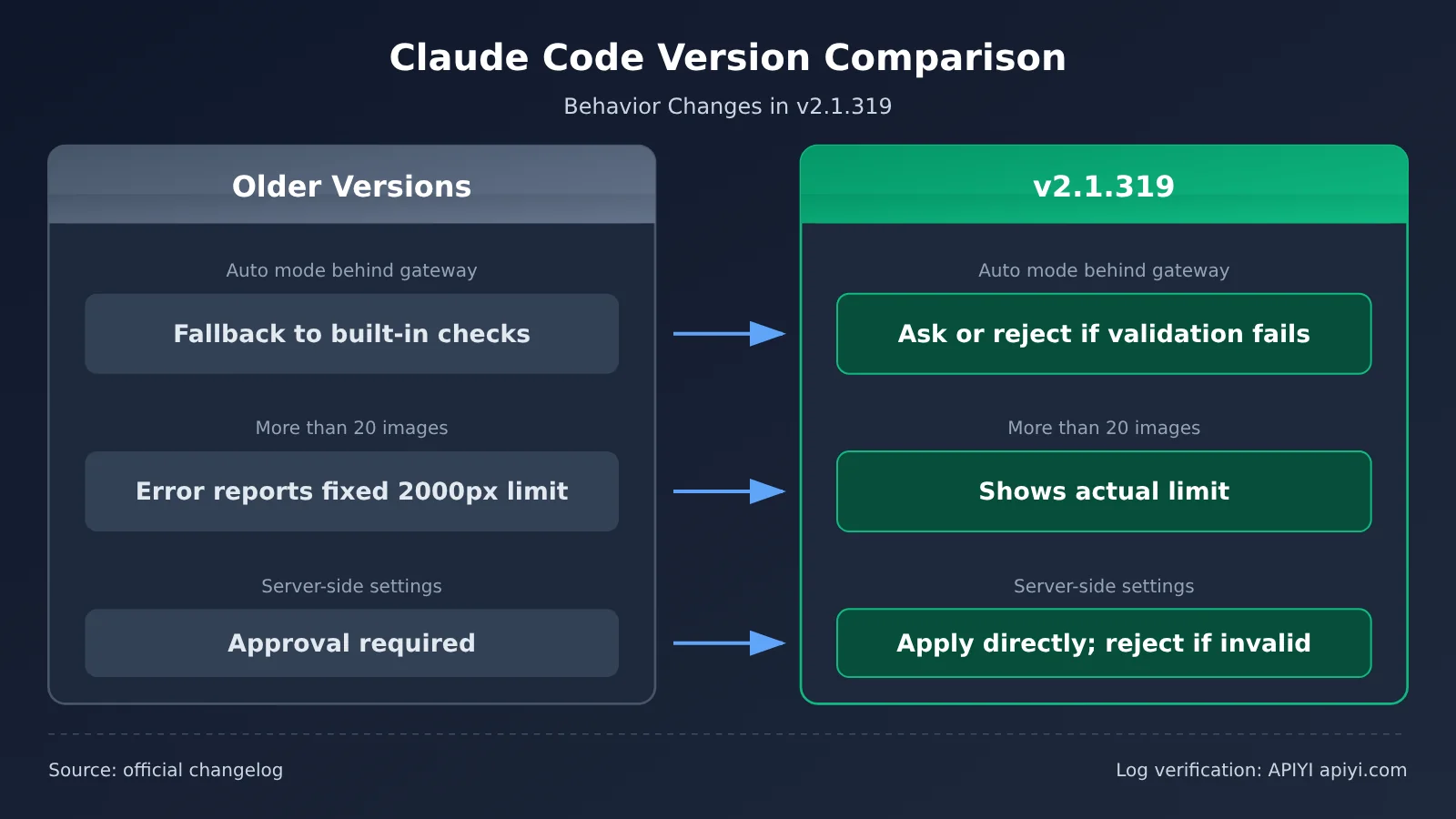
According to the official documentation, auto mode behaves differently when telemetry or feature flags are disabled. This also applies when using Claude Code behind an LLM gateway. In these cases, calls that the server can’t validate will prompt the user or be denied. They no longer fall back to built-in checks.
This is an intentional change, not a bug. The idea is to stop and ask a person when a call’s safety can’t be confirmed, rather than relying on local rules to let it through. That’s a safer approach for enterprises that prioritize permission boundaries, but automated workflows built around the assumption that auto mode runs unattended may now face delays or interruptions.
Which gateway scenarios are most likely to be affected?
The impact mainly depends on two things: whether the gateway passes through the fields auto mode depends on, and whether your workflow can accommodate manual confirmation. The table below covers what to watch for in common deployment setups.
| Deployment setup | Typical behavior | Main risk | Recommended action |
|---|---|---|---|
| Third-party LLM gateway | Requests are forwarded through a gateway to the model service | Required fields aren’t passed through, so calls can’t be validated | Check the gateway documentation to confirm which fields are passed through |
| Enterprise outbound proxy | Traffic passes through a proxy for auditing | The proxy rewrites or strips request content | Allow the relevant fields through the proxy and document the changes |
| Private deployment or telemetry disabled | Telemetry and feature flags are intentionally disabled | The conditions for the new behavior are already met | Assess the cost of manual confirmation and adjust workflows |
| CI or unattended tasks | No one is available to respond to permission prompts | Tasks stall at a prompt or fail | Run the full pipeline on a test branch first |
Validation is straightforward: in your gateway environment, run a few of your most common tasks—reading and writing files, executing commands, and invoking tools—and record which steps trigger new permission prompts and which are denied outright. If denials are concentrated around a particular type of call, check whether the gateway is passing through the required fields rather than bypassing permissions on the client.
💡 Gateway compatibility tip: When connecting through an aggregation gateway such as APIYI apiyi.com, first check the platform documentation on Claude’s native format and gateway compatibility. Then use the console logs to compare requests before and after the upgrade.
How Claude Code v2.1.319 latency-optimize Finds Bottlenecks
The second change is the new /claude-api latency-optimize command. It helps developers building applications with the Claude API find where users are waiting and try faster configurations.
What kinds of latency can latency-optimize investigate?
According to the official description, the command can help investigate three types of issues: slow requests, time to first token, and waits during tool calls. In interactive products, time to first token shapes whether users feel the app is responsive. In agent-based applications, waiting across multiple rounds of tool calls can add up to more time than a single inference request.
The parameters it adjusts depend on your code structure, so rely on the command’s actual output. Don’t assume it’ll deliver a fixed percentage improvement; this article doesn’t provide unverified speedup figures.
Use evaluations to validate “faster configurations”
The official documentation specifically recommends using evaluations to check whether faster configurations affect quality. This matters because reducing latency often involves trade-offs. Switching to a lighter model, shortening the context, or reducing reasoning steps may improve speed at the expense of output quality.
A reliable workflow looks like this:
- Prepare an evaluation set that represents real-world usage, covering common inputs and edge cases;
- Record latency and quality baselines under your current configuration;
- Run
/claude-api latency-optimizeand review its suggested changes; - Apply the suggestions, then measure again on the same evaluation set and compare latency and quality;
- Keep only the changes that don’t noticeably reduce quality, and document them in your change log.
If your application calls models through an OpenAI-compatible interface, you can set base_url to https://api.apiyi.com/v1 and compare response speed and quality across different models using the same API key. You don’t need to maintain separate credentials for each model provider.
🚀 Quick start: When optimizing latency, model choice is a variable worth testing. APIYI apiyi.com lets you switch between Claude, OpenAI, Gemini, and other models through the same interface. New users get free testing credits, making it easy to start with a small-sample comparison.
Claude Code v2.1.319 managed-agents templates and server-managed settings
This section covers three changes: an update to the managed-agents-onboard templates, how server-managed settings are applied, and a fix for image-limit errors. None is complicated, but they directly affect configuration and troubleshooting for platform teams.
managed-agents-onboard templates and auto permissions
The managed-agents-onboard templates are now aligned with Claude Console. The changes include removing the Performance tuner template and renaming two templates. If your team’s documentation or scripts hard-code the old template names, you’ll need to update them after upgrading.
The default permissions have changed too. Built-in tools for newly created Agents and MCP tools in the quickstart template now receive the auto permission policy, or “Judge risky actions.” The system assesses whether an action is risky and decides whether confirmation is needed.
| Item | Default permission policy in v2.1.319 | What to check |
|---|---|---|
| Built-in tools for newly created Agents | auto (Judge risky actions) | Whether it aligns with your organization’s least-privilege principles |
| MCP tools in the quickstart template | auto (Judge risky actions) | MCP tools may access external systems and need separate assessment |
| Existing Agents | Depends on the actual configuration | Spot-check after upgrading to confirm there are no unexpected changes |
| Performance tuner template | Removed | Workflows that depend on it need an alternative |
For platform teams, the question isn’t whether auto is good or bad—it’s whether auto fits your policies. If your organization requires human confirmation for high-risk tools, manually tighten those tools’ permissions after creating an Agent rather than relying on the defaults.
Server-managed settings: applied directly and rejected if validation fails
For organizations using Team and Enterprise logins, server settings are now applied directly after they’re fetched from the Anthropic API, without an approval prompt. Policies pushed by administrators can take effect faster, and end users have one less confirmation step.
At the same time, locally stored copies of settings are rejected if validation fails. This means abnormal content caused by network issues, certificate problems, or proxy modifications won’t be silently accepted. When troubleshooting, check three things: whether the settings endpoint is reachable, whether the certificate chain is complete, and whether the corporate proxy modifies the response.
Image-limit error fix: shows the actual API limit
In older versions, when a single request exceeded 20 images, the error always reported a “2000px limit.” That didn’t match the actual cause and could send troubleshooting in the wrong direction. v2.1.319 fixes this: the error now shows the actual API limit.
This is useful for multi-image inputs, such as batch-reviewing design mockups or uploading many screenshots for a model to analyze interface issues. If you encounter an error, check the actual limit in the message first, then decide whether to split the request or compress the images. Don’t adjust dimensions based on the old 2000px message.
What Claude Code v2.1.319 Means for Gateway Users and Platform Teams
Taken together, the five changes point in a clear direction: permission decisions follow the server, configuration aligns with Console, and error messages reflect actual limits. The impact depends on your role.
For Developers
- Automation may slow down: Auto mode behind a gateway now produces more prompts and denials, so test unattended tasks in advance;
- There’s now an official starting point for latency optimization:
/claude-api latency-optimizegives you a place to start troubleshooting, but you’ll need to validate the results with your own benchmarks; - Multi-image troubleshooting is more straightforward: Error messages show the actual limits, reducing the chance of misdiagnosis.
For Platform Teams and Administrators
- Gateway configuration is now part of permission handling: If fields aren’t passed through completely, you’ll see permission prompts or denials;
- Default permissions need a review: Built-in tools and MCP tools for managed agents default to auto, so check them against your organization’s policies;
- Settings are distributed faster, but network requirements are stricter: Server-side settings are applied directly, but they’re rejected if validation fails, so network and certificate issues will surface sooner.
Where APIYI Fits Into This Upgrade
If your team invokes models through an aggregation gateway, the gateway itself needs to be checked as part of this upgrade. APIYI apiyi.com lets you call mainstream models such as Claude, OpenAI, and Gemini with one Key and supports both OpenAI and Claude native formats. For Claude Code gateway compatibility details, refer to the platform documentation.
When troubleshooting the upgrade, the console’s model, usage, and log records can help: compare request counts and failure patterns for similar tasks before and after the upgrade to determine whether changes stem from client permission policies or the network path. Check the console and documentation for current pricing and model availability.
Claude Code v2.1.319 FAQ
Q1: Is the change to auto mode in Claude Code v2.1.319 a bug?
No. It’s an intentional behavior change. When telemetry or feature flags are disabled, including when Claude Code is behind an LLM gateway, calls that the server can’t verify will prompt for approval or be denied instead of falling back to the built-in decision logic. If this slows down your workflow, check your gateway’s field forwarding and permission policies rather than treating it as a bug to work around.
Q2: What should I check before upgrading Claude Code behind a gateway?
Start with two things: whether the gateway passes through the fields auto mode needs, and whether permission prompts could block automated workflows. Try running each of your common tasks in a test environment. If you connect through APIYI at apiyi.com, you can also use the console logs to compare requests before and after the upgrade.
Q3: Will latency-optimize automatically make my application faster?
It identifies points where your application waits and tries faster settings, but you’ll need to test those settings on your own evaluation set to see if they’re worth adopting. Faster settings may affect output quality, so measure both latency and quality.
Q4: How can I compare latency across multiple models using the same code?
Use an OpenAI-compatible interface, set `base_url` to the APIYI endpoint, and switch between models such as Claude, OpenAI, and Gemini under the same API key. Then compare latency and quality using the same evaluation set. APIYI at apiyi.com offers free testing credits to new users, making it convenient to start with a small-scale evaluation.
Q5: How do I roll back if something goes wrong after upgrading?
Record your current version before upgrading (you can check it with `claude –version`) and make sure you have a way to install a specific older version. In CI and team environments, start by rolling out the upgrade to a small number of machines. Once you’ve confirmed that permissions, the gateway, and settings retrieval all work properly, roll it out more broadly.
Claude Code v2.1.319 Key Takeaways
- Auto mode is stricter behind a gateway: Calls that can’t be validated by the server now prompt for permission or are denied instead of falling back to built-in checks;
- This is a behavior change, not a bug: Check gateway field forwarding and permission policies;
- Latency optimization is a starting point: Once you’ve identified where time is spent, validate quality using your own evaluation set;
- Managed agents default to auto permissions: Review permissions for built-in tools and quickstart MCP tools against your organization’s policies;
- Server settings are applied directly: Settings that fail validation are rejected, so check your network, certificates, and proxy in advance;
- Multi-image errors are more accurate: Requests with more than 20 images now show the API’s actual limit;
- Comparing models is easier: Use one key to call multiple models through APIYI at apiyi.com, and check usage and logs in the console.
Summary: Claude Code v2.1.319 Upgrade Checklist
The key points for Claude Code v2.1.319:
- Gateway users are most affected: Auto mode prompts for permission or denies calls it can’t validate. Check field forwarding and permission policies before upgrading;
- Pair latency optimization with evaluation:
/claude-api latency-optimizeidentifies where time is spent, but evaluation results should determine which suggestions you adopt; - Review platform configuration: Check managed agent default permissions, template name changes, and server-side settings retrieval.
You can use this checklist directly in your team’s upgrade review:
| Check | What to review | Pass criteria |
|---|---|---|
| Version | Has the installation been upgraded to 2.1.319? | The version number matches expectations |
| Gateway field forwarding | Does the gateway forward the fields required by auto mode? | Common tasks aren’t unexpectedly denied |
| Permission prompts | Do new prompts affect automated workflows? | CI and unattended tasks run to completion |
| latency-optimize | Have the suggested settings been tested against your own evaluation set? | Latency decreases without a noticeable drop in quality |
| Managed agents | Do auto permissions for built-in and MCP tools comply with policy? | High-risk tools have been restricted according to policy |
| Template references | Do docs or scripts refer to old template names or Performance tuner? | All references have been updated |
| Server-side settings | Do the network, certificates, or proxy affect settings retrieval? | Settings apply normally, with no validation failures |
| Multi-image errors | Do errors for more than 20 images show the actual limit? | Error messages match the API limit |
| Rollback plan | Has the old version been recorded and a rollback method prepared? | The old version can be restored quickly |
Start by checking each item in a test environment, then roll out the upgrade to your team gradually. If you need to compare models or check gateway request logs during the upgrade, APIYI at apiyi.com is a quick way to validate your setup. The platform offers a unified interface for multiple models, plus usage and log queries. New users can get started with free credits.
📚 References
- Official Claude Code Changelog: The original source for the v2.1.319 release notes
- Link:
github.com/anthropics/claude-code/blob/main/CHANGELOG.md -
Note: All version details in this article are based on the changelog. We recommend reading the full entry before upgrading.
-
Official Claude Code documentation: Guidance on permissions, gateway configuration, and settings management
- Link:
docs.anthropic.com/en/docs/claude-code -
Note: Use this when configuring auto mode, managed agents, and enterprise settings.
-
APIYI Documentation Center: Model lists, API formats, and gateway compatibility
- Link:
docs.apiyi.com - Note: Check the integration details for Claude’s native format and the OpenAI-compatible API.
Author: APIYI Technical Team
Technical discussions: Contact us through the APIYI homepage. For more resources, visit the documentation center at docs.apiyi.com.