Author's Note: A deep dive into how the Nano Banana Pro API achieves original ratio output. Master the trick of omitting the aspect_ratio parameter to solve size maintenance issues in image editing.
When using the Nano Banana Pro API for image editing, keeping the original image size is a common headache for developers. The official docs clearly state that aspect_ratio only supports 10 fixed ratios. However, there's a simple workaround: just omit the aspect_ratio parameter in image-to-image scenarios to output the original size.
Core Value: After reading this article, you'll master the full technique for original ratio output using the Nano Banana Pro API, allowing you to flexibly control image sizes across different scenarios.
Key Points for Nano Banana Pro Original Ratio Output
| Point | Description | Value |
|---|---|---|
| Parameter Omission | Don't pass aspect_ratio during image editing. |
Automatically keeps the original image size. |
| 10 Fixed Ratios | 1:1, 2:3, 3:2, 3:4, 4:3, 4:5, 5:4, 9:16, 16:9, 21:9 | Used in text-to-image scenarios. |
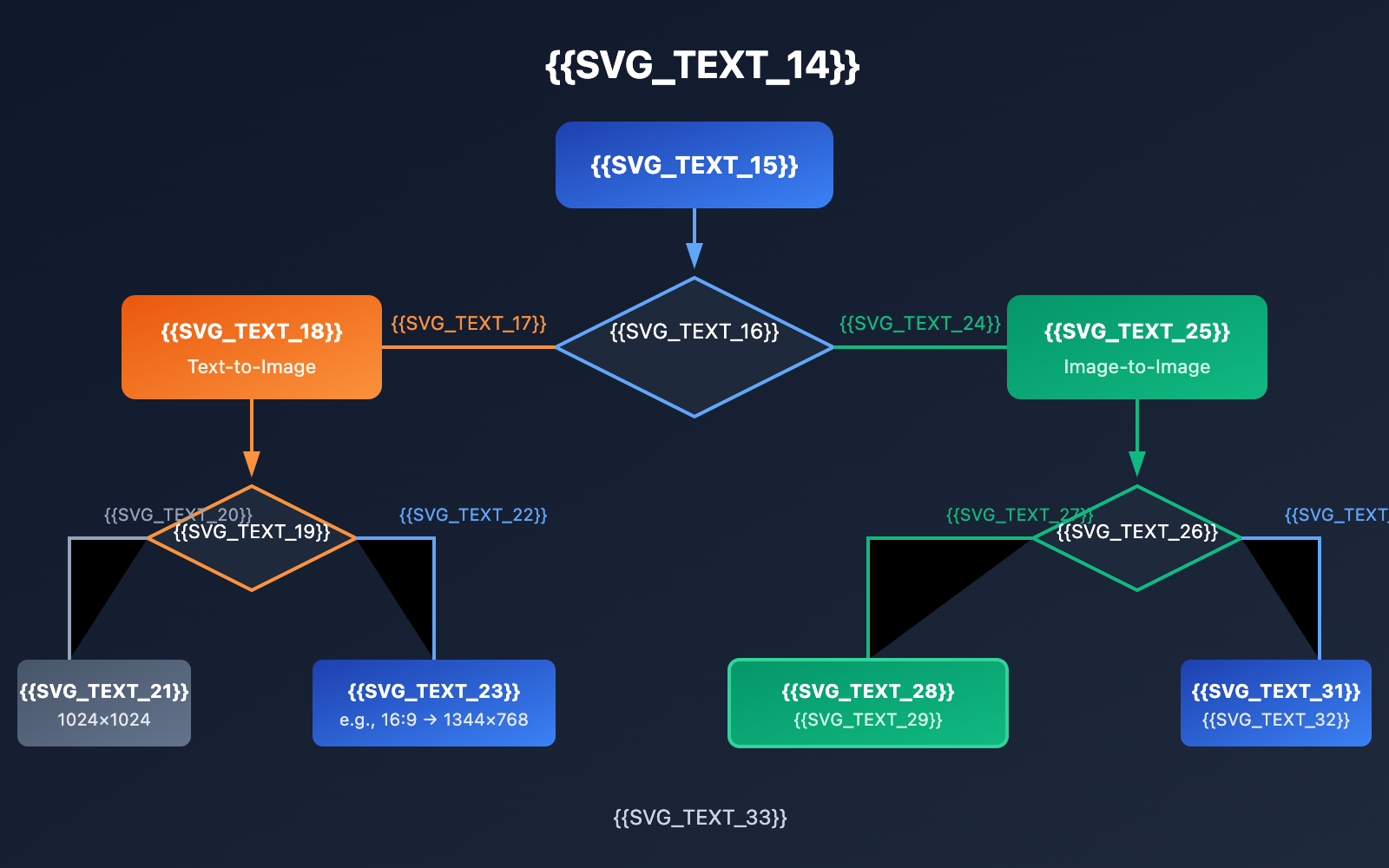
| Default Behavior Difference | Text-to-image defaults to 1:1; image-to-image defaults to original size. | Key to understanding API logic. |
The Core Principle of Original Ratio Output
Nano Banana Pro (Gemini 3 Pro Image) has two distinct default behaviors when handling images. For pure text-to-image scenarios, if you don't specify an aspect_ratio, the API defaults to a 1:1 square image.
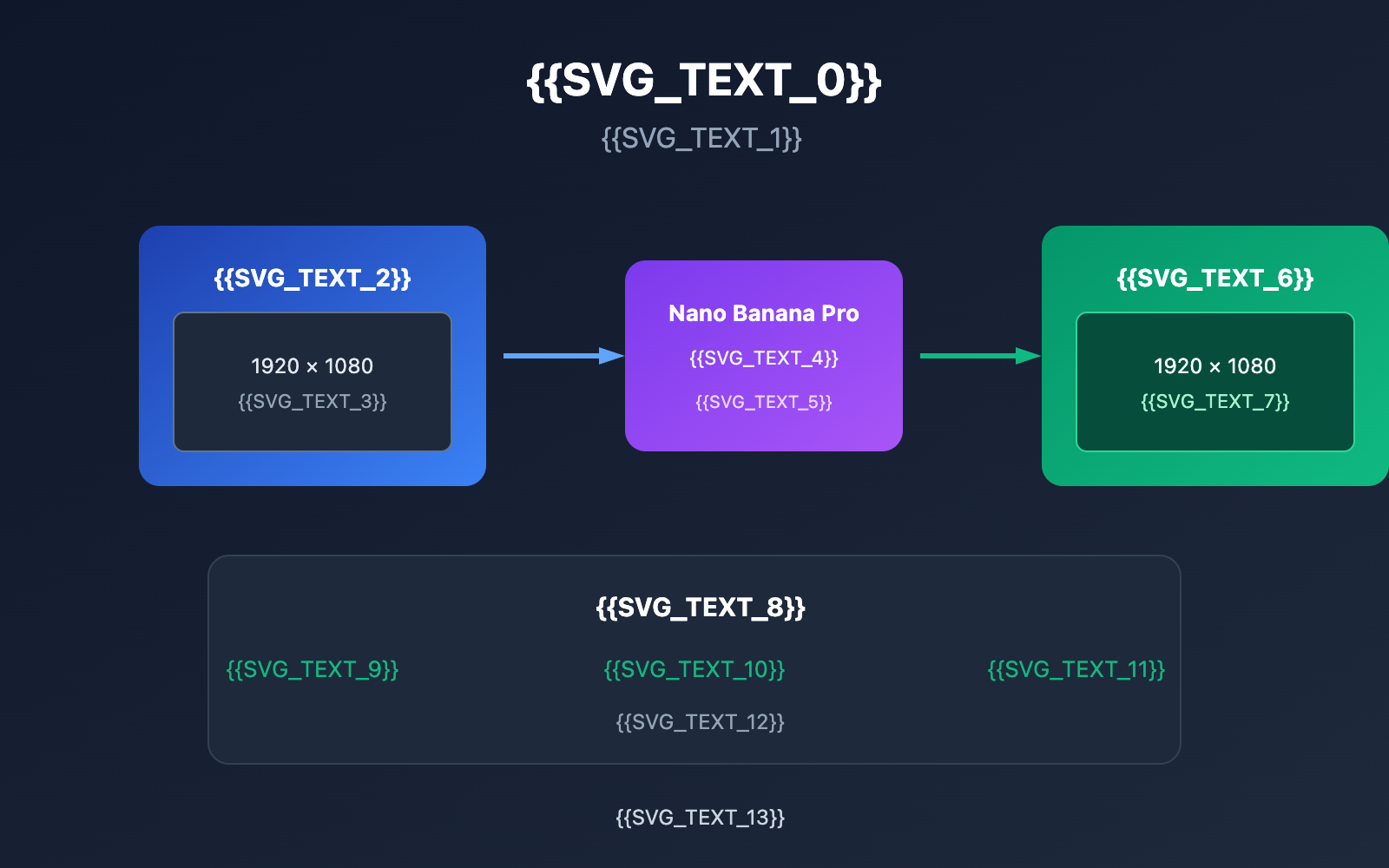
However, in image-to-image editing scenarios, the behavior is completely different. When you provide a reference image and ask for edits, if you don't pass the aspect_ratio parameter, the API automatically detects the original size of the input image and outputs the result in those exact dimensions. This is the secret sauce for original ratio output.
Why Original Ratio Output Works
This design makes total sense: when a user uploads an image for editing, they usually expect the output to maintain the same size and proportions as the original. Forcing developers to manually calculate and specify ratios doesn't just add complexity—it also risks image distortion or unwanted cropping if the ratios don't match perfectly.
Nano Banana Pro Original Aspect Ratio Rules Explained
The official API documentation clearly states that the aspect_ratio parameter only accepts the following 10 presets:
| Ratio | Dimension Example (1K) | Typical Use | Scenarios |
|---|---|---|---|
| 1:1 | 1024×1024 | Avatars, Icons | Social media profile pictures |
| 2:3 | 832×1248 | Vertical Posters | Phone wallpapers |
| 3:2 | 1248×832 | Horizontal Photos | Standard camera ratio |
| 3:4 | 864×1152 | Vertical Content | Social media covers (e.g., Xiaohongshu) |
| 4:3 | 1152×864 | Traditional Monitors | PPT illustrations |
| 4:5 | 896×1120 | Social media content | |
| 5:4 | 1120×896 | Printed Photos | 8×10 inch photos |
| 9:16 | 768×1344 | Vertical Video | Short video covers |
| 16:9 | 1344×768 | Horizontal Video | YouTube covers |
| 21:9 | 1536×658 | Ultrawide | Cinematic shots |
Important Tip: The ratio limits mentioned above only apply when you need to specify dimensions. For image editing scenarios, we recommend testing through the APIYI (apiyi.com) platform. You can simply omit the
aspect_ratioparameter to achieve original size output.
Quick Start: Outputting Original Ratios with Nano Banana Pro
Minimal Example: Keeping Original Size for Image Editing
Here's the simplest way to implement original ratio output:
import openai
import base64

client = openai.OpenAI(
    api_key="YOUR_API_KEY",
    base_url="https://vip.apiyi.com/v1"
)

# 读取原图并编码
with open("input.jpg", "rb") as f:
    image_base64 = base64.b64encode(f.read()).decode()

# 关键:不传 aspect_ratio 参数
response = client.chat.completions.create(
    model="gemini-3-pro-image-preview",
    messages=[{
        "role": "user",
        "content": [
            {"type": "image_url", "image_url": {"url": f"data:image/jpeg;base64,{image_base64}"}},
            {"type": "text", "text": "将图片背景改为日落场景"}
        ]
    }]
)
View full implementation code (including error handling)
import openai
import base64
from pathlib import Path

def edit_image_keep_ratio(
    image_path: str,
    edit_prompt: str,
    output_path: str = "output.png"
) -> bool:
    """
    编辑图片并保持原始尺寸

    Args:
        image_path: 输入图片路径
        edit_prompt: 编辑指令
        output_path: 输出图片路径

    Returns:
        是否成功
    """
    client = openai.OpenAI(
        api_key="YOUR_API_KEY",
        base_url="https://vip.apiyi.com/v1"
    )

    # 读取并编码图片
    image_data = Path(image_path).read_bytes()
    image_base64 = base64.b64encode(image_data).decode()

    # 检测图片格式
    suffix = Path(image_path).suffix.lower()
    mime_type = {"jpg": "jpeg", "jpeg": "jpeg", "png": "png", "webp": "webp"}.get(suffix[1:], "jpeg")

    try:
        # 核心:不传 aspect_ratio,自动保持原尺寸
        response = client.chat.completions.create(
            model="gemini-3-pro-image-preview",
            messages=[{
                "role": "user",
                "content": [
                    {"type": "image_url", "image_url": {"url": f"data:image/{mime_type};base64,{image_base64}"}},
                    {"type": "text", "text": edit_prompt}
                ]
            }]
        )

        # 保存结果
        result_base64 = response.choices[0].message.content
        output_data = base64.b64decode(result_base64)
        Path(output_path).write_bytes(output_data)
        return True

    except Exception as e:
        print(f"编辑失败: {e}")
        return False

# 使用示例
edit_image_keep_ratio(
    "product.jpg",
    "移除图片背景,保留主体产品",
    "product_nobg.png"
)
Recommendation: Get free test credits through APIYI (apiyi.com) to quickly verify the results of original ratio output. The platform supports full feature calls for the Nano Banana Pro model.
Nano Banana Pro: Original Aspect Ratio Output Comparison Across Three Scenarios
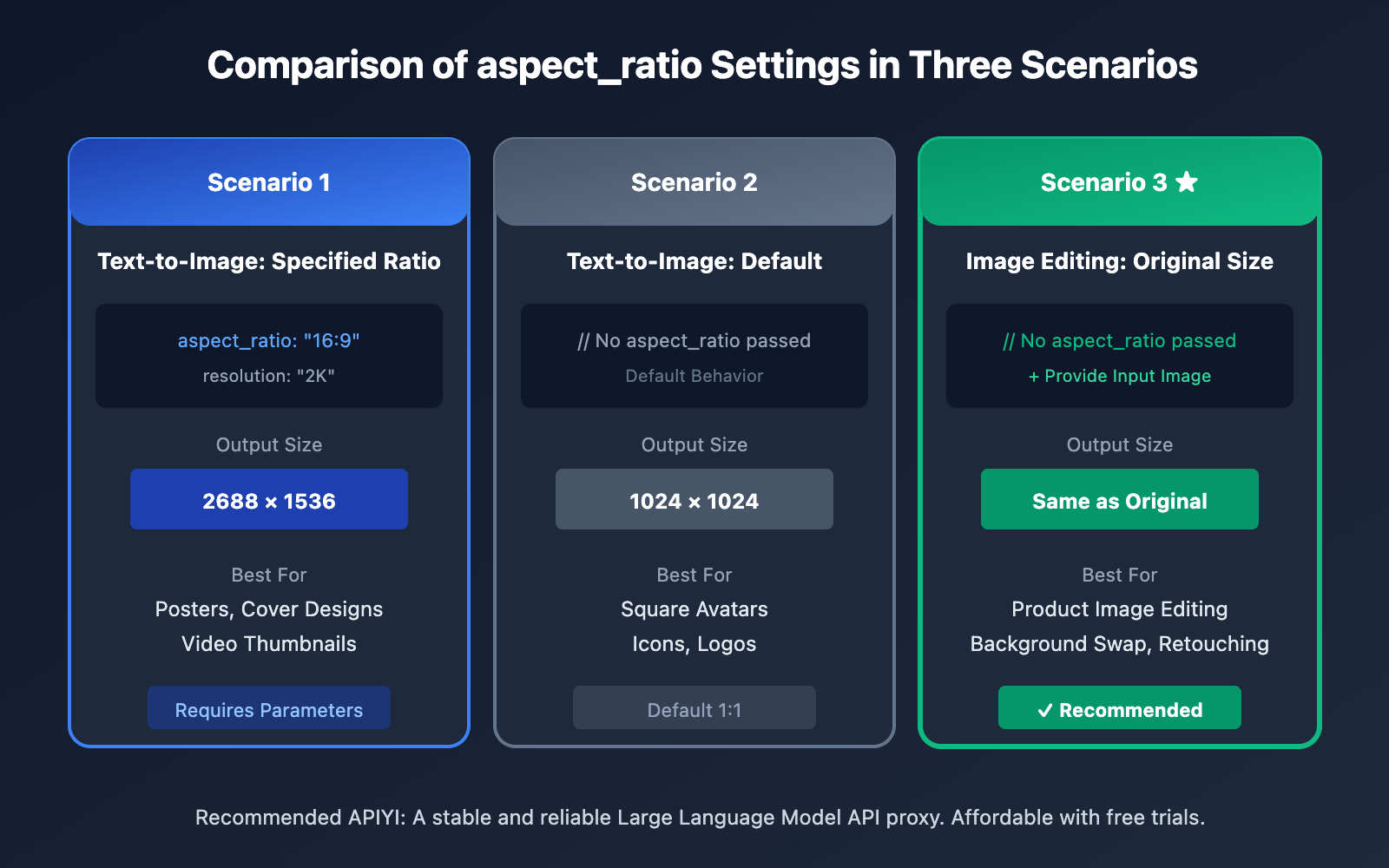
| Scenario | aspect_ratio Configuration | Output Result | Code Example |
|---|---|---|---|
| Text-to-Image: Specified Ratio | "aspect_ratio": "16:9" |
1344×768 (1K) | Posters, Cover Designs |
| Text-to-Image: Default | No parameter passed | 1024×1024 | Square Icons |
| Image Editing: Original Size | No parameter passed | Same as Original | Product Image Editing |
Scenario 1: Text-to-Image Requires a Specified Ratio
When you're generating an image purely from text, you must explicitly pass the aspect_ratio parameter if you need a specific size:
response = client.chat.completions.create(
    model="gemini-3-pro-image-preview",
    messages=[{"role": "user", "content": "一只可爱的猫咪"}],
    extra_body={
        "image_config": {
            "aspect_ratio": "16:9",  # 必须指定
            "resolution": "2K"
        }
    }
)
Scenario 2: Maintaining Original Dimensions in Image Editing
This is the core scenario of this article. All you have to do is omit the aspect_ratio parameter:
response = client.chat.completions.create(
    model="gemini-3-pro-image-preview",
    messages=[{
        "role": "user",
        "content": [
            {"type": "image_url", "image_url": {"url": f"data:image/jpeg;base64,{img}"}},
            {"type": "text", "text": "增强图片色彩"}
        ]
    }]
    # 不传 extra_body 或 aspect_ratio
)
Scenario 3: Forcing a New Aspect Ratio during Image Editing
If you actually do want to change the dimensions while editing, just pass the parameter explicitly:
response = client.chat.completions.create(
    model="gemini-3-pro-image-preview",
    messages=[{
        "role": "user",
        "content": [
            {"type": "image_url", "image_url": {"url": f"data:image/jpeg;base64,{img}"}},
            {"type": "text", "text": "将图片改为正方形构图"}
        ]
    }],
    extra_body={"image_config": {"aspect_ratio": "1:1"}}
)
Note on Comparison: The parameter configurations above have been verified on the APIYI (apiyi.com) platform and are confirmed to work.
FAQ
Q1: Why did my image turn into a square even though I omitted aspect_ratio?
Please double-check that your request actually includes an input image. If there's only text in the messages and no image, the API will treat it as a text-to-image request, which defaults to a 1:1 ratio. Outputting in the original size only works in image editing scenarios where a reference image is provided.
Q2: What if the original image dimensions aren’t among the 10 supported ratios?
That's exactly why the "omit the parameter" method is so valuable. For example, if your original image is 1920×1080 (roughly 16:9), the API will output a result close to those dimensions rather than forcing a crop. If you were to explicitly pass aspect_ratio: "16:9", the output would be a standard 1344×768.
Q3: How can I quickly test the original aspect ratio output?
We recommend using an API aggregator that supports multiple models:
- Visit APIYI (apiyi.com) and register an account.
- Get your API Key and free credits.
- Use the code examples from this article and upload a test image to verify the results.
Summary
Here are the key takeaways for outputting original aspect ratios in Nano Banana Pro:
- Omit for Original Size: In image editing scenarios, you can maintain the original image dimensions simply by not passing the
aspect_ratioparameter. - Understand Scenario Differences: Text-to-image defaults to 1:1, while image editing defaults to the original size. It's important to remember that these two modes behave differently.
- 10 Preset Ratios: If you need to specify a size, you must choose from one of the 10 officially supported aspect ratios.
Once you've mastered this trick, you'll be able to easily achieve original-size output for product image editing, portrait retouching, and background replacement—saving you the hassle of manual resizing later.
We recommend using APIYI (apiyi.com) to quickly test this out. The platform offers free credits and full support for the Nano Banana Pro model.
📚 References
⚠️ Link Format Note: All external links use the
Resource Name: domain.comformat. This makes them easy to copy but prevents direct clicks to avoid SEO juice loss.
-
Google Gemini API Official Documentation: Full parameter description for Nano Banana image generation
- Link:
ai.google.dev/gemini-api/docs/nanobanana - Description: The authoritative official documentation, including the full definition of the
aspect_ratioparameter.
- Link:
-
fal.ai Nano Banana Pro API: Detailed interface documentation on third-party platforms
- Link:
fal.ai/models/fal-ai/nano-banana-pro/edit/api - Description: Includes parameter configuration examples for image-to-image scenarios.
- Link:
-
Google AI Developers Forum: Community discussions and Q&A
- Link:
discuss.ai.google.dev - Description: A place to find shared experiences from other developers regarding dimension control.
- Link:
Author: Tech Team
Let's Talk Tech: Feel free to discuss Nano Banana Pro API tips in the comments. For more resources, visit the APIYI (apiyi.com) tech community.