
Author’s note: Distinguish Zed’s three Agent paths, then use two kinds of custom Providers—OpenAI-compatible and Anthropic-compatible—to connect APIYI to Zed, and explain Base URL, model ID, pricing, and troubleshooting tips.
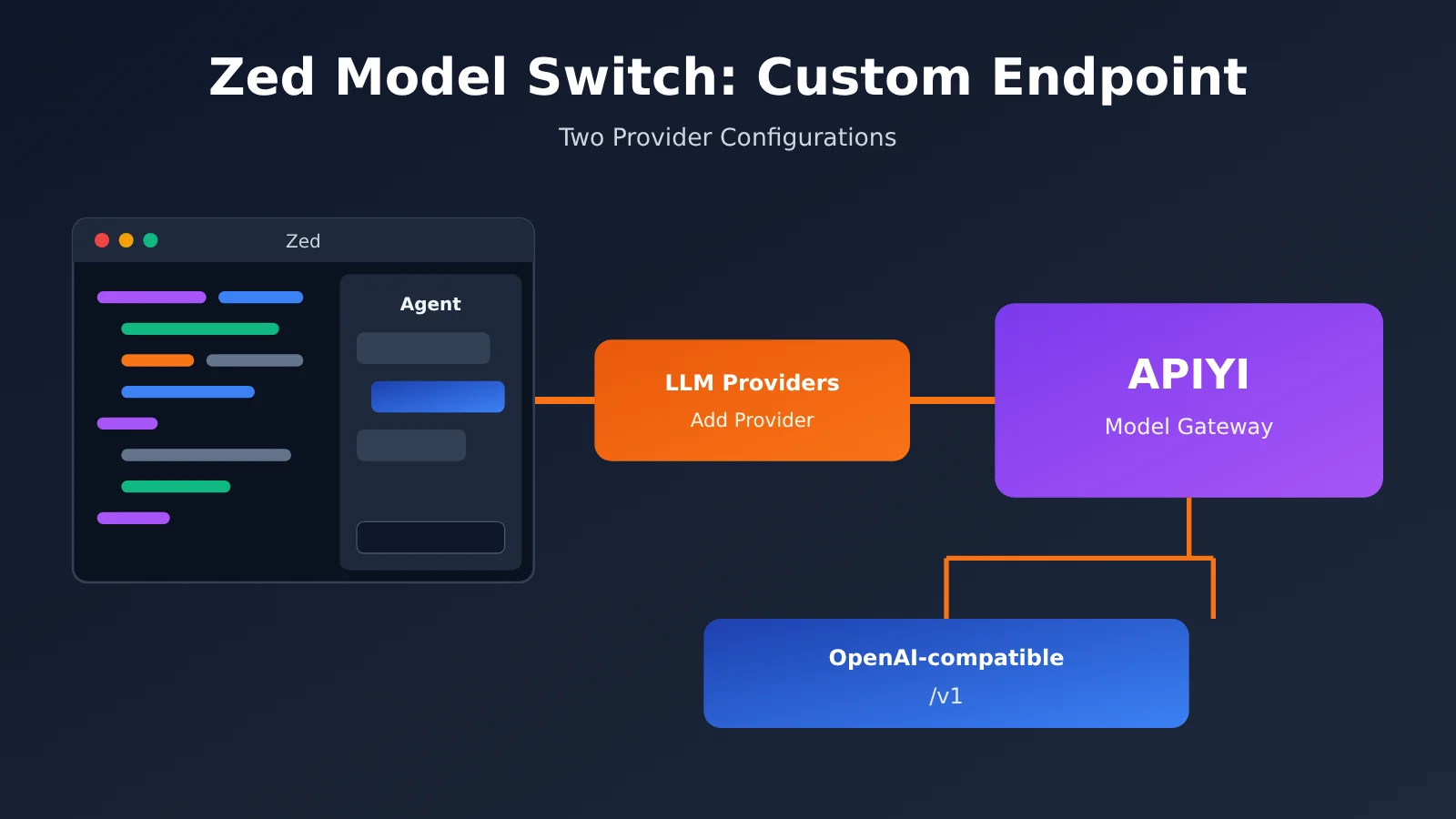
You’re using the Agent panel or Inline Assistant in Zed to write code and want to switch to a different model, but you find several entry points in the settings page—LLM Providers, External Agents, and terminal threads—and you’re not sure where the API key goes. More often, you’ve entered a third-party gateway and keep getting 404s or authentication failures. This article walks through the complete process of using a custom Provider in Zed (OpenAI-compatible / Anthropic-compatible) to connect to a third-party model gateway, using APIYI as an example to get the configuration working end to end.
This isn’t another “copy-paste the config and you’re done” cheat sheet. The article first clarifies the model integration boundaries of Zed’s three AI paths, then gives two routes you can follow step by step. It covers the most error-prone detail separately: when to append /v1 to the Base URL and when not to.
Key takeaway: After reading this, you’ll be able to tell which layer of configuration you need to change, and get Zed Agent running on models like claude-opus-5-5 and claude-sonnet-5-5 in under 5 minutes. And when something breaks, you’ll know what to check first.
Key points for switching models in Zed: know the three Agent paths first
Zed is a high-performance collaborative editor built by the same crew behind Atom / Tree-sitter. As of 2026-11-13, the GitHub repo zed-industries/zed has roughly 94,884 stars (observed via the GitHub API). The official releases page shows the stable release on 2026-11-11 was 1.28.1, with Preview at 1.29.1 the same day. You can download it directly for macOS, Linux, and Windows; the web version isn’t officially available yet.
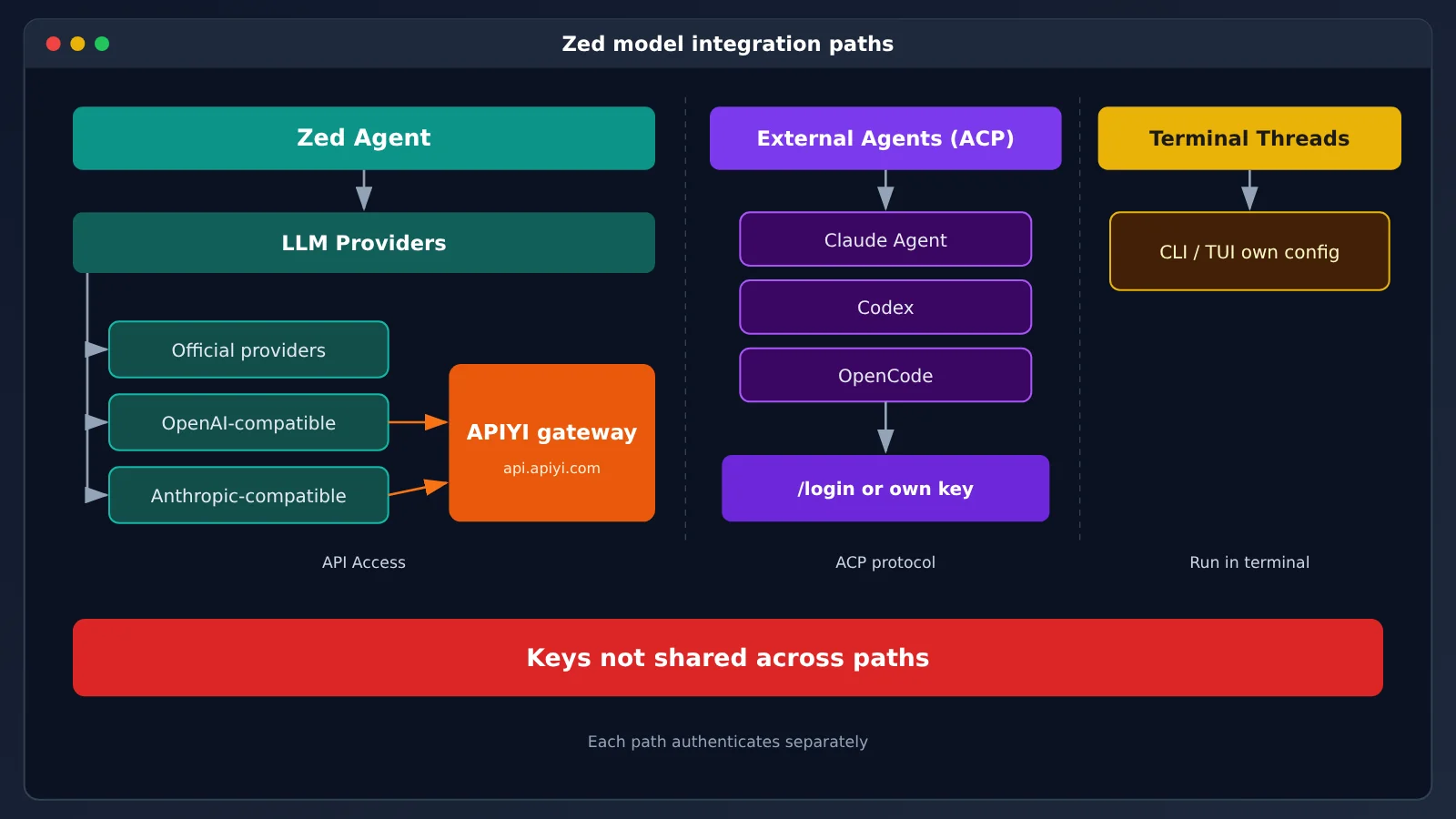
Before you change models in Zed, you need to get one thing straight: the official docs split AI capabilities into three paths, and each path has its own way of connecting models and handling authentication. Put the config in the wrong place and it won’t take effect — and the Key won’t be read by another path either.
| Path | Where the model comes from | Who handles authentication | Typical use |
|---|---|---|---|
| Zed Agent | LLM Providers (Zed-hosted, vendor Key, subscription, gateway, local models) | Zed itself; the Key is stored in the system keychain | Agent panel, Inline Assistant, built-in tools / profiles / skills / MCP |
| External Agents (ACP) | The external Agent picks its own model | The external Agent manages it itself | Running Claude Agent, Codex, OpenCode, Copilot, Cursor, etc. inside Zed threads |
| Terminal Threads | Determined by the CLI / TUI you run | The CLI’s own configuration | Running various Agent CLIs directly in terminal threads |
The integration boundary between Zed Agent and External Agent
“Changing the model for Zed Agent” means configuring LLM Providers — that is, the API Access layer. That’s the main thread of this article. The officially supported first-class vendors are Anthropic, OpenAI, Google AI, Mistral, DeepSeek, xAI, and OpenCode, plus two kinds of custom endpoints: Anthropic-compatible and OpenAI-compatible. Third-party gateways come in through those two custom endpoint types.
If all you want is to use Claude Agent or OpenCode in the panel, that’s an External Agent, and it goes through the Agent Client Protocol (ACP). In that case the thread is hosted by Zed, while the runtime, authentication, and model selection are usually the external Agent’s own responsibility. The Key you enter in LLM Providers won’t be shared automatically with it — Claude Agent needs to run /login in its own thread. External Agents can be installed by opening the registry from the command palette with zed: acp registry. According to the official docs, Zed doesn’t charge separately for External Agents; billing goes through the Agent provider.
Key configuration points for custom Providers in Zed
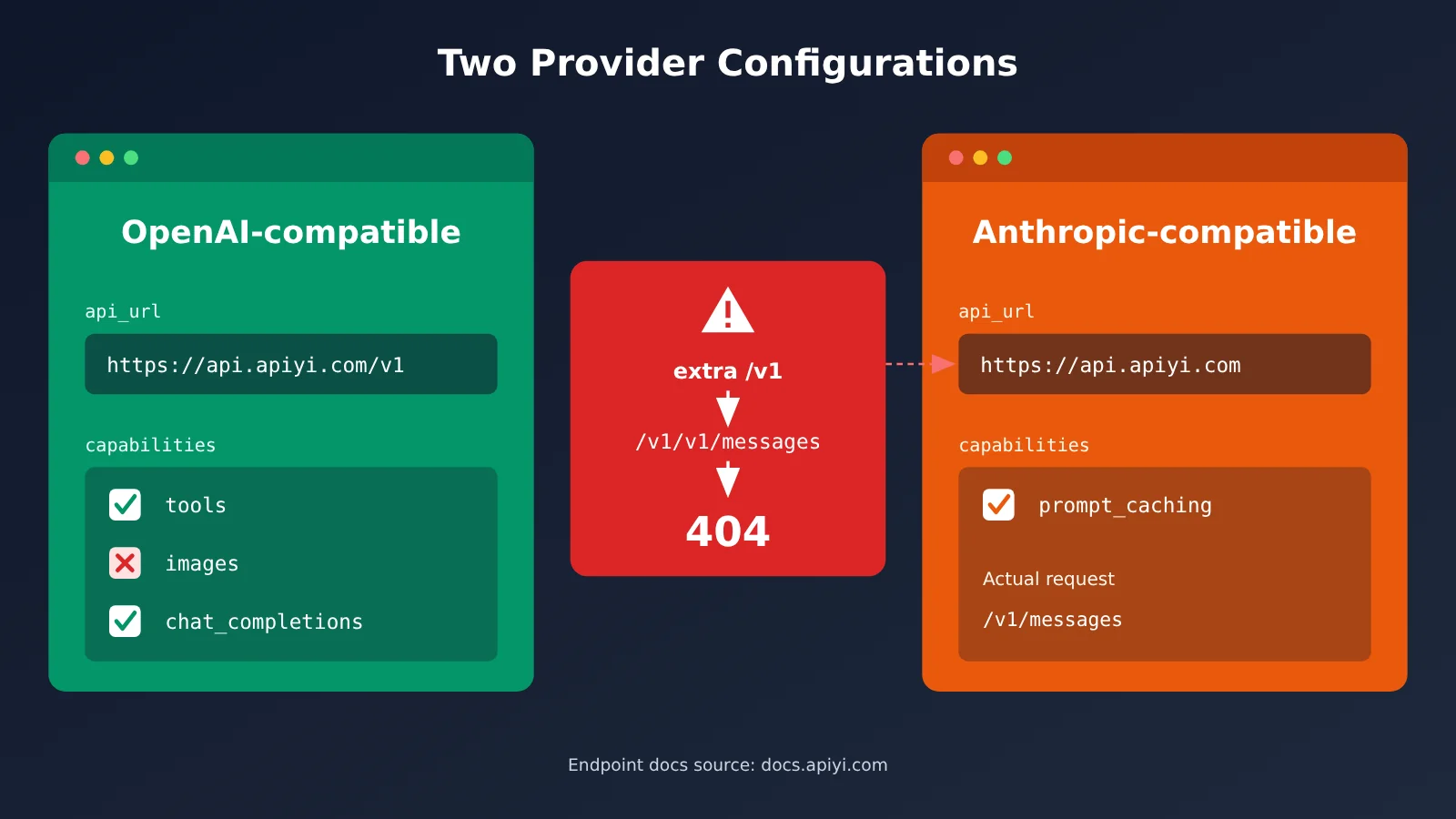
The main difference between the two custom endpoint types comes down to request format. OpenAI-compatible endpoints use Chat Completions, while Anthropic-compatible endpoints use the Messages API (/v1/messages). This difference directly determines how you write the Base URL and whether you can use prompt cache billing.
| Configuration item | OpenAI-compatible | Anthropic-compatible |
|---|---|---|
| Request format | /v1/chat/completions |
/v1/messages |
| APIYI api_url | https://api.apiyi.com/v1 |
https://api.apiyi.com (no /v1) |
| Model fields | available_models[].name + max_tokens |
available_models |
| Capability switches | Defaults to tools=true, images=false, chat_completions=true | Supports capabilities.prompt_caching |
| Cache billing | Doesn’t take effect per APIYI docs | Works with the native Messages format |
| Best for | Using one Provider to host multiple models | Primarily using Claude, long context, needing caching |
Why one Base URL includes /v1 and the other doesn’t
According to the APIYI Base URL FAQ (docs checked 2026-11-13), OpenAI-compatible clients append /chat/completions directly after api_url, so api_url needs to go up to the /v1 level. Anthropic-side clients append /v1/messages themselves, so you can only enter the root domain. If you write https://api.apiyi.com/v1, the final request becomes /v1/v1/messages, which returns a 404 right away.
There are two more things to keep in mind. Zed stores the API key in the system keychain, not in settings.json; if the corresponding environment variable is non-empty, the environment variable takes precedence over the keychain. Also, models that only support the Responses API need to set capabilities.chat_completions to false; otherwise, Zed will call them using Chat Completions.
Quick Start: Connecting Zed to APIYI
You can use either of the two approaches below, or set up both and switch between them in the model selector. Get your API key ready before you start.
🚀 Quick start: After signing in, create a token on the APIYI token page at
api.apiyi.com/token. It’s a good idea to create a separate one for Zed so you can track usage and revoke it whenever needed. The Quick Start docs at docs.apiyi.com/getting-started also provide skill.md / llms.txt, making it easy for an Agent to read the platform instructions.
Route A: Connect Zed through an OpenAI-compatible endpoint
- Open Agent settings: run
agent: open settingsfrom the command palette. The entry point name may differ slightly between versions, so use the LLM Providers section on the AI / Agent settings page as your reference. - In the LLM Providers section, click Add Provider and choose OpenAI-compatible as the type.
- Name the provider whatever you like, such as
apiyi, which corresponds tolanguage_models.openai_compatible.apiyiin settings.json. - For the API URL, enter
https://api.apiyi.com/v1. The/v1part is required, and this is also the format shown on the APIYI OpenAI-compatible page. - Paste the token you just created into the API key field. Zed will store it in the system keychain.
- Add a model: set name to the actual ID from the APIYI model catalog, for example
claude-opus-5-5orclaude-sonnet-5-5; you can also addclaude-fable-5-2. Fill inmax_tokensaccording to the model docs; if you’re not sure, start with a conservative value and increase it once everything works. - Leave the capability toggles at their defaults (
tools=true). If you need to send images, turn onimagesmanually. - Go back to the Agent panel and search for
apiyior the model name in the model selector. Recent versions of the model selector support fuzzy search. Select it and send a message to verify.
The advantage of this route is that one provider can host multiple models. According to the APIYI docs, with the OpenAI-compatible endpoint /v1/chat/completions, you only need to change the model string in one place to switch models.
Route B: Connecting Zed via the Anthropic-compatible endpoint
- Once again, go to LLM Providers → Add Provider and pick Anthropic-compatible as the type.
- For the API URL, enter
https://api.apiyi.com— root domain only, no /v1. The actual request will land on APIYI’s native Anthropic endpoint,https://api.apiyi.com/v1/messages. - Paste the same token, or create a separate dedicated one.
- In available_models, add IDs like
claude-opus-5-5andclaude-sonnet-5-5. - If you want long-context conversations to hit the cache, turn on
capabilities.prompt_caching. As the APIYI Claude capabilities page explains, cached billing only applies to the native Messages format. - Select that model in the model picker and send a message to test it.
💡 Which route should you pick? If Claude is your daily driver, your sessions run long, and you keep re-reading the same batch of files, Route B is the better deal. If you need to switch between several models all day, Route A is less hassle. Both routes can share the same APIYI token — just switch per task in Zed’s model picker.
Claude Model Pricing Reference (Data as of 2026-11-13)
The data below comes from the APIYI model master list, verified against the documentation on 2026-11-13. Prices are in USD per 1M tokens and billed on a pay-as-you-go basis.
| Model ID | Input | Output | Cache read | Supported endpoints | Available platform |
|---|---|---|---|---|---|
claude-opus-5-5 |
$4 | $20 | $0.2 | chat + messages | APIYI apiyi.com |
claude-opus-5-5-thinking |
Same as opus-5-5 | Same as opus-5-5 | Same as opus-5-5 | Subject to the master list | APIYI apiyi.com |
claude-sonnet-5-5 |
$2 | $10 | $0.1 | Subject to the master list | APIYI apiyi.com |
claude-fable-5-2 |
$8 | $40 | $0.2 | Subject to the master list | APIYI apiyi.com |
Model versions and prices are subject to the platform’s model list. Before configuring, you can open docs.apiyi.com/models to verify that day’s numbers and groups (the master list has groups such as ClaudeCode, Claude_Reverse, Claude_Enterprise, Default, and SVIP listed for claude-opus-5-5).
Regarding usage limits for claude-opus-5-5, the APIYI launch update (2026-09-23) mentions three points: thinking cannot be set to disabled; setting tool_choice to any / tool returns a 400; effort defaults to medium. If Zed Agent returns a 400 when calling tools, check these first.
Troubleshooting Common Errors with Zed Custom Endpoints
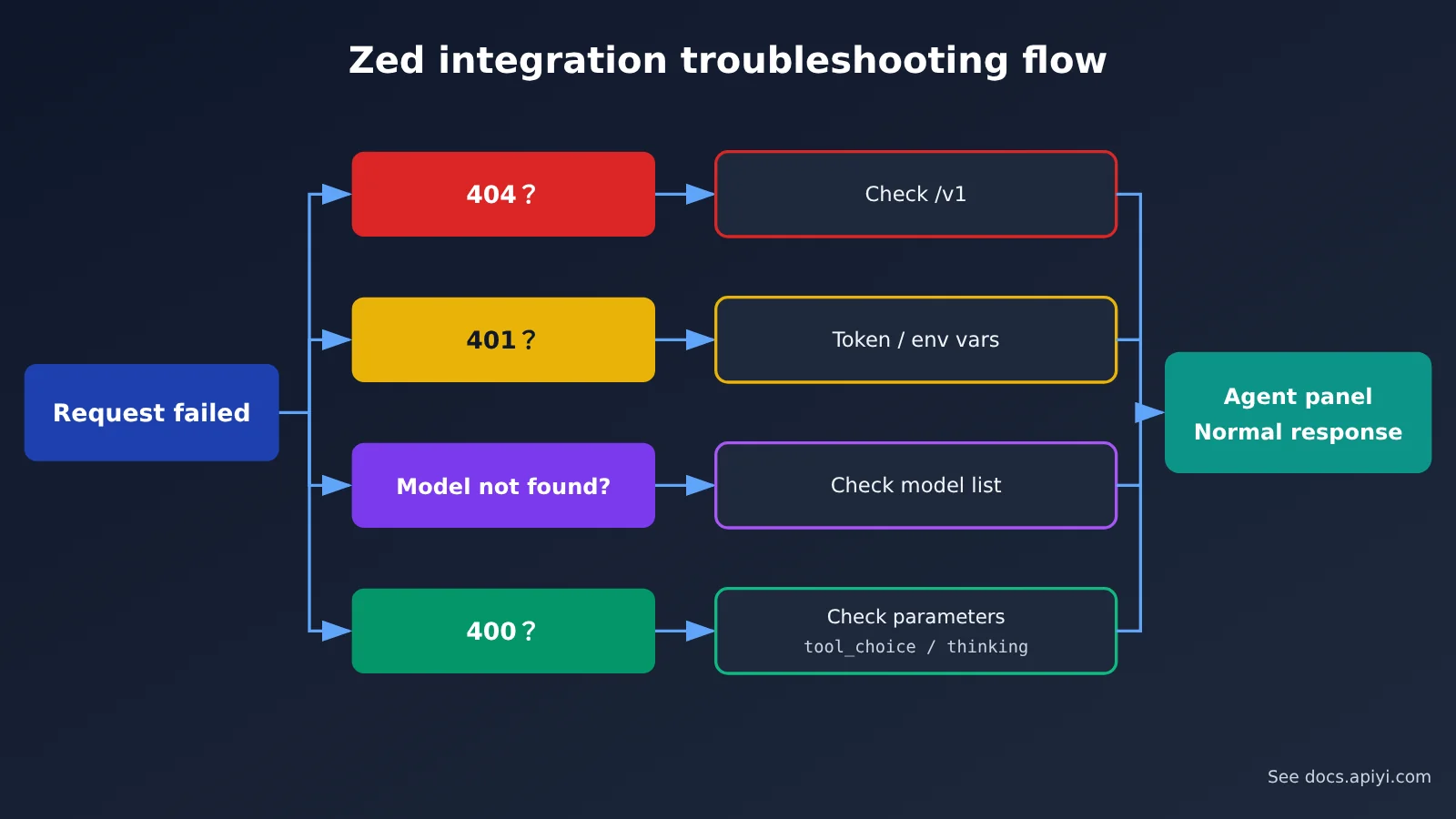
When a custom provider fails, most issues come down to three things: URL, key, and model name. The table below is ordered by frequency, so you can check each item one by one.
| Symptom | Common cause | Fix |
|---|---|---|
| 404 Not Found | Anthropic-compatible set to /v1, so the path becomes /v1/v1/messages |
Change back to the root domain https://api.apiyi.com |
| 404 / wrong path | OpenAI-compatible missing /v1 |
Change to https://api.apiyi.com/v1 |
| 401 / authentication failure | Token is wrong, has been deleted, or an environment variable overrides the keychain | Recheck at api.apiyi.com/token, and clear conflicting environment variables |
| Model does not exist | ID typo or alias used | Copy the original ID from docs.apiyi.com/models |
| 400 (tool calling) | tool_choice is any / tool, or trying to disable thinking |
Adjust according to the rollout notes |
| Invalid image | OpenAI-compatible defaults to images=false | Enable images in capabilities |
| Models that only support Responses throw errors | Still calling via Chat Completions | Set capabilities.chat_completions to false |
🎯 Troubleshooting tip: When you hit a 404, compare the api_url in Zed settings with the APIYI Base URL FAQ (docs.apiyi.com/faq/base-url-config) word for word. Most problems are just
/v1written one time too many or missing once.
Risk Notes for Using a Custom Provider in Zed
- Not officially hosted: OpenAI-compatible / Anthropic-compatible custom providers are Zed’s generic integration capability; third-party gateways are not officially hosted services from Zed. If something goes wrong with the service, you’ll need to work with the gateway operator.
- The key and the bill are on you: Your token and usage billing live in your own account. We recommend creating a dedicated token for Zed, checking usage regularly, and never committing your key into settings.json and pushing it to a repo. Zed stores credentials in the system keychain by default, which already reduces this risk.
- External Agents fall under their own providers’ terms: Subscriptions, quotas, and terms of use for external Agents like Claude Agent and Codex are decided by their respective providers, and are independent of the Provider configuration for Zed Agent.
- Version differences: The UI descriptions here are based on the official docs and release info for 1.28.x / 1.29.x (observed on 2026-11-13). Entry point names may change in later versions.
FAQ
Q1: What is Zed’s OpenAI-compatible endpoint?
It’s a type of custom provider under LLM Providers. As long as the server implements the Chat Completions interface, you can connect it to Zed Agent via api_url and a model list—no need to wait for official Zed support.
Q2: Can Claude Agent use the key I entered in LLM Providers directly?
No. Claude Agent is an External Agent and manages its own authentication—you need to run `/login` inside its thread. The key in LLM Providers is only for Zed Agent.
Q3: Should I choose OpenAI-compatible or Anthropic-compatible?
If you mainly use Claude and want cache billing, go with Anthropic-compatible. If you want to attach multiple vendors’ models to a single provider, go with OpenAI-compatible. According to the APIYI docs, cache billing only applies to the native Messages format.
Q4: What should I put in the model ID?
Use the original ID from the platform’s model list, for example `claude-opus-5-5`, `claude-sonnet-5-5`, or `claude-fable-5-2`. Copy them straight from docs.apiyi.com/models so you don’t mistype one and hit a “model not found” error.
Q5: I keep getting 404 after configuring—how do I debug it?
Check `/v1` first: OpenAI-compatible needs it, Anthropic-compatible must not include it. If the path looks right, then verify the model ID matches the APIYI model list.
Q6: Where is the API key stored? Will it get synced to a repo?
Zed stores the key in the system keychain, not in settings.json, so sharing your settings file won’t leak the key. Note that a non-empty environment variable with the same name takes priority over the keychain—so don’t forget to check environment variables when debugging a 401.
Q7: What are the known limitations of this setup?
OpenAI-compatible doesn’t enable image capability by default; thinking can’t be disabled for `claude-opus-5-5`, and setting `tool_choice` to any / tool returns a 400. Also, custom providers are not officially hosted by Zed, so stability depends on the gateway operator.
Key Takeaways: Connecting Zed to APIYI
- Decide the path first: Zed Agent goes through LLM Providers; External Agents handle their own authentication.
- Two endpoint types: OpenAI-compatible uses chat; Anthropic-compatible uses messages.
- URL rules: For OpenAI-compatible, enter
/v1; for native Claude, enter only the root domain. - Model IDs: Copy the original IDs such as
claude-opus-5-5from the APIYI model list. - Cache billing: When you need caching, use Anthropic-compatible and enable
prompt_caching. - Troubleshooting order: Check
/v1, the token, the model ID, and tool parameters in that order. - Getting started: Create a dedicated token at api.apiyi.com/token and you’ll be set up in 5 minutes.
Summary
When switching models in Zed, the key is to confirm which layer you’re changing:
- Switching models for Zed Agent: In LLM Providers, use Add Provider to add an OpenAI-compatible or Anthropic-compatible endpoint.
- External Agent: Claude Agent, OpenCode, and others handle their own authentication; their keys aren’t shared with Zed Agent.
- Base URL: For OpenAI-compatible, enter
https://api.apiyi.com/v1; for Anthropic-compatible, enterhttps://api.apiyi.com. Adding or omitting/v1incorrectly will result in a 404.
Before configuring anything, check the current models and pricing at docs.apiyi.com/models, then create a Zed-specific key from the token page. Get everything working with claude-sonnet-5-5 first, then switch to claude-opus-5-5 depending on the task. You can use APIYI at apiyi.com to compare results under both providers with the same token.
📚 References
- Zed GitHub repository: source code and star count observations (2026-11-13)
- Link:
github.com/zed-industries/zed -
Notes: Licensed primarily under GPL-3.0-or-later, with some Apache-2.0 components
-
Zed AI Overview: official documentation for the three AI paths
- Link:
zed.dev/docs/ai/overview -
Notes: the boundaries between Zed Agent, External Agents, and Terminal Threads
-
Zed Use API Access: custom provider configuration
- Link:
zed.dev/docs/ai/use-api-access -
Notes: OpenAI-compatible / Anthropic-compatible fields and keychain storage
-
Zed External Agents: ACP external agents
- Link:
zed.dev/docs/ai/external-agents -
Notes: how to connect Claude Agent, Codex, OpenCode, and others
-
Zed Releases: release notes
- Link:
zed.dev/releases/stable -
Notes: what’s new in the 1.28.1 stable release and Preview
-
APIYI model list: model IDs and pricing
- Link:
docs.apiyi.com/models.md -
Notes: input / output / cache-read pricing; the list for the current day is authoritative
-
APIYI Base URL configuration FAQ: the /v1 rule
- Link:
docs.apiyi.com/faq/base-url-config.md -
Notes: how OpenAI-compatible and Claude native Base URL formats differ
-
APIYI Claude capabilities page: native and compatible endpoints
- Link:
docs.apiyi.com/api-capabilities/claude.md -
Notes: cache billing only applies under the Messages format
-
APIYI claude-opus-5-5 launch update: usage limits
- Link:
docs.apiyi.com/live/2026-09/claude-opus-5-5.md - Notes: details on thinking, tool_choice, and default effort values
Author: APIYI technical team
Technical support: If you run into configuration issues, check the docs center at docs.apiyi.com, or reach us through the APIYI homepage