

Summary: This article explains which inputs can actually change the world during hands-on play in Genie 4, and how fully three categories of change — weather, characters, and events — land in the footage we have so far.
Bottom line up front: Genie 4 can keep changing both the visuals and the sound within a single play session, driven by one short line of text. Adding a visible object or character (a spaceship, a golden dragon, a passenger) is the most consistently delivered category in the existing captures. Weather particles (snowflakes, ripples) usually show up, but global lighting changes like snow cover or turning the whole scene to night often only partially happen. Multi-step causal chains (hit the wood → bell rings → pigeons fly) may play only the ending while skipping the middle actions.
Whether something succeeds also depends on three conditions: which entry point you’re using, whether you’re using manual text, a preset button, or a Gemini suggestion / automatic event, and whether the target is already inside the current frame. Every case below notes the entry point, the date, and the evidence level. Official showcase footage is edited and curated; independent hands-on tests are just one person’s record; research demos belong to a research system — the three shouldn’t be lumped together.
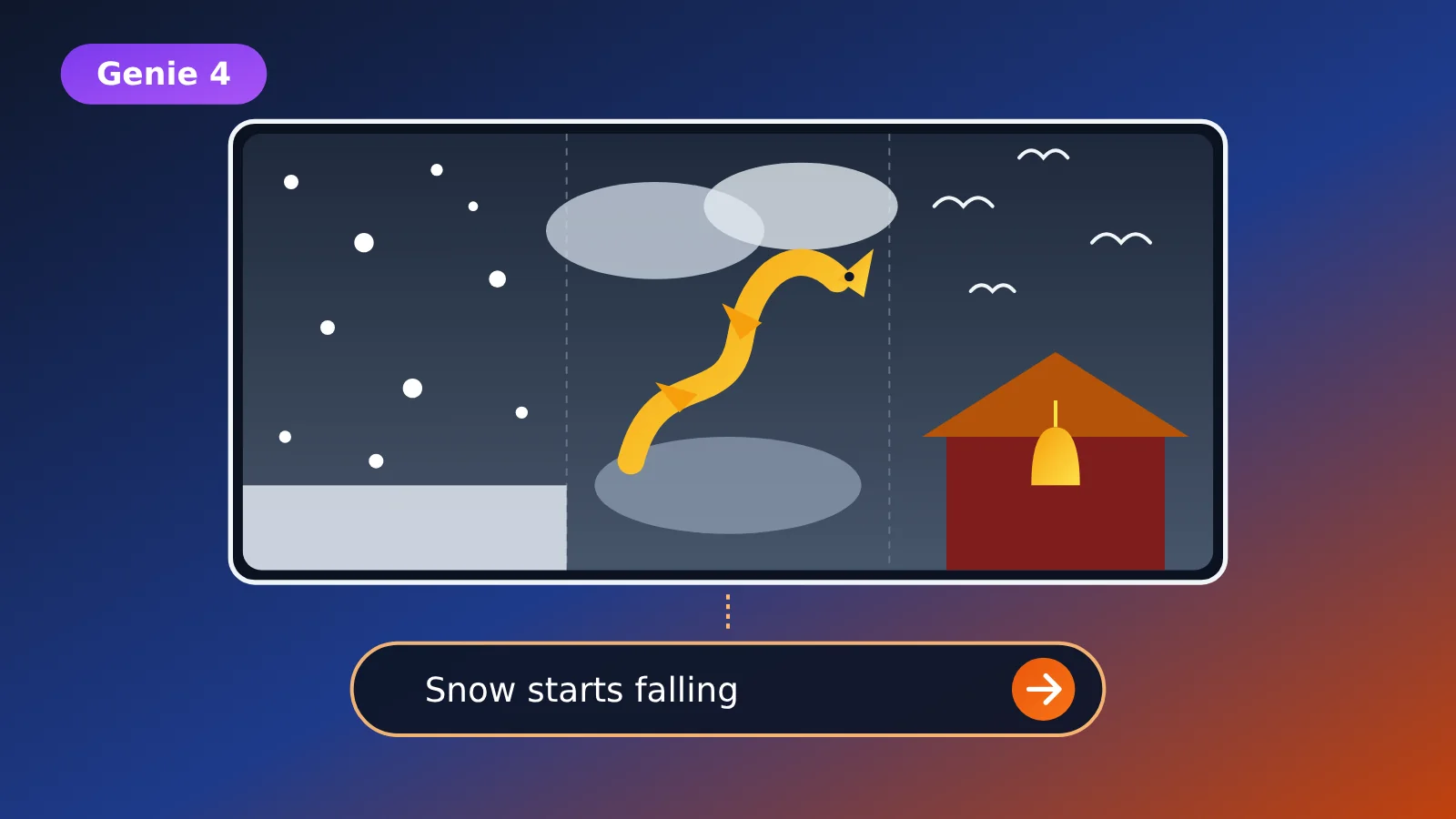
Genie 4: A Knowledge Map for Real-Time World Editing
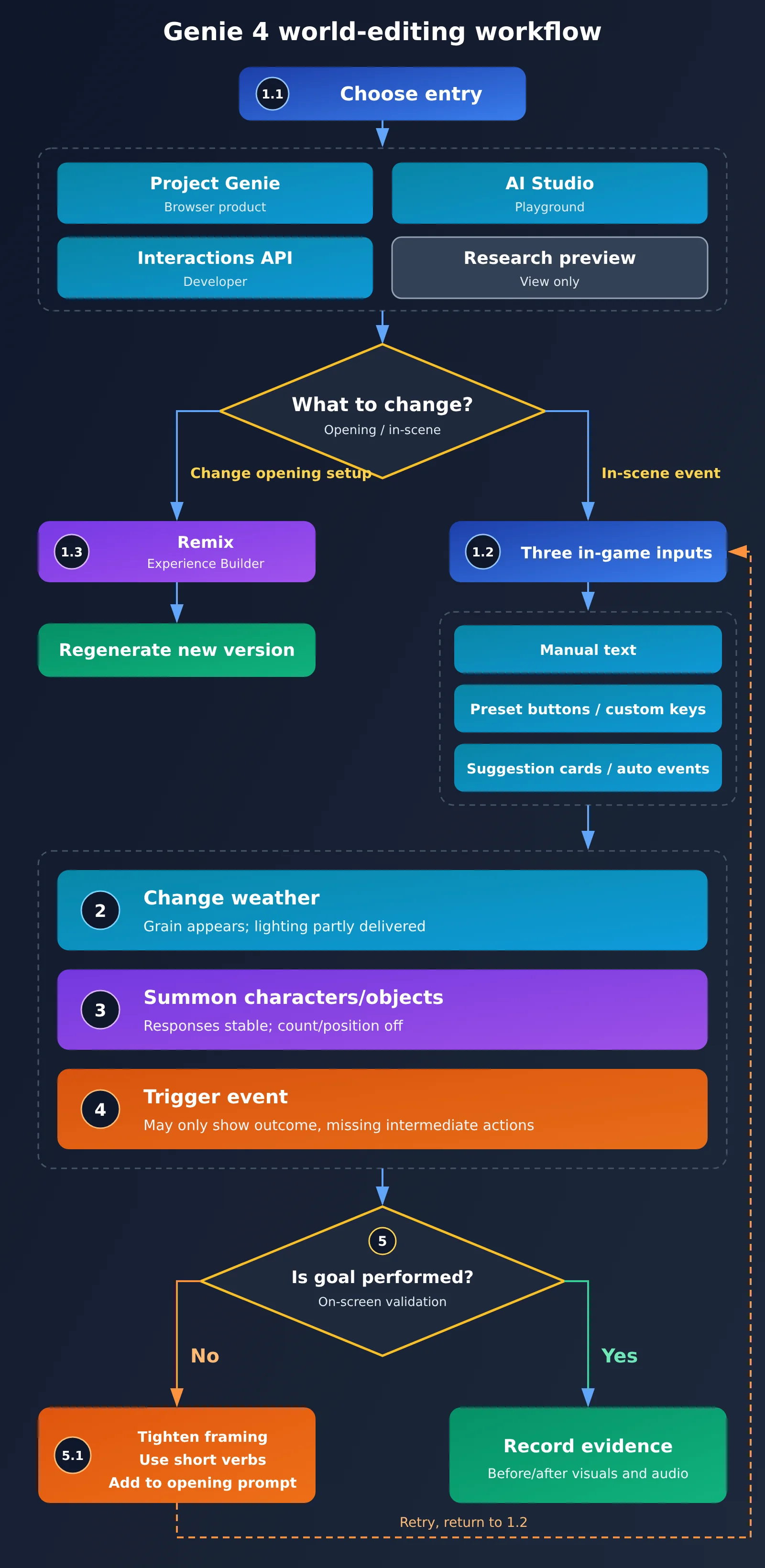
Figure caption: You first pick an entry point in 1.1, then decide whether the target is an opening setting or an on-the-spot event. Changing the opening setting means going through the remix and regeneration flow in 1.3; on-the-spot events go through the three kinds of input in 1.2, and the results fall into the three types of change covered in sections 2, 3, and 4. Every change eventually lands in the acceptance check in section 5 — and if it doesn’t materialize, adjust it with the method in 5.1 and try again.
Genie 4: Index of This Article
The sections of this article are ordered as “entry point first, changes second, verification last.” You need to read Section 1 first, because the credibility of every later case depends on which entry point it came from and what kind of input it used. Sections 2, 3, and 4 cover three parallel categories of changes and can be consulted as needed: if you only care about weather, see Section 2; if you want to summon characters, see Section 3. Section 5 organizes the earlier observations into prompt wording, code assistance, and a verification table. Once you’ve read it, you can reproduce them in your own playtest and tell whether a given change actually took effect.
- 1 Entry points and inputs: 1.1 Entry points and versions → 1.2 Three types of in-game input → 1.3 The difference between Remix and in-game events
- 2 Changing the weather: 2.1 Official lakeside snowfall → 2.2 Independent hands-on tests of snowfall, nightfall, and fireworks
- 3 Summoning characters and objects: 3.1 Station passengers → 3.2 Golden dragon and horse herd
- 4 Triggering events: 4.1 Tavern suggestion cards and manual typing → 4.2 Ancient temple causal chain → 4.3 Investigating the mechanics
- 5 Hands-on practice and verification: 5.1 Prompt wording → 5.2 Drafting short event phrases with code → 5.3 Verification checklist
Genie 4 Terms to Know
| Term | Brief explanation |
|---|---|
| Genie 4 | A world model responsible for real-time audio and video generation; it continuously generates subsequent frames and sound based on the visuals and input |
| Project Genie | A browser product offering creation, playtesting, and a library of creations; the model menu offers both Genie 3 and Genie 4 |
| In-run event | A short prompt submitted while playtesting is underway; it acts on the current generation stream without rebuilding the world |
| Experience Builder | The build panel used to construct and modify experiences; changes go through regeneration |
| Remix | Modifying the setup of an existing experience to generate a new version |
| Suggestion card | Candidate events that Gemini offers in the in-run menu based on the visuals; click one to submit it |
| Evidence level | This article’s grading of sources: official demo reel, independent hands-on test, research demo, product announcement description |
1 Where Genie 4 Gets Its Input: Entry Points, Versions, and Input Methods
1.1 Genie 4’s Four Entry Points and Timeline
The interface, account requirements, and available features differ from one entry point to another. Even for the same action, “changing the weather,” the conditions under which you can observe it will vary. The table below compiles the timeline from the available material. Note that the continuous flight across three locations and the summoned mount dragon in Google’s product blog belong to the Genie 3 demo and shouldn’t be counted as evidence of Genie 4’s capabilities.
| Entry point | Date (2026) | Intended for | Use in this article |
|---|---|---|---|
| DeepMind research preview | October 27 recording | Public viewing, not an interactive entry point | Lakeside snowfall, station passengers, research mechanics |
| Google Labs early interface | Used in the October 31 program | Early testers | Tavern suggestion cards vs. hand-typed comparison |
| Project Genie | From November 18 | Eligible Google AI Ultra users; Pro users gradually rolled out via waitlist | Space walk, café Remix |
| Google AI Studio playground / Gemini Interactions API | Opened November 19 | Developers | Independent hands-on testing, custom keys, response time |
The workflow in Project Genie is: sign in with your personal Google account, click Create with Genie, enter a scene description or upload an image, select Genie 4, then click Create. In the preview, you move with WASD, turn with the arrow keys, and jump or ascend with the space bar; some experiences also have custom controls. Also, the updated Genie 3 supports in-session events too, so when you’re looking at screenshots, check which version the model menu shows.
1.2 Three Types of In-Game Input in Genie 4: Manual Text, Preset Buttons, and Gemini Events
These three input types are the easiest to lump together, but how they submit prompts and what evidence we have for them are completely different:
| Input type | How it’s triggered | Existing evidence | What to watch out for |
|---|---|---|---|
| Manual text | Type and send in the free-form input box inside the scene | Spacewalk spacecraft, tavern ceiling collapse, multiple real tests by Yanchuan | Most controllable; results depend on wording and framing |
| Preset buttons / custom keys | AI Studio binds keys to reusable short phrases; some Project Genie experiences include custom controls | AI Studio docs example: an oil-painting village assigns snowfall and fireworks to different keys | Keys only submit the prompt; snow amount and position are still decided by the model |
| Gemini suggestion cards and automatic events | Suggestion cards: click a Gemini-provided option based on the scene; automatic events: triggered automatically by Gemini during the experience | Suggestion cards have spacewalk footage and tavern real tests; automatic events currently appear only in product announcement descriptions | You don’t control the wording of suggestion cards; automatic events have no verifiable footage in the materials for this article |
The official November 18 “orbital spacewalk” footage is the clearest example of input and output at the same entry point. At about 0:04, Genie 4 appears next to the create button. At about 0:08, in the first-person view above Earth, three suggestion cards appear—sunrise, thrusters, and space station—with a separate free-form input box below. From 0:10 to 0:13, the operator doesn’t click a suggestion card. Instead, they type in the input box, asking for a giant alien spacecraft to pass by. At about 0:16, the black spacecraft enters from the upper right, while Earth’s curve and the astronaut’s glove are still in frame.
On response time, the AI Studio docs give the following numbers: with low network latency, directional controls respond in about 0.2–0.5 seconds, and in-game text that goes through scene planning usually takes about 1–2 seconds. These are the documentation’s figures, not measured data from this article.
1.3 What’s the Difference Between Remix and In-World Events in Genie 4?
The opening description sets the initial location, weather, and characters present. To change these underlying settings, you should use Experience Builder or Remix; the small input box inside the world only handles immediate events. In the official café video from November 18, the user clicks Remix at around 0:02. From 0:08 to 0:11, they use the Builder panel on the right to ask for the café’s surroundings to be turned into a desert. Then Creating your world appears, and at around 0:14 the new preview loads.
The original green hills, flower field, and first-person indoor view become a desert glass pavilion and a third-person outdoor view. This shows that Remix regenerates a new version, and even the camera perspective can change. That makes it a different operation from the spaceship flying in during the same playtest in the space demo. If all you want is to add a rain shower, there’s no need to rebuild the world; if you want to swap out the entire season, Remix is the more reliable route.
2 Changing the Weather in Genie 4: How Much Can It Change?
2.1 Official Footage: Genie 4 Lakeside Goes from No Snow to Snowfall
In the October 27 research preview, a saxophonist stands on a small platform by a lake, with glowing spherical lamps nearby and water and woods behind the performer. At around 0:17, as the operator keeps moving closer, they type “start snowing.” From 0:20 to 0:22, the close-up shows snowflakes sweeping past the figure, with white snow accumulating on their shoulders. After the camera moves around to the side and back, there are white flecks on the performer’s hair and back too, while they keep playing.
The value of this example is that the weather instruction lands on surfaces you can inspect, not just a few flakes drifting through the air. That said, it’s a curated official showcase, so you can’t use it to infer the typical response speed or success rate of external entry points.
2.2 Independent Test: How Well Genie 4 Delivers Snowfall, Nightfall, and Fireworks
On November 22, creator Yanchuan recorded Genie 4’s prompts, key presses, and in-world timestamps in Google AI Studio. The results show that even within the same broad category of “weather,” different subtypes vary widely in how well they’re delivered:
- Li River bamboo raft: At around 4 seconds, the creator asks for snow to cover the river and the peaks, but only a few snowflakes appear, with no accumulation. At around 12 seconds, the creator asks for the sky to turn deep blue and a full moon to rise; the moon rises, but the sky only darkens slightly.
- Jiangnan water town: The opening already features wet flagstones and unlit lanterns. At around 4 seconds, the creator asks for a downpour, but only more ripples appear on the water. At around 11 seconds, the creator asks for nightfall and the lanterns to be lit, but the ambient light and lanterns remain unchanged. At around 18 seconds, the creator asks for fireworks over the distant rooftops, and a few fireworks do appear.
This comparison separates “localized new elements” (the moon and fireworks), “weather particles” (snowflakes and ripples), and “whole-scene lighting” (nightfall and lantern lighting). It’s also a reminder that the wet flagstones were there from the start and shouldn’t be mistaken for the result of in-world rain. The practical takeaway: for large-scale weather or time-of-day changes, the safer approach is to write them into the opening prompt or handle them through Remix, as described in 1.3.
3 Genie 4: Summoning Characters and Objects
3.1 Official Demo: Genie 4 Adds a Passenger at the Station
Also in the October 27 research preview, the scene is a rural Japanese train station in the 1980s, with a red train, a ticket inspector, and passengers already present. The operator moves along the platform and, around 0:21–0:22, asks within the frame for an elderly woman with a suitcase to arrive. At about 0:24, a gray-haired woman carrying a suitcase enters from the left side of the frame, while the red train car and the crowd remain as a continuous background. The shot ends shortly after she appears, so the video can only prove that “a new character entered the frame”; it doesn’t show whether she persists afterward or can interact with the scene.
3.2 Independent Test: Genie 4 Can Add a Golden Dragon and a Herd of Horses, but Placement Is Off
In another set of records from Yanchuan (November 22, AI Studio), he rides a sword in first person through waterfalls and clouds. Around the 4-second mark, he looks to the right; around the 7-second mark, he asks for a golden dragon to rise from the sea of clouds ahead. Two or three seconds later, the golden dragon bursts through the clouds and keeps circling until the clip ends. Switching to a third-person ride across a grassland, around the 8-second mark he asks for a large herd of wild horses to run alongside him on the left. What actually appears is a small herd by a distant lake.
He summarizes seven in-scene additions—including a golden dragon, a white crane, and sky lanterns—as “all seven got a visible element response,” but the quantity and placement are still off: he asked for thousands of lanterns above a palace, and only a few dozen appeared. It’s worth stressing that these are seven additions from one person’s records, a tiny sample that can’t be used to calculate success rates for weather changes or all events. The takeaway: “appearing” is fairly reliable, but “precise quantity and position” still aren’t something you can count on.
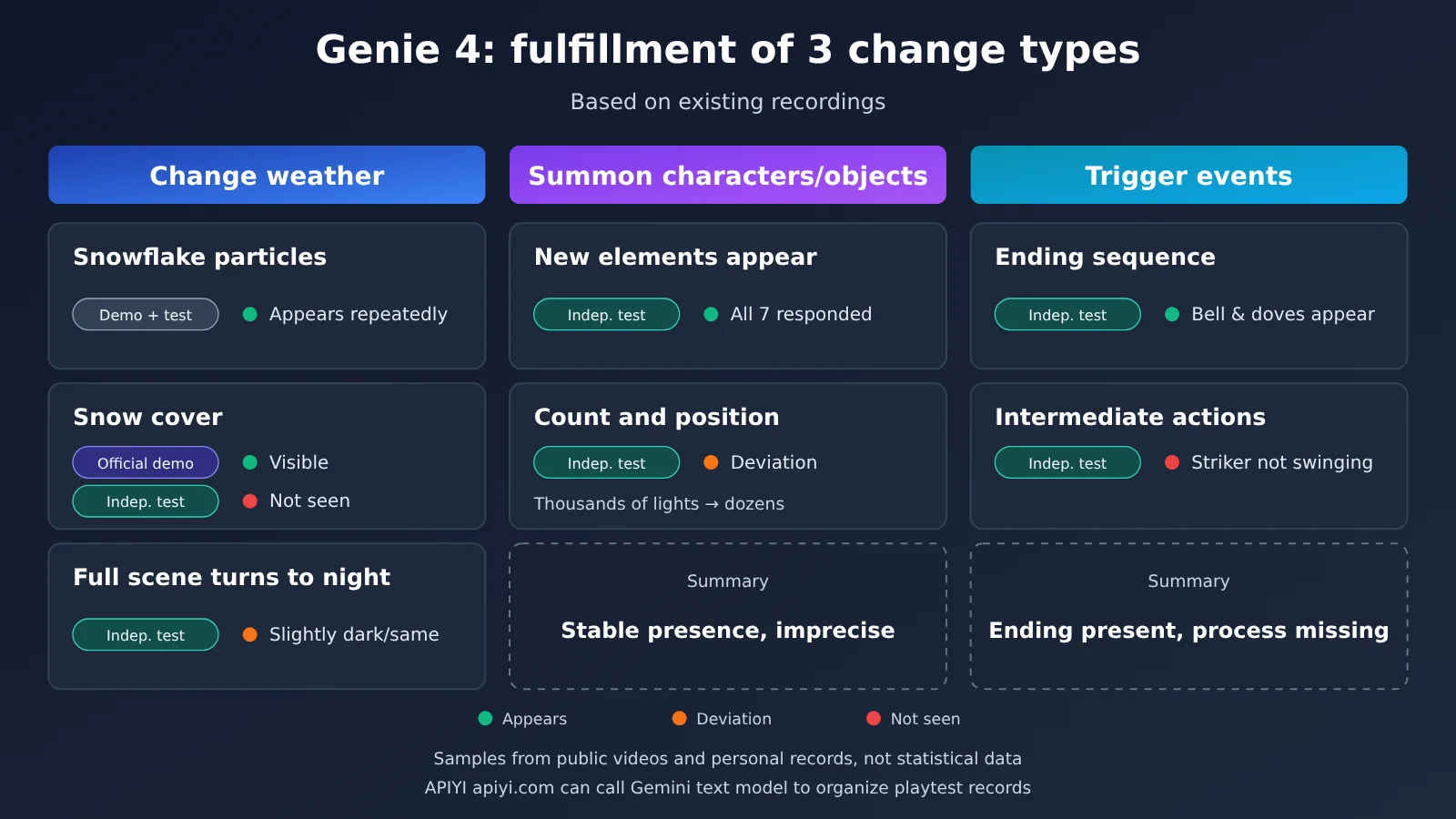
4 Genie 4 Triggering Events: Seeing the Outcome and Completing the Causal Chain Are Two Different Things
4.1 Independent Early Test: Genie 4 Tavern Suggestion Cards vs. Hand-Typed Events
On October 31, Joey Daoud and Addy Ghani of VP Land set a whale as a cowboy in a Western tavern inside Google Labs’ early interface. At around 4:08, they clicked the “duel” suggestion card and the tavern doors opened, but the duel didn’t appear right away. At around 4:33, a second prompt generated by the tool brought in a character who had already drawn his gun. From 4:41 to 4:54, Joey typed “make someone fall from the ceiling” himself, and the fall did happen.
In the same playtest, when the camera turned, the whale and the original tavern layout briefly disappeared — a sign that consistency outside the frame is still limited. This case is a good way to illustrate the difference between suggestion cards and hand-typed input: suggestion cards use broad wording and may only trigger a prelude, while specific hand-typed actions are more likely to be performed directly. Keep in mind that the interface used here predates the version released to subscribers in November.
4.2 Independent Hands-On Test: Genie 4’s Ancient Temple Rings and Doves Fly, but the Striker Never Swings
Yan Chuan preset the rules in the AI Studio opening prompt: after the striker hits the bell, the bell rings and the doves fly away. Then he gave the in-scene prompt “ring the bell.” On the first run, he walked forward for four seconds and saw a hand reach out and push the striker in the close-up, but the bell and the wooden beam filled the frame, so the collision wasn’t visible. On the second run, he kept the striker, the bronze bell, and the roof ridge with its perched doves all inside the frame, issued the command at around the 3-second mark, and a little over two seconds later the bell rang first; about two seconds after that, the flock of doves flew off — but the striker never visibly swung.
This is a textbook case of “the outcome is delivered, the intermediate steps are missing.” The opening rules set up the expected chain of events, the in-scene command provides the trigger point, and when observing you should check object displacement, sound, and the next action one by one — not conclude that the causal chain is complete just because you heard a bell.
4.3 Research Mechanism: Genie 4 and Gemini’s Multi-Step Orchestration
DeepMind’s research write-up from October 27 says Gemini 3.8 Flash continuously watches the frames Genie 4 generates, breaks down goals, checks progress, and adjusts the next step based on user intervention. The robot checkers demo from the same day is another research combination: on the left, the step text that Gemini 4 Argon decomposed; on the right, a simulated Apollo robotic arm, playing pieces, and an opponent — with the step text fed into Genie 4 as the scene unfolds.
What these videos prove is that a research system can orchestrate a scene with step-by-step text. The robot and the workflow belong only to the research entry point; they don’t mean Project Genie or AI Studio already offer the same capability. The “Gemini automatically triggers events” mentioned in the product announcement follows a similar idea, but the materials for this article contain no user-facing footage you can check.
🎯 Technical tip: If you want to imitate the “step-by-step text orchestration” approach, you can first use a general Large Language Model to break a complex event into several short verb phrases, then submit them one at a time during the playtest. You can do this step by calling Gemini, Claude, and other text models through APIYI apiyi.com — a single API key lets you compare how well different models decompose the task. To be clear, Genie 4 itself still has to be used through Google’s entry point.
5 Genie 4 in Practice: Prompting Conventions, Code Assistance, and Acceptance
5.1 Reusable Prompting Conventions for Genie 4
Here’s the operating sequence based on the earlier observations:
- Establish the baseline first: In preview, clearly identify the main landmarks and initial weather, and take a screenshot if needed. This avoids the mistake from the water-town case, where the wet road at the start was misread as the result of rain happening within the scene.
- Change only one thing at a time: Use short verb phrases to request changes. The examples in Google’s prompting guide are sea fog, open the cabinet door, and place the lamp next to the chair.
- Keep the target in frame: The second attempt with the ancient temple showed that all relevant objects need to be inside the viewfinder so the intermediate action can be seen clearly.
- Observe without shifting your gaze: In the coffee machine demo in the developer guide, you issue the brew command around the 5-second mark; liquid and sound appear a second or two later, and after that you can have the hand pick up the cup. If you look away for a few seconds and then look back, you may see the cup empty again.
- Put major changes up front: Broad weather, time-of-day, or causal rules should go into the opening prompt, or be regenerated through Remix.
- Bind frequently used events to keys: In the AI Studio playtest bench, bind high-frequency short phrases to custom keys so you can repeatedly test the same prompt.
5.2 Batch-drafting Genie 4 event sentences with code
Genie 4 responds better to prompts that are “short and specific”, but it’s hard to come up with good phrasing on the spot while you’re playtesting. One practical approach: before playtesting, use a text model to rewrite your intent into a few short verb sentences, then paste them in manually or bind them to keys. The example below calls a text model through APIYI’s OpenAI-compatible interface — it doesn’t call Genie 4 directly.
import openai

client = openai.OpenAI(
    api_key="YOUR_API_KEY",
    base_url="https://api.apiyi.com/v1"  # APIYI unified interface
)

idea = "让江南水乡在夜里下起大雨,远处屋顶放烟花"
resp = client.chat.completions.create(
    model="gemini-2.5-flash",  # refer to the model list in the APIYI console
    messages=[{"role": "user", "content":
        f"把下面意图拆成3条中文短句,每条一个动词、一个画面内目标,不超过15字:{idea}"}]
)
print(resp.choices[0].message.content)
View the complete implementation code (including baseline checks and an acceptance record template)
import openai
import json
from typing import List

client = openai.OpenAI(
    api_key="YOUR_API_KEY",
    base_url="https://api.apiyi.com/v1"  # call a text model through APIYI
)

SYSTEM = (
    "你是 Genie 4 试玩提示助手。规则:"
    "1) 每条只含一个改动;2) 使用具体动词和画面内可见目标;"
    "3) 不超过15个汉字;4) 全局天气或时段改动单独标注 global=true,"
    "建议改写进开场提示;5) 多步因果拆成按顺序的单步。"
    "只输出 JSON 数组,元素字段:text, category(weather/object/event), global"
)

def draft_events(idea: str, baseline: str, model: str = "gemini-2.5-flash") -> List[dict]:
    """Generate event sentences that can be submitted directly, based on the intent and the current frame baseline"""
    resp = client.chat.completions.create(
        model=model,
        messages=[
            {"role": "system", "content": SYSTEM},
            {"role": "user", "content": f"当前画面:{baseline}\n意图:{idea}"}
        ],
        temperature=0.3
    )
    raw = resp.choices[0].message.content.strip().strip("`")
    raw = raw.replace("json", "", 1) if raw.startswith("json") else raw
    try:
        return json.loads(raw)
    except json.JSONDecodeError:
        return [{"text": raw, "category": "unknown", "global": False}]

def record_template(events: List[dict]) -> List[dict]:
    """Generate an acceptance record template for each event; fill it in manually during playtesting"""
    return [{
        "prompt": e["text"],
        "category": e["category"],
        "submit_time": "",        # in-session time point, e.g. 0:04
        "target_in_frame": None,  # whether the target is in frame
        "visible_change": "",     # the change actually observed
        "sound_change": "",       # sound change
        "middle_action": "",      # whether the intermediate action in the causal chain is performed
        "persist_after_turn": None  # whether it persists after looking away and back
    } for e in events]

if __name__ == "__main__":
    events = draft_events(
        idea="古寺里撞木击钟,钟响后屋脊上的鸽子飞走",
        baseline="撞木、铜钟和停鸽的屋脊都在取景内,白天"
    )
    for e in events:
        flag = "(建议写进开场提示)" if e.get("global") else ""
        print(f"[{e['category']}] {e['text']}{flag}")
    print(json.dumps(record_template(events), ensure_ascii=False, indent=2))
🚀 Quick start: The script above only needs one text model key. Sign up through APIYI apiyi.com to get free test credits, then use the same code to switch between Gemini, Claude, GPT and other models, comparing which one breaks things into short sentences that better match Genie 4’s prompt conventions. Model names should follow the actual list in the console.
5.3 Genie 4 Change Acceptance Checklist
After every in-session change, record it item by item against this table, and you’ll be able to tell apart three levels: “the prompt was adopted”, “the action was performed”, and “the result persists”:
| Check item | How to check | Corresponding case |
|---|---|---|
| Does the baseline already have this element | Compare against the screenshot taken before submission | Wet flagstones in the water town |
| Is the target inside the frame | Does the framing at submission include the target object | The ancient temple, second attempt |
| Is there a visible change | New element enters the frame, grain, surface changes | Spaceship, golden dragon, snow on the shoulder |
| Do the count and position match | Compare against the count and location given in the prompt | Wild horses, a thousand lanterns |
| Did global lighting change | Does the sky color and lighting switch as a whole | Lighting the lamps at nightfall didn’t take effect |
| Is the intermediate action performed | Does every link in the causal chain show movement or sound | The battering ram didn’t swing |
| Does it persist after you look away | Turn away, then look back a few seconds later | The empty cup reappears, the whale disappears |
💡 Recording tip: After a few rounds of playtesting, you can hand the filled-in record sheet to a text model and have it categorize the results, so you can see which type of prompt is most likely to be honored. You can do this step through APIYI apiyi.com as well, which makes it easy to compare the quality of the summaries across different models.
The final test: Pick one fixed scene, submit one weather prompt, one object prompt, and one causal event prompt in the order given in 5.1, then tick off each item in the 5.3 table. If the object shows up but the weather only produces grain, and the causal event only produces the ending, then what you’re seeing is the typical boundary revealed by Genie 4’s currently public evidence; at that point you should move global changes and complete rule sets into the opening prompt or handle them in Remix. If you’d rather sort out your prompts on the text side first and then jump into the playtest, you can draft and compare event short sentences across multiple models through APIYI apiyi.com.
📚 References
-
DeepMind Genie 4 Research Preview: research notes, lakeside and train station scenes, and the multi-step event mechanic
- Link:
deepmind.google/blog/genie-4-a-new-generation-of-world-simulation - Notes: first-hand source for the October 27 footage and the Gemini scheduling mechanism
- Link:
-
Project Genie Launch Announcement: Genie 4 arrives in Project Genie, plus notes on suggestion cards and automatic events
- Link:
blog.google/innovation-and-ai/models-and-research/google-deepmind/genie-4-now-available-project-genie - Notes: access eligibility, the spacewalk and café Remix footage
- Link:
-
Genie 4 Developer Access Announcement: the AI Studio playground and the Gemini Interactions API
- Link:
blog.google/innovation-and-ai/technology/developers-tools/genie-4-in-gemini-api - Notes: developer access opened on November 19
- Link:
-
Google AI Studio Genie Docs: prompts and key bindings, response times, and limits
- Link:
aistudio.google.com/docs/genie-prompting - Notes: custom key bindings, fixed-gaze examples, and how response time is measured
- Link:
-
DeepMind Genie Prompting Guide: examples of how to phrase in-game events
- Link:
deepmind.google/models/genie/prompt-guide - Notes: short-verb examples for sea fog, cabinet doors, desk lamps, and more
- Link:
-
Google Labs Help Center: how to create and control worlds in Project Genie
- Link:
support.google.com/labs/answer/16875695 - Notes: the creation workflow and key bindings
- Link:
-
Yanchuan’s Long-Form Genie 4 Hands-On Write-Up: an independent hands-on test log from AI Studio
- Link:
x.com/yanchuanlab/article/2124414024985325858 - Notes: prompts and timings for weather, summoning, and the old temple causal chain
- Link:
-
VP Land Episode and Transcript: hands-on testing of the early Google Labs interface
- Link:
vp-land.com/stories/we-turned-real-photos-into-walkable-worlds-with-googles-genie-4-then-debated-dessa-iatse-a - Notes: a side-by-side comparison of the tavern suggestion cards and manually typed events
- Link:
Author: APIYI Technical Team
Technical Discussion: Feel free to reach out to us via the APIYI apiyi.com homepage. For more integration resources, visit the docs.apiyi.com documentation center.