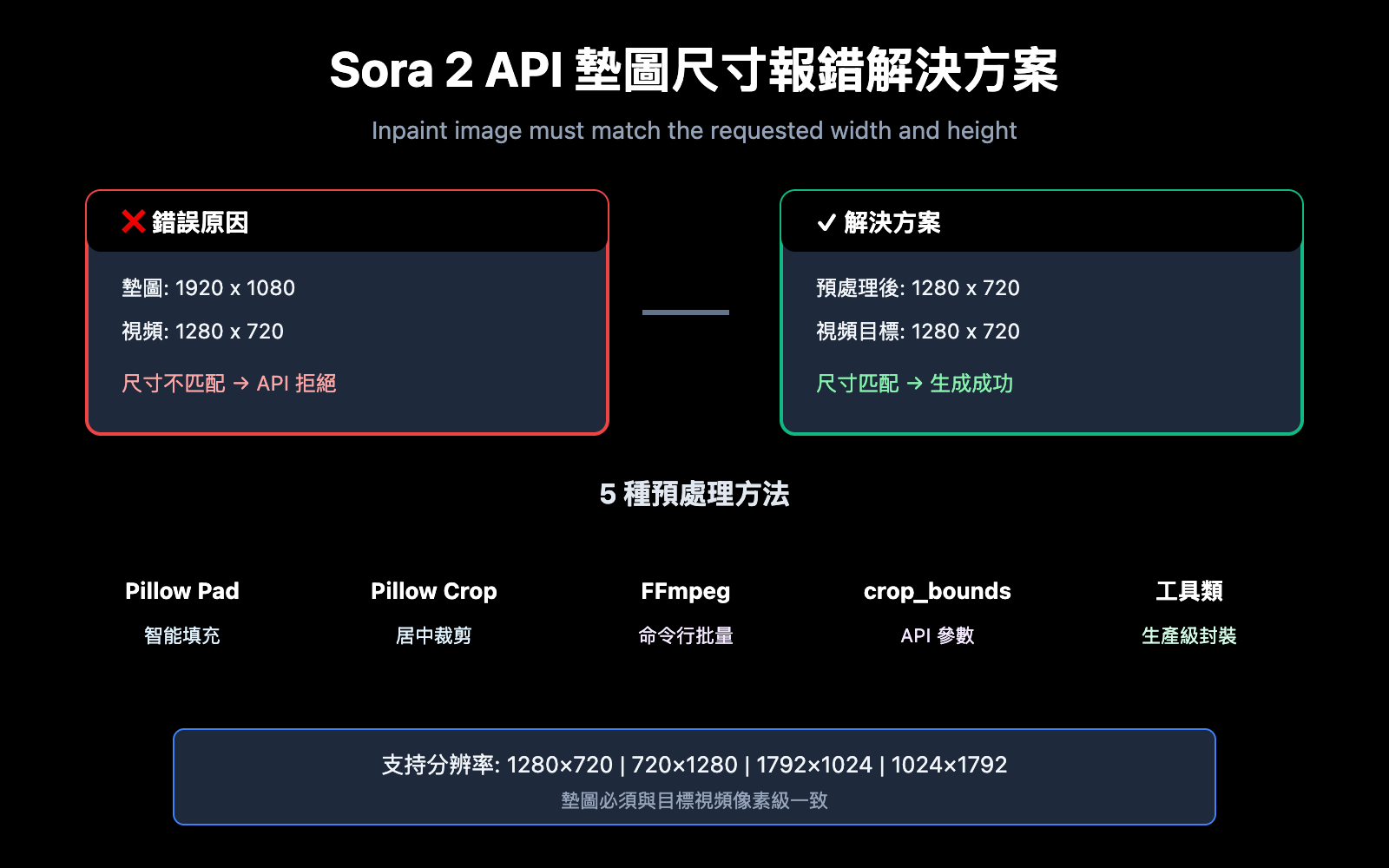
使用 Sora 2 API 進行圖生視頻 (Image-to-Video) 時,墊圖尺寸不匹配是開發者最常遇到的報錯之一。本文將詳細解析 Inpaint image must match the requested width and height 錯誤的根本原因,並提供 5 種經過驗證的解決方案。
核心價值: 讀完本文,你將掌握 Sora 2 API 墊圖尺寸校驗規則,學會使用 Python Pillow 和 FFmpeg 預處理圖片,徹底解決尺寸報錯問題。
Sora 2 API 墊圖尺寸報錯原因分析
當你調用 Sora 2 API 的圖生視頻功能時,如果看到以下報錯信息:
{
  "error": {
    "message": "Inpaint image must match the requested width and height",
    "type": "invalid_request_error",
    "param": null,
    "code": null
  }
}
這表示你上傳的墊圖 (input_reference) 尺寸與目標視頻分辨率不匹配。
Sora 2 API 墊圖尺寸強制匹配規則
Sora 2 API 對墊圖有 嚴格的尺寸校驗機制:
| 校驗項 | 要求 | 說明 |
|---|---|---|
| 寬度匹配 | 墊圖寬度 = 視頻寬度 | 必須像素級一致 |
| 高度匹配 | 墊圖高度 = 視頻高度 | 必須像素級一致 |
| 格式支持 | JPEG、PNG、WebP | 三種格式均可 |
| 文件傳輸 | multipart/form-data | 必須以文件形式上傳 |
Sora 2 API 支持的視頻分辨率
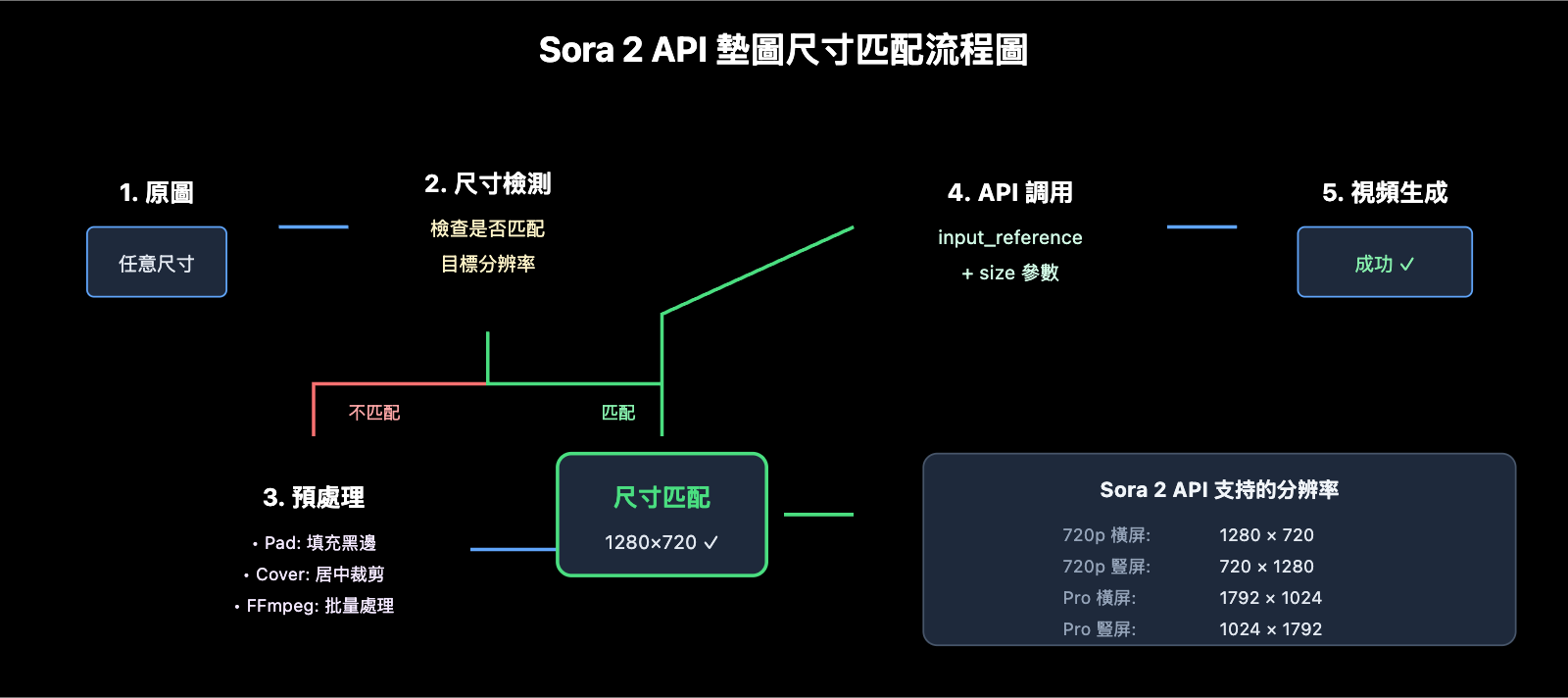
根據 OpenAI 官方文檔,Sora 2 API 目前支持以下分辨率:
| 分辨率 | 寬度 x 高度 | 比例 | 適用場景 |
|---|---|---|---|
| 720p 橫屏 | 1280 x 720 | 16:9 | YouTube、網頁視頻 |
| 720p 豎屏 | 720 x 1280 | 9:16 | 抖音、TikTok、Reels |
| 1080p 橫屏 (Pro) | 1792 x 1024 | ~16:9 | 高清橫屏視頻 |
| 1080p 豎屏 (Pro) | 1024 x 1792 | ~9:16 | 高清豎屏視頻 |
🎯 重要提示: 你的墊圖必須與選擇的目標分辨率 像素級完全一致,例如選擇 1280×720 分辨率,墊圖就必須是精確的 1280×720 像素,差 1 個像素都會報錯。
Sora 2 API 墊圖尺寸報錯的 5 種解決方案
方案一:Python Pillow 智能裁剪填充
使用 Pillow 的 ImageOps.pad() 方法可以智能處理任意尺寸的圖片,保持寬高比的同時填充到目標尺寸:
from PIL import Image, ImageOps
import openai

# Sora 2 API 支持的標準分辨率
SORA_RESOLUTIONS = {
    "landscape_720p": (1280, 720),
    "portrait_720p": (720, 1280),
    "landscape_1080p": (1792, 1024),
    "portrait_1080p": (1024, 1792),
}

def preprocess_image_for_sora(image_path, target_resolution="landscape_720p"):
    """預處理圖片以匹配 Sora 2 API 尺寸要求"""
    target_size = SORA_RESOLUTIONS[target_resolution]

    # 打開原圖
    img = Image.open(image_path)

    # 使用 pad 方法:保持寬高比,填充黑色背景
    processed = ImageOps.pad(img, target_size, color=(0, 0, 0))

    # 保存處理後的圖片
    output_path = image_path.replace(".jpg", "_sora_ready.jpg")
    processed.save(output_path, "JPEG", quality=95)

    return output_path

# 使用示例
processed_image = preprocess_image_for_sora("my_image.jpg", "landscape_720p")

# 調用 Sora 2 API - 通過 API易 統一接口
client = openai.OpenAI(
    api_key="YOUR_API_KEY",
    base_url="https://api.apiyi.com/v1"  # 使用 API易 統一接口
)

with open(processed_image, "rb") as f:
    response = client.videos.create(
        model="sora-2",
        prompt="A serene landscape comes to life",
        size="1280x720",
        input_reference=f
    )
🚀 快速開始: 推薦使用 API易 apiyi.com 平臺快速測試 Sora 2 API,該平臺提供開箱即用的接口,無需複雜配置即可完成集成。
方案二:Python Pillow 居中裁剪(保留主體)
如果你希望保留圖片主體內容,不想要黑邊填充,可以使用居中裁剪:
from PIL import Image

def center_crop_for_sora(image_path, target_width, target_height):
    """居中裁剪圖片以匹配 Sora 2 API 尺寸要求"""
    img = Image.open(image_path)
    orig_width, orig_height = img.size

    # 計算目標寬高比
    target_ratio = target_width / target_height
    orig_ratio = orig_width / orig_height

    if orig_ratio > target_ratio:
        # 原圖更寬,按高度縮放後裁剪兩邊
        new_height = target_height
        new_width = int(orig_width * (target_height / orig_height))
    else:
        # 原圖更高,按寬度縮放後裁剪上下
        new_width = target_width
        new_height = int(orig_height * (target_width / orig_width))

    # 先縮放
    img = img.resize((new_width, new_height), Image.LANCZOS)

    # 再居中裁剪
    left = (new_width - target_width) // 2
    top = (new_height - target_height) // 2
    right = left + target_width
    bottom = top + target_height

    cropped = img.crop((left, top, right, bottom))

    output_path = image_path.replace(".jpg", f"_{target_width}x{target_height}.jpg")
    cropped.save(output_path, "JPEG", quality=95)

    return output_path

# 爲橫屏 720p 視頻準備墊圖
processed = center_crop_for_sora("my_photo.jpg", 1280, 720)
方案三:FFmpeg 命令行批量處理
對於需要批量處理的場景,FFmpeg 是更高效的選擇:
居中裁剪模式(Cover):
# 先縮放保持比例,再居中裁剪到目標尺寸
ffmpeg -i input.jpg -vf "scale=1280:720:force_original_aspect_ratio=increase,crop=1280:720" output_sora.jpg
填充模式(Letterbox):
# 保持原比例縮放,不足部分填充黑色
ffmpeg -i input.jpg -vf "scale=1280:720:force_original_aspect_ratio=decrease,pad=1280:720:(ow-iw)/2:(oh-ih)/2:black" output_sora.jpg
批量處理腳本:
#!/bin/bash
# 批量處理當前目錄所有 jpg 圖片爲 Sora 2 API 720p 橫屏格式

for file in *.jpg; do
    ffmpeg -i "$file" \
        -vf "scale=1280:720:force_original_aspect_ratio=increase,crop=1280:720" \
        -q:v 2 \
        "sora_ready_$file"
done
方案四:使用 crop_bounds 參數(API 內置裁剪)
Sora 2 API 提供了 crop_bounds 參數,可以在 API 層面指定裁剪區域:
import openai

client = openai.OpenAI(
    api_key="YOUR_API_KEY",
    base_url="https://api.apiyi.com/v1"  # 使用 API易 統一接口
)

# 使用 crop_bounds 指定裁剪區域(以比例形式)
with open("full_size_image.jpg", "rb") as f:
    response = client.videos.create(
        model="sora-2",
        prompt="動態視頻效果",
        size="1280x720",
        input_reference=f,
        crop_bounds={
            "left_fraction": 0.1,    # 左邊裁掉 10%
            "top_fraction": 0.1,     # 頂部裁掉 10%
            "right_fraction": 0.9,   # 右邊保留到 90%
            "bottom_fraction": 0.9   # 底部保留到 90%
        },
        frame_index=0  # 圖片作爲第一幀
    )
⚠️ 注意: 使用
crop_bounds時,裁剪後的區域仍需與目標視頻分辨率匹配,建議結合前置預處理使用。
方案五:完整的圖片預處理工具類
以下是一個生產級的圖片預處理工具類,包含多種處理模式:
from PIL import Image, ImageOps
from pathlib import Path
import io

class SoraImagePreprocessor:
    """Sora 2 API 墊圖預處理工具"""

    RESOLUTIONS = {
        "1280x720": (1280, 720),
        "720x1280": (720, 1280),
        "1792x1024": (1792, 1024),
        "1024x1792": (1024, 1792),
    }

    def __init__(self, target_resolution="1280x720"):
        if target_resolution not in self.RESOLUTIONS:
            raise ValueError(f"不支持的分辨率: {target_resolution}")
        self.target_size = self.RESOLUTIONS[target_resolution]

    def pad(self, image_path, bg_color=(0, 0, 0)):
        """填充模式:保持原圖比例,添加背景色填充"""
        img = Image.open(image_path)
        return ImageOps.pad(img, self.target_size, color=bg_color)

    def cover(self, image_path):
        """覆蓋模式:保持原圖比例,居中裁剪"""
        img = Image.open(image_path)
        return ImageOps.fit(img, self.target_size, Image.LANCZOS)

    def stretch(self, image_path):
        """拉伸模式:強制拉伸到目標尺寸(不推薦)"""
        img = Image.open(image_path)
        return img.resize(self.target_size, Image.LANCZOS)

    def to_bytes(self, img, format="JPEG", quality=95):
        """將 PIL Image 轉換爲字節流,用於 API 上傳"""
        buffer = io.BytesIO()
        img.save(buffer, format=format, quality=quality)
        buffer.seek(0)
        return buffer

    def process_and_save(self, image_path, mode="cover", output_path=None):
        """處理並保存圖片"""
        if mode == "pad":
            processed = self.pad(image_path)
        elif mode == "cover":
            processed = self.cover(image_path)
        elif mode == "stretch":
            processed = self.stretch(image_path)
        else:
            raise ValueError(f"不支持的模式: {mode}")

        if output_path is None:
            p = Path(image_path)
            output_path = p.parent / f"{p.stem}_sora_{self.target_size[0]}x{self.target_size[1]}{p.suffix}"

        processed.save(output_path, quality=95)
        return output_path

# 使用示例
preprocessor = SoraImagePreprocessor("1280x720")

# 方式1:處理並保存
output = preprocessor.process_and_save("my_image.jpg", mode="cover")
print(f"處理完成: {output}")

# 方式2:直接獲取字節流用於 API 調用
img = preprocessor.cover("my_image.jpg")
image_bytes = preprocessor.to_bytes(img)
查看完整調用示例代碼
import openai
from PIL import Image, ImageOps
import io

class SoraImagePreprocessor:
    """Sora 2 API 墊圖預處理工具"""

    RESOLUTIONS = {
        "1280x720": (1280, 720),
        "720x1280": (720, 1280),
        "1792x1024": (1792, 1024),
        "1024x1792": (1024, 1792),
    }

    def __init__(self, target_resolution="1280x720"):
        if target_resolution not in self.RESOLUTIONS:
            raise ValueError(f"不支持的分辨率: {target_resolution}")
        self.target_size = self.RESOLUTIONS[target_resolution]

    def cover(self, image_path):
        """覆蓋模式:保持原圖比例,居中裁剪"""
        img = Image.open(image_path)
        return ImageOps.fit(img, self.target_size, Image.LANCZOS)

    def to_bytes(self, img, format="JPEG", quality=95):
        """將 PIL Image 轉換爲字節流"""
        buffer = io.BytesIO()
        img.save(buffer, format=format, quality=quality)
        buffer.seek(0)
        return buffer


def generate_video_with_image(image_path, prompt, resolution="1280x720"):
    """
    使用預處理後的圖片生成 Sora 2 視頻

    Args:
        image_path: 原始圖片路徑
        prompt: 視頻描述提示詞
        resolution: 目標分辨率

    Returns:
        視頻生成任務 ID
    """
    # 1. 預處理圖片
    preprocessor = SoraImagePreprocessor(resolution)
    processed_img = preprocessor.cover(image_path)
    image_bytes = preprocessor.to_bytes(processed_img)

    # 2. 初始化客戶端 - 通過 API易 統一接口
    client = openai.OpenAI(
        api_key="YOUR_API_KEY",
        base_url="https://api.apiyi.com/v1"
    )

    # 3. 調用 Sora 2 API
    response = client.videos.create(
        model="sora-2",
        prompt=prompt,
        size=resolution,
        input_reference=image_bytes,
        duration=5  # 視頻時長(秒)
    )

    return response


# 完整調用示例
if __name__ == "__main__":
    result = generate_video_with_image(
        image_path="landscape_photo.jpg",
        prompt="The scene comes alive with gentle wind moving through the trees",
        resolution="1280x720"
    )
    print(f"視頻生成任務已提交: {result}")
Sora 2 API 墊圖預處理模式對比
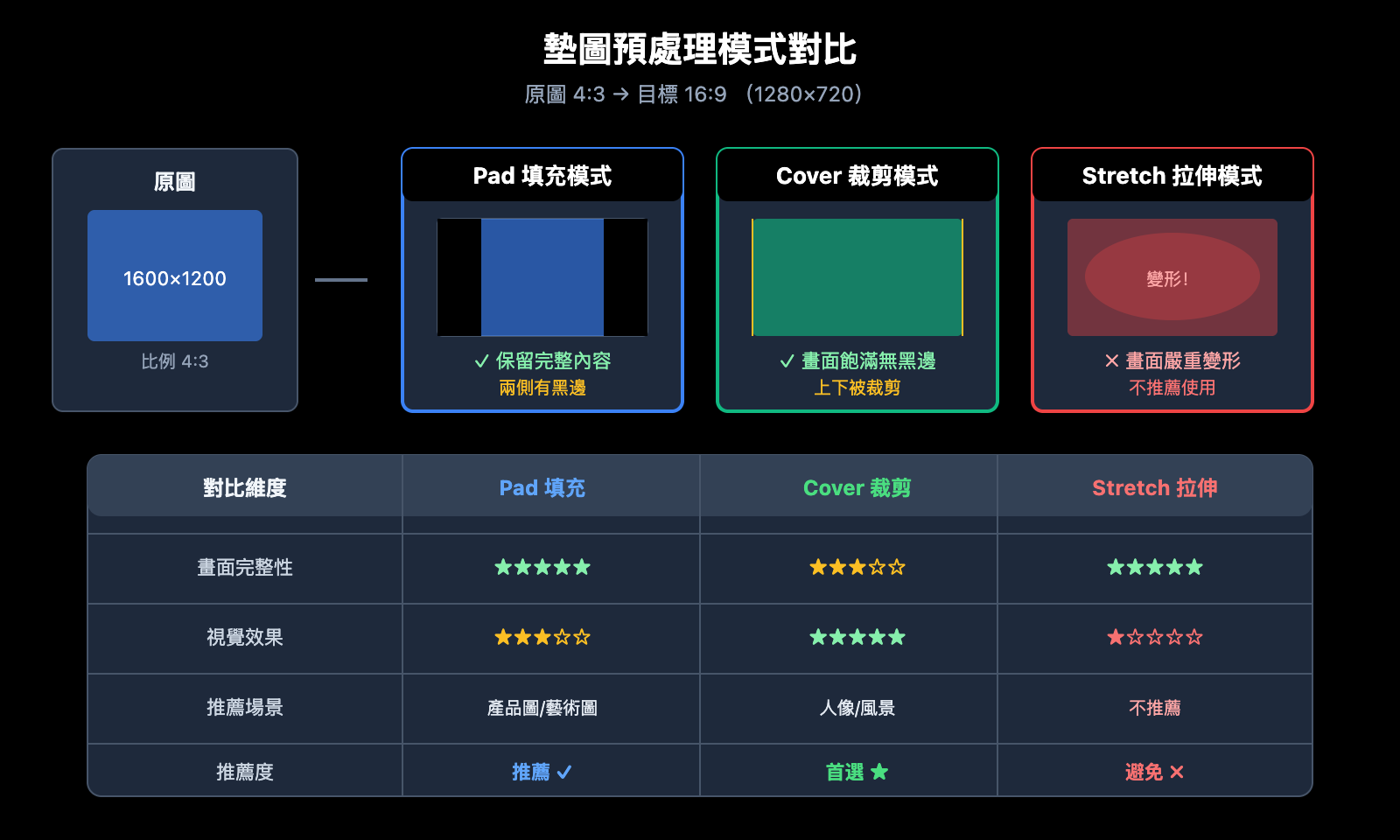
選擇合適的預處理模式對視頻效果至關重要:
| 預處理模式 | 處理方式 | 優點 | 缺點 | 推薦場景 |
|---|---|---|---|---|
| Pad (填充) | 保持比例,添加黑邊 | 保留完整畫面 | 可能有黑邊 | 內容完整性要求高 |
| Cover (裁剪) | 保持比例,居中裁剪 | 無黑邊,畫面飽滿 | 可能裁掉邊緣內容 | 主體居中的圖片 |
| Stretch (拉伸) | 強制拉伸 | 簡單直接 | 畫面變形 | 不推薦使用 |
💡 選擇建議: 選擇哪種預處理模式主要取決於您的圖片內容和最終效果需求。我們建議通過 API易 apiyi.com 平臺進行實際測試,以便快速驗證不同模式的效果差異。
不同場景的推薦模式
| 圖片類型 | 推薦模式 | 說明 |
|---|---|---|
| 人像照片 | Cover | 保持人物主體居中完整 |
| 風景照片 | Pad 或 Cover | 根據構圖選擇 |
| 產品圖片 | Pad | 確保產品完整顯示 |
| 藝術圖片 | Pad | 保留藝術完整性 |
| UI 截圖 | Cover | 通常信息集中在中心 |
Sora 2 API 墊圖常見問題
Q1: 爲什麼 Sora 2 API 對墊圖尺寸要求這麼嚴格?
Sora 2 使用墊圖作爲視頻的首幀 (first frame),模型需要從這一幀開始生成後續動態內容。如果墊圖尺寸與目標視頻不匹配,模型無法正確初始化生成過程。這是 OpenAI 設計的技術限制,確保生成質量的一致性。
通過 API易 apiyi.com 平臺調用時,建議在客戶端完成圖片預處理,這樣可以獲得最佳的生成效果。
Q2: 預處理時應該選擇哪種圖片格式?
Sora 2 API 支持 JPEG、PNG 和 WebP 三種格式:
- JPEG: 推薦用於照片類圖片,文件小、上傳快
- PNG: 適合需要透明背景或無損質量的場景
- WebP: 平衡質量和體積,但兼容性略差
建議使用 JPEG 格式,quality 參數設置爲 90-95,既保證質量又控制文件大小。
Q3: 處理後的圖片質量下降怎麼辦?
圖片質量下降通常由以下原因導致:
- 過度壓縮: 將 JPEG quality 提高到 95
- 放大過多: 儘量使用分辨率接近目標的原圖
- 重採樣算法: 使用
Image.LANCZOS而非Image.NEAREST
# 高質量處理設置
img = img.resize(target_size, Image.LANCZOS)  # 使用 Lanczos 算法
img.save(output_path, "JPEG", quality=95)     # 高質量保存
Q4: 如何批量處理大量圖片?
對於批量處理場景,推薦使用 FFmpeg 或 Python 多線程:
from concurrent.futures import ThreadPoolExecutor
import os

def batch_process(image_dir, output_dir, resolution="1280x720"):
    preprocessor = SoraImagePreprocessor(resolution)

    def process_single(filename):
        input_path = os.path.join(image_dir, filename)
        output_path = os.path.join(output_dir, f"sora_{filename}")
        return preprocessor.process_and_save(input_path, "cover", output_path)

    image_files = [f for f in os.listdir(image_dir) if f.endswith(('.jpg', '.png'))]

    with ThreadPoolExecutor(max_workers=4) as executor:
        results = list(executor.map(process_single, image_files))

    return results
通過 API易 apiyi.com 平臺可以獲取批量處理的 API 配額,適合大規模視頻生成項目。
Q5: 墊圖中包含人臉會被拒絕嗎?
是的,根據 OpenAI 政策,包含真實人臉的墊圖目前會被 Sora 2 API 拒絕處理。如果你的業務需要人物視頻,建議:
- 使用不含清晰人臉的圖片
- 使用 AI 生成的虛擬人物圖片
- 使用抽象或藝術化處理後的人物圖片
Sora 2 API 墊圖尺寸速查表
爲方便快速查詢,以下是完整的尺寸匹配速查表:
| 目標視頻 | 墊圖寬度 | 墊圖高度 | API size 參數 | 適用平臺 |
|---|---|---|---|---|
| 720p 橫屏 | 1280 | 720 | "1280×720" | YouTube, 網頁 |
| 720p 豎屏 | 720 | 1280 | "720×1280" | 抖音, TikTok |
| Pro 橫屏 | 1792 | 1024 | "1792×1024" | 高清橫屏 |
| Pro 豎屏 | 1024 | 1792 | "1024×1792" | 高清豎屏 |
📌 提示: 可用平臺包括 API易 apiyi.com、OpenAI 官方 API 等,建議選擇響應速度快、價格優惠的平臺進行開發測試。
總結
Sora 2 API 墊圖尺寸報錯是開發者最常遇到的問題之一,核心解決思路是:
- 理解規則: 墊圖必須與目標視頻像素級尺寸一致
- 選擇模式: 根據圖片內容選擇 Pad 或 Cover 模式
- 前置處理: 使用 Python Pillow 或 FFmpeg 預處理
- 驗證尺寸: 處理後驗證圖片尺寸是否匹配
推薦通過 API易 apiyi.com 快速驗證圖片預處理效果和視頻生成質量。
作者: APIYI Team | 更多 AI 開發技巧請訪問 apiyi.com
參考資料:
- OpenAI Sora API 文檔: 圖生視頻接口說明
- 鏈接:
platform.openai.com/docs/guides/video-generation
- 鏈接:
- Pillow 官方文檔: ImageOps 圖像處理模塊
- 鏈接:
pillow.readthedocs.io/en/stable/reference/ImageOps.html
- 鏈接:
- FFmpeg 官方文檔: 視頻和圖片處理濾鏡
- 鏈接:
ffmpeg.org/ffmpeg-filters.html
- 鏈接: