
When using the Nano Banana Pro API for image editing or image-to-image generation, developers often encounter image upload failures. This article provides a detailed breakdown of the hard 7MB limit for single images and how to properly handle oversized images.
Core Value: After reading this article, you'll master all the specifications for Nano Banana Pro image uploads and learn 3 methods to compress oversized images.
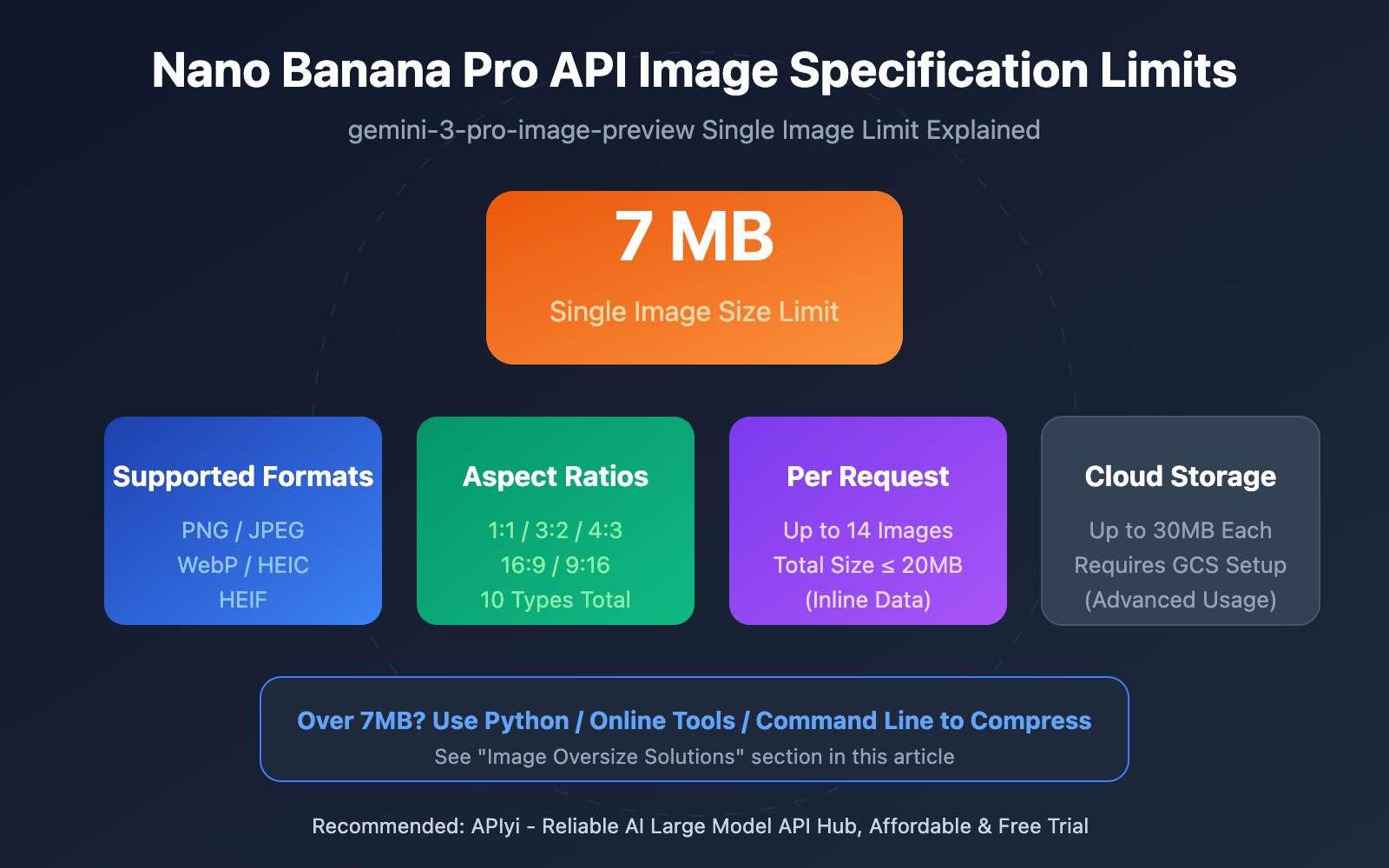
Core Requirements for Nano Banana Pro API Image Limits
When uploading images to Nano Banana Pro (gemini-3-pro-image-preview), you'll need to follow these technical specifications:
| Limit Item | Specification | Notes |
|---|---|---|
| Single Image Size | 7 MB | Hard limit for inline data or console uploads |
| Cloud Storage | 30 MB | Limit when uploading via Google Cloud Storage |
| Images Per Request | Max 14 images | Maximum number of images in a single prompt |
| Output Images | 32,768 tokens | Limited by output token count |
Why 7MB?
Google's official documentation clearly states: Each file uploaded as inline data or directly through the console has a 7 MB size limit. This limit was designed with these considerations:
- Transfer Efficiency – Base64 encoding increases image size by about 33%, so a 7MB original becomes ~9.3MB when encoded
- Service Stability – Limiting individual file sizes ensures consistent API response times
- Memory Management – Prevents single requests from consuming excessive server memory
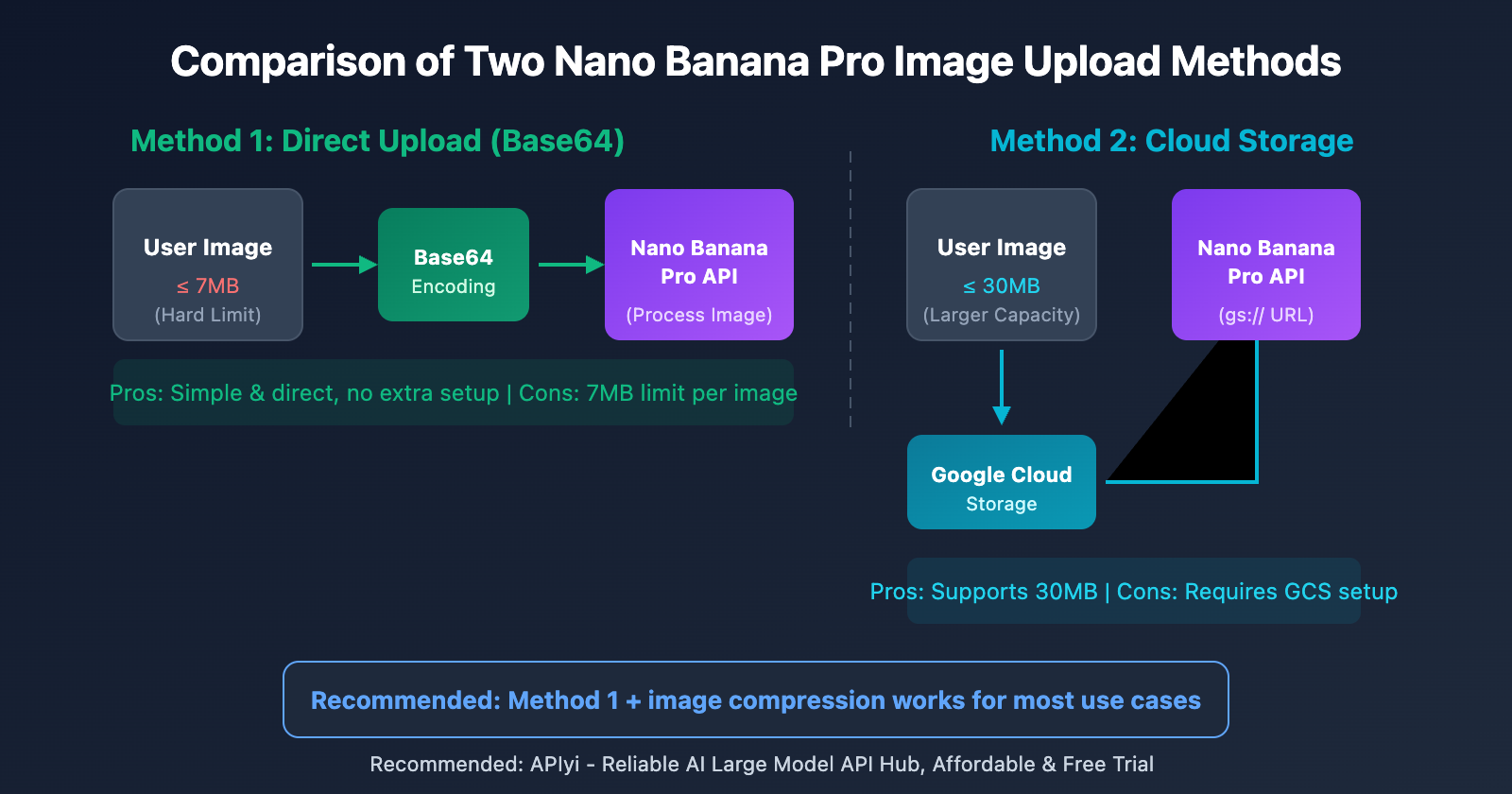
If you need to upload larger images (up to 30MB), you can use Google Cloud Storage as an intermediary, though this adds development complexity.
Supported Image Formats for Nano Banana Pro API
Here's a breakdown of the MIME types and formats supported by Nano Banana Pro:
| MIME Type | File Extension | Support Status | Notes |
|---|---|---|---|
image/png |
.png | Supported | Recommended, lossless compression |
image/jpeg |
.jpg, .jpeg | Supported | Recommended, small file size |
image/webp |
.webp | Supported | High compression ratio |
image/heic |
.heic | Supported | iPhone native format |
image/heif |
.heif | Supported | High-efficiency image format |
image/gif |
.gif | Not supported | Format conversion required |
image/bmp |
.bmp | Not supported | Format conversion required |
image/tiff |
.tiff | Not supported | Format conversion required |
APIYI's JPEG Format Compatibility Optimization
It's worth noting that the APIYI apiyi.com platform has added extra compatibility optimizations for JPEG format. Some older JPEG files might run into format recognition issues when directly calling Google's API, but going through APIYI's relay can automatically handle these compatibility problems.
🎯 Format Recommendation: For everyday use, we'd suggest JPEG or WebP formats – they're compact and have great compatibility. PNG works best when you need transparent backgrounds. By calling Nano Banana Pro through APIYI apiyi.com, you'll get better format compatibility support.
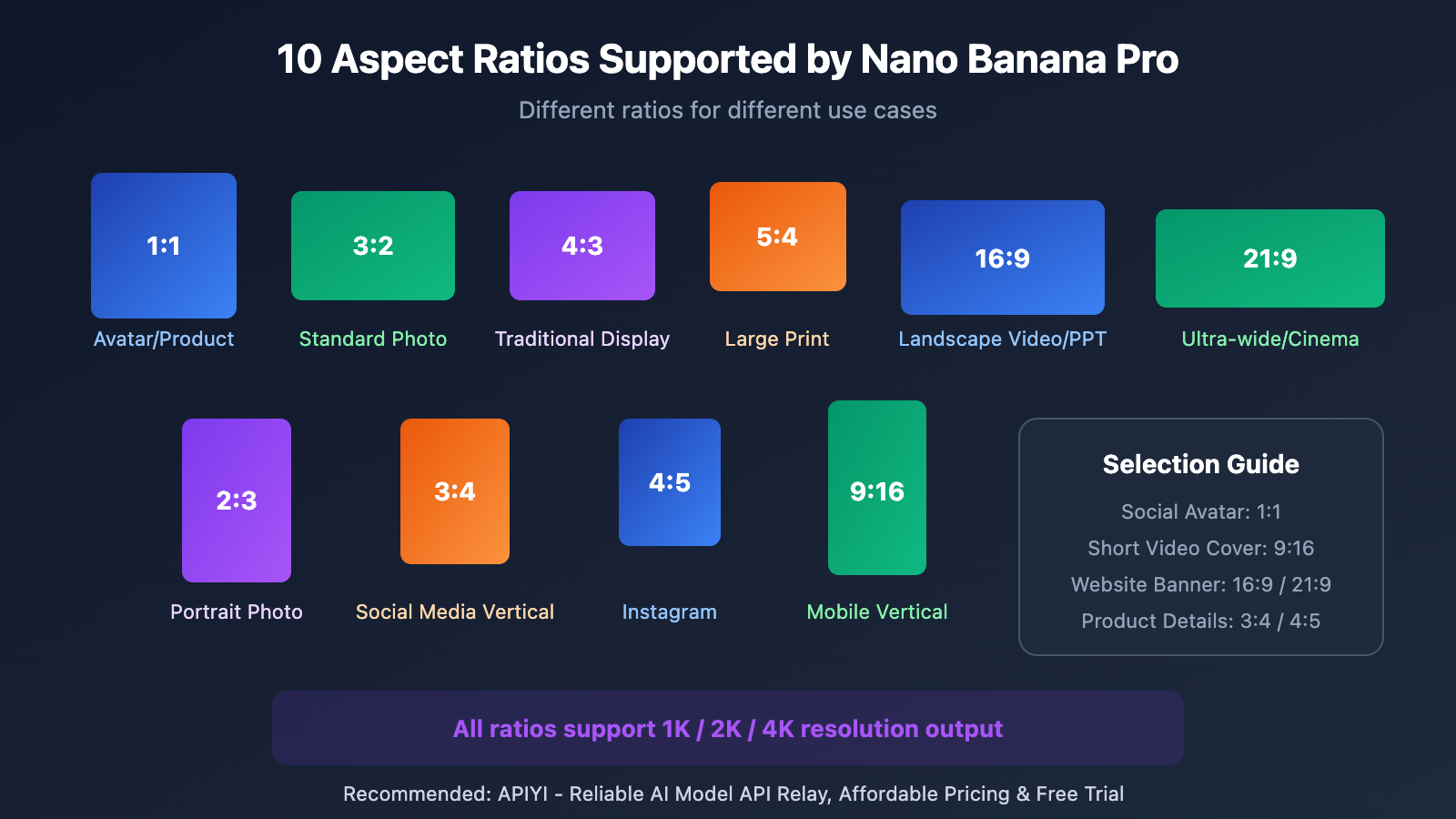
Supported Aspect Ratios for Nano Banana Pro API
Nano Banana Pro supports a rich variety of aspect ratio options to fit different use cases:
| Aspect Ratio | Use Case | Typical Resolution |
|---|---|---|
| 1:1 | Social avatars, product images | 1024×1024, 2048×2048 |
| 3:2 | Standard photo ratio | 1536×1024 |
| 2:3 | Portrait photos | 1024×1536 |
| 3:4 | Social media vertical images | 1536×2048 |
| 4:3 | Traditional monitor ratio | 2048×1536 |
| 4:5 | Instagram recommended | 1638×2048 |
| 5:4 | Common for large prints | 2048×1638 |
| 9:16 | Mobile vertical video | 1152×2048 |
| 16:9 | Landscape video/PPT | 2048×1152 |
| 21:9 | Ultra-wide/cinema ratio | 2688×1152 |
Nano Banana Pro API Image Size Limit Solutions
When your image exceeds 7MB, here are 3 recommended solutions:
Option 1: Python Compression (Recommended)
Use the Pillow library for intelligent compression that automatically adjusts to under 7MB:
from PIL import Image
import io

def compress_image_for_nano_banana(image_path: str, max_size_mb: float = 7.0) -> bytes:
    """
    Compress image to below Nano Banana Pro API limit

    Args:
        image_path: Original image path
        max_size_mb: Maximum file size (MB), default 7MB

    Returns:
        Compressed image byte data
    """
    max_size_bytes = max_size_mb * 1024 * 1024

    with Image.open(image_path) as img:
        # Convert to RGB (handle RGBA transparent images)
        if img.mode in ('RGBA', 'P'):
            img = img.convert('RGB')

        # Try saving directly first
        buffer = io.BytesIO()
        img.save(buffer, format='JPEG', quality=95)

        if buffer.tell() <= max_size_bytes:
            return buffer.getvalue()

        # Gradually reduce quality until size limit is met
        for quality in range(90, 10, -5):
            buffer = io.BytesIO()
            img.save(buffer, format='JPEG', quality=quality)
            if buffer.tell() <= max_size_bytes:
                print(f"Compression successful: quality={quality}, size={buffer.tell()/1024/1024:.2f}MB")
                return buffer.getvalue()

        # If quality compression isn't enough, reduce dimensions too
        scale = 0.9
        while scale > 0.3:
            new_size = (int(img.width * scale), int(img.height * scale))
            resized = img.resize(new_size, Image.LANCZOS)
            buffer = io.BytesIO()
            resized.save(buffer, format='JPEG', quality=85)
            if buffer.tell() <= max_size_bytes:
                print(f"Compression successful: scale={scale:.1f}, size={buffer.tell()/1024/1024:.2f}MB")
                return buffer.getvalue()
            scale -= 0.1

        raise ValueError("Unable to compress image to below 7MB")

# Usage example
compressed_data = compress_image_for_nano_banana("large_image.png")
View complete API call code (with compression and upload)
import requests
import base64
from PIL import Image
import io
from typing import Dict, Any

def compress_image_for_nano_banana(image_path: str, max_size_mb: float = 7.0) -> bytes:
    """Compress image to specified size"""
    max_size_bytes = max_size_mb * 1024 * 1024

    with Image.open(image_path) as img:
        if img.mode in ('RGBA', 'P'):
            img = img.convert('RGB')

        # Try different quality levels
        for quality in range(95, 10, -5):
            buffer = io.BytesIO()
            img.save(buffer, format='JPEG', quality=quality)
            if buffer.tell() <= max_size_bytes:
                return buffer.getvalue()

        # Reduce dimensions
        scale = 0.8
        while scale > 0.3:
            new_size = (int(img.width * scale), int(img.height * scale))
            resized = img.resize(new_size, Image.LANCZOS)
            buffer = io.BytesIO()
            resized.save(buffer, format='JPEG', quality=80)
            if buffer.tell() <= max_size_bytes:
                return buffer.getvalue()
            scale -= 0.1

        raise ValueError("Unable to compress to below 7MB")

def edit_image_with_nano_banana(
    image_path: str,
    prompt: str,
    api_key: str = "YOUR_API_KEY",
    base_url: str = "https://vip.apiyi.com/v1"
) -> Dict[str, Any]:
    """
    Edit image using Nano Banana Pro

    Args:
        image_path: Original image path
        prompt: Edit instruction
        api_key: API key
        base_url: API base URL

    Returns:
        API response result
    """
    # Check and compress image
    import os
    file_size = os.path.getsize(image_path)

    if file_size > 7 * 1024 * 1024:
        print(f"Original image {file_size/1024/1024:.2f}MB exceeds 7MB limit, starting compression...")
        image_data = compress_image_for_nano_banana(image_path)
    else:
        with open(image_path, 'rb') as f:
            image_data = f.read()

    # Base64 encoding
    image_base64 = base64.b64encode(image_data).decode('utf-8')

    # Call API
    response = requests.post(
        f"{base_url}/images/edits",
        json={
            "model": "gemini-3-pro-image-preview",
            "image": image_base64,
            "prompt": prompt
        },
        headers={
            "Authorization": f"Bearer {api_key}",
            "Content-Type": "application/json"
        },
        timeout=(30, 600)  # Connection timeout 30s, read timeout 600s
    )

    return response.json()

# Usage example
if __name__ == "__main__":
    result = edit_image_with_nano_banana(
        image_path="my_photo.jpg",
        prompt="Change background to seaside sunset"
    )
    print(result)
Option 2: Online Compression Tools
If you don't want to write code, you can use online tools:
- TinyPNG: tinypng.com – Intelligent PNG/JPEG compression
- Squoosh: squoosh.app – Google's open-source image compression tool
- iLoveIMG: iloveimg.com – Supports batch compression
Option 3: Command Line Tools
Quick compression using ImageMagick:
# Compress to specified size (approximately 7MB)
convert input.png -quality 85 -define jpeg:extent=7MB output.jpg

# Adjust both dimensions and quality
convert input.png -resize 4096x4096\> -quality 80 output.jpg
Tip: Call Nano Banana Pro through API Yi at apiyi.com – the platform provides free testing credits, making it easy to verify if compressed images process correctly.
Nano Banana Pro API Common Errors and Solutions
| Error Message | Cause | Solution |
|---|---|---|
File size exceeds limit |
Single image exceeds 7MB | Use the compression solutions above |
Unsupported MIME type |
Format not supported (like GIF/BMP) | Convert to PNG/JPEG/WebP |
Invalid image format |
Image corrupted or abnormal format | Re-export or convert format |
Too many images |
Exceeds 14 image limit | Split into multiple requests |
FAQ
Q1: Is the 7MB limit for the original image or the Base64 encoded version?
The 7MB limit applies to the original file size, not the Base64 encoded size. Base64 encoding increases data by approximately 33%, so a 7MB original image becomes about 9.3MB when encoded. The API checks the original size after decoding.
Q2: Why does my 5MB image upload still fail?
Possible reasons:
- Unsupported image format (like GIF, BMP, TIFF)
- Corrupted image file
- Total request size exceeds 20MB (in multi-image scenarios)
We'd suggest converting to JPEG format first, then testing through APIYI apiyi.com.
Q3: What’s the process for uploading a 30MB image through Cloud Storage?
- Upload the image to Google Cloud Storage
- Get the image's
gs://link - Use that link in your API request instead of Base64 data
- This method supports images up to 30MB
Note: This requires additional Google Cloud account configuration. For most scenarios, it's simpler to just compress images to under 7MB.
Summary
Here are the key points about Nano Banana Pro (gemini-3-pro-image-preview) API image limits:
- 7MB single image limit: Hard cap for embedded data or console uploads; Cloud Storage supports up to 30MB
- 5 supported formats: PNG, JPEG, WebP, HEIC, HEIF – GIF/BMP/TIFF aren't supported
- 10 aspect ratios: Full coverage from 1:1 to 21:9 for various use cases
- Solutions for exceeding limits: Three approaches – Python compression, online tools, or command-line utilities
Once you've got these limits down, you'll be able to use Nano Banana Pro for image editing and generation much more efficiently.
We'd recommend testing Nano Banana Pro through APIYI apiyi.com – the platform offers free credits and JPEG format compatibility optimization, with single images costing just $0.05.
📚 References
⚠️ Link Format Note: All external links use the
Resource Name: domain.comformat, easy to copy but not clickable, preventing SEO weight loss.
-
Google Gemini API Image Understanding Documentation: Official image input specification guide
- Link:
ai.google.dev/gemini-api/docs/image-understanding - Description: Official documentation covering MIME types and size limitations
- Link:
-
Firebase AI Logic Input File Requirements: Detailed file specification guide
- Link:
firebase.google.com/docs/ai-logic/input-file-requirements - Description: Complete coverage of all supported file types and restrictions
- Link:
-
Pillow Image Processing Documentation: Official Python image compression library docs
- Link:
pillow.readthedocs.io - Description: Best resource for learning image compression and format conversion
- Link:
Author: Technical Team
Tech Discussion: Feel free to discuss in the comments. For more resources, visit the APIYI apiyi.com tech community


