上傳幾萬行 Excel 到 AI 工具,結果接口報「餘額不足」——但賬戶明明還有錢?這是使用 AI 處理 Excel 大數據時最常見的踩坑場景,背後是 token 預扣機制和上下文窗口限制的雙重約束。
核心價值:讀完本文,你將徹底搞懂爲什麼大 Excel 會報錯、如何正確用 AI 分析幾萬行數據,以及哪種方案最省錢最高效。
<!– Background –>
<!– Decorative grid –>
<!– Top title bar –>
<!– ===== LEFT PANEL: Excel file ===== –>
<!– ===== CENTER: Conversion flow ===== –>
<!– Arrow right 1 –>
<!– Step boxes –>
<!– Token count callout –>
<!– Arrow right 2: center to right –>
<!– ===== RIGHT PANEL: Error UI ===== –>
<!– Conversation bubbles –>
<!-- Error response bubble -->
<rect x="0" y="58" width="256" height="84" rx="9" fill="#2d0808" stroke="#ef4444" stroke-width="1.5"/>
<text x="128" y="80" font-family="'PingFang SC',sans-serif" font-size="13" font-weight="bold" fill="#ef4444" text-anchor="middle">❌ Error 402</text>
<text x="128" y="100" font-family="monospace" font-size="10" fill="#fca5a5" text-anchor="middle">Insufficient Balance</text>
<text x="128" y="116" font-family="'PingFang SC',sans-serif" font-size="10" fill="#fca5a5" text-anchor="middle">餘額不足,請充值後重試</text>
<text x="128" y="132" font-family="'PingFang SC',sans-serif" font-size="9" fill="#94a3b8" text-anchor="middle">(預扣 $9.00 · 餘額 $5.20)</text>
<!-- AI avatar -->
<circle cx="268" cy="100" r="10" fill="#991b1b"/>
<text x="268" y="105" font-family="sans-serif" font-size="11" fill="#fecaca" text-anchor="middle">🤖</text>

<!-- Confused user thought -->
<rect x="40" y="158" width="218" height="50" rx="9" fill="#0f2028"/>
<text x="149" y="178" font-family="'PingFang SC',sans-serif" font-size="10" fill="#7dd3fc" text-anchor="middle">😕 但我賬戶明明有餘額!</text>
<text x="149" y="196" font-family="'PingFang SC',sans-serif" font-size="10" fill="#7dd3fc" text-anchor="middle">爲什麼說餘額不足??</text>
<circle cx="28" cy="183" r="10" fill="#1d4ed8"/>
<text x="28" y="188" font-family="sans-serif" font-size="11" fill="#ffffff" text-anchor="middle">👤</text>
<!– ===== BOTTOM STATUS BAR ===== –>
一、爲什麼上傳大 Excel 會報「餘額不足」?
很多用戶第一次遇到這個問題時都很困惑:賬戶餘額明明夠用,爲什麼接口還是返回餘額不足的錯誤?
這裏需要了解 AI API 的一個關鍵機制:Token 預扣費機制。
Token 預扣機制詳解
當你在 Cherry Studio 或 Chatbox 等 AI 客戶端中上傳一個文件併發送請求時,API 接口並不會等到響應生成完畢後再扣費。它會在請求發出的瞬間,預先估算本次請求可能消耗的最大 token 數量,並將對應費用從賬戶餘額中臨時「凍結」(預扣)。
這個預扣流程大致如下:
- 用戶上傳 Excel 文件 → 客戶端將文件內容轉換爲純文本
- 純文本被全部塞入 prompt(對話上下文)中
- API 計算輸入 token 數 + 預估最大輸出 token 數
- 系統判斷:預扣總額 > 賬戶餘額 → 返回「餘額不足」錯誤
所以本質上並不是你「沒錢」,而是這次請求的預扣額度太大,超過了賬戶當前餘額。
AI 客戶端與 ChatGPT 的本質差異
很多人有個誤解:覺得在 Cherry Studio 上傳 Excel,和在 ChatGPT 上傳文件是一回事。
實際上完全不同:
| 對比維度 | Cherry Studio / Chatbox | ChatGPT(Code Interpreter) |
|---|---|---|
| 文件處理方式 | 轉爲文本全量塞入 context | 在沙盒環境中運行代碼處理 |
| Token 消耗 | 文件大小直接等於 token 消耗 | 不佔用對話 context token |
| 適合文件大小 | 建議 100行 以內 | 支持較大文件(官方限制約 512MB) |
| 數據分析能力 | 僅文本理解,無法執行代碼 | 可直接運行 Python 進行統計 |
| API 接入方式 | 通過 API Key 調用,按 token 計費 | ChatGPT Plus 訂閱制 |
🎯 關鍵認知:使用 API 中轉服務(如 API易 apiyi.com)調用 AI 時,文件上傳走的是第三方客戶端,所有文件內容都會被轉化爲文本 token 傳給模型。這與 ChatGPT 官方的文件處理沙盒機制完全不同。
二、大 Excel 到底消耗多少 Token?
在討論解決方案之前,先建立對 token 消耗量的直觀認識。
Token 換算基礎知識
| 內容類型 | Token 估算 |
|---|---|
| 1 個英文單詞 | 約 1-2 tokens |
| 1 個英文字符 | 約 0.25 tokens(4字符=1token) |
| 1 箇中文漢字 | 約 1-2 tokens |
| 1 個日期(如 2024-01-15) | 約 5 tokens |
| 1 個數字(如 12345.67) | 約 3-4 tokens |
| 1 行 Excel 數據(10列) | 約 30-80 tokens |
實際案例計算
以用戶遇到的真實場景爲例:
文件 A:6萬行 × 10列的流程效率數據
估算:60,000 行 × 10 列 × 平均 5 tokens/單元格
= 60,000 × 50
= 3,000,000 tokens(約 300 萬 tokens!)
文件 B:4萬行 × 8列的業務數據
估算:40,000 行 × 8 列 × 平均 5 tokens/單元格
= 40,000 × 40
= 1,600,000 tokens(約 160 萬 tokens)
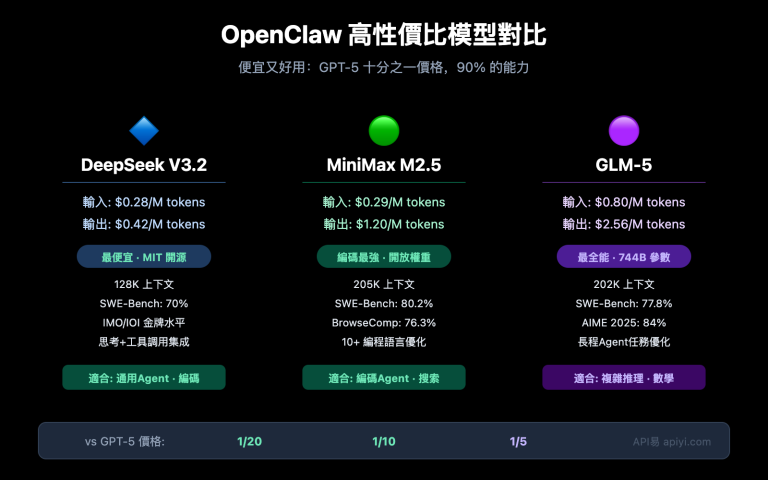
各模型上下文窗口與費用對照
| 模型 | 上下文窗口 | 輸入單價($/1M tokens) | 處理 300萬 tokens 費用 |
|---|---|---|---|
| GPT-4o | 128K tokens | $2.50 | 無法處理(超限) |
| Claude 3.5 Sonnet | 200K tokens | $3.00 | 無法處理(超限) |
| Gemini 1.5 Pro | 1M tokens | $1.25 | 無法處理(超限) |
| Gemini 1.5 Pro 2.0 | 2M tokens | $1.25 | 約 $3.75/次 |
💡 可以看到,絕大多數模型的上下文窗口根本容不下 6 萬行 Excel。即便用 Gemini 2M 上下文的模型硬撐,每次請求也需要約 $3.75 美元。
三、4 種 AI 處理 Excel 大數據的正確方案
瞭解了根本原因,下面介紹 4 種經過實測的解決方案,按推薦程度排序。
<!– Background –>
<!– Decorative dots pattern –>
<!– Title –>
<!– ===== CARD A — 強烈推薦 ===== –>
<!– Card A content –>
<line x1="0" y1="56" x2="194" y2="56" stroke="#059669" stroke-width="1" opacity="0.5"/>
<text x="0" y="74" font-size="11" font-weight="bold" fill="#34d399">操作步驟</text>
<rect x="0" y="80" width="194" height="18" rx="4" fill="#022c22"/>
<text x="8" y="93" font-size="9.5" fill="#6ee7b7">① 提取 10 行樣本數據給 AI</text>
<rect x="0" y="102" width="194" height="18" rx="4" fill="#022c22"/>
<text x="8" y="115" font-size="9.5" fill="#6ee7b7">② AI 理解結構,生成分析腳本</text>
<rect x="0" y="124" width="194" height="18" rx="4" fill="#022c22"/>
<text x="8" y="137" font-size="9.5" fill="#6ee7b7">③ 本地運行腳本,處理全量數據</text>
<line x1="0" y1="152" x2="194" y2="152" stroke="#059669" stroke-width="1" opacity="0.5"/>
<text x="0" y="170" font-size="11" font-weight="bold" fill="#34d399">適用場景</text>
<text x="0" y="186" font-size="10" fill="#a7f3d0">數據量 >; 1 萬行</text>
<text x="0" y="200" font-size="10" fill="#a7f3d0">統計分析 / 報表生成</text>
<rect x="0" y="214" width="194" height="26" rx="6" fill="#065f46" stroke="#10b981" stroke-width="1.5"/>
<text x="97" y="231" font-size="11" font-weight="bold" fill="#34d399" text-anchor="middle">Token 消耗:<; 2,000</text>
<!– ===== CARD B ===== –>
<line x1="0" y1="56" x2="194" y2="56" stroke="#3b82f6" stroke-width="1" opacity="0.5"/>

<text x="0" y="74" font-size="11" font-weight="bold" fill="#93c5fd">操作步驟</text>
<rect x="0" y="80" width="194" height="18" rx="4" fill="#1e3a5f"/>
<text x="8" y="93" font-size="9.5" fill="#93c5fd">① 按行切分爲多個子文件</text>
<rect x="0" y="102" width="194" height="18" rx="4" fill="#1e3a5f"/>
<text x="8" y="115" font-size="9.5" fill="#93c5fd">② 循環調用 API 處理每批</text>
<rect x="0" y="124" width="194" height="18" rx="4" fill="#1e3a5f"/>
<text x="8" y="137" font-size="9.5" fill="#93c5fd">③ 彙總各批次結果</text>

<line x1="0" y1="152" x2="194" y2="152" stroke="#3b82f6" stroke-width="1" opacity="0.5"/>

<text x="0" y="170" font-size="11" font-weight="bold" fill="#93c5fd">適用場景</text>
<text x="0" y="186" font-size="10" fill="#bfdbfe">5000-2 萬行數據</text>
<text x="0" y="200" font-size="10" fill="#bfdbfe">逐行分類 / 情感分析</text>

<rect x="0" y="214" width="194" height="26" rx="6" fill="#1e3a5f" stroke="#3b82f6" stroke-width="1.5"/>
<text x="97" y="231" font-size="11" font-weight="bold" fill="#93c5fd" text-anchor="middle">總費用約 $0.5-1.5</text>
<!– ===== CARD C ===== –>
<line x1="0" y1="56" x2="194" y2="56" stroke="#a855f7" stroke-width="1" opacity="0.5"/>

<text x="0" y="74" font-size="11" font-weight="bold" fill="#d8b4fe">操作步驟</text>
<rect x="0" y="80" width="194" height="18" rx="4" fill="#3b0764"/>
<text x="8" y="93" font-size="9.5" fill="#d8b4fe">① Excel 透視表做聚合統計</text>
<rect x="0" y="102" width="194" height="18" rx="4" fill="#3b0764"/>
<text x="8" y="115" font-size="9.5" fill="#d8b4fe">② 摘要數據(幾十行)給 AI</text>
<rect x="0" y="124" width="194" height="18" rx="4" fill="#3b0764"/>
<text x="8" y="137" font-size="9.5" fill="#d8b4fe">③ AI 寫分析報告和洞察</text>

<line x1="0" y1="152" x2="194" y2="152" stroke="#a855f7" stroke-width="1" opacity="0.5"/>

<text x="0" y="170" font-size="11" font-weight="bold" fill="#d8b4fe">適用場景</text>
<text x="0" y="186" font-size="10" fill="#e9d5ff">需要整體趨勢分析報告</text>
<text x="0" y="200" font-size="10" fill="#e9d5ff">無需逐行理解原始數據</text>

<rect x="0" y="214" width="194" height="26" rx="6" fill="#3b0764" stroke="#a855f7" stroke-width="1.5"/>
<text x="97" y="231" font-size="11" font-weight="bold" fill="#d8b4fe" text-anchor="middle">Token 消耗:極少</text>
<!– ===== CARD D ===== –>
<line x1="0" y1="56" x2="194" y2="56" stroke="#f97316" stroke-width="1" opacity="0.5"/>
<text x="0" y="74" font-size="11" font-weight="bold" fill="#fdba74">推薦模型</text>
<rect x="0" y="80" width="194" height="18" rx="4" fill="#431407"/>
<text x="8" y="93" font-size="9.5" fill="#fdba74">Gemini 2.0 Flash(1M ctx)</text>
<rect x="0" y="102" width="194" height="18" rx="4" fill="#431407"/>
<text x="8" y="115" font-size="9.5" fill="#fdba74">Gemini 1.5 Pro(1M ctx)</text>
<rect x="0" y="124" width="194" height="18" rx="4" fill="#431407"/>
<text x="8" y="137" font-size="9.5" fill="#fdba74">Claude 3.5 Sonnet(200K)</text>
<line x1="0" y1="152" x2="194" y2="152" stroke="#f97316" stroke-width="1" opacity="0.5"/>
<text x="0" y="170" font-size="11" font-weight="bold" fill="#fdba74">適用場景</text>
<text x="0" y="186" font-size="10" fill="#fed7aa">數據量 <; 5000 行</text>
<text x="0" y="200" font-size="10" fill="#fed7aa">可承擔較高 API 費用</text>
<rect x="0" y="214" width="194" height="26" rx="6" fill="#431407" stroke="#f97316" stroke-width="1.5"/>
<text x="97" y="231" font-size="11" font-weight="bold" fill="#fdba74" text-anchor="middle">費用:$1-5 / 次</text>
<!– Bottom recommendation text –>
方案 A(強烈推薦):樣本數據 + 讓 AI 寫腳本
核心思路:不讓 AI 直接處理全量數據,而是讓 AI 看懂數據結構後,生成一個在本地運行的處理腳本。
操作步驟:
第一步:提取樣本數據(10行即可)
import pandas as pd

# 讀取前10行作爲樣本(包含表頭)
df_sample = pd.read_excel("your_data.xlsx", nrows=10)

# 輸出爲文本格式,方便複製給AI
print(df_sample.to_string())
print("\n--- 數據概況 ---")
print(f"總行數: {len(pd.read_excel('your_data.xlsx'))}")
print(f"列名: {list(df_sample.columns)}")
print(f"數據類型:\n{df_sample.dtypes}")
第二步:把樣本數據和需求發給 AI
示例 prompt:
以下是我的 Excel 數據的前10行樣本和結構說明:

[粘貼上一步的輸出內容]

總數據有6萬行。我需要分析以下內容:
1. 按部門統計流程完成率
2. 找出平均處理時長超過2小時的流程節點
3. 生成每週趨勢報告

請給我寫一個 Python 腳本,讀取完整數據並輸出分析結果。
第三步:在本地運行 AI 生成的腳本
AI 會根據你的10行樣本數據,理解字段含義後,生成完整的分析腳本。你在本地運行這個腳本,處理全量 6 萬行數據,整個過程不再需要調用 AI 接口,零 token 消耗。
方案優勢:
- Token 消耗極低(僅10行樣本 ≈ 幾百 tokens)
- 本地腳本可反覆運行,數據更新後直接重跑
- 適合定期需要處理同類數據的場景
🎯 推薦工具:在 API易 apiyi.com 上調用 Claude 3.5 Sonnet 或 GPT-4o 生成數據處理腳本,這類代碼生成任務模型表現極佳,單次請求消耗通常不超過 2000 tokens,成本極低。
方案 B:數據分批處理
適用場景:數據行數在 5000-2萬行之間,且需要 AI 理解每一行內容(如情感分析、文本分類)。
操作步驟:
import pandas as pd

def process_in_batches(file_path, batch_size=500):
    """將大 Excel 按批次處理"""
    df = pd.read_excel(file_path)
    total_rows = len(df)
    results = []

    for start in range(0, total_rows, batch_size):
        end = min(start + batch_size, total_rows)
        batch = df.iloc[start:end]

        # 將這批數據轉爲 CSV 文本,傳給 AI 處理
        batch_text = batch.to_csv(index=False)
        print(f"正在處理第 {start+1}-{end} 行(共 {total_rows} 行)")

        # 此處調用 AI API 處理 batch_text
        # result = call_ai_api(batch_text)
        # results.append(result)

    return results
每批 500 行約消耗 25,000-40,000 tokens,使用 GPT-4o mini 處理6萬行全量數據的總費用約 $0.5-1.5 美元。
注意事項:
- 每批處理後需彙總結果,注意跨批次的統計準確性
- 分批處理可能丟失跨行的關聯關係,適合行間獨立的任務
方案 C:數據預處理後再上傳
適用場景:需要 AI 分析整體趨勢、寫分析報告,但不需要 AI 看每一行原始數據。
操作步驟:
Step 1:用 Excel 透視表或 Python 做數據摘要
import pandas as pd

df = pd.read_excel("data.xlsx")

# 生成摘要統計
summary = {
    "總行數": len(df),
    "時間範圍": f"{df['日期'].min()} 至 {df['日期'].max()}",
    "按部門統計": df.groupby('部門')['完成率'].mean().to_dict(),
    "按月趨勢": df.groupby(df['日期'].dt.month)['處理時長'].mean().to_dict(),
    "異常數據數量": len(df[df['處理時長'] > 120])
}

# 將摘要轉爲結構化文本,傳給AI寫分析報告
import json
print(json.dumps(summary, ensure_ascii=False, indent=2))
Step 2:把摘要數據給 AI 寫分析報告
摘要數據通常只有幾百行,傳給 AI 幾乎不消耗多少 token,卻能讓 AI 生成完整的趨勢分析和業務洞察報告。
方案 D:選擇超大上下文模型
適用場景:真的需要 AI 理解全量數據的語義內容,且願意承擔較高費用。
| 模型 | 最大上下文 | 適合數據量 | 參考費用 |
|---|---|---|---|
| Gemini 1.5 Pro | 100萬 tokens | 約 2-3 萬行 | 通過 API易 按量計費 |
| Gemini 2.0 Flash | 100萬 tokens | 約 2-3 萬行 | 性價比較高 |
| Claude 3.5 Sonnet | 20萬 tokens | 約 3000-5000 行 | 代碼生成質量極佳 |
💡 即便使用超大上下文模型,也強烈建議先清洗數據(刪除空行、合併重複列、移除不相關字段),減少 token 消耗,避免觸發預扣費限額。
🎯 統一接口優勢:通過 API易 apiyi.com 平臺,可以使用統一的 API 接口調用 Gemini、Claude、GPT 等多種大上下文模型,無需爲每個模型單獨註冊賬號,方便快速切換和成本對比。
四、如何避免再次踩坑
掌握了以上方案後,下面是一些日常使用 AI 處理數據的最佳實踐。
<!– Background –>
<!– Title –>
<!– Divider line center –>
<!– ===== LEFT: Wrong approach ===== –>
<!– Wrong steps flow –>
<!-- Arrow -->
<line x1="182" y1="38" x2="182" y2="52" stroke="#ef4444" stroke-width="1.5" stroke-dasharray="4,3"/>
<polygon points="176,50 188,50 182,56" fill="#ef4444"/>
<!-- Step 2 -->
<rect x="0" y="56" width="364" height="38" rx="7" fill="#2d1414" stroke="#ef4444" stroke-width="1"/>
<text x="22" y="70" font-size="11" font-weight="bold" fill="#fca5a5">📊 Token 量暴增:≈ 300 萬 tokens</text>
<text x="22" y="86" font-size="10" fill="#ef4444">6萬行 × 10列 × 5 tokens ≈ 3,000,000 tokens</text>
<!-- Arrow -->
<line x1="182" y1="94" x2="182" y2="108" stroke="#ef4444" stroke-width="1.5" stroke-dasharray="4,3"/>
<polygon points="176,106 188,106 182,112" fill="#ef4444"/>
<!-- Step 3 -->
<rect x="0" y="112" width="364" height="38" rx="7" fill="#3d0808" stroke="#dc2626" stroke-width="2"/>
<text x="22" y="126" font-size="12" font-weight="bold" fill="#ff6b6b">💥 API 錯誤 402:餘額不足</text>
<text x="22" y="142" font-size="10" fill="#fca5a5">預扣 $9.00 >; 賬戶餘額 $5.20 → 請求失敗</text>
<!-- Problem stats -->
<rect x="0" y="162" width="174" height="54" rx="7" fill="#1a0505" stroke="#ef4444" stroke-width="1"/>
<text x="87" y="180" font-size="10" fill="#fca5a5" text-anchor="middle">Token 消耗</text>
<text x="87" y="202" font-size="22" font-weight="bold" fill="#ef4444" text-anchor="middle">300萬</text>
<rect x="186" y="162" width="178" height="54" rx="7" fill="#1a0505" stroke="#ef4444" stroke-width="1"/>
<text x="275" y="180" font-size="10" fill="#fca5a5" text-anchor="middle">分析結果</text>
<text x="275" y="202" font-size="18" font-weight="bold" fill="#ef4444" text-anchor="middle">❌ 無法完成</text>
<!-- Cost label -->
<rect x="0" y="228" width="364" height="28" rx="6" fill="#2d0808" stroke="#dc2626" stroke-width="1.5"/>
<text x="182" y="246" font-size="12" font-weight="bold" fill="#ff6b6b" text-anchor="middle">預估費用:$7.5+ · 且超出上下文窗口上限</text>
<!– ===== RIGHT: Correct approach ===== –>
<!– Correct steps flow –>
<!-- Arrow -->
<line x1="182" y1="38" x2="182" y2="52" stroke="#10b981" stroke-width="1.5" stroke-dasharray="4,3"/>
<polygon points="176,50 188,50 182,56" fill="#10b981"/>
<!-- Step 2 -->
<rect x="0" y="56" width="364" height="38" rx="7" fill="#022c22" stroke="#10b981" stroke-width="1"/>
<text x="22" y="70" font-size="11" font-weight="bold" fill="#6ee7b7">🤖 AI 理解結構,生成分析 Python 腳本</text>
<text x="22" y="86" font-size="10" fill="#34d399">消耗約 1,500-2,000 tokens 完成腳本生成</text>
<!-- Arrow -->
<line x1="182" y1="94" x2="182" y2="108" stroke="#10b981" stroke-width="1.5" stroke-dasharray="4,3"/>
<polygon points="176,106 188,106 182,112" fill="#10b981"/>
<!-- Step 3 -->
<rect x="0" y="112" width="364" height="38" rx="7" fill="#064e3b" stroke="#059669" stroke-width="2"/>
<text x="22" y="126" font-size="12" font-weight="bold" fill="#34d399">🚀 本地運行腳本,處理完整 6 萬行數據</text>
<text x="22" y="142" font-size="10" fill="#a7f3d0">腳本在本地執行,結果保存到 analysis.xlsx</text>
<!-- Success stats -->
<rect x="0" y="162" width="174" height="54" rx="7" fill="#021a0d" stroke="#10b981" stroke-width="1"/>
<text x="87" y="180" font-size="10" fill="#6ee7b7" text-anchor="middle">Token 消耗</text>
<text x="87" y="202" font-size="22" font-weight="bold" fill="#34d399" text-anchor="middle">~2000</text>
<rect x="186" y="162" width="178" height="54" rx="7" fill="#021a0d" stroke="#10b981" stroke-width="1"/>
<text x="275" y="180" font-size="10" fill="#6ee7b7" text-anchor="middle">分析結果</text>
<text x="275" y="202" font-size="18" font-weight="bold" fill="#34d399" text-anchor="middle">✅ 完整準確</text>
<!-- Cost label -->
<rect x="0" y="228" width="364" height="28" rx="6" fill="#064e3b" stroke="#059669" stroke-width="1.5"/>
<text x="182" y="246" font-size="12" font-weight="bold" fill="#34d399" text-anchor="middle">實際費用:<; $0.01 · 腳本可反覆複用</text>
<!– ===== BOTTOM COMPARISON BAR ===== –>
<!– Label –>
<!– Wrong bar –>
<!– Correct bar –>
<!– The tiny green bar to contrast (logarithmic scale) –>
<!– Draw label separately –>
<!– Savings callout –>
使用前的 Token 估算方法
在上傳文件之前,可以用以下方式快速估算 token 量:
import pandas as pd

def estimate_tokens(file_path):
    """粗略估算 Excel 文件轉爲文本後的 token 數量"""
    df = pd.read_excel(file_path)

    # 將數據轉爲 CSV 文本
    csv_text = df.to_csv(index=False)

    # 粗略估算:英文約4字符/token,中文約1.5字符/token
    char_count = len(csv_text)
    estimated_tokens = char_count / 3.5  # 中英文混合取均值

    print(f"文件行數: {len(df)}")
    print(f"文件列數: {len(df.columns)}")
    print(f"CSV 字符數: {char_count:,}")
    print(f"預估 Token 數: {estimated_tokens:,.0f}")
    print(f"以 GPT-4o 計算($2.5/1M),預估費用: ${estimated_tokens/1_000_000*2.5:.4f}")

    if estimated_tokens > 100_000:
        print("⚠️ 警告:Token 量超過 10萬,建議使用方案 A(樣本+腳本)")

estimate_tokens("your_data.xlsx")
常見錯誤與解決對照表
| 錯誤現象 | 根本原因 | 解決方案 |
|---|---|---|
| 報「餘額不足」但有餘額 | Token 預扣超出賬戶餘額 | 充值餘額 或 換用方案A/C |
| 響應非常慢或超時 | 輸入 token 太多,推理時間長 | 減少輸入數據量 |
| AI 分析結果不準確 | 數據量太大,"lost-in-the-middle"效應 | 精簡數據,使用分批處理 |
| 接口報 context length exceeded | 超出模型最大上下文窗口 | 換用大上下文模型 或 分批處理 |
| 每次費用超高 | 大量數據反覆上傳 | 用方案A生成可複用的本地腳本 |
五、實戰演練:分析 6 萬行流程數據
下面以一個完整的業務案例,演示從踩坑到解決的全過程。
背景:運營團隊有一份 6 萬行的流程效率數據,包含:部門、流程名稱、開始時間、結束時間、處理人、完成狀態等字段。希望讓 AI 分析哪些流程節點效率最低。
Step 1:提取樣本
import pandas as pd

# 讀取前10行
df = pd.read_excel("process_data.xlsx", nrows=10)
print("=== 數據樣本(前10行)===")
print(df.to_string())

print("\n=== 字段說明 ===")
for col in df.columns:
    print(f"- {col}: {df[col].dtype}, 示例值: {df[col].iloc[0]}")
Step 2:發給 AI,獲取分析腳本
把以上輸出內容發給 AI,並附上需求說明:
以下是我的 Excel 流程數據的結構和10行樣本:

[粘貼輸出內容]

需求:
1. 計算每個「流程名稱」的平均處理時長(結束時間-開始時間)
2. 按部門統計流程完成率(完成狀態="完成"的比例)
3. 找出平均處理時長排名前10的流程,輸出爲表格
4. 輸出結果保存到 analysis_result.xlsx

請寫完整可運行的 Python 腳本。
Step 3:在本地運行腳本
AI 會生成類似以下的分析腳本(示例精簡版):
import pandas as pd

# 讀取完整數據
df = pd.read_excel("process_data.xlsx")

# 計算處理時長(分鐘)
df['處理時長_分鐘'] = (
    pd.to_datetime(df['結束時間']) - pd.to_datetime(df['開始時間'])
).dt.total_seconds() / 60

# 按流程統計平均時長
process_avg = (
    df.groupby('流程名稱')['處理時長_分鐘']
    .agg(['mean', 'count'])
    .rename(columns={'mean': '平均時長', 'count': '總次數'})
    .sort_values('平均時長', ascending=False)
)

# 按部門統計完成率
dept_completion = (
    df.groupby('部門')['完成狀態']
    .apply(lambda x: (x == '完成').mean() * 100)
    .round(2)
    .rename('完成率%')
)

# 輸出 Top10 慢流程
print("=== 耗時最長的10個流程節點 ===")
print(process_avg.head(10).to_string())

# 保存結果
with pd.ExcelWriter("analysis_result.xlsx") as writer:
    process_avg.to_excel(writer, sheet_name="流程效率分析")
    dept_completion.to_excel(writer, sheet_name="部門完成率")

print("\n✅ 分析結果已保存到 analysis_result.xlsx")
整個流程的 Token 消耗對比:
| 方式 | Token 消耗 | 預估費用(GPT-4o) | 分析質量 |
|---|---|---|---|
| 直接上傳6萬行 | ~300萬 tokens | $7.5+ 且超出上下文窗口 | 無法完成 |
| 方案A(樣本+腳本) | ~2000 tokens | < $0.01 | 完整準確 |
🎯 成本對比:方案A的消耗不到直接上傳方式的 0.1%,而且分析結果更準確、可複用。推薦通過 API易 apiyi.com 調用 GPT-4o 或 Claude 3.5 Sonnet 生成數據處理腳本,效果出色,費用極低。
六、常見問題解答(FAQ)
Q1:我沒有 Python 基礎,能用這個方案嗎?
完全可以。方案 A 的核心是「讓 AI 寫腳本,你來運行」。你只需要:
- 安裝 Python(官網:python.org,下一步下一步即可)
- 安裝 pandas:在終端輸入
pip install pandas openpyxl - 提取樣本數據給 AI → AI 生成腳本 → 保存爲
.py文件 → 雙擊運行
對於不熟悉命令行的用戶,也可以使用 Jupyter Notebook(Anaconda 安裝包自帶),更直觀。
💡 在 API易 apiyi.com 上,你還可以使用內置的代碼解釋器功能,讓 AI 直接生成並驗證腳本邏輯,減少調試時間。
Q2:除了 Python,還有其他處理大數據的方式嗎?
有,以下幾種方式按易用程度排序:
- Excel 內置功能:數據透視表 + Power Query,無需編程,適合聚合統計
- Python pandas:最靈活,處理效率高,推薦中高級用戶
- Microsoft Copilot(Excel 插件):在 Excel 內直接對話 AI 分析,但依然有行數限制
- 專業數據分析工具:Tableau、Power BI 連接數據源,大數據處理能力強
Q3:賬戶餘額多少合適,避免預扣報錯?
這取決於你的日常使用場景。一般建議:
- 普通對話用戶:保持 $5-20 餘額
- 數據處理用戶(偶爾上傳文件):保持 $20-50 餘額
- 高頻 API 調用:建議設置自動充值,或保持 $100+ 餘額
🎯 餘額管理:在 API易 apiyi.com 控制檯可以查看 token 消耗明細,設置用量告警,避免因餘額不足影響業務。平臺支持按需充值,無最低消費要求。
Q4:我的數據涉及隱私,樣本數據能發給 AI 嗎?
合理的做法是:
- 脫敏後再給 AI:將姓名、手機號、身份證等敏感字段替換爲示例值(如「張三」→「用戶A」)
- 只給字段名和數據類型:不給具體數值,只告訴 AI 字段結構和數據類型
- 本地模型方案:使用 Ollama 運行本地模型(如 Qwen2.5),數據完全不出本機
總結
AI 處理 Excel 大數據最常見的誤區就是直接上傳全量文件,導致 token 爆炸、接口報錯、費用失控。核心解決思路很簡單:
讓 AI 「看樣本、寫腳本」,而不是「看全量、做計算」。
四種方案的適用場景一覽:
| 場景 | 推薦方案 | 難度 |
|---|---|---|
| 數據量 > 1萬行,需要統計分析 | 方案A:樣本+腳本 | ⭐⭐(需運行Python) |
| 數據量 5000-2萬行,需逐行理解 | 方案B:分批處理 | ⭐⭐⭐(需調API) |
| 只需趨勢報告,不需逐行分析 | 方案C:預處理摘要 | ⭐(用Excel即可) |
| 數據量 < 5000行,可承擔較高費用 | 方案D:大上下文模型 | ⭐(直接上傳) |
立即嘗試方案 A:把你的 Excel 前10行提取出來,在 API易 apiyi.com 上選擇 GPT-4o 或 Claude 3.5 Sonnet,告訴 AI 你的分析需求,讓它生成處理腳本——大多數數據分析任務,花不到 $0.01 就能搞定。
🎯 快速開始:訪問 API易 apiyi.com,註冊即可體驗多種主流模型。支持 OpenAI、Claude、Gemini 等統一接口調用,按實際消耗計費,無月費無最低消費。適合業務團隊和個人用戶處理各類數據分析任務。
本文由 API易技術團隊整理,基於真實用戶反饋和實測經驗撰寫。如有問題或建議,歡迎通過 apiyi.com 聯繫我們。